

Crea risorse ovunque ti trovi
L'estensione Brisk funziona ovunque tu stia già lavorando: nei tuoi documenti Google o Word, nei video didattici che usi abitualmente, nei tuoi siti web preferiti, nei PDF e persino nelle tue chat con LLM.
Scegli qualsiasi materiale didattico e trasformalo all'istante in una risorsa conforme agli standard, senza dover cambiare app.
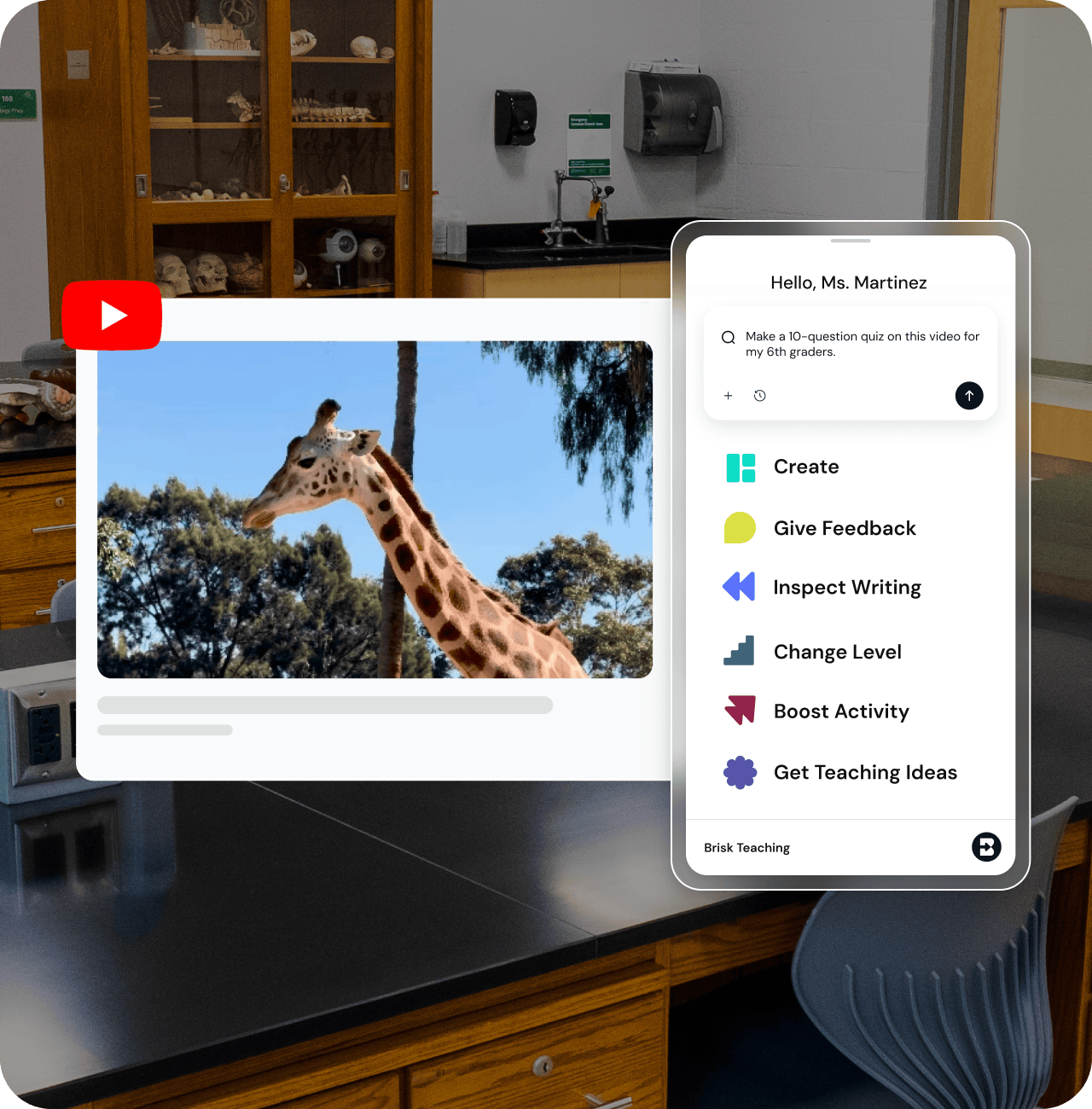
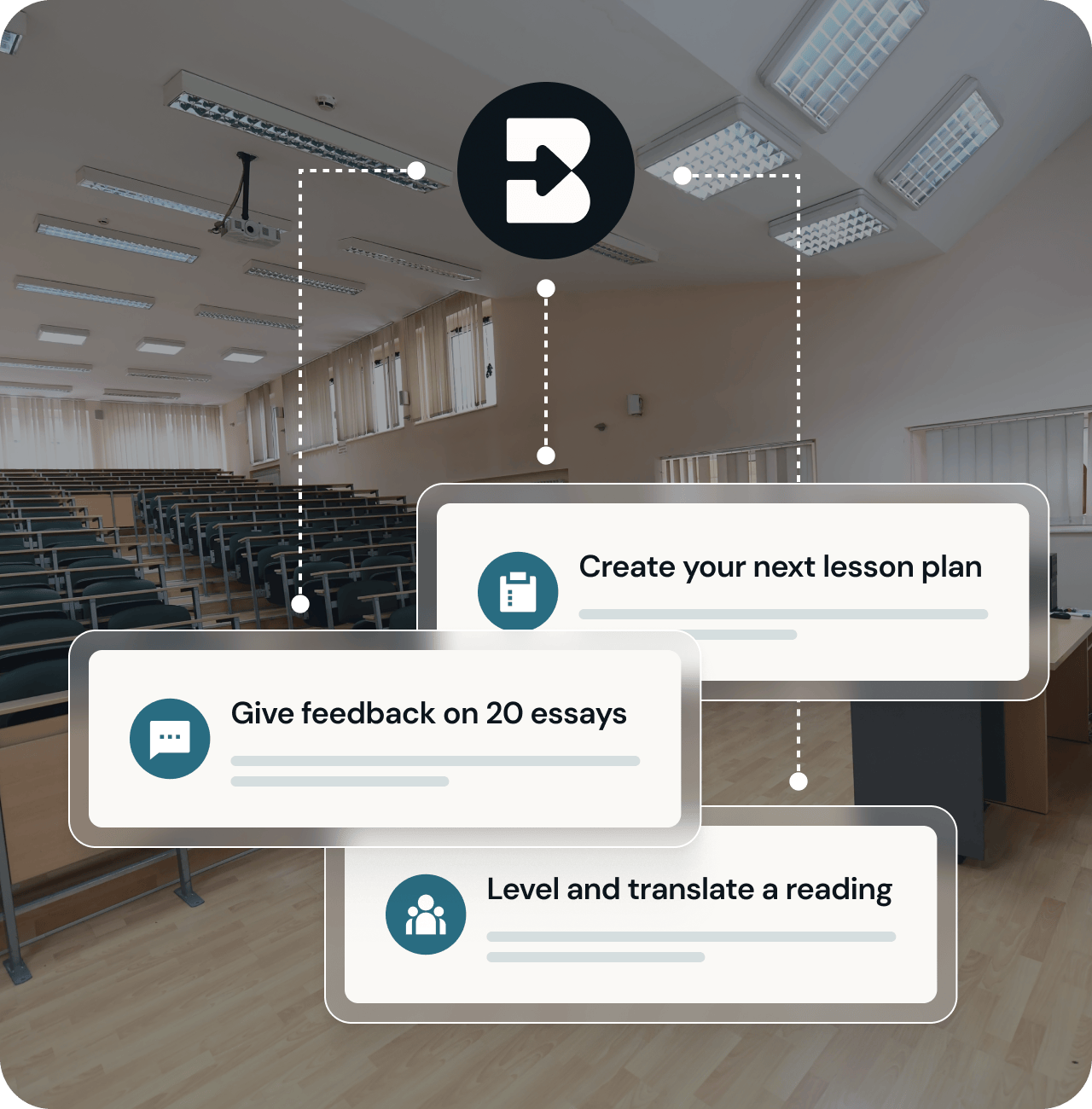
Completa tutta la tua lista di cose da fare
Brisk offre strumenti per ogni fase del processo di insegnamento. Vuoi creare una presentazione, una scheda di lavoro e un quiz partendo da un video di YouTube? C'è uno strumento Brisk che fa al caso tuo.
Devi tradurre e strutturare un compito? C'è uno strumento anche per questo.
Hai bisogno di aiuto per scrivere feedback personalizzati sui saggi degli studenti? Esatto: Brisk è qui per te.
Inizia subito senza complicazioni
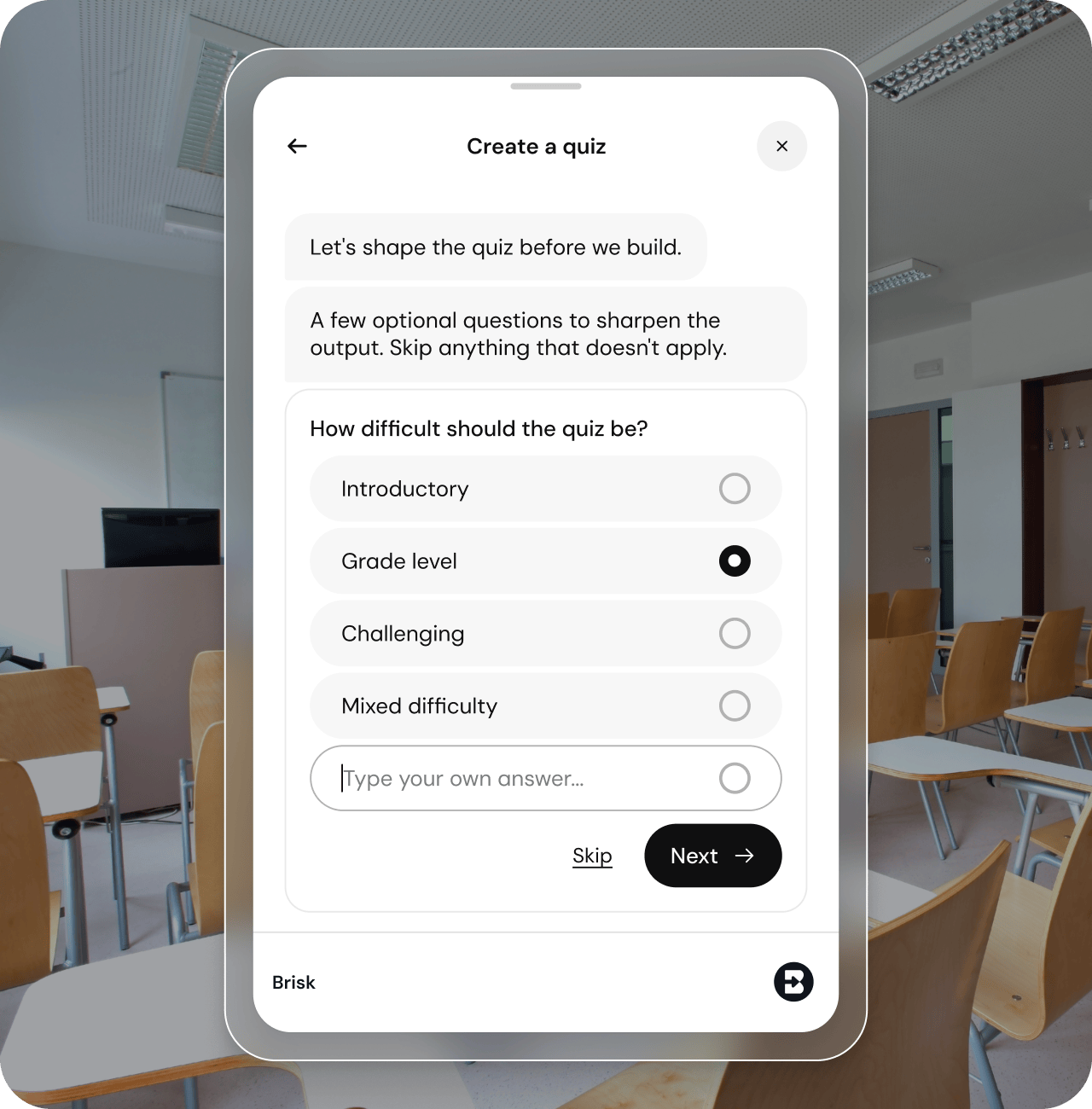
Non dovresti perdere ore a imparare a usare un nuovo strumento. Con l'estensione Brisk, la tua prossima risorsa è a portata di conversazione:

Digita ciò di cui hai bisogno nella barra di ricerca di Brisk.
Rispondi a qualche rapida domanda sulla tua classe e sui tuoi obiettivi.
Chatta con Brisk per apportare le modifiche finali.
Tutto qui. Una risorsa didattica di alta qualità nelle tue mani in pochi minuti, senza alcuna curva di apprendimento.
Mantieni il controllo dei tuoi dati
Brisk ha ottenuto una valutazione del 95% dal Common Sense Privacy Program, uno dei punteggi più alti tra gli strumenti di intelligenza artificiale dedicati all'istruzione.
Brisk è conforme a COPPA, FERPA, SOC 2 e ad altri standard chiave per la privacy nel settore K-12. Brisk non monitora mai la tua attività online al di fuori dell'utilizzo attivo dell'estensione e non utilizza mai i dati di insegnanti o studenti per addestrare modelli di intelligenza artificiale.

Primi passi con l'estensione Brisk
01
Aggiungi l'estensione Brisk
Installa Brisk dal Chrome Web Store o da Edge Add-ons. L'estensione funziona su qualsiasi browser basato su Chromium.
02
Aggiungila alla barra degli strumenti
Clicca sull'icona del puzzle nella barra degli strumenti del browser, trova Brisk e clicca sull'icona della puntina. Ora sarà sempre pronta all'uso.
03
Accedi con Google o Microsoft
Clicca sulla "B" di Brisk e accedi. Tutto ciò che creerai con Brisk verrà salvato direttamente su Google Drive o Microsoft OneDrive.


Come utilizzare l'estensione Brisk
Scopri in breve come utilizzare l'estensione Brisk per creare facilmente risorse didattiche.

Domande frequenti
A browser extension is a small piece of software that adds new features to your web browser - kind of like an app for Chrome or Edge.
Extensions let you customize how your browser works. For example, you might use one to block ads, check your grammar, or save articles to read later.
Once installed, an extension usually appears as a small icon in the top-right corner of your browser. You can click it to use its features without opening a new tab or website.
Brisk is a browser extension, which means it works directly inside the tools and websites you already use.
Brisk is both, each designed for a different kind of teaching workflow.
- The Brisk browser extension supports 1:1 teaching moments - giving instant support directly within tools like Google Docs, Slides, and across the web. Teachers can generate materials, differentiate, and give personalized feedback seamlessly inside their existing workflows. Install here.
- The Brisk web experience (accessible at app.briskteaching.com) powers 1-to-many workflows - helping teachers manage and scale classroom-wide tasks like bulk feedback and multi-student insights. It also includes Brisk Next, a central workspace where teachers can choose a subject or topic and instantly get everything they need - lesson materials, practice activities, assessments, and extension ideas - all personalized and organized in one place to make planning efficient and instruction more cohesive.
Yes, you’ll need to create an account to use Brisk. Go to app.briskteaching.com/get-started to create your free account today.
Yes, Brisk offers a free plan for individual educators that includes access to core tools including the quiz generator, lesson plan generator, rubric generator, presentation maker, and more. Premium and Intelligence plans are available for additional features and school/district-wide use.
How to install the Brisk extension in your Google Chrome browser:
- Go to the Brisk Teaching extension page in the Chrome Web Store, or go to the Brisk Teaching homepage and click the Add For Free button in the upper right.
- Click Add to Chrome.
- Brisk should now show up under your Extensions! Click on the extension to activate it on your webpage.
How to install the Brisk extension in your Microsoft Edge browser:
- Go to the Brisk Teaching add-on page in the Edge Add-ons Store, or go to the Brisk Teaching homepage and click the Add For Free button in the upper right. (Make sure you are using the Edge browser.)
- Click the Get button in the upper right. Brisk should now show up under your Extensions.
- From there, you can create Microsoft-compatible resources and save them to your OneDrive.
- After you've installed the Brisk Teaching Chrome extension or the Edge Add-on, click on the Extensions menu in your browser's toolbar.
- Click on the Pin icon next to the Brisk Teaching extension.
- A shortcut for the Brisk extension will be added to your toolbar.
Sì, puoi spostare o nascondere facilmente Brisk ogni volta che ne hai bisogno:
- Mostra o nascondi Brisk: Fai clic sull'icona Brisk nella barra degli strumenti di Chrome per far apparire o scomparire l'estensione Brisk Chrome dallo schermo.
- Muoviti velocemente: Una volta che Brisk è visibile, trascina semplicemente l'icona Brisk in qualsiasi punto dello schermo in cui ti è più comodo.
Dovrai contattare l'amministratore IT dell'istituto per inserire quanto segue nel tuo dominio scolastico:
*istruzione veloce
*briskteaching.com
Il tuo reparto IT potrebbe inoltre dover consentire l'ID dell'estensione Brisk Chrome: pcblbflgdkdfdjpjifeppkljdnaekohj.
Our Privacy Policy outlines exactly what information we collect and how we use it, but here’s the high-level overview:
Brisk Teaching aims to access only the minimum amount of data necessary to provide meaningful support for teaching and learning. We treat all student information as confidential and never use it for any purpose other than delivering the Brisk Teaching service to schools.
Brisk only accesses data in the specific moments when you choose to use a tool. For example:
- If you ask Brisk to adjust the reading level of a webpage, Brisk needs access to the text on that page.
- If you ask Brisk to give feedback on student work, it needs access to that piece of student work to generate feedback.
Brisk never accesses data outside of what you intentionally use the tool on.
For full details, please visit our Privacy Center, or reach out to privacy@briskteaching.com with any questions.