

Xây dựng tài nguyên từ mọi nơi
Tiện ích mở rộng Brisk hoạt động ở bất cứ nơi nào bạn đang làm việc — trong Google Docs hoặc Word, các video hướng dẫn quen thuộc, trang web yêu thích, tệp PDF và thậm chí cả các cuộc trò chuyện LLM của bạn.
Chọn bất kỳ tài liệu nguồn nào và biến nó thành tài liệu giảng dạy chuẩn hóa ngay lập tức — không cần chuyển đổi ứng dụng.
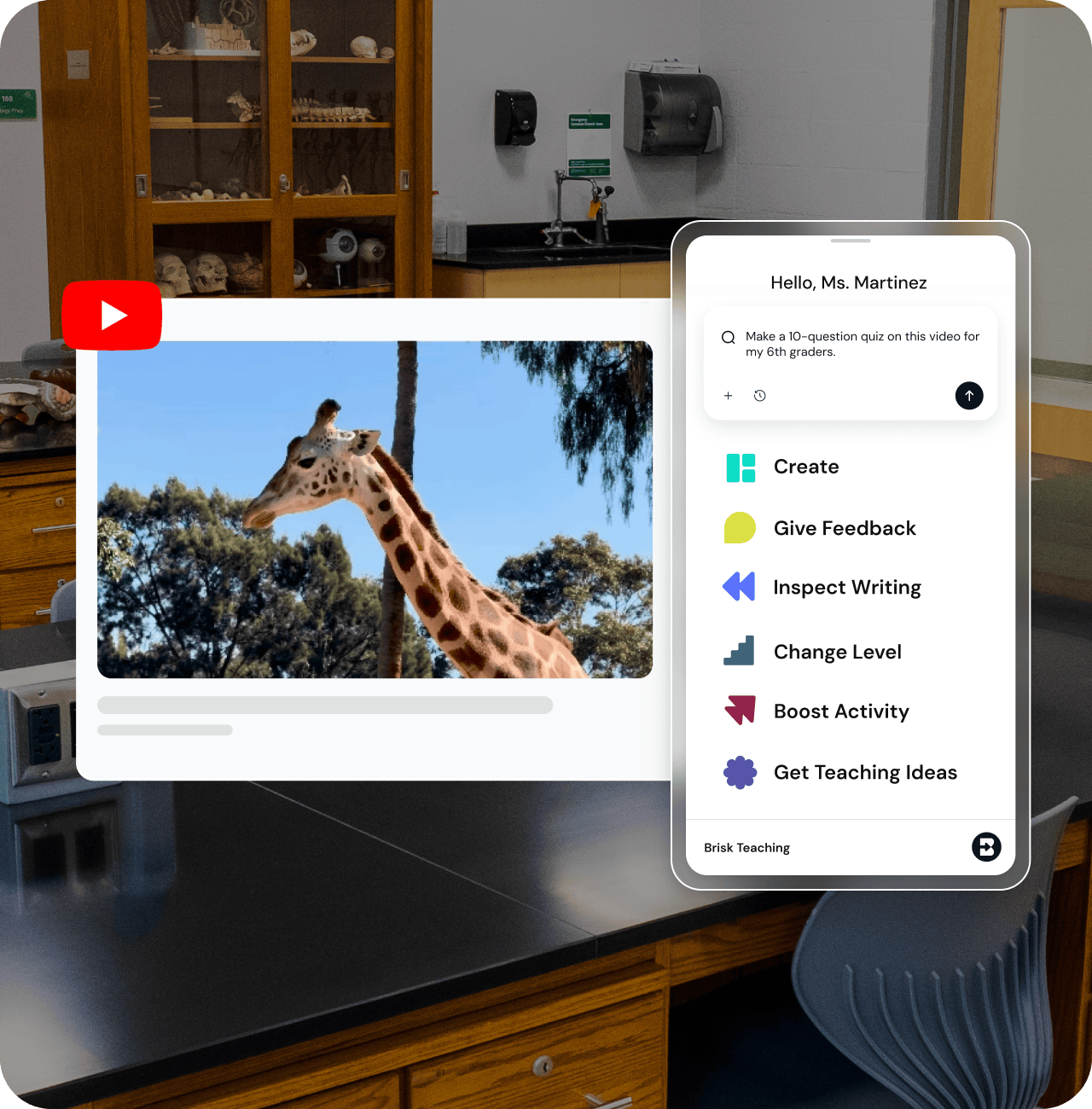
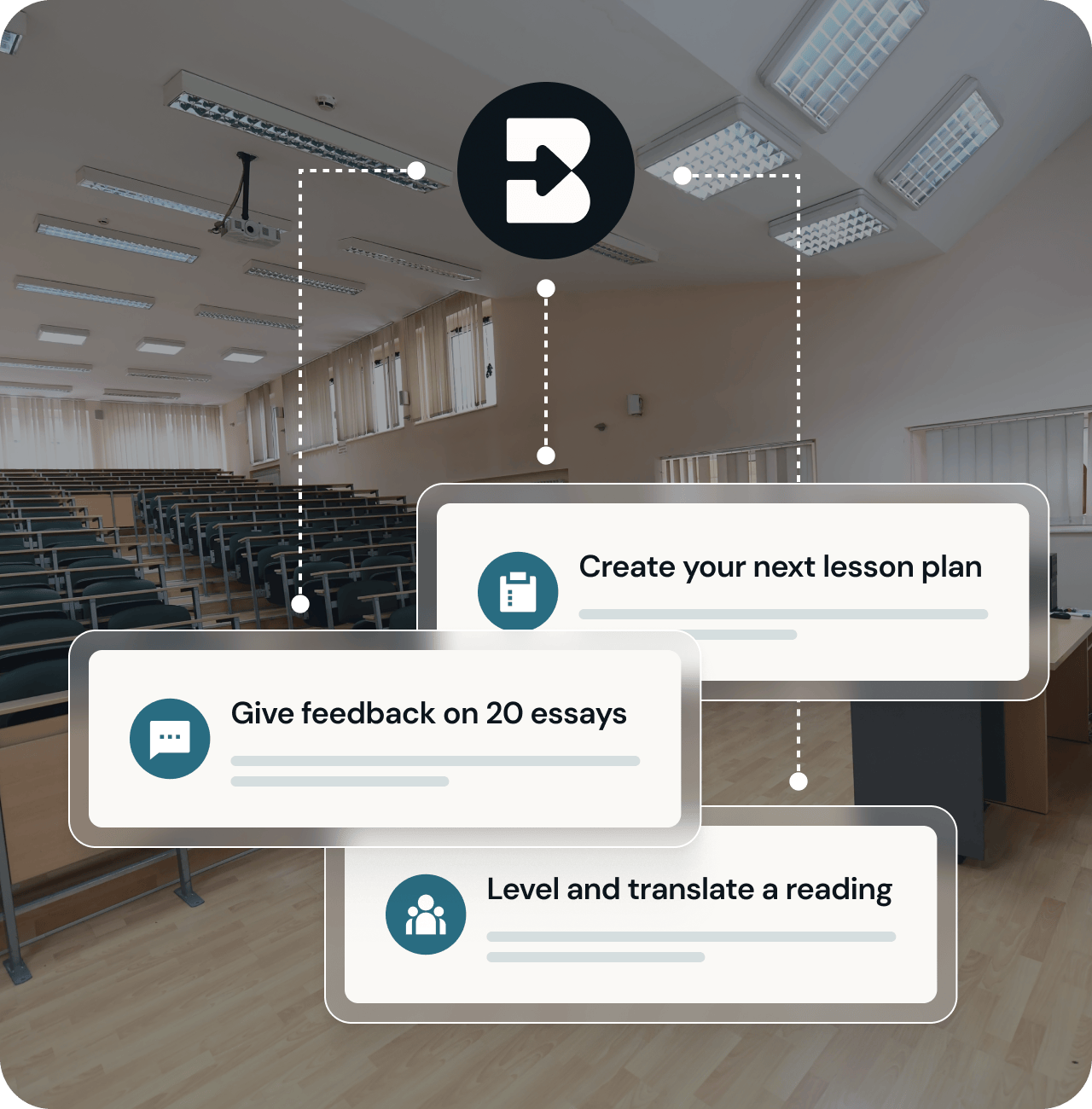
Hoàn thành toàn bộ danh sách việc cần làm của bạn
Brisk có các công cụ cho mọi giai đoạn của quá trình giảng dạy. Bạn muốn tạo bài thuyết trình, phiếu bài tập và bài kiểm tra dựa trên một video YouTube? Brisk đều có công cụ hỗ trợ bạn.
Cần dịch và xây dựng khung hỗ trợ cho bài tập? Chúng tôi cũng có công cụ cho việc đó.
Bạn cần hỗ trợ soạn phản hồi cá nhân hóa cho bài luận của học sinh? Đúng vậy: Brisk luôn sẵn sàng hỗ trợ bạn.
Bắt đầu sử dụng ngay lập tức
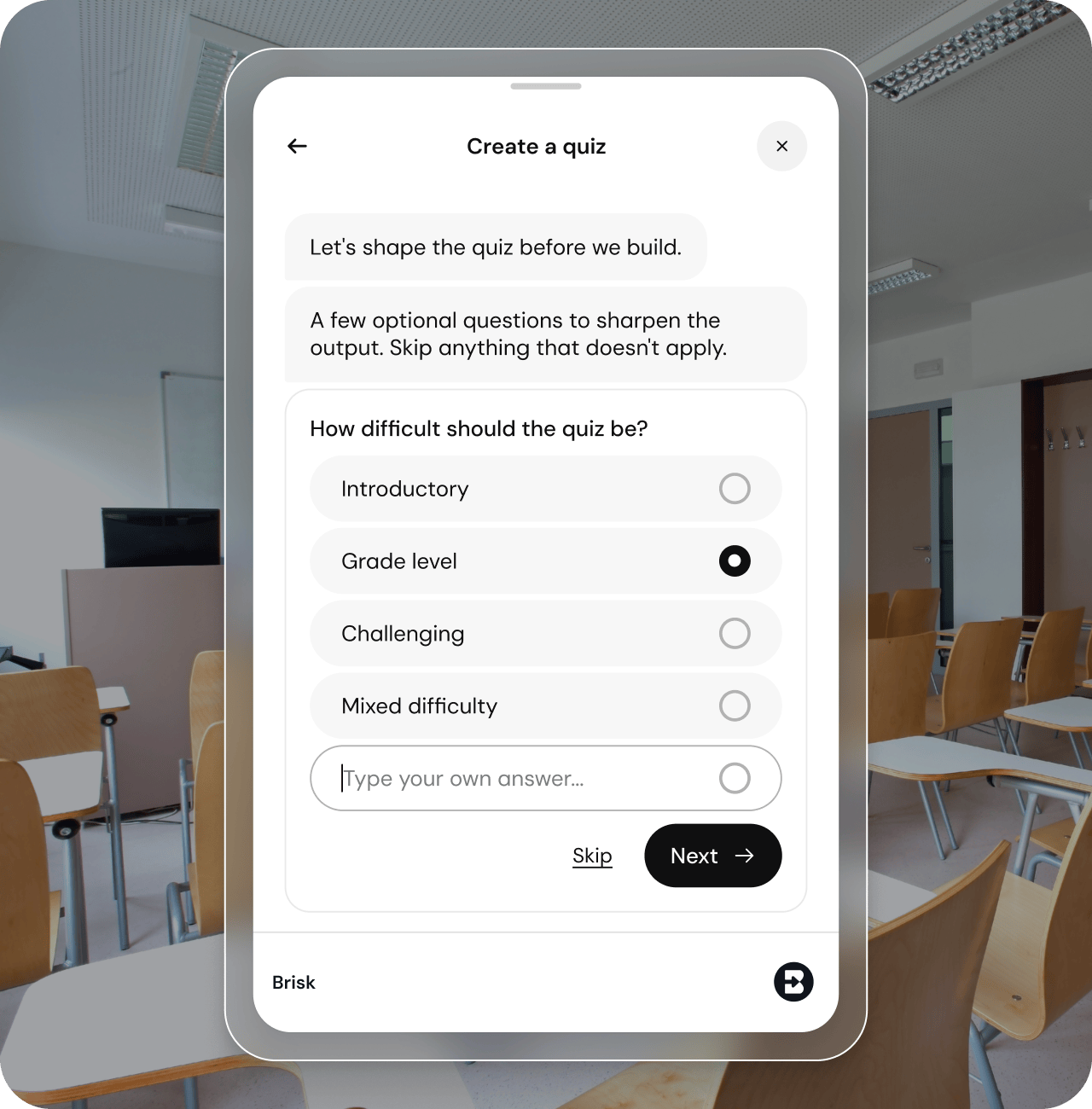
Bạn không cần phải mất hàng giờ để học cách sử dụng một công cụ mới. Với tiện ích mở rộng Brisk, tài nguyên tiếp theo bạn cần chỉ cách một cuộc trò chuyện:

Nhập nội dung bạn cần vào thanh tìm kiếm Brisk.
Trả lời một vài câu hỏi nhanh về lớp học và mục tiêu của bạn.
Trò chuyện qua lại với Brisk để thực hiện các điều chỉnh cuối cùng.
Vậy là xong. Bạn sẽ có ngay tài nguyên giảng dạy chất lượng cao trong tay chỉ trong vài phút — không cần mất thời gian tìm hiểu.
Kiểm soát dữ liệu của bạn
Brisk đã đạt được xếp hạng 95% từ Chương trình Quyền riêng tư Common Sense, một trong những xếp hạng cao nhất trong số các công cụ AI tập trung vào giáo dục.
Brisk tuân thủ các tiêu chuẩn COPPA, FERPA, SOC 2 và các tiêu chuẩn bảo mật quan trọng khác dành cho giáo dục phổ thông (K–12). Brisk không bao giờ theo dõi hoạt động trực tuyến của bạn ngoài thời điểm bạn đang chủ động sử dụng tiện ích mở rộng và không bao giờ sử dụng dữ liệu của giáo viên hoặc học sinh để huấn luyện các mô hình AI.

Bắt đầu với tiện ích Brisk
01
Thêm tiện ích Brisk
Cài đặt Brisk từ Chrome Web Store hoặc Edge Add-ons. Tiện ích này sẽ hoạt động trên mọi trình duyệt dựa trên Chromium.
02
Ghim vào thanh công cụ của bạn
Nhấp vào biểu tượng mảnh ghép trên thanh công cụ trình duyệt, tìm Brisk và nhấp vào biểu tượng ghim. Giờ đây, tiện ích sẽ luôn sẵn sàng để sử dụng.
03
Đăng nhập bằng Google hoặc Microsoft
Nhấp vào chữ “B” của Brisk và đăng nhập. Mọi nội dung bạn tạo bằng Brisk sẽ được lưu trực tiếp vào Google Drive hoặc Microsoft OneDrive của bạn.


Cách sử dụng Tiện ích Brisk
Xem nhanh cách sử dụng Tiện ích Brisk để tạo tài liệu giảng dạy một cách dễ dàng.

Các câu hỏi thường gặp
A browser extension is a small piece of software that adds new features to your web browser - kind of like an app for Chrome or Edge.
Extensions let you customize how your browser works. For example, you might use one to block ads, check your grammar, or save articles to read later.
Once installed, an extension usually appears as a small icon in the top-right corner of your browser. You can click it to use its features without opening a new tab or website.
Brisk is a browser extension, which means it works directly inside the tools and websites you already use.
Brisk is both, each designed for a different kind of teaching workflow.
- The Brisk browser extension supports 1:1 teaching moments - giving instant support directly within tools like Google Docs, Slides, and across the web. Teachers can generate materials, differentiate, and give personalized feedback seamlessly inside their existing workflows. Install here.
- The Brisk web experience (accessible at app.briskteaching.com) powers 1-to-many workflows - helping teachers manage and scale classroom-wide tasks like bulk feedback and multi-student insights. It also includes Brisk Next, a central workspace where teachers can choose a subject or topic and instantly get everything they need - lesson materials, practice activities, assessments, and extension ideas - all personalized and organized in one place to make planning efficient and instruction more cohesive.
Yes, you’ll need to create an account to use Brisk. Go to app.briskteaching.com/get-started to create your free account today.
Yes, Brisk offers a free plan for individual educators that includes access to core tools including the quiz generator, lesson plan generator, rubric generator, presentation maker, and more. Premium and Intelligence plans are available for additional features and school/district-wide use.
How to install the Brisk extension in your Google Chrome browser:
- Go to the Brisk Teaching extension page in the Chrome Web Store, or go to the Brisk Teaching homepage and click the Add For Free button in the upper right.
- Click Add to Chrome.
- Brisk should now show up under your Extensions! Click on the extension to activate it on your webpage.
How to install the Brisk extension in your Microsoft Edge browser:
- Go to the Brisk Teaching add-on page in the Edge Add-ons Store, or go to the Brisk Teaching homepage and click the Add For Free button in the upper right. (Make sure you are using the Edge browser.)
- Click the Get button in the upper right. Brisk should now show up under your Extensions.
- From there, you can create Microsoft-compatible resources and save them to your OneDrive.
- After you've installed the Brisk Teaching Chrome extension or the Edge Add-on, click on the Extensions menu in your browser's toolbar.
- Click on the Pin icon next to the Brisk Teaching extension.
- A shortcut for the Brisk extension will be added to your toolbar.
Có, bạn có thể dễ dàng di chuyển hoặc ẩn Brisk bất cứ khi nào bạn cần:
- Hiển thị hoặc ẩn Brisk: Nhấp vào biểu tượng Brisk trên thanh công cụ Chrome của bạn để làm cho tiện ích mở rộng Brisk Chrome bật lên hoặc biến mất khỏi màn hình của bạn.
- Di chuyển nhanh: Khi Brisk hiển thị, chỉ cần kéo biểu tượng Brisk đến bất kỳ vị trí nào trên màn hình của bạn nơi thuận tiện nhất cho bạn.
Bạn sẽ cần liên hệ với quản trị viên CNTT của trường để cho phép liệt kê những nội dung sau đây trên miền trường học của bạn:
* giáo dục nhanh
*briskteaching.com
Bộ phận CNTT của bạn cũng có thể cần cho phép ID tiện ích mở rộng Chrome Brisk: pcblbflgdkdfdjpjifeppkljdnaekohj.
Our Privacy Policy outlines exactly what information we collect and how we use it, but here’s the high-level overview:
Brisk Teaching aims to access only the minimum amount of data necessary to provide meaningful support for teaching and learning. We treat all student information as confidential and never use it for any purpose other than delivering the Brisk Teaching service to schools.
Brisk only accesses data in the specific moments when you choose to use a tool. For example:
- If you ask Brisk to adjust the reading level of a webpage, Brisk needs access to the text on that page.
- If you ask Brisk to give feedback on student work, it needs access to that piece of student work to generate feedback.
Brisk never accesses data outside of what you intentionally use the tool on.
For full details, please visit our Privacy Center, or reach out to privacy@briskteaching.com with any questions.