

BRISK x MICROSOFT
Trợ lý giảng dạy AI của bạn, hiện đã hoạt động với Microsoft, PowerPoint, OneDrive và Edge.




Điều chỉnh trình độ đọc hiểu với Brisk
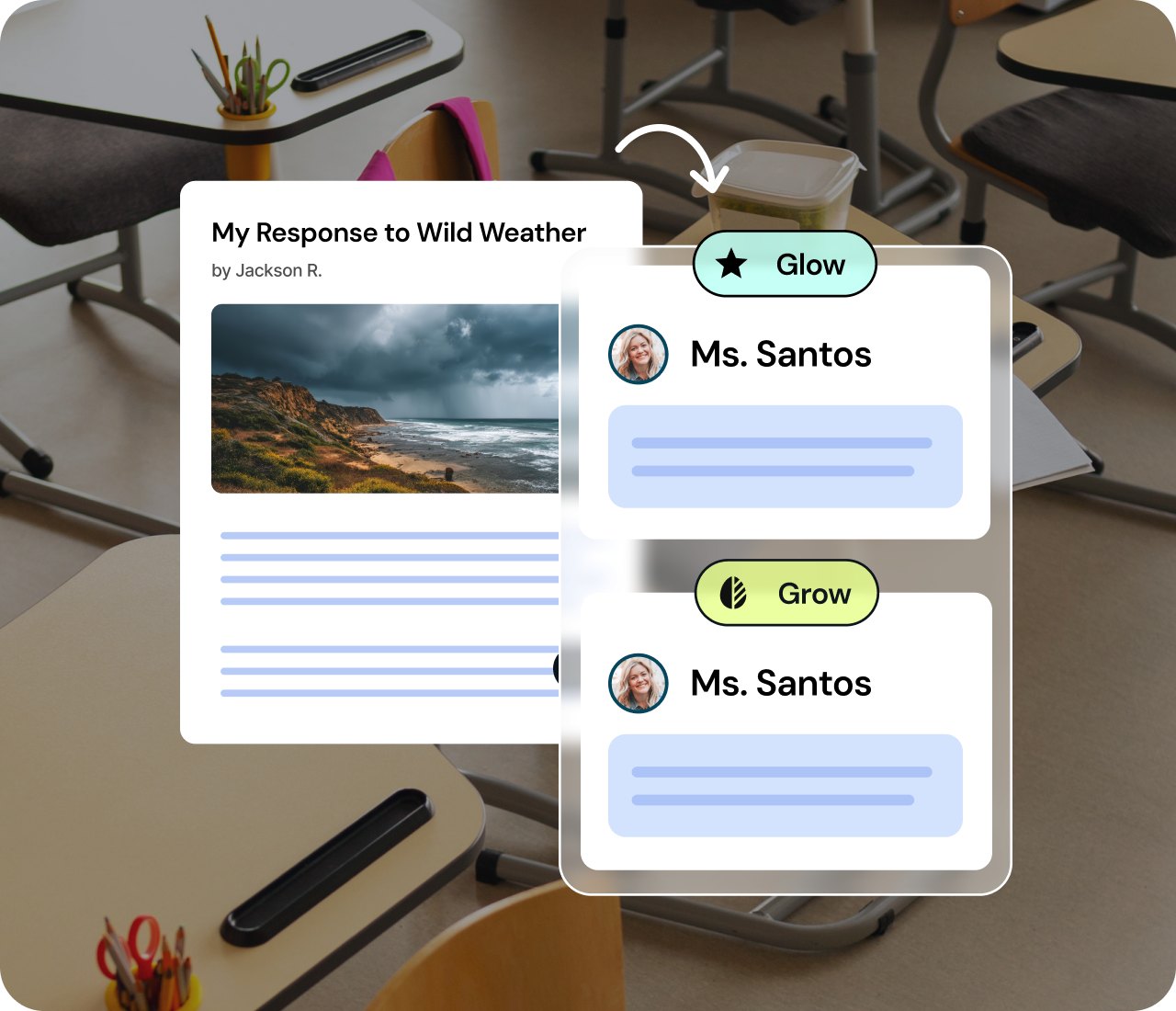
Instantly translate or adjust reading level in Word
Meet every learner where they are. Brisk can translate a Word document into more than 50+ languages or adjust the reading level with one click. Accessibility is now built in so every learner can engage.
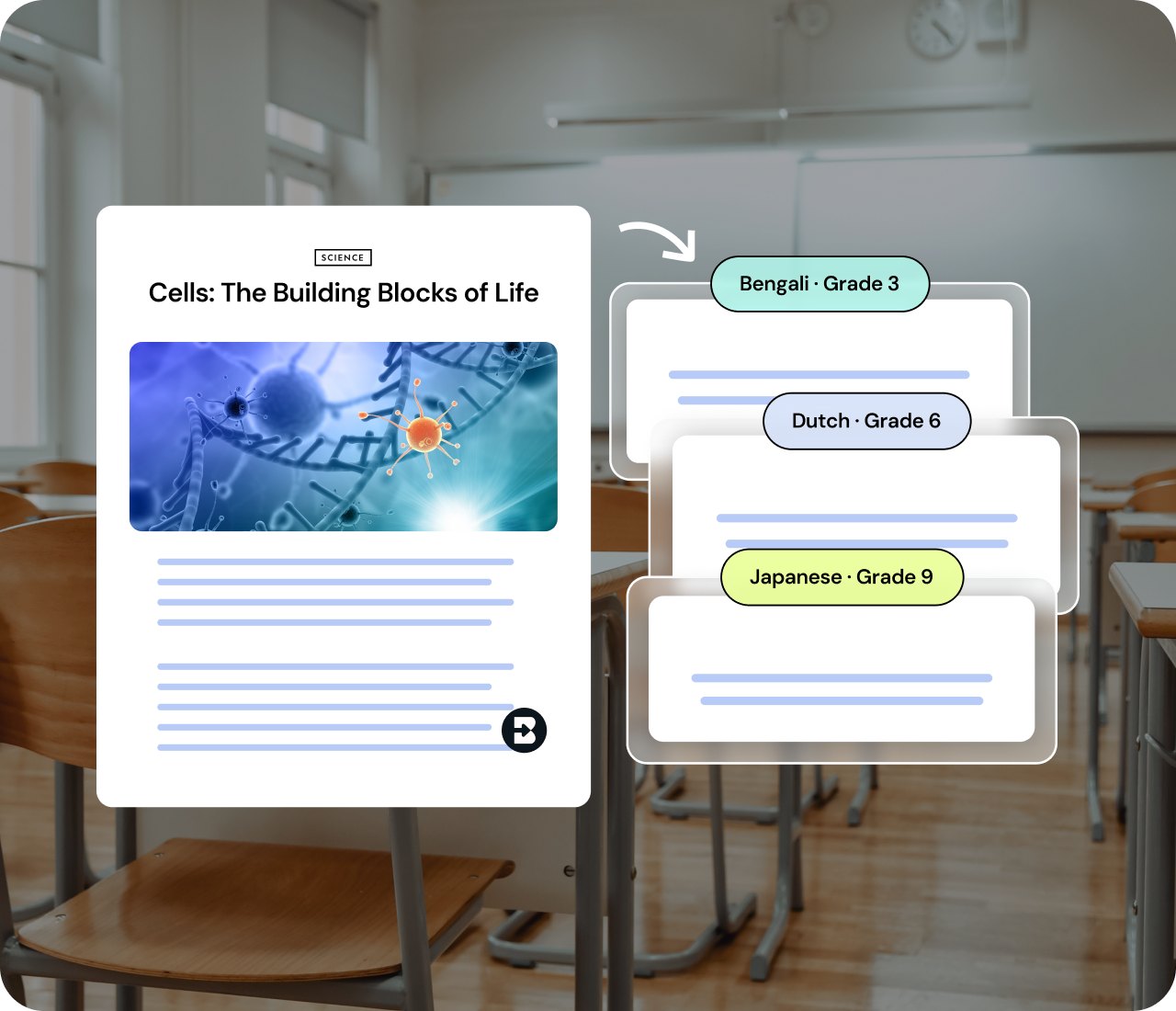


Differentiate using your own Microsoft content
Bring in any Microsoft Word Doc file, PDF, image, or online article. Brisk tailors prompts questions and extensions for varied skill levels so each learner gets the right challenge.
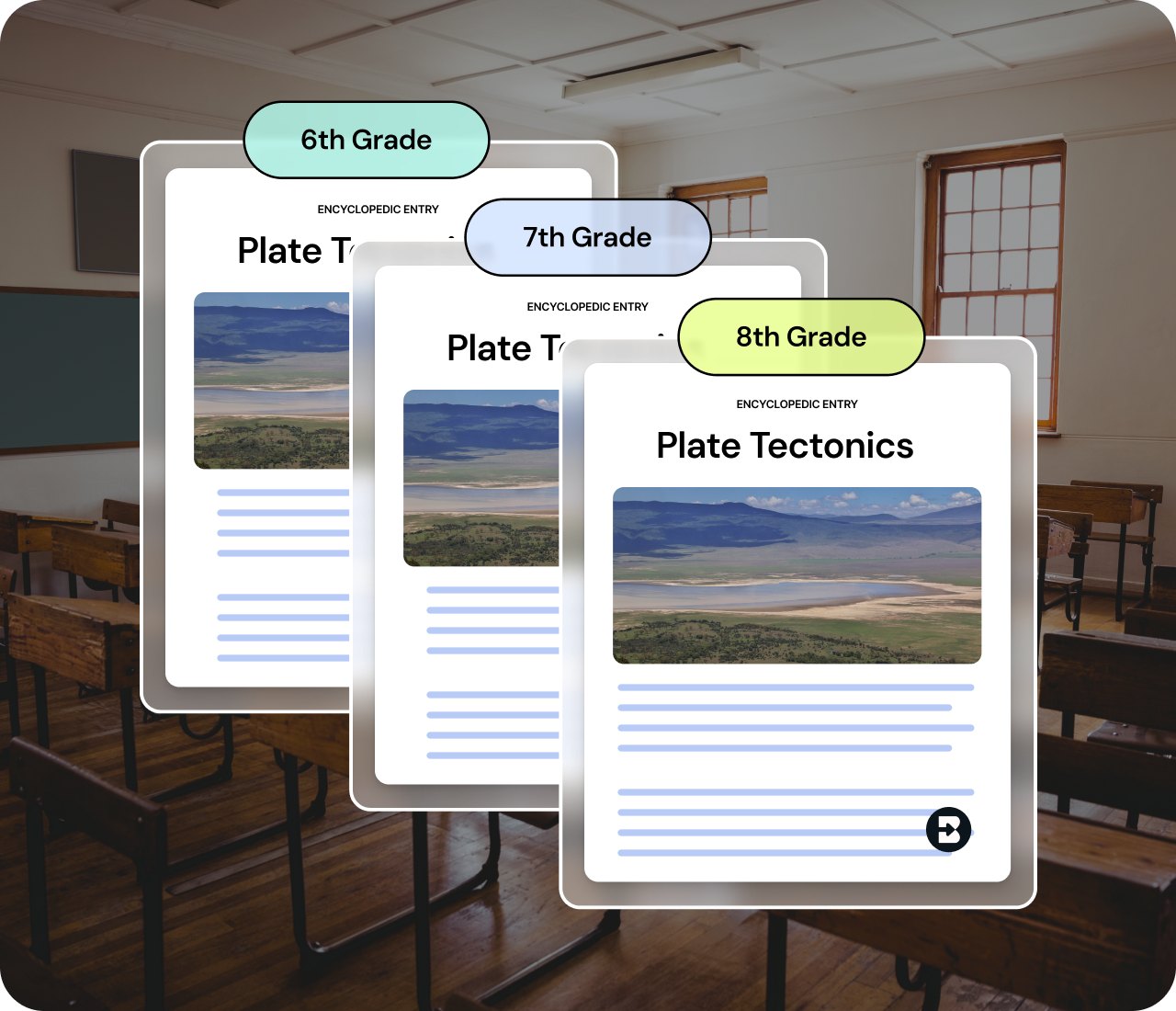
See a student's writing process, not just the final draft
Replay how an essay actually came together in Word — every add, cut, and revision, and how the student responded to your feedback along the way. Spot where they're stuck before the final draft tells you. Available upon request.
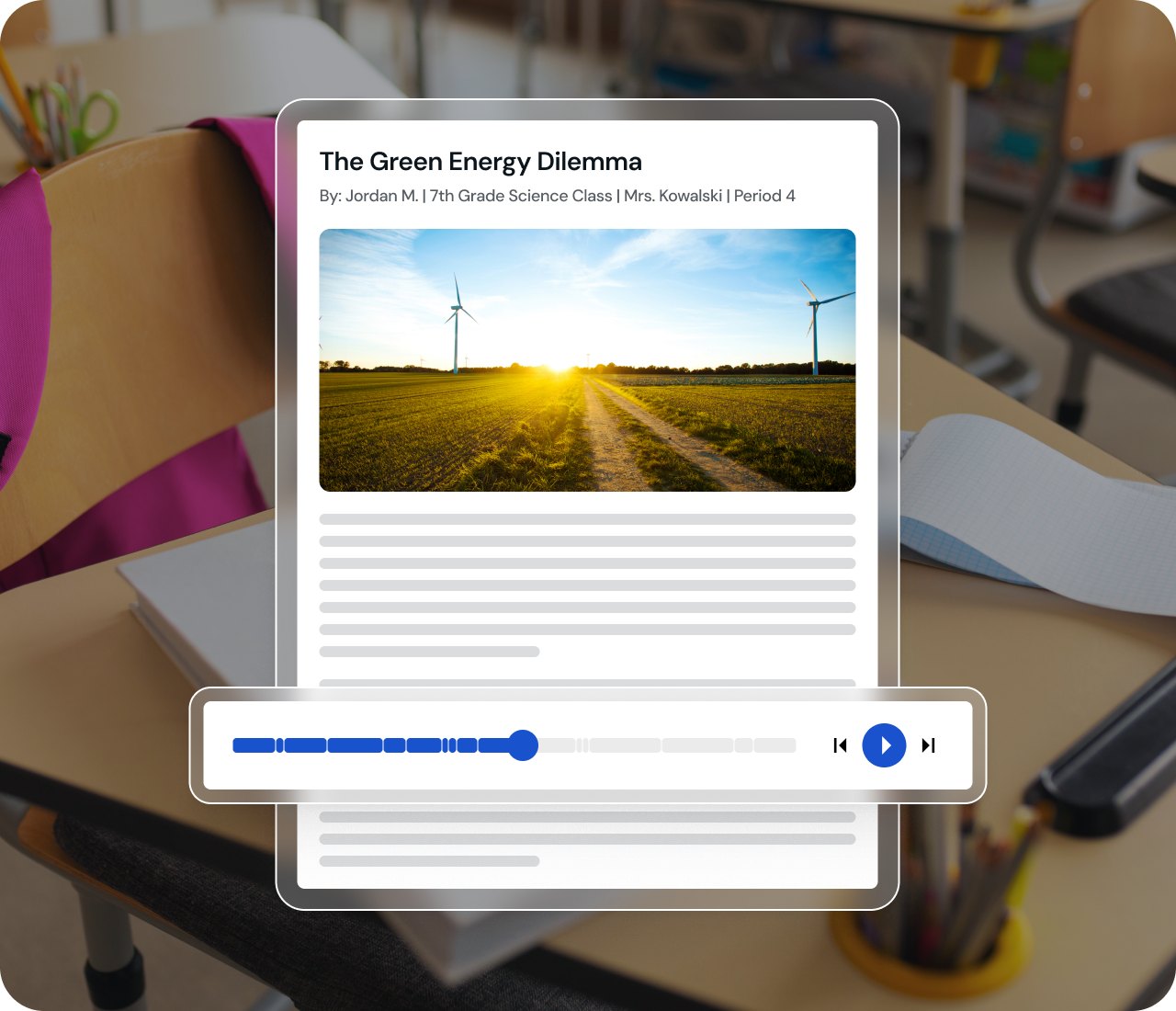
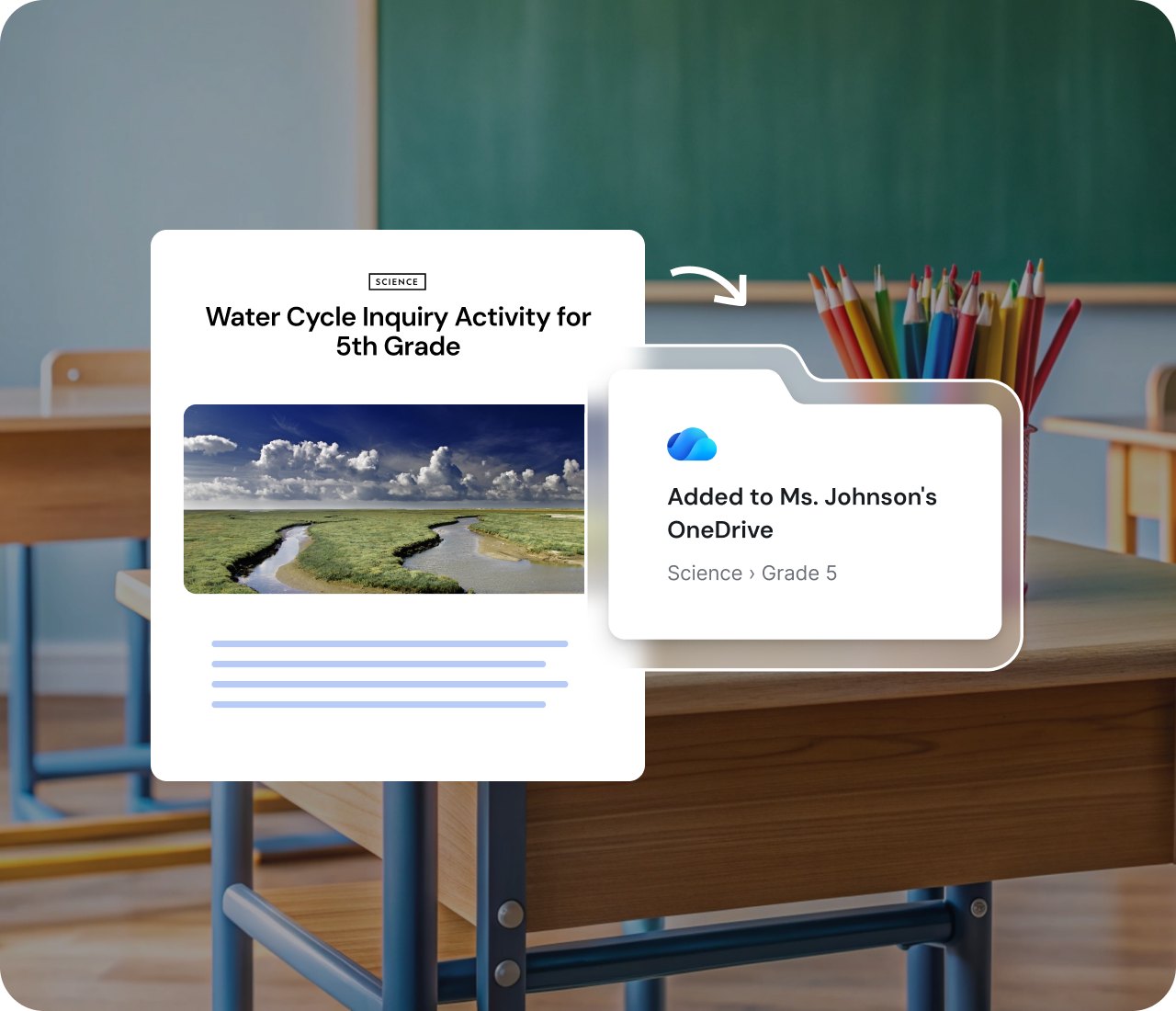
Save straight to OneDrive
When your resource is ready, send it directly to OneDrive. Your materials stay organized in the ecosystem you already know and trust.
Đây là cách để nâng cao kỹ năng và bắt đầu
.svg)
01
Đăng nhập bằng thông tin xác thực
Microsoft của bạn
.svg)
02
Mở
Tiện ích mở rộng Brisk
03
Chọn tệp bạn muốn tạo
.svg)
04
Brisk it
.svg)
05
Xuất tệp theo cách của bạn



Brisk Bites:
Tìm hiểu về Brisk với Microsoft
Tạo và lưu vào OneDrive

Tạo bản trình bày PowerPoint
Thay đổi cấp độ & Tạo tài liệu Word
Câu hỏi thường gặp về Brisk x Microsoft
Brisk có thể được cài đặt dưới dạng Tiện ích mở rộng trên Edge.
Có! Brisk có thể xuất tệp .docx và .pptx sang OneDrive. Brisk cũng có thể tạo nội dung từ các tệp trên OneDrive. Một ngoại lệ là các hoạt động Boosted không hỗ trợ tài liệu có thể chỉnh sửa (chỉ hỗ trợ tài liệu tĩnh).
Có! Giáo viên có thể đăng nhập bằng tài khoản Microsoft của mình.
Có - khi tạo tài nguyên với Brisk, bạn có thể nhấp vào 'Thêm vào OneDrive' để lưu và sắp xếp tệp của mình. Hoặc, bạn có thể xuất tệp sang OneDrive.