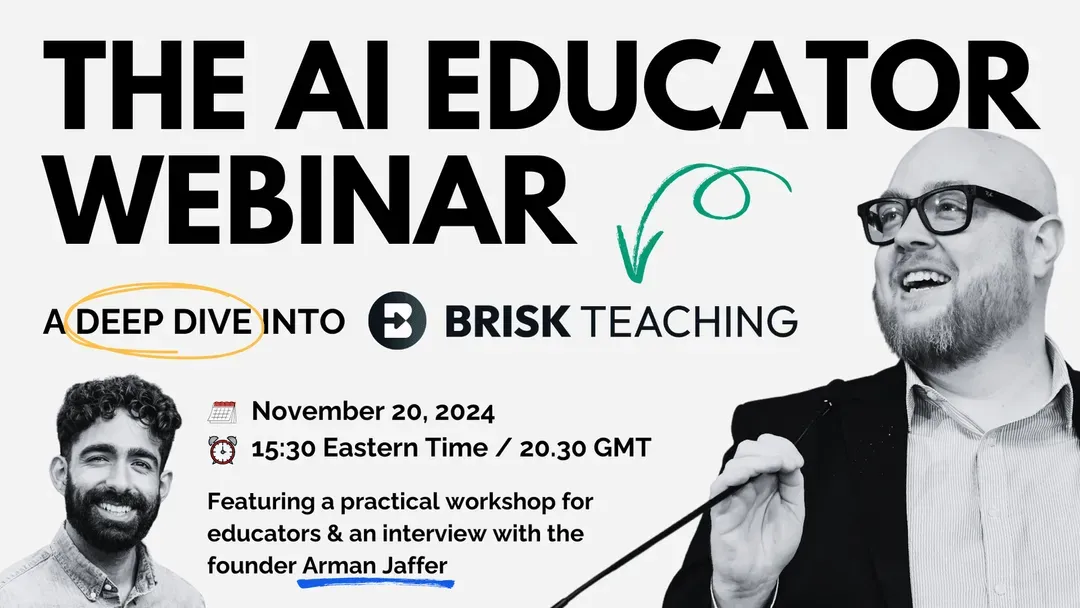
We joined Dan Fitzpatrick, The AI Educator, to discuss impactful ways you can Brisk today… like right now!
Dan’s conversation with Arman, our founder, included sharing the birth of Brisk, how you - our incredible community of teachers around the world - continue to drive the updates that make Brisk even better, and a collection of ways you can use Brisk to transform your time immediately!
You can catch the recording here and, true to the speedy spirit of Brisk, review the key points below.
The birth of Brisk Teaching
After serving educators and students through his work at the White House, the Chan Zuckerberg Initiative, and Google, Arman set off to create Brisk to meet teachers where you are, streamline your administrative tasks, and transform your time teaching with the support of an AI-powered assistant.
Foundational to Brisk is supporting your brilliance as the leader of your classroom community. As Dan demonstrated, everything you create with Brisk is yours to review, amend, and share on your terms with your students. We know teachers are irreplaceable and we are proud to support you in what you do best and help ensure you have more time to focus on motivating your students, fostering relationships, and tailoring your instruction.
Keeping you and your students safe
We take privacy and security very seriously at Brisk. We have earned the Data Privacy Certification and TrustEd Apps Seal from 1EdTech, and comply with the GDPR and all student data privacy laws, including FERPA and COPPA. You can learn more about our commitment to protecting your data in our Privacy Center (https://www.briskteaching.com/privacy-center).
Five ways to Brisk with The AI Educator
During the broadcast, Dan demonstrated a series of ways you can use Brisk right now. We’ve assembled these resources for you to explore firsthand.
If you haven’t already, installed the Brisk Chrome extension [https://chromewebstore.google.com/detail/brisk-teaching/pcblbflgdkdfdjpjifeppkljdnaekohj?pli=1]. And then…
Create a science quiz
- Navigate to https://www.usgs.gov/programs/earthquake-hazards/science-earthquakes
- Activate (by clicking on) the Brisk bubble
- Select “Create”
- Choose the “Quiz” tool and tailor to your learners
- Click “Next” and choose “New Form”
- Click “Brisk It”
- Review, edit as you see fit, and share with your students
Change the level of an article
- Navigate to https://www.nobelprize.org/prizes/physics/1921/einstein/biographical/
- Activate (by clicking on) the Brisk bubble
- Select “Change Level”
- Choose your student’s reading level and language
- Click “Brisk It”
- Amend as you see fit, including decreasing or increasing the length, translating, adding or minimizing detail, or whatever you prefer (via the prompt)
- Share with your students
Create a presentation from a video
- Navigate to https://youtu.be/tZE_fQFK8EY
- Activate (by clicking on) the Brisk bubble
- Select “Create”
- Choose the “Presentation” tool and tailor to your learners
- Click “Next” and pick a theme
- Click “Brisk It”
- Review, edit as you see fit, and share with your students
Give feedback on a piece of student writing
- Open a piece of your student’s work or check out this mock piece of student writing: https://docs.google.com/document/d/1hdArBLvpoP-AxrV6RDbnSbuQuPuKWPPoYoSC04K3CCM/copy
- Activate (by clicking on) the Brisk bubble
- Select “Give feedback”
- Choose one of the four feedback options and tailor the options to your students
- Click “Brisk It”
- Review and edit the feedback as you see fit and then share with your student
Boost an article into an engaging student activity
- Navigate to https://www.usgs.gov/programs/earthquake-hazards/science-earthquakes
- Active (by clicking on) the Brisk bubble
- Select “Boost Student Activity”
- Choose “Tutor”
- Customize to your students and click “Brisk It”
- Review and edit the learning objectives and role of Boost and click “Next: Preview”
- Tailor the experience to your students, preview, and then click “Share with Students”