
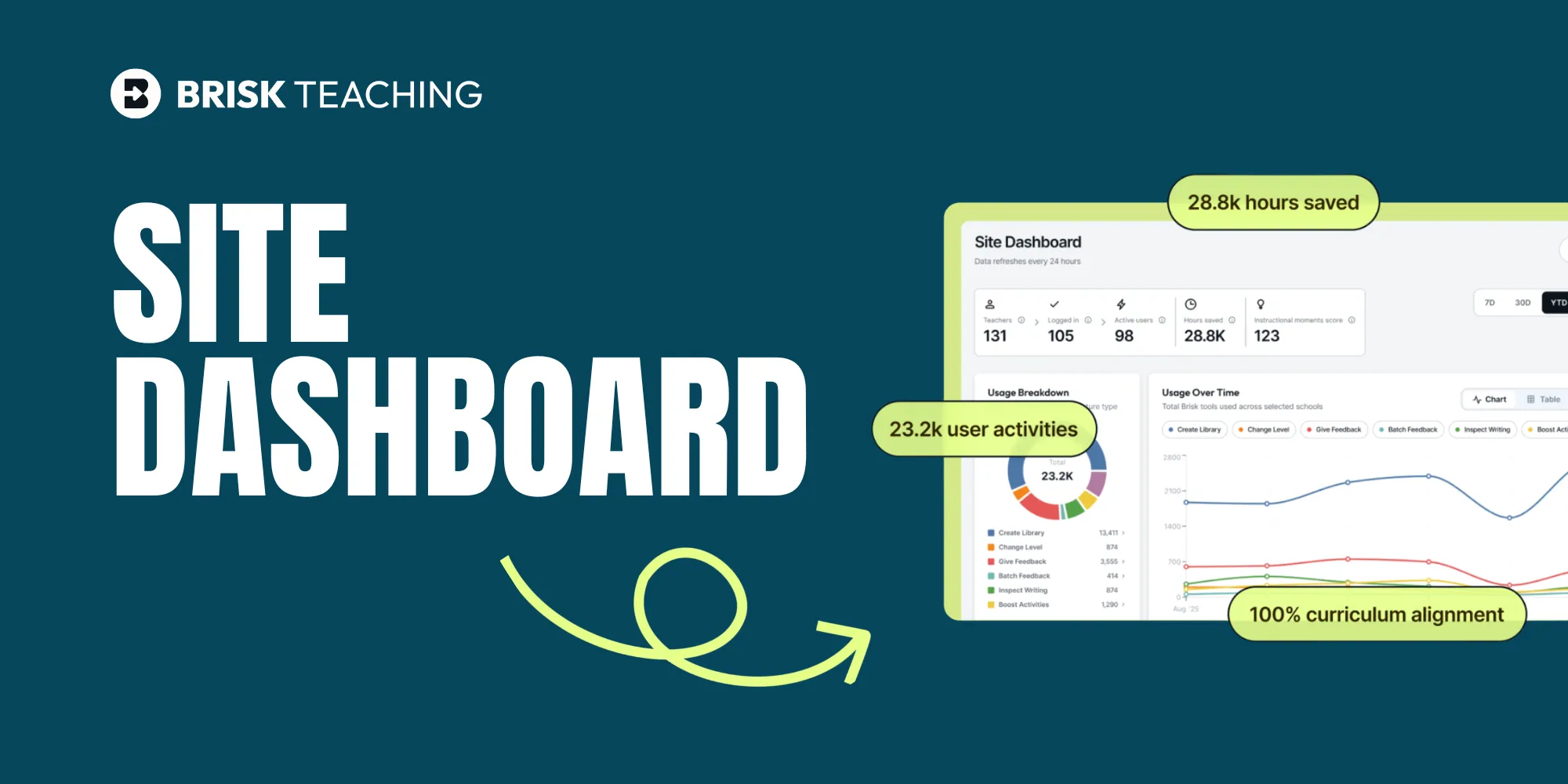
All Blog Posts

Your AI Investment Is Working. Now You Can Prove It.

District administrators have been asking the same questions since AI tools started showing up in classrooms: Is this actually being used? Is it providing a positive impact on instruction?

It’s a fair question. You’re managing budgets, answering to leadership, and need a clear view of what’s really happening across your schools. 

The updated Brisk Site Dashboard gives you that visibility, clearly and consistently.

One view. Every school. Real data.

The Site Dashboard gives school and district administrators a centralized view of teacher activity across their entire organization. Start at the district level, then filter by school or date range. Drill down to a single building when you need more detail.

Data refreshes nightly, giving you a view of what’s happening across your schools, so you’re always working with current data. 

At a glance, you can see how many teachers are on your plan and how many hours they've saved within any selected date range. Export usage data to CSV and bring it wherever you need it — a board presentation, a department review, a conversation with your curriculum team.

See exactly how Brisk is being used

The dashboard breaks usage down by feature: Create Library, Give Feedback, Batch Feedback, Change Level, Inspect Writing, Boost Activities, and Boost Feedback, to help you understand actual impact on student learning. A usage-over-time graph shows how adoption is trending weekly or monthly across your schools.
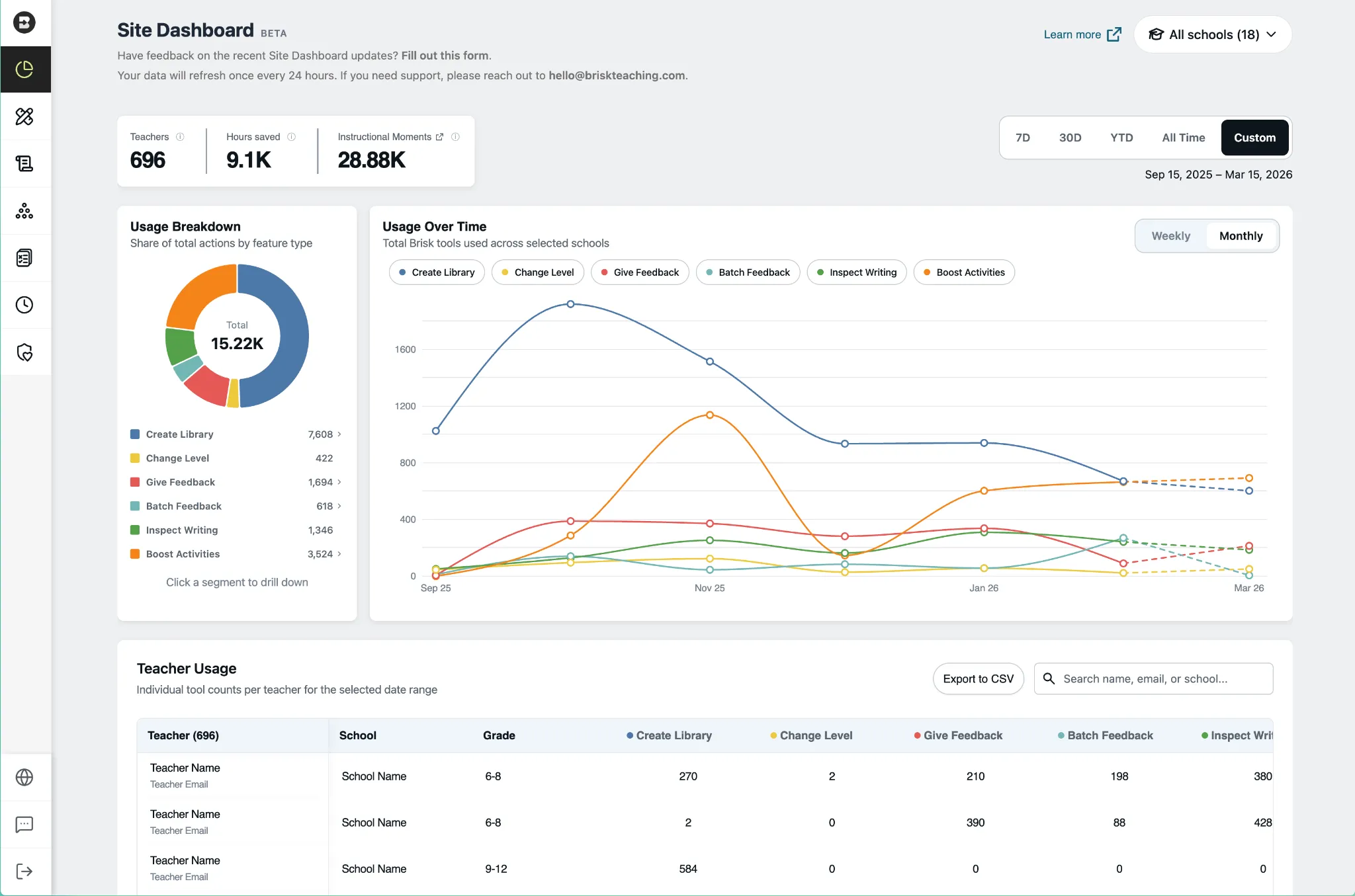
The Teacher Usage table shows tool-by-tool usage counts for every teacher on your roster. Search by name, email, or school.

Instructional Moments: Where AI Is driving student impact

Along the top of the dashboard, you’ll see a new metric called Instructional Moments — it identifies where AI is being used in ways that directly impact students, like feedback, differentiation, and student-facing activities.

A middle school math teacher creates an interactive activity where students practice fraction operations with real-time AI feedback, instead of a static worksheet. That’s an Instructional Moment. It doesn’t show up in a typical usage report, but it shows up in Brisk’s.

Instructional Moments give you a clear understanding of where high-impact practices are happening across your schools, not just how often tools are used.

See how each tool is being used

Clicking into any feature takes you deeper. Select Create Library and the view filters to show exactly how teachers are using it — presentations, quizzes, podcasts, lesson plans, and more — with Teachers, Hours Saved, and Instructional Moments updating at the top and a filtered teacher table below.

The same view is available for every Brisk feature. Whether you want to understand how teachers are using Give Feedback, Inspect Writing, or Boost Activities, the data is one click away. Watch the full dashboard walkthrough here.

Getting started

Already a Brisk customer?

The Site Dashboard is available to School & District plan users with rostered teachers. Access it from the Brisk extension (three dots menu → Site Dashboard) or from Brisk Web (profile icon → Admin Portal). 

Learn how to set up and navigate the Site Dashboard.

Questions about access? Reach out to rostering@briskteaching.com for support with roster integrations.

New to Brisk?

See the Site Dashboard in action and learn how Brisk gives district leaders visibility into AI use across every school, with data refreshed nightly and metrics built for the conversations you're already having with your board. Book a demo.

{{banner-cta}}

Latest Posts

Latest from the Brisk Blog

Explore practical articles for K–12 educators, from classroom-ready strategies to thoughtful guidance on using AI in ways that support real teaching.

Library shelves filled with books
August 14, 2026
Thought Leadership

Brisk in New White Paper on AI's Instructional Impact

Brisk founder Arman Jaffer shares his key takeaways from Whiteboard Advisors’ new white paper on measuring the instructional impact of AI in the classroom.

Library shelves filled with books
July 27, 2026
Tips for Teachers

60 Get-to-Know-You Questions for Students (For Every Grade)

60 get-to-know-you questions for students, organized by category and grade — plus, easy ways to use them for icebreakers, morning warm-ups, and first-day connection.

Library shelves filled with books
July 20, 2026
Back to School

30 Fun First-Day-of-School Activities [2026 Edition]

Kick off the year with 30 first day of school activities for elementary, middle, and high school — icebreakers, games, and get-to-know-you ideas, each with a Brisk prompt to get you started.

Library shelves filled with books
8
min
Brisk Updates

Brisk Admin Tool Manager: Customized Tools for Your School or District

Explore Brisk's Admin Tool Manager—simplify schoolwide workflows, support educators, and drive instructional impact with powerful AI tools.

Brisk now adapts to your district’s unique goals, curriculum, and teaching approach—because one-size-fits-all doesn’t work in education.

Meet the Admin Tool Manager, a new feature designed for School & District partners who want more control and customization across the platform. Whether you’re rolling out new initiatives or streamlining the tools your teachers use daily, the Admin Tool Manager puts you in the driver’s seat.

With the Admin Tool Manager, you can:

  • Create custom tools using your own prompts – aligned to your district’s instructional goals.
  • Publish tools directly to every teachers’ Brisk Library – so they’re instantly accessible.
  • Hide Brisk’s default tools that aren’t relevant to your context, keeping your team focused on what matters most.

It’s a smarter, more strategic way to use Brisk, ensuring that teachers see the tools that support instructional goals.

How to Use the Admin Tool Manager

Getting started is quick:

Step 1: Click Brisk in the bottom right corner of your browser.

Step 2: Select Create.


Step 3: At the top of your Library, click manage tools.

Step 4: Customize tools for your school or district’s needs. You can create new tools specifically for your staff.

Tip: When creating a new tool, all you need to do is select the name, the purpose of the tool, and provide a prompt. Before publishing it for all staff, you can try it and fine-tune if needed.

Step 5: In addition to creating new tools, you can also edit, publish, or delete any tools for a customized experience.

If you return to the Brisk Library, you’ll see any published, school-specific tools available for all staff. Any saved but unpublished tools will only show as a preview on the admin side.

When instructional tools align with your goals, everyone wins. The Admin Tool Manager gives you the flexibility to create consistency, streamline workflows, and keep everything aligned to your goals.

Ready to explore what’s possible? Start customizing in Brisk today!

`

READY TO BRING BRISK TO YOUR DISTRICT?

See how 20,000+ districts adopted AI with full compliance and teacher buy-in from day one.