
Teacher Favorite AI Tools
.webp)
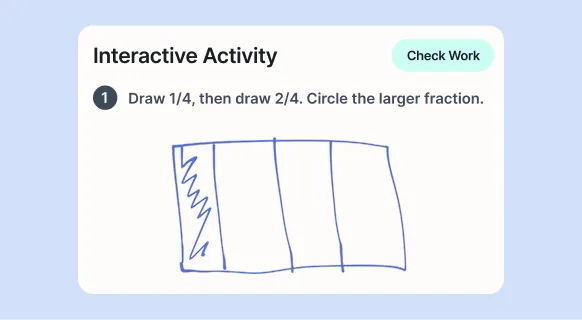
Install the Extension
Add Brisk to your browser
Brisk is a Chrome or Edge extension. Once installed, the Brisk B appears on the side of your screen — ready whenever you are.
Add the extension
Install Brisk from the Chrome Web Store or Edge Add-ons. Works in any Chromium-based browser.
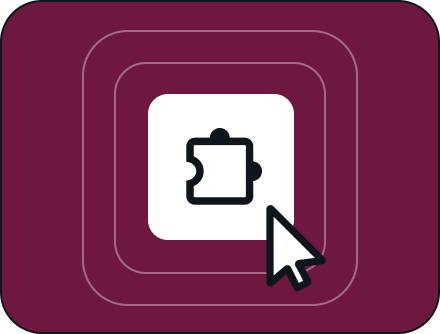
Pin it to your toolbar
Click the puzzle piece icon in your browser toolbar, find Brisk, and hit the pin icon. That way it's always visible — no hunting for it.
Sign in with Google or Microsoft
Click the Brisk B and sign in. Everything you create saves straight to your Drive or OneDrive — it's yours from day one.
Blocked on your school network? Share this IT guide with your tech team — they can whitelist Brisk in about five minutes.
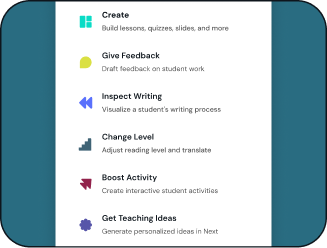
Open it wherever you are
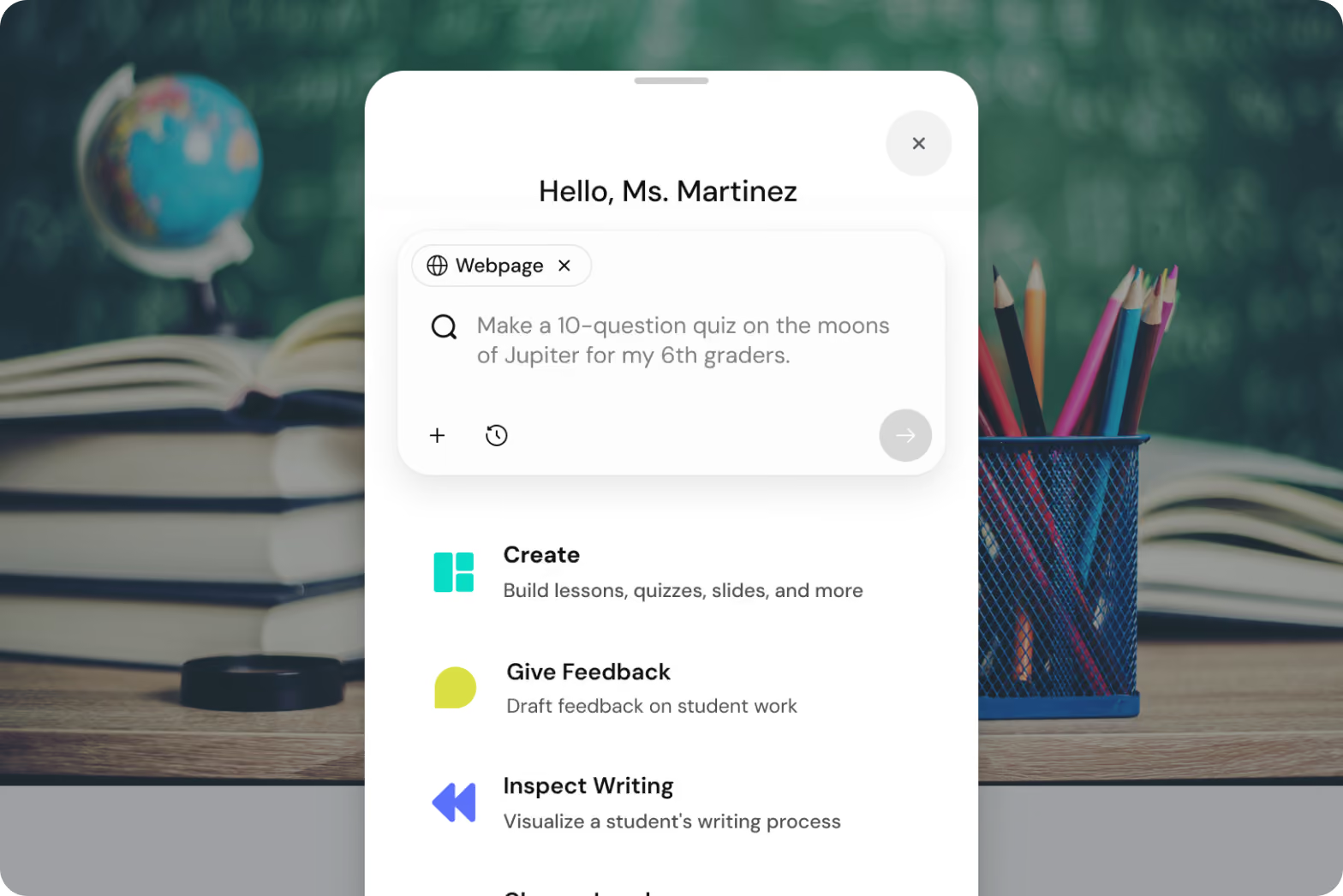
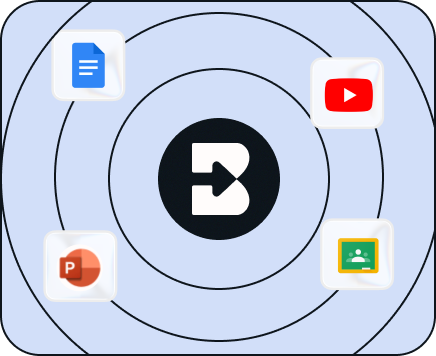
Brisk will automatically appear in the bottom right corner of popular platforms like Google Docs, Word Docs, Google Slides, Microsoft Powerpoint, web articles, YouTube, PDFs, and more. Click the Brisk icon to start creating wherever you are.
Bookmark
Bookmark your home base
Extensions get pinned in your browser bar and webpages get bookmarked. Now that you've pinned your extension, time to add a bookmark!
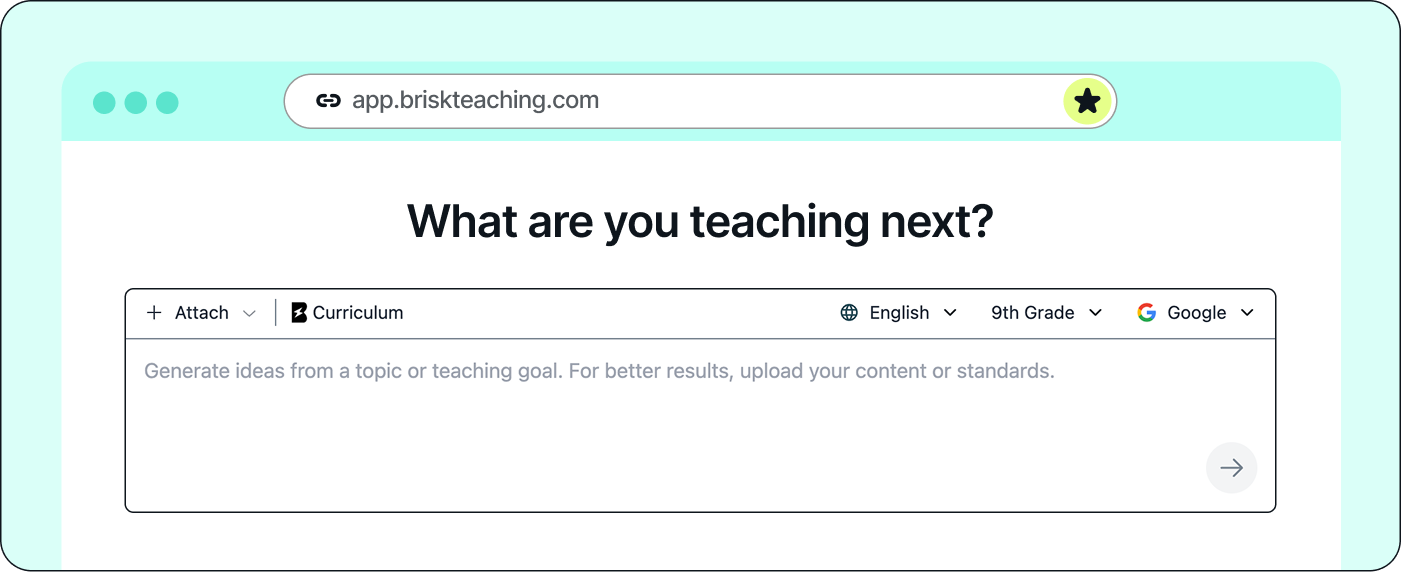
The extension handles in-the-moment work. app.briskteaching.com is where you plan, review, and build at scale. Bookmark it now so you can get back fast.
Try It
Pick your first move
Less than two minutes. Something you can actually use tomorrow. Pick what fits your week.
Turn a resource into something teachable
Open any YouTube video, article, or PDF. Click the Brisk B. Hit Create. Quiz, slides, discussion questions — done in seconds.
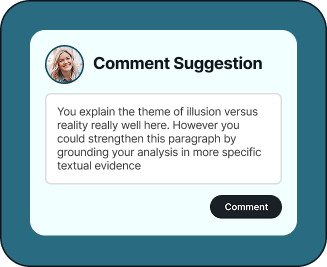
Give feedback without burning out
Open a Google Doc with student writing. Click the Brisk B. Personalized comments appear in your name, ready to review before posting.
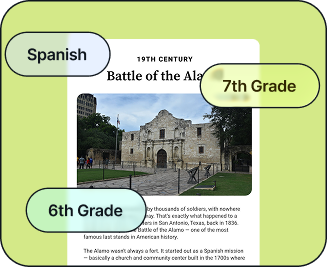
Level a reading for your whole class
Open any article. Click the Brisk B. Hit Change Level. Get up to three reading levels in the time it takes to make coffee.
Professional Development to Go Deeper
There's a lot more in here
Over 1,000 ways to support teaching and learning. Once you've jumped in, Brisk becomes part of your daily routine.
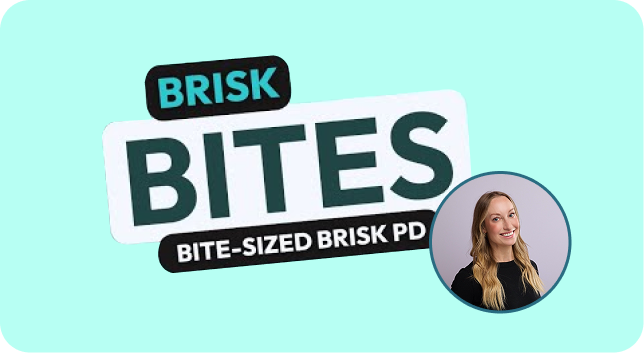
Watch tutorials at your own pace
Short videos for every Brisk feature, in the order that makes sense.
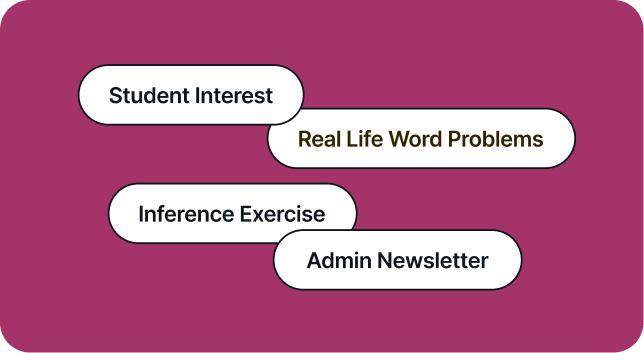
Explore the prompt library
Hundreds of teacher-tested prompts organized by subject, grade, and use case.
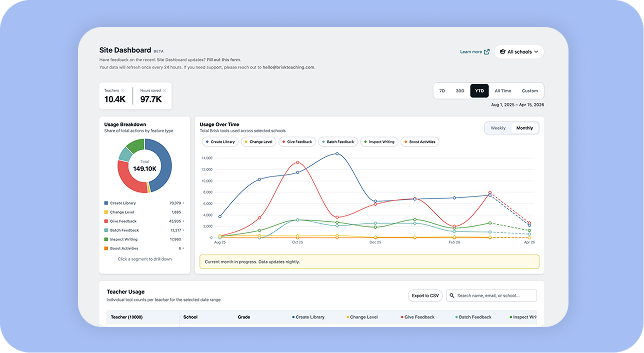
Get your school started
Admin controls, usage insights, and PD at scale — for your principal or district.

Join a walkthrough
45 minutes, hands on, with a real Brisk educator. Leave with something ready to use.

Join the community
A space where Brisk educators share what's working in their classrooms.
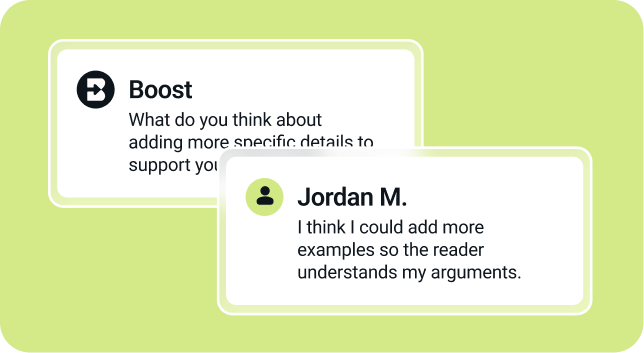
Try Brisk Boost for students
AI-powered student experiences — built by you, grounded in the content you assigned.
Getting started faqs
Brisk is an AI platform that brings AI into the tools teachers already use, helping them build lessons, personalize learning for every student, and determine what to teach next. Brisk works with Google Docs, Google Slides, Microsoft Word Docs, Microsoft Powerpoint, articles, YouTube videos, PDFs, and more. With just a few clicks, Brisk quickly completes tasks that usually take hours, like generating student feedback, differentiating resources, creating instructional materials, and assessing student writing. Trusted by over 2 million teachers, Brisk is the leading AI-powered tool designed specifically for educators, helping them get more done in less time.
To ensure you fully experience Brisk's capabilities, new sign-ups automatically receive 14 days of free access to Brisk Premium. The Brisk Premium subscription is available to schools and districts and offers 10+ additional premium tools, including targeted feedback, student interventions, and alignment with educational standards.
After 14 days of Brisk Premium, you'll automatically transition to the Free Forever Plan, continuing your access to over 20 essential Brisk tools at no cost. Learn more about our plans here.
Yes — Brisk works in Edge and inside Microsoft tools including Word Online and Teams. Install it from the Edge Add-ons store. Everything saves straight to your OneDrive.
Follow these steps to ensure Brisk is always ready to help:
- Pin Brisk to Your Chrome or Edge Toolbar: After installing Brisk, pin it to your browser toolbar for easy access. Watch this video to see how to pin Brisk.
- Brisk Automatically Pops Up: Once pinned, Brisk will automatically appear in the bottom right corner of popular platforms like Google Docs, Word Docs, Google Slides, Microsoft Powerpint, web articles, YouTube, PDFs, and more.
- Manually Trigger Brisk: If Brisk doesn’t appear automatically on the page, you can manually bring it up by clicking the Brisk icon in your Chrome toolbar.
- Still Not Showing Up? Brisk may need help identifying what to react to. Highlight text on the page, and Brisk should appear, ready to assist.
Yes, you can easily move or hide Brisk whenever you need:
- Show or Hide Brisk: Click the Brisk icon in your toolbar to make the Brisk extension either pop up or disappear from your screen.
- Move Brisk: Once Brisk is visible, simply drag the Brisk icon to any spot on your screen where it’s most convenient for you.
This message is automatically generated by Google and appears when installing any Chrome extension. It is not specific to Brisk. Brisk only accesses data, including the websites you visit, when you specifically instruct it to. For example, Brisk will only interact with a site if you click the extension to create a resource or provide feedback. It does not access data when it is simply open in your browser, but isn't being used.
You will need to contact your school IT administrator to allow-list the following on your school domain:
- brisk.education
- briskteaching.com
Your IT department may also need to allow the Brisk Chrome Extension ID: pcblbflgdkdfdjpjifeppkljdnaekohj.
Brisk integrates seamlessly with your daily tools like Google Docs, Word Docs, Google Slides, Microsoft Powerpoint, Google Forms, web articles, PDFs, webpages, and YouTube, saving you hours of work across these platforms.
Brisk also integrates with Google Assignments in LMS platforms like Schoology, Canvas, Blackboard, and Google Classroom. It can generate feedback on assignments submitted through Canvas (using Speedgrader and Google Docs) and Turnitin.
We continue to work on additional integrations. If you have a specific integration request, please reach out to us at hello@briskteaching.com.
Ready to try it?
Install the extension and have something ready for your class tomorrow.


