
...Total game changer, right? Well, it's a reality! You can now upload photos to Brisk, and Brisk will turn them into whatever you need. Whether it’s handwritten work, a textbook page, or a classroom diagram, Brisk recognizes and reads your image, then makes it instantly usable.
How to upload images to Brisk:
- Open the Brisk extension on your computer.
- Click the paperclip icon on the top right. 📎
- Select "Image" when asked for the input source.
- Choose the image file you'd like to upload.
- Use the Brisk menu as you normally would to Create, Give Feedback, Change Level, or Boost Student Activity!
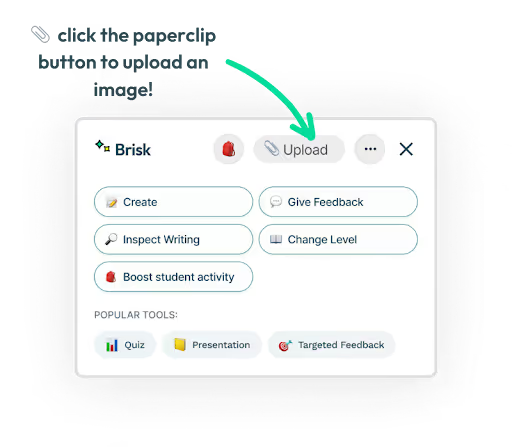
💡 Pro Tip: Drag your image directly onto the Brisk extension to skip right to step 5!
Ideas for using images with Brisk
Want some inspiration for how to use images with Brisk? Here are some ideas to get you started.
Generate feedback on photos of students' work.
No more squinting at tiny handwriting or struggling to type out feedback. Upload a photo of a student’s handwritten work, and Brisk will analyze it, offering suggestions, corrections, or even full feedback in seconds. You can refine the comments and return them with just a few clicks – saving time while giving students valuable insights.
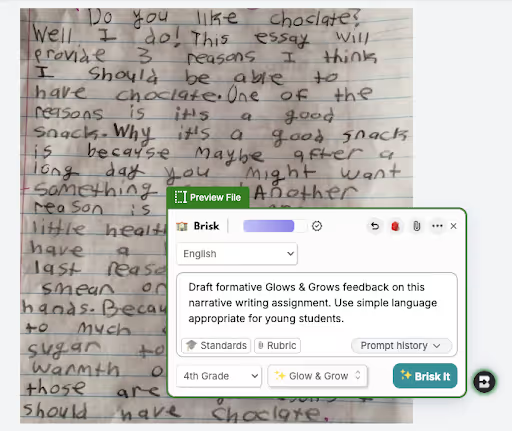
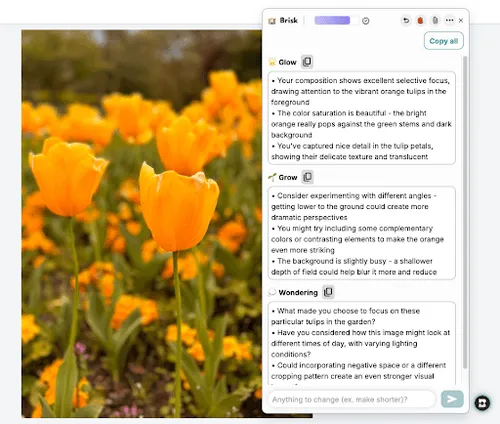
💡 Pro Tip: This works for more than handwritten essays! Try generating feedback on a student’s art or photography assignment, like the one pictured below.
Use Boost to encourage deeper thinking about a map, diagram, or math image.
Got a historical map, a biology diagram, or a math problem? Upload it to Brisk and use Boost Student Activity to generate critical-thinking questions that get students analyzing and explaining. It’s a great way to turn static images into engaging learning moments – without spending extra time crafting questions yourself!
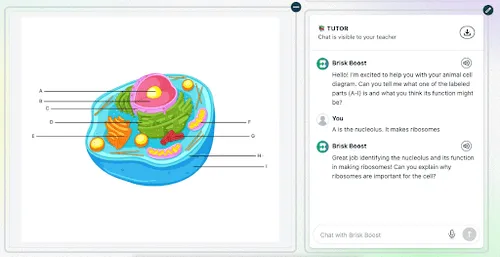
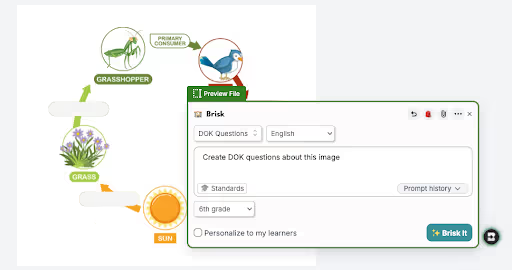
Create Depth of Knowledge Questions about an image.
Upload a map, diagram, historical photo, or math problem, and Brisk will generate Depth of Knowledge (DOK) questions to spark deeper thinking. From identifying key details to making predictions and analyzing patterns, Brisk helps students engage with images in more meaningful ways – without extra prep from you!
More ways to use images with Brisk:
- Create guided notes or an exit ticket from a photo of the whiteboard.
- Turn a textbook page into a lesson plan or slide presentation.
- Create a student exemplar from a math triangle diagram.
- And more!
What creative ways will you use images with Brisk?
Tag @briskteaching on social media, or email info@briskteaching.com for a chance to be featured in our next community spotlight.