What's New

Bookmark this page to see all of Brisk's updates in one place. Every week, new features go live and you won't want to miss them!
What's New In Brisk deck cover - see our latest launches

What's New with Brisk

Never miss a Brisk launch. Whether you're leading PD, sharing Brisk with a teammate, or presenting at a conference, this deck is designed to make it easy to show What's New.

Open Deck

Brisk Educator Pro Plan is Here!

August 26, 2024

You asked… we’re so excited to announce that educators can individually purchase Brisk to access additional features. This plan is free for all educators through September 15th. Install Brisk here - you'll automatically see free premium features on your account.

Click here to learn more.
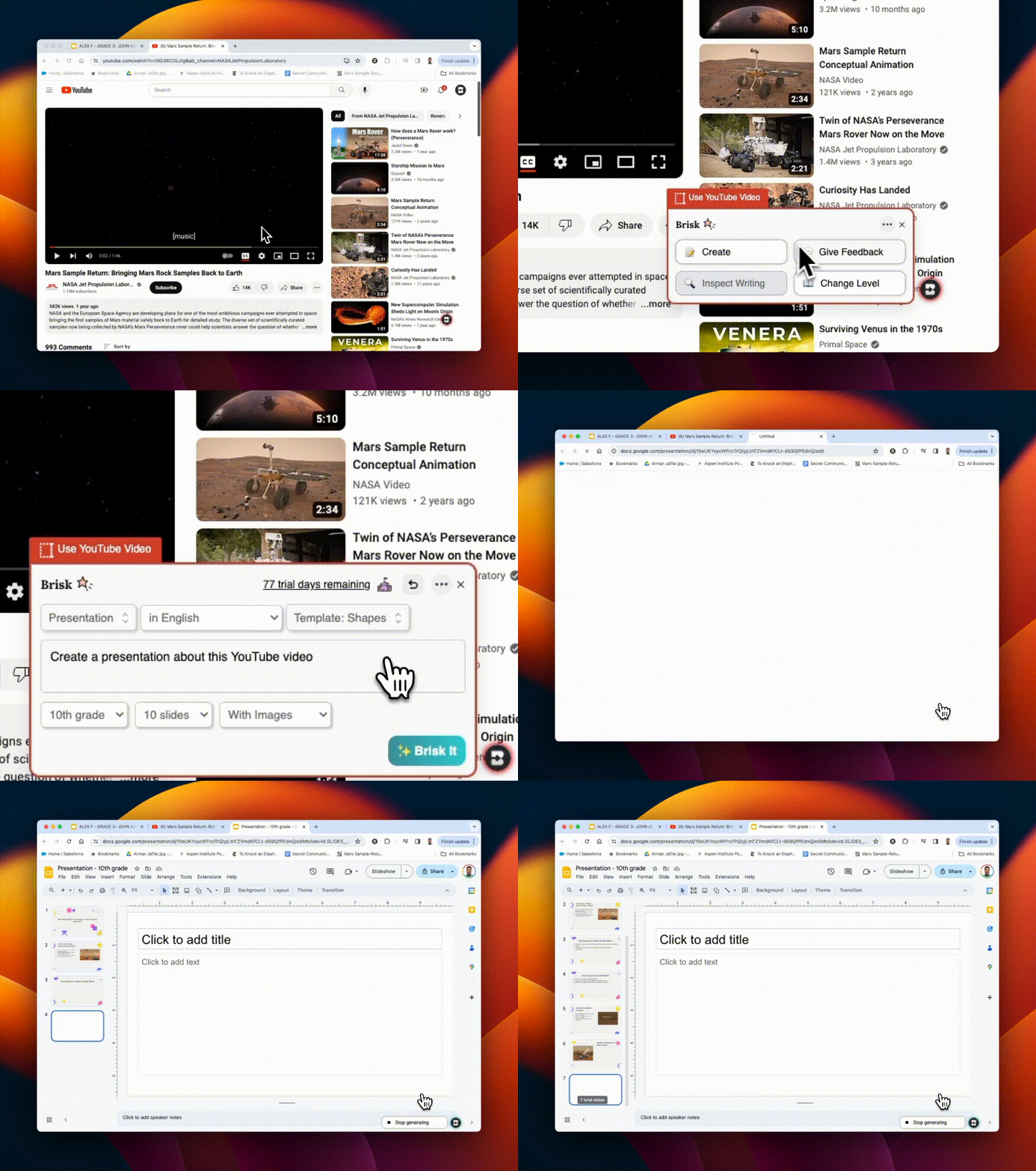
Google Slides!

August 23, 2024

Slide through your presentation prep in seconds! Use Brisk to:

1. Create slide decks from scratch
2. Give Feedback on student-created slide decks

And the best part? You can do it all right from within your Google workspace. Give it a try and save valuable hours.
Canvas SpeedGrader Integration

August 22, 2024

Brisk seamlessly integrates with Canvas SpeedGrader, enhancing Google Assignments with targeted feedback options. Whether you're using 'Glow & Grow', 'Next Steps', or specific 'Rubric Criteria' feedback styles, Brisk supports all submission types. Highlight sections of a student's work to direct feedback to those areas. If you're using a rubric, upload it into Brisk for streamlined assessment. See all details here!
Brisk has a new look!

August 21, 2024

Our updated icon and logos better reflect Brisk as the professional and seamlessly integrated tool that you know and love. In support of this new look, we also have a ✨Press Kit ✨! As you're sharing or presenting on Brisk, you can pull our updated logos and icons from this folder.

Youtube Integration!

August 20, 2024

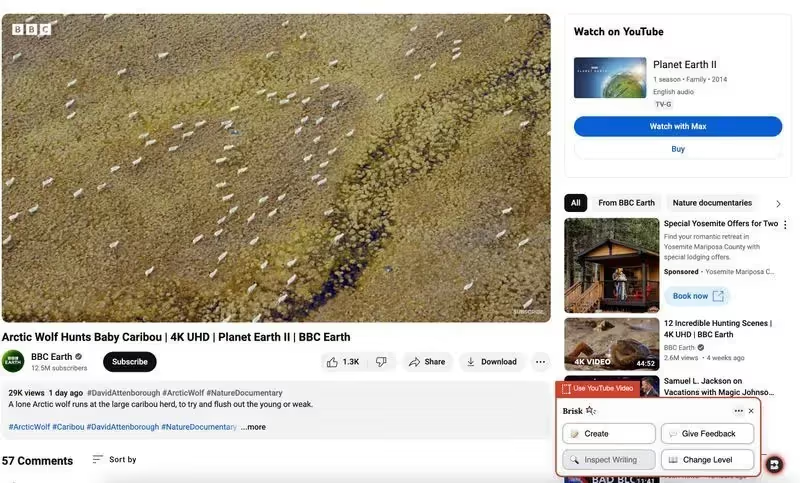
Use ANY Brisk tool on Youtube videos! You can create lesson plans, quizzes, feedback, resources, rubrics... directly from a Youtube video. If you're assessing a student project that was uploaded to Youtube, you can even give feedback directly from there!
Four Administrative Tasks

August 19, 2024

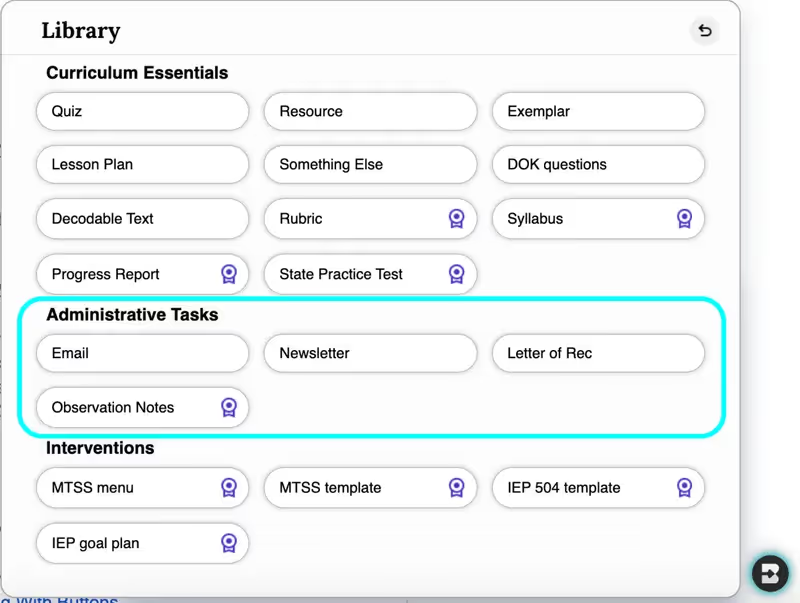
Need to spin up an email, newsletter, letters of rec, or observation notes... in seconds? A brand new suite of administrative tools have been added to the Create library... with more coming soon. Your plate just got a whole lot lighter.
Personalize to your learners

August 16, 2024

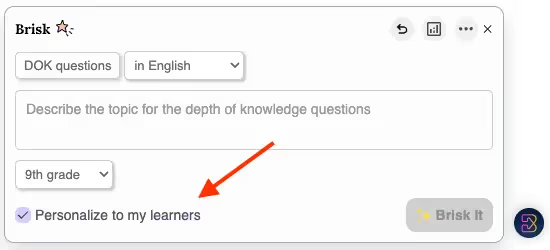
Once you've left feedback with Brisk on 5 or more assignments, personalized features will appear across all tools in the Create Library. By selecting the Personalize to my learners checkbox, Brisk will automatically differentiate curriculum to better address your learners' specific challenges and needs.
Insights From Your Feedback

August 15, 2024

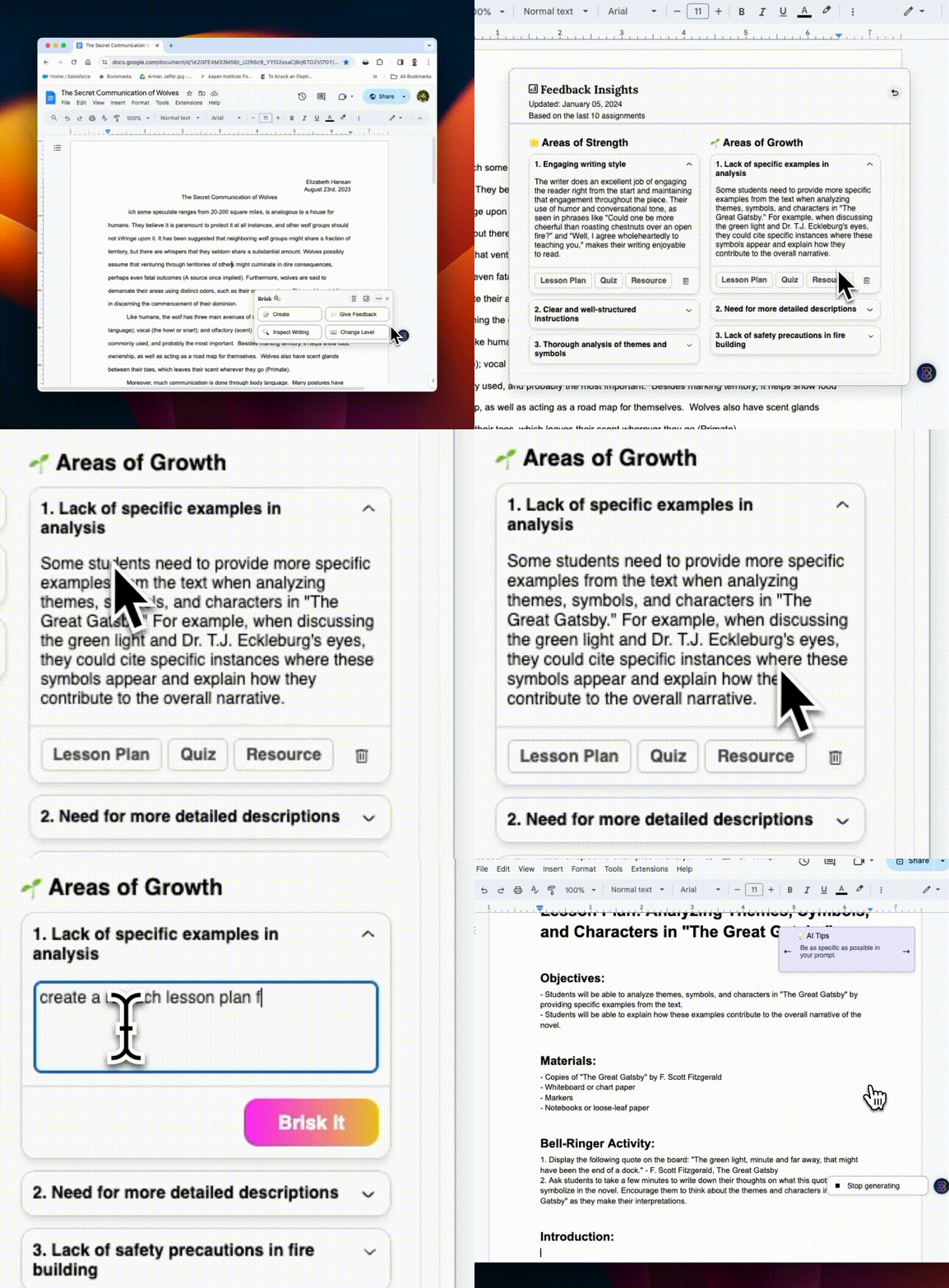
Swamped with tracking insights across numerous student assignments? Leave feedback with Brisk on just five assignments to unlock Feedback Insights. Every time you give feedback, this tool becomes more powerful as it surfaces real-time, dynamic insights that capture what your students need.

And that's not all! Once areas of improvement are identified, click the Lesson Plan, Quiz, or Resource buttons to rapidly create content that targets those specific areas. For example, if your students are struggling with citing their sources, you can Brisk a lesson plan to enhance that skill - right there.
Introducing, Inspect Writing

August 14, 2024

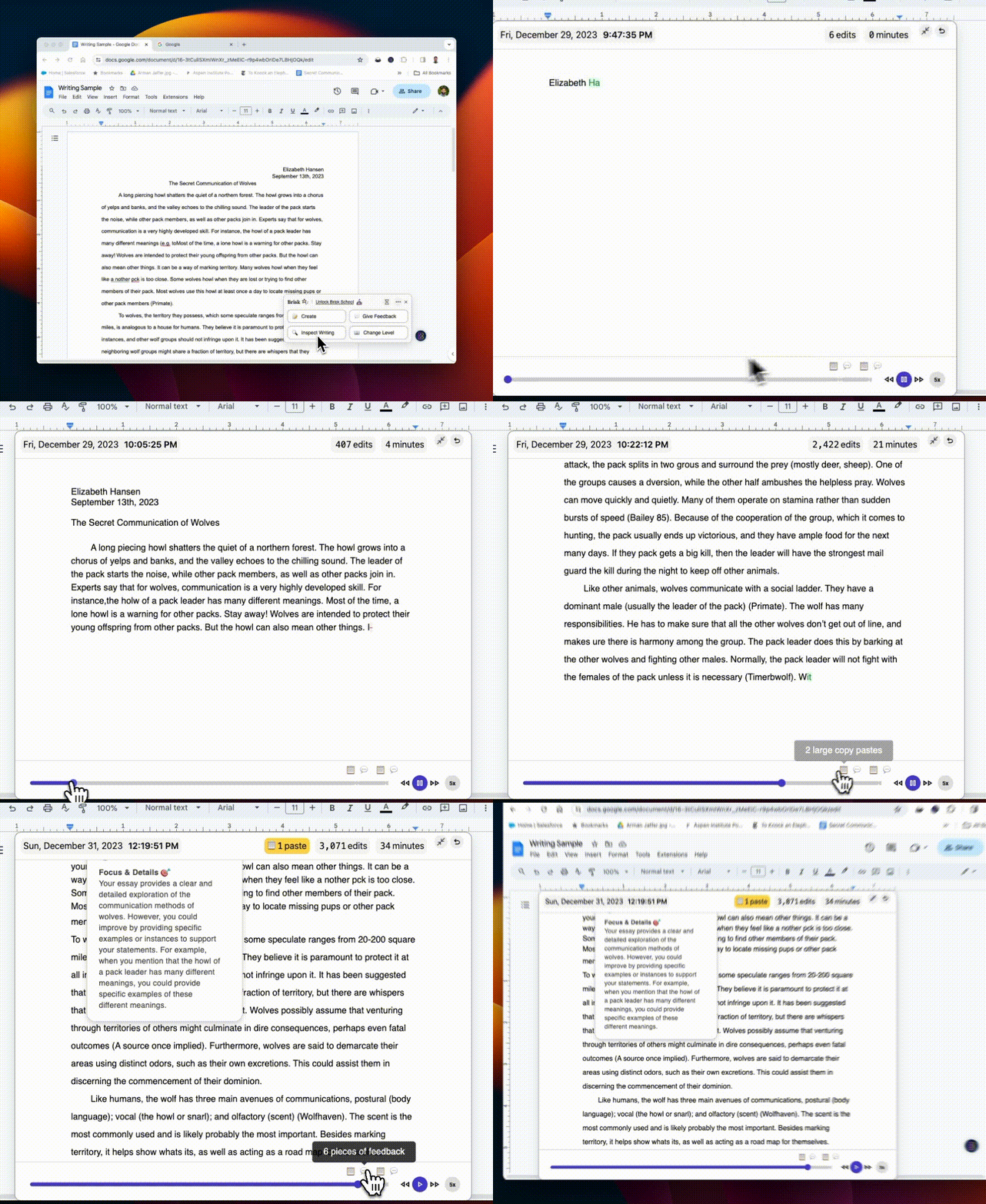
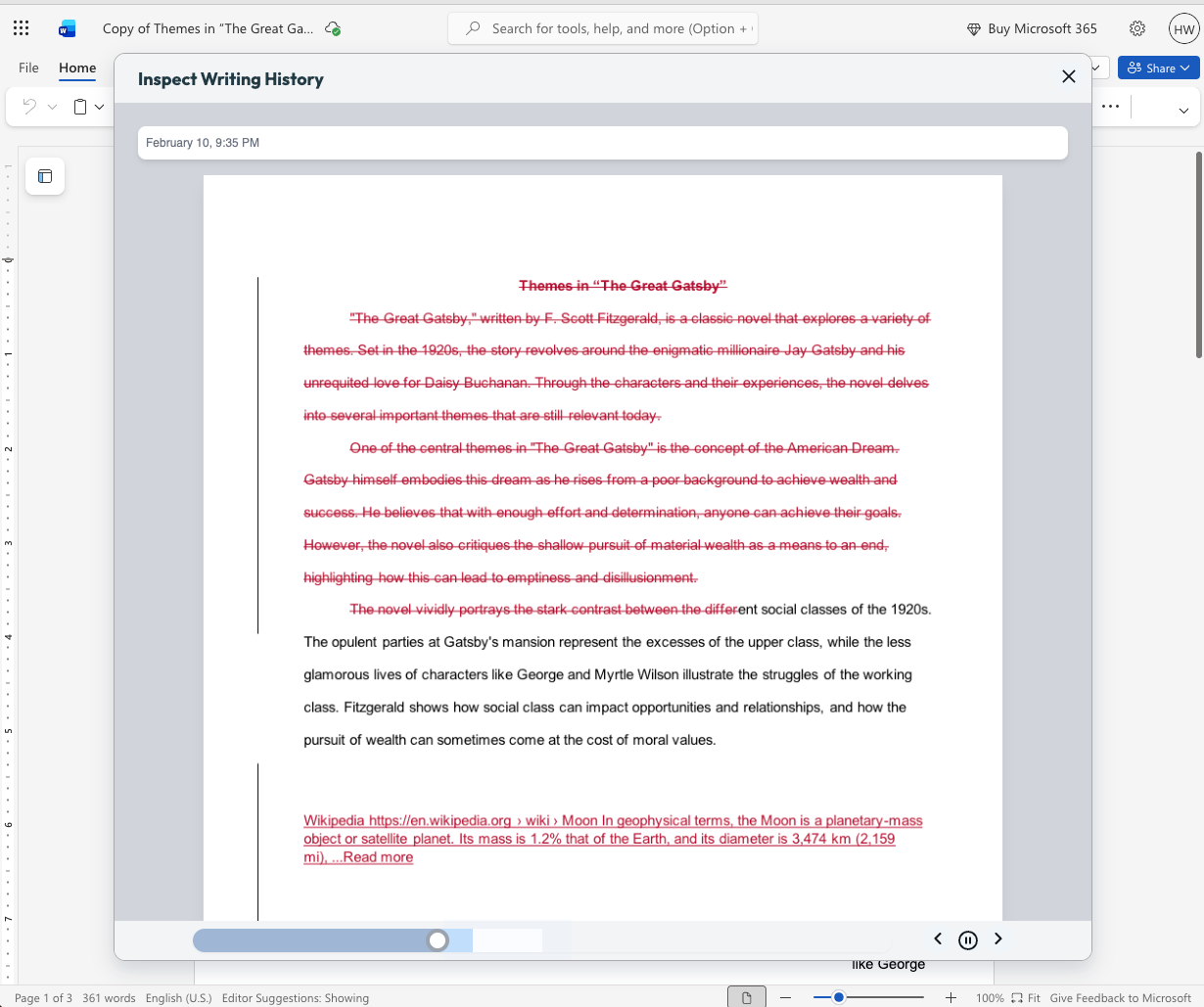
Struggling with unreliable AI detectors? Inspect Writing reimagines student writing analysis. Replay a detailed step-by-step of your students' revision history, their copy/paste actions, and more. Try it and see the difference!
More Options, More Resources

August 13, 2024

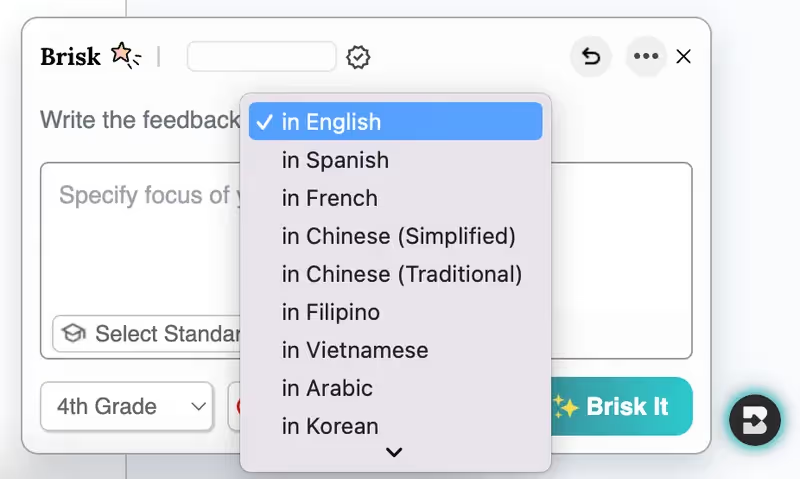
Teaching ESL students? Now you can Give Feedback in 10+ languages.

Tired of copy & pasting? We've expanded where you can Create and Give Feedback! Click the Brisk icon on any website or Google doc for instant access to Feedback options and the Create Library to build quizzes, lessons, resources, and more.

Incorporating diverse resources? Change the Reading Level on thousands of additional articles and site pages.
Inspect Writing & Targeted Feedback in Microsoft Word

June 29, 2026

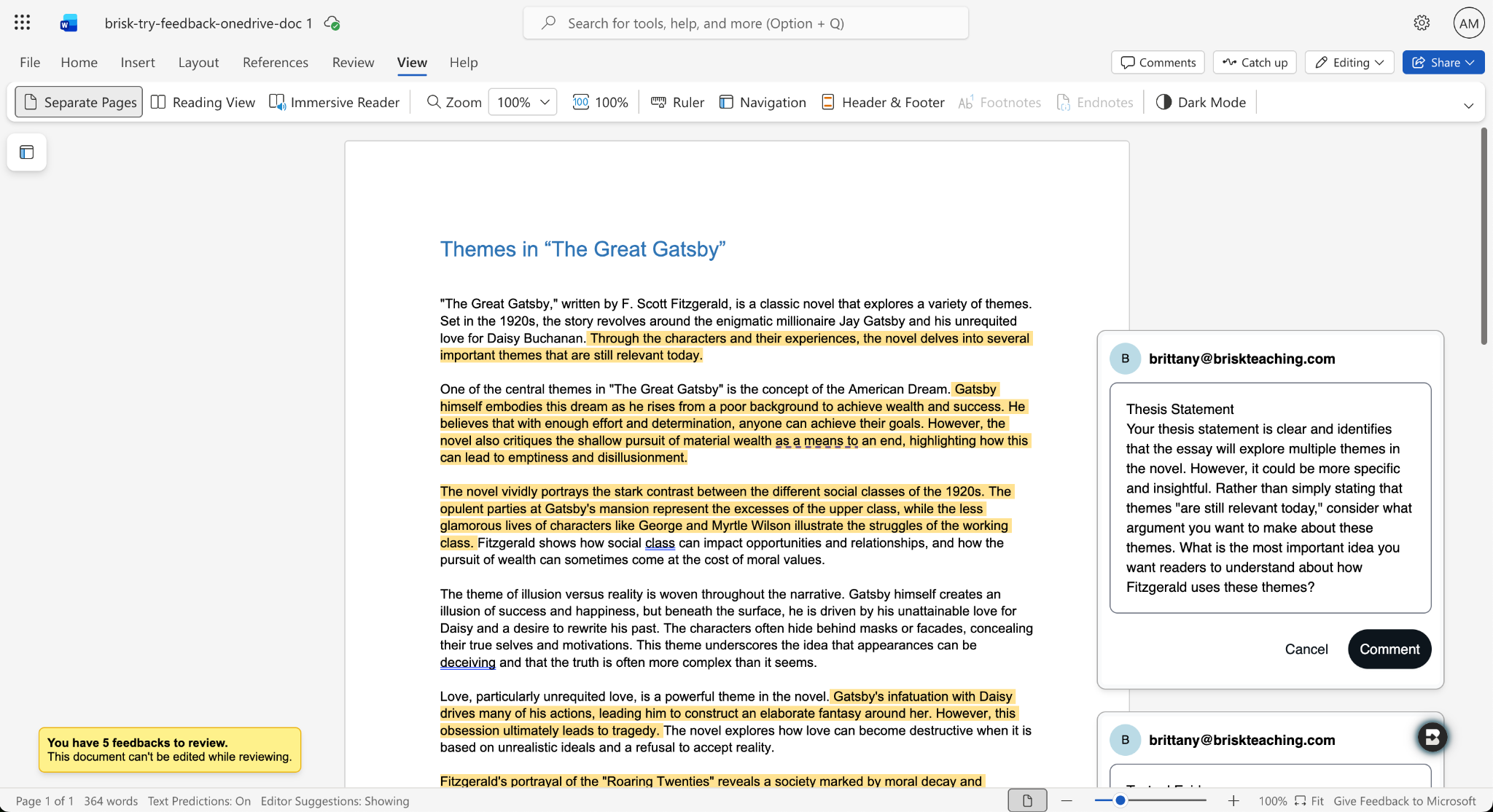
Microsoft teachers now have access to two tools that enable them to deliver more (and more personalized) feedback to students in less time: Inspect Writing and Targeted Feedback.

Inspect Writing

(This feature is available upon request.)

Watch a video-style replay of a student’s writing process from first draft through final version. See what they added and deleted at each step and how they responded to feedback. Use this to gain insight into how your students are thinking, spot learning gaps, and guide growth.

Targeted Feedback

Provide students with personalized feedback that appears directly in the Word docs they’re working in. Brisk drafts inline comments that are aligned with your standards and whatever rubric you want, but you remain in full control of what students see.

How it works:

  1. Open a student writing assignment in Word.
  2. Select the Targeted Feedback tool in the Brisk extension.
  3. Set the language and grade level for the feedback and specify whether you want the feedback to align with an attached rubric or your state standards.
  4. Review the feedback Brisk generates, make adjustments, and click Comment to post a piece of feedback to the student’s work.

Share Boost Activities with Other Educators

June 29, 2026

You can now share Boost Activities with the other educators in your classroom (SPED staff, MTSS coordinators, paraprofessionals, subs). These co-teachers will have read-only access to student progress and activity data so they’re able to observe and support student learning.

How it works:

  1. Open the Share menu: In My Library, go to Activities and click the Share button or the three-dot menu on any activity, then select Share with Co-Teachers. (You can revoke access at any time by removing a co-teacher from the activity’s Share menu.)
  2. Enter a colleague’s email: Type their email and send the invite. They’ll receive a link to accept. (To successfully accept an invite, their email must be rostered in your district.)
  3. Co-teacher accepts: Once they accept the invite, the activity appears in their My Library under Shared with Me.
  4. Co-teacher views the activity: They see the activity monitor — including student progress, messages, safety flags, and Mock Student — in a read-only view. No edit controls are shown.

You can also share your favorite Boost Activities with your fellow teachers, who can then make copies of the activities to use with their own students.

Shape Every Brisk Output with District-Level Priorities

June 29, 2026

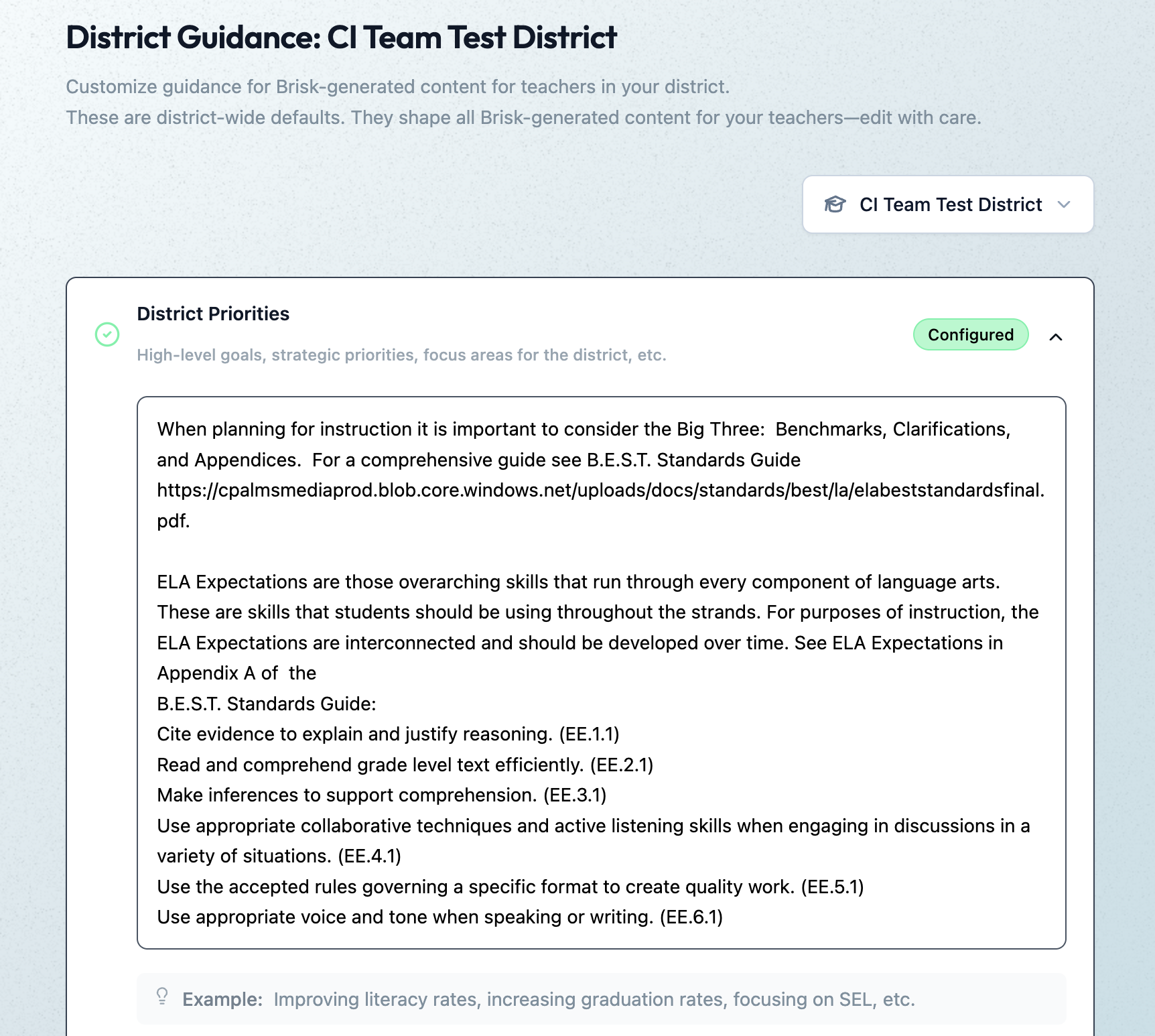
District Guidance gives districts with the Intelligence plan a way to consistently translate instructional leadership investments (professional development, pedagogical frameworks, standards alignment) into actual classroom practice.

In the District Guidance tab of their Admin Portal, leaders provide instructions that automatically shape everything teachers generate with the Brisk extension, Brisk Boost, and Brisk Next. These instructions don’t change the way teachers use or experience Brisk — they simply ensure that every Brisk output reflects a district’s unique priorities.

Leaders can use District Guidance on its own or in tandem with Curriculum Intelligence. (Reminder: Curriculum Intelligence ensures that every Brisk output reflects a district’s adopted curriculum, scope, and pacing.) While Curriculum Intelligence informs what is being taught, District Guidance informs how it’s being taught.

Leaders have the option of providing instructions in four categories:

  • District Priorities: High-level goals, strategic priorities, focus areas (e.g., “The district is focusing on literacy across all content areas this year”)
  • Values & Frameworks: Cultural values, behavioral frameworks, ethical guidelines, community norms (e.g., “Emphasize the district’s four Cs: communication, collaboration, creativity, critical thinking”)
  • Pedagogical Approach: Teaching methods, instructional strategies, learning philosophies (e.g., “Use Workshop Model structure: mini-lesson, practice, debrief”)
  • Standards Emphasis: Academic standards, curriculum alignment requirements, assessment criteria (e.g., “Emphasize these power standards for 6th grade math”)

(Note: This new feature will become available in July 2026.)

Create District-Level Libraries of Curriculum-Aligned Resources

June 29, 2026

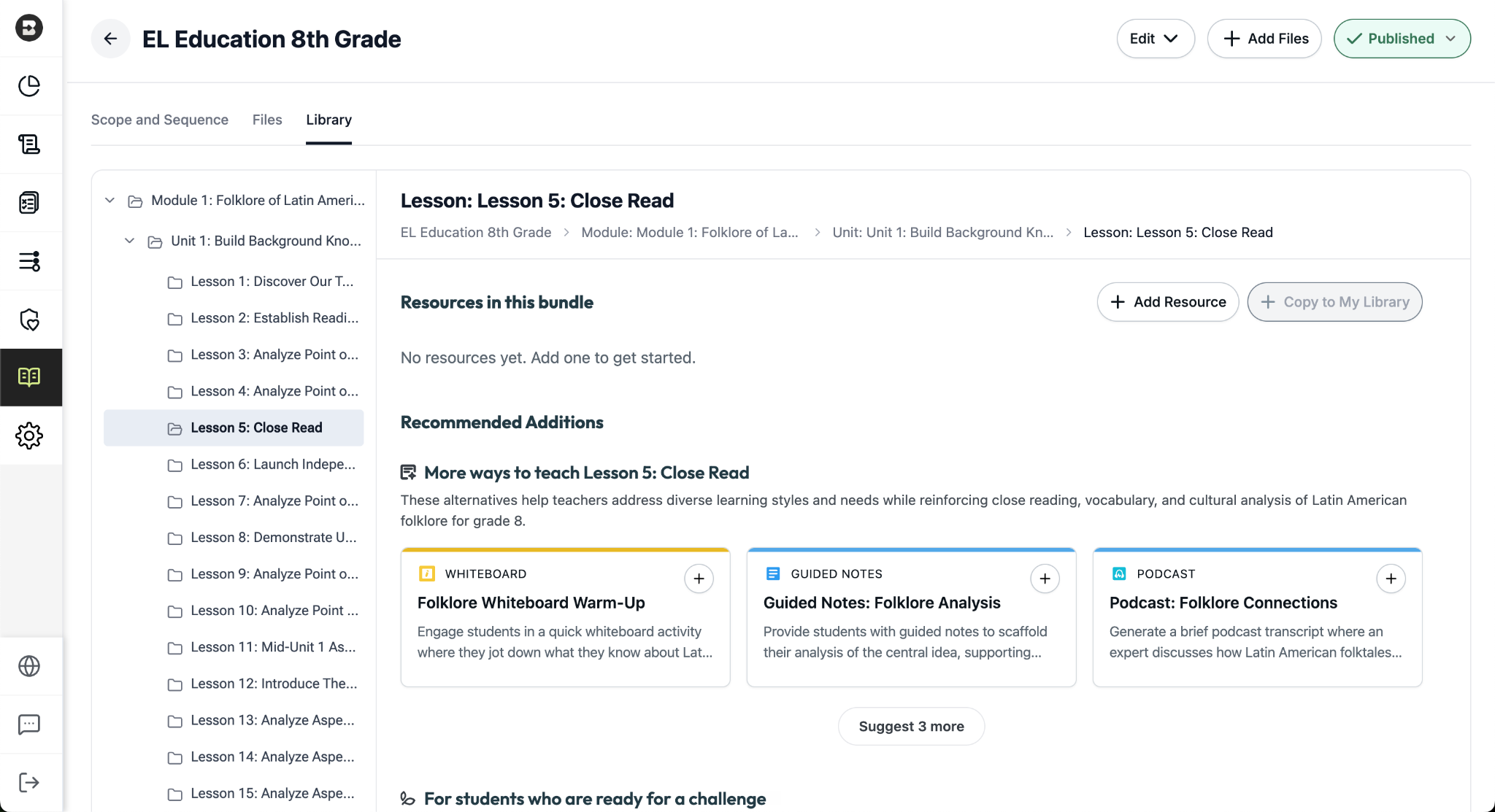
The District Library enables districts with the Intelligence plan to promote curriculum fidelity and help teachers spend less time looking for the right resource and more time delivering high-quality instruction.

Once a district leader has set their curriculum and instructional priorities using Curriculum Intelligence and District Guidance, they’re able to curate resource bundles for any course in their district. It’s like putting a perfectly organized library shelf at every teacher’s fingertips.

How District Libraries are organized:

  • One library per course: Leaders can create a resource library for each course that’s published in the Curriculum Courses tab of their Admin Portal.
  • One bundle per lesson: Leaders can put together a bundle for each lesson in a course (reminder: within a scope and sequence, lessons ladder up to units, which ladder up to modules, the largest components of a course).
  • One source of truth, easy access for teachers: Only leaders can edit or add to a District Library, but with just one click, teachers can create independent copies of a bundle in their personal resource libraries that they can customize and share with their students.

Building a resource bundle

There are several ways for leaders to add resources to a bundle. They can:

  • Choose from a pre-populated list of smart recommendations that are informed by the district’s curriculum and instructional priorities. These recommendations are organized into practical categories like “More ways to teach…” (for supporting diverse learning styles) and “For students who are ready for a challenge…”
  • Generate customized resources using the dozens of tools that are part of the Brisk extension.
  • Upload pre-existing, non-Brisk resources.

(Note: This new feature will become available in July 2026.)

Brisk x AI Platforms

May 18, 2026

You're already in ChatGPT, Gemini, Copilot, or Claude, typing a quick prompt to get something useful before tomorrow. Brisk is already there too, and one click turns that prompt into something you can hand out in class.

Prompt Booster

Start typing in any of these tools and a Brisk It button appears in the prompt field. Click it and your prompt becomes a detailed, instructionally rich version with grade-level framing, standards alignment, and scaffolding strategies built in — so what the AI gives back is classroom-ready from the start.

From there, choose what to do next:

  • Add to Prompt: drop the enhanced prompt back into your AI tool and run with it.
  • Create with Brisk: open Brisk Next with your enhanced prompt already loaded. Brisk surfaces aligned lesson plans, assessments, presentations, and more — all from that one prompt.

Take Action on Any AI Response

Already have a response you like? When the AI finishes generating, a Brisk button appears below it. Click to send it where you need it:

  • Send to Brisk on the web: push the response directly into Brisk on the web, with or without an additional prompt.
  • Send to extension: select Presentation, Quiz, Podcast, Tutor, or Create with Brisk to prefill the Brisk Extension. Customize, then create.

Wherever you're already prompting, Brisk works where you work. Learn more.