What's New
Bookmark this page to see all of Brisk's updates in one place. Every week, new features go live and you won't want to miss them!
What's New with Brisk
Never miss a Brisk launch. Whether you're leading PD, sharing Brisk with a teammate, or presenting at a conference, this deck is designed to make it easy to show What's New.
Boost Whiteboard — A New Way to See Student Thinking
January 29, 2026
Boost Whiteboard gives students a visual space to work through ideas, explain reasoning, and demonstrate understanding.
Teachers can see how students are thinking, and students can get support as they work.
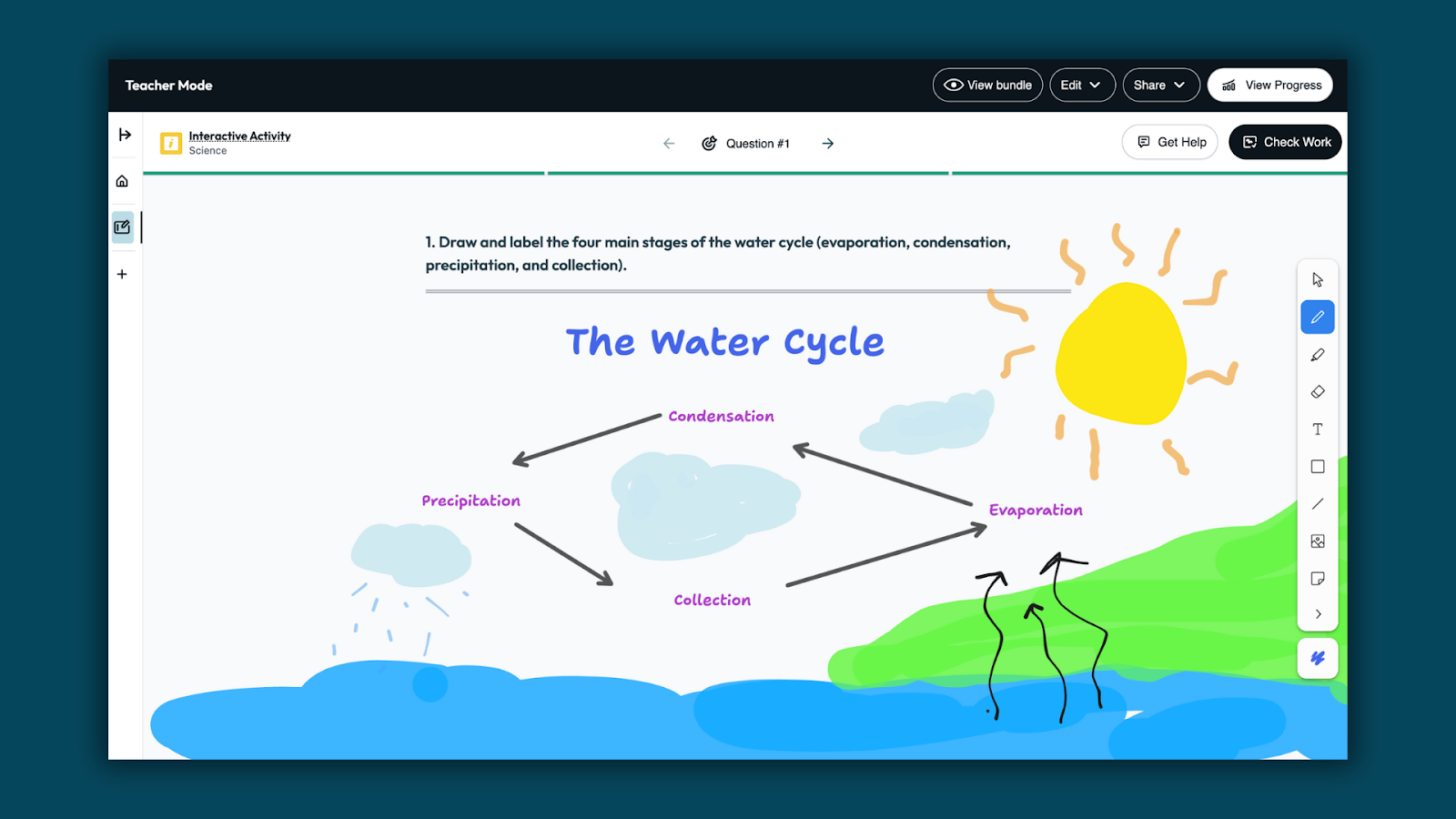
How Boost Whiteboard works
Step 1: Create a Boost activity
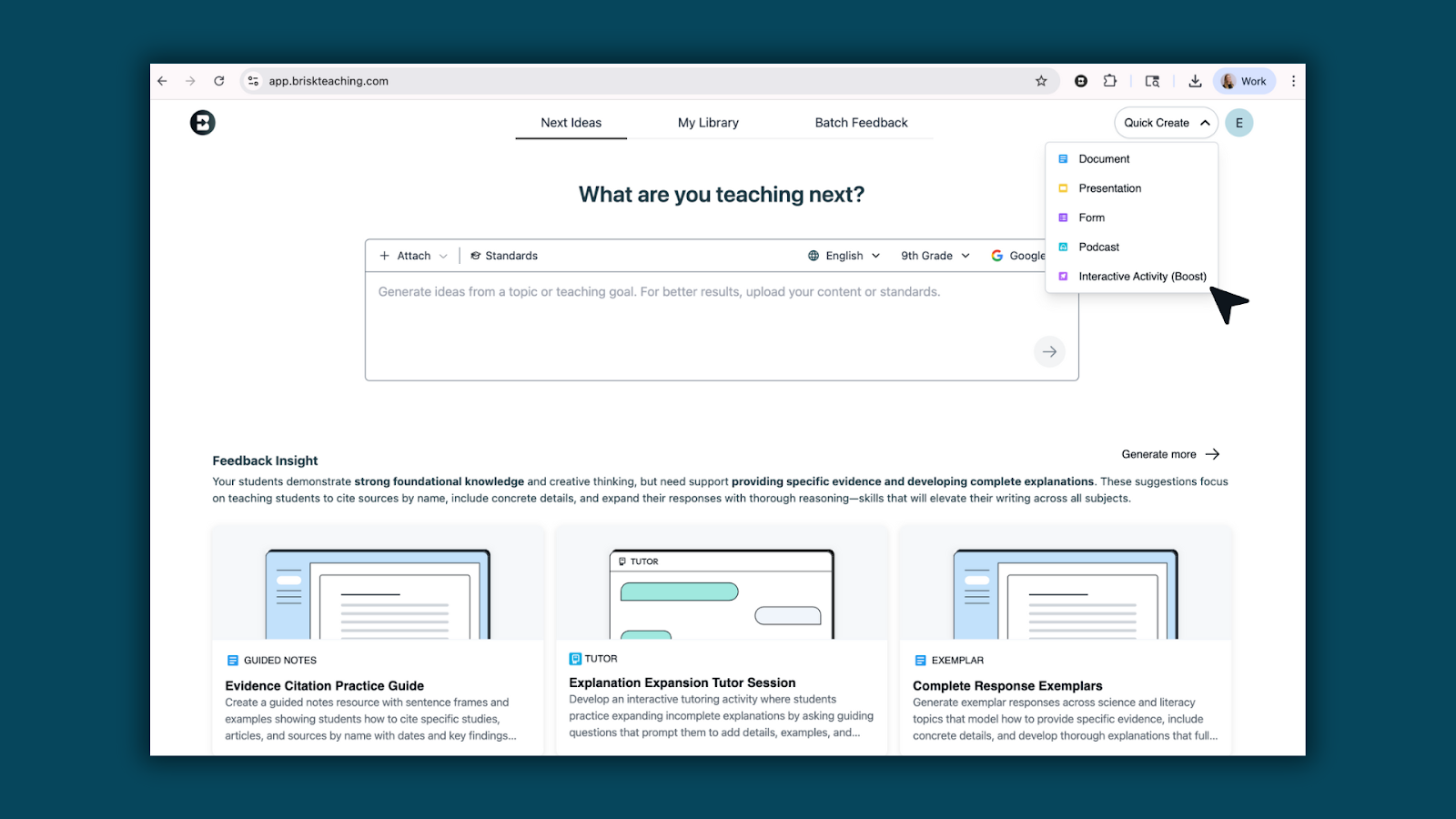
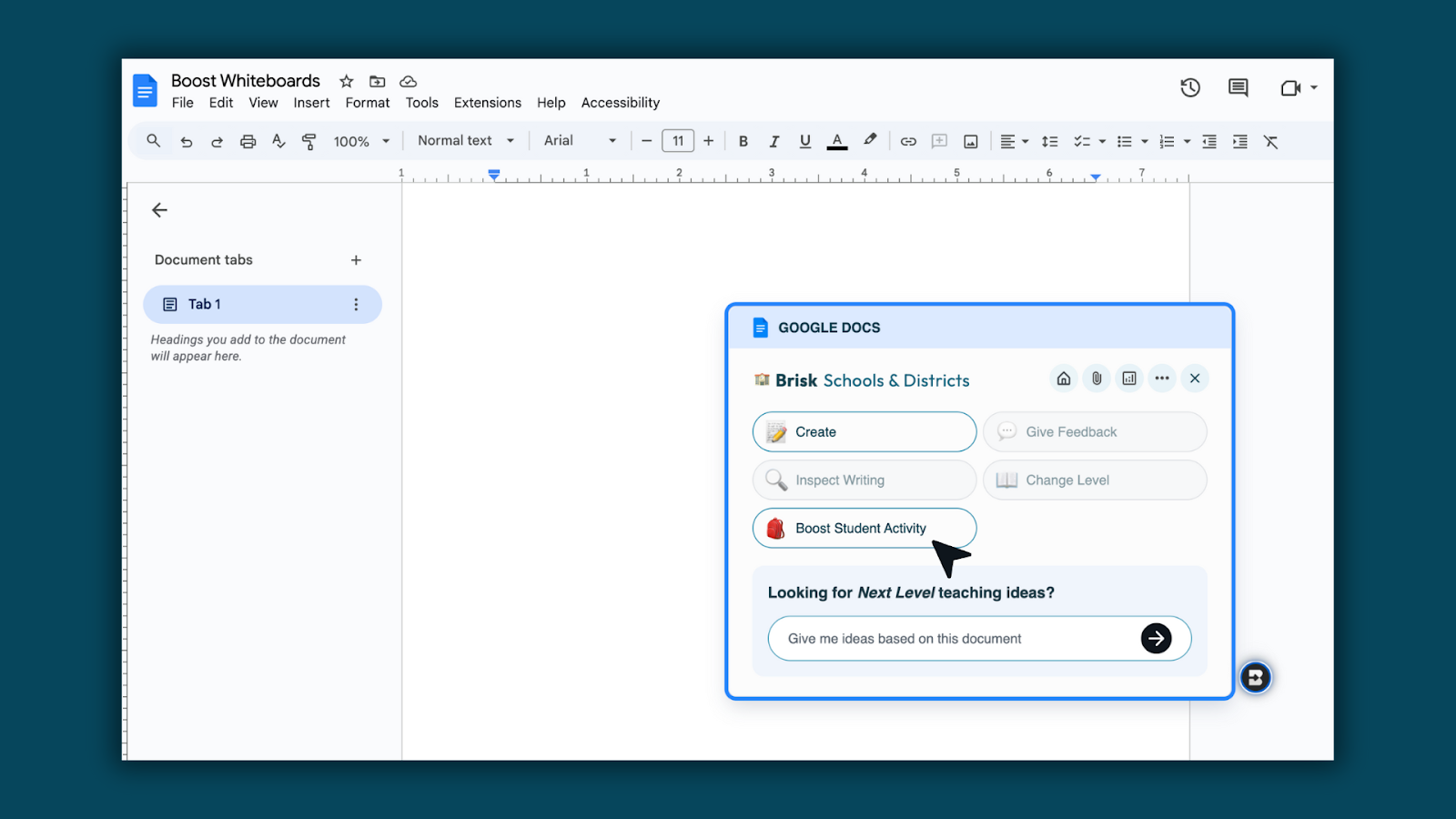
Create a Boost activity using Quick Create at app.briskteaching.com or the Boost Activity button from the Brisk extension.
Step 2: Set up your Boost Whiteboard
Select Whiteboard as the activity type, then enter your prompt and choose standards, grade level, and language. Brisk handles the setup so your activity is ready to use right away.
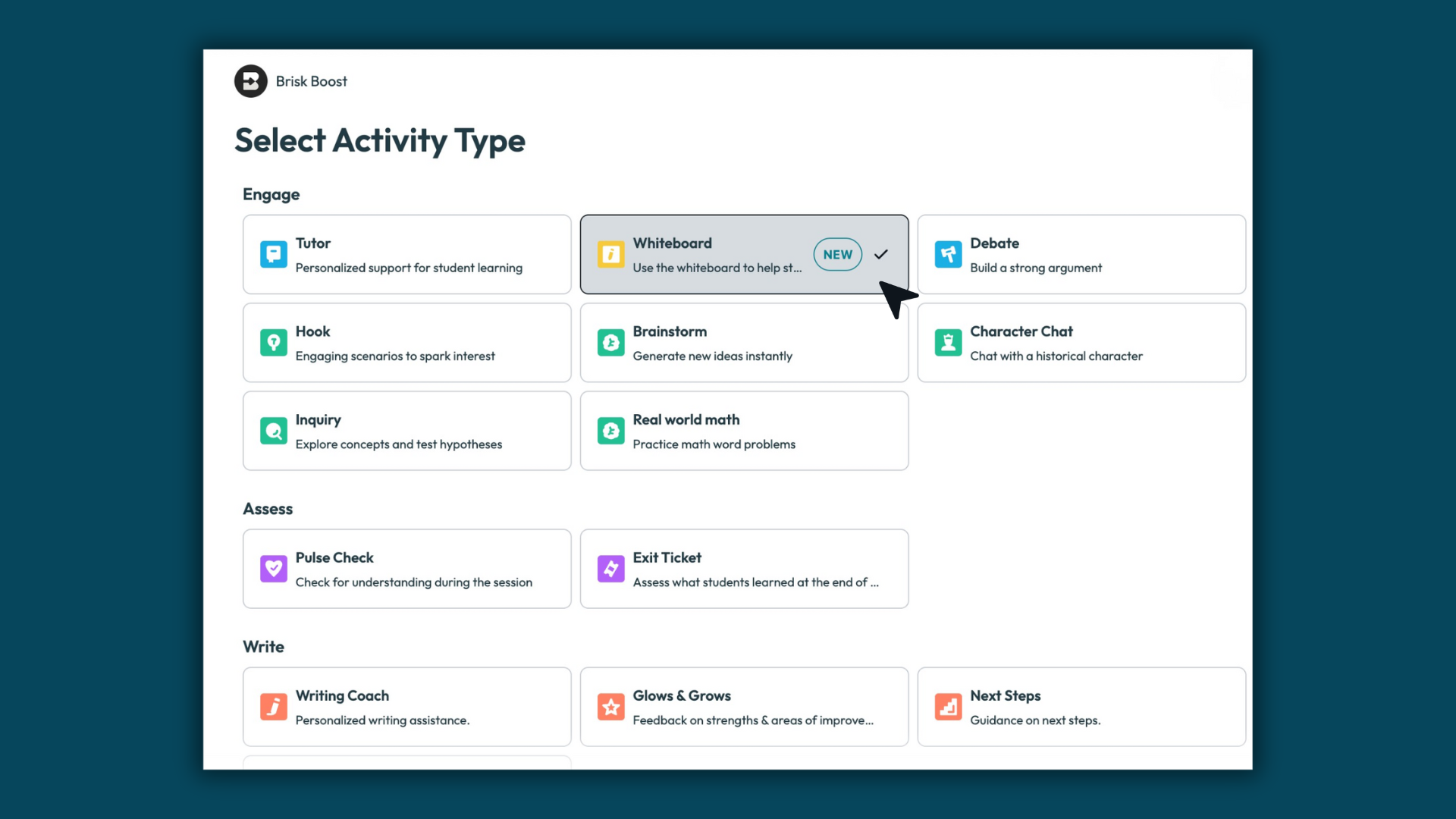
Step 3: Review and customize your Whiteboard
Brisk generates questions designed specifically for whiteboard responses. These prompts encourage students to draw, label, organize ideas, and show their thinking visually.
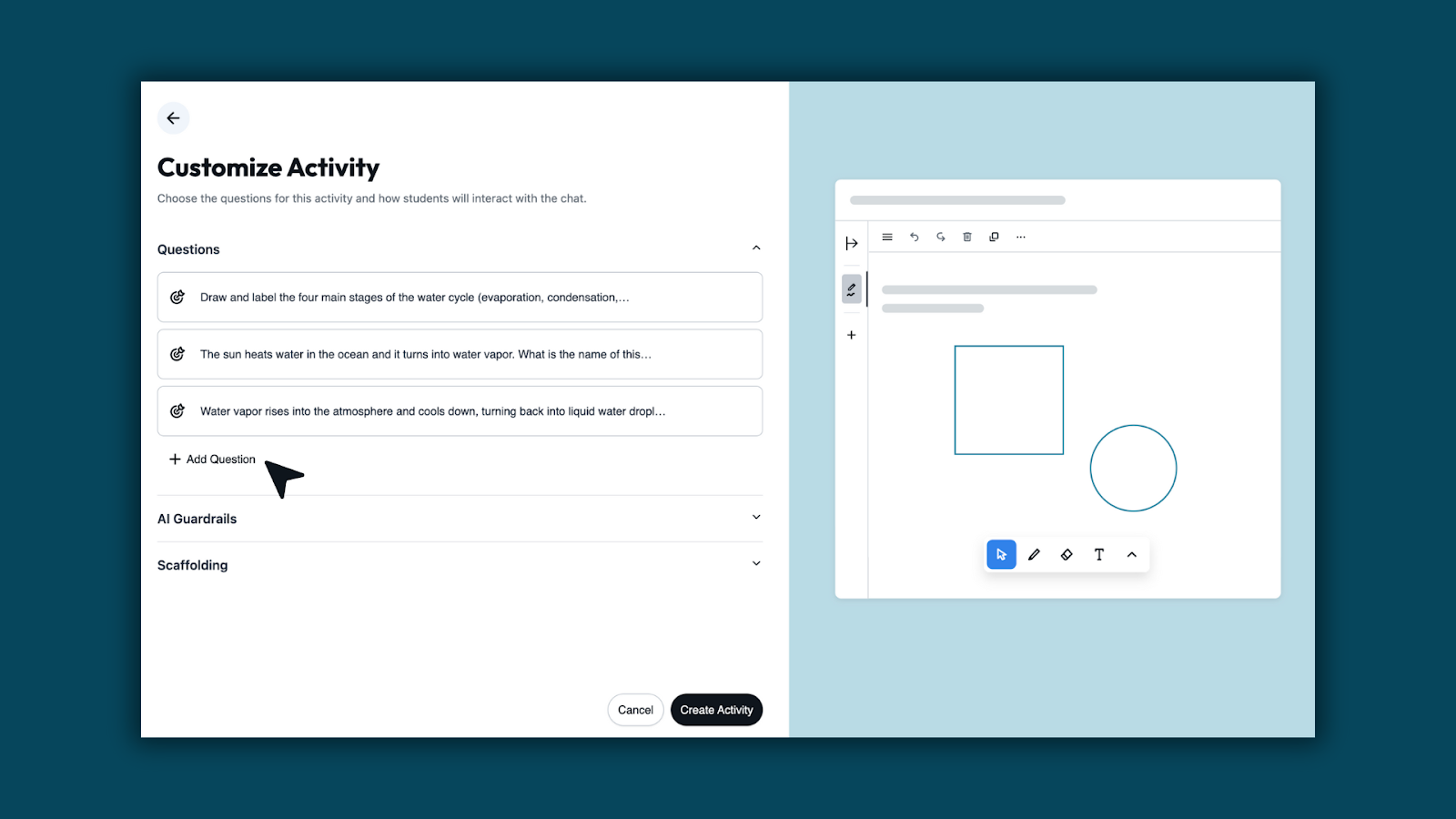
Step 4: Edit Template if needed
Use Edit Template to adjust the whiteboard students will receive. Upload images, add visual elements, or refine the question so expectations are clear and aligned to your lesson.
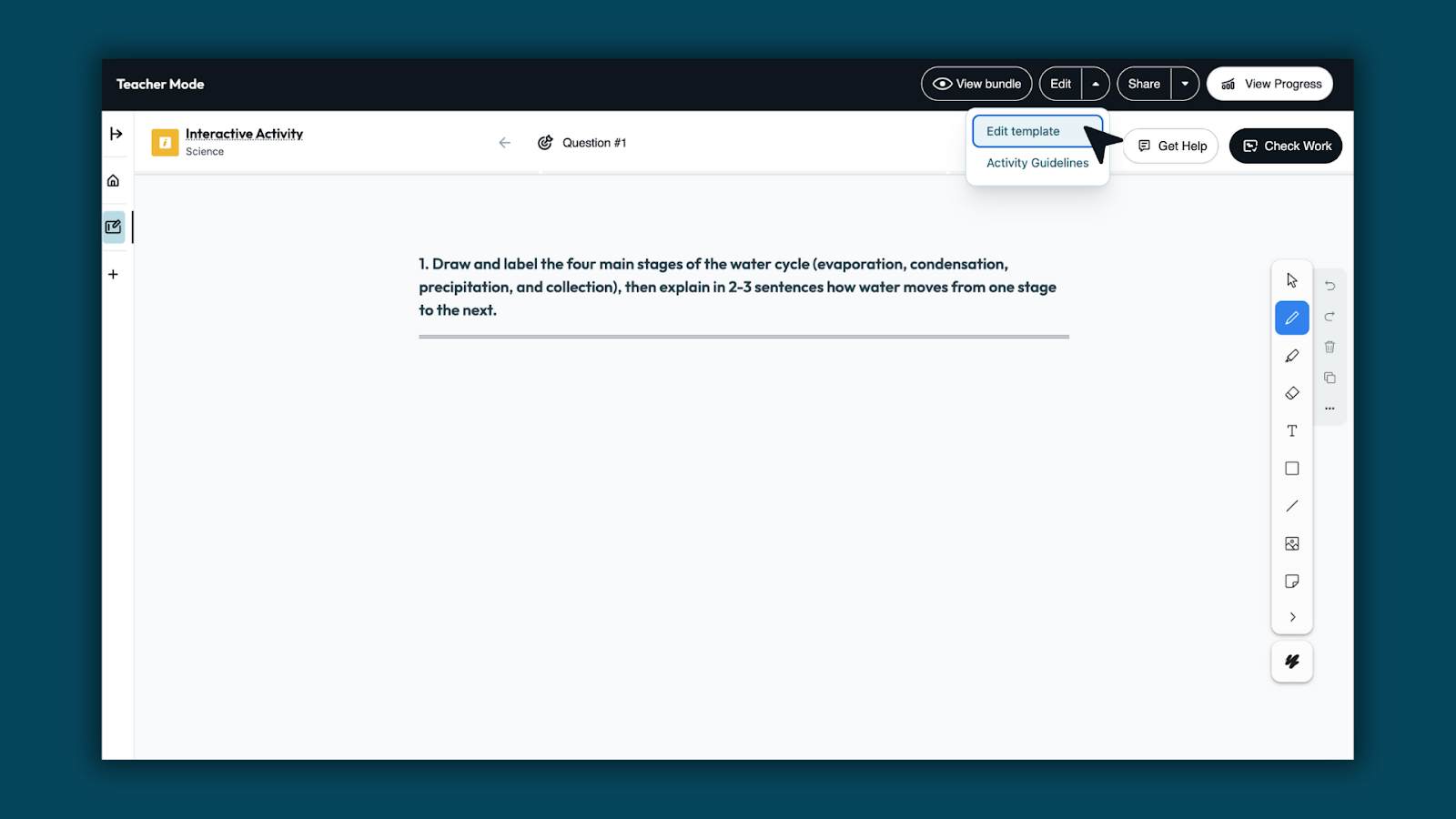
Step 5: Share the activity with students
When you’re ready, share the activity with your class. Use Share Activity with Students to send the activity link, or copy the student link to post in your LMS or class workspace. Students can open the activity and begin working right away.
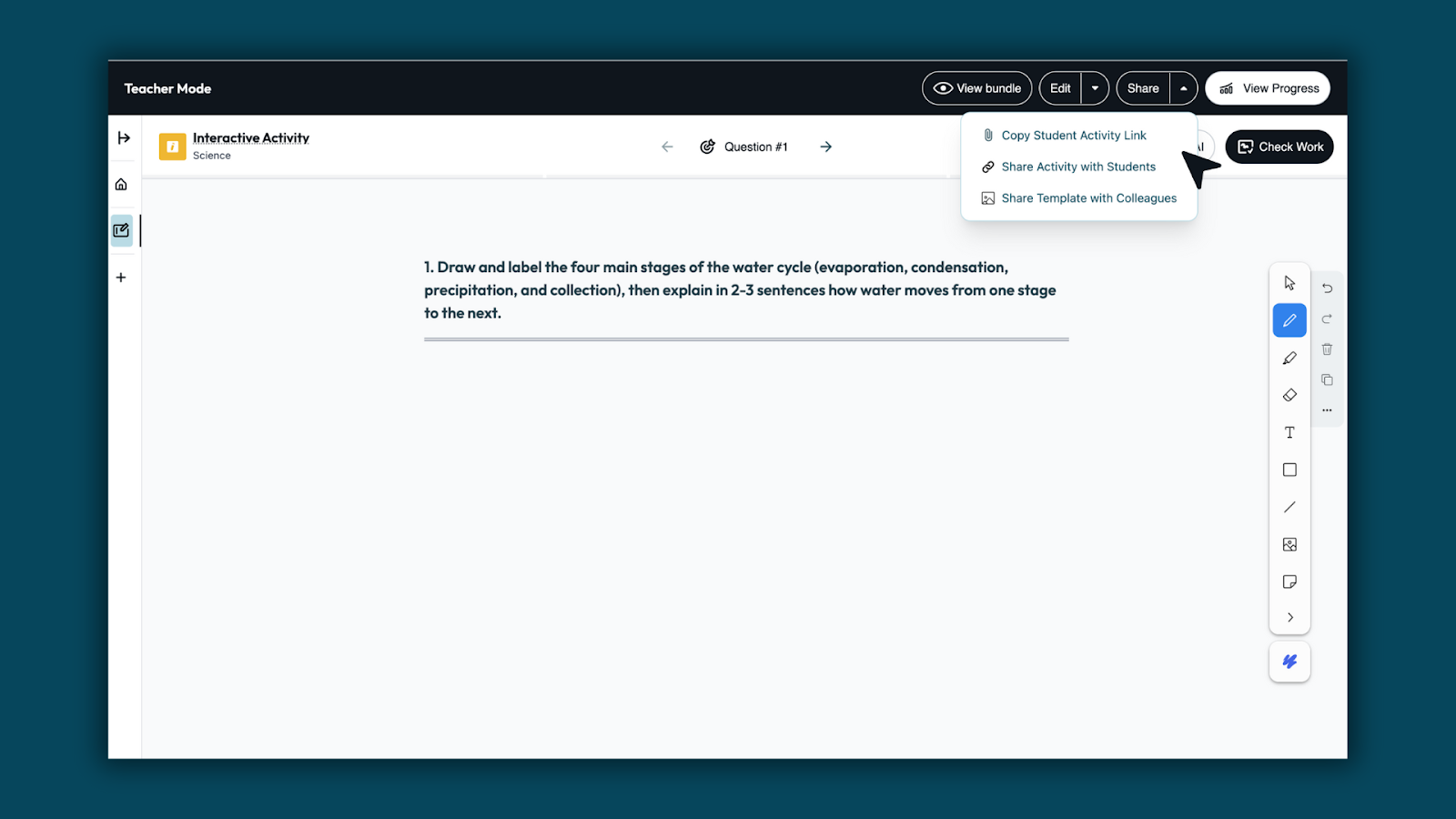
Step 6: Students show their work and get feedback
Students draw, label, and explain their thinking directly on the Whiteboard. When they’re ready, they use Check Work to submit their whiteboard for feedback from Brisk Boost. Feedback highlights what’s correct and helps students see where they may need to revise, so learning continues as they work.
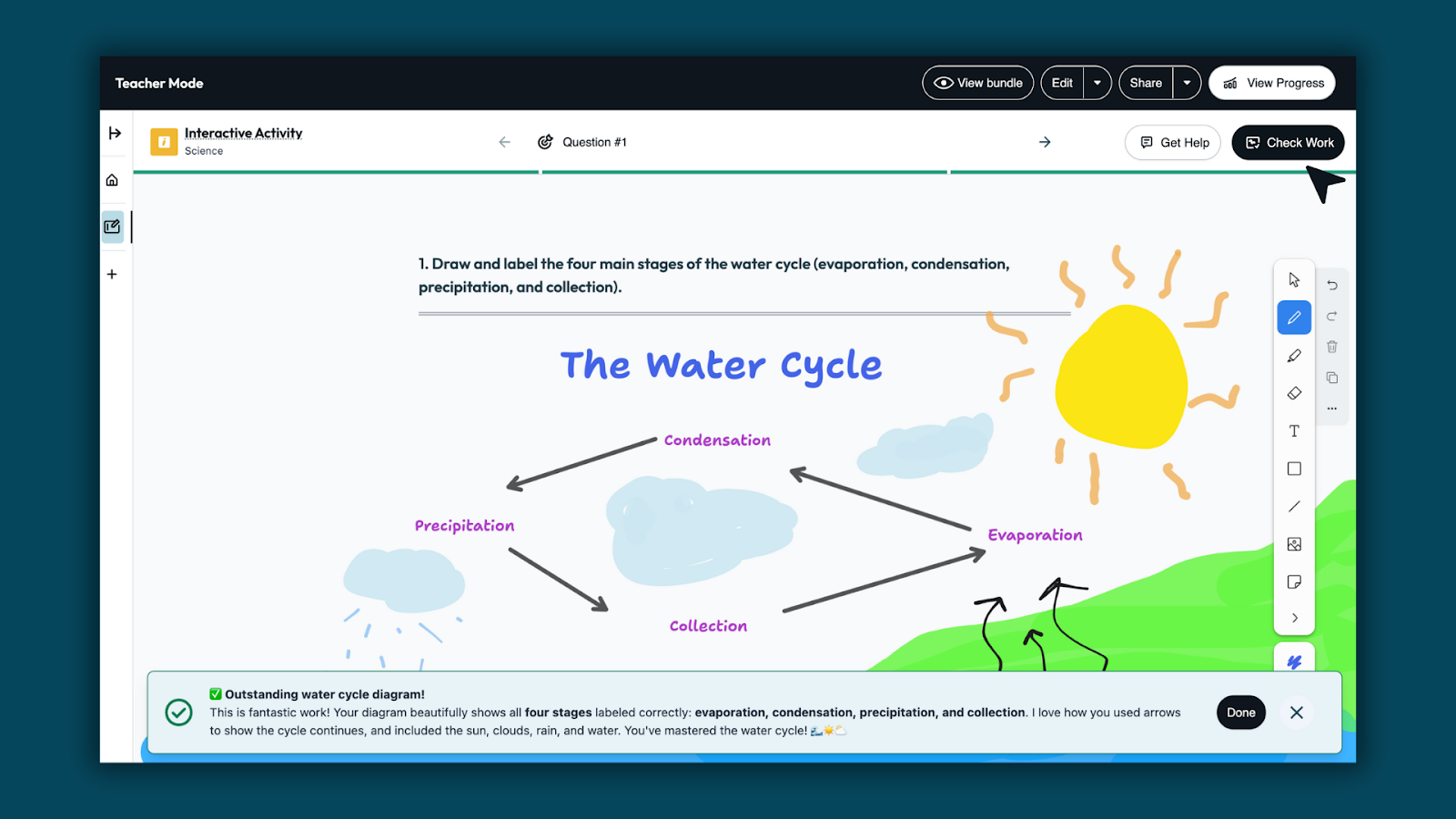
Step 7: Students can get in the moment support
Students can use Get Help to clarify ideas or get help with next steps when questions come up.
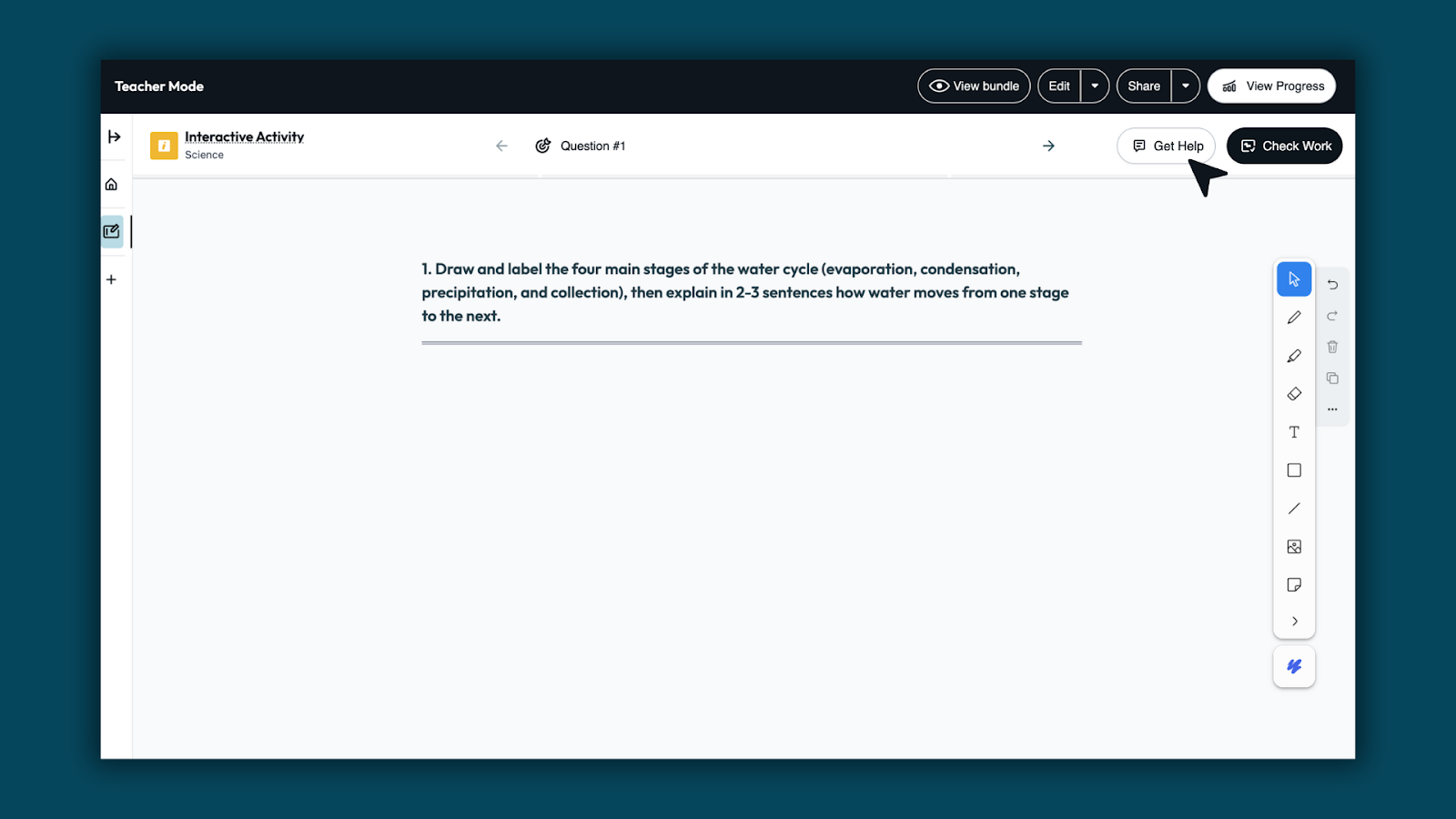
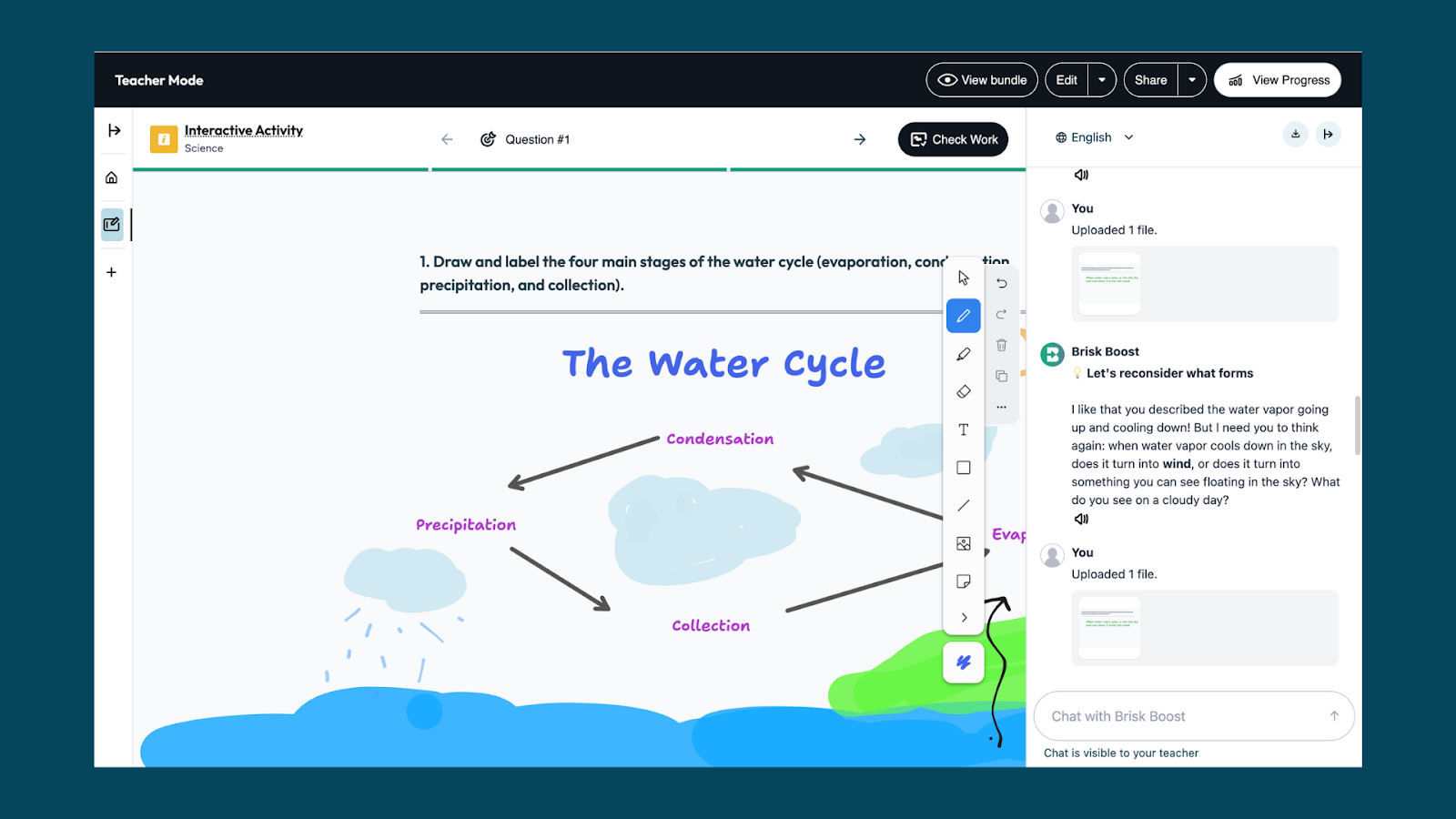
Step 8: Review student work and see classwide insights
Teachers can review student whiteboards in one place. Brisk surfaces classwide patterns across student work — showing what students understand, where they may need more support, and what to teach next.
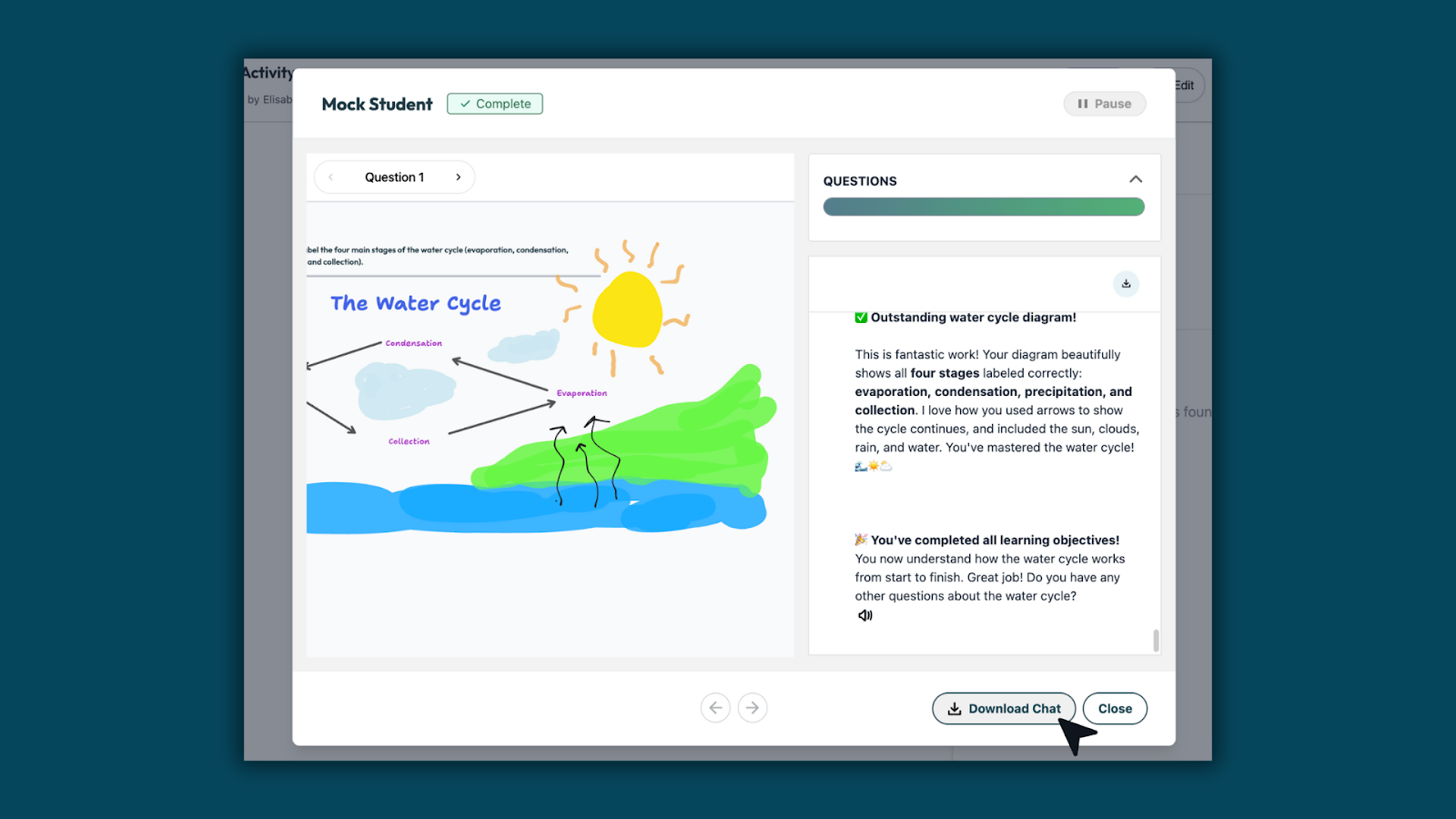
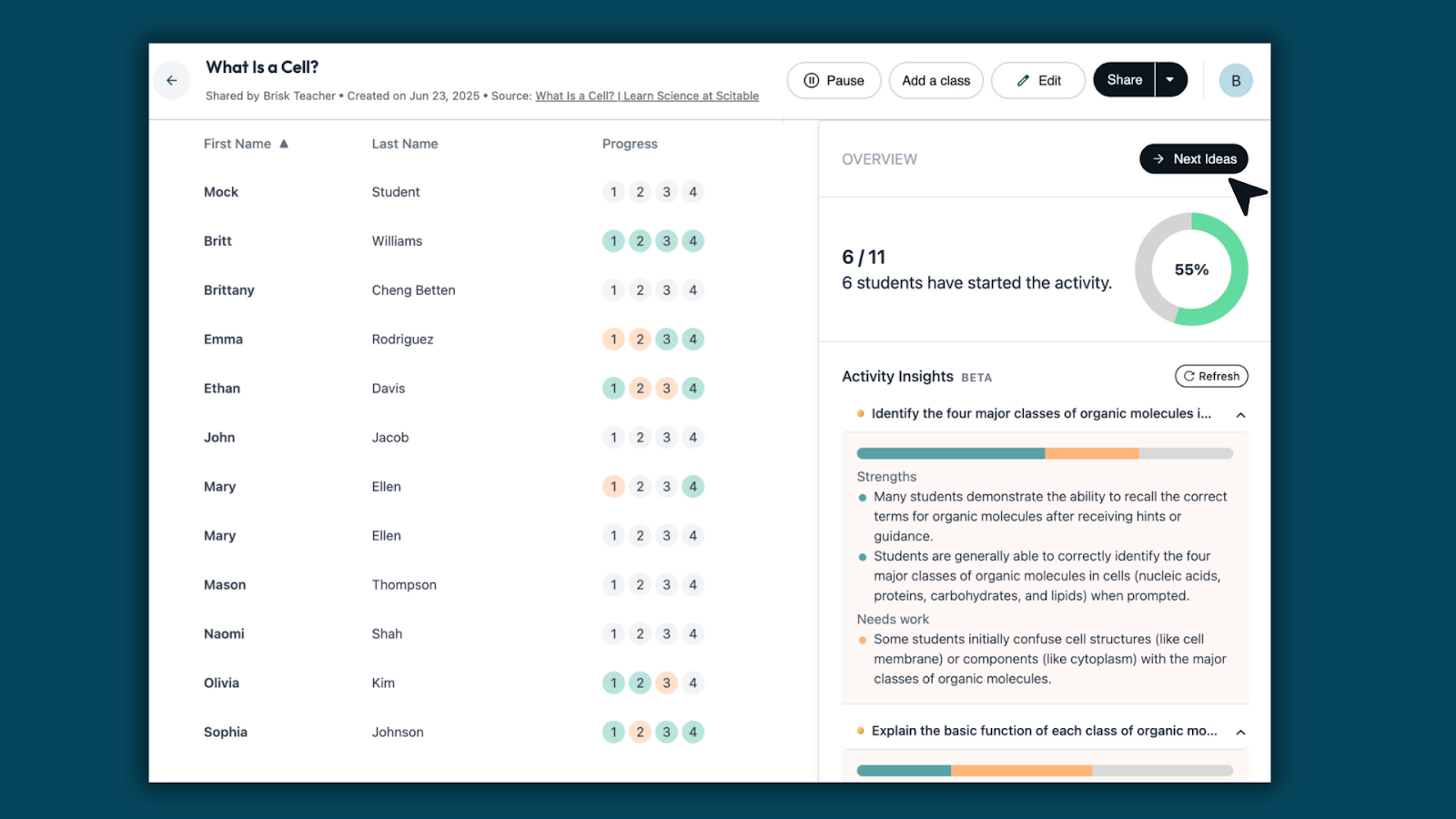
*Multi-questions are available for S&D only

Curriculum Intelligence — AI Grounded in Your Curriculum
January 22, 2026
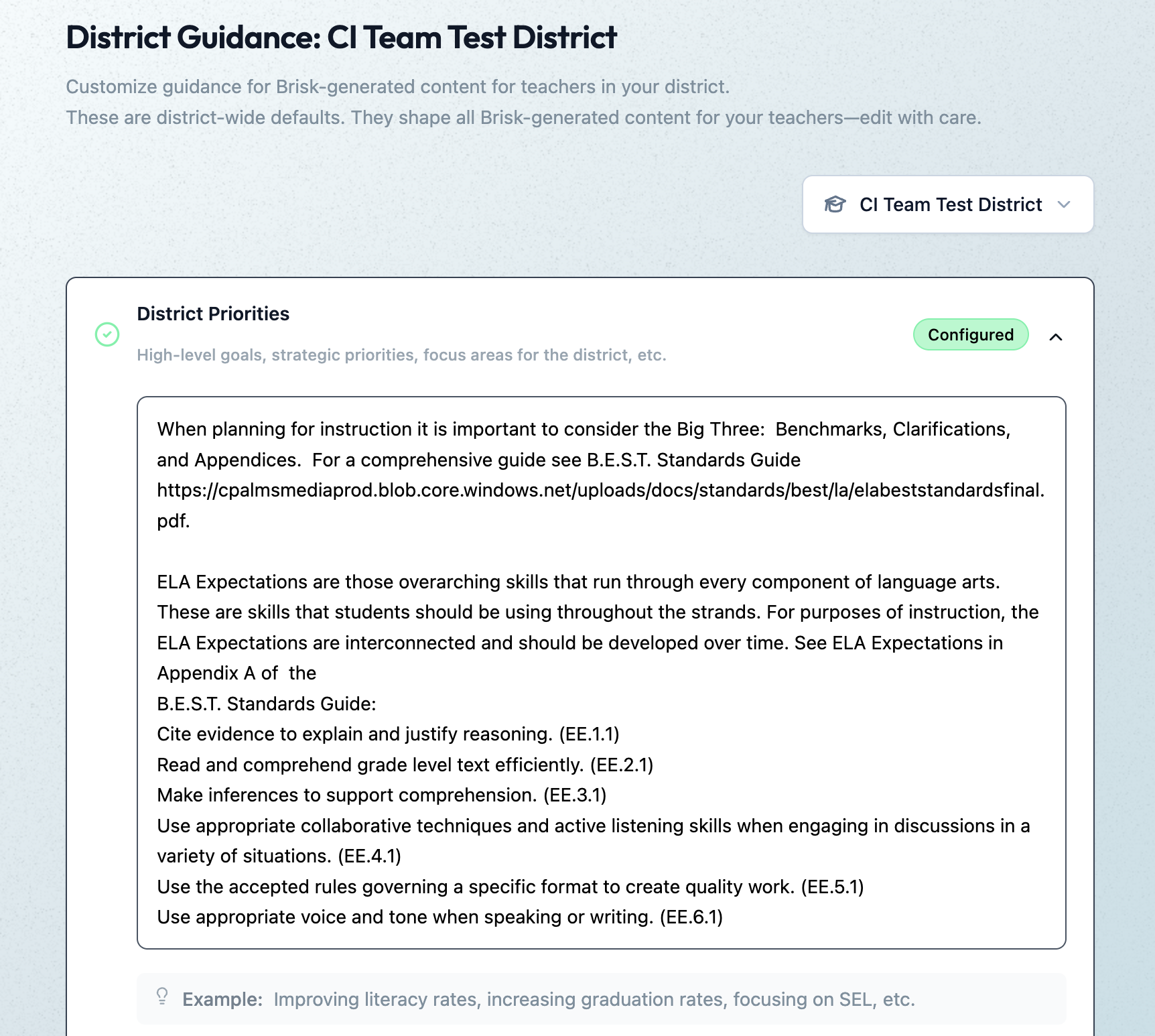
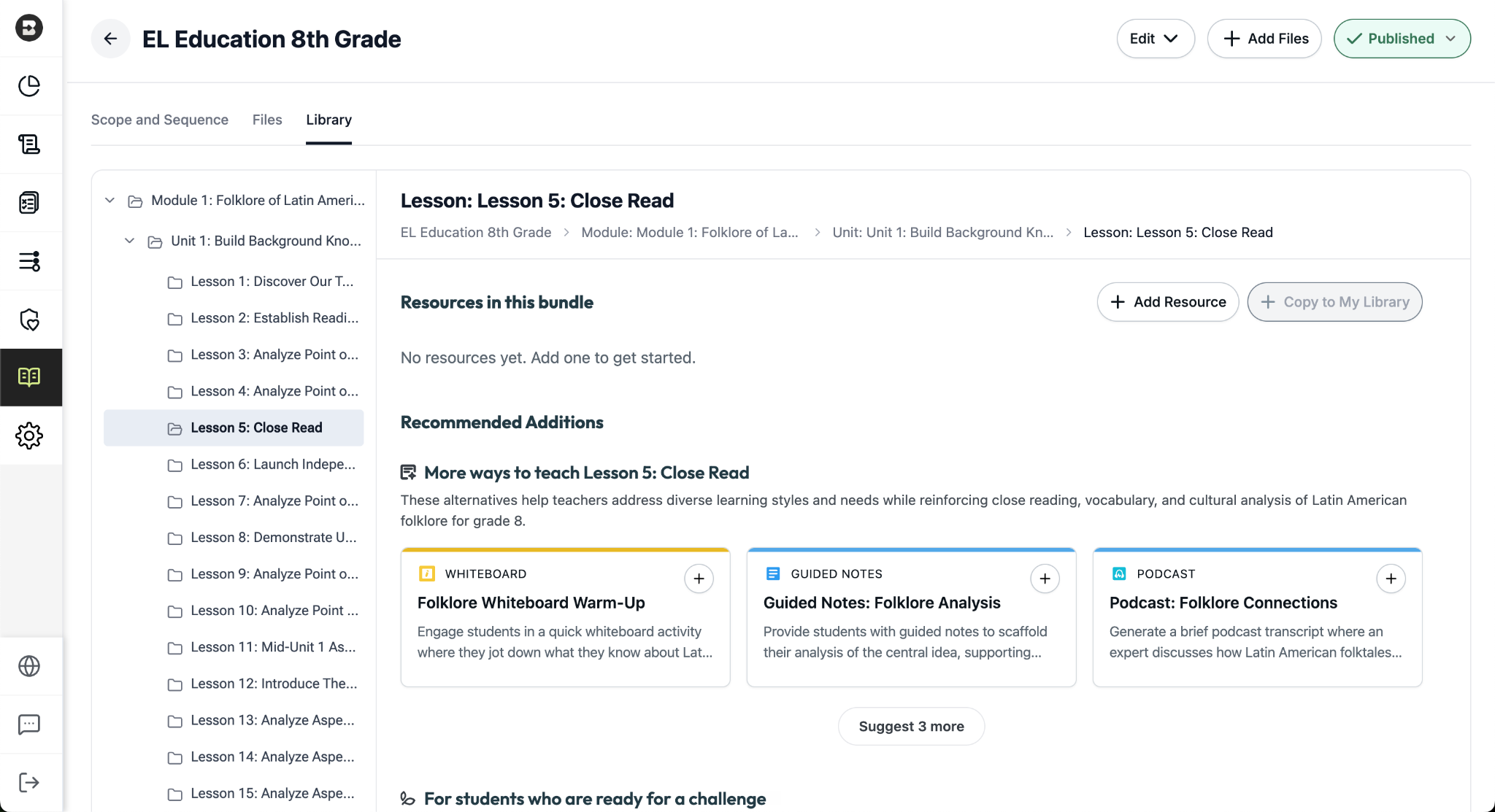
Announcing Curriculum Intelligence, coming for Back to School 2026. This new offering will embed your adopted curriculum directly into Brisk. By grounding AI in your district’s materials, standards, and pacing, Brisk ensures ideas, supports, and next steps stay aligned to what you actually teach.
Learn more from Brisk's founder, Arman Jaffer, about why we built Curriculum Intelligence.
Coming with Curriculum Intelligence:
- Curriculum-aware AI grounded in your materials, scope, and sequence
- Aligned support by default, not one-off prompts or disconnected tools
- District-ready guardrails for visibility, alignment, and privacy
- Teacher flexibility preserved, with the ability to adjust and keep their voice
Leaders, book a demo to see Curriculum Intelligence in action. Teachers, join the waitlist to stay in the loop.
Batch Feedback Insights: See Classwide Patterns at a Glance
January 15, 2026
Batch Feedback Insights adds a new way for teachers to understand patterns across student work.
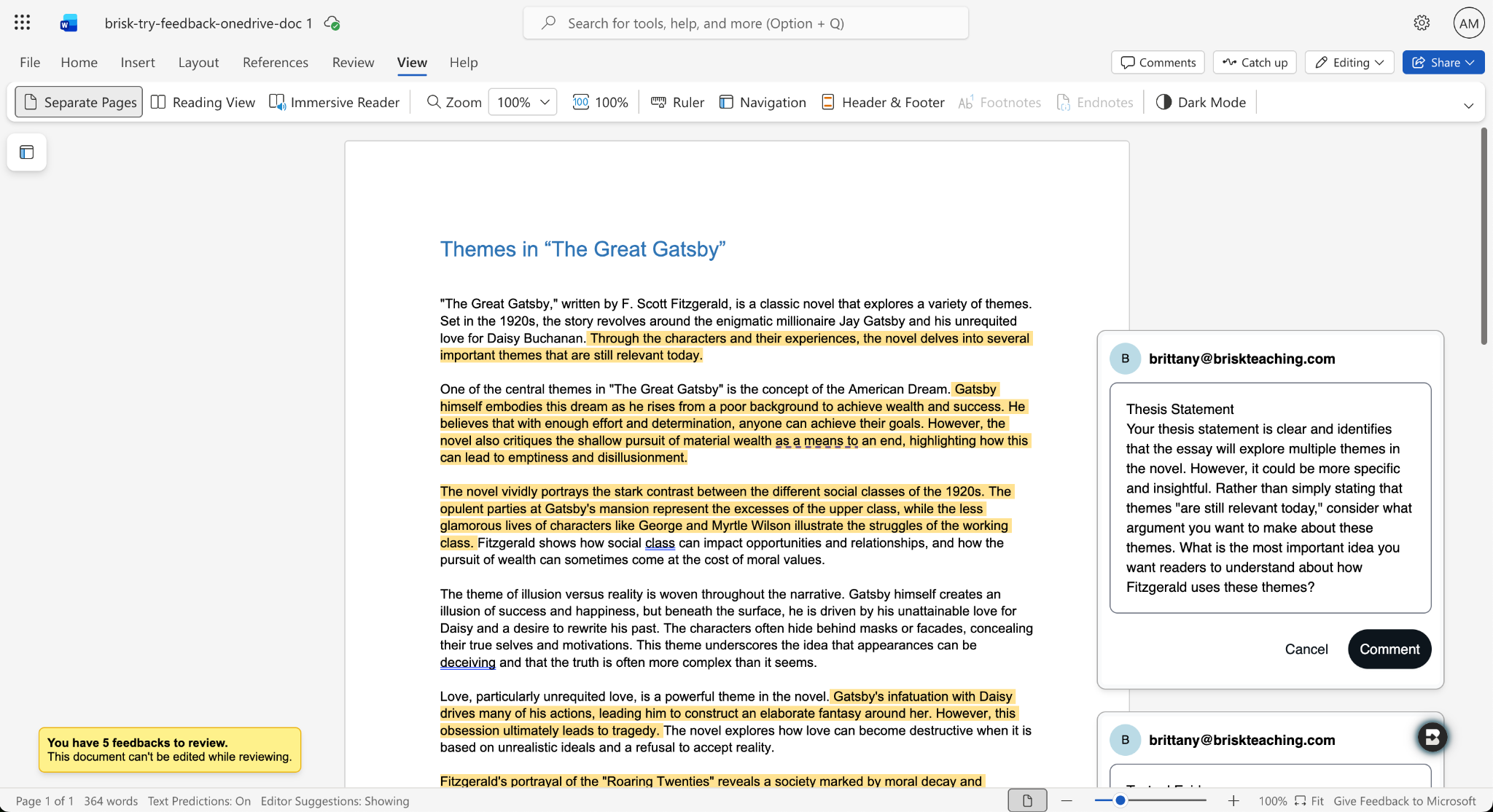
After feedback is generated, Brisk summarizes classwide strengths, growth areas, and — when rubric scoring is used — performance trends, so teachers can decide what to do next without opening every document.
How it works
- Run Batch Feedback on a set of student submissions.
- Reopen the assignment after Batch Feedback has been run.
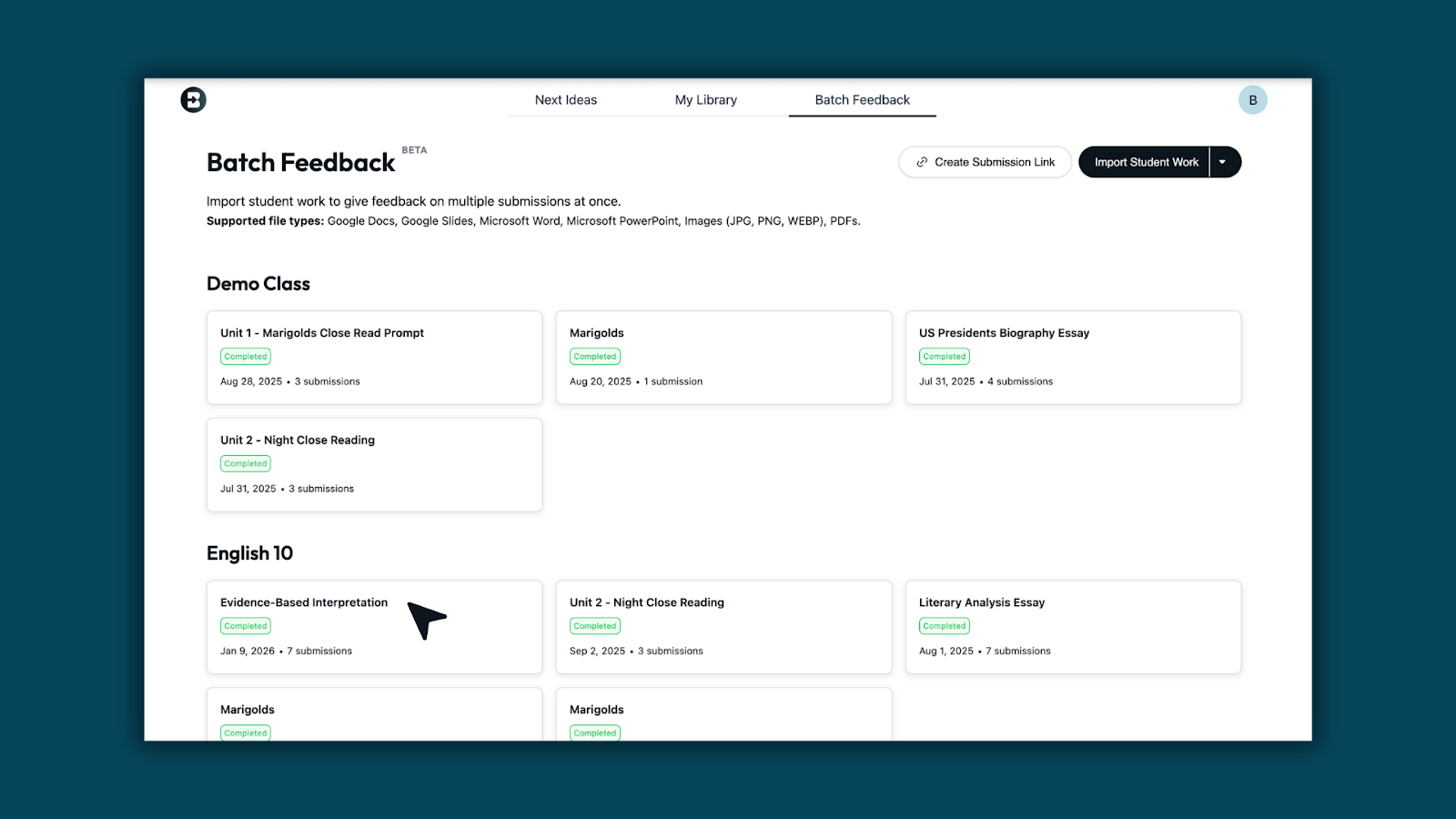
- View the Insights Summary panel on the right to see class-level patterns based on the feedback.
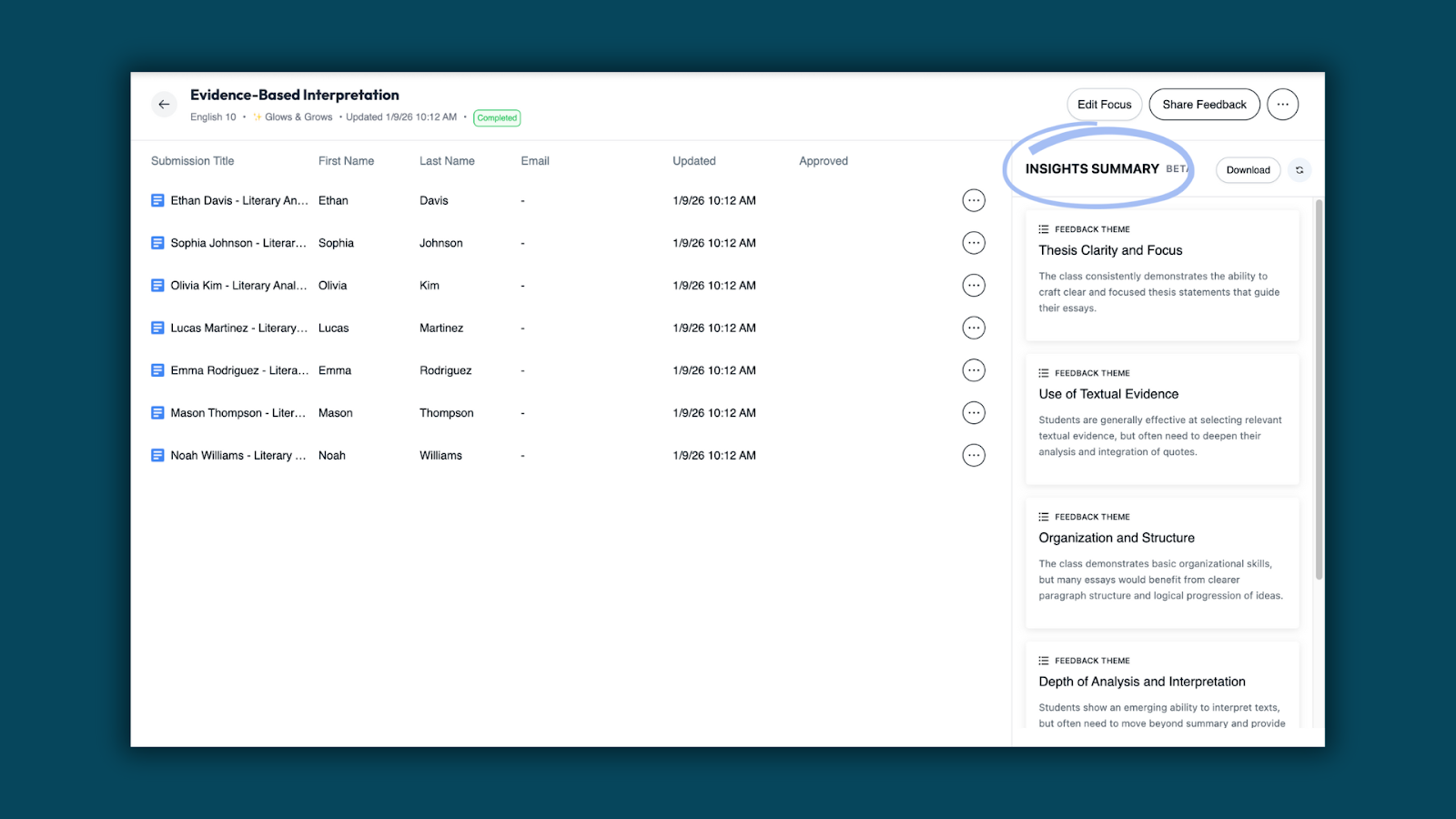
What teachers can see
Class-wide insights from feedback
When no rubric is attached, Brisk analyzes the feedback generated and surfaces general feedback themes across the class. Teachers see high-level strengths and growth areas drawn directly from the feedback — without reviewing individual submissions.
Go deeper when needed
Select See More on any insight to open a detailed view with expanded strengths, growth areas, and options to generate next steps — all without leaving the assignment.
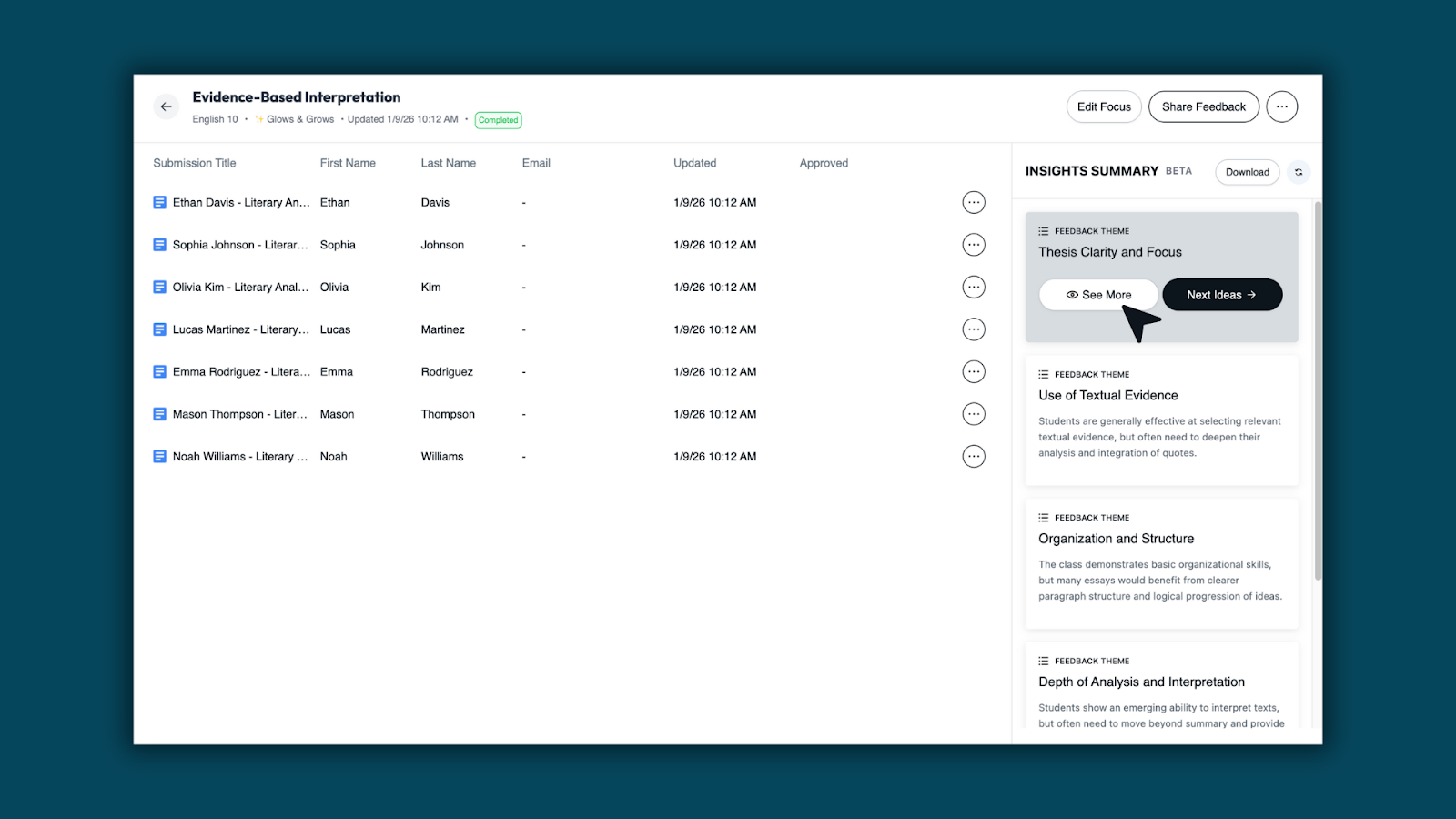
Teachers can click through each section of the expanded view to review patterns in more detail.
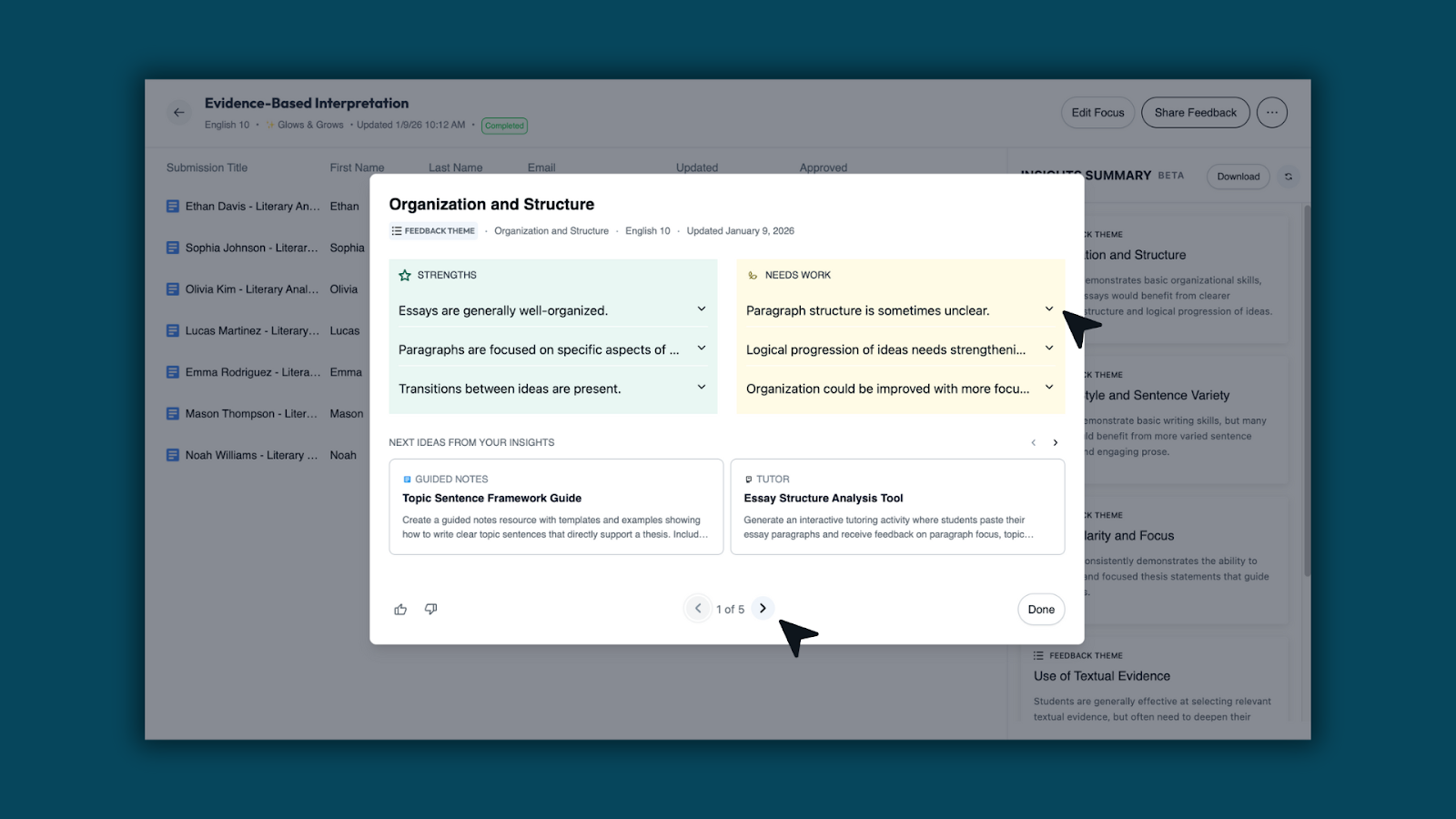
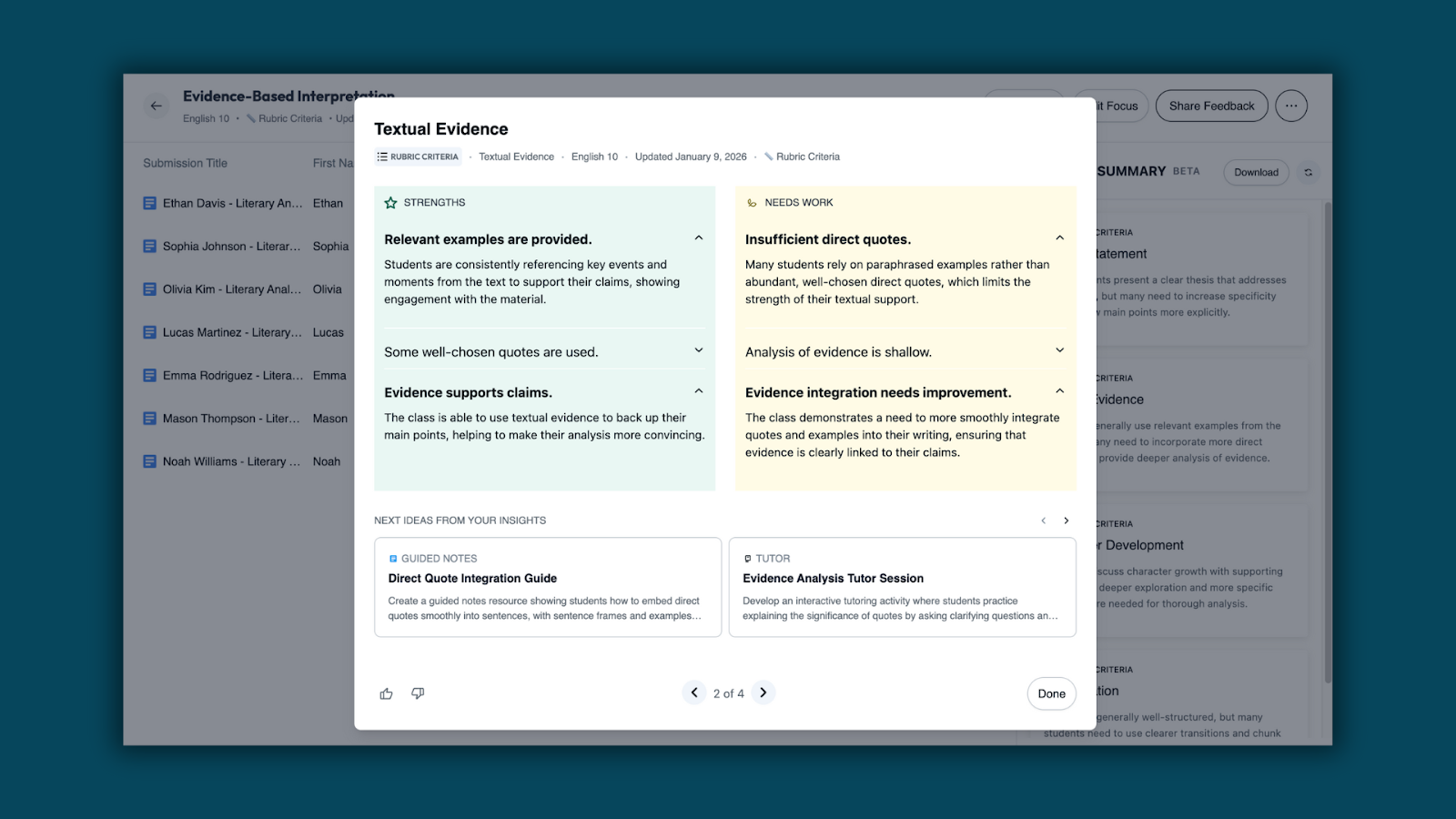
Rubric-aligned insights (when a rubric is used)
When a rubric is attached, insights are organized by rubric criteria, showing strengths and growth areas for each skill or standard.
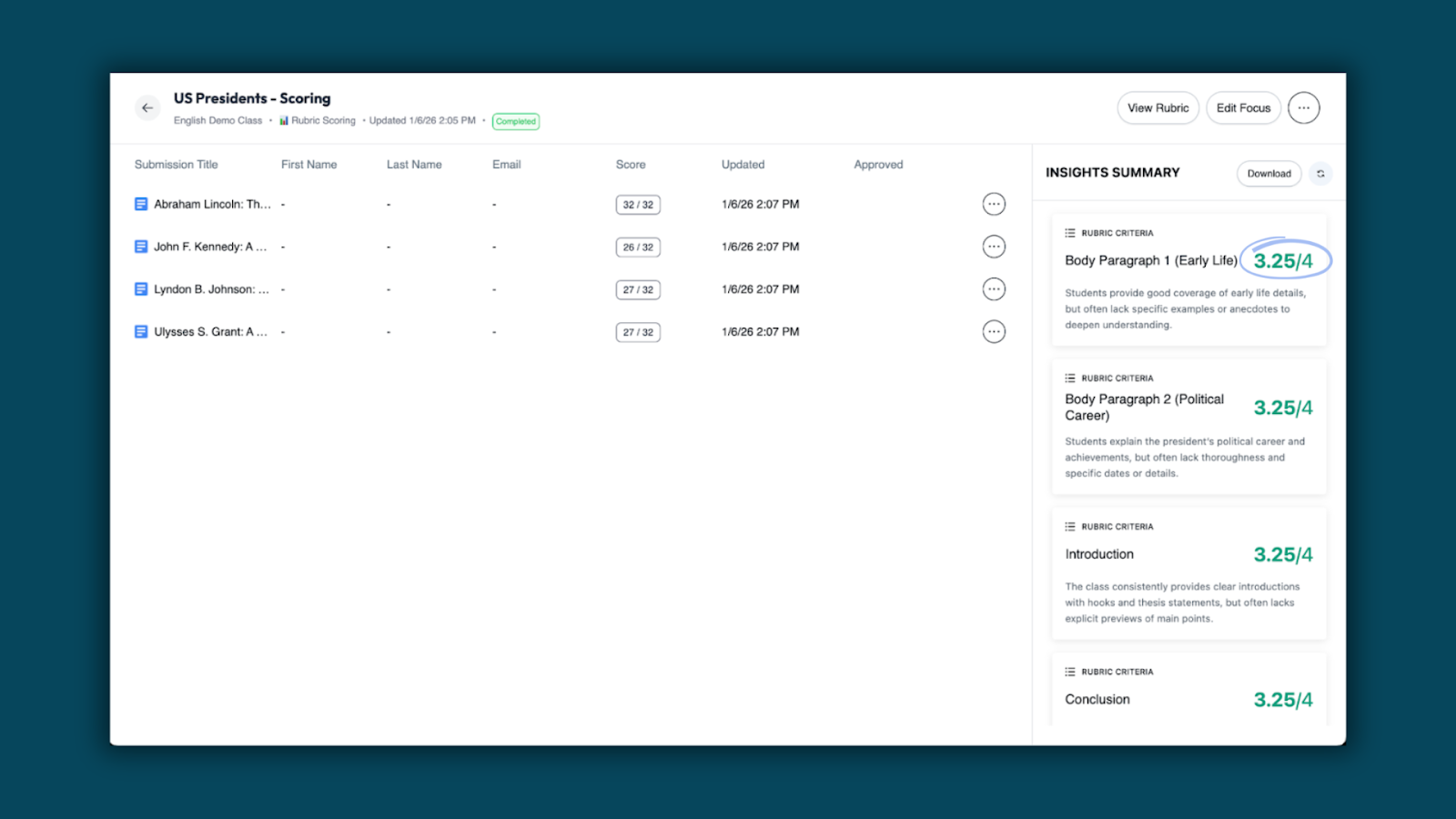
Score distribution for rubric scoring
For assignments using rubric scoring, teachers also see a score distribution to quickly understand overall performance across the class.
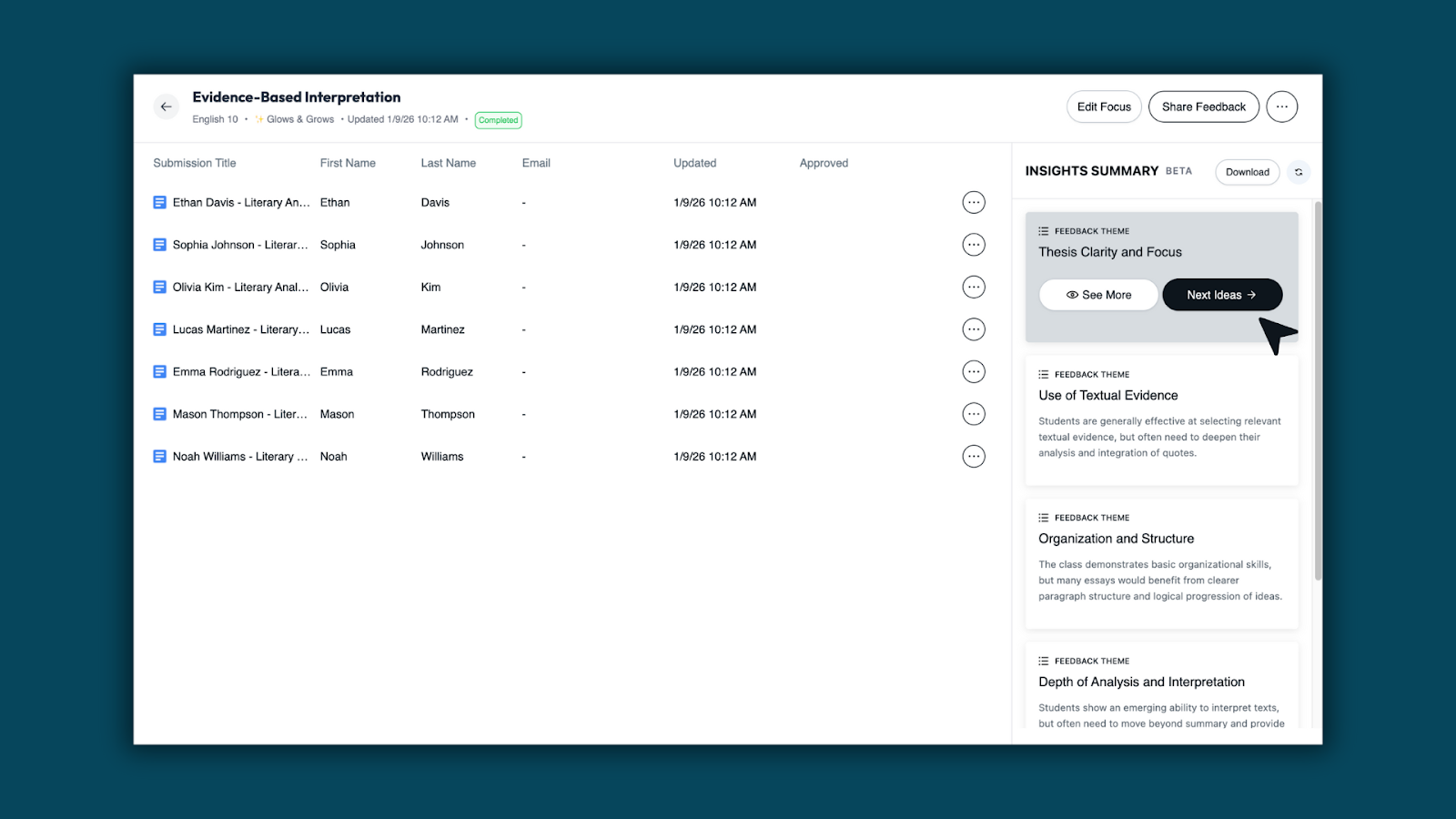
Turn insights into action
From the Insights Summary or any detailed view, teachers can generate Next Recommendations tied directly to the patterns they’re seeing — making it easier to plan follow-up instruction, reteaching, or enrichment.
Once recommendations are generated, teachers can:
- Refine materials using Brisk Next chat
- Edit individual activities
- Build a bundle of teaching materials to share with students from the Brisk Next page
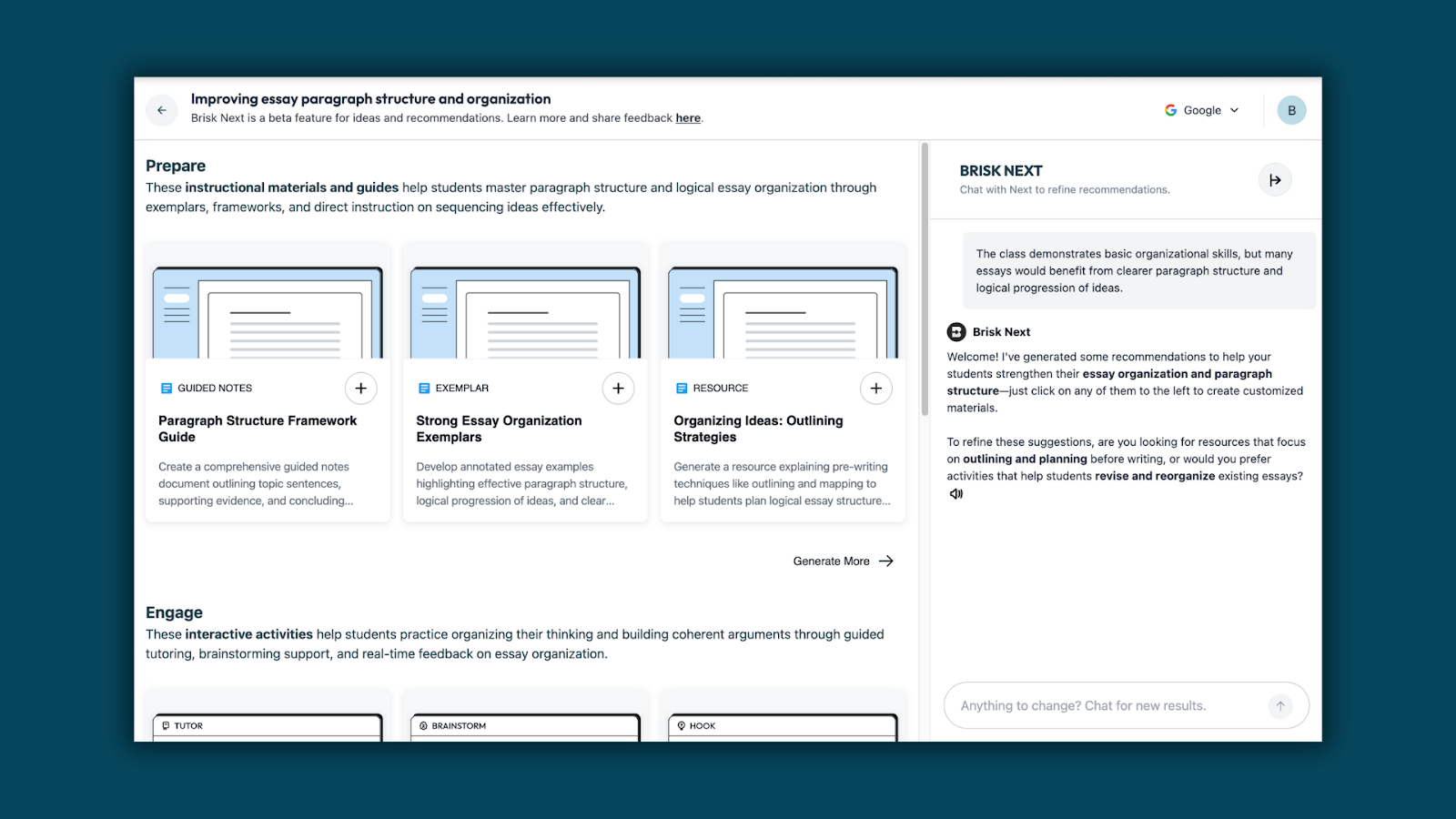
Batch Feedback Insights transforms feedback into instructional insight. Teachers can see classwide strengths, growth areas, and rubric trends — then generate next steps to support learning, all from Brisk.
*Currently available for School and District Users
Boost School Hours: Manage When Students Can Engage with Boost
January 9, 2026
Manage when students can engage with Boost — based on your district’s expectations for safe, supervised AI use.
Boost School Hours gives district administrators control over when students can engage with Boost. Admins can navigate to the Admin Dashboard to set a timezone and enable or disable specific days and hours, ensuring Boost is available only during approved windows.
Outside of designated School Hours, Boost student activity is automatically paused.
What Admins Can Do
- Define when Boost is accessible for students
- Set access by day and time, aligned to school schedules
- Apply settings district-wide with consistent expectations
- Align Boost use with times when adults are available or aware
For example, an admin can fully turn off weekend Boost usage by toggling Saturday and Sunday off.
*Available for School and District Users
Translate Existing Forms and Quizzes Created by Brisk
December 4, 2025
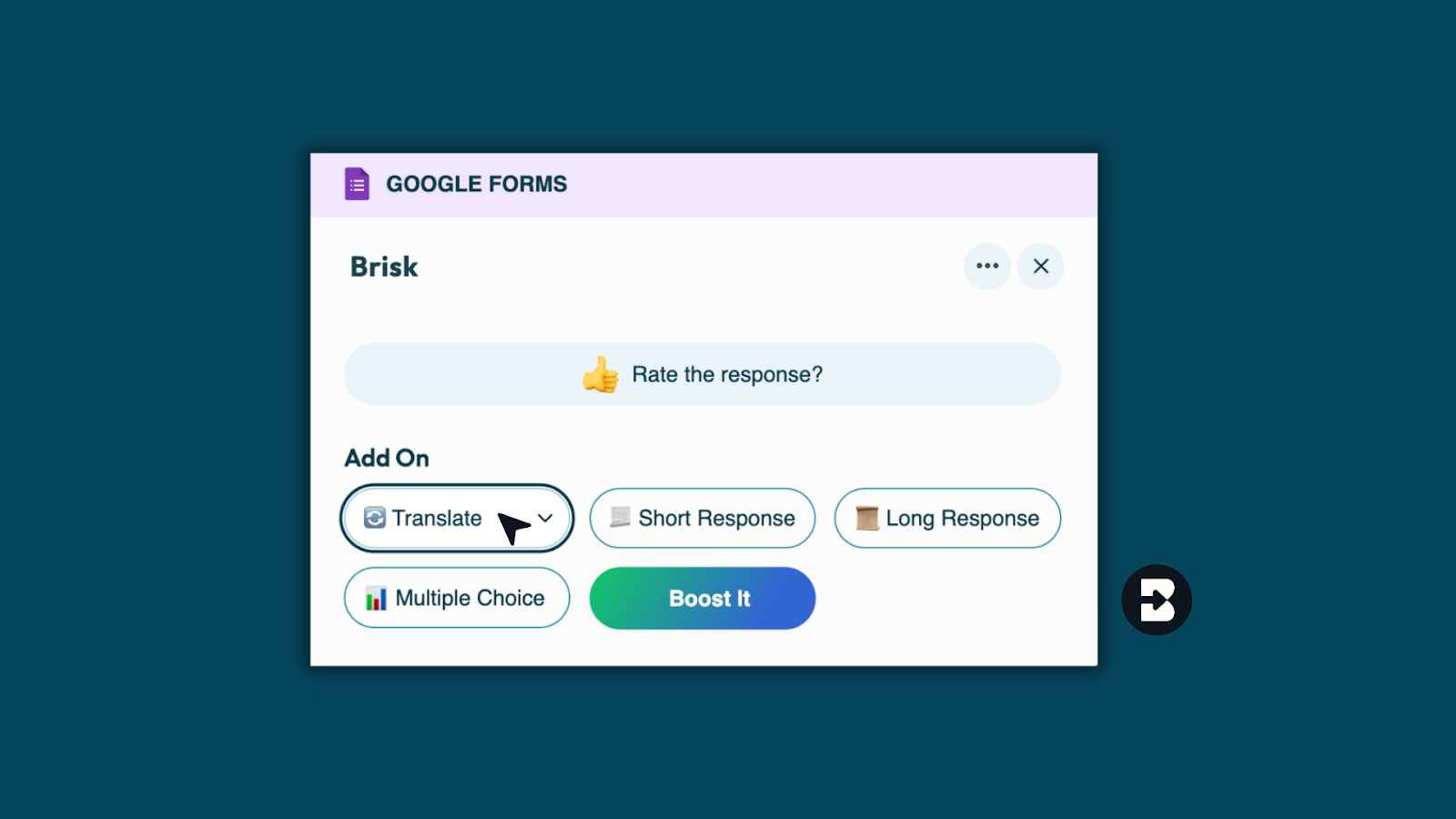
- Once your form or quiz is generated by Brisk, select Translate.
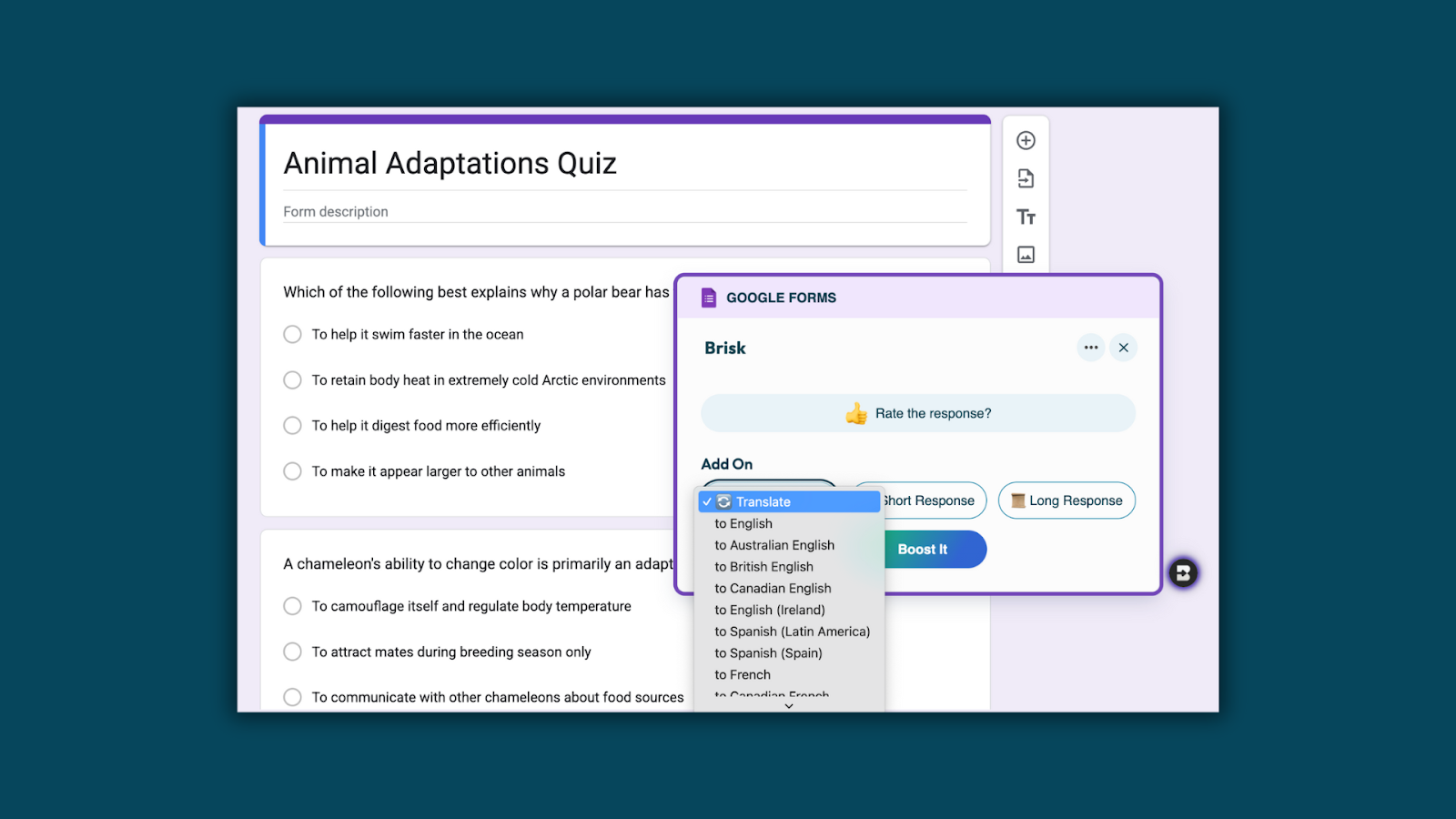
- Next, select the language you’d like to translate to.
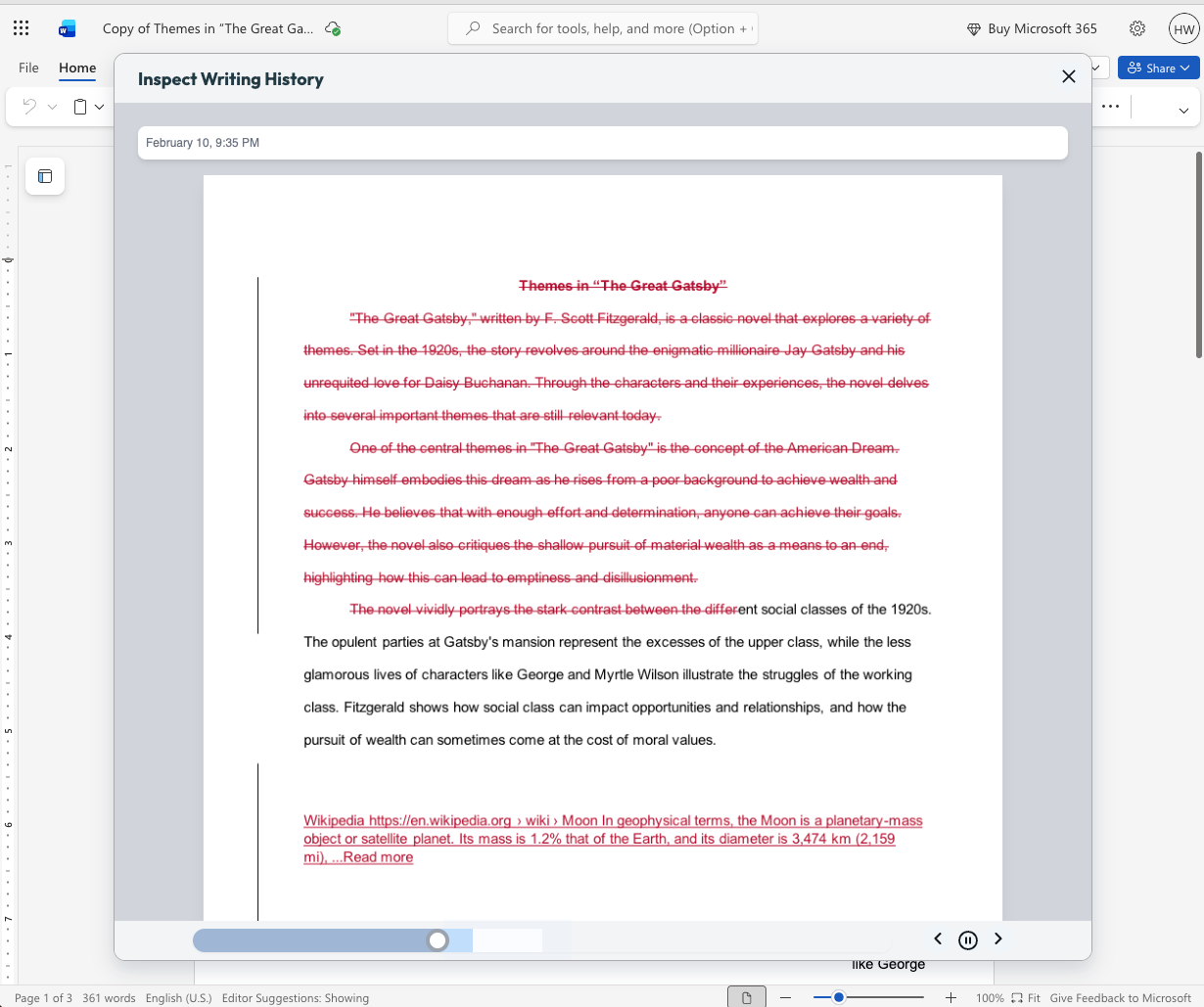
Batch Feedback with Microsoft OneDrive
December 4, 2025
1. Go to app.briskteaching.com/next
- Open Batch Feedback in Brisk.
- Click Import Student Work
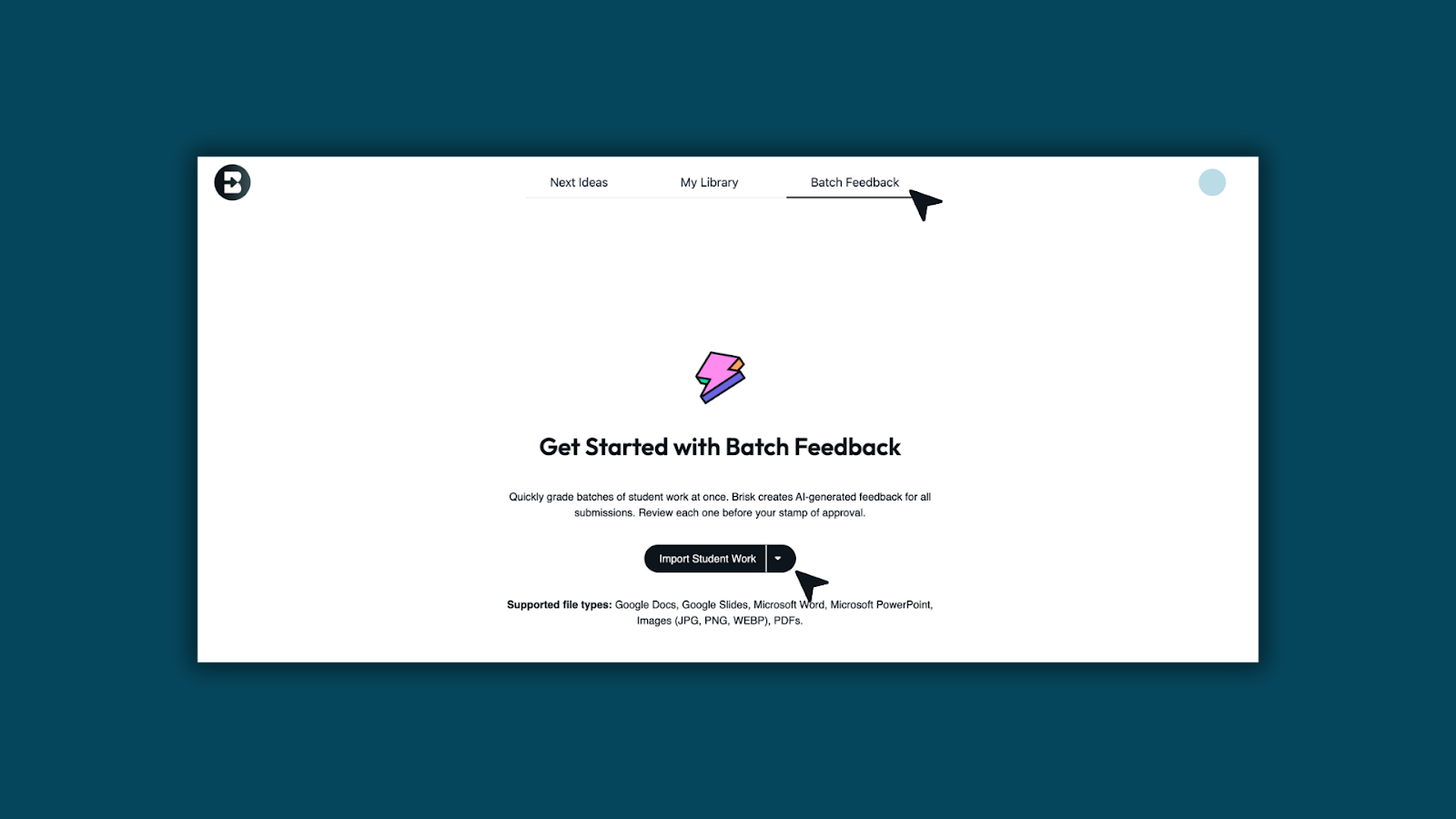
- Select, Microsoft OneDrive.
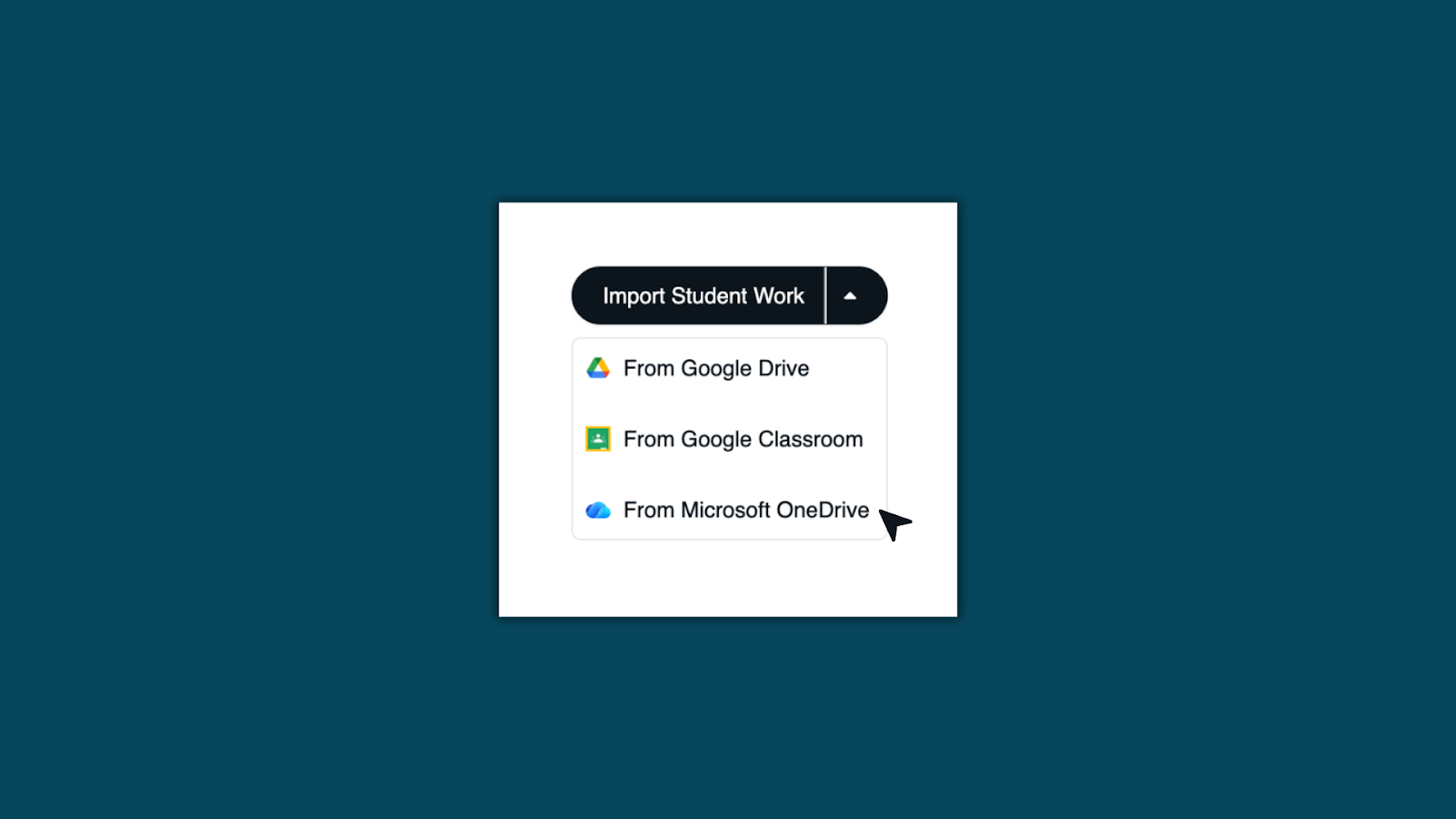
- Choose the folder and select your students’ files.
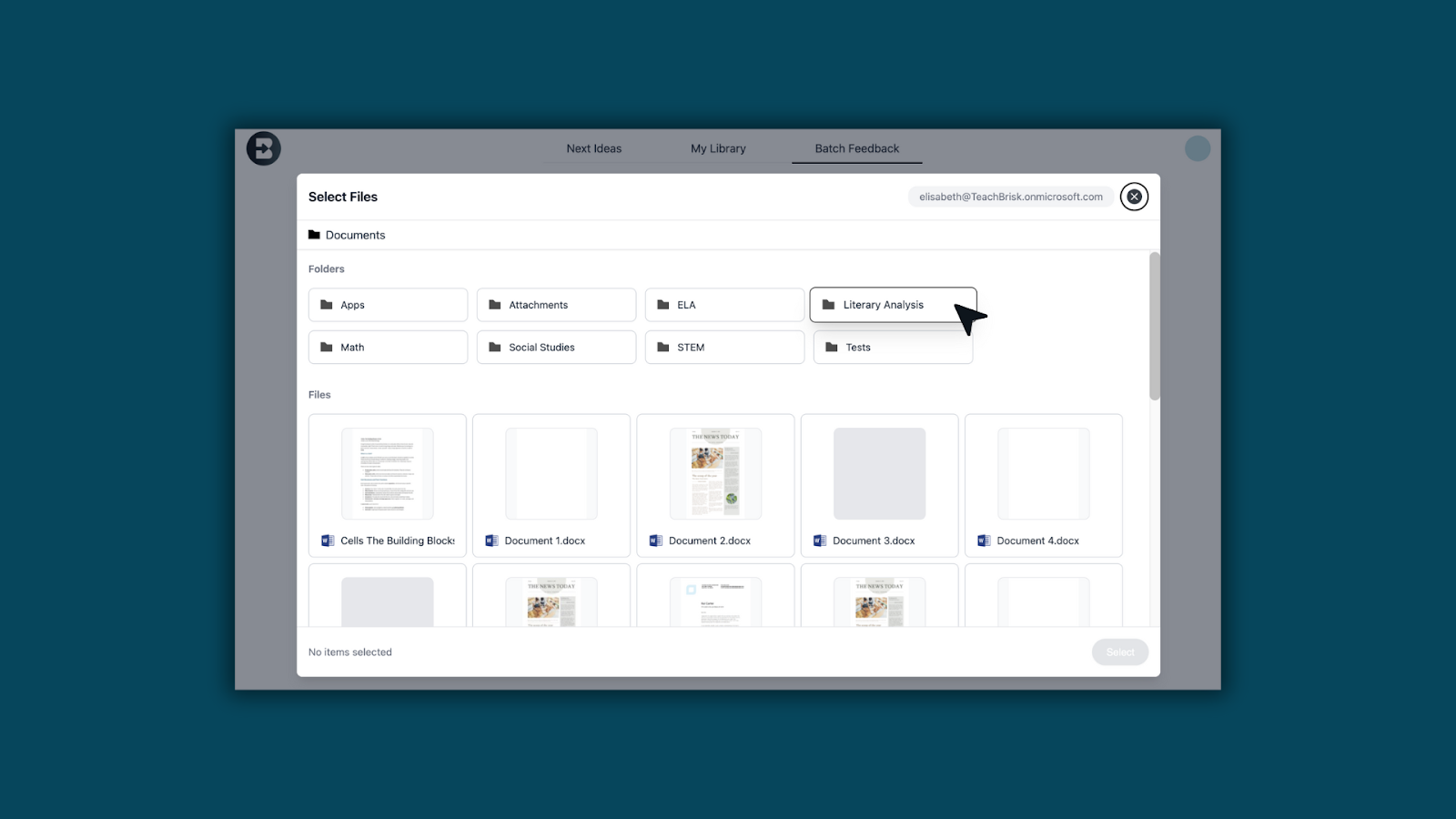
- Then click Select
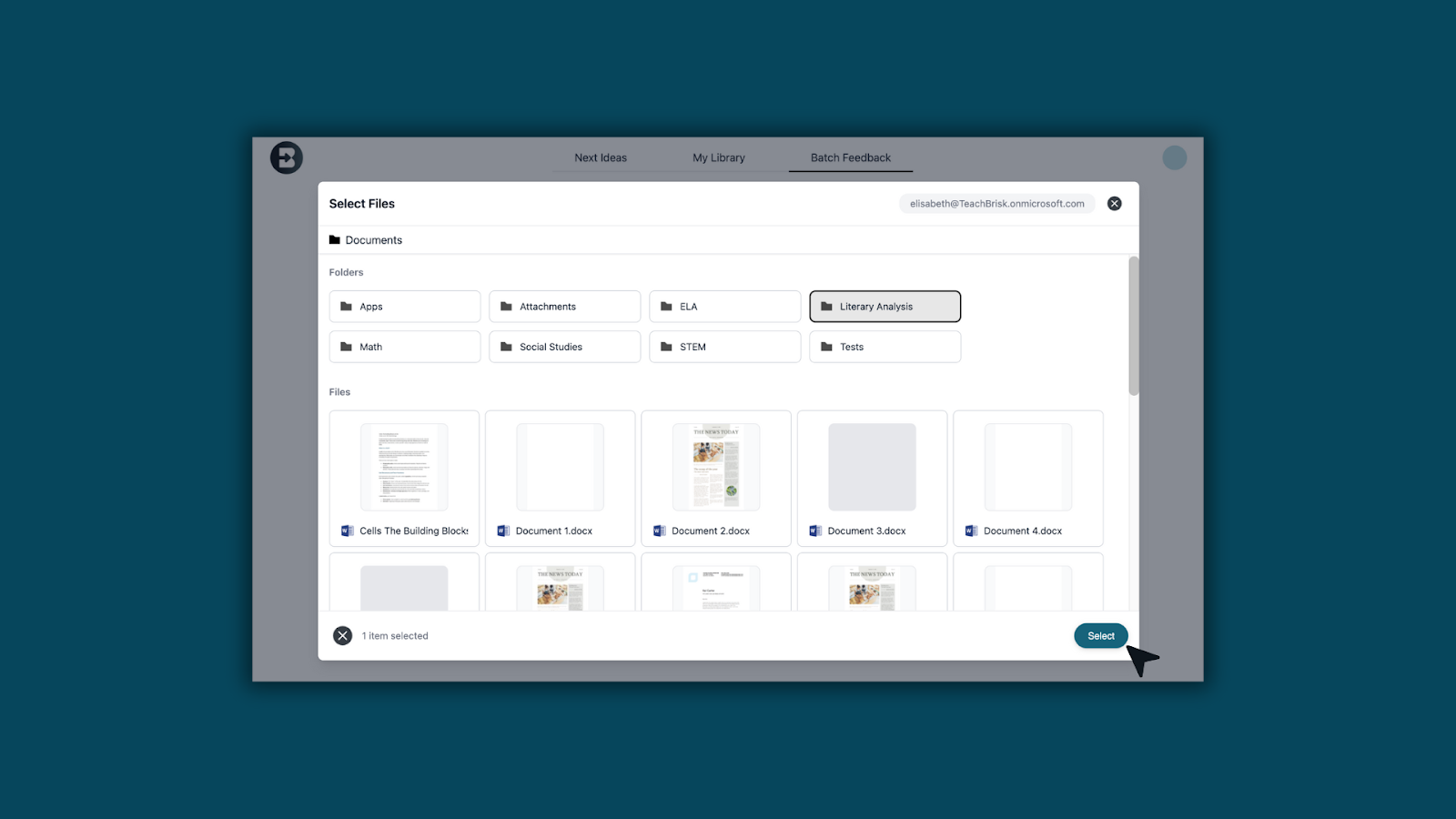
2. Set up Batch Feedback
- Review the file list and click Select Class.
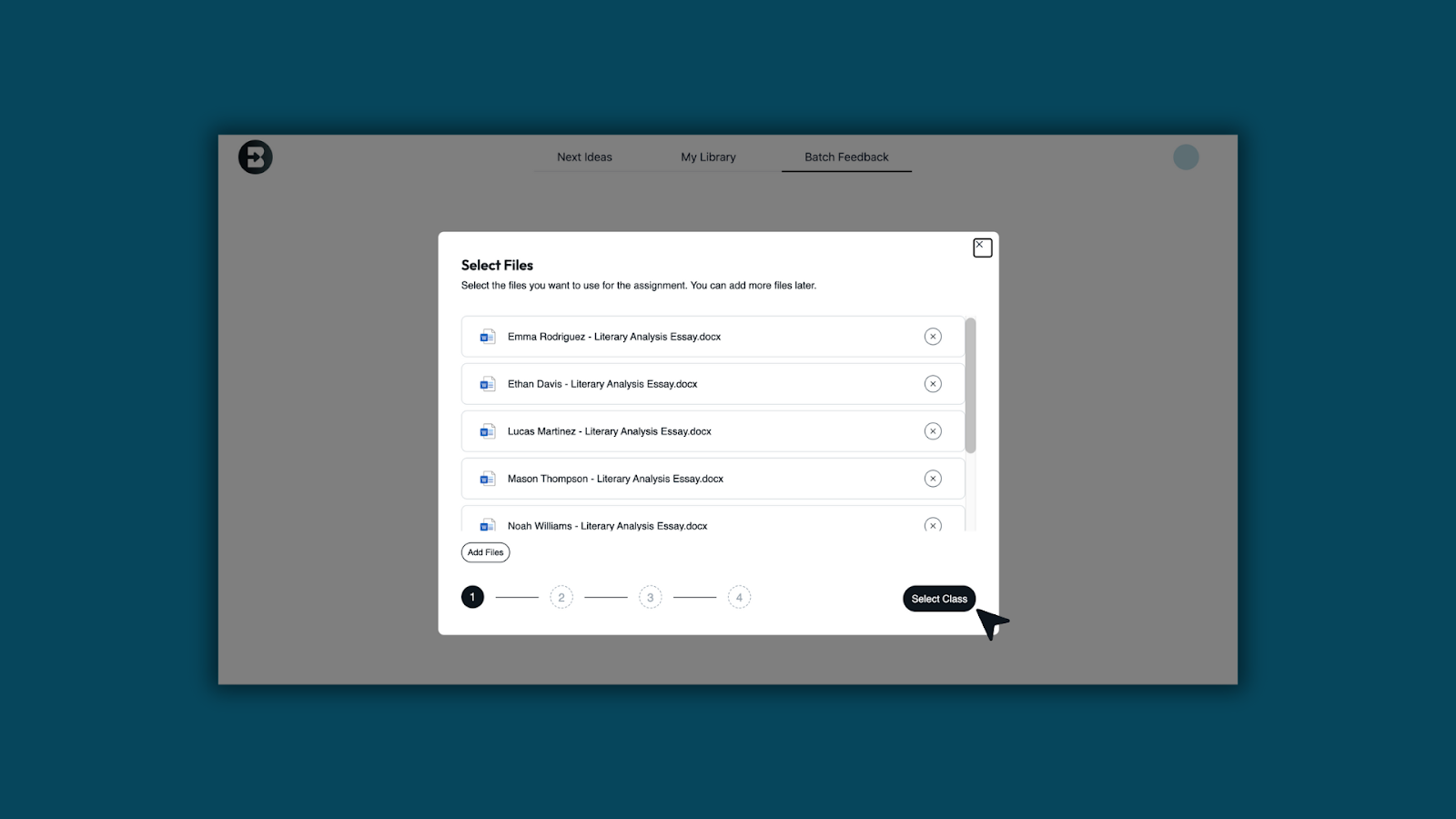
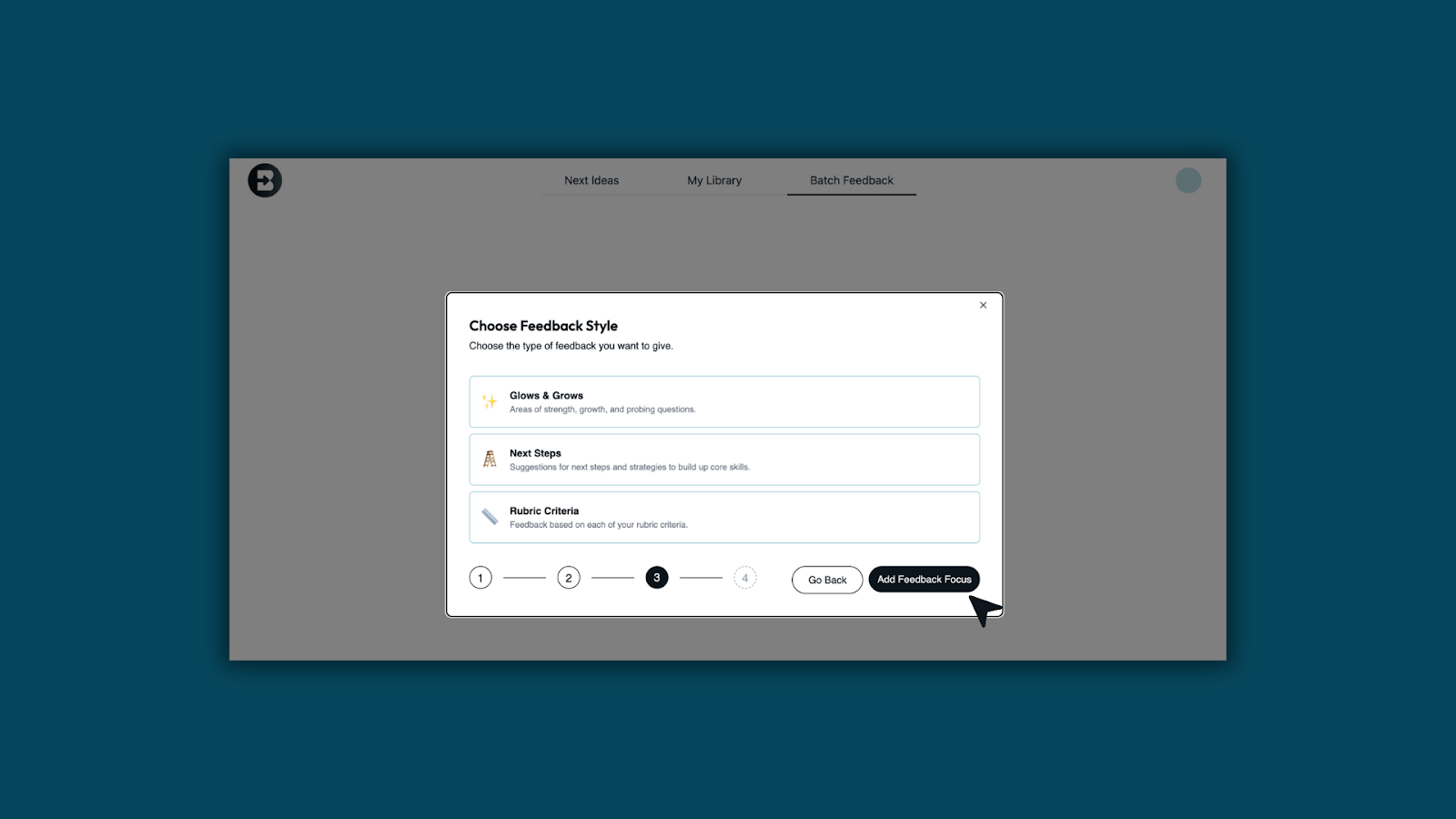
- Choose your feedback style: Glows & Grows, Next Steps, or Rubric Criteria.
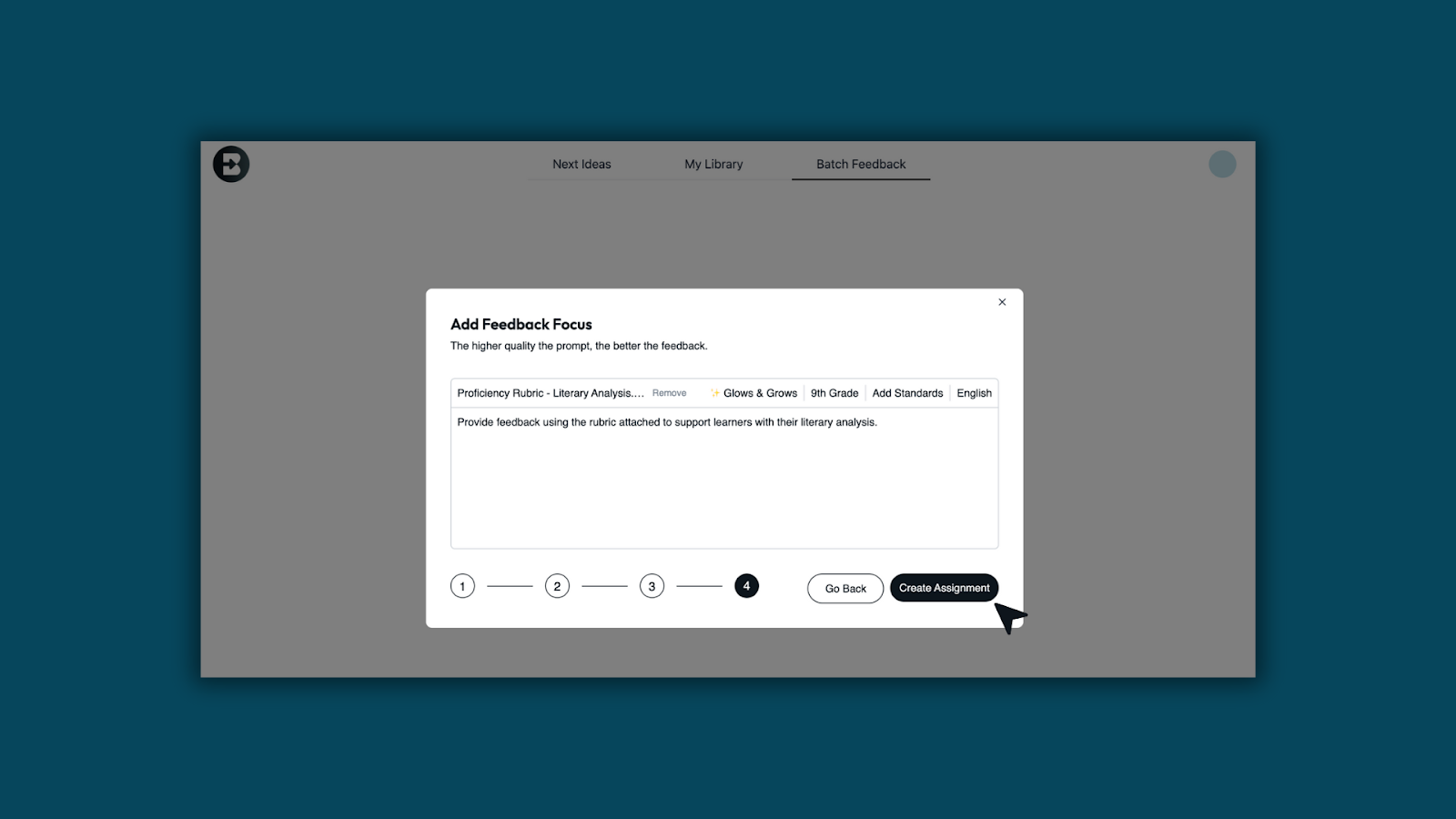
- Add your feedback focus (rubric, grade level, standards, and prompt). Then click, Create Assignment.
3. Review and approve
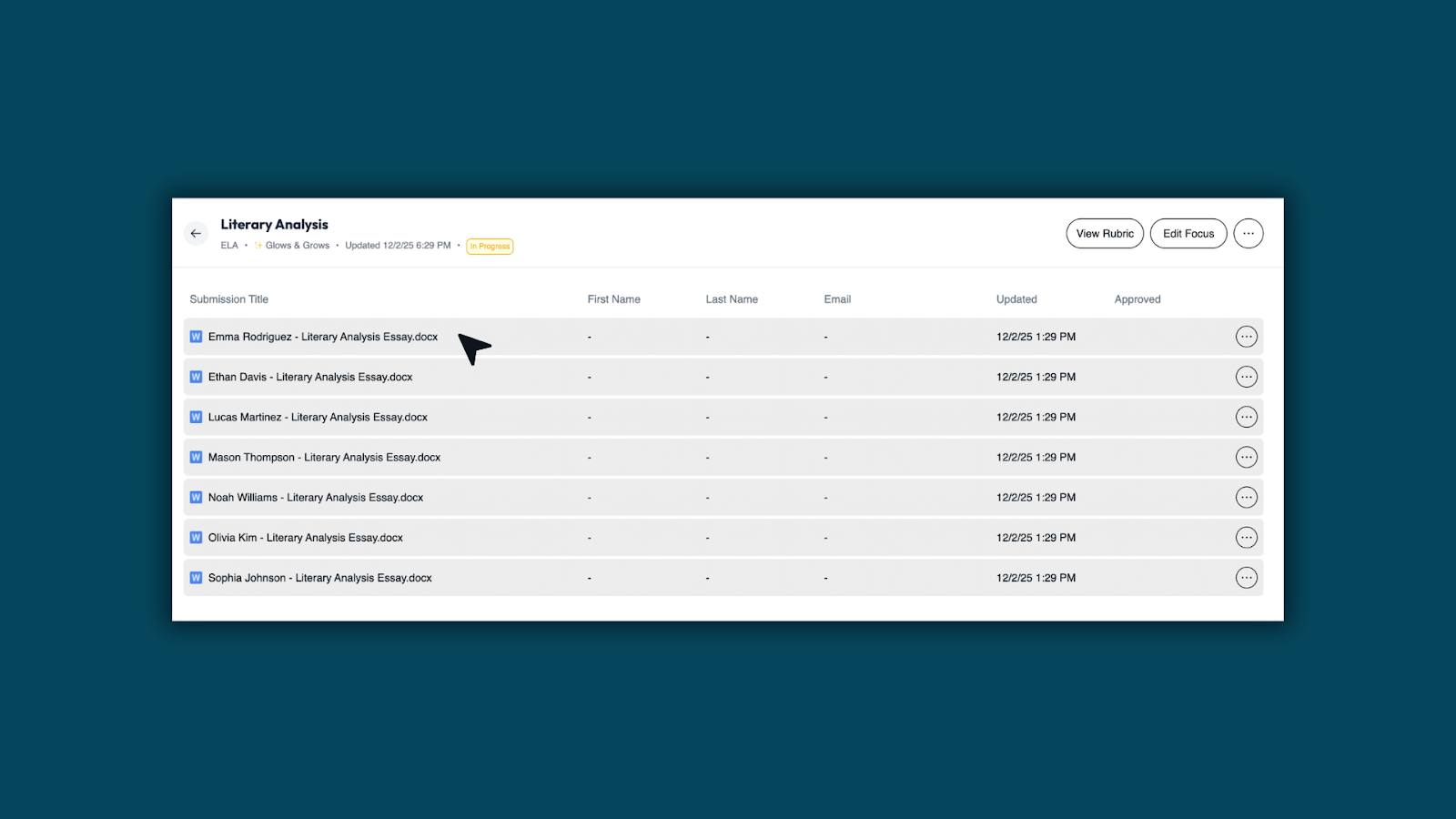
- Open each student’s file to view the AI-generated feedback.
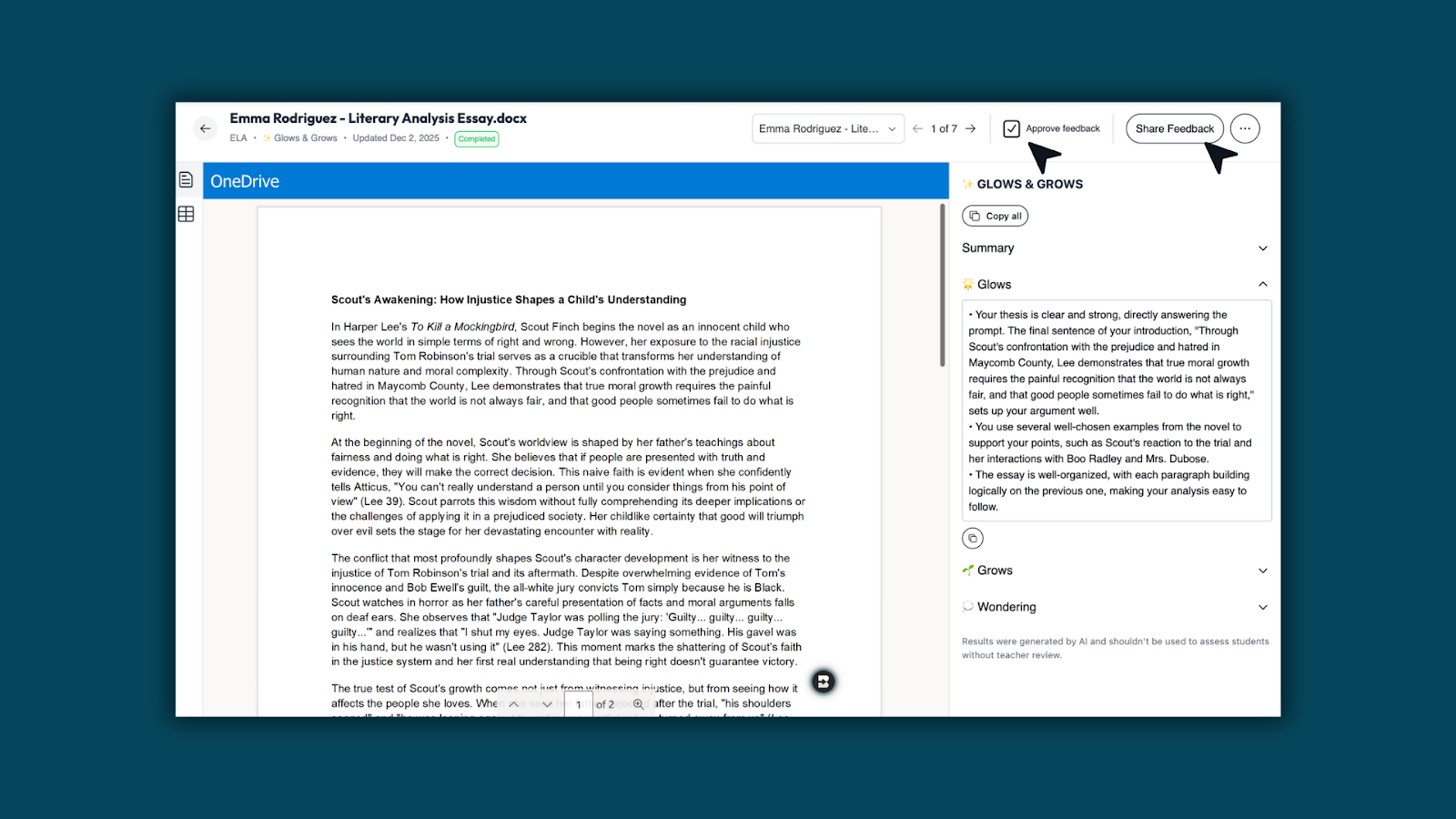
- Edit as needed and check Approve Feedback.
4. Share with students
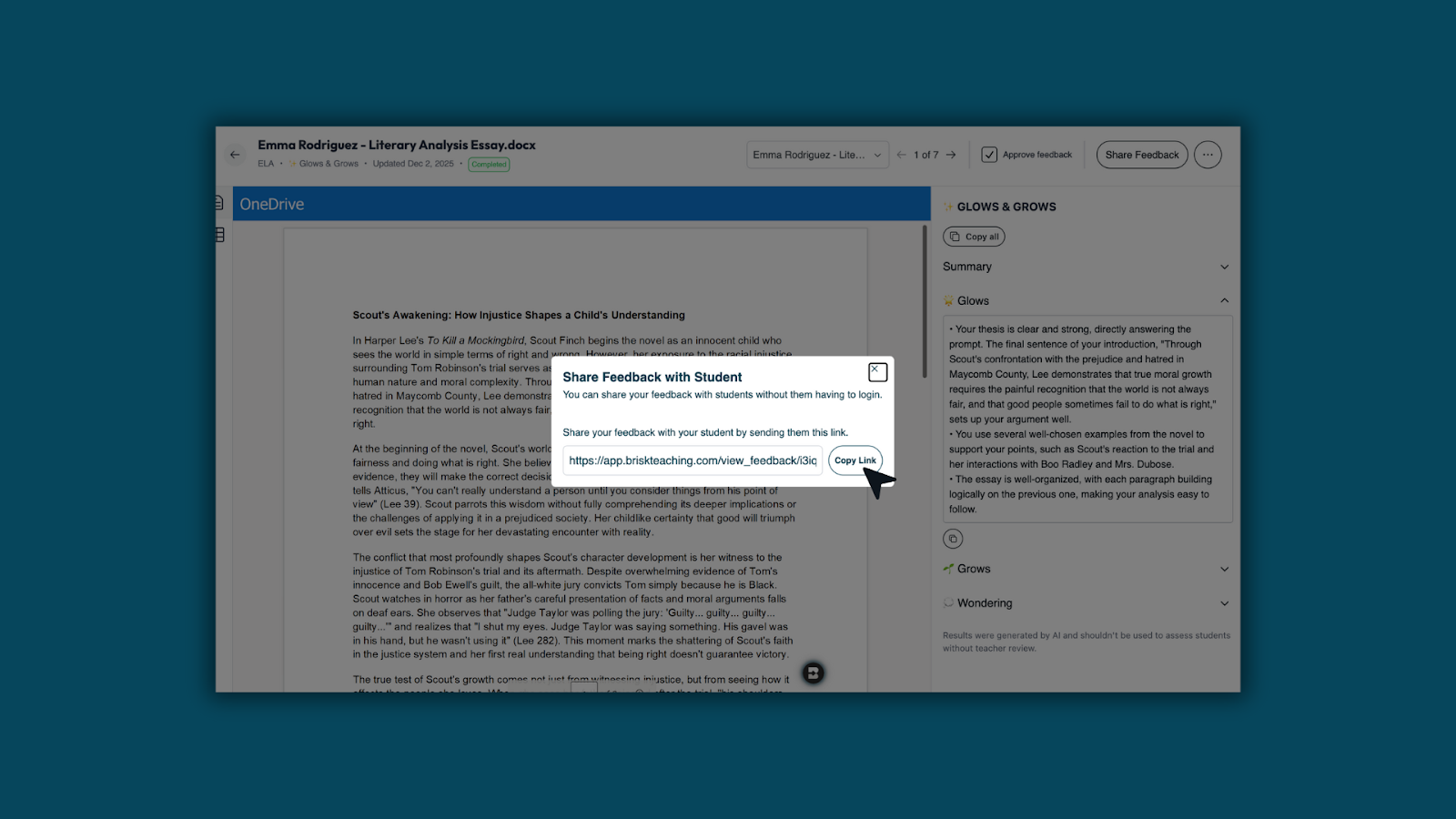
- Click Share Feedback and Copy Link. You can send the link through Teams, email, or your LMS.
Quick Create From Web — Now in Brisk Next
December 3, 2025
Brisk Next is built for generating multiple resources at once to bundle and share — but some teachers just want to create one specific resource quickly.
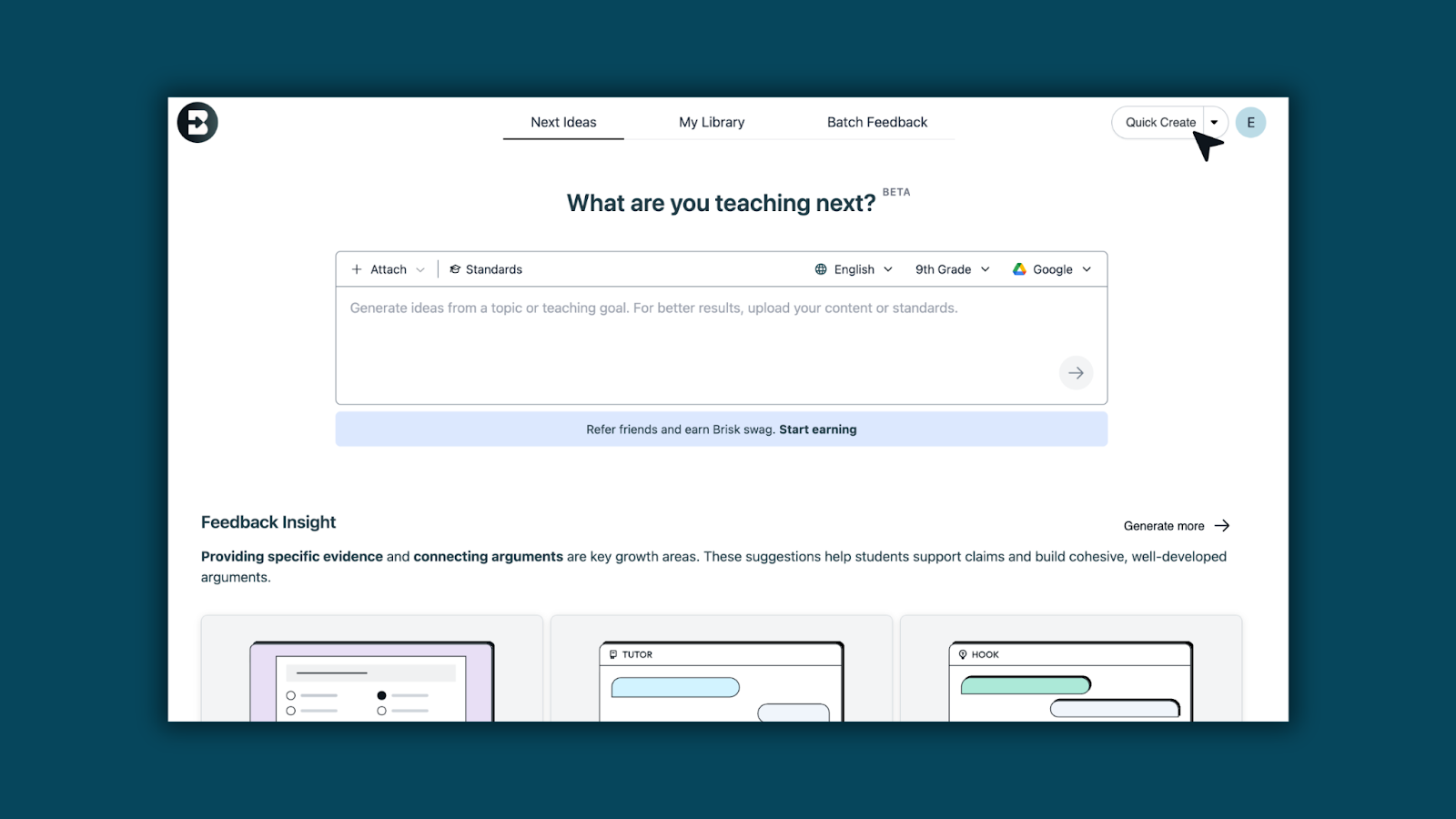
The new Quick Create dropdown makes that easy.
How it works:
- Click Quick Create.
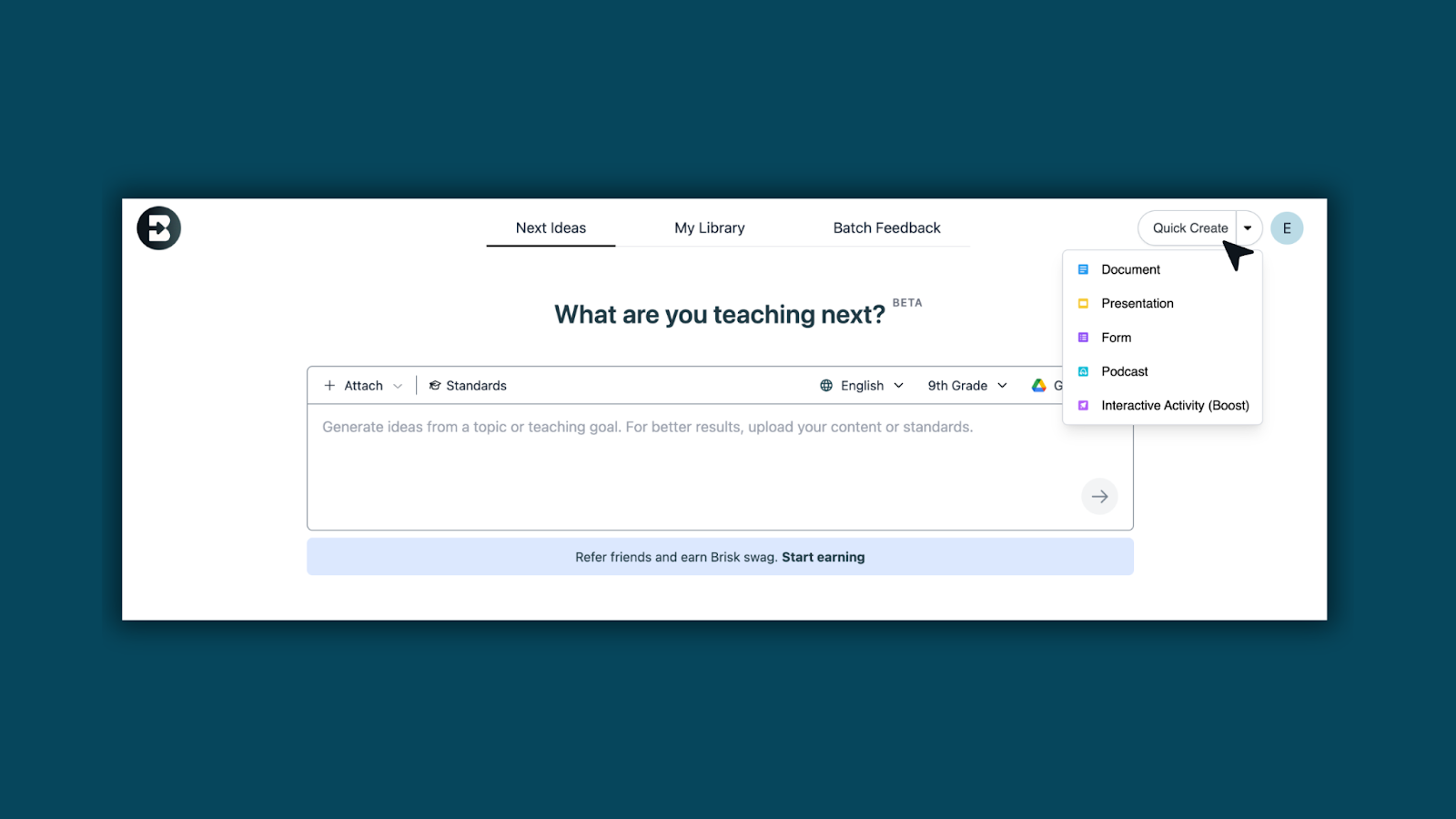
- Choose Document, Presentation, Form, Podcast, or Boost Activity.
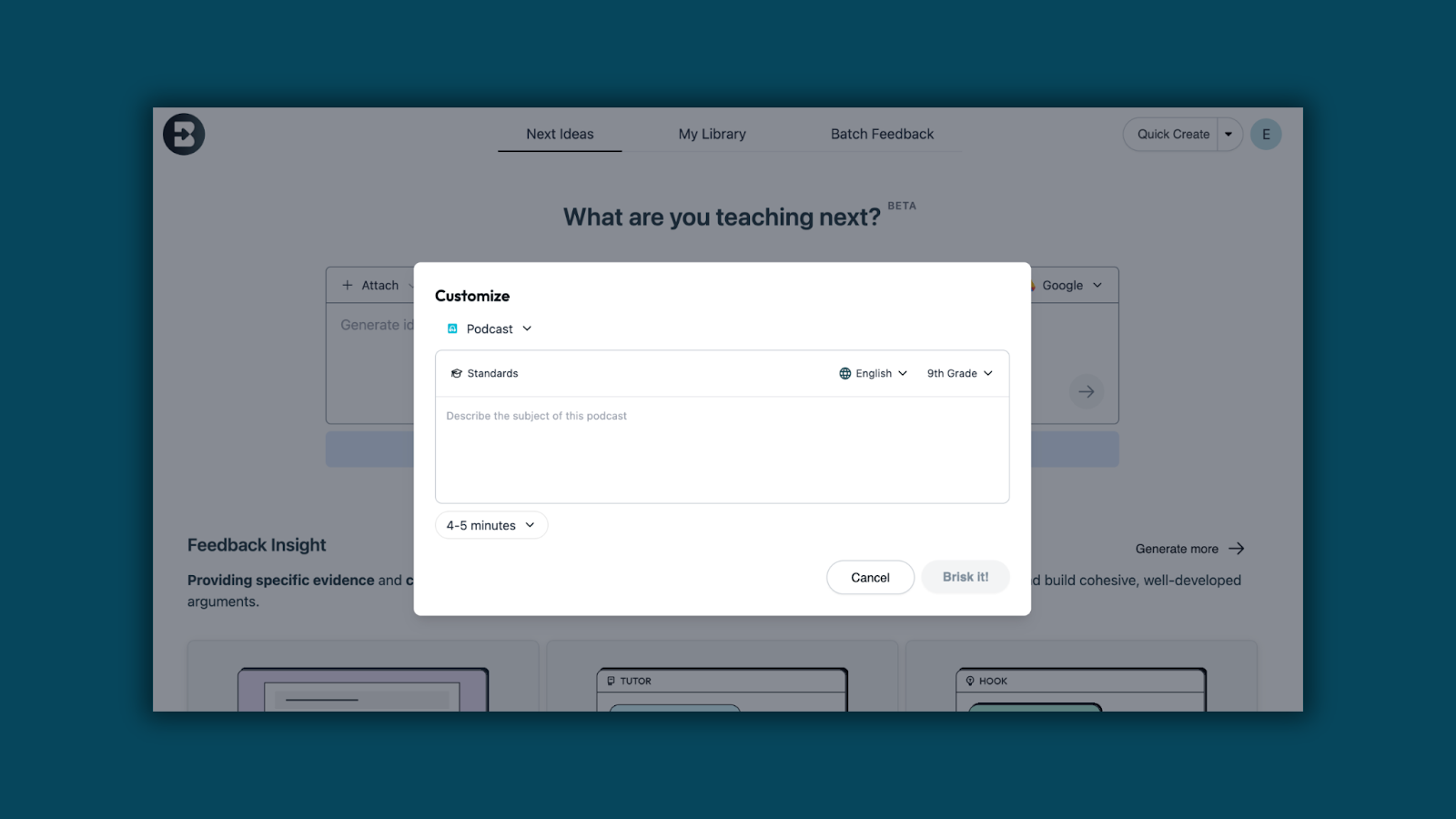
- Enter your prompt, then select standards, language, and grade level.
My Library: Everything You Create, All in One Place
December 3, 2025
The My Library page (formerly Recent) has been upgraded to make it easier to find and manage everything you create with Brisk.
What’s New
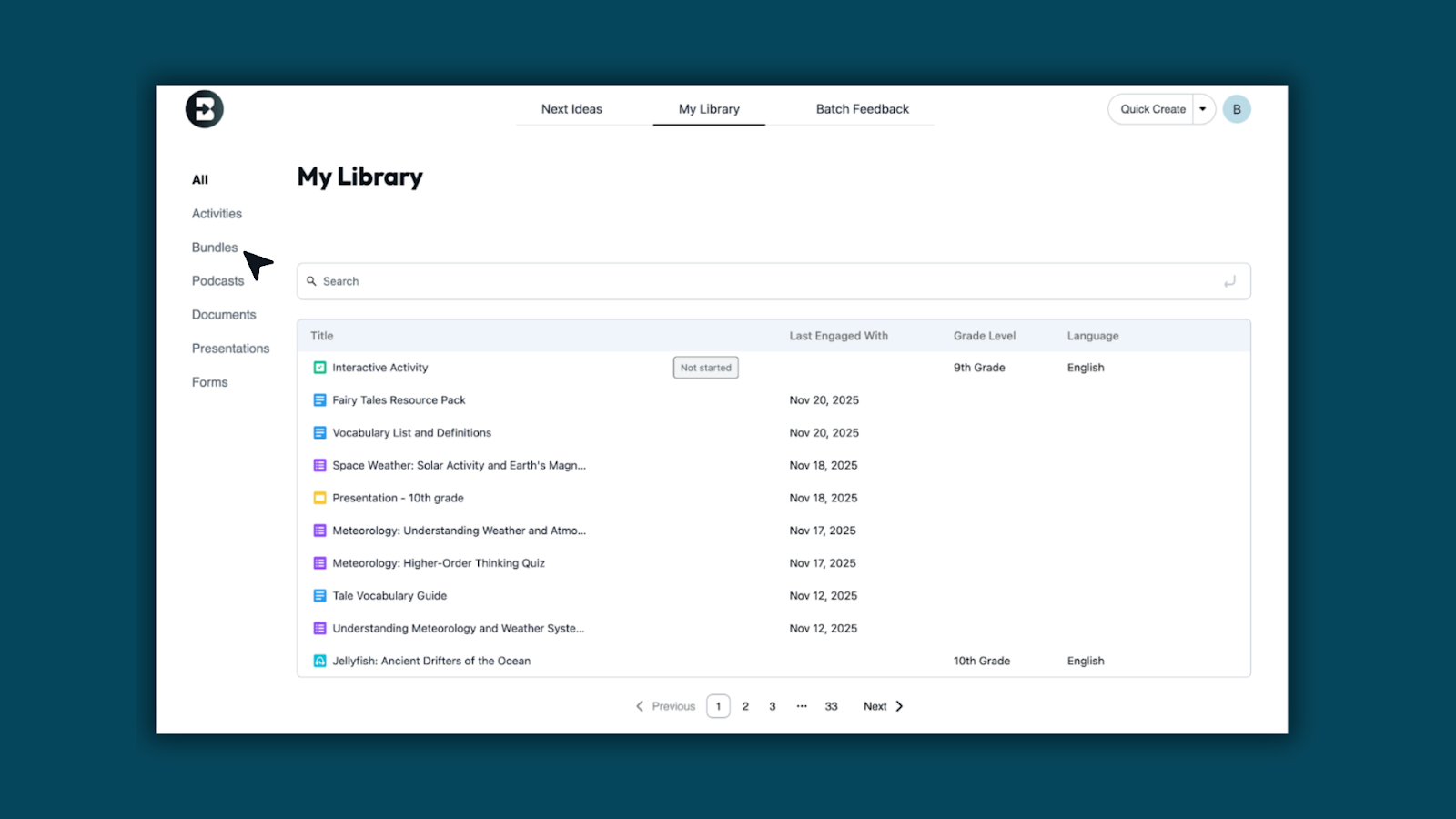
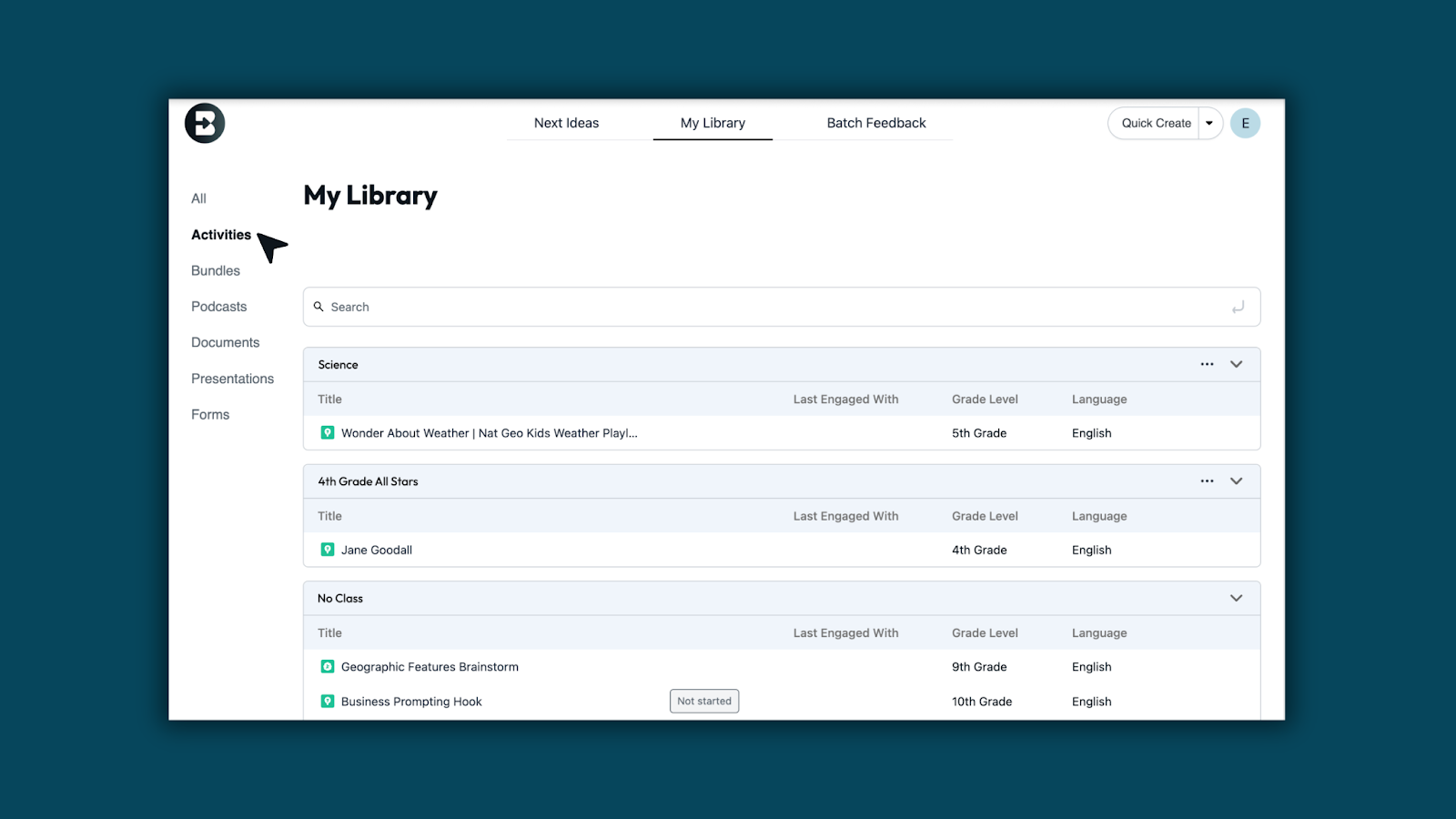
1. See all your Brisk-created content in one place: Resources now appear directly in My Library, including anything created through the Brisk Extension.
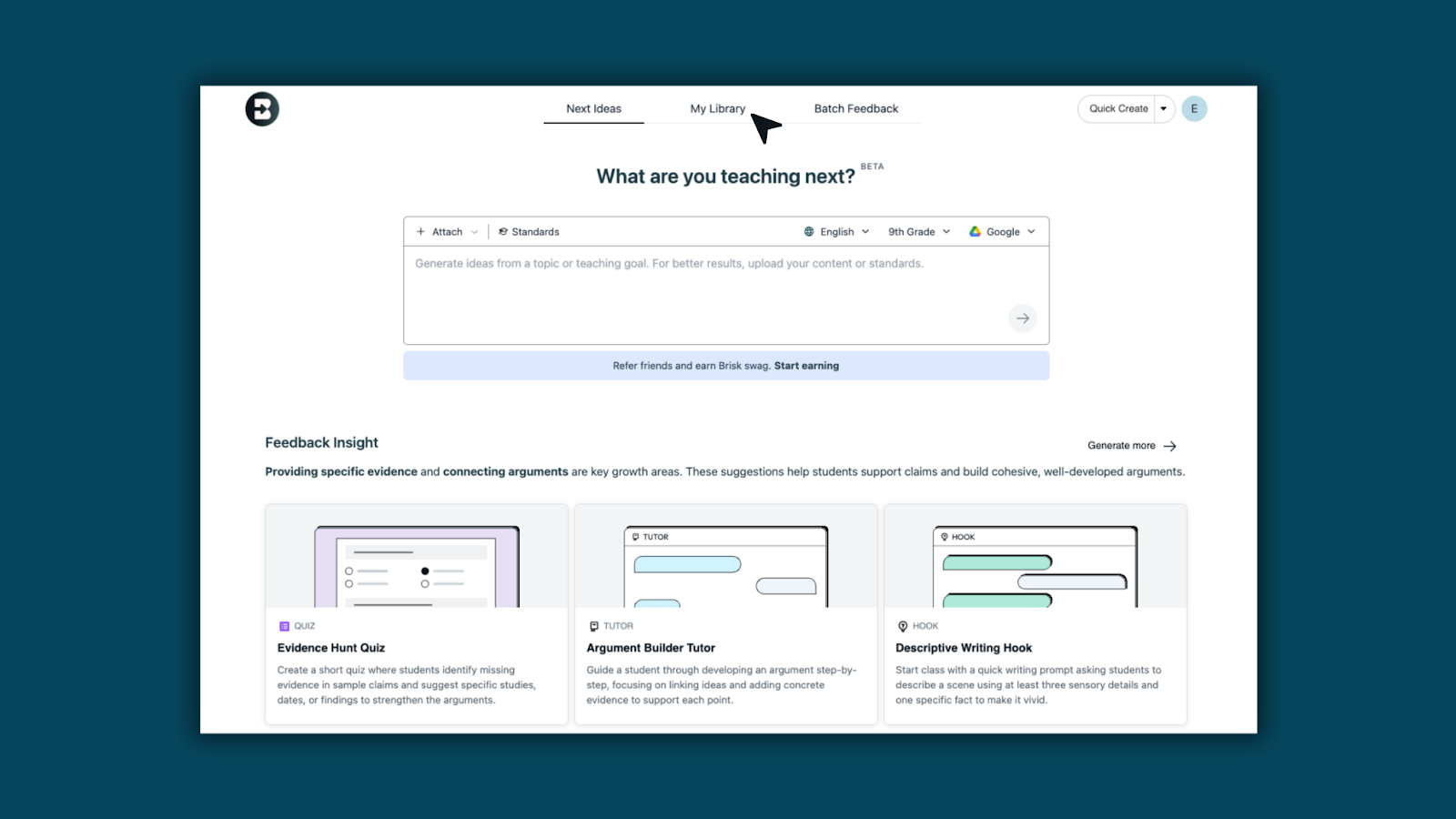
2. View all Brisk materials: All your Brisk-created content — Class Activities, Bundles, Podcasts, Documents, Presentations, and Forms — now live together in one streamlined view.
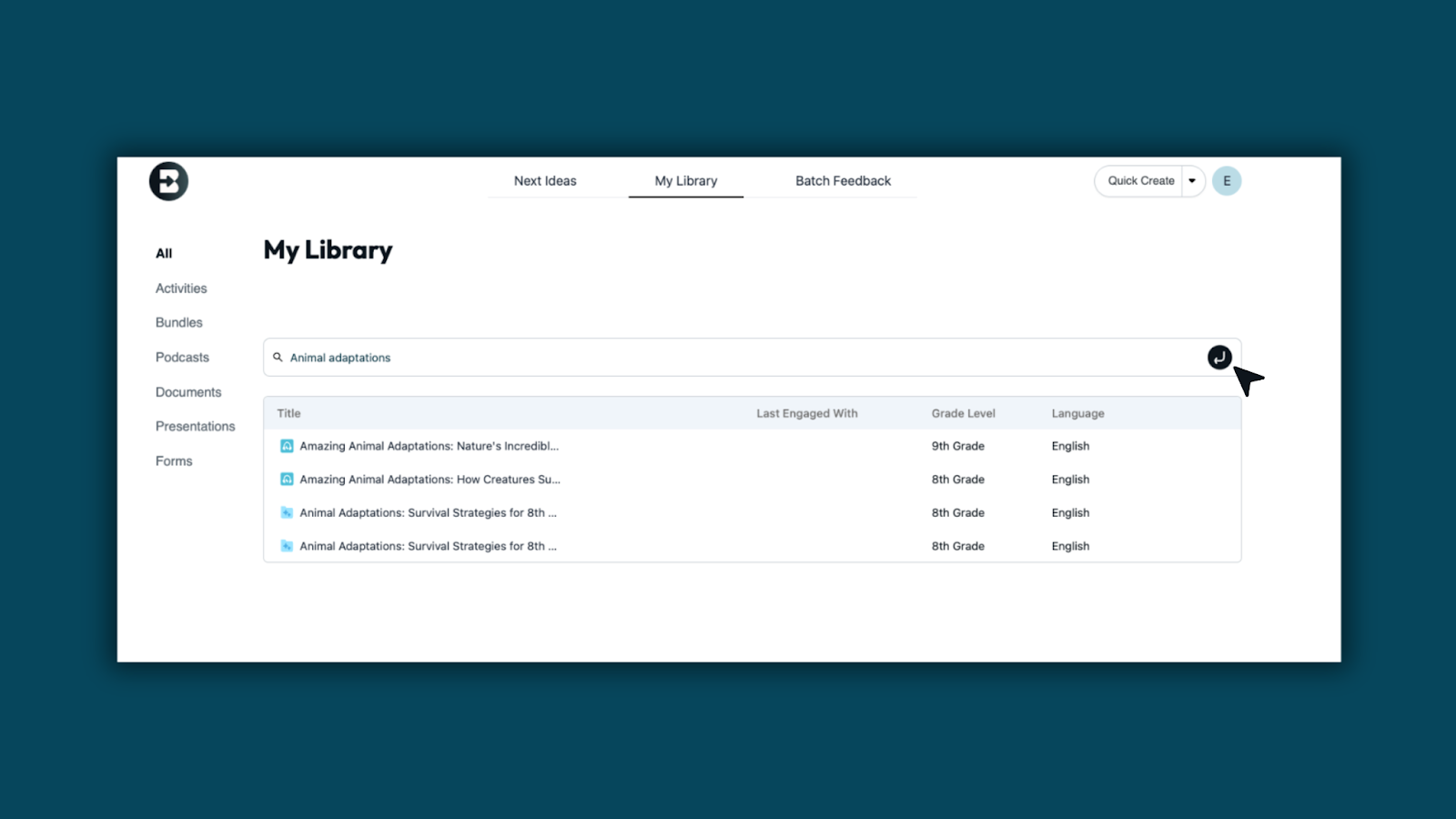
3. Search and load content more quickly: Search for any of your Brisk Creations to easily access resources.
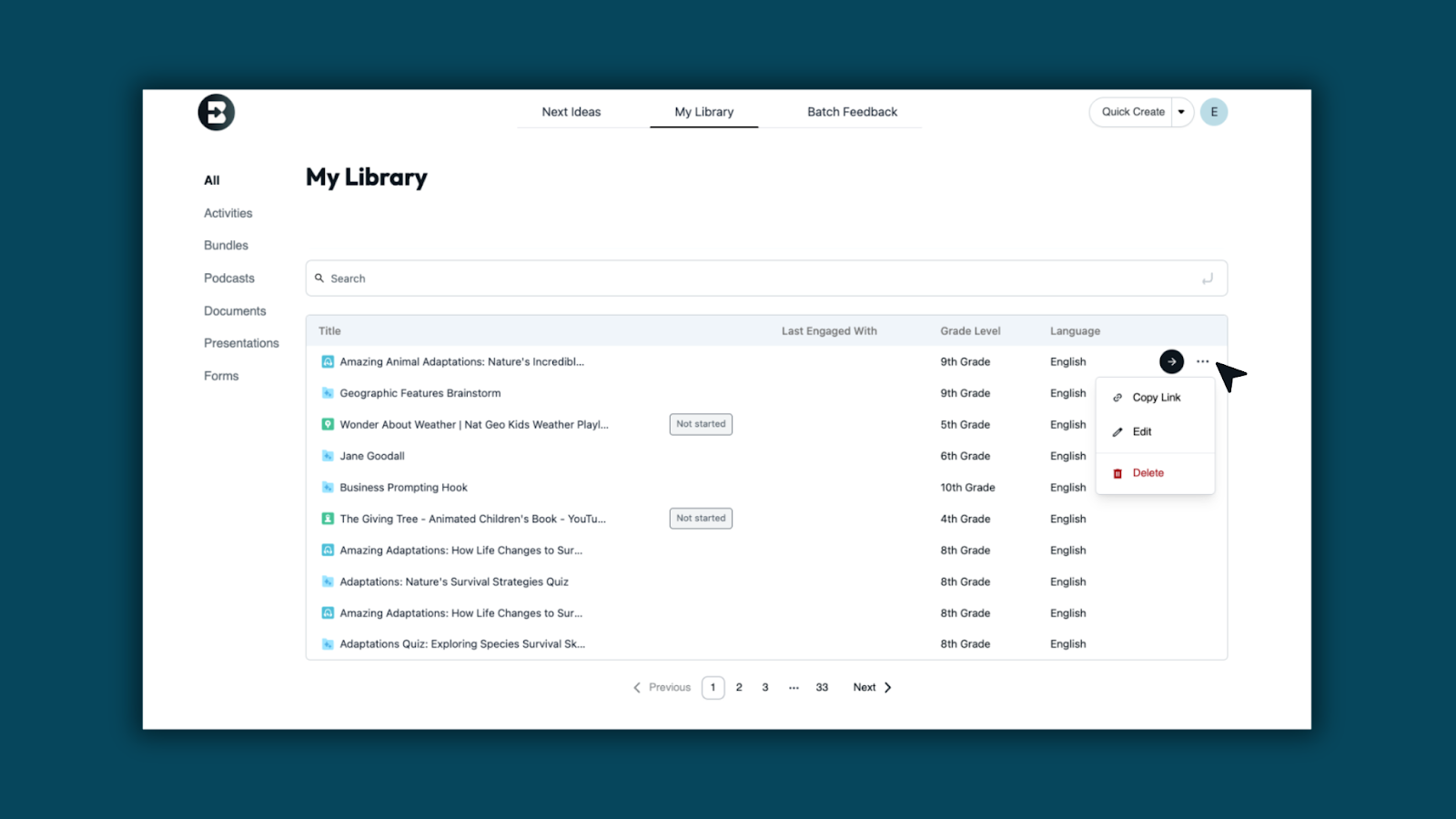
4. Manage content without leaving the page: Use the three-dots menu on any item to open, rename, move, or edit in just one click.
5. Prefer Activities by class? No problem: You can still access class-organized Activities under the Activities tab. Bookmark the direct link if helpful: https://app.briskteaching.com/my_library?tab=activities
Brisk Rewards Program
November 11, 2025
We launched our very first Brisk Rewards Program, a new way for teachers to earn swag just by sharing Brisk. When someone signs up through your link, you earn a point. At ten points, you unlock the Brisk Rewards Store filled with exclusive merch, classroom goodies, and fun surprises. Get started today!
.png)
Go from insight to instruction in one click with Next Ideas
November 7, 2025
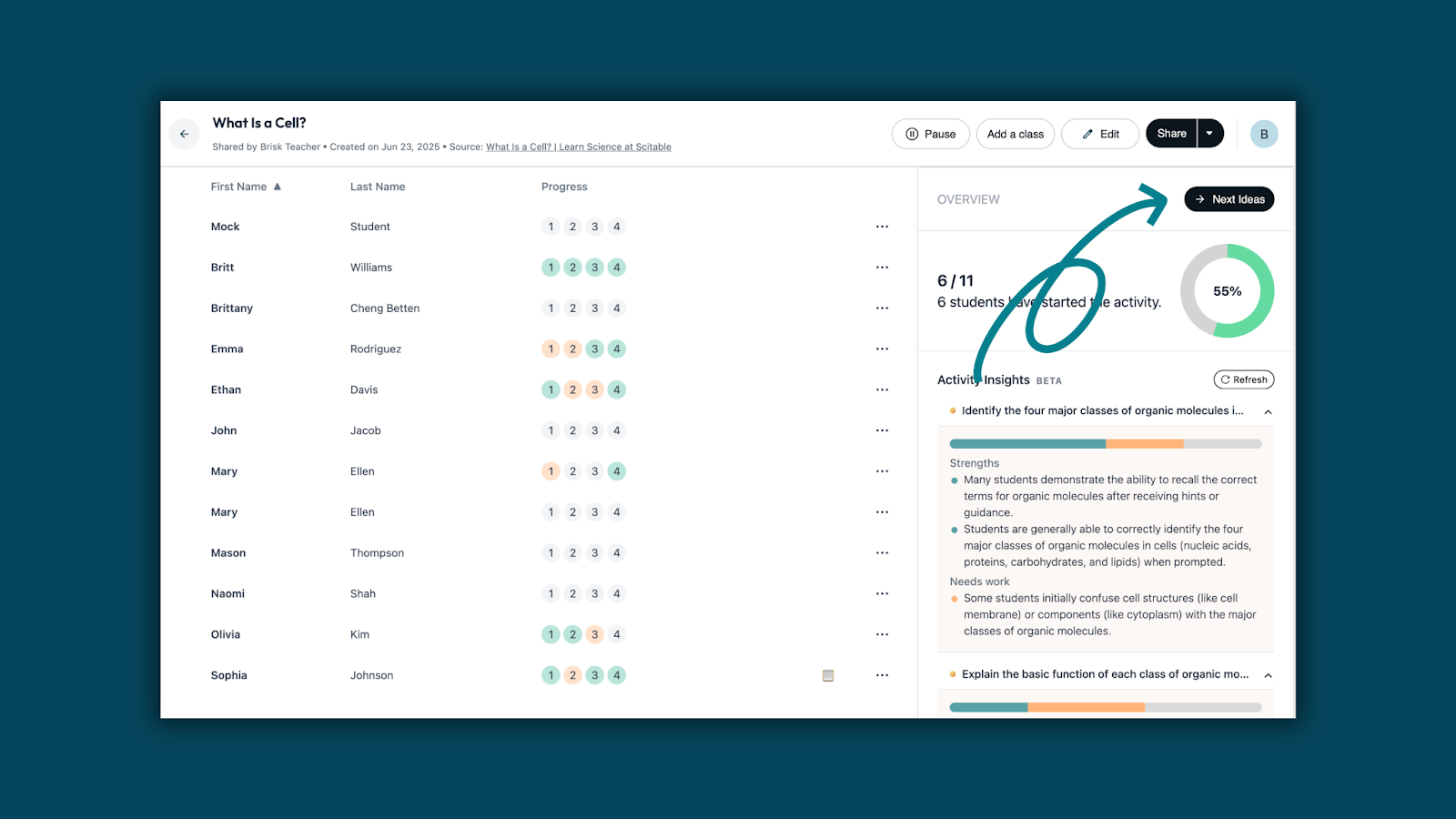
You already know what students need from Boost Learning Insights — now you get the how.
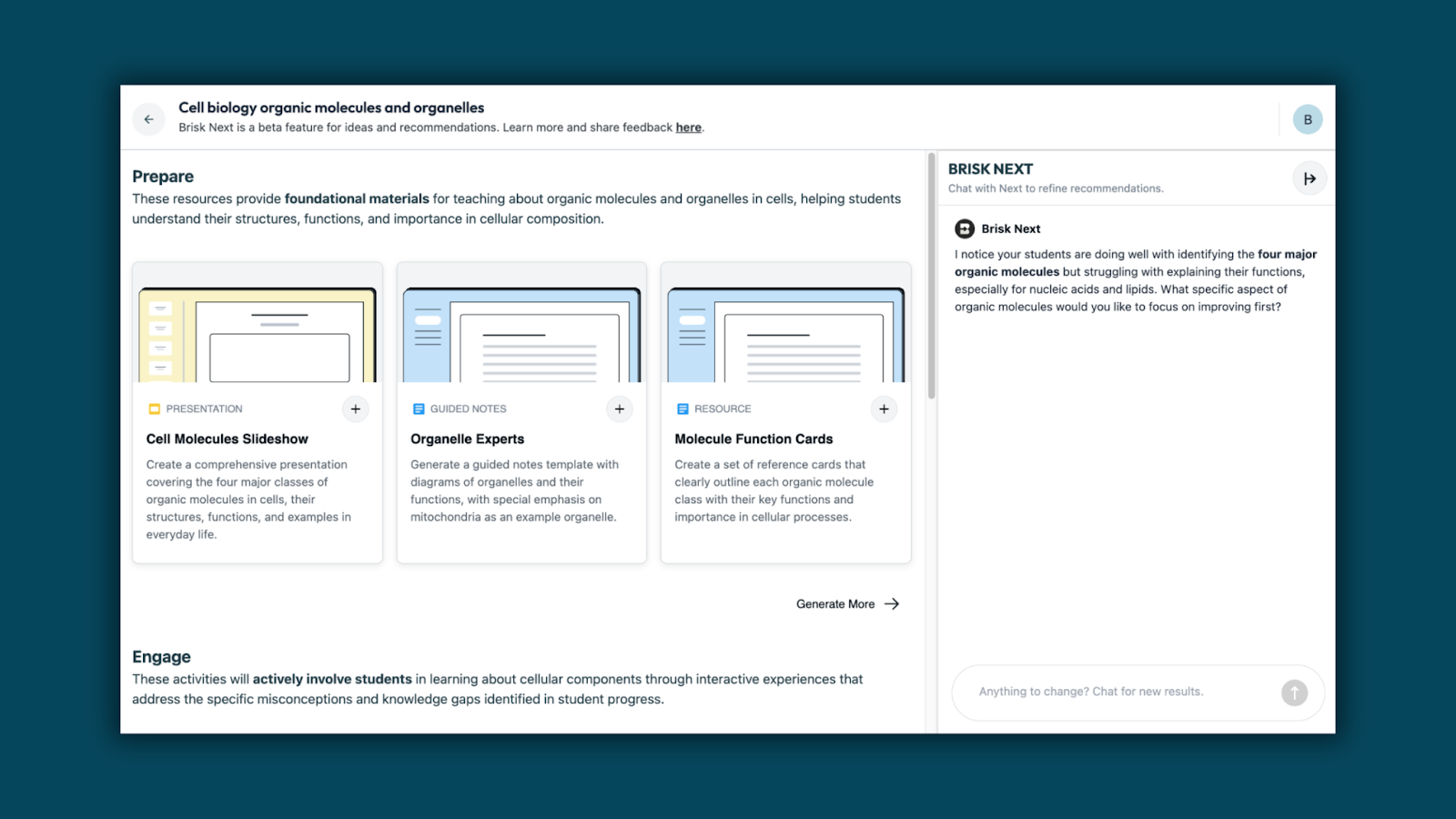
Meet Next Ideas: classroom-ready activities generated from student strengths and areas to grow, right within Brisk Next.
Turn insights into tailored learning experiences you can launch instantly, designed for the students in front of you.
How to access Next Ideas:
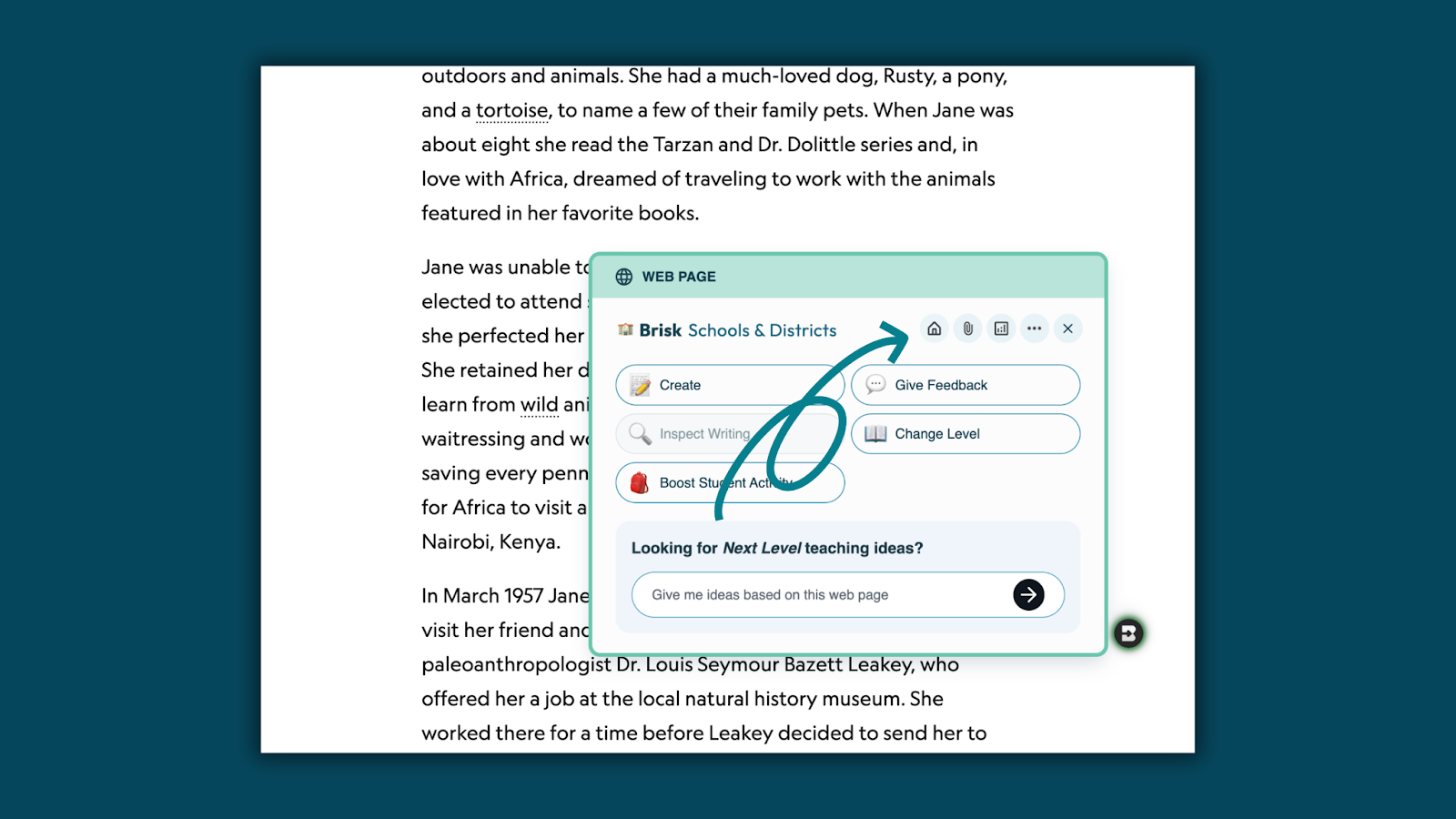
- From the Brisk Extension, click the Home icon.
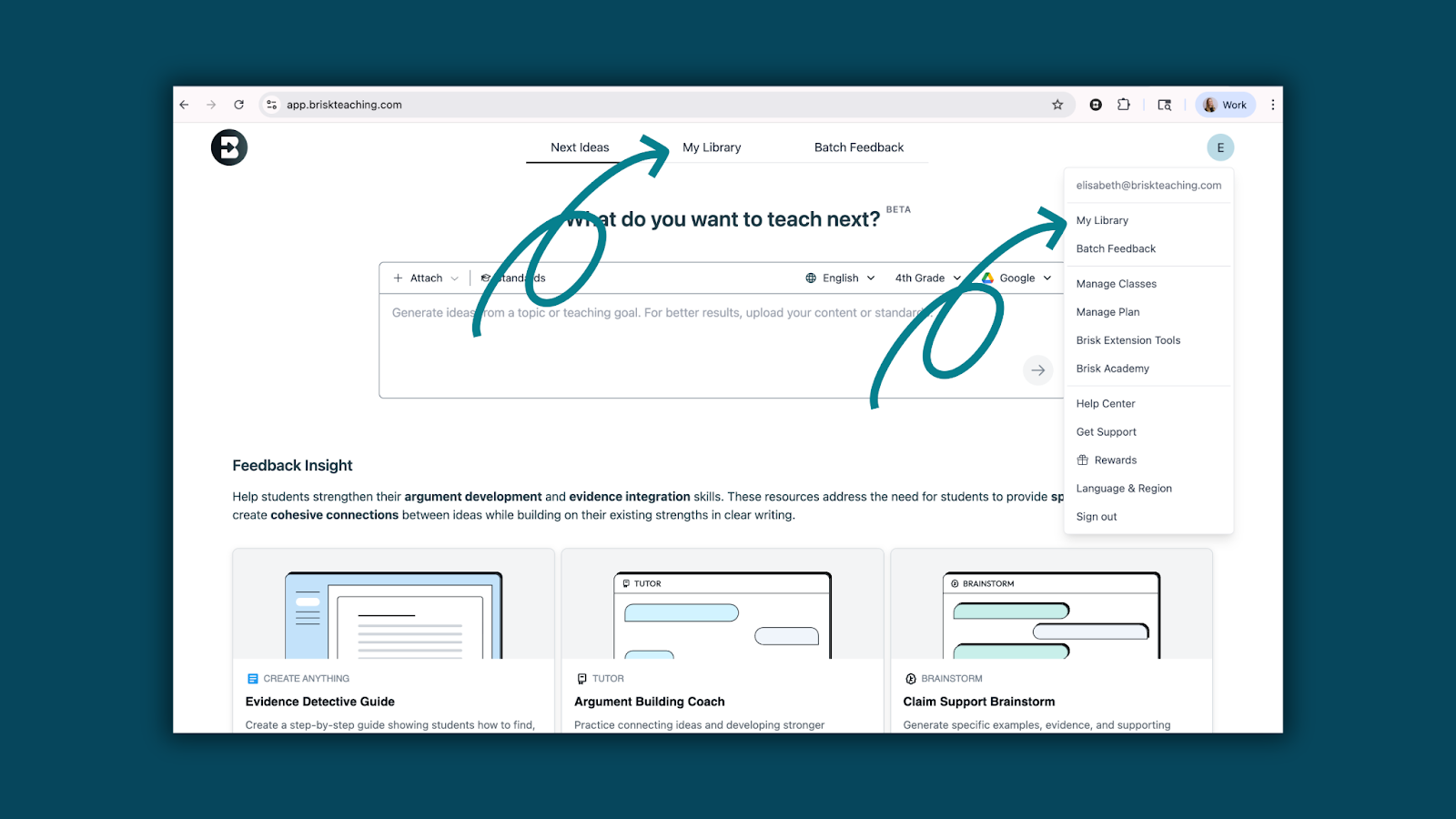
- Select My Library from the top navigation in Brisk Next or the dropdown menu.
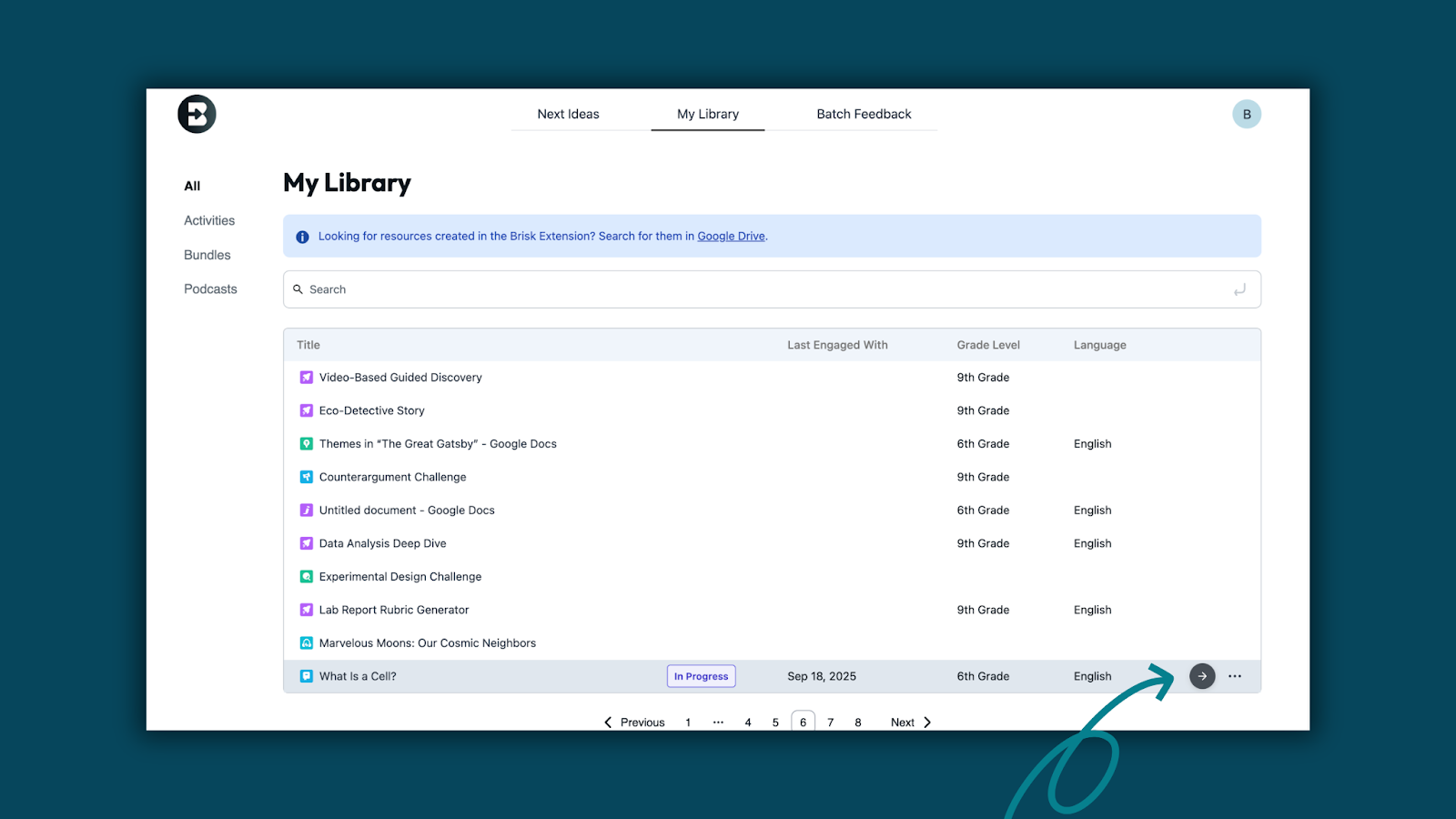
- Open any Boost Activity and select Learning Insights.
- Click Next Ideas to reveal targeted activities Brisk created based on students’ strengths and growth areas.
- Explore ready-to-use instructional materials to Prepare, Engage, and Assess student learning.
Learn how: