
What's New

Bookmark this page to see all of Brisk's updates in one place. Every week, new features go live and you won't want to miss them!

What's New In Brisk deck cover - see our latest launches

What's New with Brisk

Never miss a Brisk launch. Whether you're leading PD, sharing Brisk with a teammate, or presenting at a conference, this deck is designed to make it easy to show What's New.
Open Deck

Trang trình bày của Google!

August 23, 2024

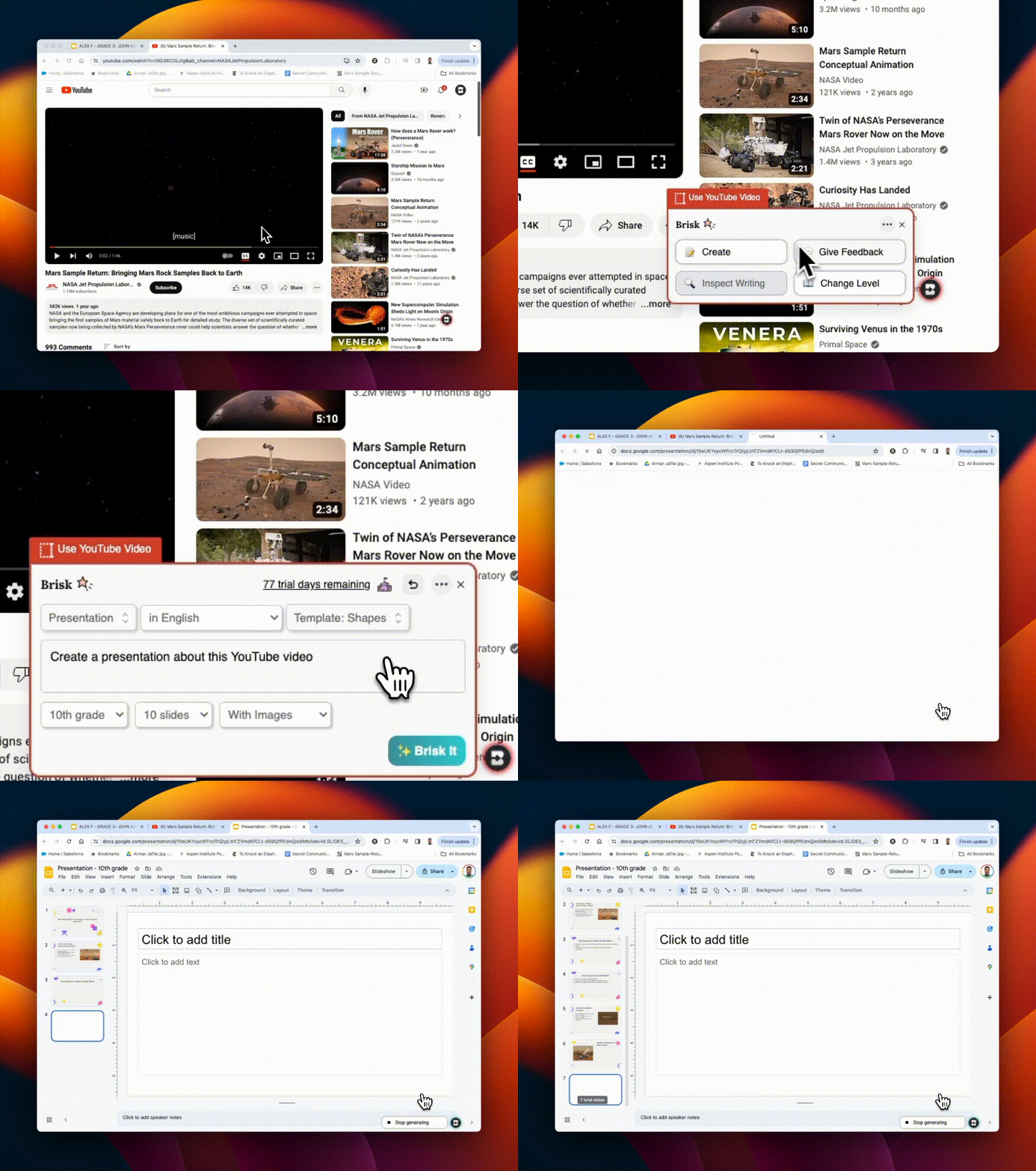
Trượt qua quá trình chuẩn bị bài thuyết trình của bạn trong vài giây! Sử dụng Brisk để:

1. Tạo sàn trượt từ đầu
2. Đưa ra phản hồi về bộ slide do sinh viên tạo

Và phần tốt nhất? Bạn có thể làm tất cả ngay từ trong không gian làm việc Google của mình. Hãy thử và tiết kiệm thời gian quý giá.
Tích hợp Canvas SpeedGrader

August 22, 2024

Brisk tích hợp liền mạch với Canvas SpeedGrader, nâng cao Google Assignments với các tùy chọn phản hồi được nhắm mục tiêu. Cho dù bạn đang sử dụng kiểu phản hồi 'Glow & Grow', 'Bước tiếp theo' hoặc 'Tiêu chí đánh giá cụ thể', Brisk hỗ trợ tất cả các loại gửi. Làm nổi bật các phần trong công việc của học sinh để hướng phản hồi đến các lĩnh vực đó. Nếu bạn đang sử dụng phiếu tự đánh giá, hãy tải nó lên Brisk để đánh giá hợp lý. Xem tất cả các chi tiết tại đây!
Brisk có một diện mạo mới!

August 21, 2024

Biểu tượng và logo được cập nhật của chúng tôi phản ánh tốt hơn Brisk như một công cụ tích hợp chuyên nghiệp và liền mạch mà bạn biết và yêu thích. Để hỗ trợ giao diện mới này, chúng tôi cũng có ✨ Press Kit ✨! Khi bạn đang chia sẻ hoặc trình bày trên Brisk, bạn có thể kéo chúng tôi cập nhật logo và biểu tượng từ thư mục này.

Tích hợp Youtube!

August 20, 2024

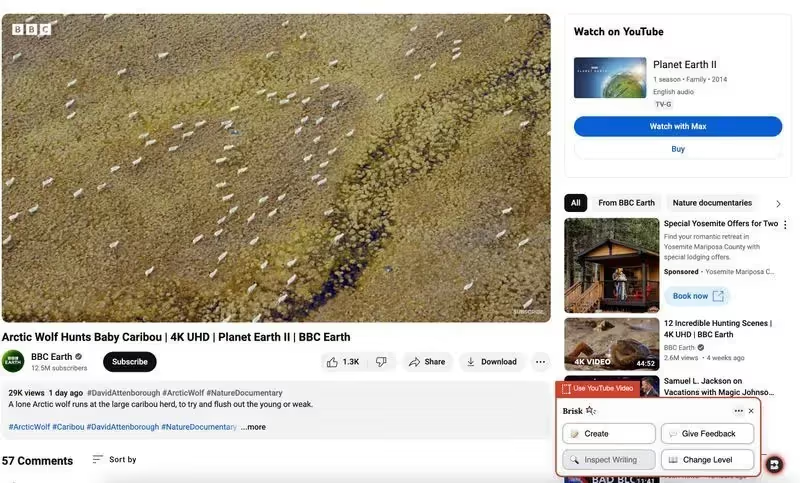
Sử dụng bất kỳ công cụ Brisk nào trên video Youtube! Bạn có thể tạo kế hoạch bài học, câu đố, phản hồi, tài nguyên, tiêu chí... trực tiếp từ video Youtube. Nếu bạn đang đánh giá một dự án sinh viên đã được tải lên Youtube, bạn thậm chí có thể đưa ra phản hồi trực tiếp từ đó!
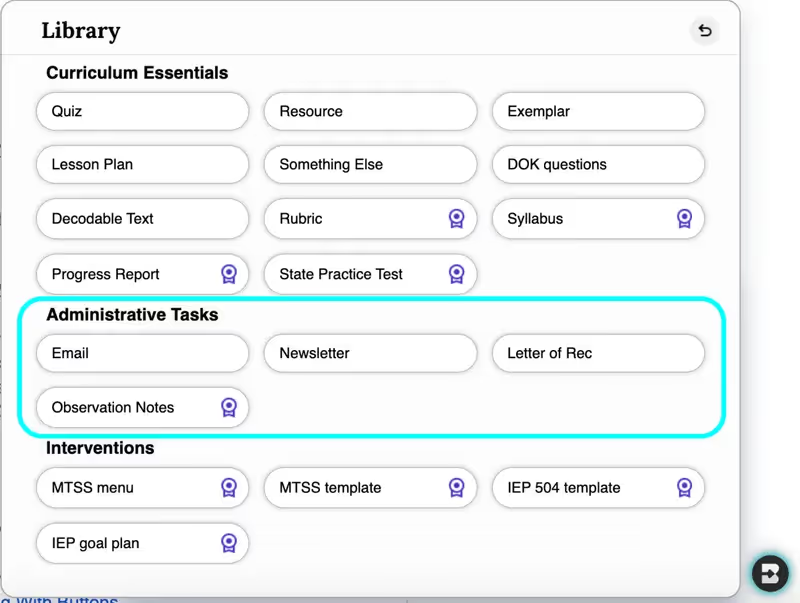
Bốn nhiệm vụ hành chính

August 19, 2024

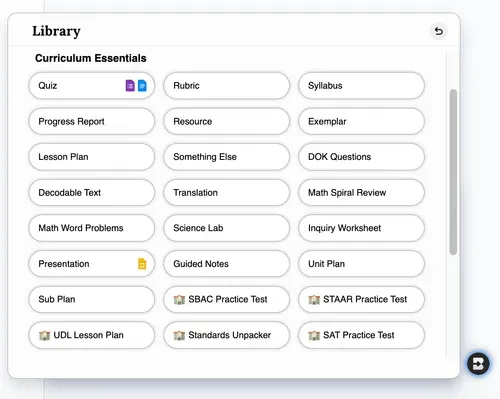
Bạn cần tạo một email, bản tin, thư ghi chú hoặc ghi chú quan sát... trong vài giây? Một bộ công cụ quản trị hoàn toàn mới đã được thêm vào thư viện Tạo... với nhiều công cụ khác sắp ra mắt. Đĩa của bạn vừa nhẹ hơn rất nhiều.
Cá nhân hóa cho người học của bạn

August 16, 2024

Khi bạn đã để lại phản hồi với Brisk về 5 bài tập trở lên, các tính năng được cá nhân hóa sẽ xuất hiện trên tất cả các công cụ trong Tạo Thư viện. Bằng cách chọn hộp kiểm Cá nhân hóa cho người học của tôi, Brisk sẽ tự động phân biệt chương trình giảng dạy để giải quyết tốt hơn những thách thức và nhu cầu cụ thể của người học.

Thông tin chi tiết từ phản hồi của bạn

August 15, 2024

Tràn ngập thông tin chi tiết theo dõi về nhiều bài tập của sinh viên? Để lại phản hồi với Brisk chỉ trong năm bài tập để mở khóa Thông tin chi tiết về Phản hồi. Mỗi khi bạn đưa ra phản hồi, công cụ này trở nên mạnh mẽ hơn khi nó hiển thị thông tin chi tiết năng động, thời gian thực để nắm bắt những gì học sinh của bạn cần.

Và đó không phải là tất cả! Khi các lĩnh vực cải tiến được xác định, hãy nhấp vào Lập kế hoạch bài học, Câu đố hoặc Tài nguyên để nhanh chóng tạo nội dung nhắm mục tiêu vào các lĩnh vực cụ thể đó. Ví dụ: nếu học sinh của bạn đang gặp khó khăn trong việc trích dẫn các nguồn của họ, bạn có thể lập kế hoạch bài học để nâng cao kỹ năng đó - ngay tại đó.

Giới thiệu, kiểm tra văn bản

August 14, 2024

Bạn đang vật lộn với các máy dò AI không đáng tin cậy? Inspect Writing tái hiện phân tích bài viết của học sinh. Phát lại từng bước chi tiết về lịch sử sửa đổi của học sinh, hành động sao chép/dán của họ và hơn thế nữa. Hãy thử nó và thấy sự khác biệt!

Nhiều tùy chọn hơn, nhiều tài nguyên hơn

August 13, 2024

Dạy học sinh ESL? Bây giờ bạn có thể cung cấp phản hồi bằng hơn 10 ngôn ngữ.

Mệt mỏi vì copy & paste? Chúng tôi đã mở rộng nơi bạn có thể tạo và đưa ra phản hồi! Nhấp vào biểu tượng Brisk trên bất kỳ trang web hoặc tài liệu Google nào để truy cập ngay vào các tùy chọn Phản hồi và Tạo Thư viện để xây dựng các câu đố, bài học, tài nguyên và hơn thế nữa.

Kết hợp các nguồn lực đa dạng? Thay đổi mức độ đọc trên hàng nghìn bài viết và trang web bổ sung.

Bổ sung vào Create Library

August 12, 2024

CÂU HỎI DOK (CHIỀU SÂU KIẾN THỨC) đáp ứng các cấp độ nhận thức khác nhau, đảm bảo học sinh vừa tham gia vừa được thử thách thích hợp.

BÁO CÁO TIẾN ĐỘ cho phép bạn nhanh chóng tạo các báo cáo được cá nhân hóa đáp ứng các đầu vào của bạn, với sự linh hoạt để tùy chỉnh theo cách bạn cần. (Báo cáo Tiến độ là một phần của kế hoạch Trường Brisk). Nói lời tạm biệt với những giờ dài soạn thảo!

BÀI KIỂM TRA THỰC HÀNH NHÀ NƯỚC cung cấp cho sinh viên sự thực hành mà họ cần để thành công. Bây giờ, bạn có thể sử dụng Brisk để tạo các bài kiểm tra thực hành cho STAAR, SBAC và các đánh giá bổ sung.

Create Polished, Print-Ready Activities That Cover Any Topic

August 25, 2026

If you feel like your students need a break from screens, we’ve got some great news: Brisk now includes a Printables Generator!

Brisk Printables help you give students the cognitive and social benefits of off-screen activities without having to spend hours formatting (and re-formatting and re-re-formatting) docs and design files. With just a few clicks, you can transform whatever online resources you’ve been using into print-ready pen-and-paper activities that keep students engaged.

You can choose from seven types of printables in Brisk:

  1. Frayer Model: Unpack a vocabulary term or core concept in four quadrants
  2. KWL Chart: Map what students know, want to know, and learned
  3. Venn Diagram: Compare and contrast concepts
  4. Q&A: Check for understanding (pro tip: these are perfect for exit tickets)
  5. Worksheet: Generate a practice page for any topic
  6. Mind Map: Branch a central topic into sub-topics
  7. Newsletter: Keep students, families, and/or staff updated

In addition to using these templates to cover whatever learning content you want, you can adjust the look and feel of each of them by selecting one of five design themes: editorial, groovy, minimal, playful, or simple.

How it works:

  1. Open the article, PDF, video, or other resource you want to generate a printable from.‍ (You can also start from scratch by simply describing a topic during Step 4.)
  2. Open Brisk, type “printable” into the search box, and select the Printables Generator from the search results.
  3. Choose your preferred format and, if you want to customize the look and feel of your printable, your preferred design theme.
  4. Share some specifics about grade level, difficulty, and which parts of a topic you want your printable to cover.
  5. Chat back and forth with Brisk to finalize the printable by fine-tuning its content or layout.
  6. Print your new printable or grab a view-only share link to it.

Turn a Spreadsheet into a Student Activity

August 3, 2026

Brisk now works on spreadsheets. Open a Google Sheet or an Excel file and Brisk reads every tab as context for whatever you build next. Lab data, assessment results, a sample household budget for a personal finance unit: ask for a worksheet, quiz, or Boost activity based on it and you'll get one without copying a single cell into a doc first.

Nothing to set up. It's on for every teacher, on every plan.

A few things to know: Brisk reads spreadsheets, but it can't write into them or build new ones. All tabs are read together, so you can't pick just one. And very large workbooks may get cut off.

Multi-Level & Multi-Grade Creation, Now in the New Brisk

August 3, 2026

Multi-level and multi-grade creation is now available in the new Brisk. Ask for a resource across a few grade bands, levels, or languages, and Brisk builds every version at once, then delivers them together as a single bundle.

How it works:

  1. Tell Brisk what you need: In the search bar, describe the resource and the range of grades, levels, or languages you're building for — or use the language and grade level settings to multi-select directly.
  2. Answer a few quick questions: Brisk's conversational Create experience will ask the same kinds of questions it always does to support your instructional goals.
  3. Open your bundle: Every version is generated together and ready to hand out to the right students.

Note: The ability to rework your outputs available elsewhere in the new Brisk isn't yet supported inside bundles. To revise an individual version, use the classic Create workflow.

Welcome to the New Brisk

July 16, 2026

The Brisk extension has a new look, one designed to better support how you work and help you feel prepared for every class, every week, and every school year!

Instead of clicking through menus to find the right tool and then filling out multiple fields, you can simply tell Brisk what you need and it’ll build it. (Don’t worry, you still have the ability to browse your favorite tools if you want to.) From worksheets and quizzes to lesson plans and rubrics, anything you’re used to building with the Create tool is now just a quick conversation away.

How it works:

1. Search for the type of resource you have in mind: Start typing what you’re looking for in the Brisk extension search bar and a list of relevant resource types will appear. No need to remember the proper names of Brisk tools — use whatever words make sense to you and Brisk will figure it out.

(Note that while the new search function will return results spanning all Brisk tools, at this time, only the Create tool will deliver a conversational experience during subsequent steps.)

2. Share a few specifics about what you need: In the new conversational experience, Brisk will ask a few quick questions about whatever prompt you provide to make sure it understands what you’re after. Answering these questions is optional, but recommended. (You’ll still be able to use the classic Create workflow, too.)

Depending on the context, Brisk’s questions might look like:

  • “What’s the purpose of this exit ticket?” (e.g., a formative check after a day’s lesson, a diagnostic before kicking off a new unit, prep for a summative unit test)
  • “Are there any misconceptions about the topic you want this resource to address?” (choose from a list of relevant options or type your own response)
  • “Is there anything your students have been struggling to grasp about this topic?” (choose from a list of relevant options or type your own response)

Once you’ve had this brief conversation, Brisk will draw on your responses, your original prompt, your curriculum, and, if your district has Brisk Intelligence, district leader guidance to build a resource that’s fully aligned with your needs and your district’s priorities.

3. Fine-tune the resource until it’s perfect: Chat back and forth with Brisk to make any adjustments to your new resource. As you provide instructions — think: “make this shorter” or “swap the third question for something more challenging” or “add scaffolding for ELL students” — the resource will update right before your eyes. No need to start over or sift through multiple versions.

Read more about the new Brisk, and see the experience in action:

Resources for learning the New Brisk

Use Brisk Tools Directly in Claude

July 14, 2026

With the Brisk Connector, your favorite Brisk tools are just a sentence away in Claude. Chat with Claude about what you’re working on and it’ll give you ready-to-use links to the types of high-quality instructional materials you’re used to creating with Brisk — no more jumping between multiple browser windows.

What teachers can do in Claude with the Brisk Connector:

  • Create Boost Activity: Builds an interactive, AI-powered student activity (tutor, quiz-me, debate, exit ticket, writing coach) complete with learning objectives and guardrails.
  • Generate activity ideas: Suggests a set of Boost Activity ideas for a topic — no commitment until you create one.
  • Create teaching resource: Creates a lesson plan, quiz, rubric, worksheet, sub plan, or other resource as a Google Doc or Google Form.
  • Set up Batch Feedback: Creates an assignment shell for grading a set of student work (you add submissions and run feedback in the Brisk web app).
  • List standards: Browses Brisk’s standards database so your materials will be aligned to the right frameworks, grade level, and state.
  • Get teacher context: Reads your class names, grades, and subjects (never student data) so Claude can tailor its suggestions.

Connect Claude to Brisk:

  1. To use the Brisk Connector, you’ll need a Brisk account, a Claude account, and, for any tool that creates a Google Doc or Google Form, a Google account that’s connected to Brisk.
  2. Open Claude (web or desktop).
  3. In a new chat, click the + button near the prompt and select Connectors, then click Add Connector. You can also start the process here.
  4. Use the search bar to find the Brisk Connector and click Connect.
  5. You’ll be prompted to sign in to your Brisk Teaching account and allow Claude to access it. Click Allow.
  6. Once connected, Brisk will appear in your list of Connectors and Claude will be able to use Brisk tools directly in your Claude chat.