What's New

Bookmark this page to see all of Brisk's updates in one place. Every week, new features go live and you won't want to miss them!
What's New In Brisk deck cover - see our latest launches

What's New with Brisk

Never miss a Brisk launch. Whether you're leading PD, sharing Brisk with a teammate, or presenting at a conference, this deck is designed to make it easy to show What's New.

Open Deck

Google Slides!

August 23, 2024

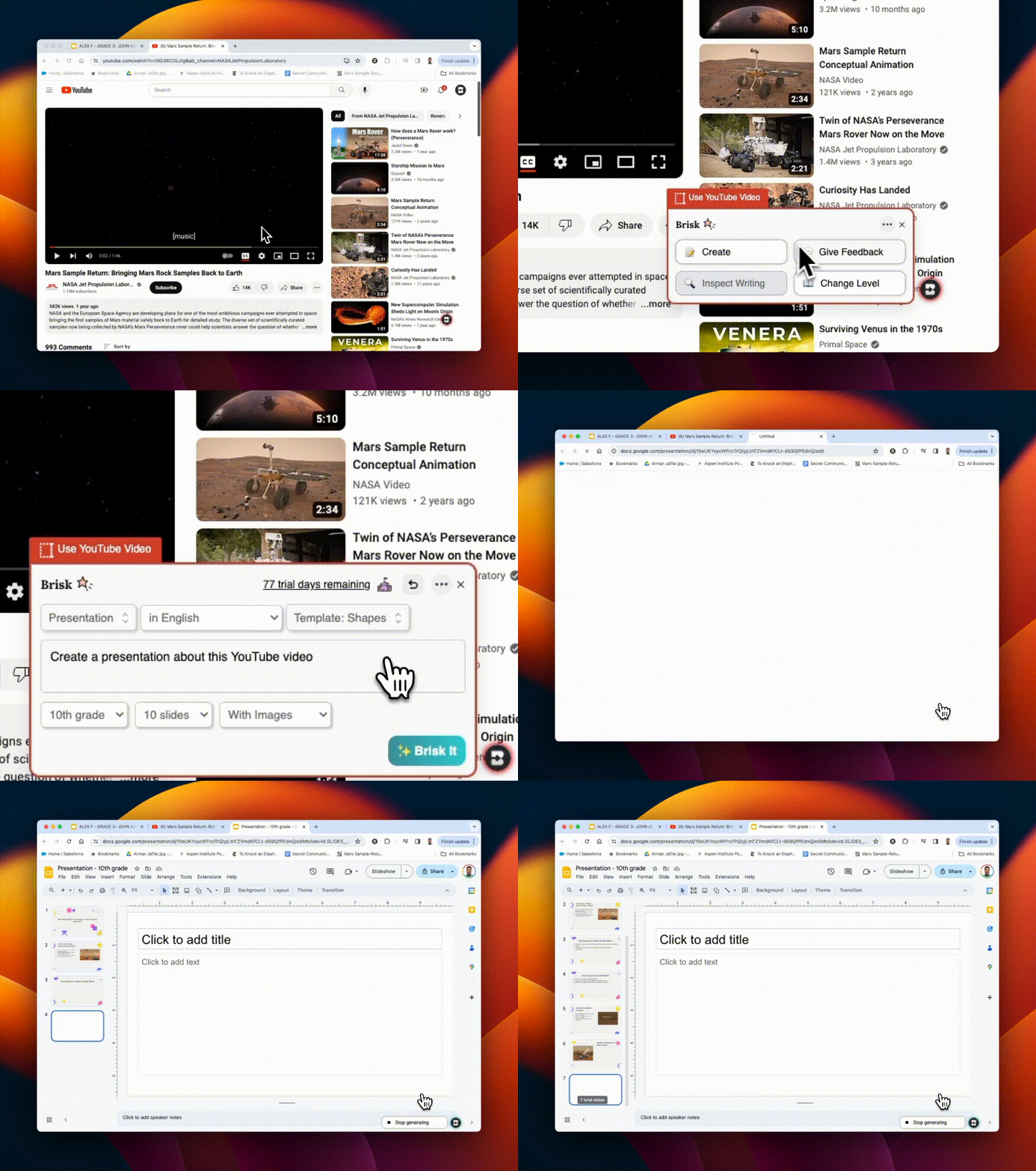
Scorri la preparazione della presentazione in pochi secondi! Usa Brisk per:

1. Crea slide deck partendo da zero
2. Fornisci un feedback sugli slide deck creati dagli studenti

E la parte migliore? Puoi fare tutto direttamente dal tuo spazio di lavoro Google. Provalo e risparmia ore preziose.
Integrazione Canvas SpeedGrader

August 22, 2024

Brisk si integra perfettamente con Canvas SpeedGrader, migliorando Google Assignments con opzioni di feedback mirate. Che tu stia utilizzando stili di feedback «Glow & Grow», «Next Steps» o specifici «Rubric Criteria», Brisk supporta tutti i tipi di invio. Evidenzia le sezioni del lavoro di uno studente per indirizzare il feedback a tali aree. Se stai usando una rubrica, caricala in Brisk per una valutazione semplificata. Scopri tutti i dettagli qui!
Brisk ha un nuovo look!

August 21, 2024

La nostra icona e i nostri loghi aggiornati riflettono meglio Brisk come strumento professionale e perfettamente integrato che conosci e ami. A supporto di questo nuovo look, abbiamo anche un ✨ Press Kit ✨! Mentre condividi o presenti su Brisk, puoi accedere al nostro loghi e icone aggiornati da questa cartella.
Integrazione con Youtube!

August 20, 2024

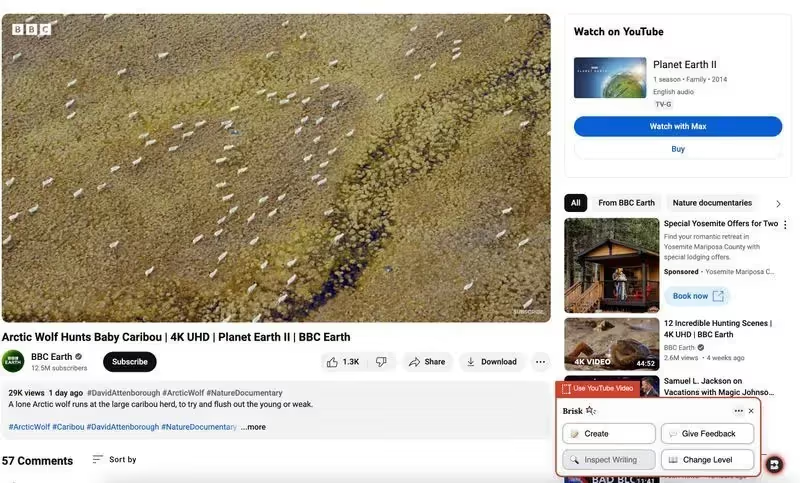
Usa QUALSIASI strumento Brisk sui video di Youtube! Puoi creare piani di lezione, quiz, feedback, risorse, rubriche... direttamente da un video di Youtube. Se stai valutando un progetto studentesco che è stato caricato su Youtube, puoi anche fornire un feedback direttamente da lì!
Quattro attività amministrative

August 19, 2024

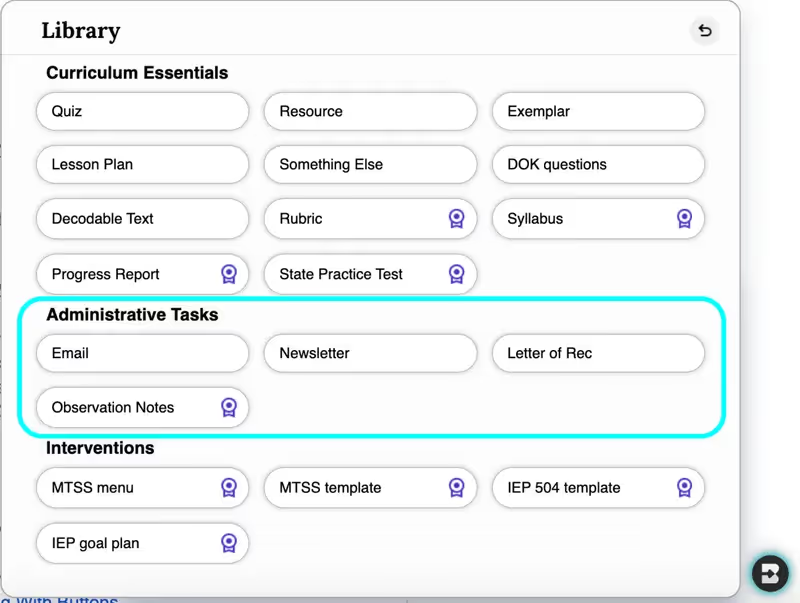
Hai bisogno di creare un'email, una newsletter, lettere di presentazione o note di osservazione... in pochi secondi? Una nuovissima suite di strumenti di amministrazione è stata aggiunta alla libreria Create... e presto ne arriveranno altri. Il tuo piatto è appena diventato molto più leggero.
Personalizza per i tuoi studenti

August 16, 2024

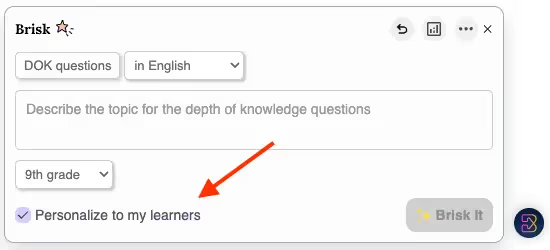
Dopo aver lasciato un feedback a Brisk su 5 o più incarichi, le funzionalità personalizzate appariranno in tutti gli strumenti della Create Library. Selezionando la casella di controllo Personalizza per i miei studenti, Brisk differenzierà automaticamente il curriculum per affrontare meglio le sfide e le esigenze specifiche degli studenti.
Approfondimenti dal tuo feedback

August 15, 2024

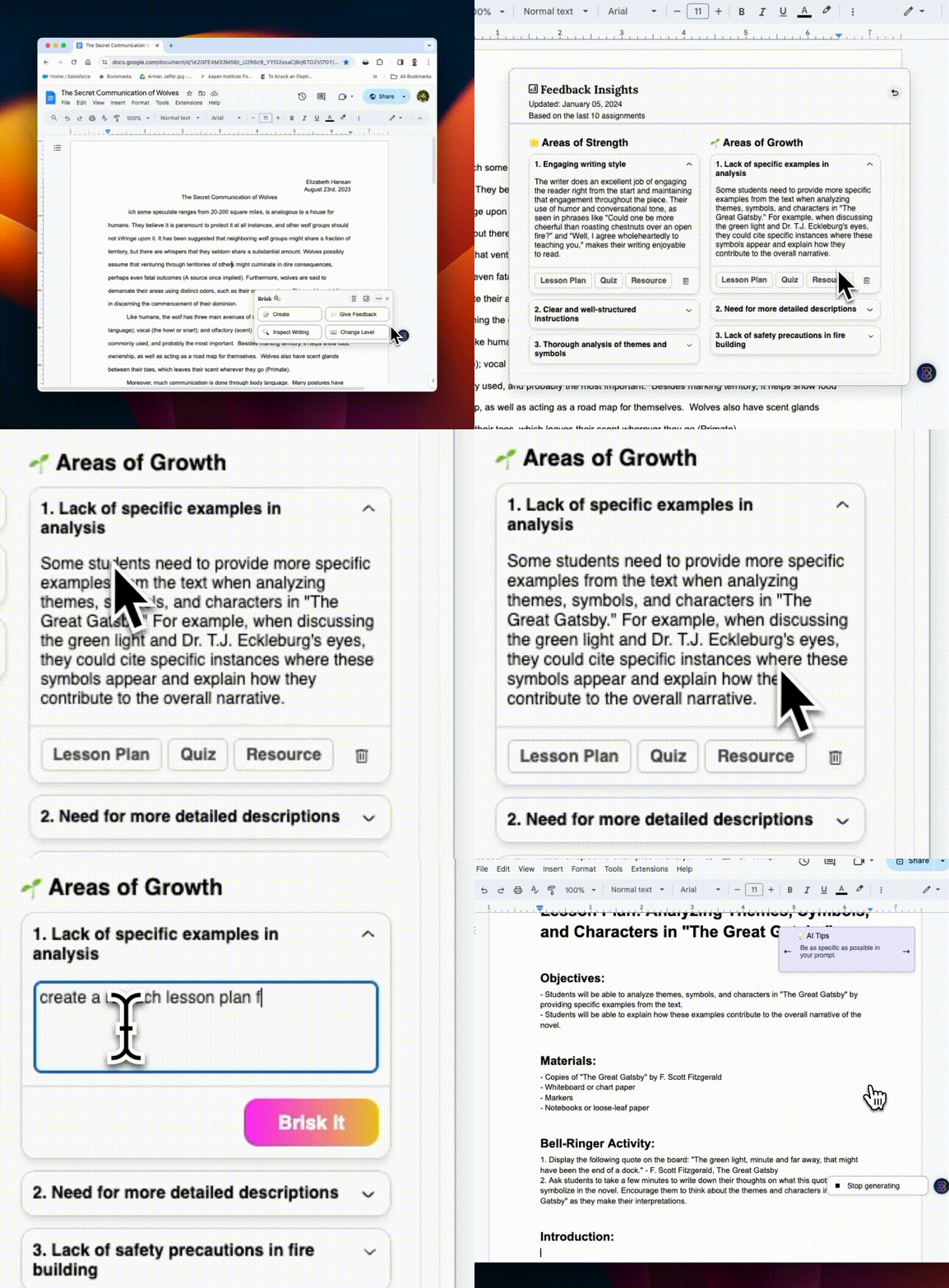
Inondato di informazioni sul monitoraggio di numerosi compiti degli studenti? Lascia un feedback a Brisk su soli cinque compiti per sbloccare Feedback Insights. Ogni volta che fornisci un feedback, questo strumento diventa più potente in quanto fornisce informazioni dinamiche in tempo reale che raccolgono ciò di cui i tuoi studenti hanno bisogno.

E non è tutto! Una volta identificate le aree di miglioramento, fai clic sui pulsanti Piano delle lezioni, Quiz o Risorse per creare rapidamente contenuti mirati a quelle aree specifiche. Ad esempio, se i tuoi studenti hanno difficoltà a citare le loro fonti, puoi creare un piano di lezioni per migliorare tale abilità, proprio lì.
Introduzione, Inspect Writing

August 14, 2024

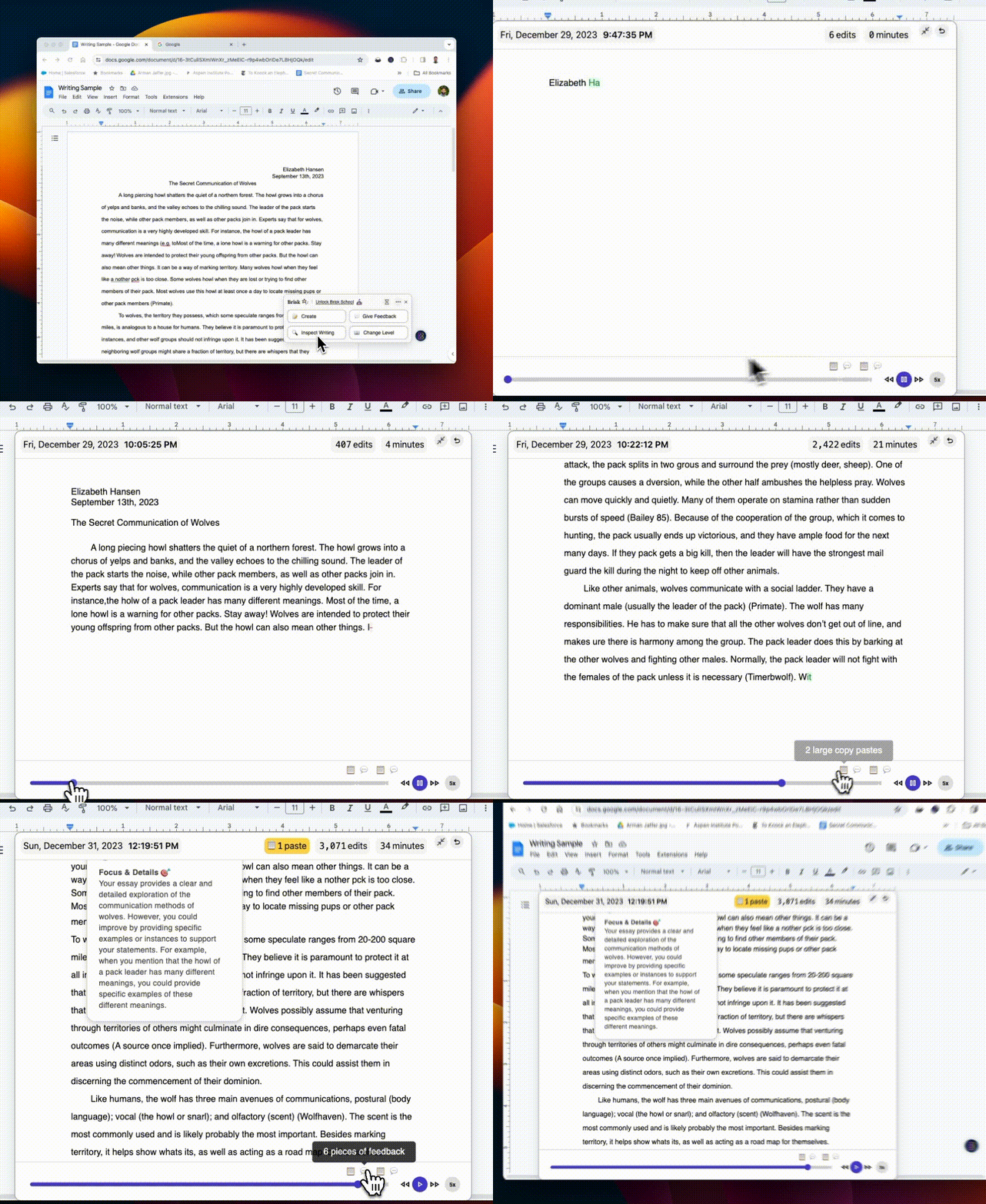
Hai problemi con rilevatori di intelligenza artificiale inaffidabili? Inspect Writing reinventa l'analisi della scrittura degli studenti. Riproduci una panoramica dettagliata della cronologia delle revisioni dei tuoi studenti, delle loro azioni di copia/incolla e altro ancora. Provalo e scopri la differenza!
Più opzioni, più risorse

August 13, 2024

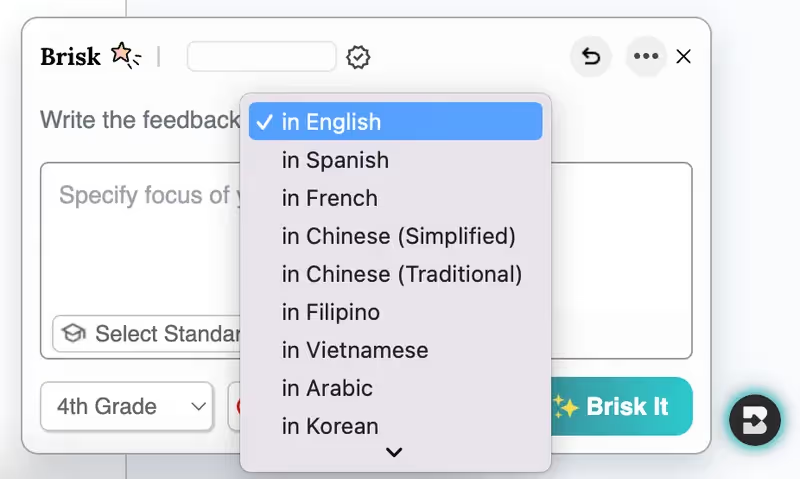
Insegnare agli studenti ESL? Ora puoi fornire feedback in più di 10 lingue.

Stanco di copiare e incollare? Abbiamo ampliato la sezione in cui puoi creare e fornire feedback! Fai clic sull'icona Brisk su qualsiasi sito Web o documento Google per accedere istantaneamente alle opzioni di feedback e alla Create Library per creare quiz, lezioni, risorse e altro ancora.

Incorporare risorse diverse? Modifica il livello di lettura su migliaia di articoli e pagine del sito aggiuntivi.
Aggiunte alla libreria Create

August 12, 2024

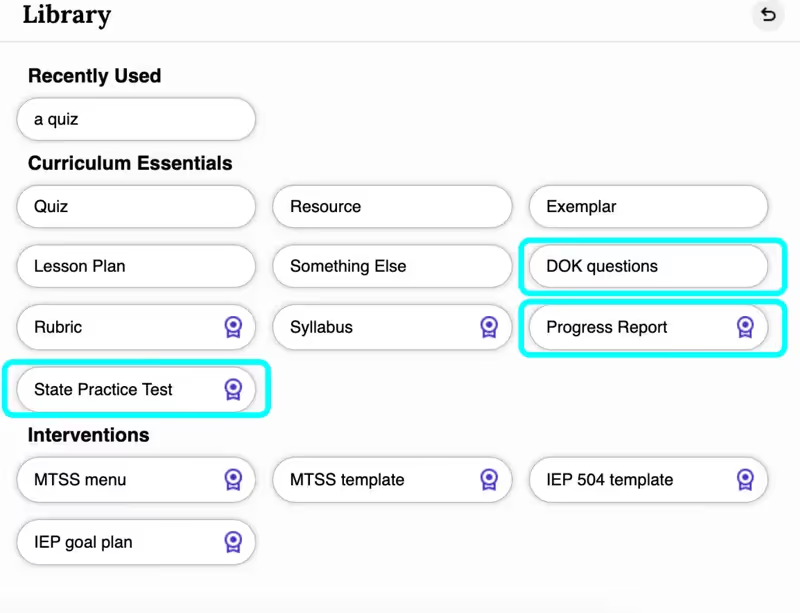
DOMANDE DOK (PROFONDITÀ DI CONOSCENZA) soddisfano vari livelli cognitivi, assicurando che gli studenti siano coinvolti e adeguatamente sfidati.

I PROGRESS REPORT ti consentono di generare rapidamente report personalizzati che rispondono ai tuoi input, con la flessibilità di personalizzarli in base alle tue esigenze. (I rapporti sui progressi fanno parte del piano Brisk School). Dite addio alle lunghe ore di redazione!

I TEST DI PRATICA STATALE forniscono agli studenti la pratica di cui hanno bisogno per avere successo. Ora puoi usare Brisk per generare test pratici per STAAR, SBAC e valutazioni aggiuntive.
Inspect Writing & Targeted Feedback in Microsoft Word

June 29, 2026

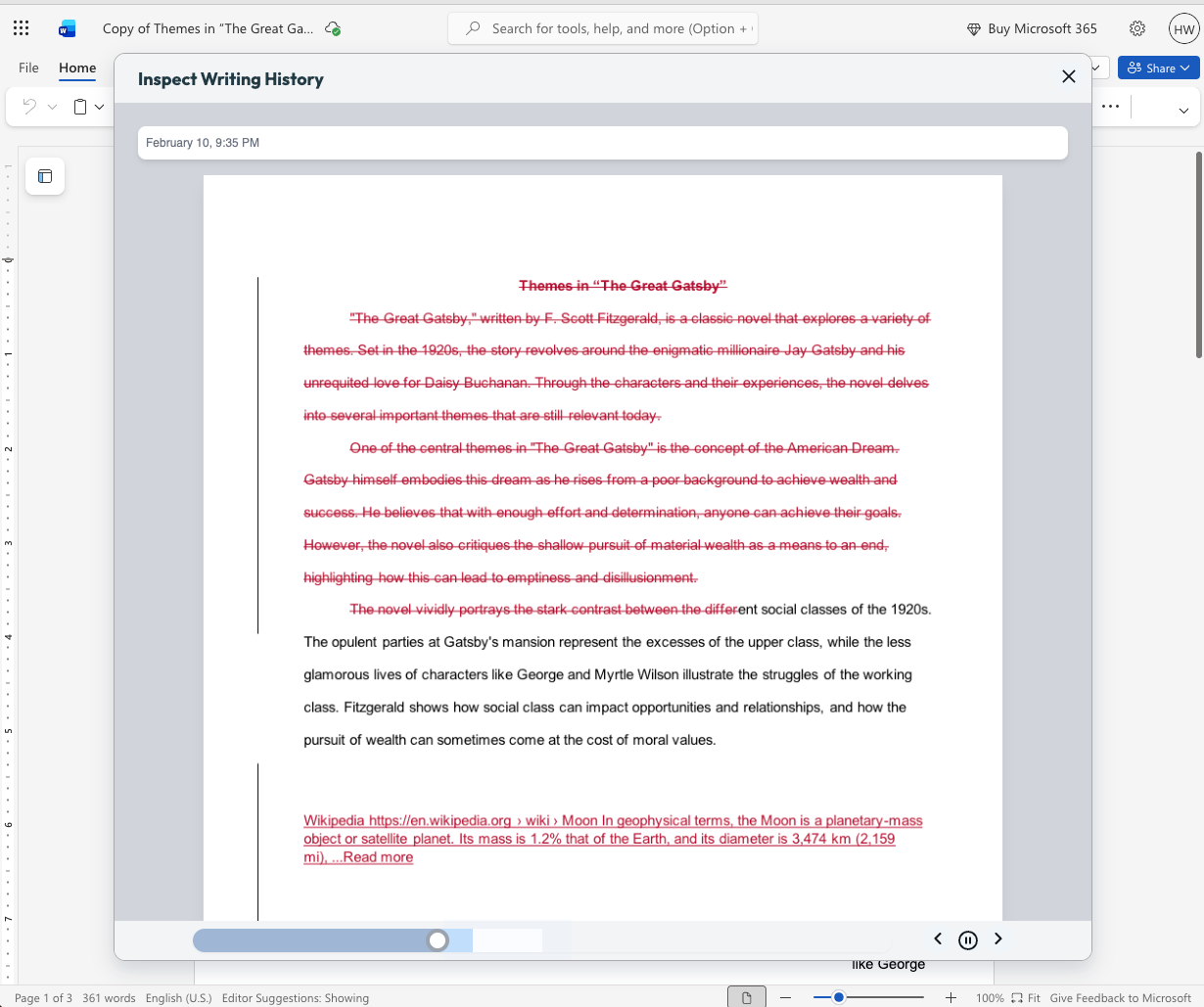
Microsoft teachers now have access to two tools that enable them to deliver more (and more personalized) feedback to students in less time: Inspect Writing and Targeted Feedback.

Inspect Writing

(Note: This new feature will become available for back to school 2026.)

Watch a video-style replay of a student’s writing process from first draft through final version. See what they added and deleted at each step and how they responded to feedback. Use this to gain insight into how your students are thinking, spot learning gaps, and guide growth.

Targeted Feedback

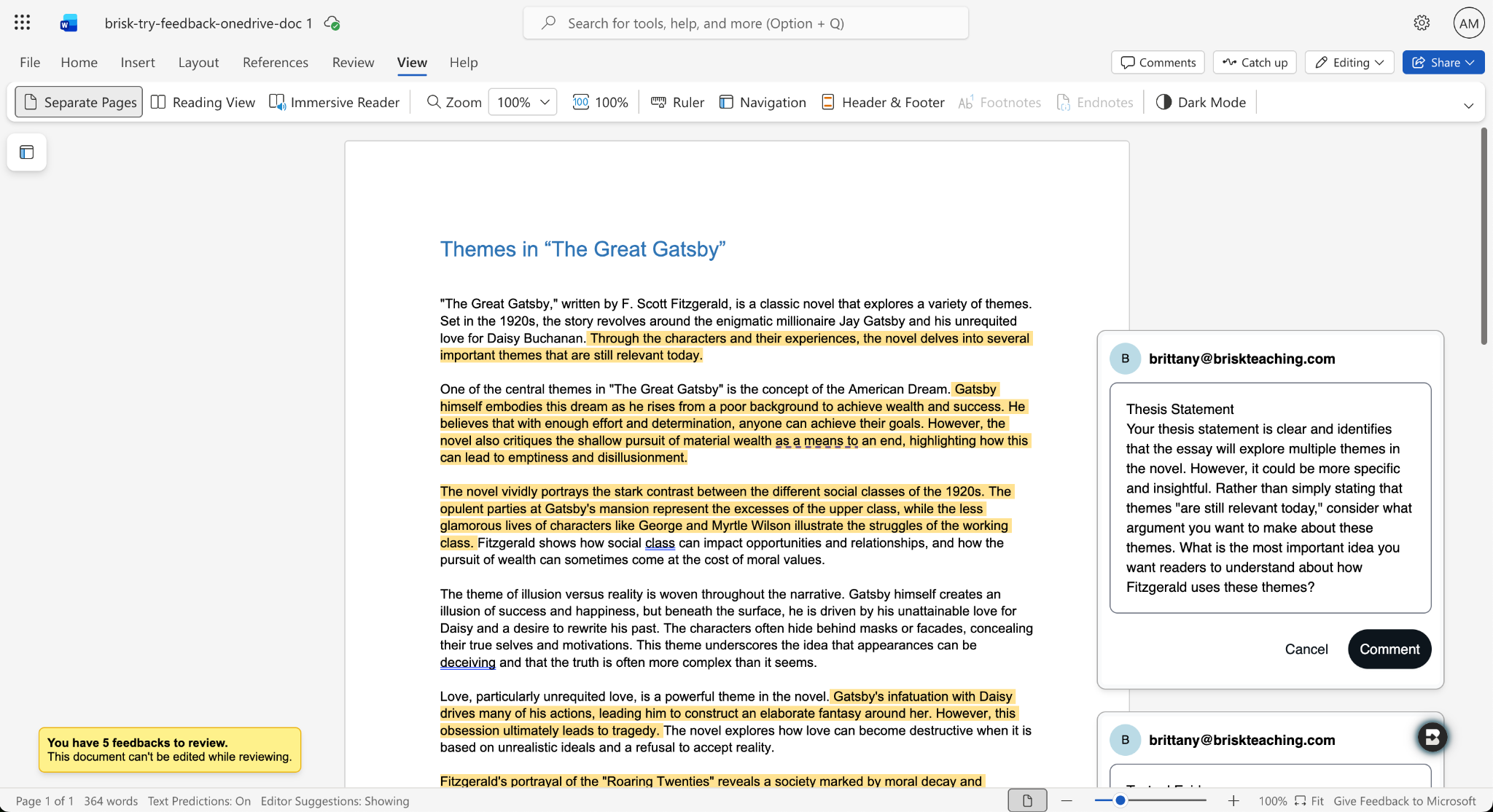
Provide students with personalized feedback that appears directly in the Word docs they’re working in. Brisk drafts inline comments that are aligned with your standards and whatever rubric you want, but you remain in full control of what students see.

How it works:

  1. Open a student writing assignment in Word.
  2. Select the Targeted Feedback tool in the Brisk extension.
  3. Set the language and grade level for the feedback and specify whether you want the feedback to align with an attached rubric or your state standards.
  4. Review the feedback Brisk generates, make adjustments, and click Comment to post a piece of feedback to the student’s work.

Share Boost Activities with Other Educators

June 29, 2026

You can now share Boost Activities with the other educators in your classroom (SPED staff, MTSS coordinators, paraprofessionals, subs). These co-teachers will have read-only access to student progress and activity data so they’re able to observe and support student learning.

How it works:

  1. Open the Share menu: In My Library, go to Activities and click the Share button or the three-dot menu on any activity, then select Share with Co-Teachers. (You can revoke access at any time by removing a co-teacher from the activity’s Share menu.)
  2. Enter a colleague’s email: Type their email and send the invite. They’ll receive a link to accept. (To successfully accept an invite, their email must be rostered in your district.)
  3. Co-teacher accepts: Once they accept the invite, the activity appears in their My Library under Shared with Me.
  4. Co-teacher views the activity: They see the activity monitor — including student progress, messages, safety flags, and Mock Student — in a read-only view. No edit controls are shown.

You can also share your favorite Boost Activities with your fellow teachers, who can then make copies of the activities to use with their own students.

Shape Every Brisk Output with District-Level Priorities

June 29, 2026

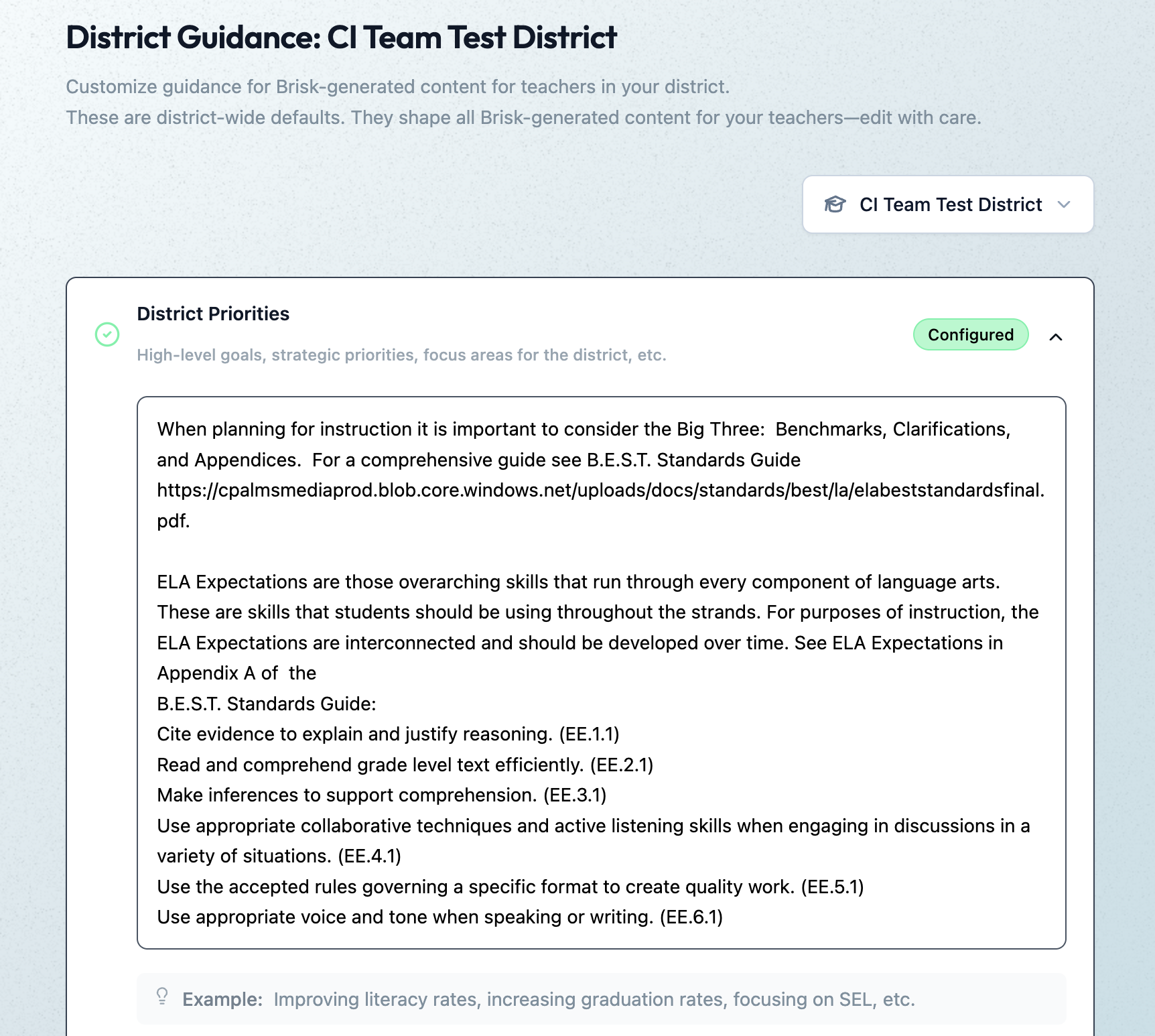
District Guidance gives districts with the Intelligence plan a way to consistently translate instructional leadership investments (professional development, pedagogical frameworks, standards alignment) into actual classroom practice.

In the District Guidance tab of their Admin Portal, leaders provide instructions that automatically shape everything teachers generate with the Brisk extension, Brisk Boost, and Brisk Next. These instructions don’t change the way teachers use or experience Brisk — they simply ensure that every Brisk output reflects a district’s unique priorities.

Leaders can use District Guidance on its own or in tandem with Curriculum Intelligence. (Reminder: Curriculum Intelligence ensures that every Brisk output reflects a district’s adopted curriculum, scope, and pacing.) While Curriculum Intelligence informs what is being taught, District Guidance informs how it’s being taught.

Leaders have the option of providing instructions in four categories:

  • District Priorities: High-level goals, strategic priorities, focus areas (e.g., “The district is focusing on literacy across all content areas this year”)
  • Values & Frameworks: Cultural values, behavioral frameworks, ethical guidelines, community norms (e.g., “Emphasize the district’s four Cs: communication, collaboration, creativity, critical thinking”)
  • Pedagogical Approach: Teaching methods, instructional strategies, learning philosophies (e.g., “Use Workshop Model structure: mini-lesson, practice, debrief”)
  • Standards Emphasis: Academic standards, curriculum alignment requirements, assessment criteria (e.g., “Emphasize these power standards for 6th grade math”)

(Note: This new feature will become available in July 2026.)

Create District-Level Libraries of Curriculum-Aligned Resources

June 29, 2026

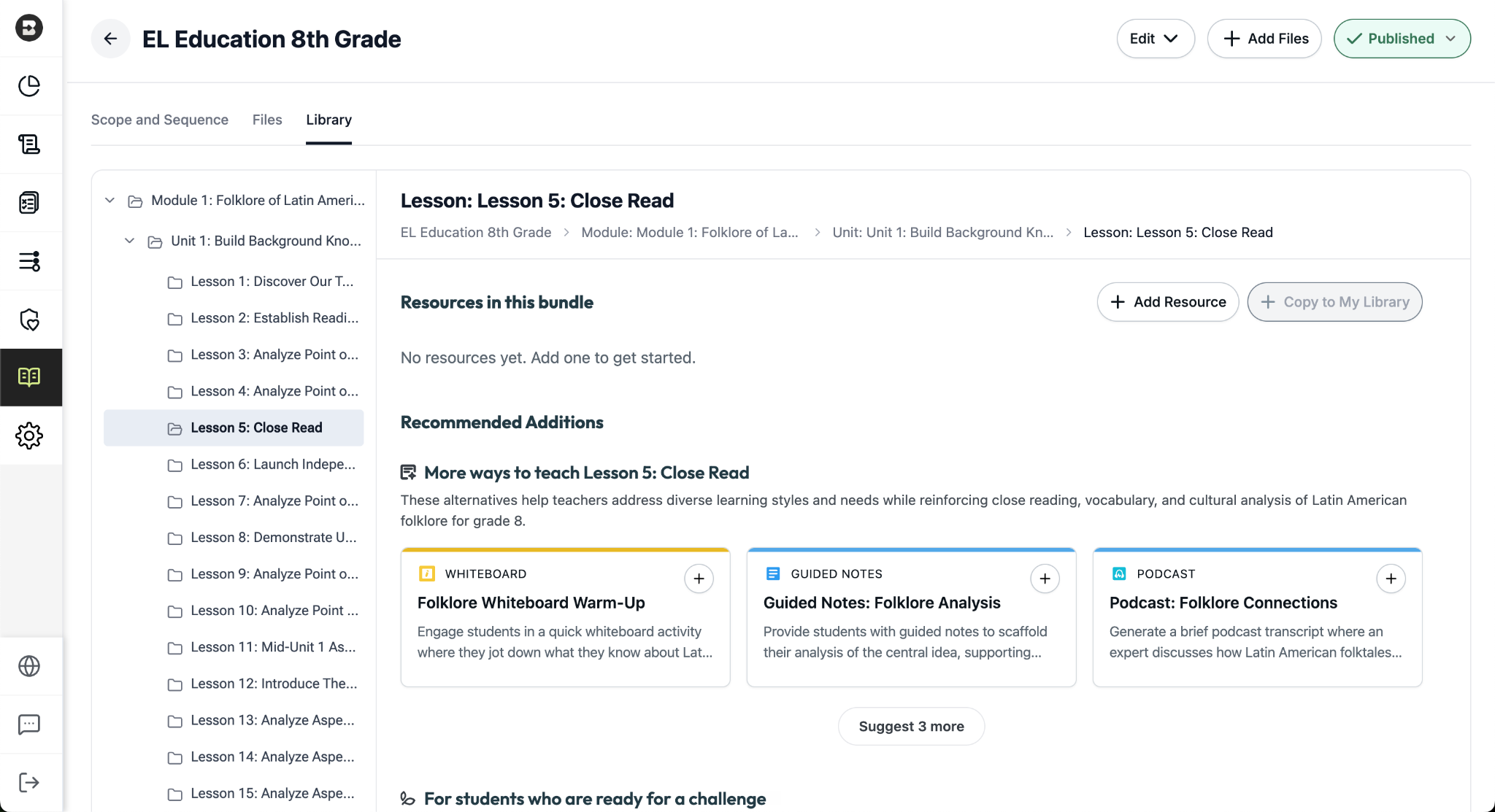
The District Library enables districts with the Intelligence plan to promote curriculum fidelity and help teachers spend less time looking for the right resource and more time delivering high-quality instruction.

Once a district leader has set their curriculum and instructional priorities using Curriculum Intelligence and District Guidance, they’re able to curate resource bundles for any course in their district. It’s like putting a perfectly organized library shelf at every teacher’s fingertips.

How District Libraries are organized:

  • One library per course: Leaders can create a resource library for each course that’s published in the Curriculum Courses tab of their Admin Portal.
  • One bundle per lesson: Leaders can put together a bundle for each lesson in a course (reminder: within a scope and sequence, lessons ladder up to units, which ladder up to modules, the largest components of a course).
  • One source of truth, easy access for teachers: Only leaders can edit or add to a District Library, but with just one click, teachers can create independent copies of a bundle in their personal resource libraries that they can customize and share with their students.

Building a resource bundle

There are several ways for leaders to add resources to a bundle. They can:

  • Choose from a pre-populated list of smart recommendations that are informed by the district’s curriculum and instructional priorities. These recommendations are organized into practical categories like “More ways to teach…” (for supporting diverse learning styles) and “For students who are ready for a challenge…”
  • Generate customized resources using the dozens of tools that are part of the Brisk extension.
  • Upload pre-existing, non-Brisk resources.

(Note: This new feature will become available in July 2026.)

Brisk x AI Platforms

May 18, 2026

You're already in ChatGPT, Gemini, Copilot, or Claude, typing a quick prompt to get something useful before tomorrow. Brisk is already there too, and one click turns that prompt into something you can hand out in class.

Prompt Booster

Start typing in any of these tools and a Brisk It button appears in the prompt field. Click it and your prompt becomes a detailed, instructionally rich version with grade-level framing, standards alignment, and scaffolding strategies built in — so what the AI gives back is classroom-ready from the start.

From there, choose what to do next:

  • Add to Prompt: drop the enhanced prompt back into your AI tool and run with it.
  • Create with Brisk: open Brisk Next with your enhanced prompt already loaded. Brisk surfaces aligned lesson plans, assessments, presentations, and more — all from that one prompt.

Take Action on Any AI Response

Already have a response you like? When the AI finishes generating, a Brisk button appears below it. Click to send it where you need it:

  • Send to Brisk on the web: push the response directly into Brisk on the web, with or without an additional prompt.
  • Send to extension: select Presentation, Quiz, Podcast, Tutor, or Create with Brisk to prefill the Brisk Extension. Customize, then create.

Wherever you're already prompting, Brisk works where you work. Learn more.