What's New

Bookmark this page to see all of Brisk's updates in one place. Every week, new features go live and you won't want to miss them!
What's New In Brisk deck cover - see our latest launches

What's New with Brisk

Never miss a Brisk launch. Whether you're leading PD, sharing Brisk with a teammate, or presenting at a conference, this deck is designed to make it easy to show What's New.

Open Deck

Google Slides!

August 23, 2024

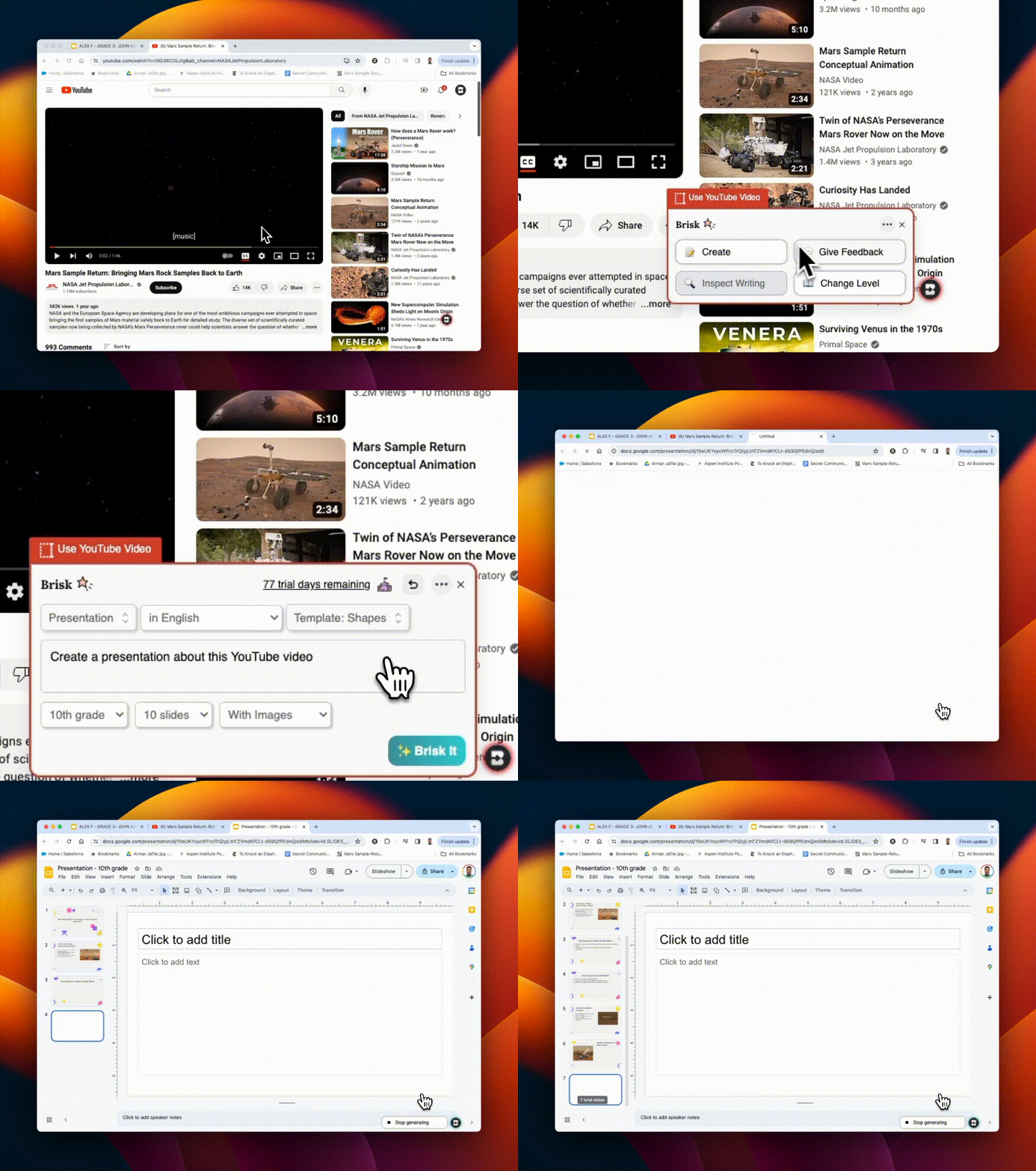
Scorri la preparazione della presentazione in pochi secondi! Usa Brisk per:

1. Crea slide deck partendo da zero
2. Fornisci un feedback sugli slide deck creati dagli studenti

E la parte migliore? Puoi fare tutto direttamente dal tuo spazio di lavoro Google. Provalo e risparmia ore preziose.
Integrazione Canvas SpeedGrader

August 22, 2024

Brisk si integra perfettamente con Canvas SpeedGrader, migliorando Google Assignments con opzioni di feedback mirate. Che tu stia utilizzando stili di feedback «Glow & Grow», «Next Steps» o specifici «Rubric Criteria», Brisk supporta tutti i tipi di invio. Evidenzia le sezioni del lavoro di uno studente per indirizzare il feedback a tali aree. Se stai usando una rubrica, caricala in Brisk per una valutazione semplificata. Scopri tutti i dettagli qui!
Brisk ha un nuovo look!

August 21, 2024

La nostra icona e i nostri loghi aggiornati riflettono meglio Brisk come strumento professionale e perfettamente integrato che conosci e ami. A supporto di questo nuovo look, abbiamo anche un ✨ Press Kit ✨! Mentre condividi o presenti su Brisk, puoi accedere al nostro loghi e icone aggiornati da questa cartella.
Integrazione con Youtube!

August 20, 2024

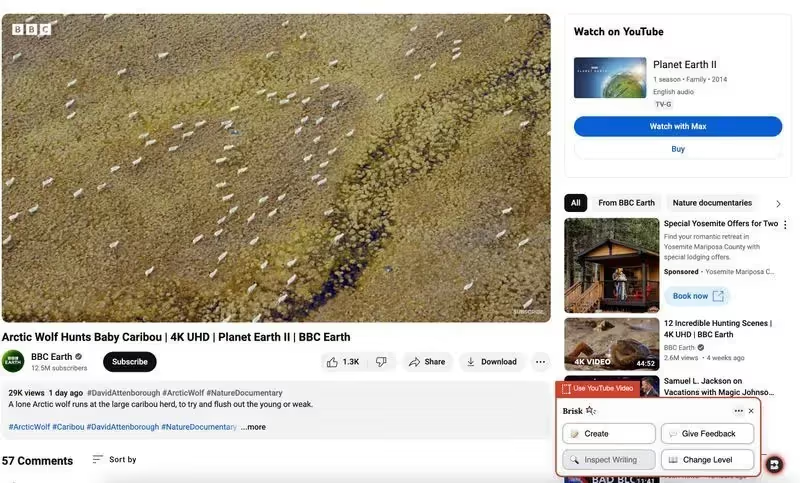
Usa QUALSIASI strumento Brisk sui video di Youtube! Puoi creare piani di lezione, quiz, feedback, risorse, rubriche... direttamente da un video di Youtube. Se stai valutando un progetto studentesco che è stato caricato su Youtube, puoi anche fornire un feedback direttamente da lì!
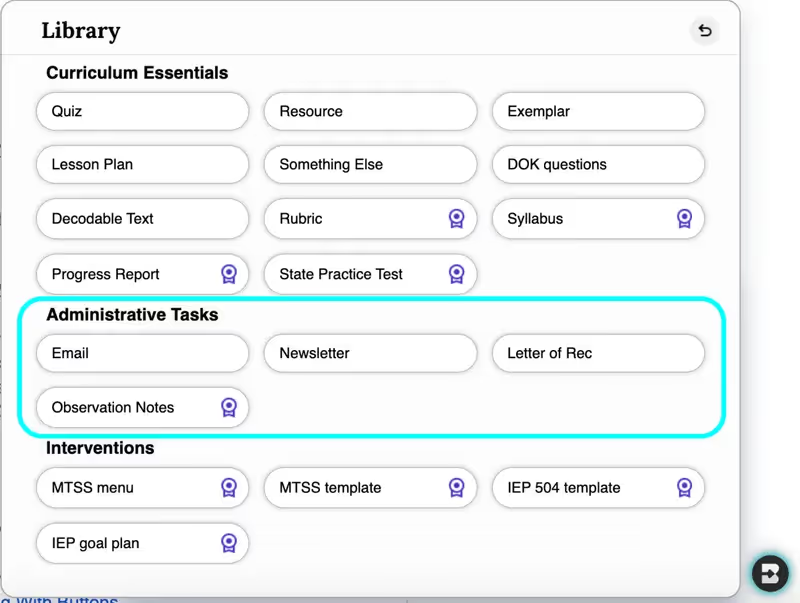
Quattro attività amministrative

August 19, 2024

Hai bisogno di creare un'email, una newsletter, lettere di presentazione o note di osservazione... in pochi secondi? Una nuovissima suite di strumenti di amministrazione è stata aggiunta alla libreria Create... e presto ne arriveranno altri. Il tuo piatto è appena diventato molto più leggero.
Personalizza per i tuoi studenti

August 16, 2024

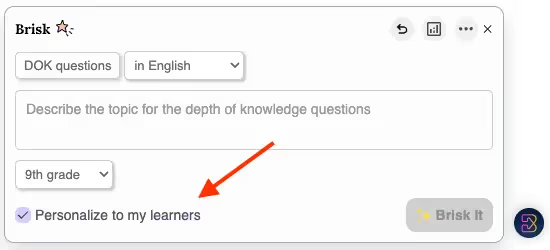
Dopo aver lasciato un feedback a Brisk su 5 o più incarichi, le funzionalità personalizzate appariranno in tutti gli strumenti della Create Library. Selezionando la casella di controllo Personalizza per i miei studenti, Brisk differenzierà automaticamente il curriculum per affrontare meglio le sfide e le esigenze specifiche degli studenti.
Approfondimenti dal tuo feedback

August 15, 2024

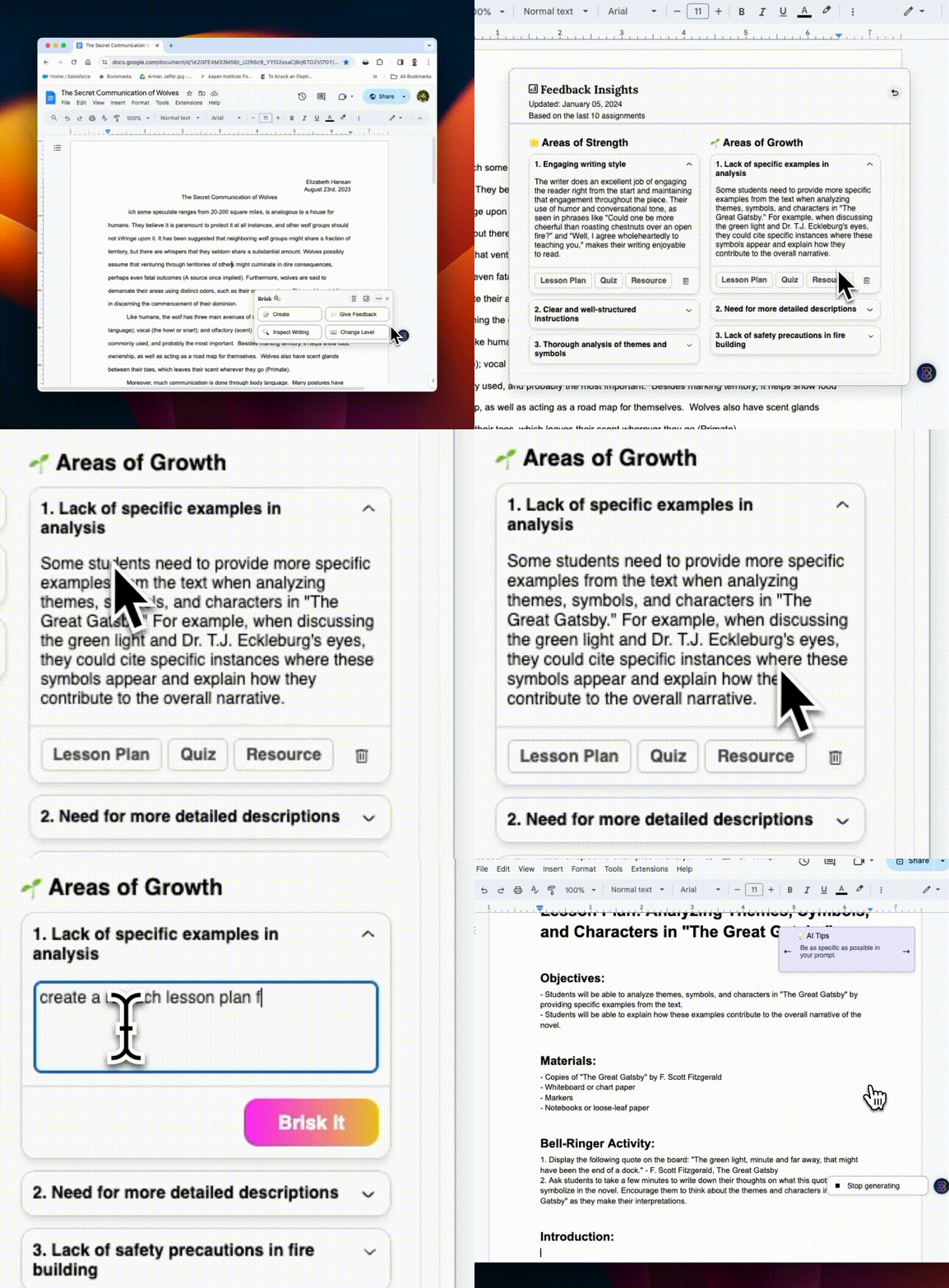
Inondato di informazioni sul monitoraggio di numerosi compiti degli studenti? Lascia un feedback a Brisk su soli cinque compiti per sbloccare Feedback Insights. Ogni volta che fornisci un feedback, questo strumento diventa più potente in quanto fornisce informazioni dinamiche in tempo reale che raccolgono ciò di cui i tuoi studenti hanno bisogno.

E non è tutto! Una volta identificate le aree di miglioramento, fai clic sui pulsanti Piano delle lezioni, Quiz o Risorse per creare rapidamente contenuti mirati a quelle aree specifiche. Ad esempio, se i tuoi studenti hanno difficoltà a citare le loro fonti, puoi creare un piano di lezioni per migliorare tale abilità, proprio lì.
Introduzione, Inspect Writing

August 14, 2024

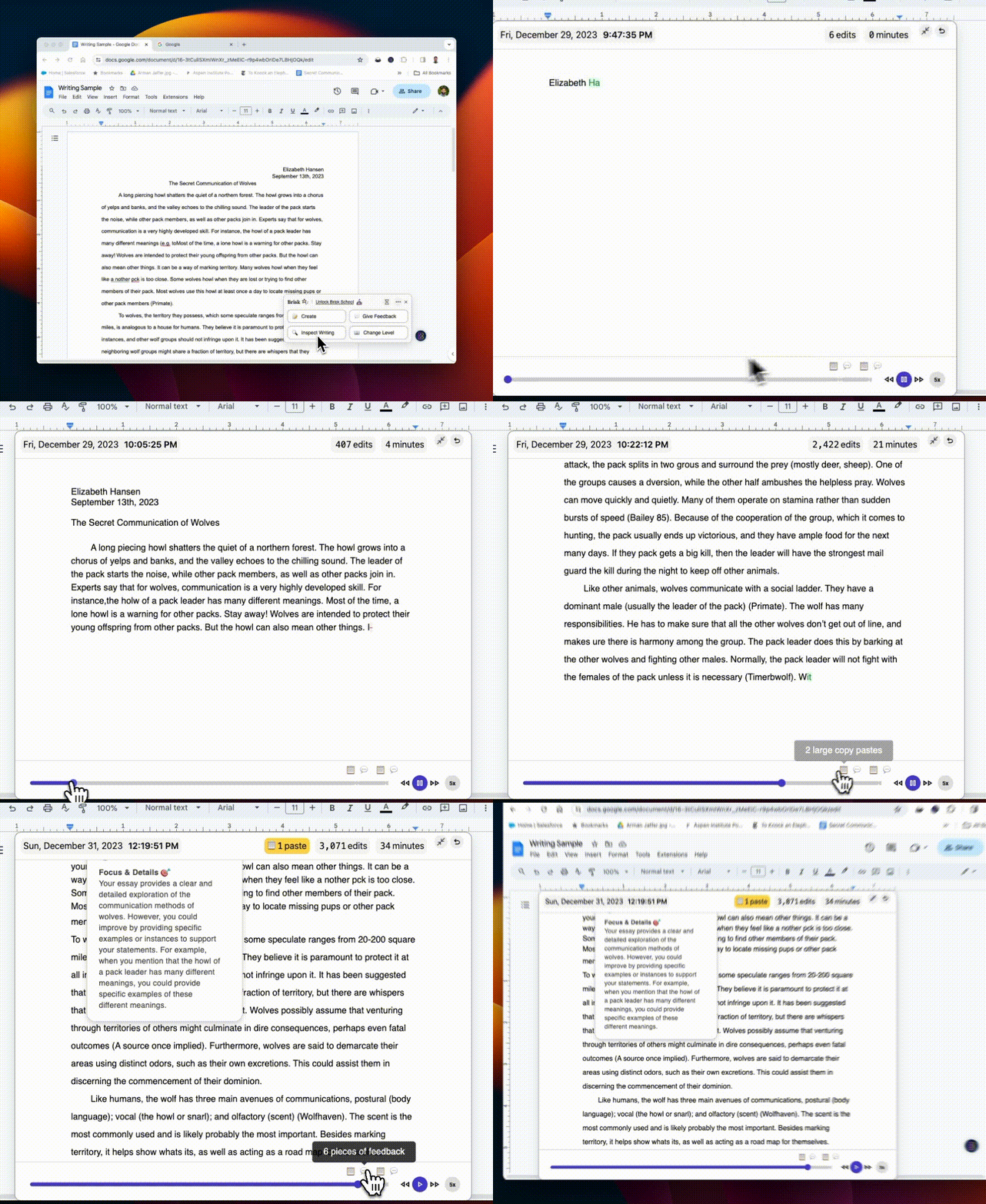
Hai problemi con rilevatori di intelligenza artificiale inaffidabili? Inspect Writing reinventa l'analisi della scrittura degli studenti. Riproduci una panoramica dettagliata della cronologia delle revisioni dei tuoi studenti, delle loro azioni di copia/incolla e altro ancora. Provalo e scopri la differenza!
Più opzioni, più risorse

August 13, 2024

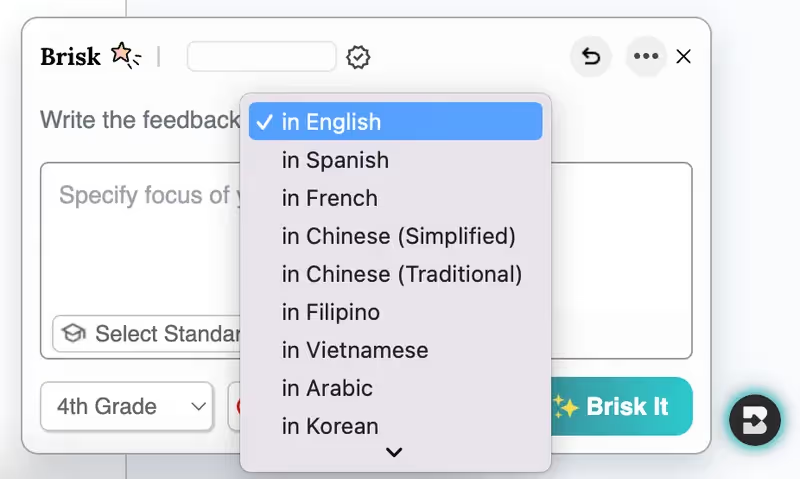
Insegnare agli studenti ESL? Ora puoi fornire feedback in più di 10 lingue.

Stanco di copiare e incollare? Abbiamo ampliato la sezione in cui puoi creare e fornire feedback! Fai clic sull'icona Brisk su qualsiasi sito Web o documento Google per accedere istantaneamente alle opzioni di feedback e alla Create Library per creare quiz, lezioni, risorse e altro ancora.

Incorporare risorse diverse? Modifica il livello di lettura su migliaia di articoli e pagine del sito aggiuntivi.
Aggiunte alla libreria Create

August 12, 2024

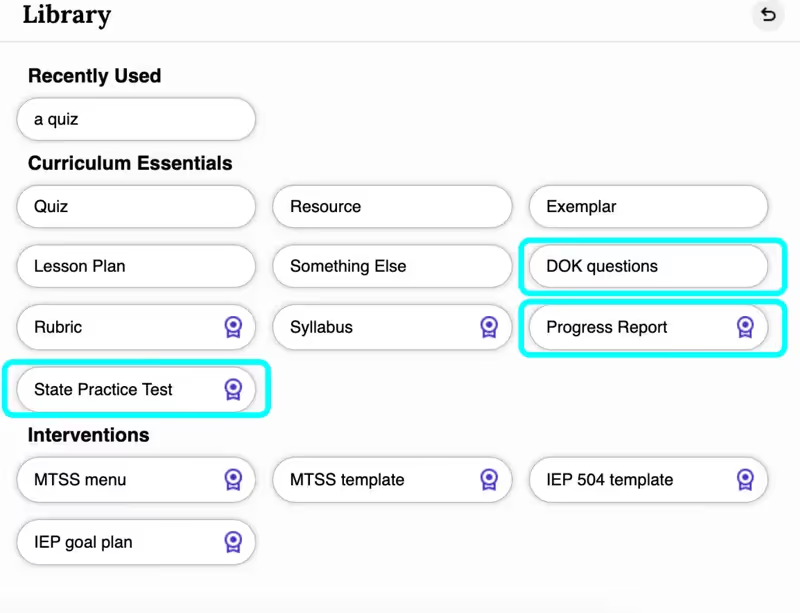
DOMANDE DOK (PROFONDITÀ DI CONOSCENZA) soddisfano vari livelli cognitivi, assicurando che gli studenti siano coinvolti e adeguatamente sfidati.

I PROGRESS REPORT ti consentono di generare rapidamente report personalizzati che rispondono ai tuoi input, con la flessibilità di personalizzarli in base alle tue esigenze. (I rapporti sui progressi fanno parte del piano Brisk School). Dite addio alle lunghe ore di redazione!

I TEST DI PRATICA STATALE forniscono agli studenti la pratica di cui hanno bisogno per avere successo. Ora puoi usare Brisk per generare test pratici per STAAR, SBAC e valutazioni aggiuntive.
Create Polished, Print-Ready Activities That Cover Any Topic

August 25, 2026

If you feel like your students need a break from screens, we’ve got some great news: Brisk now includes a Printables Generator!

Brisk Printables help you give students the cognitive and social benefits of off-screen activities without having to spend hours formatting (and re-formatting and re-re-formatting) docs and design files. With just a few clicks, you can transform whatever online resources you’ve been using into print-ready pen-and-paper activities that keep students engaged.

You can choose from seven types of printables in Brisk:

  1. Frayer Model: Unpack a vocabulary term or core concept in four quadrants
  2. KWL Chart: Map what students know, want to know, and learned
  3. Venn Diagram: Compare and contrast concepts
  4. Q&A: Check for understanding (pro tip: these are perfect for exit tickets)
  5. Worksheet: Generate a practice page for any topic
  6. Mind Map: Branch a central topic into sub-topics
  7. Newsletter: Keep students, families, and/or staff updated

In addition to using these templates to cover whatever learning content you want, you can adjust the look and feel of each of them by selecting one of five design themes: editorial, groovy, minimal, playful, or simple.

How it works:

  1. Open the article, PDF, video, or other resource you want to generate a printable from.‍ (You can also start from scratch by simply describing a topic during Step 4.)
  2. Open Brisk, type “printable” into the search box, and select the Printables Generator from the search results.
  3. Choose your preferred format and, if you want to customize the look and feel of your printable, your preferred design theme.
  4. Share some specifics about grade level, difficulty, and which parts of a topic you want your printable to cover.
  5. Chat back and forth with Brisk to finalize the printable by fine-tuning its content or layout.
  6. Print your new printable or grab a view-only share link to it.

Turn a Spreadsheet into a Student Activity

August 3, 2026

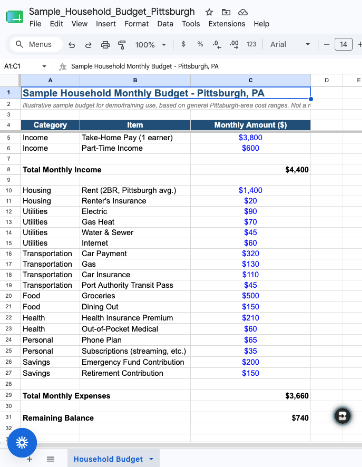
Brisk now works on spreadsheets. Open a Google Sheet or an Excel file and Brisk reads every tab as context for whatever you build next. Lab data, assessment results, a sample household budget for a personal finance unit: ask for a worksheet, quiz, or Boost activity based on it and you'll get one without copying a single cell into a doc first.

Nothing to set up. It's on for every teacher, on every plan.

A few things to know: Brisk reads spreadsheets, but it can't write into them or build new ones. All tabs are read together, so you can't pick just one. And very large workbooks may get cut off.

Multi-Level & Multi-Grade Creation, Now in the New Brisk

August 3, 2026

Multi-level and multi-grade creation is now available in the new Brisk. Ask for a resource across a few grade bands, levels, or languages, and Brisk builds every version at once, then delivers them together as a single bundle.

How it works:

  1. Tell Brisk what you need: In the search bar, describe the resource and the range of grades, levels, or languages you're building for — or use the language and grade level settings to multi-select directly.
  2. Answer a few quick questions: Brisk's conversational Create experience will ask the same kinds of questions it always does to support your instructional goals.
  3. Open your bundle: Every version is generated together and ready to hand out to the right students.

Note: The ability to rework your outputs available elsewhere in the new Brisk isn't yet supported inside bundles. To revise an individual version, use the classic Create workflow.

Welcome to the New Brisk

July 16, 2026

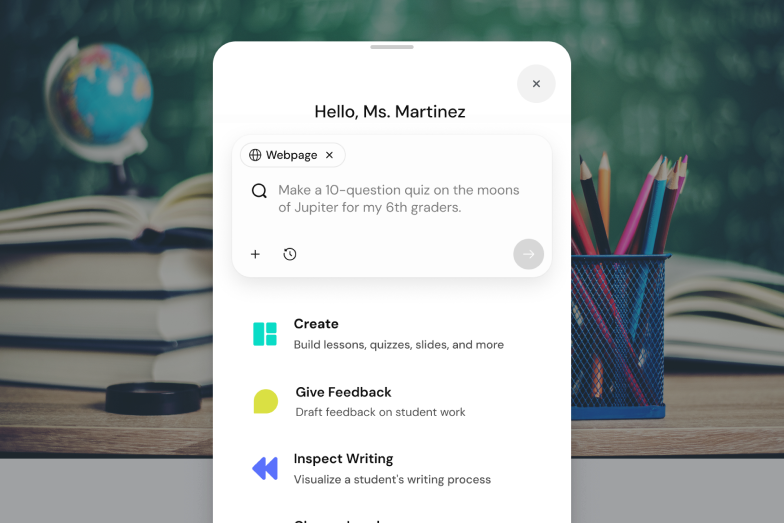
The Brisk extension has a new look, one designed to better support how you work and help you feel prepared for every class, every week, and every school year!

Instead of clicking through menus to find the right tool and then filling out multiple fields, you can simply tell Brisk what you need and it’ll build it. (Don’t worry, you still have the ability to browse your favorite tools if you want to.) From worksheets and quizzes to lesson plans and rubrics, anything you’re used to building with the Create tool is now just a quick conversation away.

How it works:

1. Search for the type of resource you have in mind: Start typing what you’re looking for in the Brisk extension search bar and a list of relevant resource types will appear. No need to remember the proper names of Brisk tools — use whatever words make sense to you and Brisk will figure it out.

(Note that while the new search function will return results spanning all Brisk tools, at this time, only the Create tool will deliver a conversational experience during subsequent steps.)

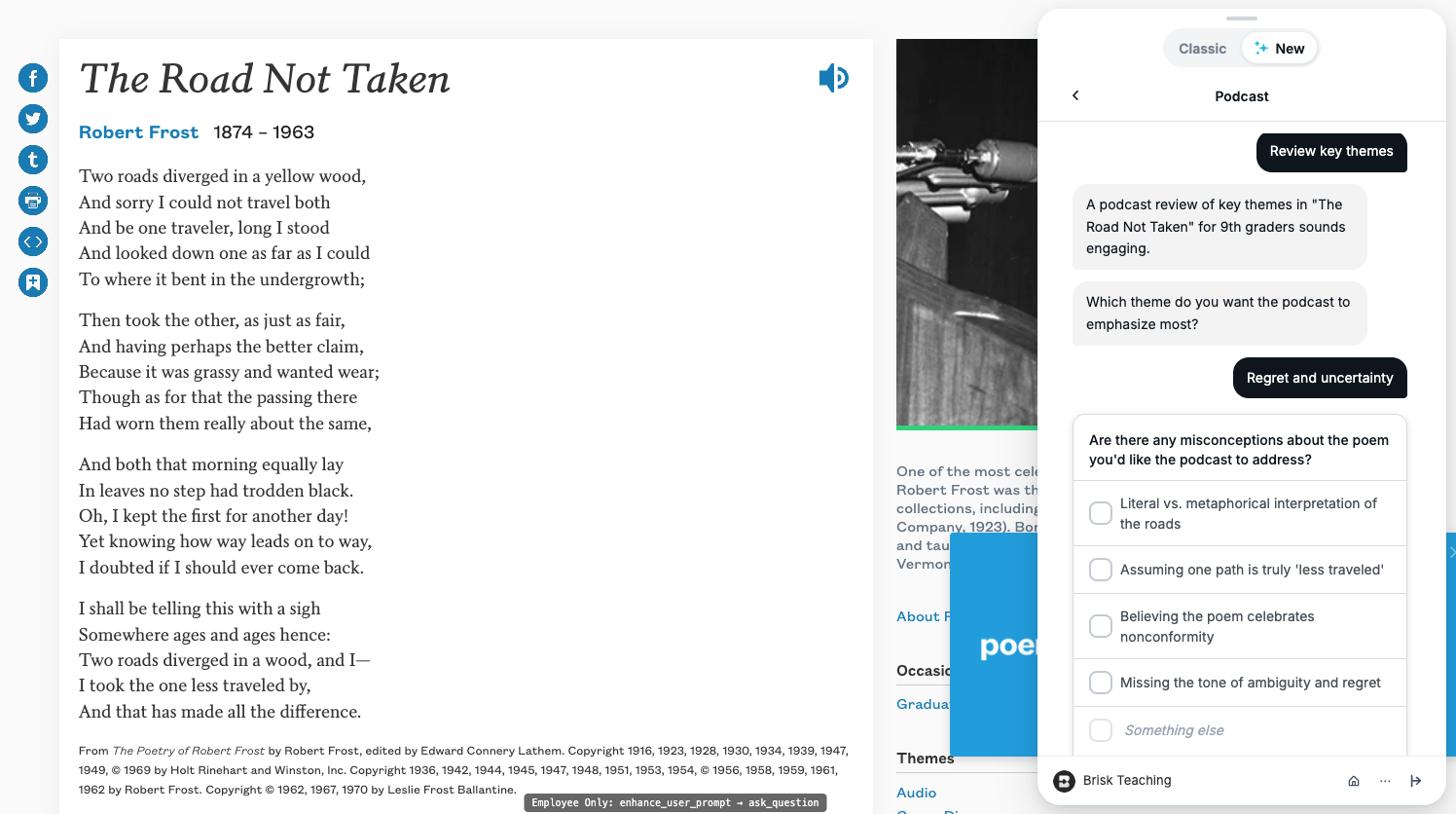
2. Share a few specifics about what you need: In the new conversational experience, Brisk will ask a few quick questions about whatever prompt you provide to make sure it understands what you’re after. Answering these questions is optional, but recommended. (You’ll still be able to use the classic Create workflow, too.)

Depending on the context, Brisk’s questions might look like:

  • “What’s the purpose of this exit ticket?” (e.g., a formative check after a day’s lesson, a diagnostic before kicking off a new unit, prep for a summative unit test)
  • “Are there any misconceptions about the topic you want this resource to address?” (choose from a list of relevant options or type your own response)
  • “Is there anything your students have been struggling to grasp about this topic?” (choose from a list of relevant options or type your own response)

Once you’ve had this brief conversation, Brisk will draw on your responses, your original prompt, your curriculum, and, if your district has Brisk Intelligence, district leader guidance to build a resource that’s fully aligned with your needs and your district’s priorities.

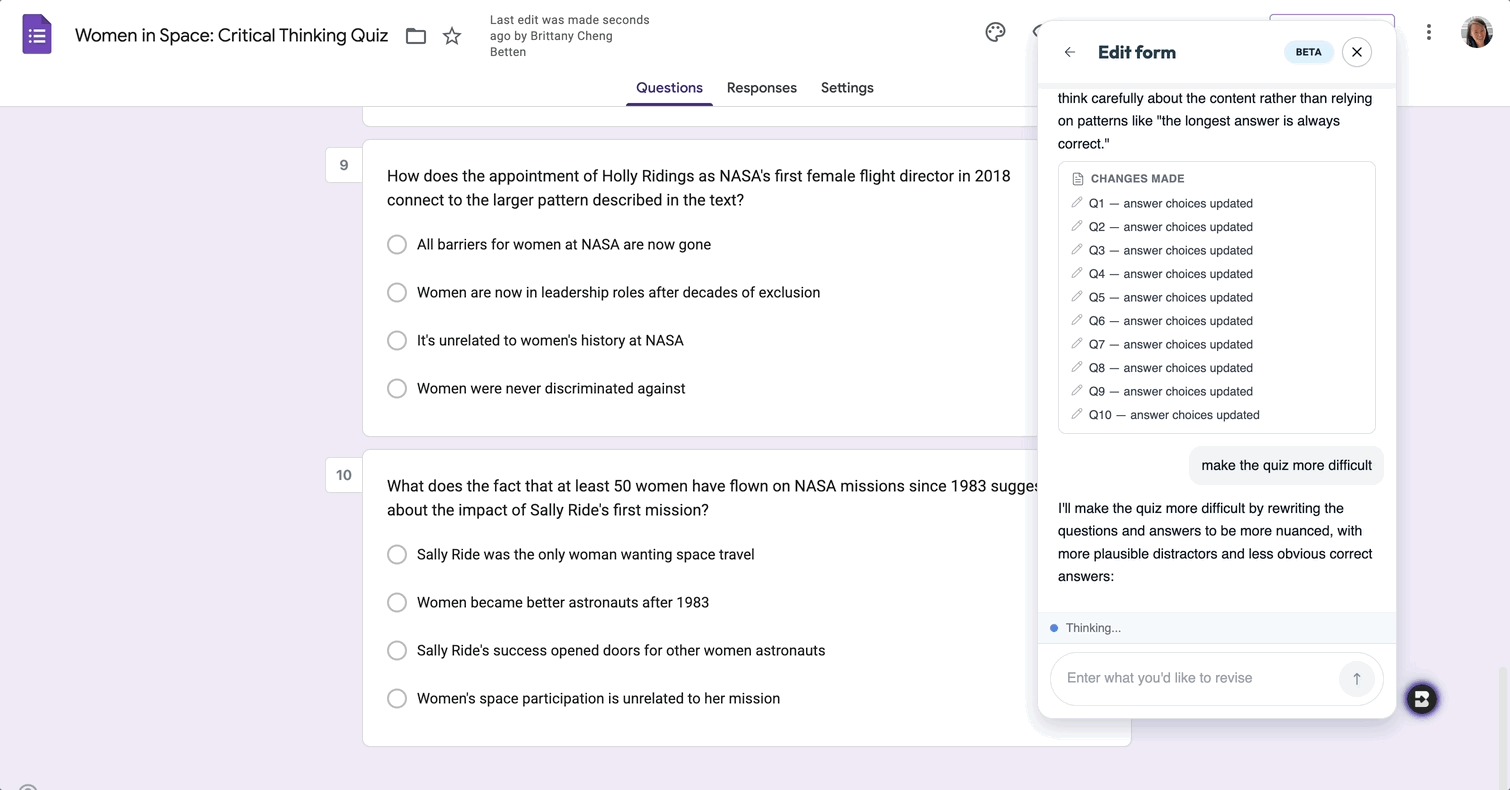
3. Fine-tune the resource until it’s perfect: Chat back and forth with Brisk to make any adjustments to your new resource. As you provide instructions — think: “make this shorter” or “swap the third question for something more challenging” or “add scaffolding for ELL students” — the resource will update right before your eyes. No need to start over or sift through multiple versions.

Read more about the new Brisk, and see the experience in action:

Resources for learning the New Brisk

Use Brisk Tools Directly in Claude

July 14, 2026

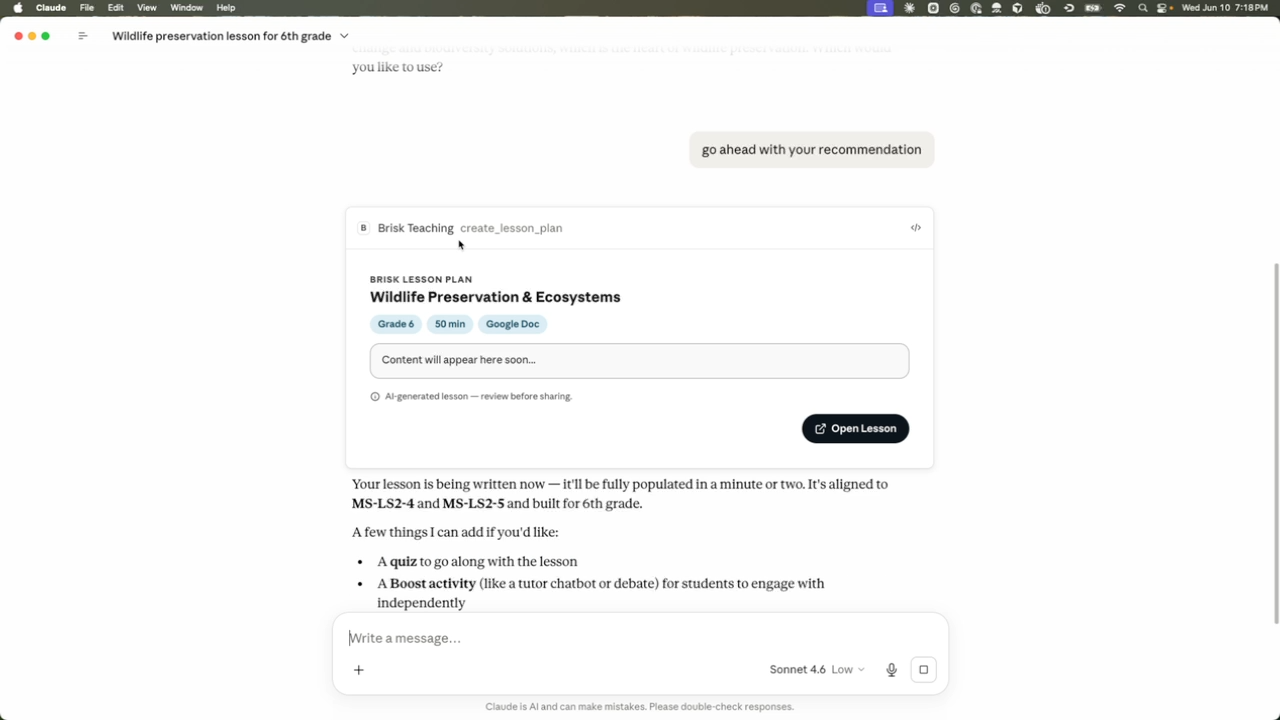
With the Brisk Connector, your favorite Brisk tools are just a sentence away in Claude. Chat with Claude about what you’re working on and it’ll give you ready-to-use links to the types of high-quality instructional materials you’re used to creating with Brisk — no more jumping between multiple browser windows.

What teachers can do in Claude with the Brisk Connector:

  • Create Boost Activity: Builds an interactive, AI-powered student activity (tutor, quiz-me, debate, exit ticket, writing coach) complete with learning objectives and guardrails.
  • Generate activity ideas: Suggests a set of Boost Activity ideas for a topic — no commitment until you create one.
  • Create teaching resource: Creates a lesson plan, quiz, rubric, worksheet, sub plan, or other resource as a Google Doc or Google Form.
  • Set up Batch Feedback: Creates an assignment shell for grading a set of student work (you add submissions and run feedback in the Brisk web app).
  • List standards: Browses Brisk’s standards database so your materials will be aligned to the right frameworks, grade level, and state.
  • Get teacher context: Reads your class names, grades, and subjects (never student data) so Claude can tailor its suggestions.

Connect Claude to Brisk:

  1. To use the Brisk Connector, you’ll need a Brisk account, a Claude account, and, for any tool that creates a Google Doc or Google Form, a Google account that’s connected to Brisk.
  2. Open Claude (web or desktop).
  3. In a new chat, click the + button near the prompt and select Connectors, then click Add Connector. You can also start the process here.
  4. Use the search bar to find the Brisk Connector and click Connect.
  5. You’ll be prompted to sign in to your Brisk Teaching account and allow Claude to access it. Click Allow.
  6. Once connected, Brisk will appear in your list of Connectors and Claude will be able to use Brisk tools directly in your Claude chat.