What's New

Bookmark this page to see all of Brisk's updates in one place. Every week, new features go live and you won't want to miss them!
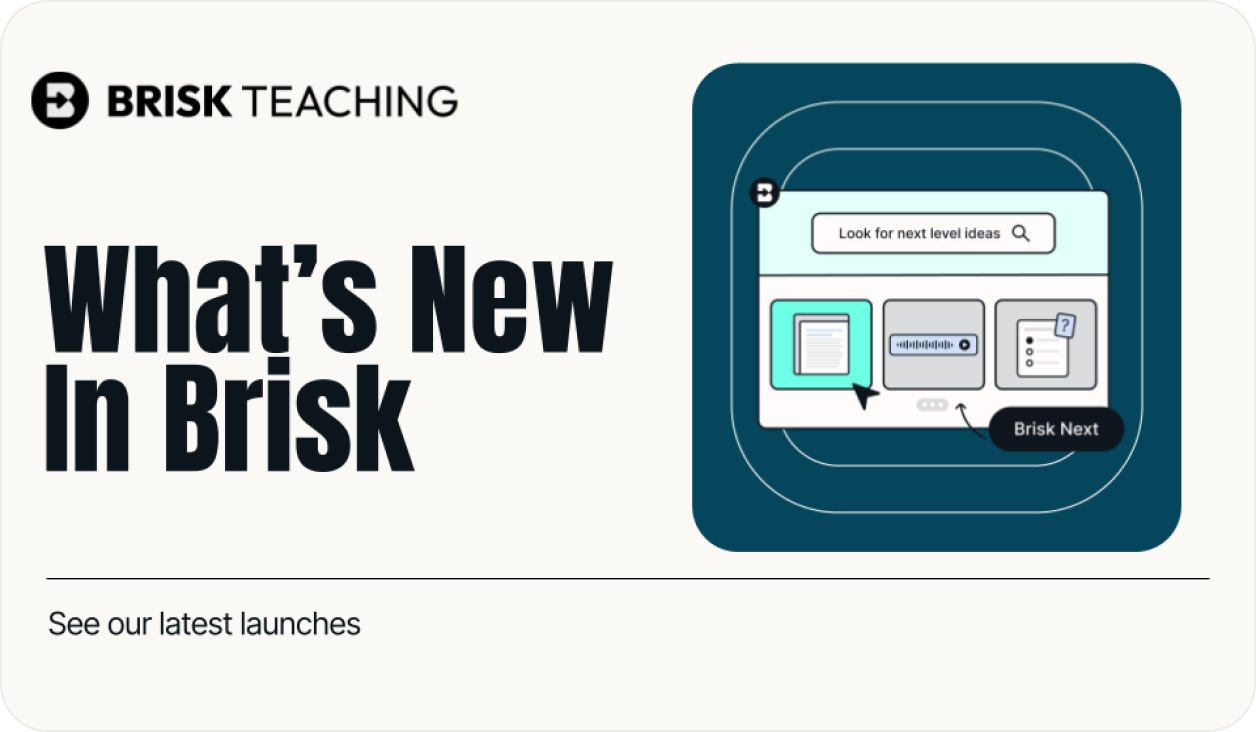
What's New In Brisk deck cover - see our latest launches

What's New with Brisk

Never miss a Brisk launch. Whether you're leading PD, sharing Brisk with a teammate, or presenting at a conference, this deck is designed to make it easy to show What's New.

Open Deck

Personalizza Brisk con Admin Tool Manager

April 7, 2025

Incontra il Gestore degli strumenti di amministrazione, una nuova funzionalità progettata per i partner scolastici e distrettuali che desiderano maggiore controllo e personalizzazione su tutta la piattaforma. Che tu stia lanciando nuove iniziative o razionalizzando gli strumenti utilizzati quotidianamente dai tuoi insegnanti, Admin Tool Manager ti mette al posto di guida.

Con il Gestore degli strumenti di amministrazione, puoi:

  • Crea strumenti personalizzati utilizzando i tuoi suggerimenti, in linea con gli obiettivi didattici del tuo distretto.
  • Pubblica gli strumenti direttamente nella Brisk Library di tutti gli insegnanti — in modo che siano immediatamente accessibili.
  • Nascondi gli strumenti predefiniti di Brisk che non sono pertinenti al tuo contesto, mantenendo il tuo team concentrato su ciò che conta di più.


Come usare l'Admin Tool Manager

Iniziare è rapido:

Fase 1: Fare clic Vivace nell'angolo in basso a destra del browser.

Fase 2: Seleziona Crea.

Fase 3: Nella parte superiore della Libreria, fai clic su Gestisci strumenti.

Fase 4: Personalizza gli strumenti per le esigenze della tua scuola o del tuo distretto. Puoi creare nuovi strumenti specificamente per il tuo personale.

Fase 5: Oltre a creare nuovi strumenti, puoi anche modifica, pubblico, oppure eliminare qualsiasi strumento per un'esperienza personalizzata.

Quando gli strumenti didattici sono in linea con i tuoi obiettivi, tutti vincono. L'Admin Tool Manager ti offre la flessibilità necessaria per creare coerenza, semplificare i flussi di lavoro e mantenere tutto allineato ai tuoi obiettivi.

Trasforma le lezioni in podcast in pochi secondi con il generatore di podcast di Brisk

April 1, 2025

La nuova funzionalità di Brisk rende più facile che mai coinvolgere tutti gli studenti, sempre e ovunque. Con Podcast Generator, puoi trasformare istantaneamente lezioni, articoli e altri contenuti in esperienze audio dinamiche.


Che tu stia cercando di aumentare l'accessibilità, supportare gli studenti multilingue o semplicemente offrire agli studenti più modi per connettersi con i contenuti, questo strumento lo rende perfetto. Nessuna preparazione aggiuntiva. Nessun problema aggiuntivo.


Semplicemente un potente sistema di apprendimento incentrato sullo studente, fornito con la velocità e la semplicità che ti aspetti da Brisk. Scopri di più sul Brisk Podcast Generator qui.

Brisk Boost Writing Activities is Here

March 4, 2025

With Boost Writing Activities, every student gets the support they need—without you having to run from desk to desk all class period.

There are 4 ways to use Boost Writing Activities:

  • Writing Coach – The ultimate writing sidekick
  • Glow & Grow – Feedback students can actually use
  • Next Steps – Because writing doesn’t end at submission
  • Goal Setting – Reflection + growth


To try it out, open a writing prompt or writing activity, click on 'Boost Student Activity', and click Write.

Brisk now works with images!

February 28, 2025

Just drag, drop, or upload any image - whiteboard notes, messy worksheets, student work - and Brisk will instantly turn it into questions, feedback, and activities.

Nuovo strumento: pulsante Crea qualsiasi cosa

February 14, 2025

Il pulsante Crea qualsiasi cosa! Genera istantaneamente risorse didattiche basate sull'intelligenza artificiale (quiz, elenchi di vocaboli, escape room e altro) personalizzate per la tua classe. Provalo subito e dai vita alle tue idee in pochi secondi!

5 nuovi strumenti di creazione

December 27, 2024

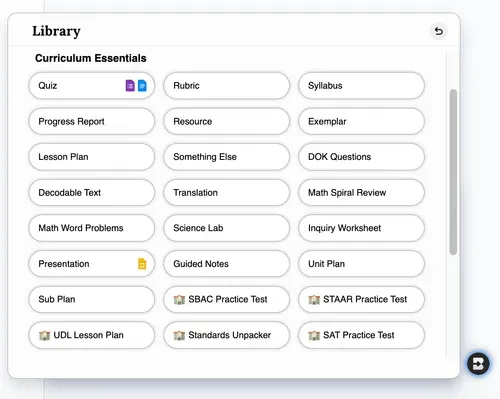
Nel menu di creazione di Brisk noterai 5 nuovi pulsanti. In pochi secondi, genera il tuo:

  • Note guidate: Brisk fornisce note strutturate che evidenziano punti e concetti chiave per mantenere gli studenti sulla buona strada.
  • Piani unitari: genera piani unitari organizzati con modelli pronti all'uso per mantenere le lezioni coinvolgenti.
  • Piani secondari: hai bisogno di un sostituto dell'ultimo minuto? Brisk crea piani e materiali facili da seguire che puoi condividere con il sub.
  • Test pratici SAT: fornisci agli studenti test pratici SAT completi e a tempo per aiutarli a prepararsi per la giornata del test.
Brisk Boost for Students è qui!

September 17, 2024

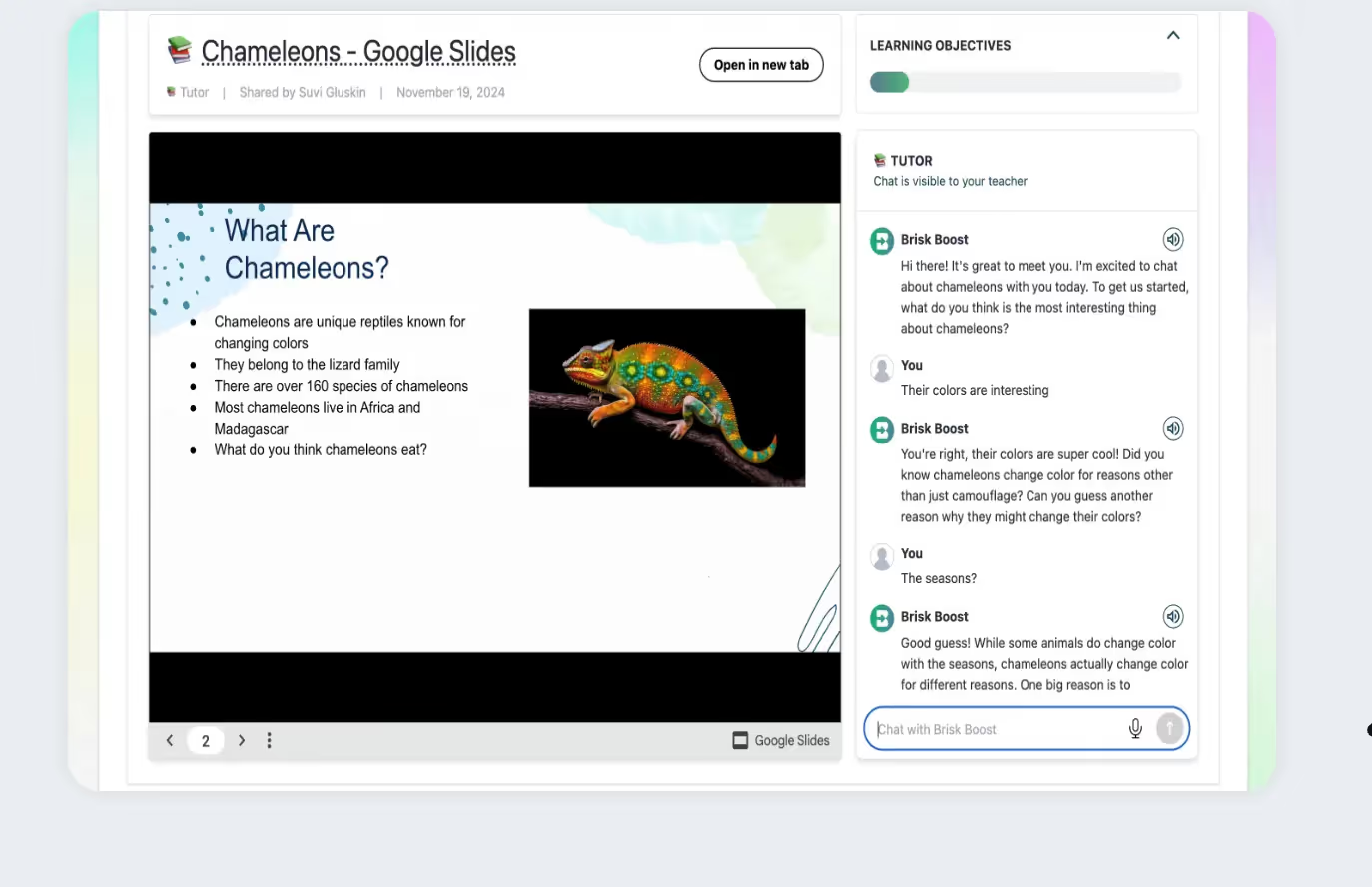
Brisk Boost è uno strumento che aiuta gli insegnanti a trasformare le risorse didattiche quotidiane in esperienze di apprendimento interattive basate sull'intelligenza artificiale. Gli insegnanti possono trasformare materiali come Google Docs, presentazioni e articoli in attività coinvolgenti che aumentano la partecipazione e la comprensione degli studenti. Con Brisk Boost, gli studenti interagiscono con strumenti basati sull'intelligenza artificiale come partner per il brainstorming, controlli rapidi di comprensione e feedback in tempo reale, consentendo agli insegnanti di personalizzare le lezioni e aiutare gli studenti a padroneggiare il materiale in modo sicuro ed efficace. Scopri di più qui.
4 nuovi strumenti!

August 28, 2024

Sono stati aggiunti 4 nuovi strumenti per rendere Brisk più potente per gli insegnanti di matematica e scienze. Apri il menu Crea per creare in pochi secondi una revisione a spirale matematica, problemi con parole matematiche, laboratori scientifici e fogli di lavoro di indagine.

Funzionalità premium gratuite per tutti gli insegnanti

August 27, 2024

Il ritorno a scuola è frenetico e vogliamo che tu abbia tutto ciò di cui hai bisogno (e anche di più!) per stressarti meno quest'anno scolastico. Quindi, daremo a tutti gli insegnanti l'accesso GRATUITO a Brisk Educator Pro, il nostro nuovo abbonamento premium per insegnanti, fino al 15 settembre. Che tu sia nuovo su Brisk o sia un utente esistente, apri Brisk per provare tutto ciò che Brisk ha da offrire.
Il piano Brisk Educator Pro è arrivato!

August 26, 2024

Mi hai chiesto... siamo lieti di annunciare che gli insegnanti possono acquistare Brisk singolarmente per accedere a funzionalità aggiuntive. Questo piano è gratuito per tutti gli insegnanti fino al 15 settembre. Installa Brisk qui - vedrai automaticamente le funzionalità premium gratuite sul tuo account.

Clicca qui per saperne di più.
Inspect Writing & Targeted Feedback in Microsoft Word

June 29, 2026

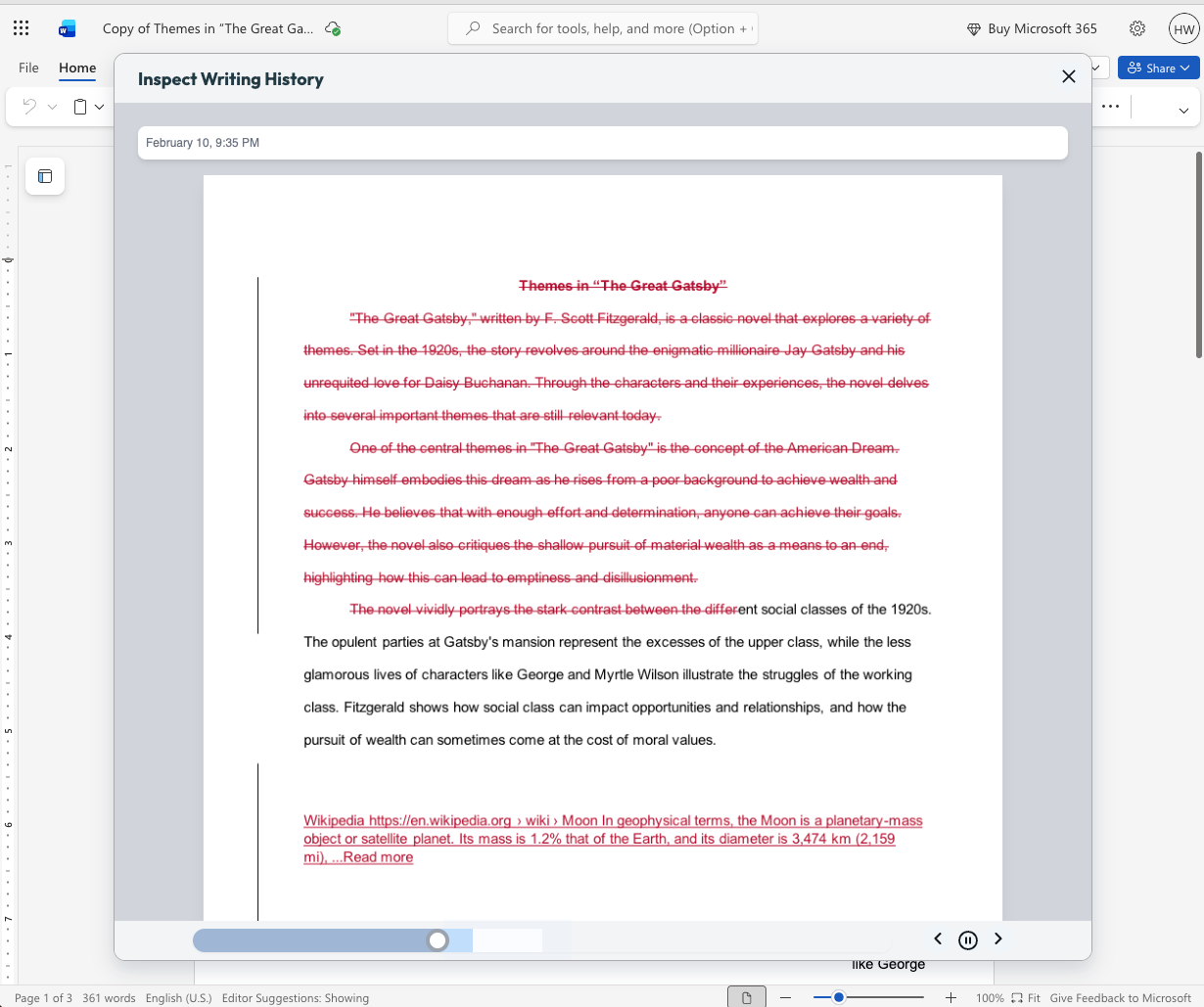
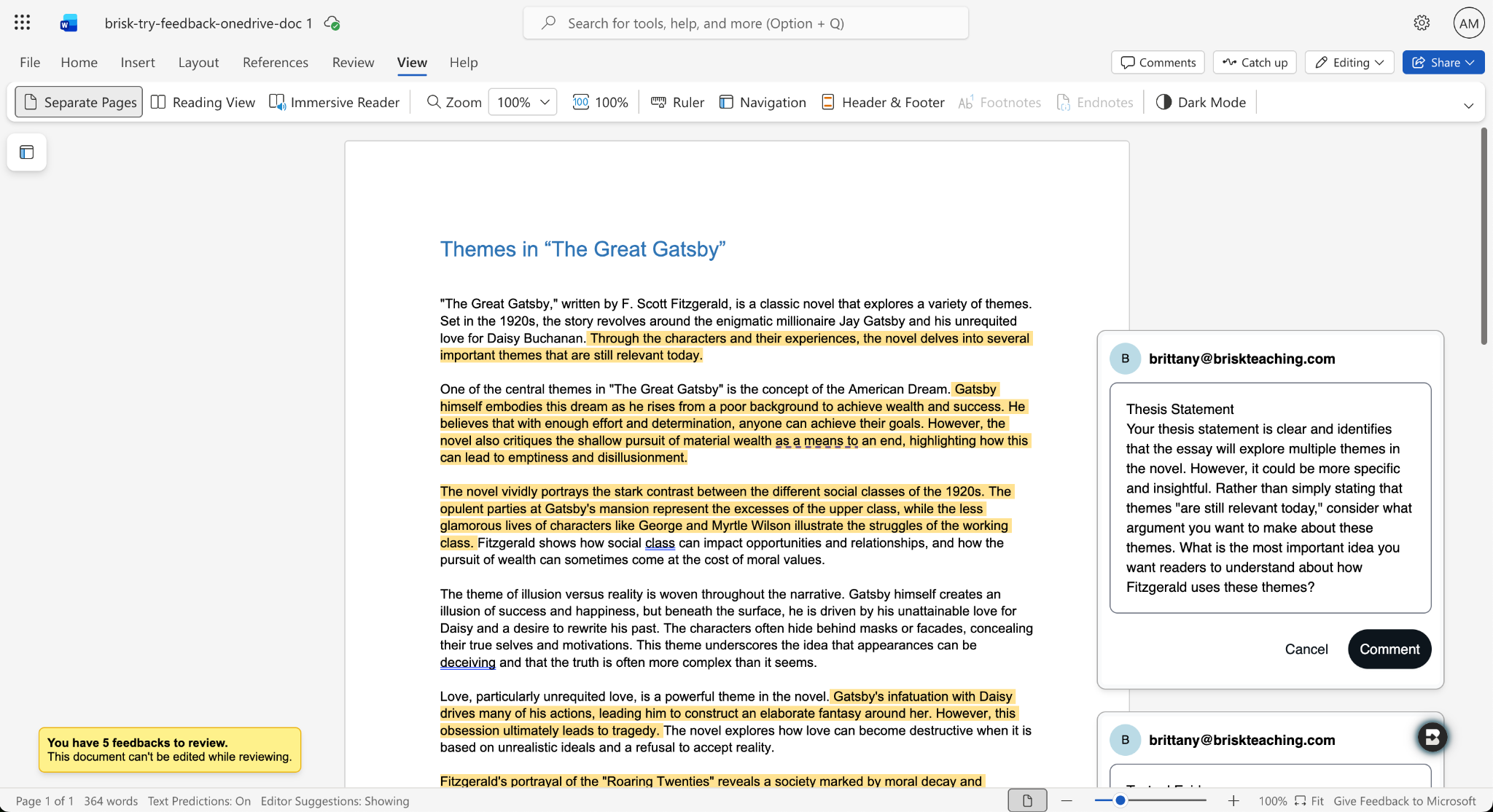
Microsoft teachers now have access to two tools that enable them to deliver more (and more personalized) feedback to students in less time: Inspect Writing and Targeted Feedback.

Inspect Writing

(Note: This new feature will become available for back to school 2026.)

Watch a video-style replay of a student’s writing process from first draft through final version. See what they added and deleted at each step and how they responded to feedback. Use this to gain insight into how your students are thinking, spot learning gaps, and guide growth.

Targeted Feedback

Provide students with personalized feedback that appears directly in the Word docs they’re working in. Brisk drafts inline comments that are aligned with your standards and whatever rubric you want, but you remain in full control of what students see.

How it works:

  1. Open a student writing assignment in Word.
  2. Select the Targeted Feedback tool in the Brisk extension.
  3. Set the language and grade level for the feedback and specify whether you want the feedback to align with an attached rubric or your state standards.
  4. Review the feedback Brisk generates, make adjustments, and click Comment to post a piece of feedback to the student’s work.

Share Boost Activities with Other Educators

June 29, 2026

You can now share Boost Activities with the other educators in your classroom (SPED staff, MTSS coordinators, paraprofessionals, subs). These co-teachers will have read-only access to student progress and activity data so they’re able to observe and support student learning.

How it works:

  1. Open the Share menu: In My Library, go to Activities and click the Share button or the three-dot menu on any activity, then select Share with Co-Teachers. (You can revoke access at any time by removing a co-teacher from the activity’s Share menu.)
  2. Enter a colleague’s email: Type their email and send the invite. They’ll receive a link to accept. (To successfully accept an invite, their email must be rostered in your district.)
  3. Co-teacher accepts: Once they accept the invite, the activity appears in their My Library under Shared with Me.
  4. Co-teacher views the activity: They see the activity monitor — including student progress, messages, safety flags, and Mock Student — in a read-only view. No edit controls are shown.

You can also share your favorite Boost Activities with your fellow teachers, who can then make copies of the activities to use with their own students.

Shape Every Brisk Output with District-Level Priorities

June 29, 2026

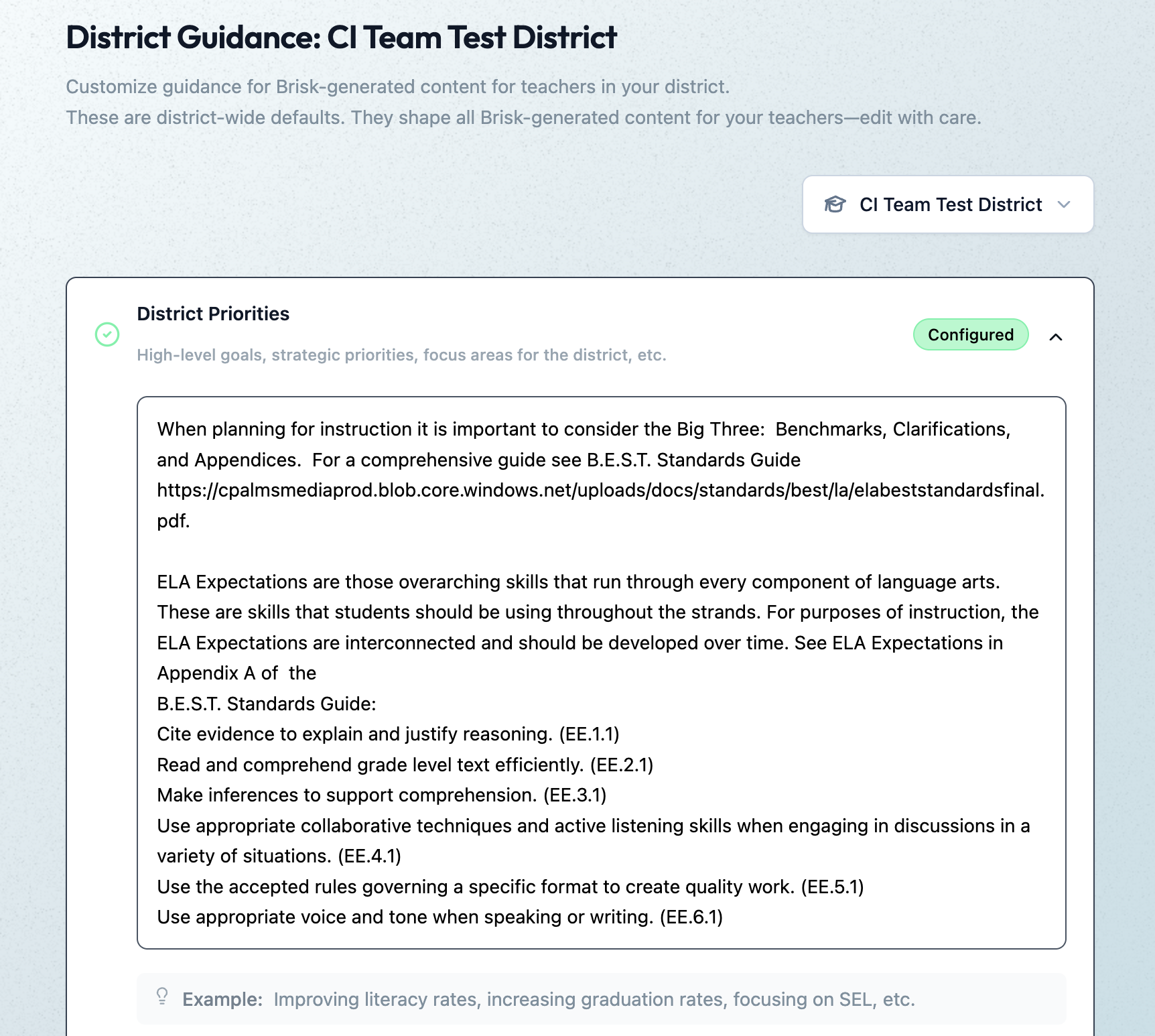
District Guidance gives districts with the Intelligence plan a way to consistently translate instructional leadership investments (professional development, pedagogical frameworks, standards alignment) into actual classroom practice.

In the District Guidance tab of their Admin Portal, leaders provide instructions that automatically shape everything teachers generate with the Brisk extension, Brisk Boost, and Brisk Next. These instructions don’t change the way teachers use or experience Brisk — they simply ensure that every Brisk output reflects a district’s unique priorities.

Leaders can use District Guidance on its own or in tandem with Curriculum Intelligence. (Reminder: Curriculum Intelligence ensures that every Brisk output reflects a district’s adopted curriculum, scope, and pacing.) While Curriculum Intelligence informs what is being taught, District Guidance informs how it’s being taught.

Leaders have the option of providing instructions in four categories:

  • District Priorities: High-level goals, strategic priorities, focus areas (e.g., “The district is focusing on literacy across all content areas this year”)
  • Values & Frameworks: Cultural values, behavioral frameworks, ethical guidelines, community norms (e.g., “Emphasize the district’s four Cs: communication, collaboration, creativity, critical thinking”)
  • Pedagogical Approach: Teaching methods, instructional strategies, learning philosophies (e.g., “Use Workshop Model structure: mini-lesson, practice, debrief”)
  • Standards Emphasis: Academic standards, curriculum alignment requirements, assessment criteria (e.g., “Emphasize these power standards for 6th grade math”)

(Note: This new feature will become available in July 2026.)

Create District-Level Libraries of Curriculum-Aligned Resources

June 29, 2026

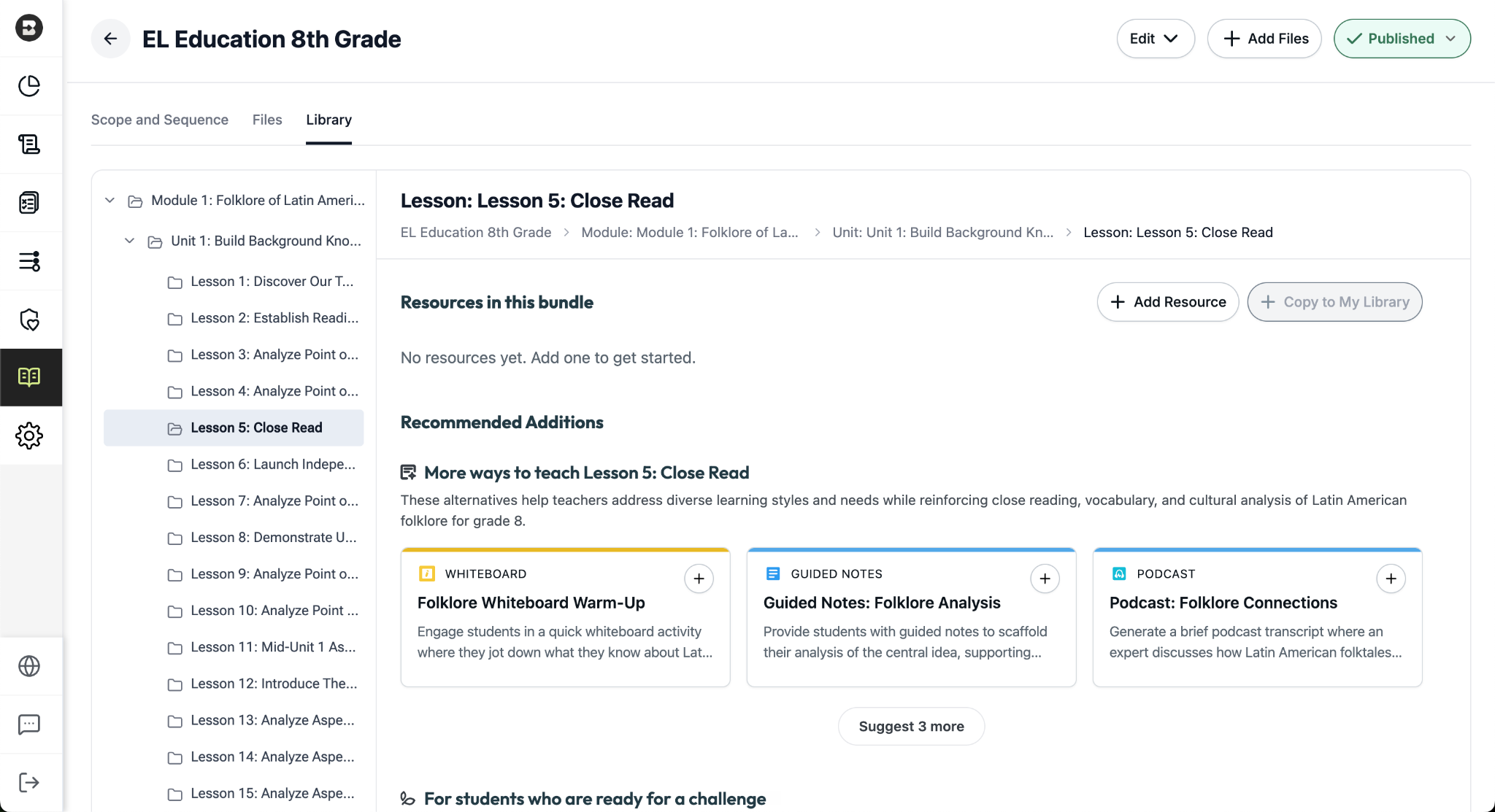
The District Library enables districts with the Intelligence plan to promote curriculum fidelity and help teachers spend less time looking for the right resource and more time delivering high-quality instruction.

Once a district leader has set their curriculum and instructional priorities using Curriculum Intelligence and District Guidance, they’re able to curate resource bundles for any course in their district. It’s like putting a perfectly organized library shelf at every teacher’s fingertips.

How District Libraries are organized:

  • One library per course: Leaders can create a resource library for each course that’s published in the Curriculum Courses tab of their Admin Portal.
  • One bundle per lesson: Leaders can put together a bundle for each lesson in a course (reminder: within a scope and sequence, lessons ladder up to units, which ladder up to modules, the largest components of a course).
  • One source of truth, easy access for teachers: Only leaders can edit or add to a District Library, but with just one click, teachers can create independent copies of a bundle in their personal resource libraries that they can customize and share with their students.

Building a resource bundle

There are several ways for leaders to add resources to a bundle. They can:

  • Choose from a pre-populated list of smart recommendations that are informed by the district’s curriculum and instructional priorities. These recommendations are organized into practical categories like “More ways to teach…” (for supporting diverse learning styles) and “For students who are ready for a challenge…”
  • Generate customized resources using the dozens of tools that are part of the Brisk extension.
  • Upload pre-existing, non-Brisk resources.

(Note: This new feature will become available in July 2026.)

Brisk x AI Platforms

May 18, 2026

You're already in ChatGPT, Gemini, Copilot, or Claude, typing a quick prompt to get something useful before tomorrow. Brisk is already there too, and one click turns that prompt into something you can hand out in class.

Prompt Booster

Start typing in any of these tools and a Brisk It button appears in the prompt field. Click it and your prompt becomes a detailed, instructionally rich version with grade-level framing, standards alignment, and scaffolding strategies built in — so what the AI gives back is classroom-ready from the start.

From there, choose what to do next:

  • Add to Prompt: drop the enhanced prompt back into your AI tool and run with it.
  • Create with Brisk: open Brisk Next with your enhanced prompt already loaded. Brisk surfaces aligned lesson plans, assessments, presentations, and more — all from that one prompt.

Take Action on Any AI Response

Already have a response you like? When the AI finishes generating, a Brisk button appears below it. Click to send it where you need it:

  • Send to Brisk on the web: push the response directly into Brisk on the web, with or without an additional prompt.
  • Send to extension: select Presentation, Quiz, Podcast, Tutor, or Create with Brisk to prefill the Brisk Extension. Customize, then create.

Wherever you're already prompting, Brisk works where you work. Learn more.