What's New
Bookmark this page to see all of Brisk's updates in one place. Every week, new features go live and you won't want to miss them!
What's New with Brisk
Never miss a Brisk launch. Whether you're leading PD, sharing Brisk with a teammate, or presenting at a conference, this deck is designed to make it easy to show What's New.
Next Level Ideas: Your Thought Partner at Your Fingertips
October 30, 2025
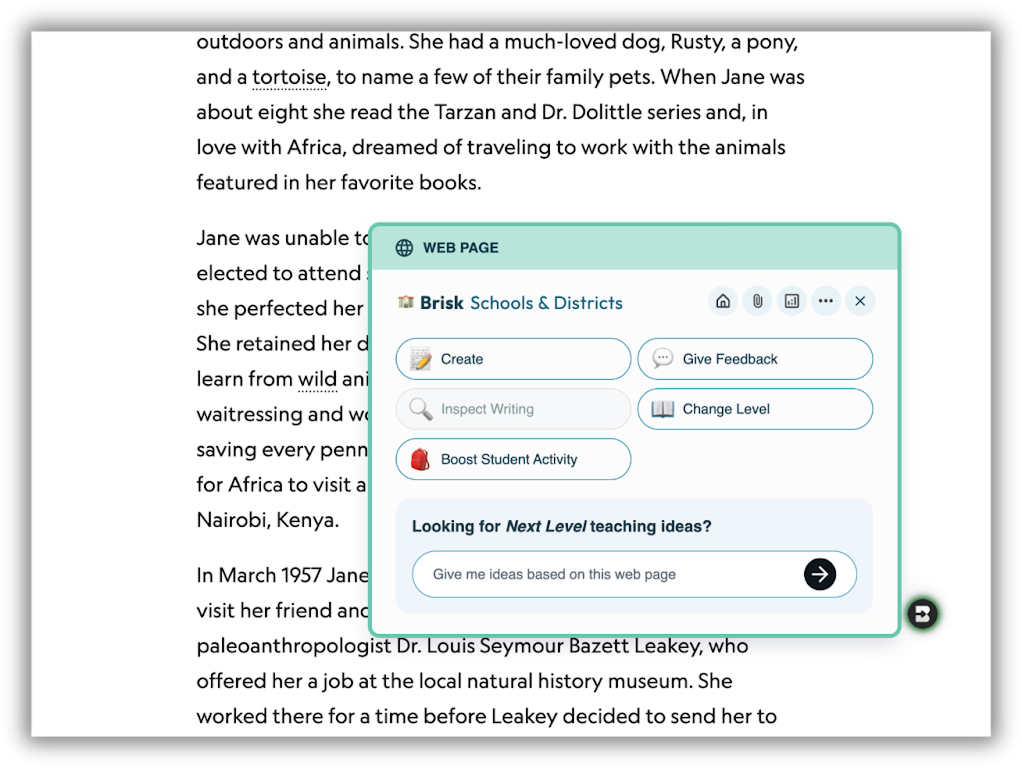
Looking for next-level teaching ideas? The Brisk extension just got a refresh! Now you can chat with Brisk to brainstorm and refine ideas from the content on any web page.
Learn how:

Boost Enhancements
October 30, 2025
More control. More personal. Same speed.
Creating Boost student activities just got even better. With enhanced personalization options and added teacher controls, you can now fine-tune each activity to fit your class — without slowing down your workflow. Boost still gives you the same one-click ease you love, now with even more ways to make learning personal.
What’s new:
- More granular controls during activity creation
- Expanded personalization options
- A smoother, more seamless creation experience
Learn more about the new Boost experience:
Bundles from the Extension
October 21, 2025
Create more at once — right from your Brisk Extension.
Turn one great resource into a full set of connected instructional materials — all from the Brisk Extension. Choose up to three materials to create (like guided notes, a presentation, or a podcast), and Brisk handles the heavy lift — giving you more time to focus on the learning that matters most.
Here’s how it works:
- Open Brisk over any resource of choice and Click Create.
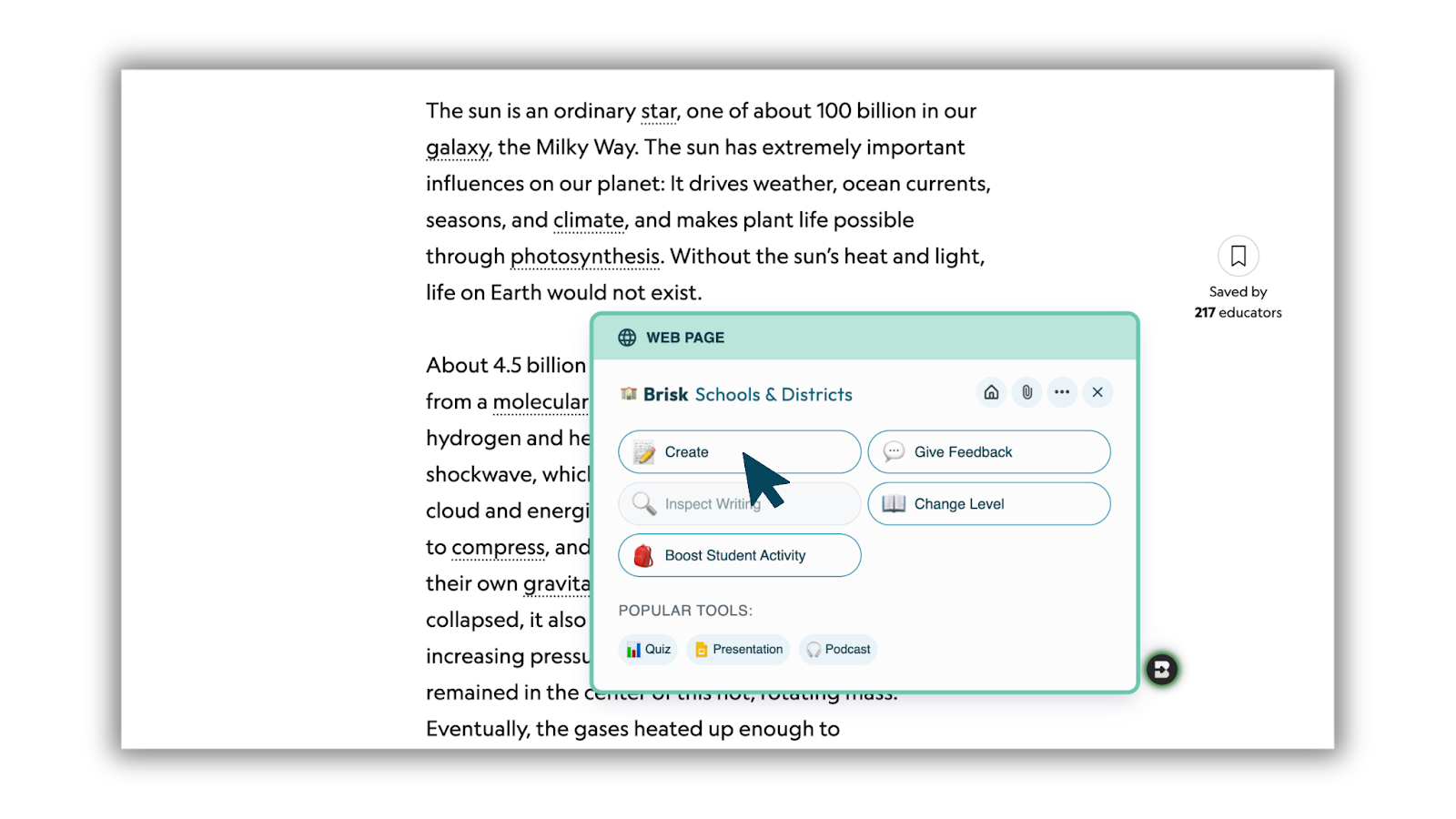
- Select up to three instructional materials to create at once and click, Next.
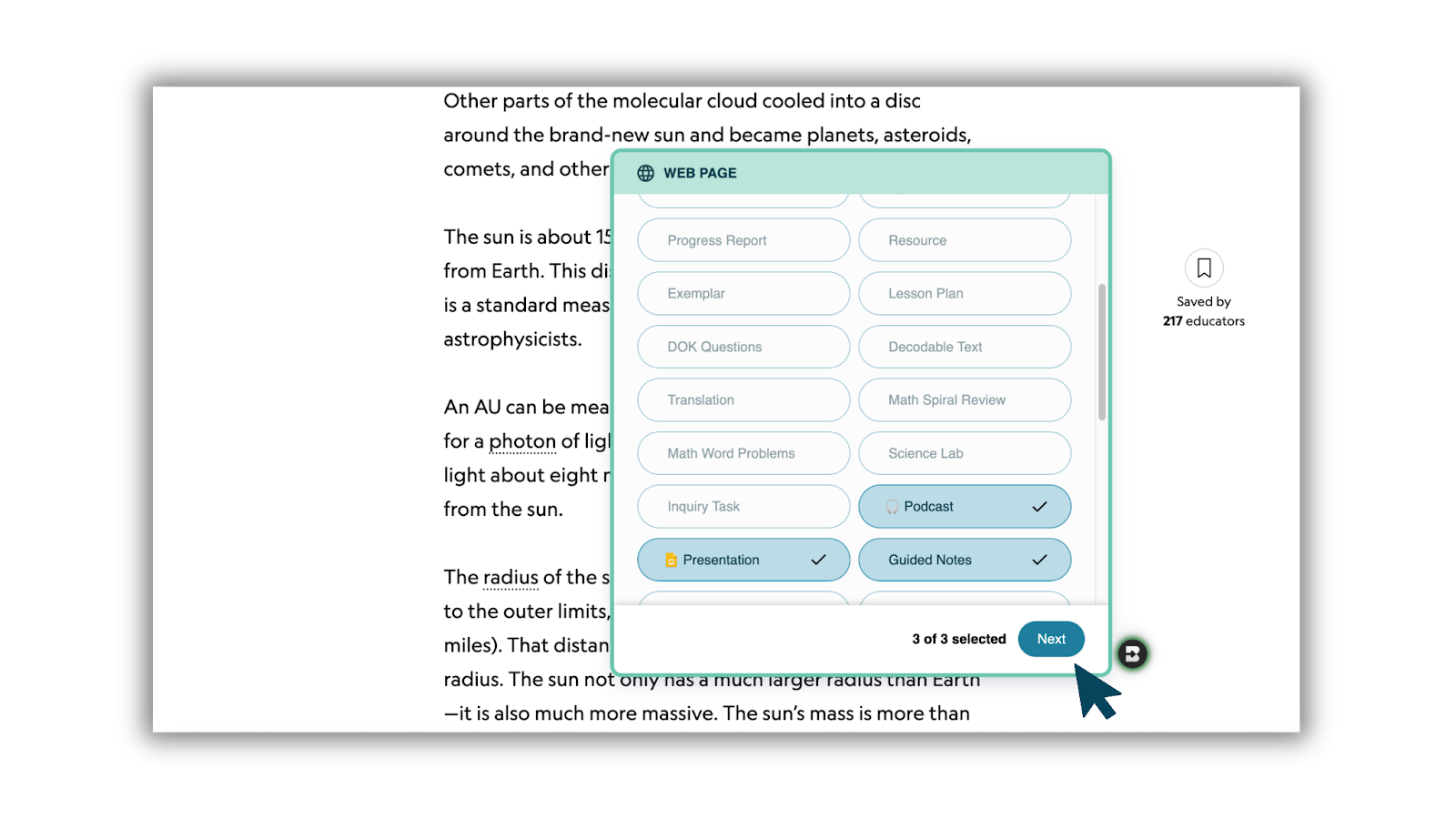
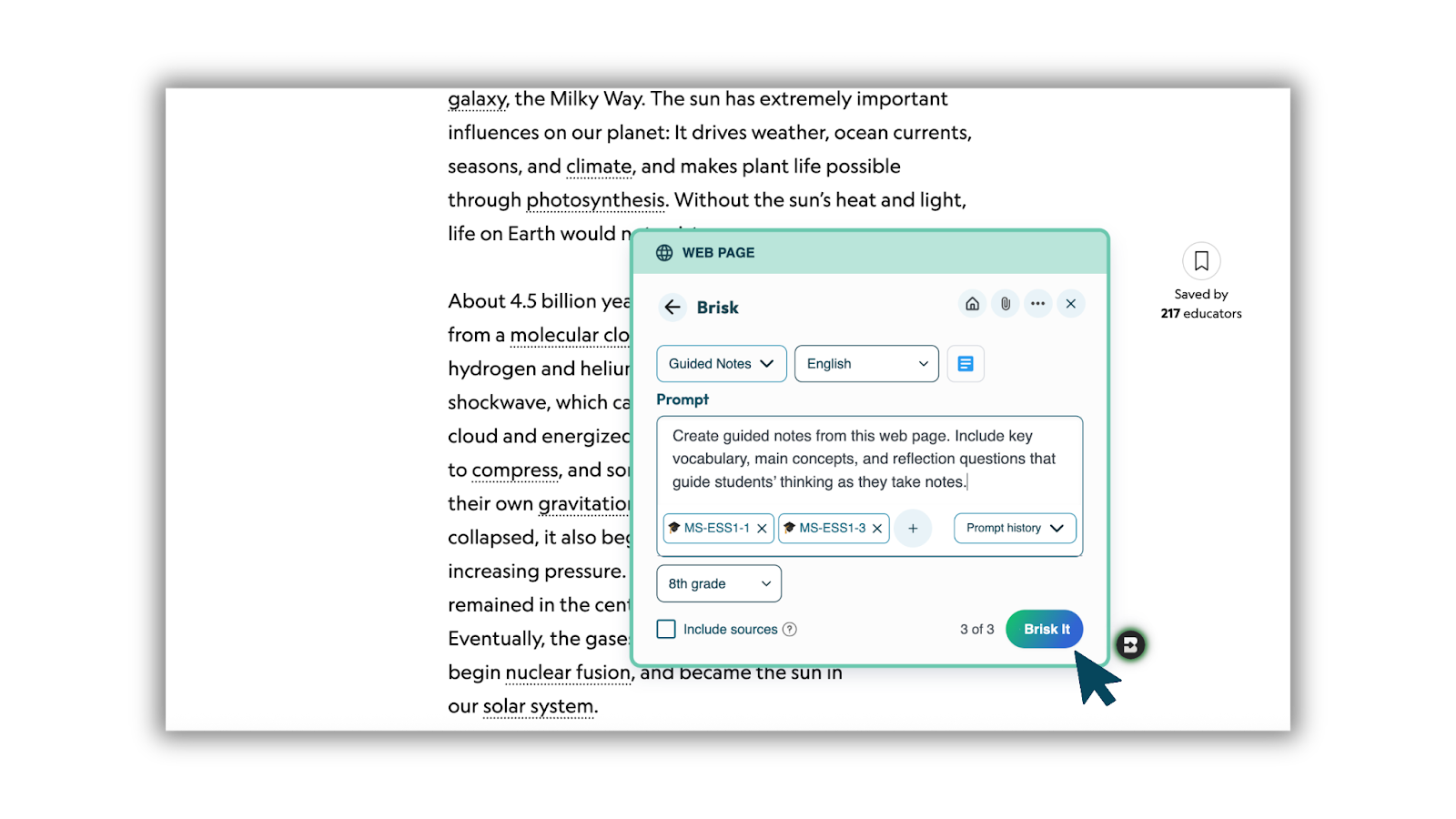
- Add your details. Include standards, grade level, and customize each prompt. Then, Brisk It. Brisk builds classroom-ready materials designed for flexibility and quality.
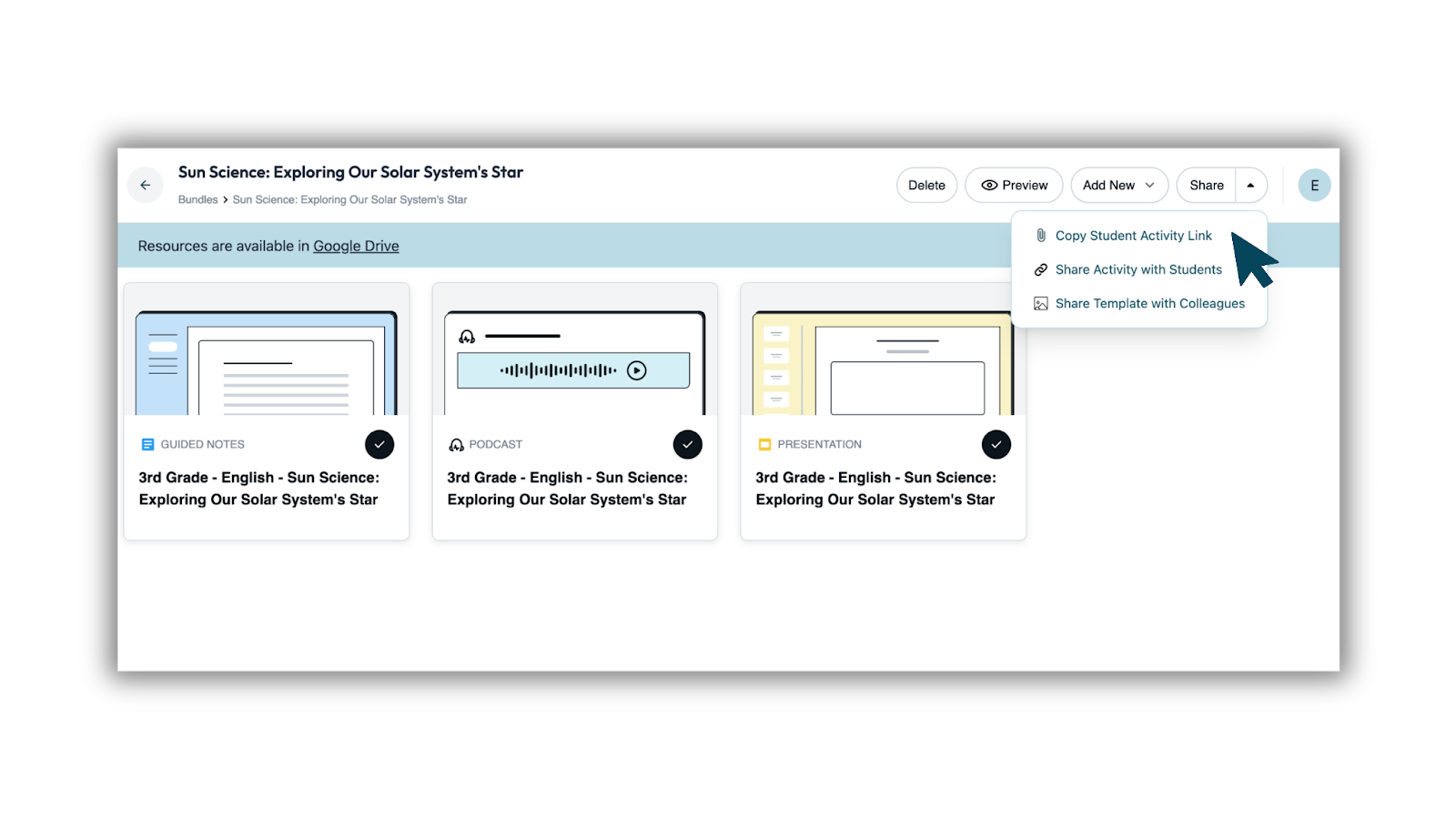
- Review and refine. Everything saves together as one organized bundle in Google Drive — ready to teach, share, or personalize for your students.
Differentiate with Change Level and Translate
Every classroom is different — and your materials should meet every student where they are.
With Brisk, you can take any single resource you’ve created and adapt it to fit your learners:
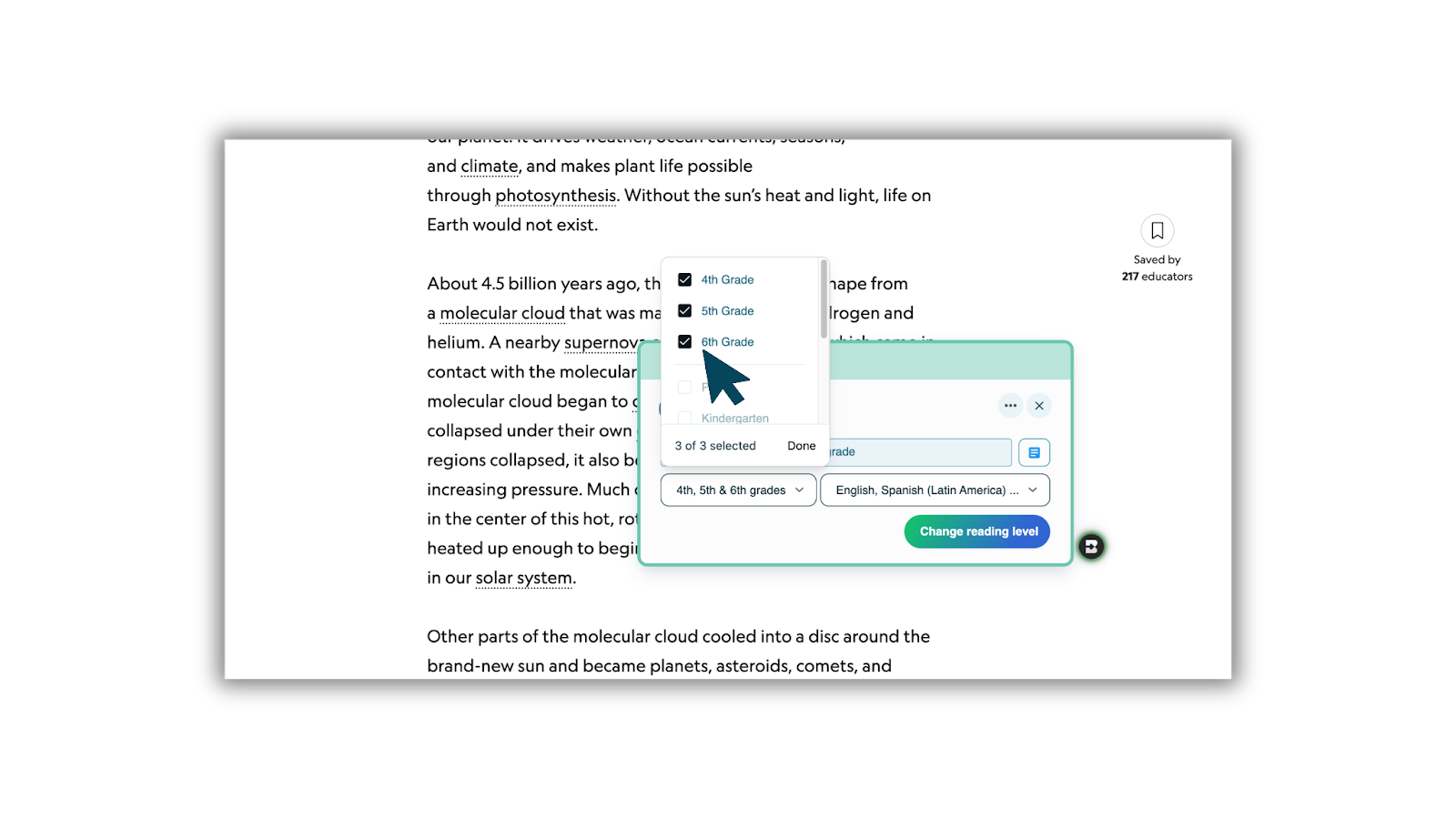
- Change Level to adjust reading level across up to three grades.
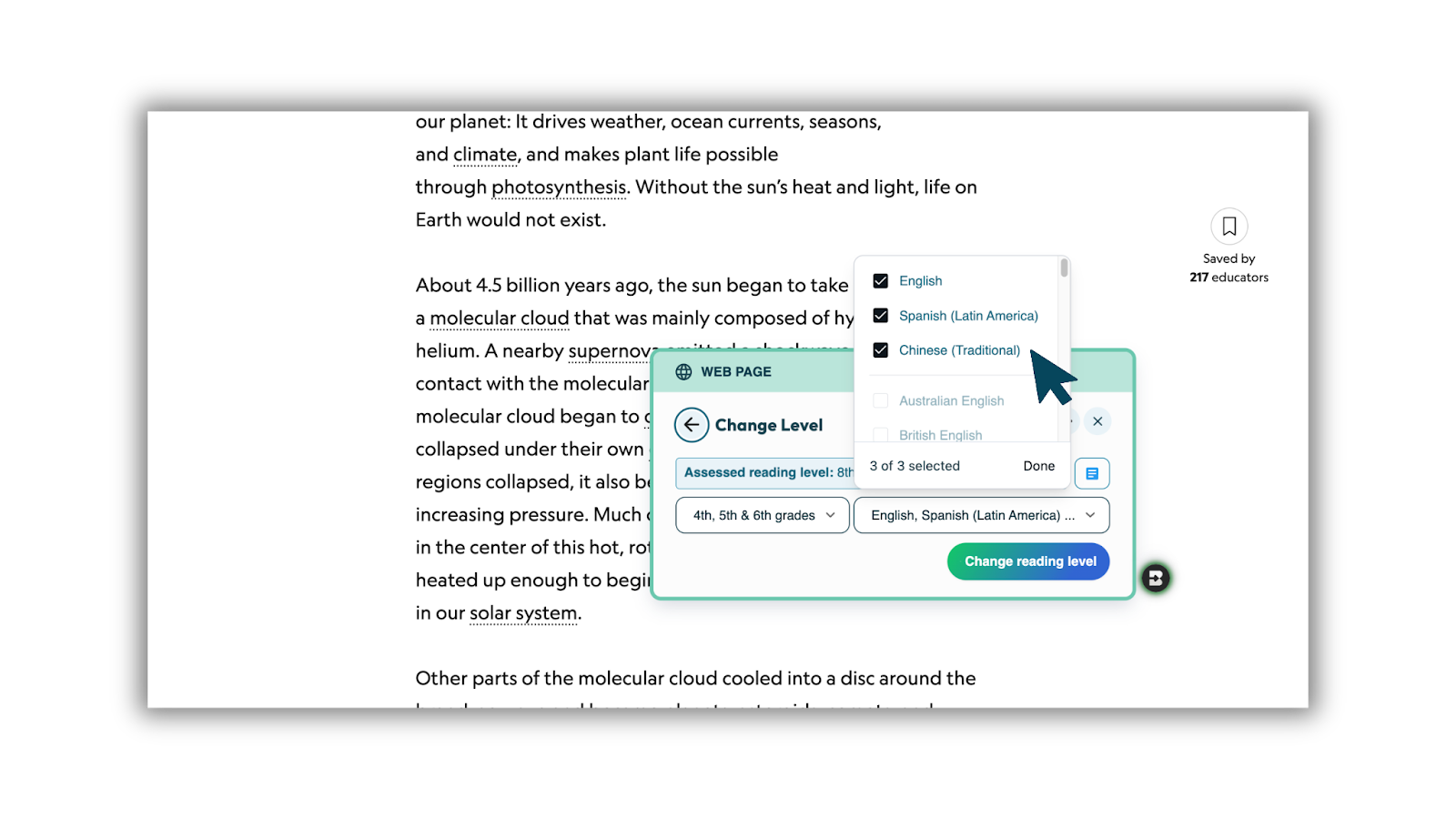
- Translate into up to three languages to support multilingual students.
You can do this during creation when you build one resource from Create, or later using Change Level on any file of choice.
It’s a simple way to ensure every student can access the same high-quality learning — without starting over or juggling separate versions.
- Adjust reading level across up to three grades to meet students where they are.
- Translate any resource into up to three languages to support multilingual learners.
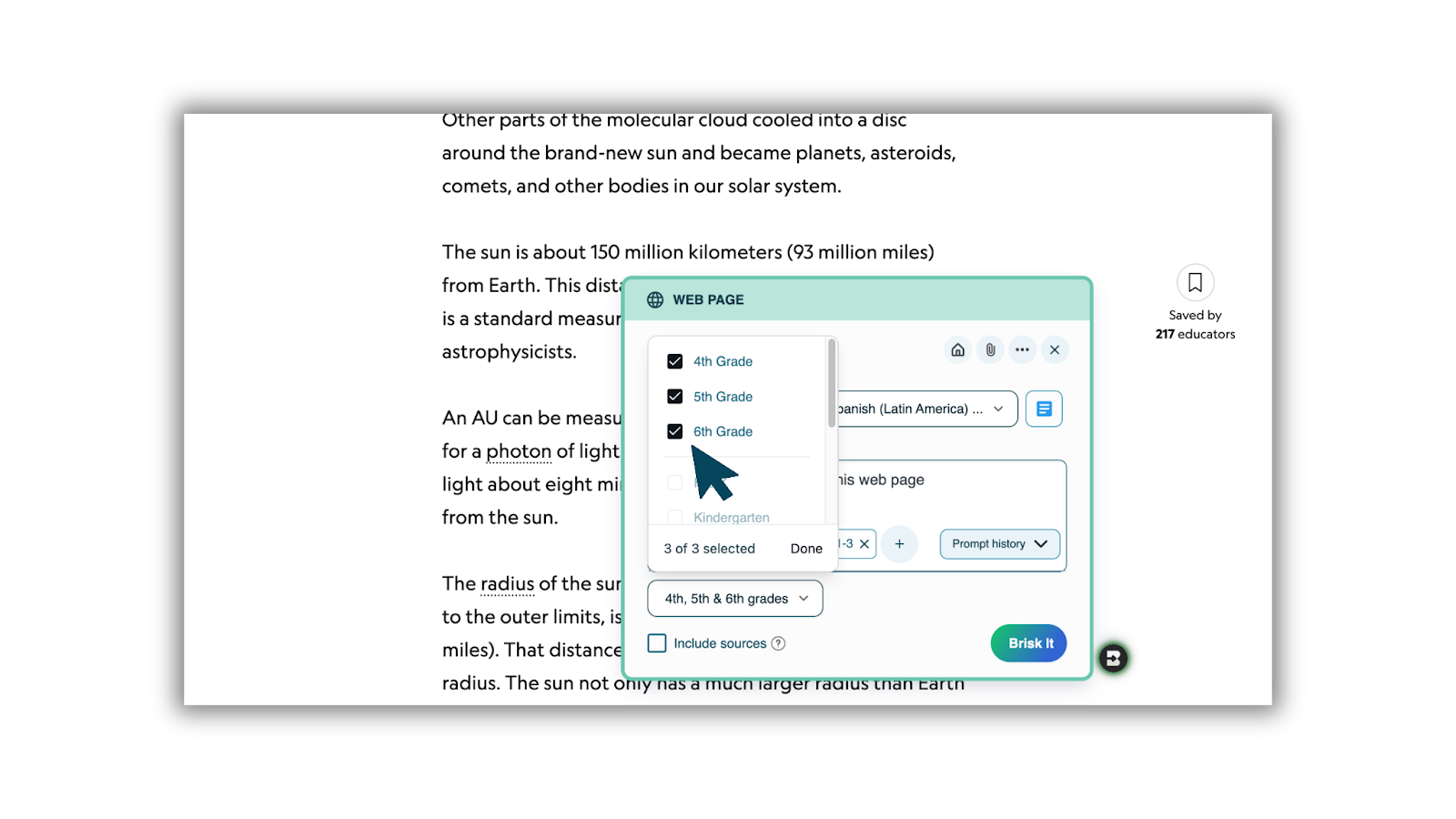
You can also select multiple grade levels and languages to translate to after selecting a resource from the Create menu.
With Bundles from the Extension, every teacher can create, adapt, and differentiate high-quality instructional materials — all in one place.
Check out our video tutorials of this feature:
Batch Feedback
October 1, 2025
Batch Feedback
High-quality feedback, without the wait
Upload a folder of student work — essays, PDFs, even snapshots of math — and return personalized, teacher-reviewed feedback to your whole class while learning is still fresh.
With Batch Feedback you can:
- Keep kids learning, not waiting. Students get guidance right away, while they’re still working through the material.
- Close the timing gap. Typical turnaround is 2–3 weeks. With Batch Feedback, feedback lands within a day — exactly when it matters most.
- Stay in control. Brisk drafts comments, you review and shape every word.
- Work across formats. Essays, PDFs, lab reports, math photos — even Word docs uploaded through Google Drive.
How to Access
- In the Brisk extension, click Feedback, then select Batch Feedback.
- Or, open Brisk Next from the Home icon and choose Batch Feedback at the top.
Availability & Limits
- Free users: Up to 4 assignments per day
- Free & Education Pro: Up to 30 submissions per assignment (create a new assignment for more)
- All accounts: 100 submissions maximum per assignment
Works With
Google Docs · Google Slides · Images (JPG, PNG, WEBP) · PDFs · Microsoft Word (.docx from Google Drive)
Batch Feedback takes what you already love about Brisk’s feedback tools and makes it work for your whole class at once.
Add on for Batch Feedback: Rubric Scoring (School & District Accounts Only)
School and District partners have the option to add Rubric Scoring to Batch Feedback. Along with written feedback, Brisk can also generate scores based on the rubric you upload — making it easier to standardize grading across classes and track progress at scale.
Rubric Scoring is fully customizable: educators can adjust scores based on their knowledge of the student and the work. This feature is available as an opt-in for School & District accounts.
Our Full Getting Started Guide is Here
September 5, 2025
With so many possibilities inside Brisk, we wanted to build a simple, go-to guide to help educators dive in right away. We created the Getting Started with Brisk Guide to help educators get the most out of Brisk. Our new guide walks you through:
- Creating your Brisk account with your Google or Microsoft login.
- Installing the Brisk Extension so Brisk is ready to go inside your everyday tools.
- Trying hands-on “Try It” activities that let you experience Brisk’s core features – from adjusting text levels to generating lessons and feedback.
- Using Brisk Next as your web-based hub for lesson planning, resource bundling, and assignments.
- Diving into educator-specific activities designed for your context, whether you teach elementary, middle school, high school, or university students.
- Trying Brisk Boost for safe, student-facing AI activities with you guiding the process.
Bundles in Brisk Next
August 18, 2025
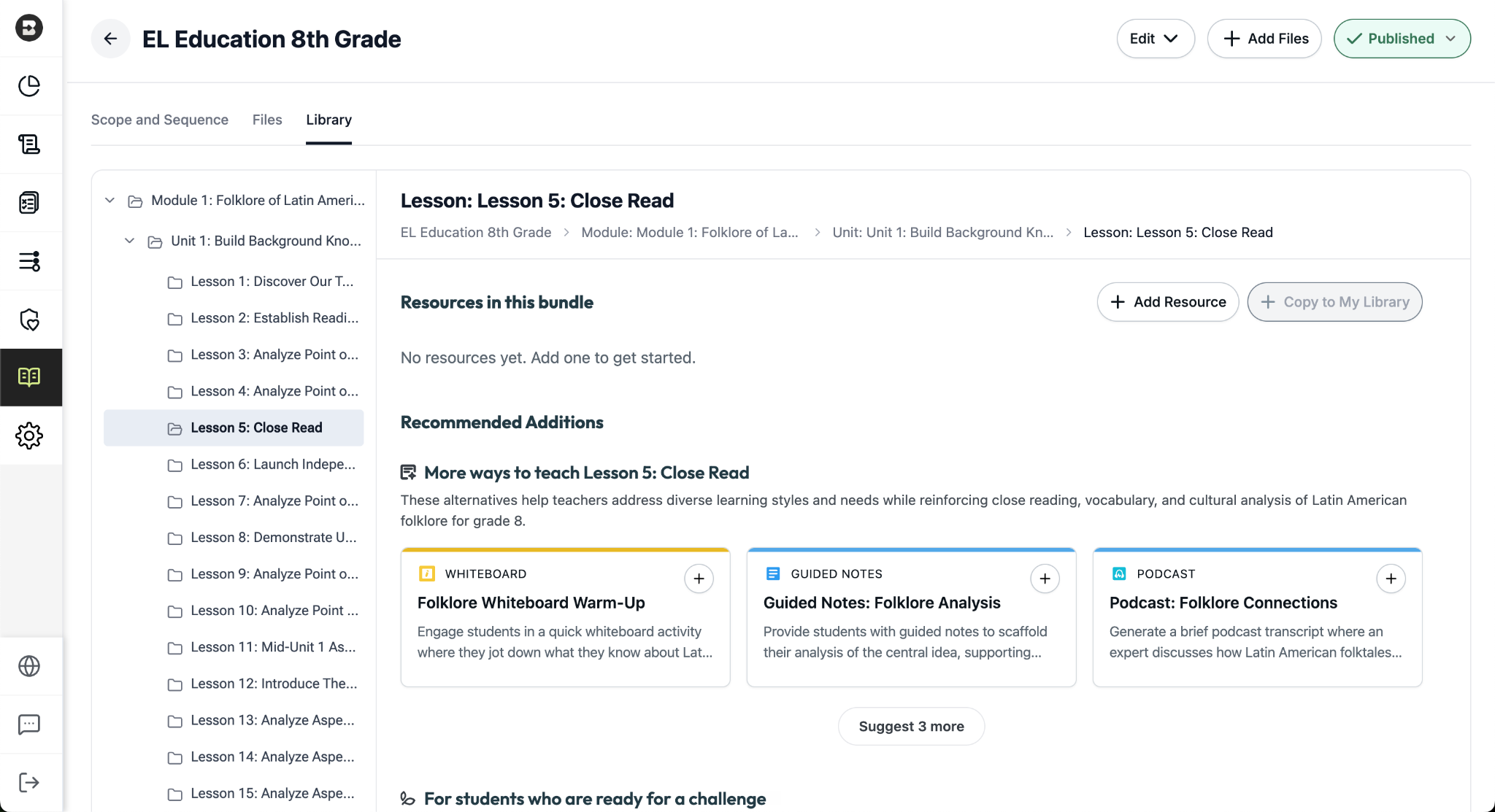
In Brisk Next, you can organize resources into Bundles. After generating content, just click the + sign to add activities or materials into a bundle. From there, you can:
- Customize each resource to fit your classroom needs
- Share individual items or the entire bundle with students (or templates with colleagues)
- Control visibility so you decide which resources students can see and when
- Choose view types to match how you want students to interact with each activity
Bundles make it simple to package lessons, activities and resourcs — all in one place.
Brisk Next is Here
August 18, 2025
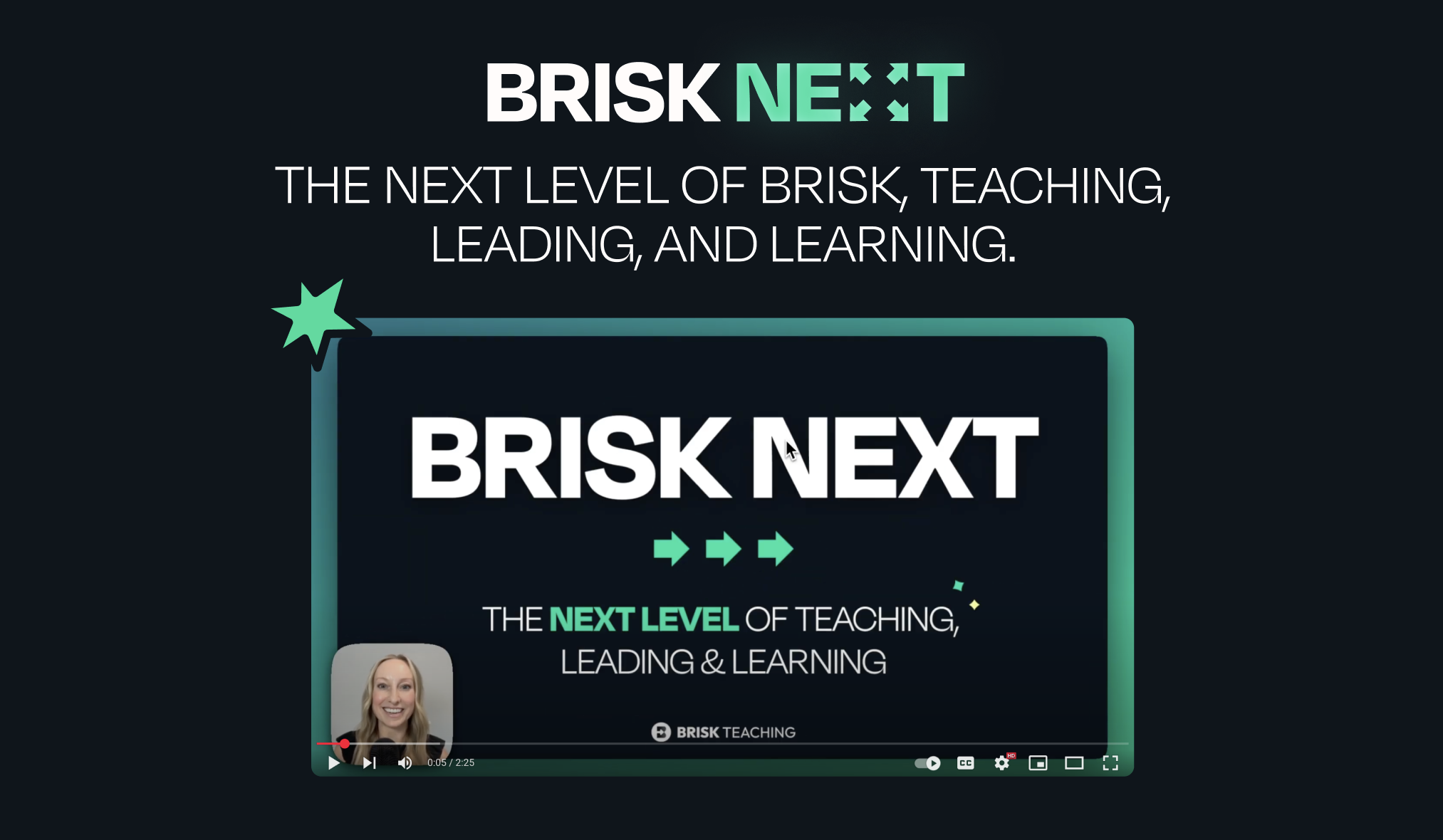
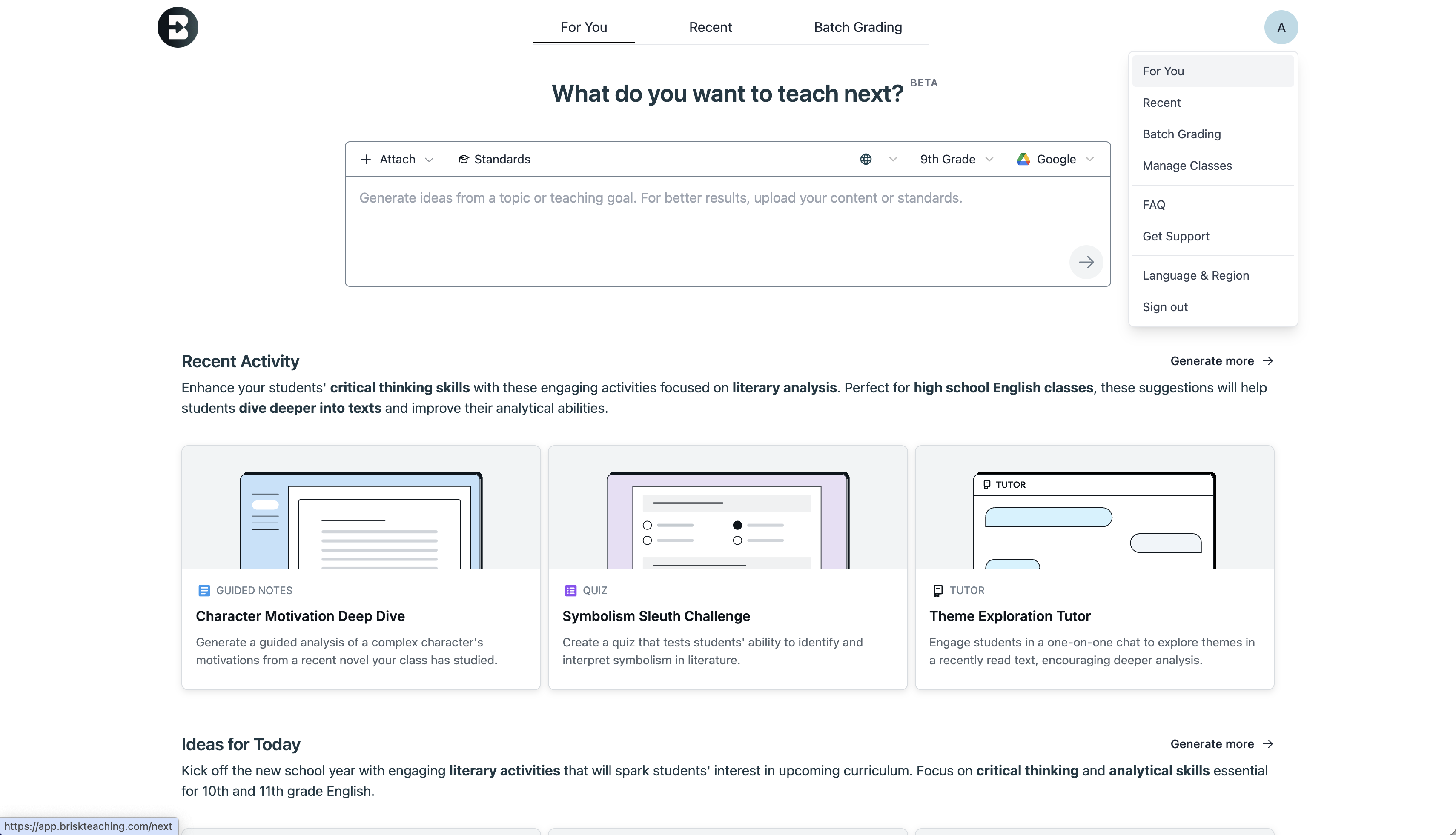
Brisk Next is here –– the new home base for teachers inside Brisk. With personalized recommendations, a chat to refine content, and the ability to bundle multiple resources into Boost activities, Brisk Next helps teachers plan, engage, and assess with ease. From surfacing tailored ideas based on your recent work and student insights to keeping all your generated materials in one place, Brisk Next goes beyond the extension — turning classroom data into powerful next steps and making it easier than ever to figure out what’s next in your teaching.
Brisk Works with Microsoft
August 5, 2025
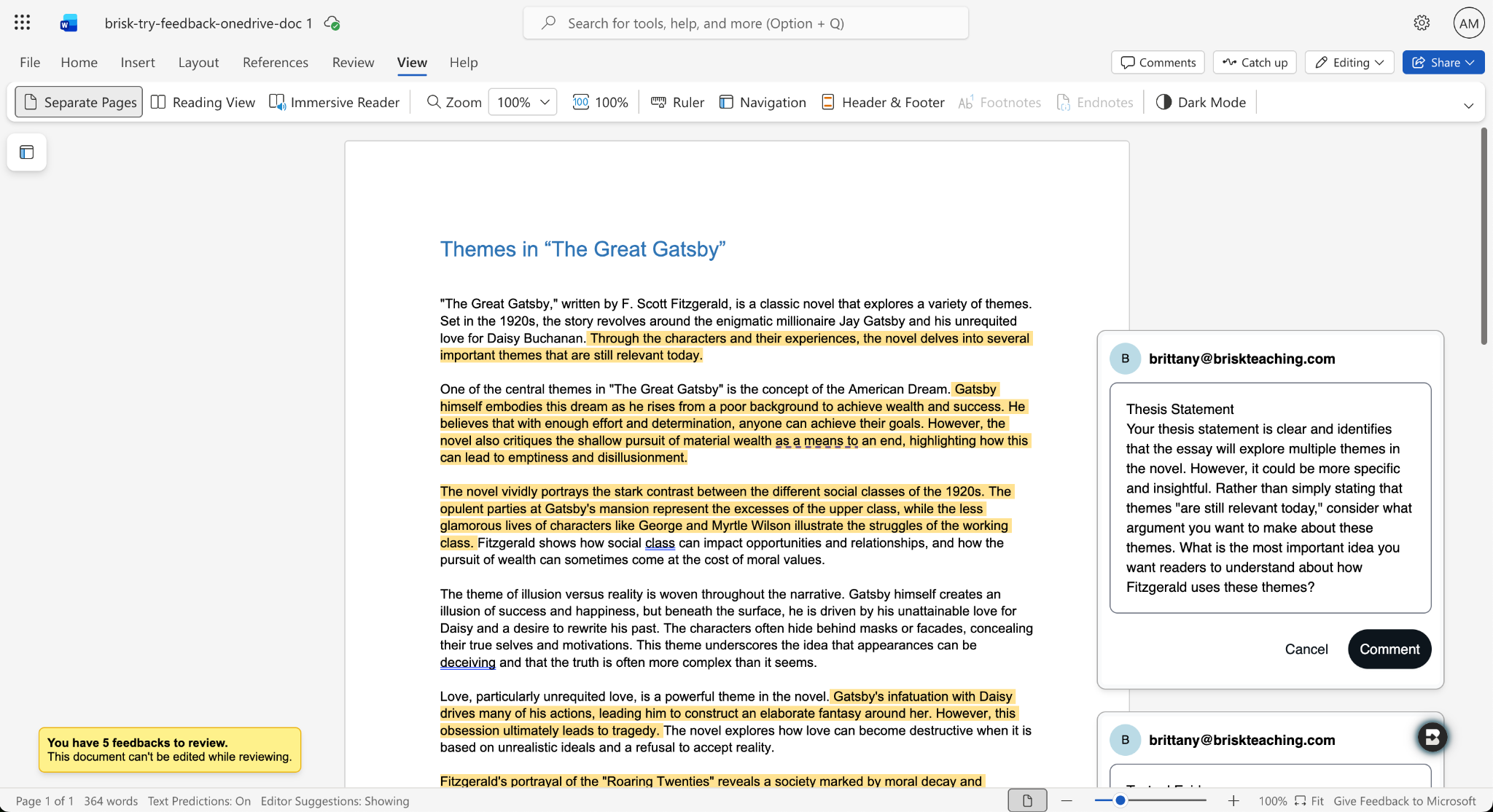
Brisk now works seamlessly with Microsoft tools, making it easier than ever for educators in Microsoft-based schools and districts to harness AI. With Single Sign-On and OneDrive integration, teachers can log in with their Microsoft account, open Word or PowerPoint files, and instantly use Brisk to generate lessons, give feedback, adjust reading levels, and create student-facing activities. Creations export right back into Word, PowerPoint, or OneDrive — keeping workflows intact while reducing friction, boosting adoption, and finally bringing Brisk’s time-saving power to the educators who’ve been asking for it.
Add Credibility with Brisk Sources
August 5, 2025
You can quickly add sources to any AI-generated content in this Brisk Bites PD.
- When enabled, Brisk automatically pulls numbered, linked sources from the web and adds them to the bottom of your creation.
- Small numbers appear at the end of each sentence, showing exactly where each fact came from.
Your Hub for All Things Back To School
August 4, 2025
The NEXT Level of Teaching, Leading and Learning has arrived with Brisk Teaching. Watch this page for product updates, new releases, and more!