
What's New

Bookmark this page to see all of Brisk's updates in one place. Every week, new features go live and you won't want to miss them!

What's New In Brisk deck cover - see our latest launches

What's New with Brisk

Never miss a Brisk launch. Whether you're leading PD, sharing Brisk with a teammate, or presenting at a conference, this deck is designed to make it easy to show What's New.
Open Deck

¡Google Slides!

August 23, 2024

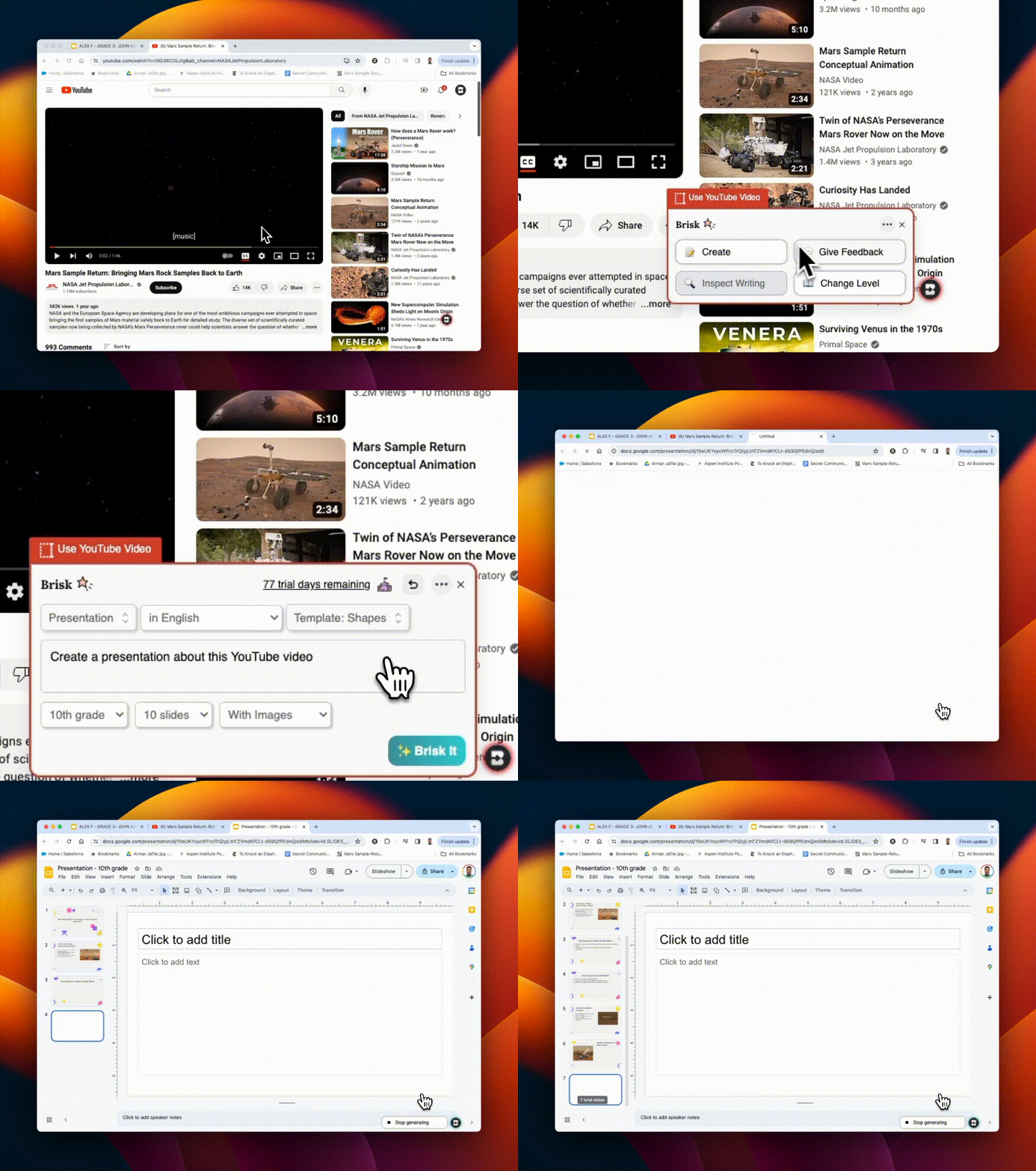
¡Prepara tu presentación en segundos! Usa Brisk para:

1. Crea presentaciones de diapositivas desde cero
2. Da tu opinión sobre las presentaciones de diapositivas creadas por los estudiantes

¿Y la mejor parte? Puedes hacerlo todo directamente desde tu espacio de trabajo de Google. Pruébalo y ahorra valiosas horas.
Integración de Canvas SpeedGrader

August 22, 2024

Brisk se integra perfectamente con Canvas SpeedGrader, lo que mejora las tareas de Google con opciones de comentarios específicos. Ya sea que utilices los estilos de valoración «Glow & Grow», «Next Steps» o «Criterios de rúbrica» específicos, Brisk admite todos los tipos de envío. Resalta las secciones del trabajo de un estudiante para dirigir los comentarios a esas áreas. Si utilizas una rúbrica, súbela a Brisk para agilizar la evaluación. ¡Consulta todos los detalles aquí!
¡Brisk tiene un nuevo look!

August 21, 2024

Nuestros iconos y logotipos actualizados reflejan mejor a Brisk como la herramienta profesional y perfectamente integrada que conoces y te encanta. Para respaldar esta nueva imagen, ¡también tenemos un ✨ Press Kit ✨! Mientras compartes o haces una presentación en Brisk, puedes consultar nuestro logotipos e iconos actualizados de esta carpeta.

¡Integración con Youtube!

August 20, 2024

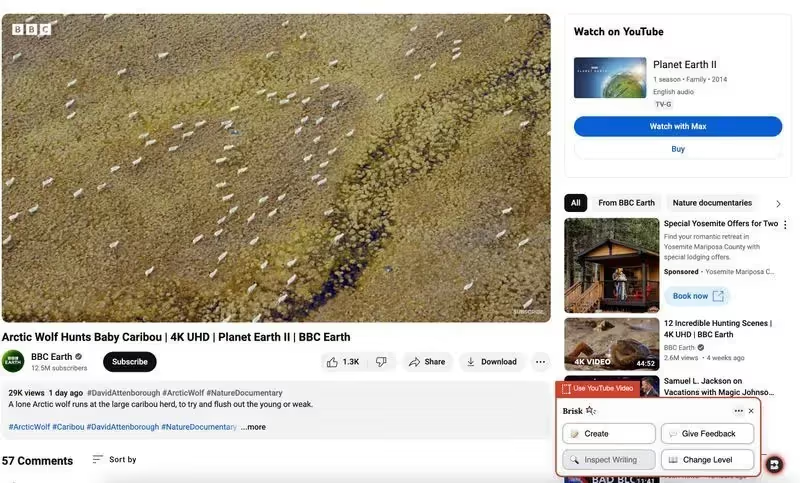
¡Usa CUALQUIER herramienta de Brisk en los videos de Youtube! Puede crear planes de lecciones, cuestionarios, comentarios, recursos, rúbricas... directamente desde un video de Youtube. Si estás evaluando un proyecto de un estudiante que se ha subido a Youtube, ¡incluso puedes dar tu opinión directamente desde allí!
Cuatro tareas administrativas

August 19, 2024

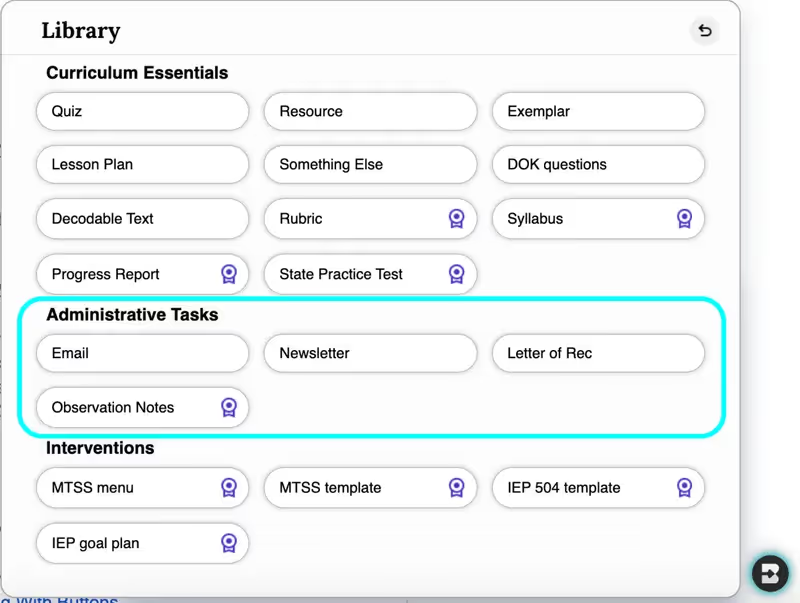
¿Necesitas crear un correo electrónico, un boletín informativo, una carta de recomendación o notas de observación... en segundos? Se ha agregado un nuevo conjunto de herramientas administrativas a la biblioteca Create... y pronto habrá más. Tu plato acaba de ser mucho más ligero.
Personalízalo para tus alumnos

August 16, 2024

Cuando hayas enviado comentarios a Brisk sobre 5 o más tareas, aparecerán funciones personalizadas en todas las herramientas de Crear biblioteca. Al seleccionar la casilla Personalizar para mis alumnos, Brisk diferenciará automáticamente el plan de estudios para abordar mejor los desafíos y necesidades específicos de sus alumnos.

Perspectivas de sus comentarios

August 15, 2024

¿Está abrumado por el seguimiento de información sobre numerosas tareas de los estudiantes? Deja comentarios a Brisk sobre solo cinco tareas para desbloquear Feedback Insights. Cada vez que das tu opinión, esta herramienta se vuelve más potente, ya que muestra información dinámica y en tiempo real que captura lo que tus alumnos necesitan.

¡Y eso no es todo! Una vez que se hayan identificado las áreas de mejora, haga clic en los botones del plan de lección, el cuestionario o los recursos para crear rápidamente contenido dirigido a esas áreas específicas. Por ejemplo, si tus alumnos tienen dificultades para citar sus fuentes, puedes elaborar un plan de clase a Brisk para mejorar esa habilidad, ¡justo ahí mismo!

Presentamos, Inspect Writing

August 14, 2024

¿Tiene problemas con detectores de IA poco fiables? Inspect Writing reinventa el análisis de la escritura de los estudiantes. Reproduzca un detallado paso a paso del historial de revisiones de sus alumnos, sus acciones de copiar/pegar y mucho más. Pruébalo y comprueba la diferencia!

Más opciones, más recursos

August 13, 2024

¿Enseñar a estudiantes de inglés como segundo idioma? Ahora puedes dar tu opinión en más de 10 idiomas.

¿Cansado de copiar y pegar? ¡Hemos ampliado las opciones para crear y enviar comentarios! Haz clic en el icono de Brisk de cualquier sitio web o documento de Google para acceder al instante a las opciones de comentarios y a la biblioteca de creación para crear cuestionarios, lecciones, recursos y mucho más.

¿Incorporar diversos recursos? Cambie el nivel de lectura en miles de artículos y páginas de sitios adicionales.

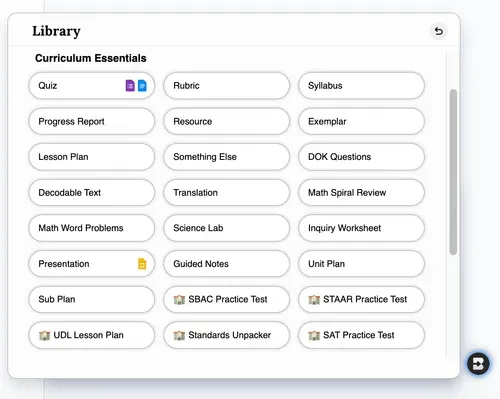
Adiciones a la biblioteca Create

August 12, 2024

PREGUNTAS SOBRE DOK (PROFUNDIDAD DE CONOCIMIENTO) se adaptan a diversos niveles cognitivos, garantizando que los estudiantes estén comprometidos y con los desafíos adecuados.

Los INFORMES DE PROGRESO le permiten generar rápidamente informes personalizados que respondan a sus entradas, con la flexibilidad de personalizarlos según sus necesidades. (Los informes de progreso son parte del plan de Brisk School). ¡Di adiós a las largas horas de redacción!

Los EXÁMENES DE PRÁCTICA ESTATALES brindan a los estudiantes la práctica que necesitan para tener éxito. Ahora, puede usar Brisk para generar exámenes de práctica para el STAAR, el SBAC y otras evaluaciones adicionales.

Create Polished, Print-Ready Activities That Cover Any Topic

August 25, 2026

If you feel like your students need a break from screens, we’ve got some great news: Brisk now includes a Printables Generator!

Brisk Printables help you give students the cognitive and social benefits of off-screen activities without having to spend hours formatting (and re-formatting and re-re-formatting) docs and design files. With just a few clicks, you can transform whatever online resources you’ve been using into print-ready pen-and-paper activities that keep students engaged.

You can choose from seven types of printables in Brisk:

  1. Frayer Model: Unpack a vocabulary term or core concept in four quadrants
  2. KWL Chart: Map what students know, want to know, and learned
  3. Venn Diagram: Compare and contrast concepts
  4. Q&A: Check for understanding (pro tip: these are perfect for exit tickets)
  5. Worksheet: Generate a practice page for any topic
  6. Mind Map: Branch a central topic into sub-topics
  7. Newsletter: Keep students, families, and/or staff updated

In addition to using these templates to cover whatever learning content you want, you can adjust the look and feel of each of them by selecting one of five design themes: editorial, groovy, minimal, playful, or simple.

How it works:

  1. Open the article, PDF, video, or other resource you want to generate a printable from.‍ (You can also start from scratch by simply describing a topic during Step 4.)
  2. Open Brisk, type “printable” into the search box, and select the Printables Generator from the search results.
  3. Choose your preferred format and, if you want to customize the look and feel of your printable, your preferred design theme.
  4. Share some specifics about grade level, difficulty, and which parts of a topic you want your printable to cover.
  5. Chat back and forth with Brisk to finalize the printable by fine-tuning its content or layout.
  6. Print your new printable or grab a view-only share link to it.

Turn a Spreadsheet into a Student Activity

August 3, 2026

Brisk now works on spreadsheets. Open a Google Sheet or an Excel file and Brisk reads every tab as context for whatever you build next. Lab data, assessment results, a sample household budget for a personal finance unit: ask for a worksheet, quiz, or Boost activity based on it and you'll get one without copying a single cell into a doc first.

Nothing to set up. It's on for every teacher, on every plan.

A few things to know: Brisk reads spreadsheets, but it can't write into them or build new ones. All tabs are read together, so you can't pick just one. And very large workbooks may get cut off.

Multi-Level & Multi-Grade Creation, Now in the New Brisk

August 3, 2026

Multi-level and multi-grade creation is now available in the new Brisk. Ask for a resource across a few grade bands, levels, or languages, and Brisk builds every version at once, then delivers them together as a single bundle.

How it works:

  1. Tell Brisk what you need: In the search bar, describe the resource and the range of grades, levels, or languages you're building for — or use the language and grade level settings to multi-select directly.
  2. Answer a few quick questions: Brisk's conversational Create experience will ask the same kinds of questions it always does to support your instructional goals.
  3. Open your bundle: Every version is generated together and ready to hand out to the right students.

Note: The ability to rework your outputs available elsewhere in the new Brisk isn't yet supported inside bundles. To revise an individual version, use the classic Create workflow.

Welcome to the New Brisk

July 16, 2026

The Brisk extension has a new look, one designed to better support how you work and help you feel prepared for every class, every week, and every school year!

Instead of clicking through menus to find the right tool and then filling out multiple fields, you can simply tell Brisk what you need and it’ll build it. (Don’t worry, you still have the ability to browse your favorite tools if you want to.) From worksheets and quizzes to lesson plans and rubrics, anything you’re used to building with the Create tool is now just a quick conversation away.

How it works:

1. Search for the type of resource you have in mind: Start typing what you’re looking for in the Brisk extension search bar and a list of relevant resource types will appear. No need to remember the proper names of Brisk tools — use whatever words make sense to you and Brisk will figure it out.

(Note that while the new search function will return results spanning all Brisk tools, at this time, only the Create tool will deliver a conversational experience during subsequent steps.)

2. Share a few specifics about what you need: In the new conversational experience, Brisk will ask a few quick questions about whatever prompt you provide to make sure it understands what you’re after. Answering these questions is optional, but recommended. (You’ll still be able to use the classic Create workflow, too.)

Depending on the context, Brisk’s questions might look like:

  • “What’s the purpose of this exit ticket?” (e.g., a formative check after a day’s lesson, a diagnostic before kicking off a new unit, prep for a summative unit test)
  • “Are there any misconceptions about the topic you want this resource to address?” (choose from a list of relevant options or type your own response)
  • “Is there anything your students have been struggling to grasp about this topic?” (choose from a list of relevant options or type your own response)

Once you’ve had this brief conversation, Brisk will draw on your responses, your original prompt, your curriculum, and, if your district has Brisk Intelligence, district leader guidance to build a resource that’s fully aligned with your needs and your district’s priorities.

3. Fine-tune the resource until it’s perfect: Chat back and forth with Brisk to make any adjustments to your new resource. As you provide instructions — think: “make this shorter” or “swap the third question for something more challenging” or “add scaffolding for ELL students” — the resource will update right before your eyes. No need to start over or sift through multiple versions.

Read more about the new Brisk, and see the experience in action:

Resources for learning the New Brisk

Use Brisk Tools Directly in Claude

July 14, 2026

With the Brisk Connector, your favorite Brisk tools are just a sentence away in Claude. Chat with Claude about what you’re working on and it’ll give you ready-to-use links to the types of high-quality instructional materials you’re used to creating with Brisk — no more jumping between multiple browser windows.

What teachers can do in Claude with the Brisk Connector:

  • Create Boost Activity: Builds an interactive, AI-powered student activity (tutor, quiz-me, debate, exit ticket, writing coach) complete with learning objectives and guardrails.
  • Generate activity ideas: Suggests a set of Boost Activity ideas for a topic — no commitment until you create one.
  • Create teaching resource: Creates a lesson plan, quiz, rubric, worksheet, sub plan, or other resource as a Google Doc or Google Form.
  • Set up Batch Feedback: Creates an assignment shell for grading a set of student work (you add submissions and run feedback in the Brisk web app).
  • List standards: Browses Brisk’s standards database so your materials will be aligned to the right frameworks, grade level, and state.
  • Get teacher context: Reads your class names, grades, and subjects (never student data) so Claude can tailor its suggestions.

Connect Claude to Brisk:

  1. To use the Brisk Connector, you’ll need a Brisk account, a Claude account, and, for any tool that creates a Google Doc or Google Form, a Google account that’s connected to Brisk.
  2. Open Claude (web or desktop).
  3. In a new chat, click the + button near the prompt and select Connectors, then click Add Connector. You can also start the process here.
  4. Use the search bar to find the Brisk Connector and click Connect.
  5. You’ll be prompted to sign in to your Brisk Teaching account and allow Claude to access it. Click Allow.
  6. Once connected, Brisk will appear in your list of Connectors and Claude will be able to use Brisk tools directly in your Claude chat.