
What's New

Bookmark this page to see all of Brisk's updates in one place. Every week, new features go live and you won't want to miss them!

What's New In Brisk deck cover - see our latest launches

What's New with Brisk

Never miss a Brisk launch. Whether you're leading PD, sharing Brisk with a teammate, or presenting at a conference, this deck is designed to make it easy to show What's New.
Open Deck

Personalice Brisk con el administrador de herramientas de administración

April 7, 2025

Conoce el Gestor de herramientas de administración, una nueva función diseñada para los socios de escuelas y distritos que desean un mayor control y personalización en toda la plataforma. Ya sea que estés lanzando nuevas iniciativas o simplificando las herramientas que tus profesores usan a diario, el administrador de herramientas de administración te permite tomar las riendas.

Con el Gestor de herramientas de administración, puedes:

  • Crea herramientas personalizadas utilizando sus propias instrucciones, alineadas con los objetivos educativos de su distrito.
  • Publica herramientas directamente en la biblioteca Brisk de todos los profesores — para que sean accesibles al instante.
  • Ocultar las herramientas predeterminadas de Brisk que no son relevantes para su contexto, lo que mantiene a su equipo concentrado en lo que más importa.


Cómo usar el administrador de herramientas de administración

Comenzar es rápido:

Paso 1: Haga clic Enérgico en la esquina inferior derecha de tu navegador.

Paso 2: Seleccione Crear.

Paso 3: En la parte superior de tu biblioteca, haz clic en Gestione las herramientas.

Paso 4: Personalice las herramientas para las necesidades de su escuela o distrito. Usted puede crear nuevas herramientas específicamente para su personal.

Paso 5: Además de crear nuevas herramientas, también puedes editar, publicar, o eliminar cualquier herramienta para una experiencia personalizada.

Cuando las herramientas didácticas se alinean con tus objetivos, todos ganan. El administrador de herramientas de administración te brinda la flexibilidad de crear coherencia, optimizar los flujos de trabajo y mantener todo alineado con tus objetivos.

Convierte las lecciones en podcasts en segundos con el generador de podcasts de Brisk

April 1, 2025

La función más reciente de Brisk hace que sea más fácil que nunca involucrar a todos los alumnos, en cualquier momento y lugar. Con el generador de podcasts, puedes transformar al instante lecciones, artículos y otros contenidos en experiencias de audio dinámicas.


Ya sea que tu objetivo sea aumentar la accesibilidad, apoyar a los estudiantes multilingües o simplemente brindarles a los estudiantes más formas de conectarse con el contenido, esta herramienta lo hace perfecto. Sin preparación adicional. Sin complicaciones adicionales.


Solo un aprendizaje potente y centrado en el estudiante, impartido con la velocidad y la sencillez que esperas de Brisk. Obtenga más información sobre el generador de podcasts de Brisk aquí.

Brisk Boost Writing Activities is Here

March 4, 2025

With Boost Writing Activities, every student gets the support they need—without you having to run from desk to desk all class period.

There are 4 ways to use Boost Writing Activities:

  • Writing Coach – The ultimate writing sidekick
  • Glow & Grow – Feedback students can actually use
  • Next Steps – Because writing doesn’t end at submission
  • Goal Setting – Reflection + growth


To try it out, open a writing prompt or writing activity, click on 'Boost Student Activity', and click Write.

Brisk now works with images!

February 28, 2025

Just drag, drop, or upload any image - whiteboard notes, messy worksheets, student work - and Brisk will instantly turn it into questions, feedback, and activities.

Nueva herramienta: botón Crear cualquier cosa

February 14, 2025

¡El botón Crear cualquier cosa! Genere al instante recursos didácticos impulsados por la inteligencia artificial (cuestionarios, listas de vocabulario, salas de escape y más) personalizados para su aula. ¡Pruébelo ahora y haga realidad sus ideas en cuestión de segundos!

5 nuevas herramientas de creación

December 27, 2024

En el menú de creación de Brisk verás 5 botones nuevos. En solo unos segundos, genera tu:

  • Notas guiadas: Brisk proporciona notas estructuradas que destacan los puntos y conceptos clave para mantener a los estudiantes en el buen camino.
  • Planes de unidades: genere planes de unidades organizados con plantillas listas para usar para mantener las lecciones atractivas.
  • Planes secundarios: ¿Necesitas un sustituto de última hora? Brisk crea planes y materiales fáciles de seguir que puedes compartir con el subalterno.
  • Exámenes de práctica del SAT: proporcionan a los estudiantes exámenes de práctica del SAT completos y cronometrados para ayudarlos a prepararse para el día del examen.

¡Ya está aquí Brisk Boost para los estudiantes!

September 17, 2024

Brisk Boost es una herramienta que ayuda a los profesores a convertir los recursos educativos diarios en experiencias de aprendizaje interactivas impulsadas por la inteligencia artificial. Los profesores pueden transformar materiales como Google Docs, presentaciones y artículos en actividades atractivas que fomenten la participación y la comprensión de los estudiantes. Con Brisk Boost, los alumnos interactúan con herramientas basadas en la inteligencia artificial, como socios para intercambiar ideas, comprobar rápidamente la comprensión y recibir comentarios en tiempo real, lo que permite a los profesores personalizar las lecciones y ayudar a los alumnos a dominar el material de forma segura y eficaz. Obtenga más información aquí.

¡4 herramientas nuevas!

August 28, 2024

Se han agregado 4 nuevas herramientas para que Brisk sea más poderoso para los educadores de matemáticas y ciencias. Abre el menú de creación para crear un repaso en espiral de matemáticas, problemas verbales matemáticos, laboratorios de ciencias y hojas de trabajo de indagación en cuestión de segundos.

Funciones premium gratuitas para todos los educadores

August 27, 2024

El regreso a clases es frenético y queremos que tengas todo lo que necesitas (¡y más!) para estresarte menos este año escolar. Por eso, daremos a todos los educadores acceso GRATUITO a Brisk Educator Pro, nuestra nueva suscripción premium para profesores, hasta el 15 de septiembre. Tanto si eres nuevo en Brisk como si ya eres usuario, abre Brisk para disfrutar de todo lo que Brisk tiene para ofrecer.

¡El plan Brisk Educator Pro ya está aquí!

August 26, 2024

Usted preguntó... estamos muy contentos de anunciar que los educadores pueden comprar Brisk de forma individual para acceder a funciones adicionales. Este plan es gratuito para todos los educadores hasta el 15 de septiembre. Instala Brisk aquí - verás automáticamente las funciones premium gratuitas en tu cuenta.

Haga clic aquí para obtener más información.

Create Polished, Print-Ready Activities That Cover Any Topic

August 25, 2026

If you feel like your students need a break from screens, we’ve got some great news: Brisk now includes a Printables Generator!

Brisk Printables help you give students the cognitive and social benefits of off-screen activities without having to spend hours formatting (and re-formatting and re-re-formatting) docs and design files. With just a few clicks, you can transform whatever online resources you’ve been using into print-ready pen-and-paper activities that keep students engaged.

You can choose from seven types of printables in Brisk:

  1. Frayer Model: Unpack a vocabulary term or core concept in four quadrants
  2. KWL Chart: Map what students know, want to know, and learned
  3. Venn Diagram: Compare and contrast concepts
  4. Q&A: Check for understanding (pro tip: these are perfect for exit tickets)
  5. Worksheet: Generate a practice page for any topic
  6. Mind Map: Branch a central topic into sub-topics
  7. Newsletter: Keep students, families, and/or staff updated

In addition to using these templates to cover whatever learning content you want, you can adjust the look and feel of each of them by selecting one of five design themes: editorial, groovy, minimal, playful, or simple.

How it works:

  1. Open the article, PDF, video, or other resource you want to generate a printable from.‍ (You can also start from scratch by simply describing a topic during Step 4.)
  2. Open Brisk, type “printable” into the search box, and select the Printables Generator from the search results.
  3. Choose your preferred format and, if you want to customize the look and feel of your printable, your preferred design theme.
  4. Share some specifics about grade level, difficulty, and which parts of a topic you want your printable to cover.
  5. Chat back and forth with Brisk to finalize the printable by fine-tuning its content or layout.
  6. Print your new printable or grab a view-only share link to it.

Turn a Spreadsheet into a Student Activity

August 3, 2026

Brisk now works on spreadsheets. Open a Google Sheet or an Excel file and Brisk reads every tab as context for whatever you build next. Lab data, assessment results, a sample household budget for a personal finance unit: ask for a worksheet, quiz, or Boost activity based on it and you'll get one without copying a single cell into a doc first.

Nothing to set up. It's on for every teacher, on every plan.

A few things to know: Brisk reads spreadsheets, but it can't write into them or build new ones. All tabs are read together, so you can't pick just one. And very large workbooks may get cut off.

Multi-Level & Multi-Grade Creation, Now in the New Brisk

August 3, 2026

Multi-level and multi-grade creation is now available in the new Brisk. Ask for a resource across a few grade bands, levels, or languages, and Brisk builds every version at once, then delivers them together as a single bundle.

How it works:

  1. Tell Brisk what you need: In the search bar, describe the resource and the range of grades, levels, or languages you're building for — or use the language and grade level settings to multi-select directly.
  2. Answer a few quick questions: Brisk's conversational Create experience will ask the same kinds of questions it always does to support your instructional goals.
  3. Open your bundle: Every version is generated together and ready to hand out to the right students.

Note: The ability to rework your outputs available elsewhere in the new Brisk isn't yet supported inside bundles. To revise an individual version, use the classic Create workflow.

Welcome to the New Brisk

July 16, 2026

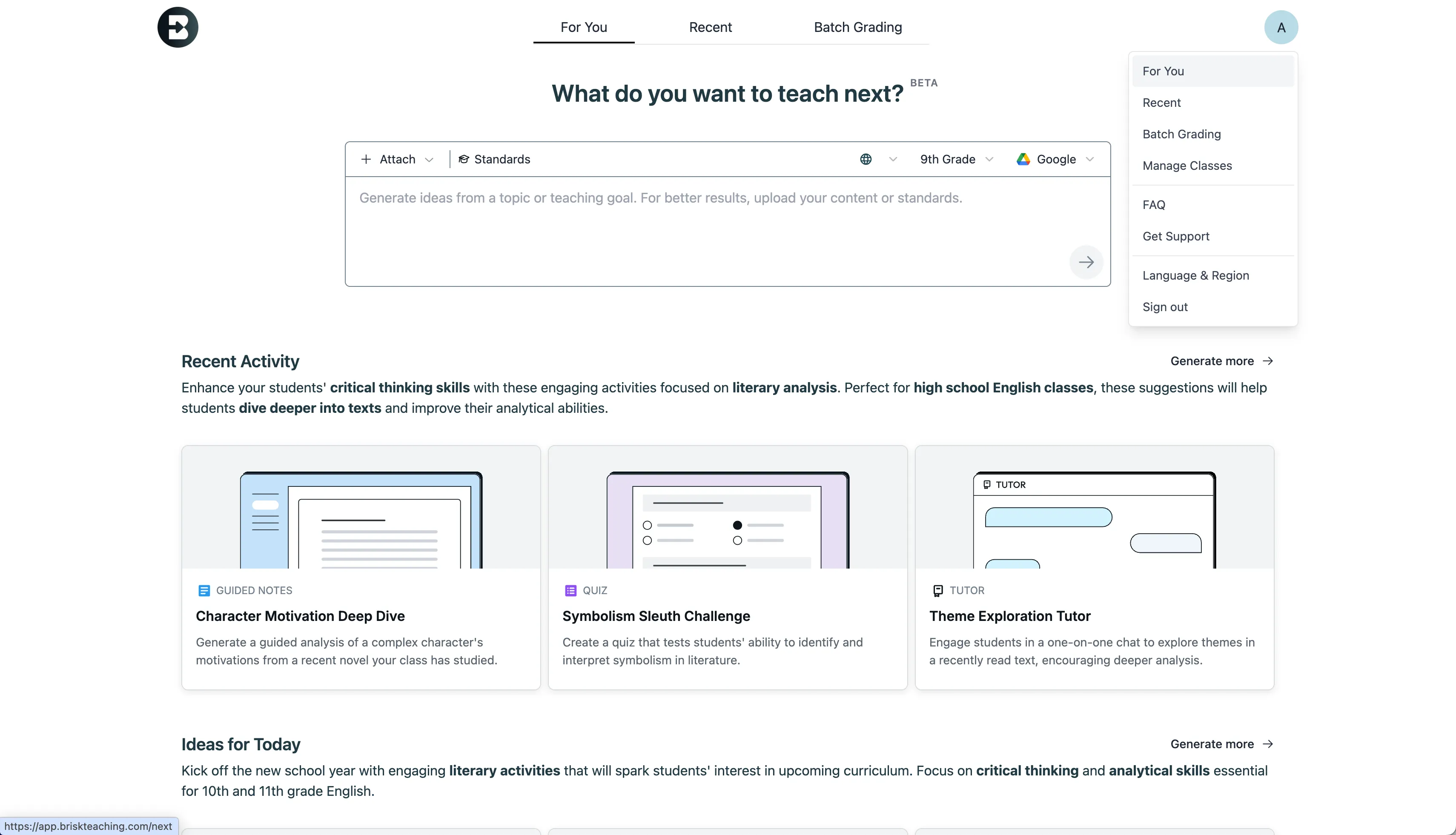
The Brisk extension has a new look, one designed to better support how you work and help you feel prepared for every class, every week, and every school year!

Instead of clicking through menus to find the right tool and then filling out multiple fields, you can simply tell Brisk what you need and it’ll build it. (Don’t worry, you still have the ability to browse your favorite tools if you want to.) From worksheets and quizzes to lesson plans and rubrics, anything you’re used to building with the Create tool is now just a quick conversation away.

How it works:

1. Search for the type of resource you have in mind: Start typing what you’re looking for in the Brisk extension search bar and a list of relevant resource types will appear. No need to remember the proper names of Brisk tools — use whatever words make sense to you and Brisk will figure it out.

(Note that while the new search function will return results spanning all Brisk tools, at this time, only the Create tool will deliver a conversational experience during subsequent steps.)

2. Share a few specifics about what you need: In the new conversational experience, Brisk will ask a few quick questions about whatever prompt you provide to make sure it understands what you’re after. Answering these questions is optional, but recommended. (You’ll still be able to use the classic Create workflow, too.)

Depending on the context, Brisk’s questions might look like:

  • “What’s the purpose of this exit ticket?” (e.g., a formative check after a day’s lesson, a diagnostic before kicking off a new unit, prep for a summative unit test)
  • “Are there any misconceptions about the topic you want this resource to address?” (choose from a list of relevant options or type your own response)
  • “Is there anything your students have been struggling to grasp about this topic?” (choose from a list of relevant options or type your own response)

Once you’ve had this brief conversation, Brisk will draw on your responses, your original prompt, your curriculum, and, if your district has Brisk Intelligence, district leader guidance to build a resource that’s fully aligned with your needs and your district’s priorities.

3. Fine-tune the resource until it’s perfect: Chat back and forth with Brisk to make any adjustments to your new resource. As you provide instructions — think: “make this shorter” or “swap the third question for something more challenging” or “add scaffolding for ELL students” — the resource will update right before your eyes. No need to start over or sift through multiple versions.

Read more about the new Brisk, and see the experience in action:

Resources for learning the New Brisk

Use Brisk Tools Directly in Claude

July 14, 2026

With the Brisk Connector, your favorite Brisk tools are just a sentence away in Claude. Chat with Claude about what you’re working on and it’ll give you ready-to-use links to the types of high-quality instructional materials you’re used to creating with Brisk — no more jumping between multiple browser windows.

What teachers can do in Claude with the Brisk Connector:

  • Create Boost Activity: Builds an interactive, AI-powered student activity (tutor, quiz-me, debate, exit ticket, writing coach) complete with learning objectives and guardrails.
  • Generate activity ideas: Suggests a set of Boost Activity ideas for a topic — no commitment until you create one.
  • Create teaching resource: Creates a lesson plan, quiz, rubric, worksheet, sub plan, or other resource as a Google Doc or Google Form.
  • Set up Batch Feedback: Creates an assignment shell for grading a set of student work (you add submissions and run feedback in the Brisk web app).
  • List standards: Browses Brisk’s standards database so your materials will be aligned to the right frameworks, grade level, and state.
  • Get teacher context: Reads your class names, grades, and subjects (never student data) so Claude can tailor its suggestions.

Connect Claude to Brisk:

  1. To use the Brisk Connector, you’ll need a Brisk account, a Claude account, and, for any tool that creates a Google Doc or Google Form, a Google account that’s connected to Brisk.
  2. Open Claude (web or desktop).
  3. In a new chat, click the + button near the prompt and select Connectors, then click Add Connector. You can also start the process here.
  4. Use the search bar to find the Brisk Connector and click Connect.
  5. You’ll be prompted to sign in to your Brisk Teaching account and allow Claude to access it. Click Allow.
  6. Once connected, Brisk will appear in your list of Connectors and Claude will be able to use Brisk tools directly in your Claude chat.