새로운 기능
이 페이지를 즐겨찾기에 추가하고 Brisk의 모든 업데이트 소식을 한곳에서 확인하세요. 매주 새로운 기능이 출시되니 놓치지 마세요!
Brisk의 새로운 기능
Brisk의 새로운 소식을 놓치지 마세요. 교사 연수를 진행하거나, 동료와 Brisk를 공유하거나, 컨퍼런스에서 발표할 때 이 덱을 활용하면 새로운 기능을 쉽게 소개할 수 있습니다.
Batch Feedback with Microsoft OneDrive
December 4, 2025
1. Go to app.briskteaching.com/next
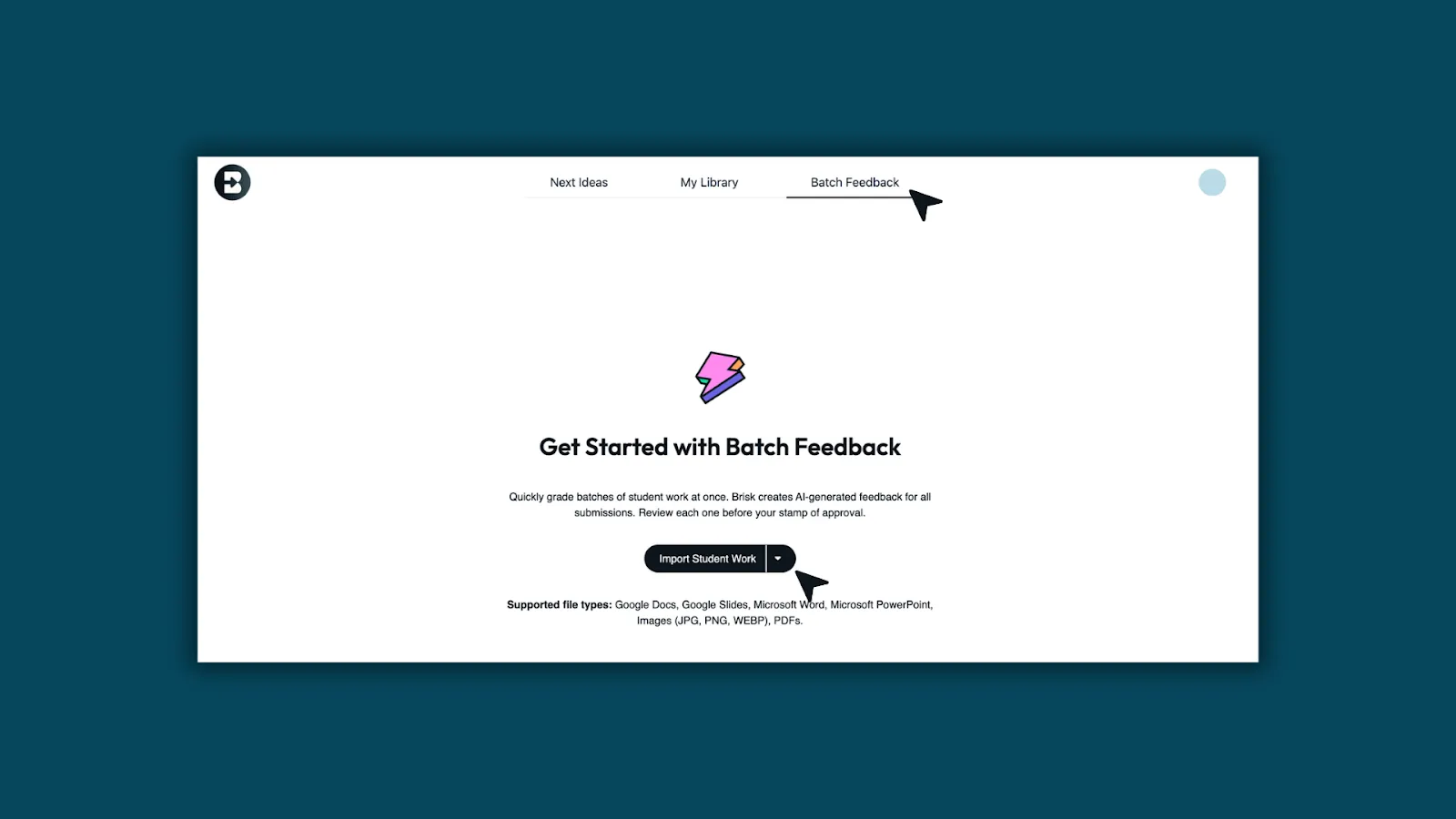
- Open Batch Feedback in Brisk.
- Click Import Student Work
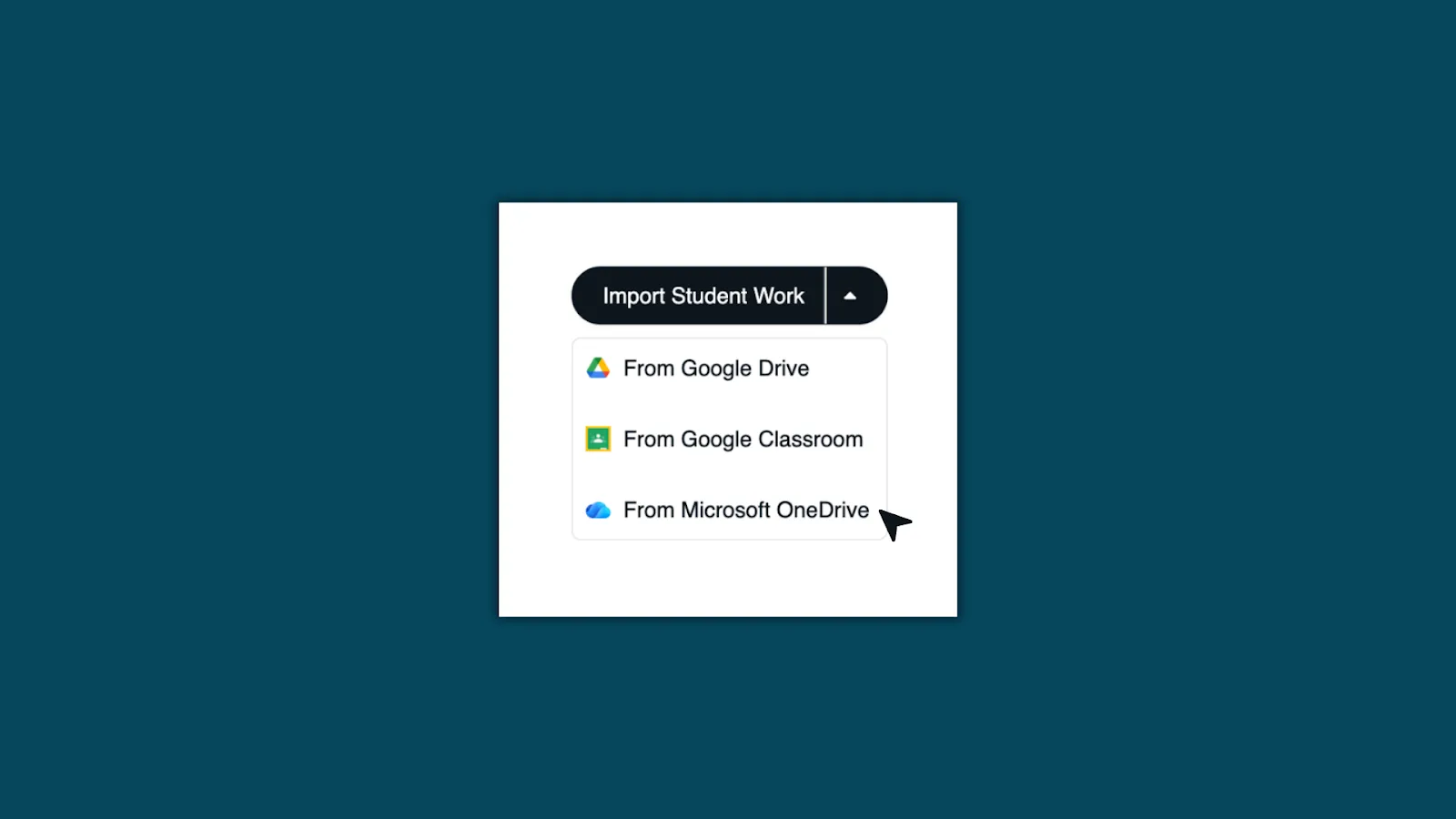
- Select, Microsoft OneDrive.
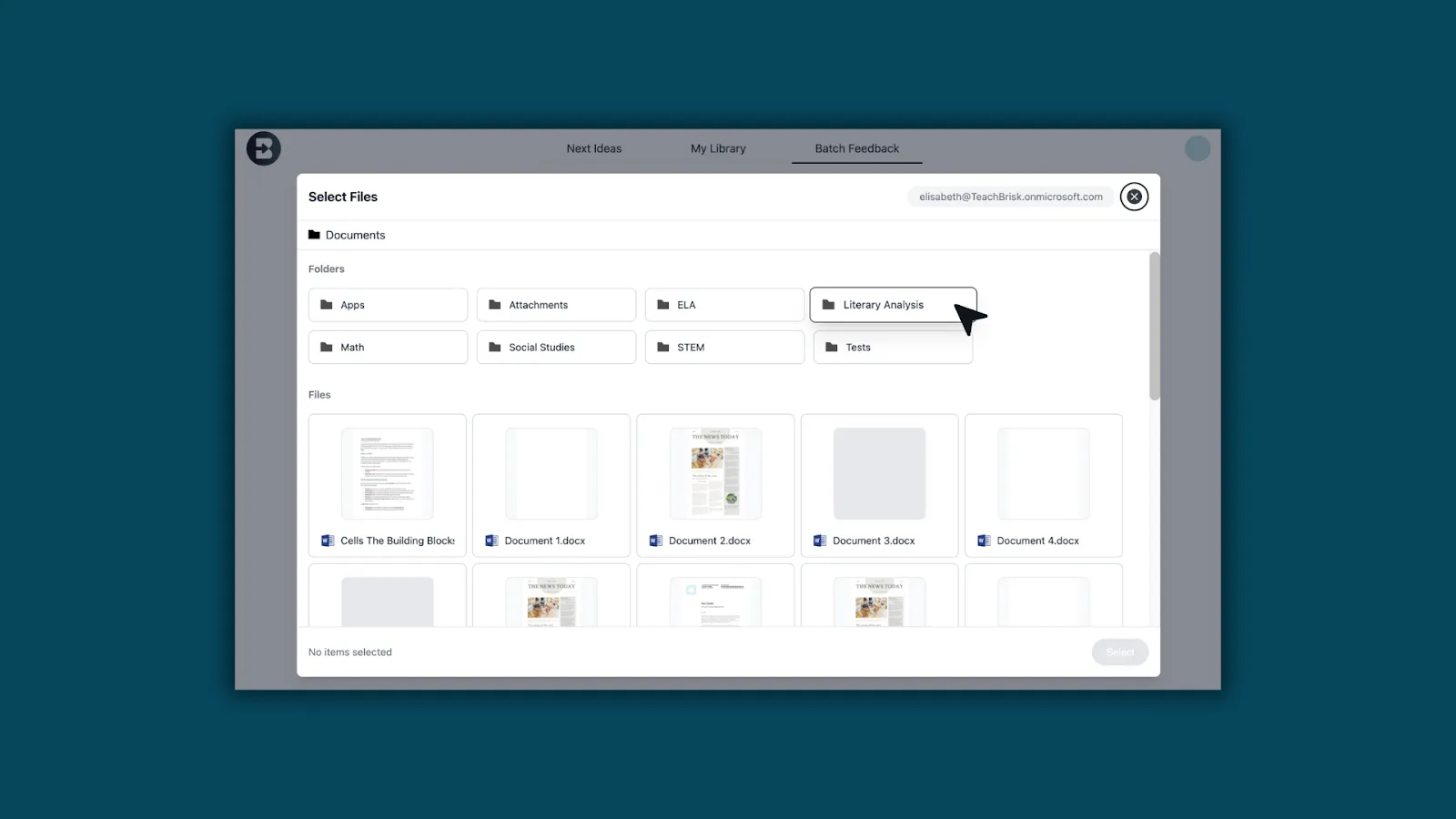
- Choose the folder and select your students’ files.
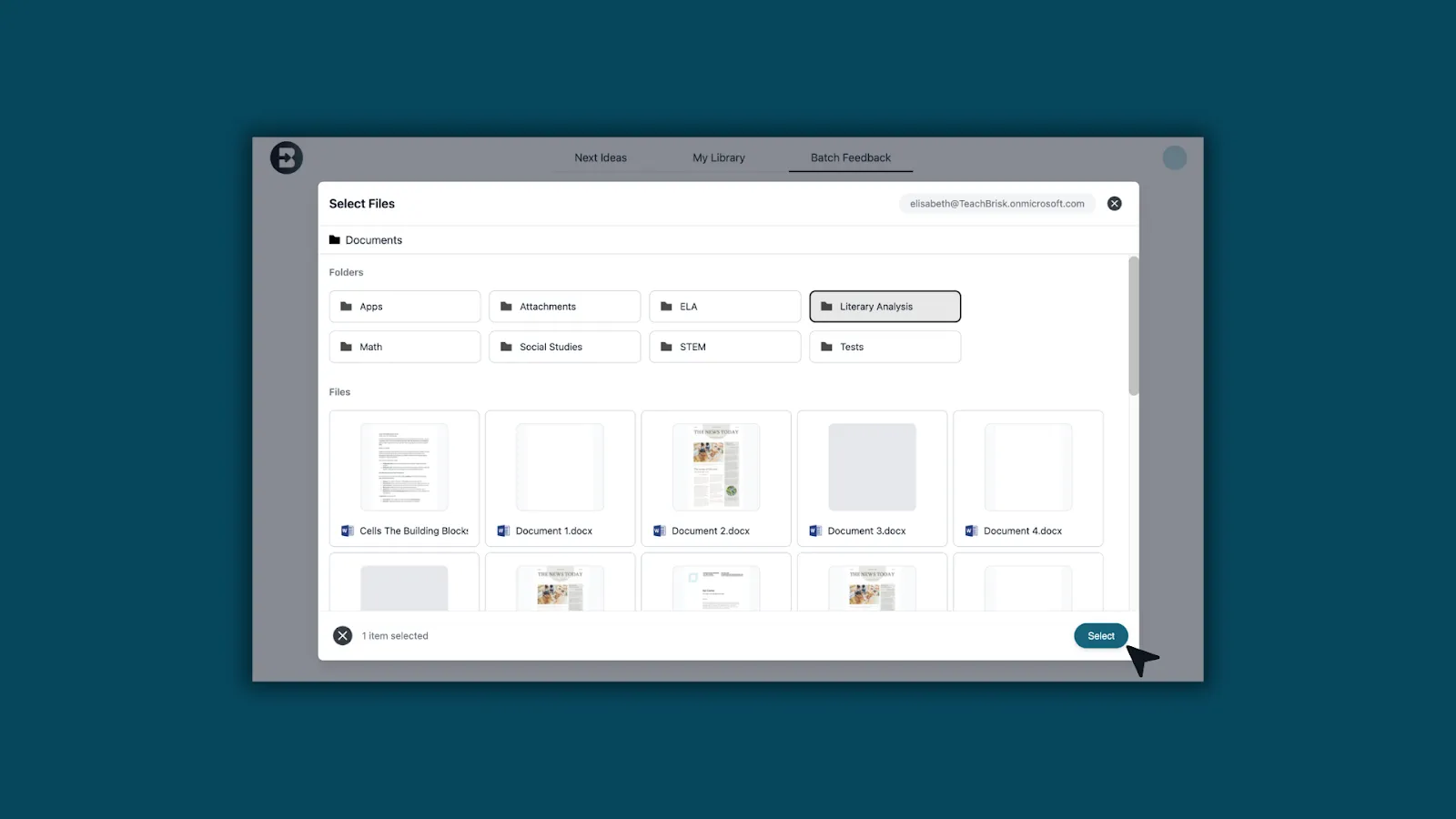
- Then click Select
2. Set up Batch Feedback
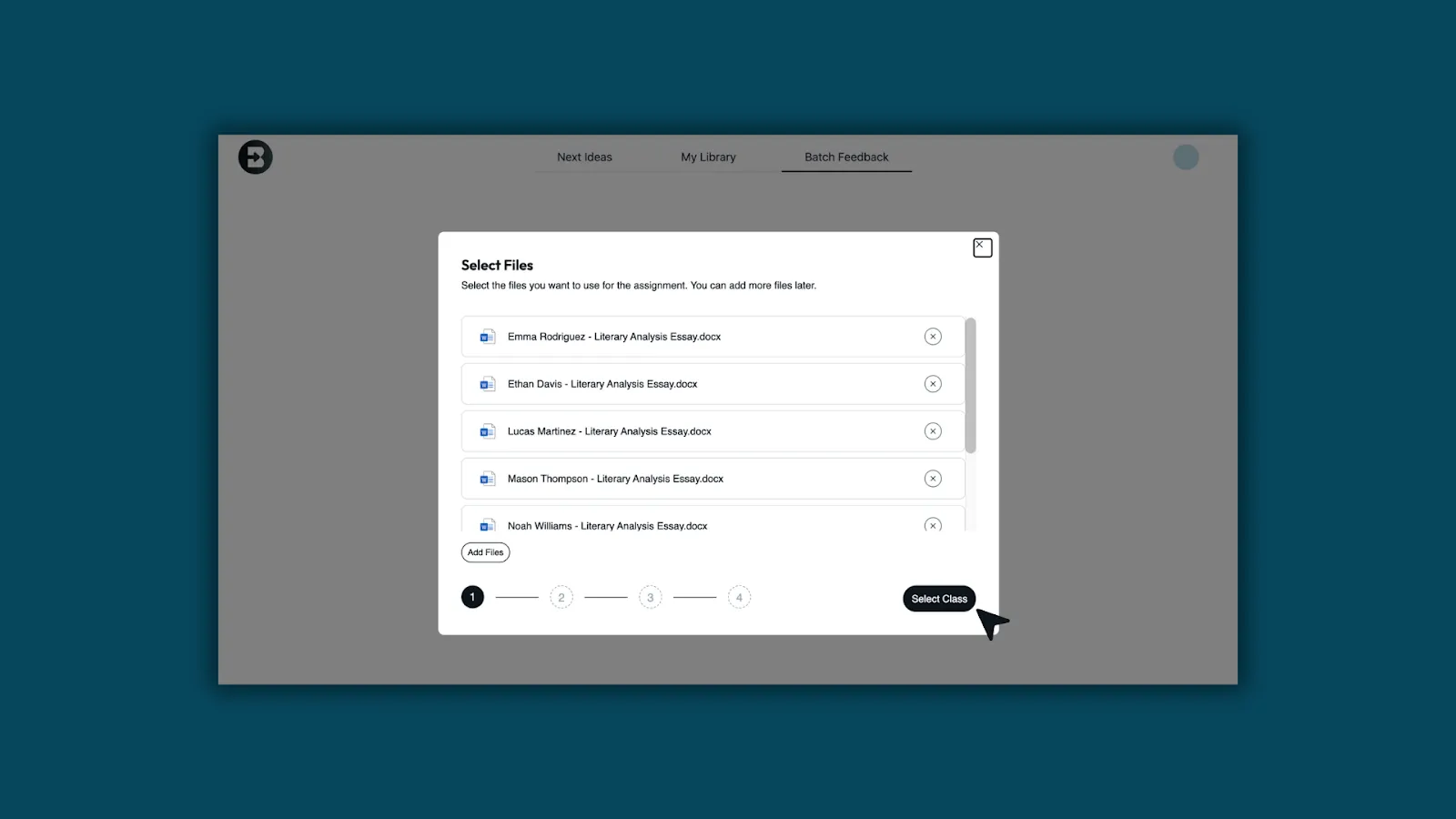
- Review the file list and click Select Class.
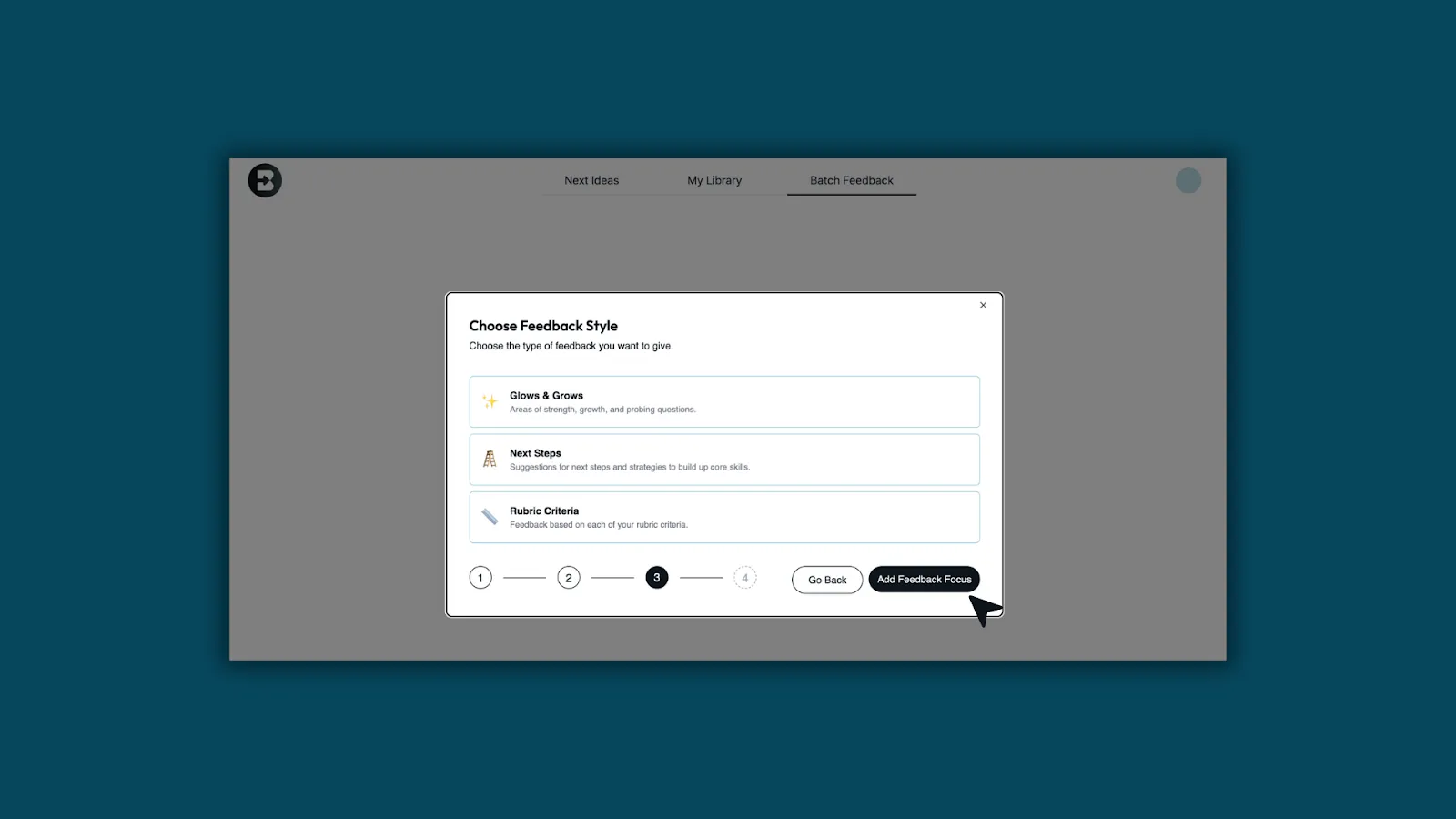
- Choose your feedback style: Glows & Grows, Next Steps, or Rubric Criteria.
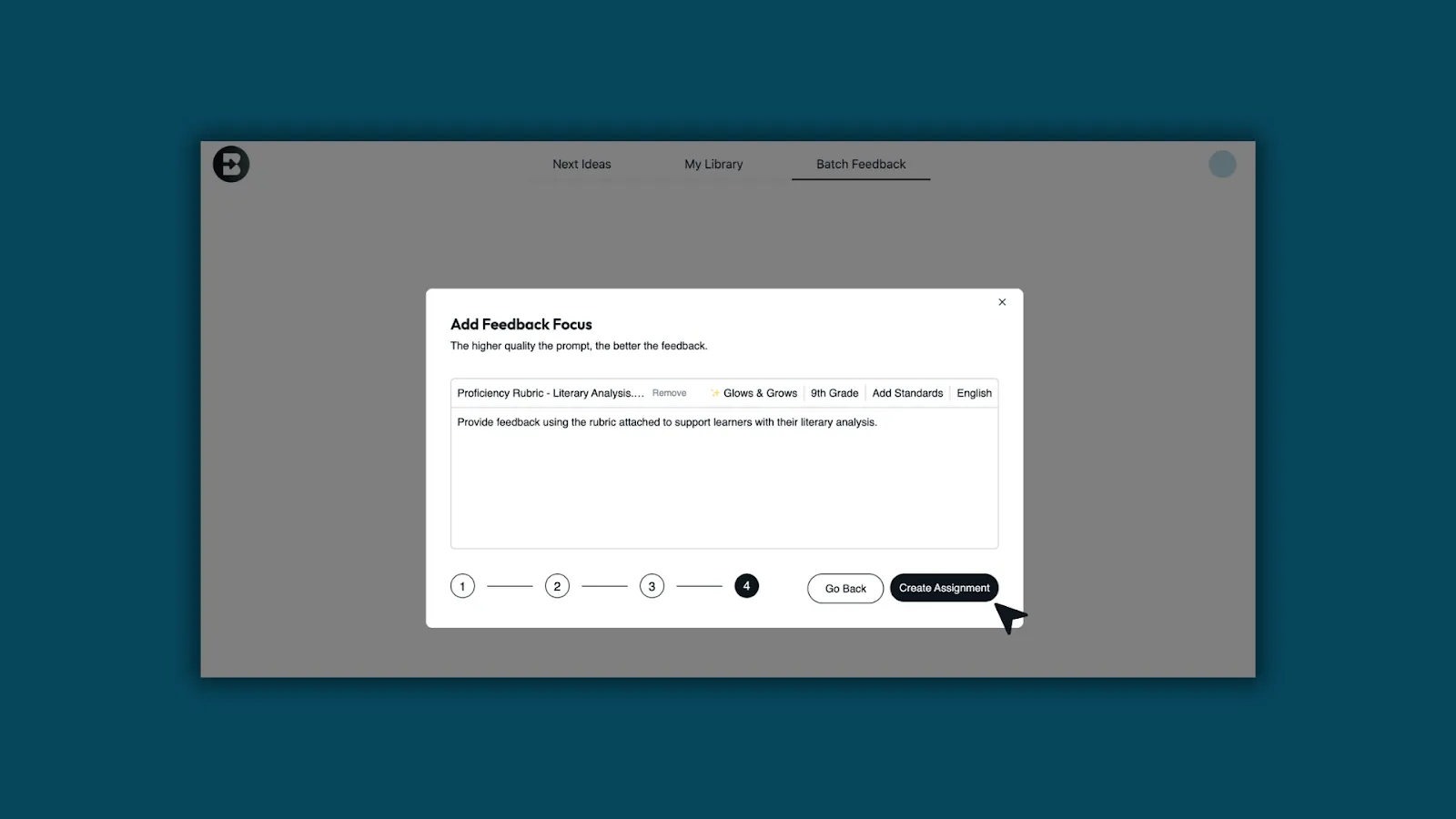
- Add your feedback focus (rubric, grade level, standards, and prompt). Then click, Create Assignment.
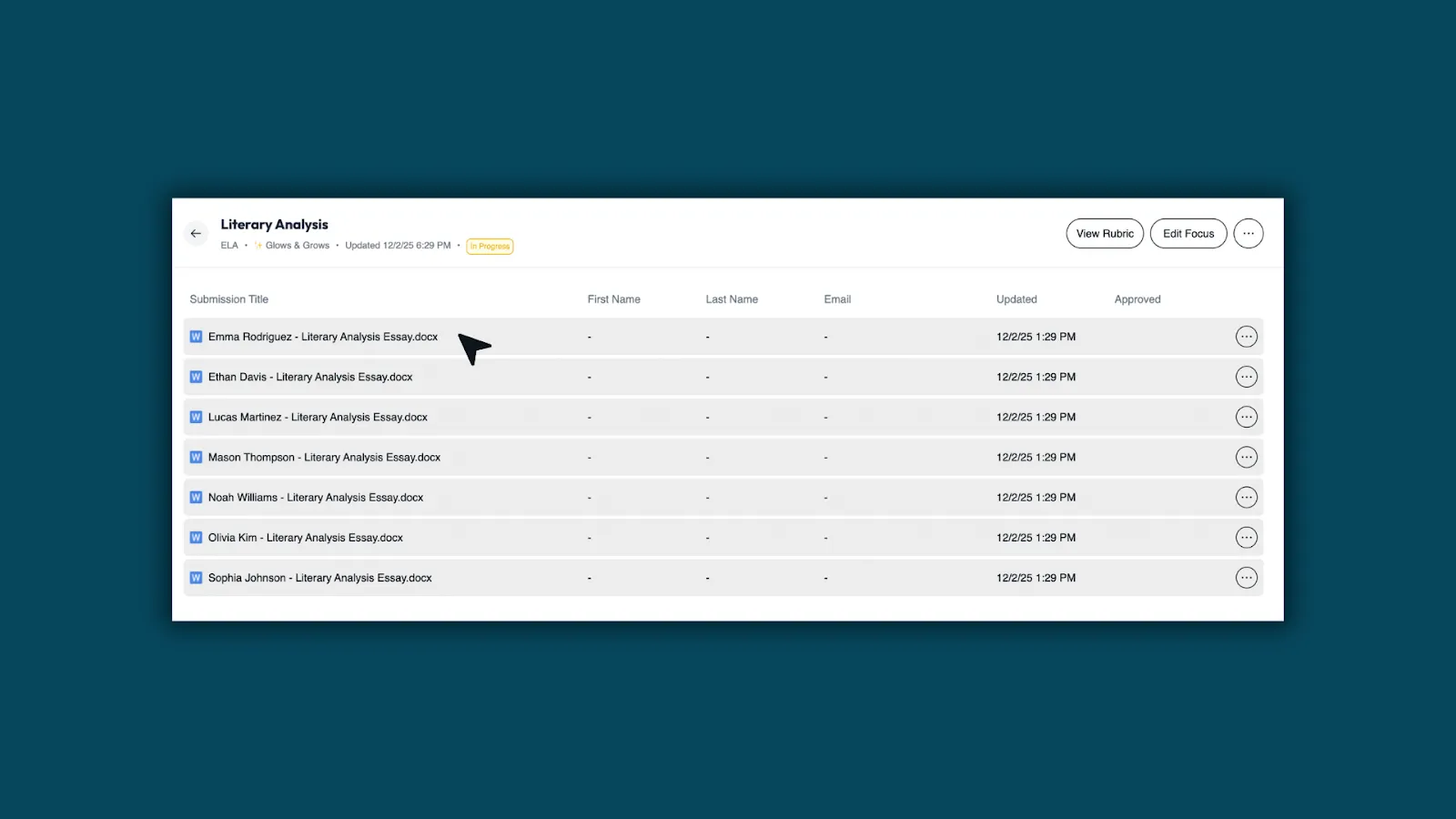
3. Review and approve
- Open each student’s file to view the AI-generated feedback.
- Edit as needed and check Approve Feedback.
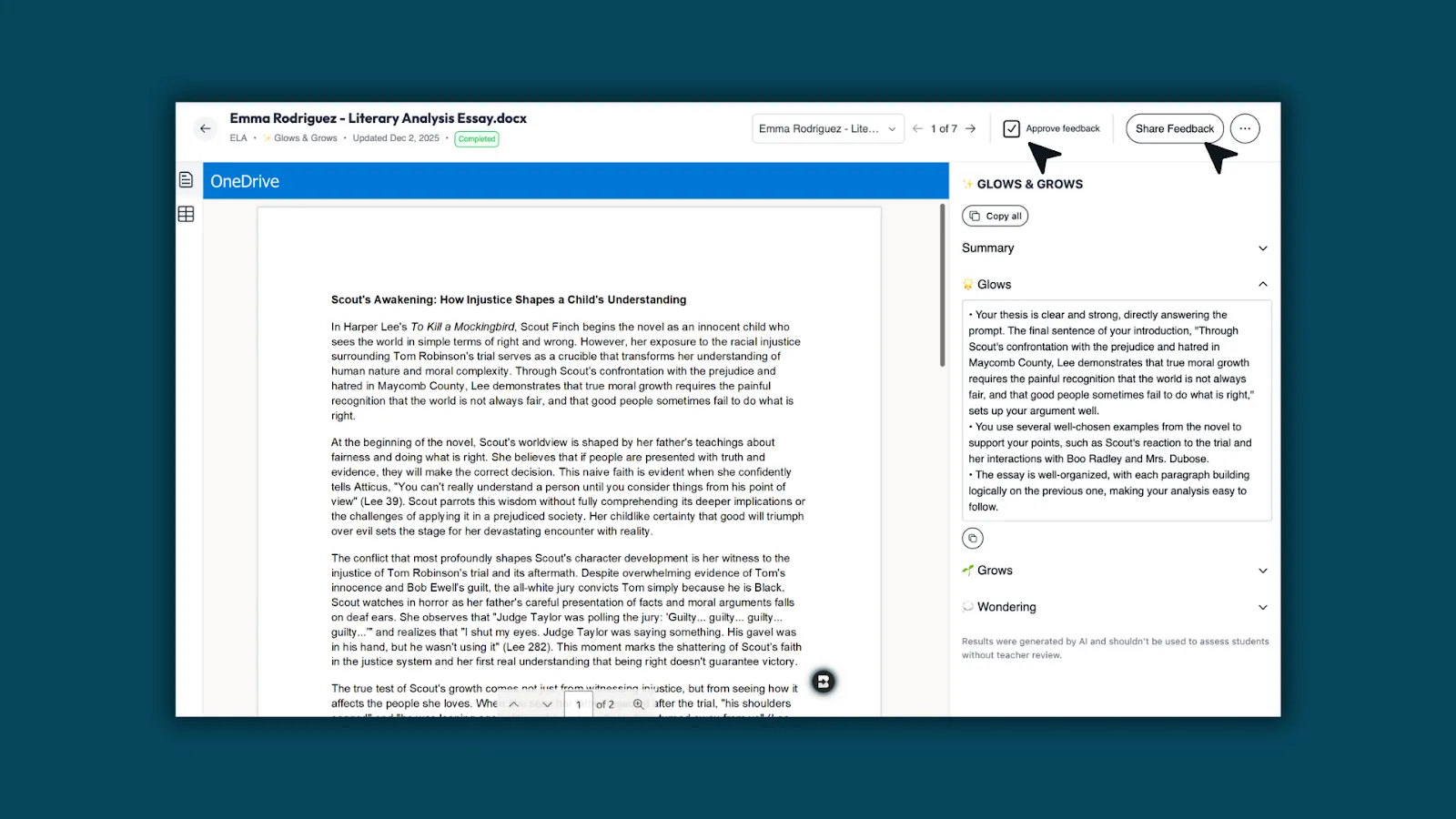
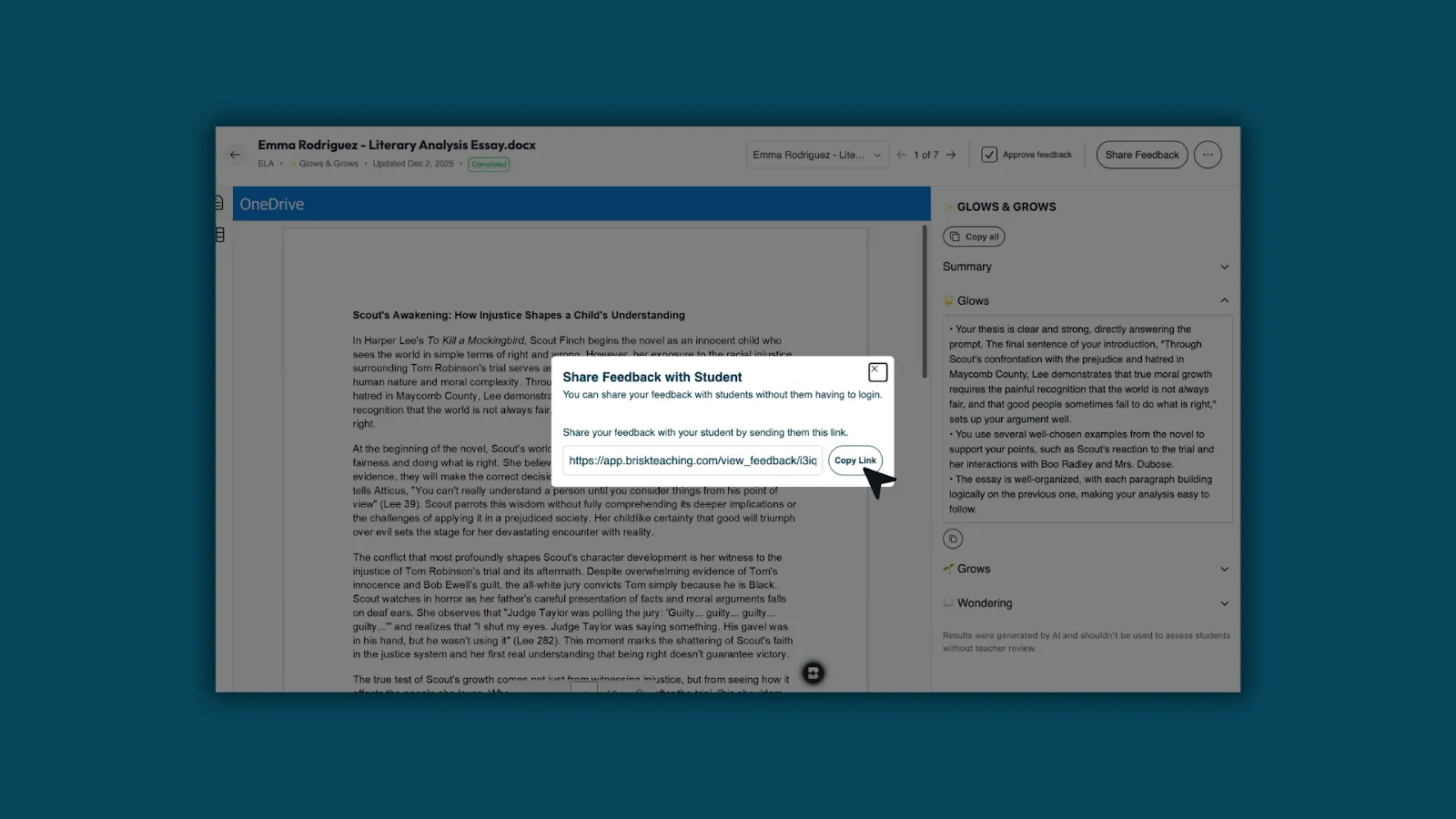
4. Share with students
- Click Share Feedback and Copy Link. You can send the link through Teams, email, or your LMS.

Quick Create From Web — Now in Brisk Next
December 3, 2025
Brisk Next is built for generating multiple resources at once to bundle and share — but some teachers just want to create one specific resource quickly.
The new Quick Create dropdown makes that easy.
How it works:
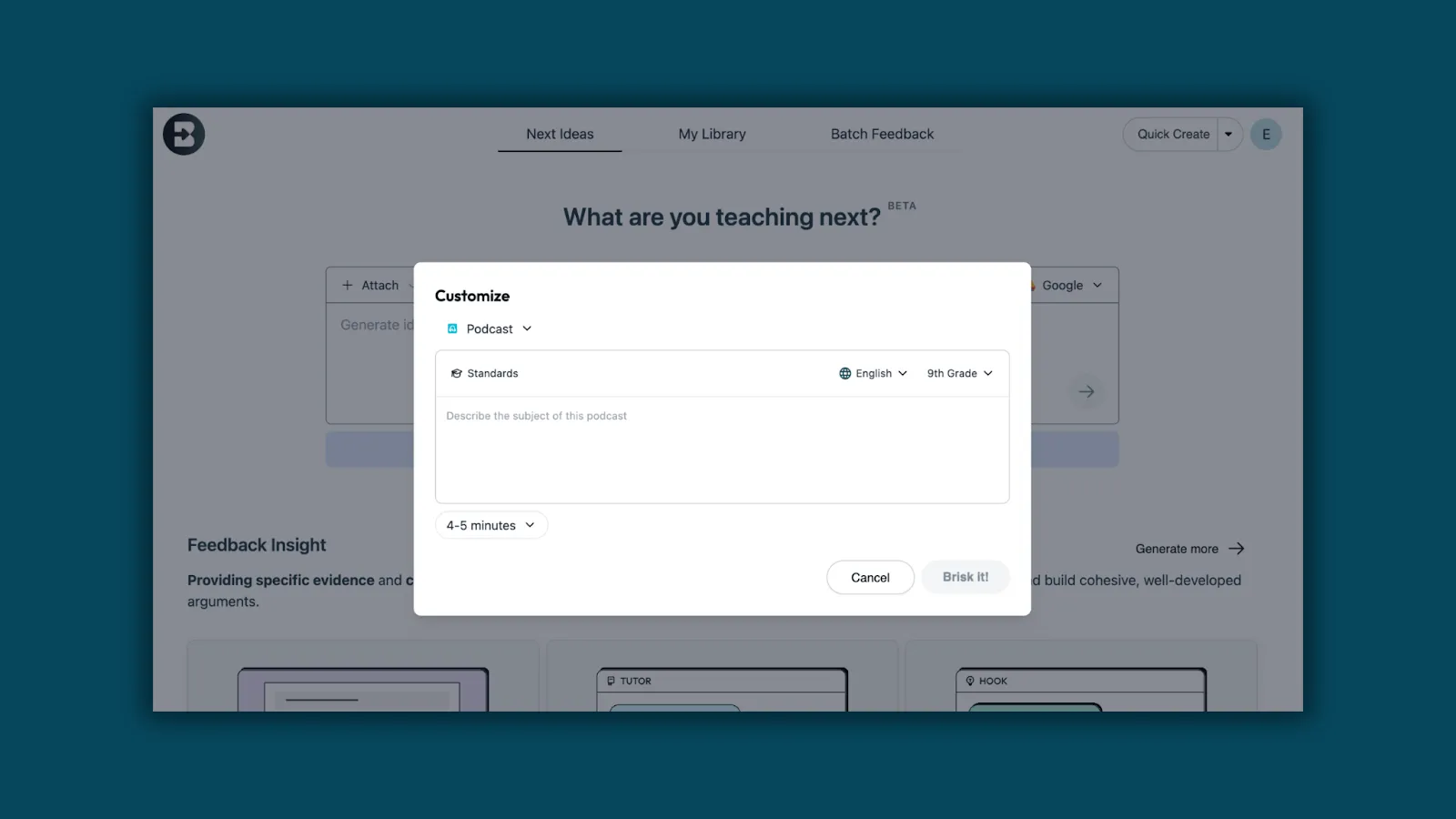
- Click Quick Create.
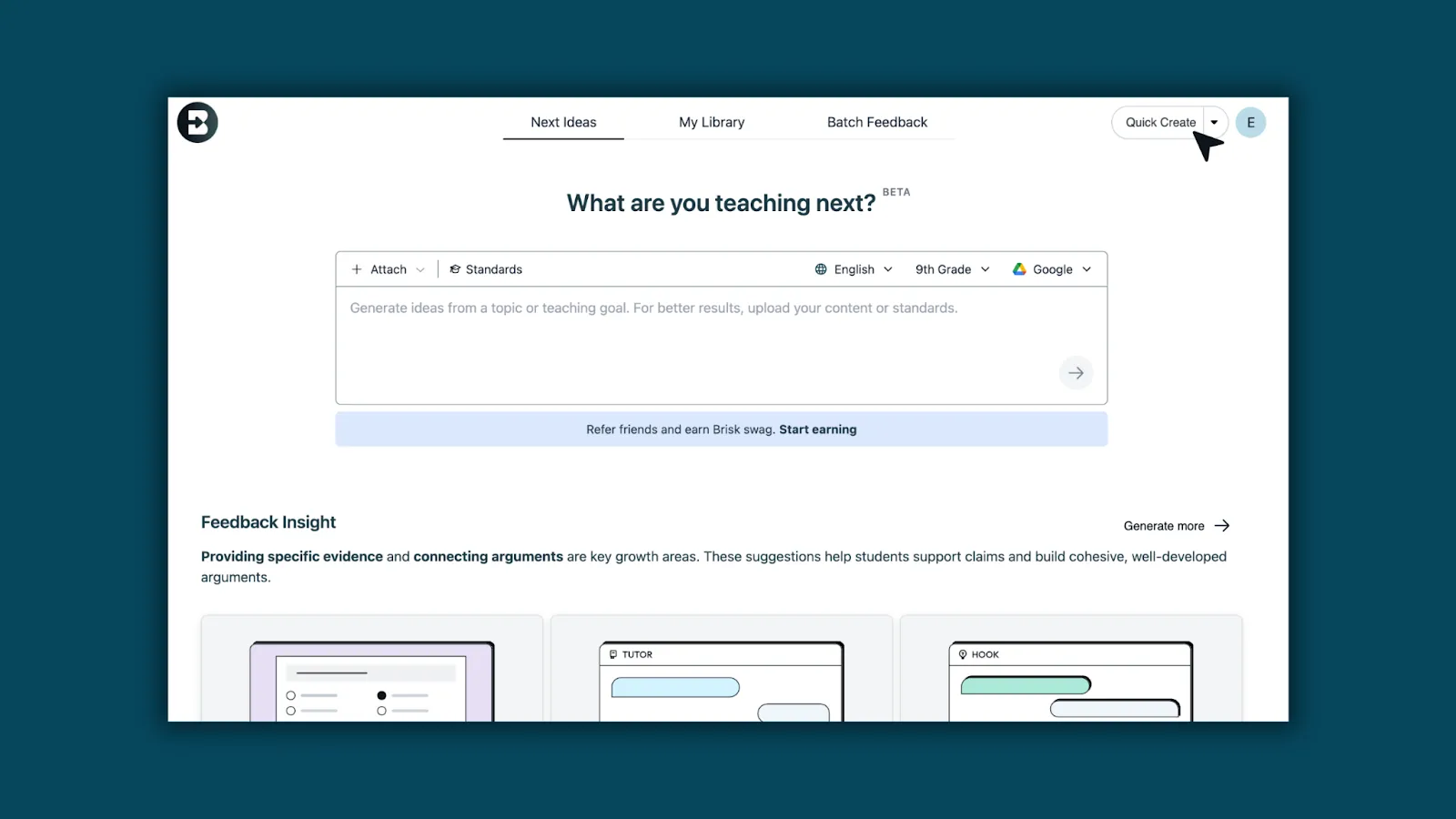
- Choose Document, Presentation, Form, Podcast, or Boost Activity.
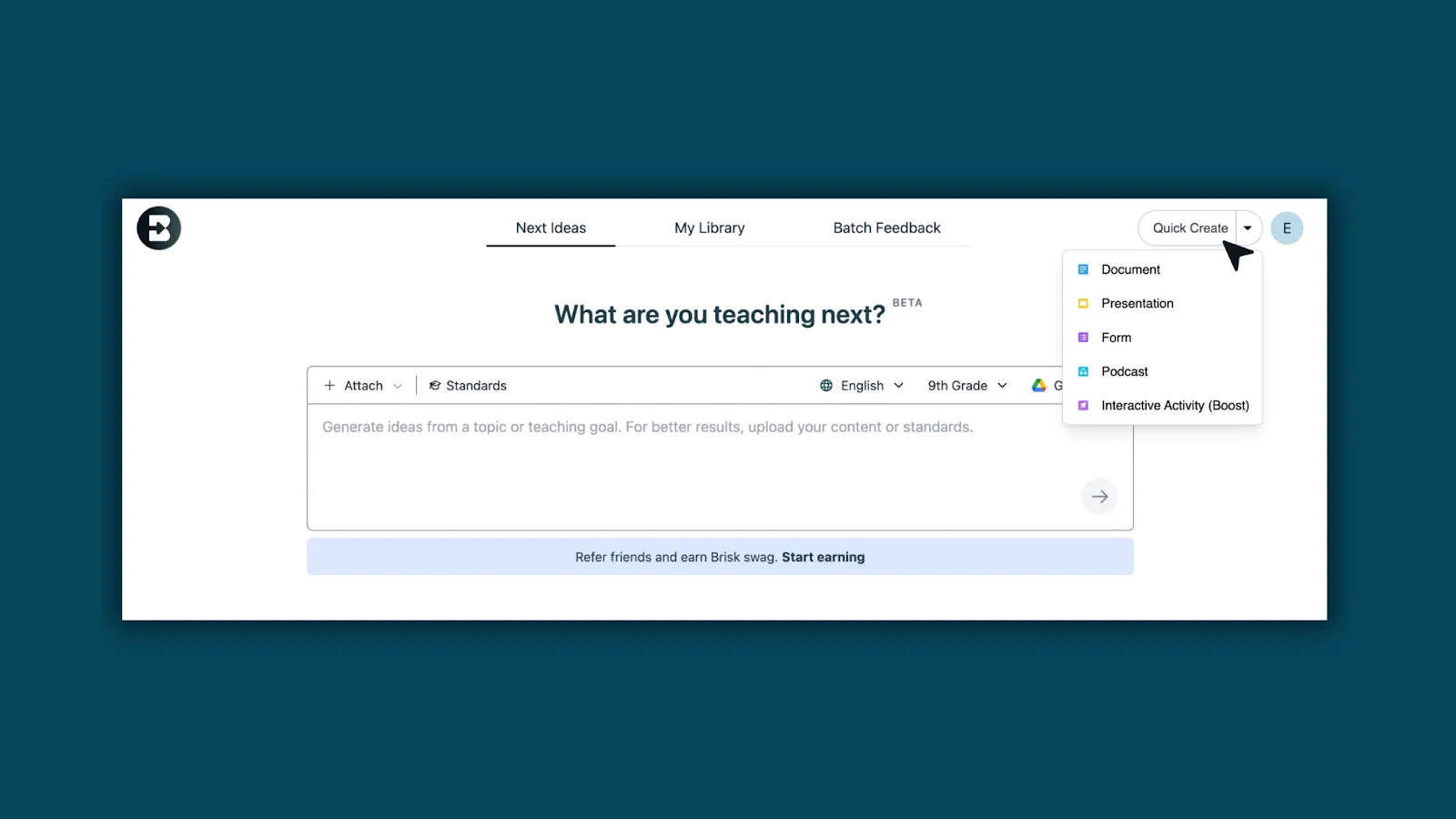
- Enter your prompt, then select standards, language, and grade level.
My Library: Everything You Create, All in One Place
December 3, 2025
The My Library page (formerly Recent) has been upgraded to make it easier to find and manage everything you create with Brisk.
What’s New
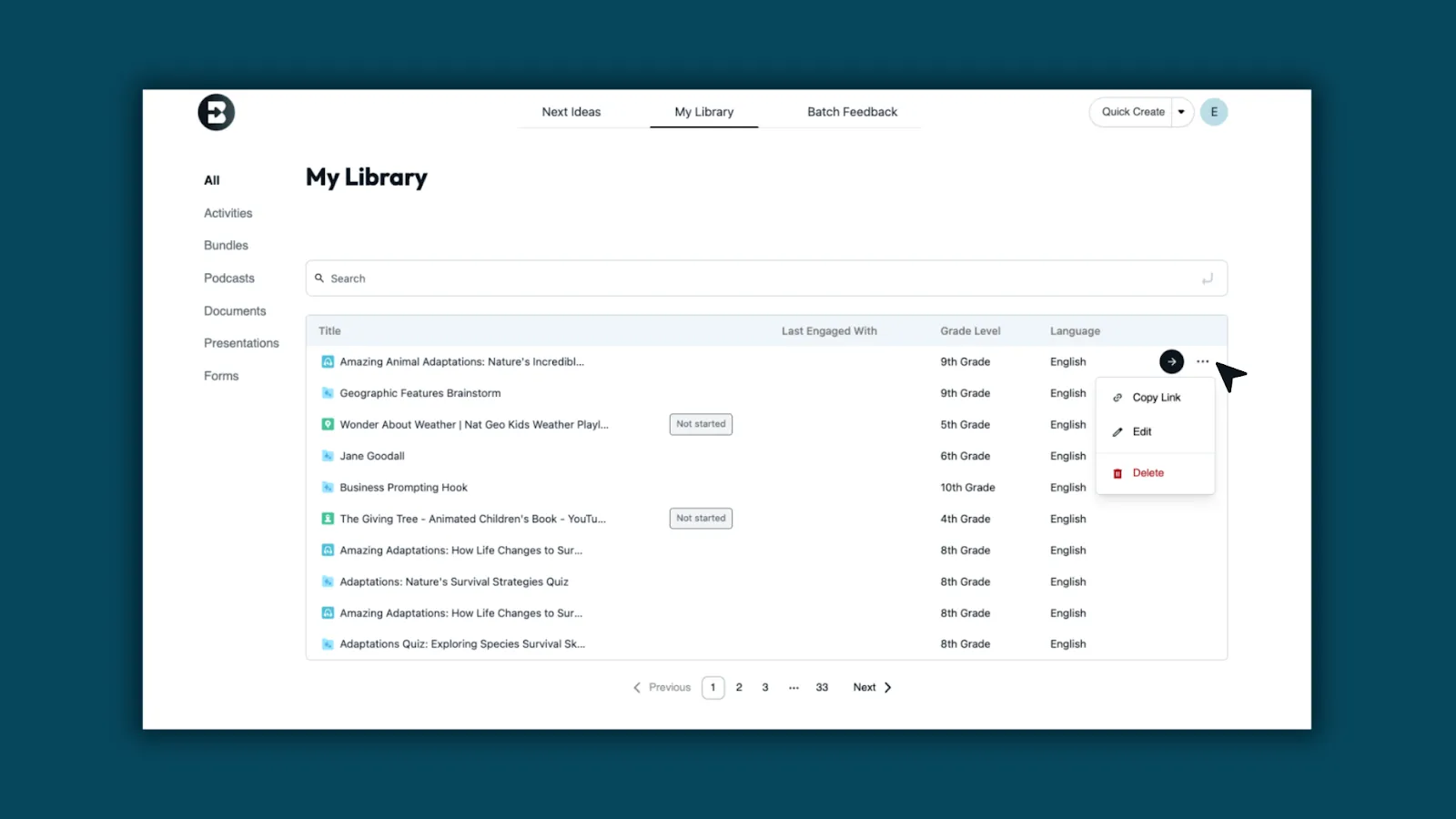
1. See all your Brisk-created content in one place: Resources now appear directly in My Library, including anything created through the Brisk Extension.
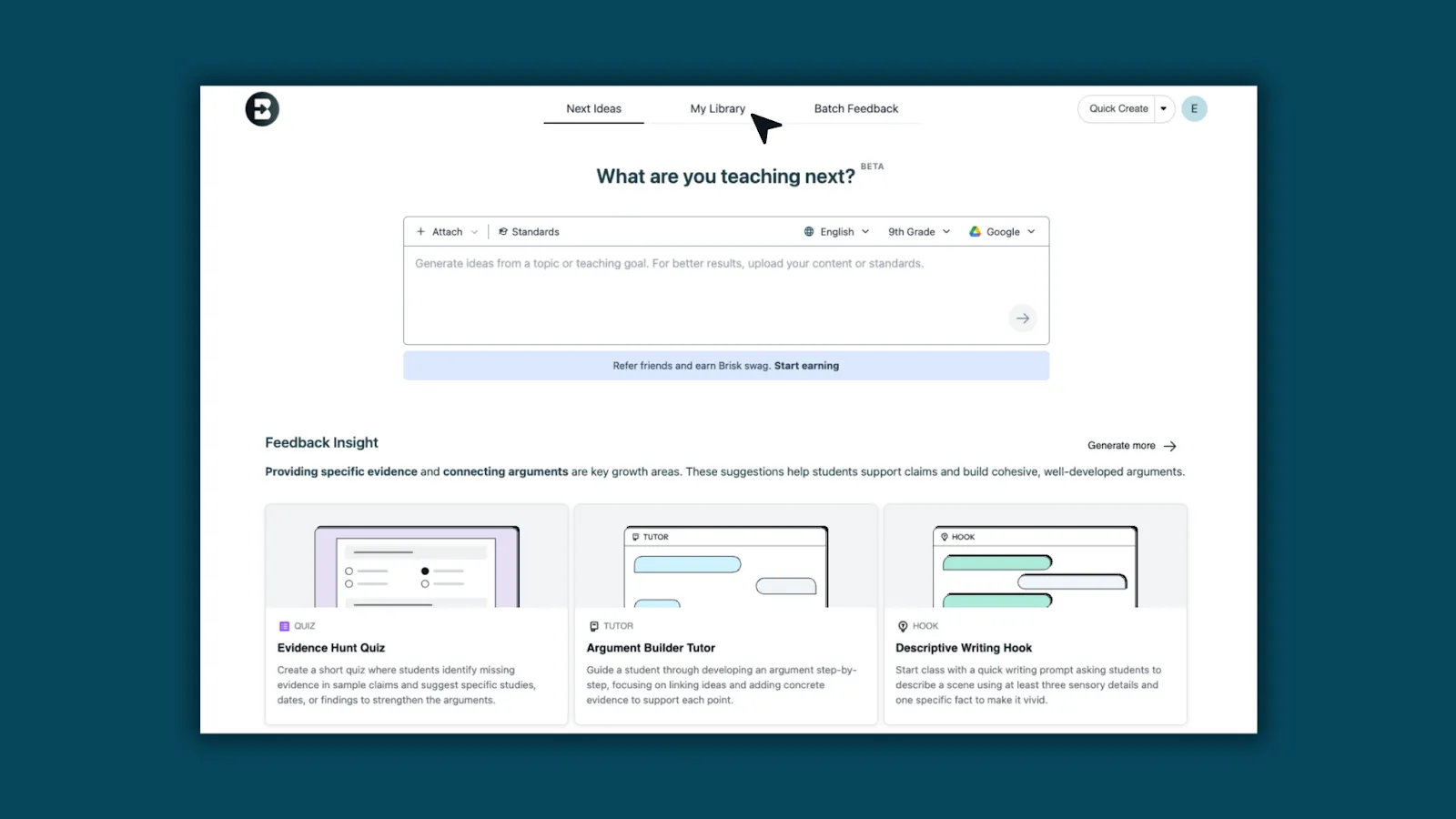
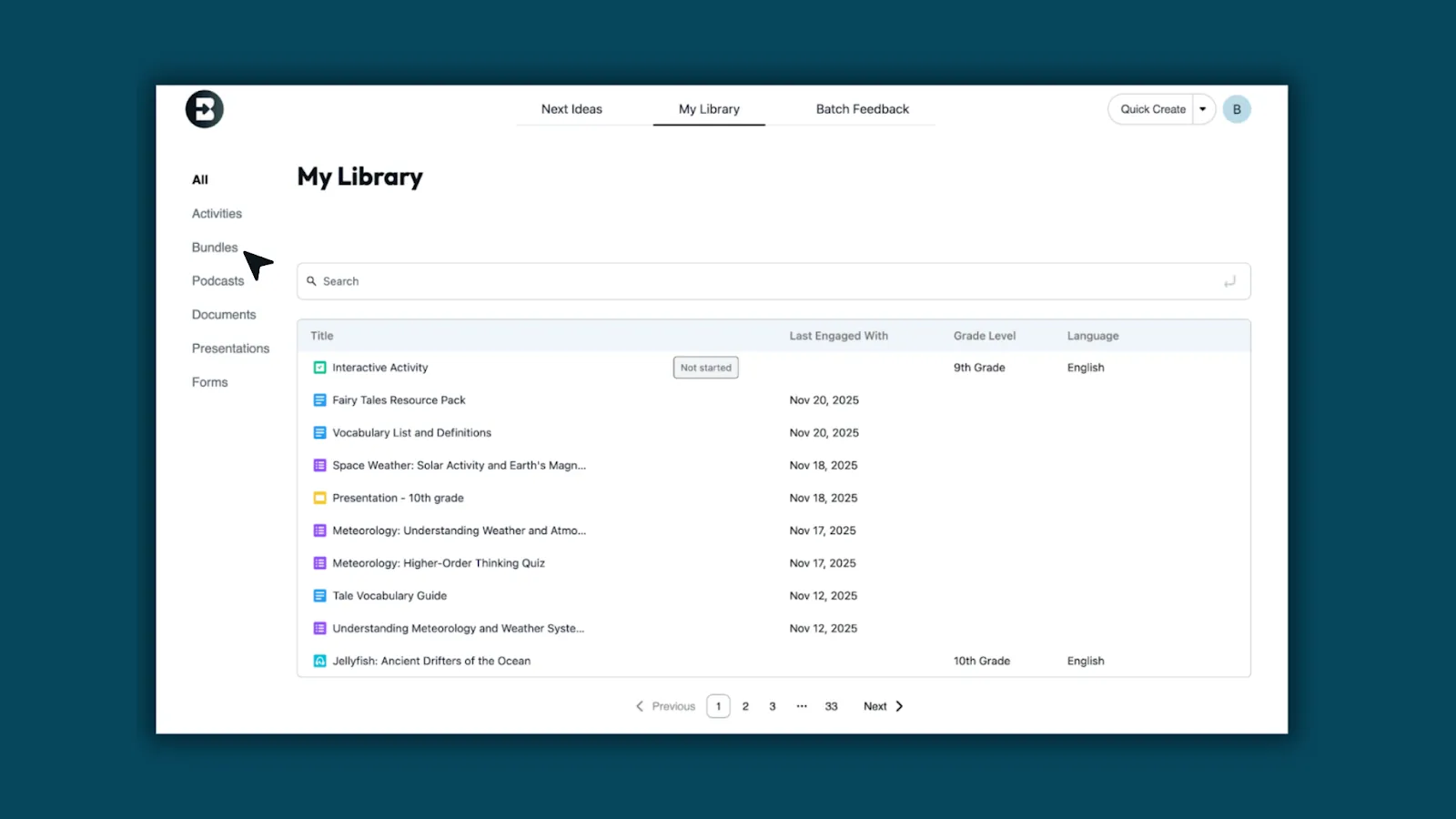
2. View all Brisk materials: All your Brisk-created content — Class Activities, Bundles, Podcasts, Documents, Presentations, and Forms — now live together in one streamlined view.
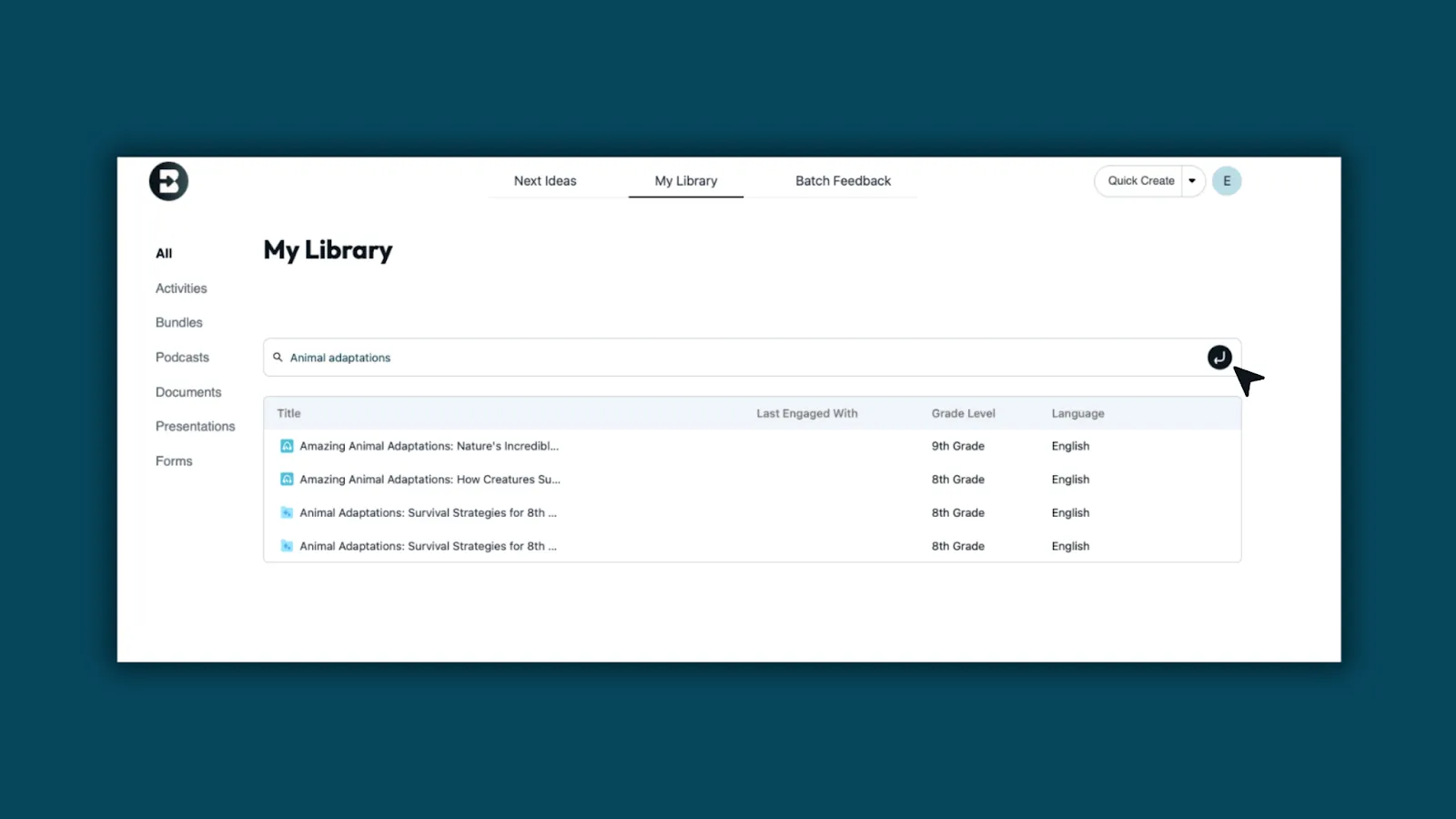
3. Search and load content more quickly: Search for any of your Brisk Creations to easily access resources.
4. Manage content without leaving the page: Use the three-dots menu on any item to open, rename, move, or edit in just one click.
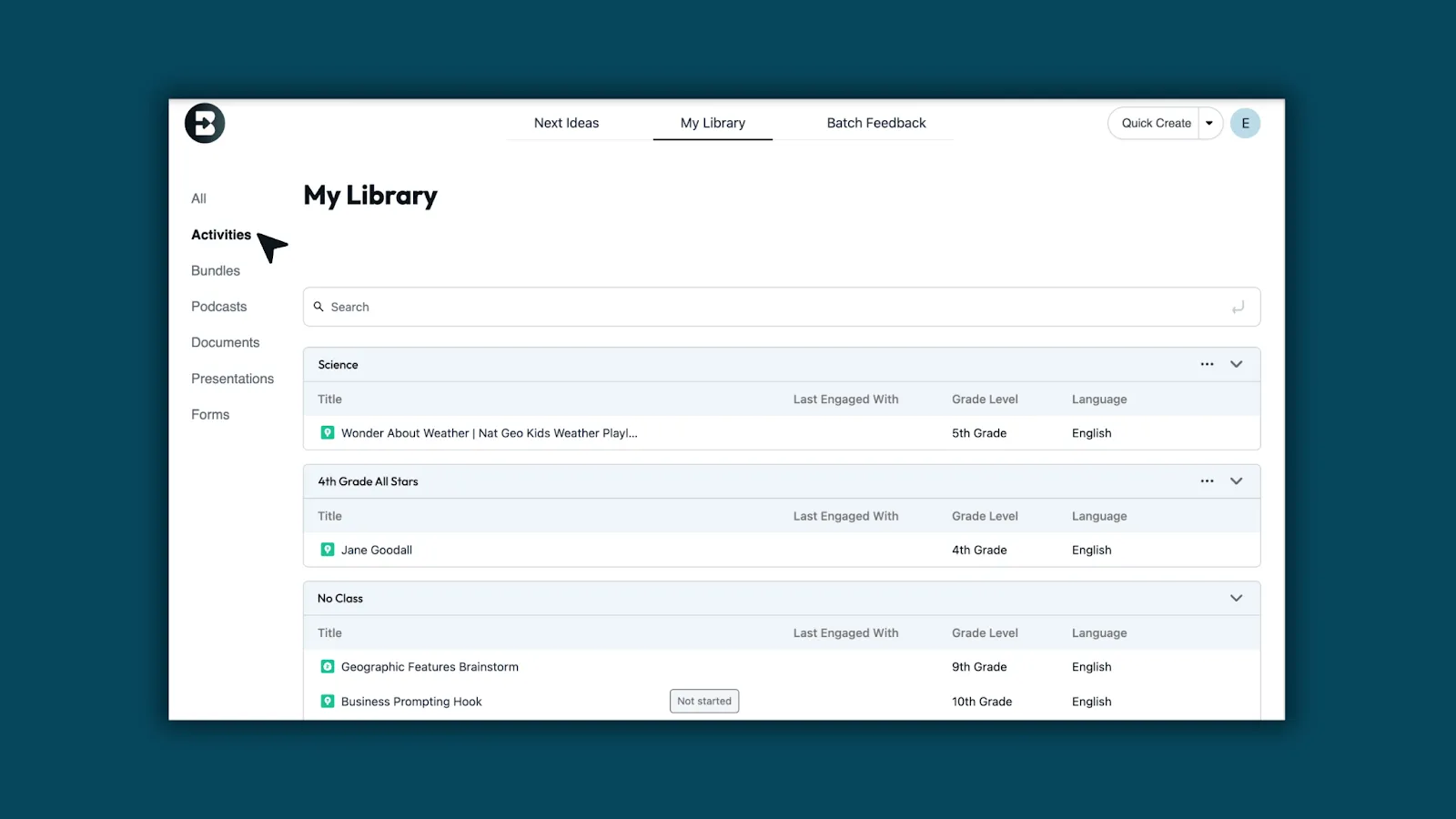
5. Prefer Activities by class? No problem: You can still access class-organized Activities under the Activities tab. Bookmark the direct link if helpful: https://app.briskteaching.com/my_library?tab=activities
Brisk Rewards Program
November 11, 2025
We launched our very first Brisk Rewards Program, a new way for teachers to earn swag just by sharing Brisk. When someone signs up through your link, you earn a point. At ten points, you unlock the Brisk Rewards Store filled with exclusive merch, classroom goodies, and fun surprises. Get started today!
.webp)
Go from insight to instruction in one click with Next Ideas
November 7, 2025
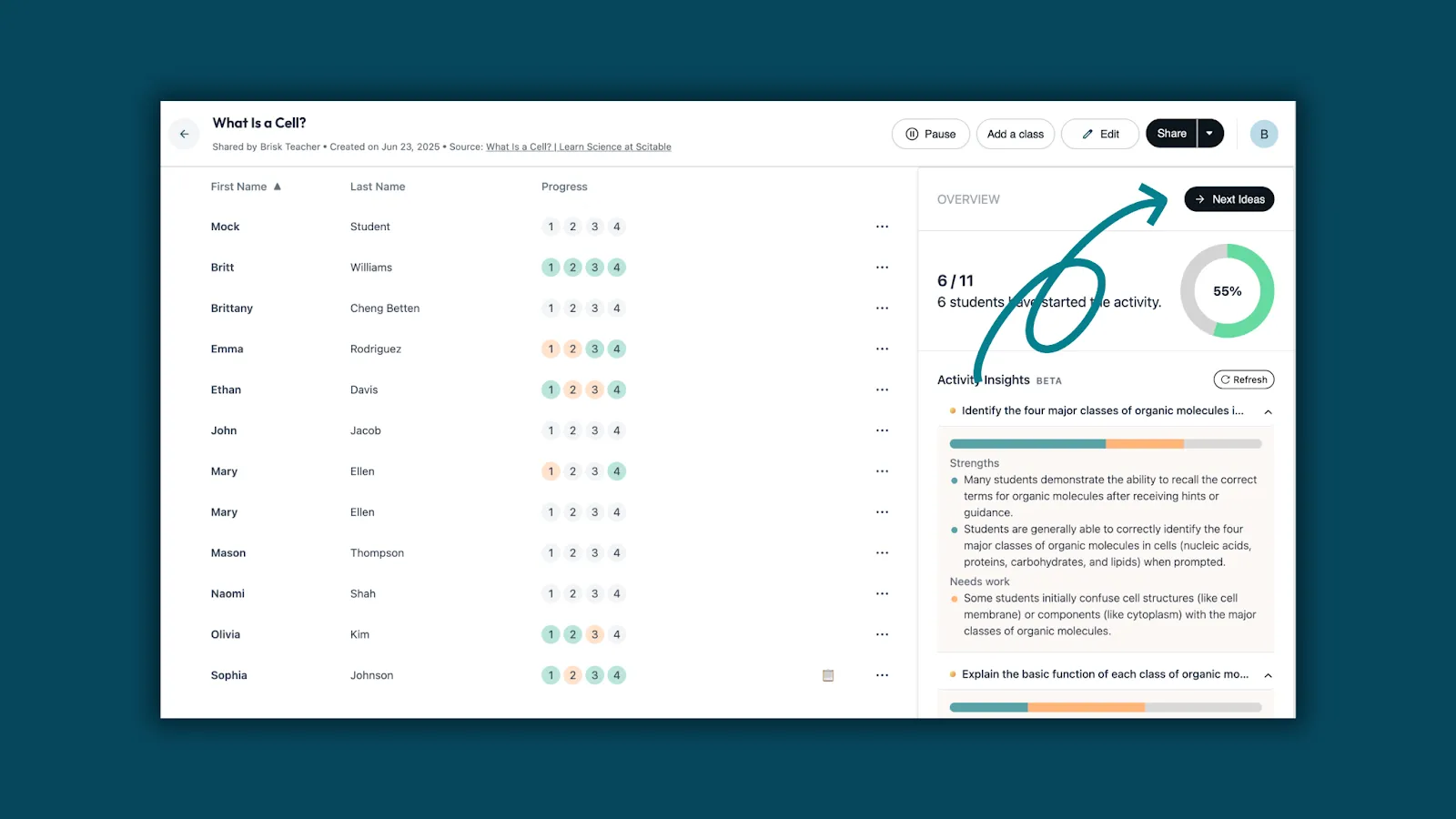
You already know what students need from Boost Learning Insights — now you get the how.
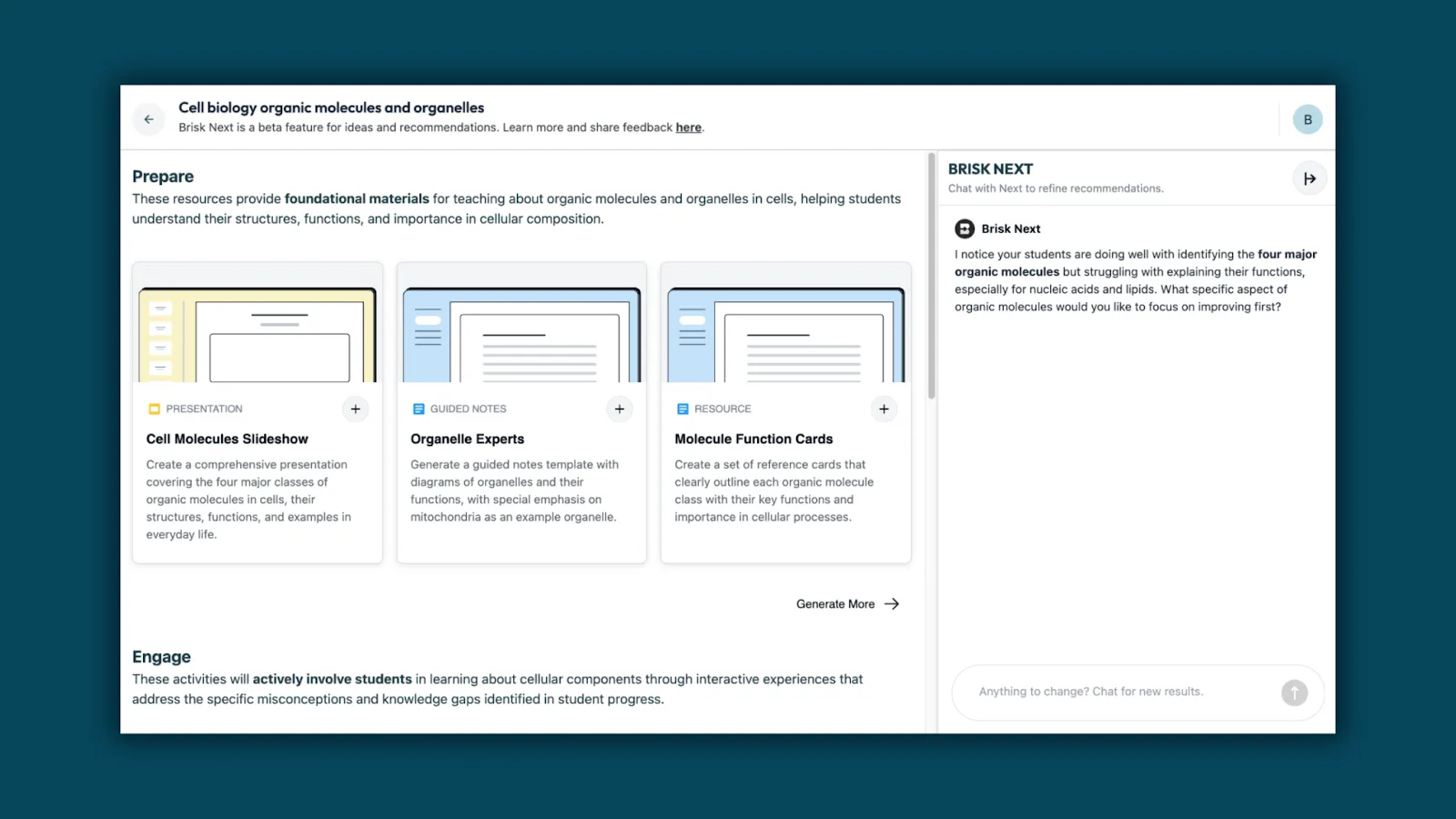
Meet Next Ideas: classroom-ready activities generated from student strengths and areas to grow, right within Brisk Next.
Turn insights into tailored learning experiences you can launch instantly, designed for the students in front of you.
How to access Next Ideas:
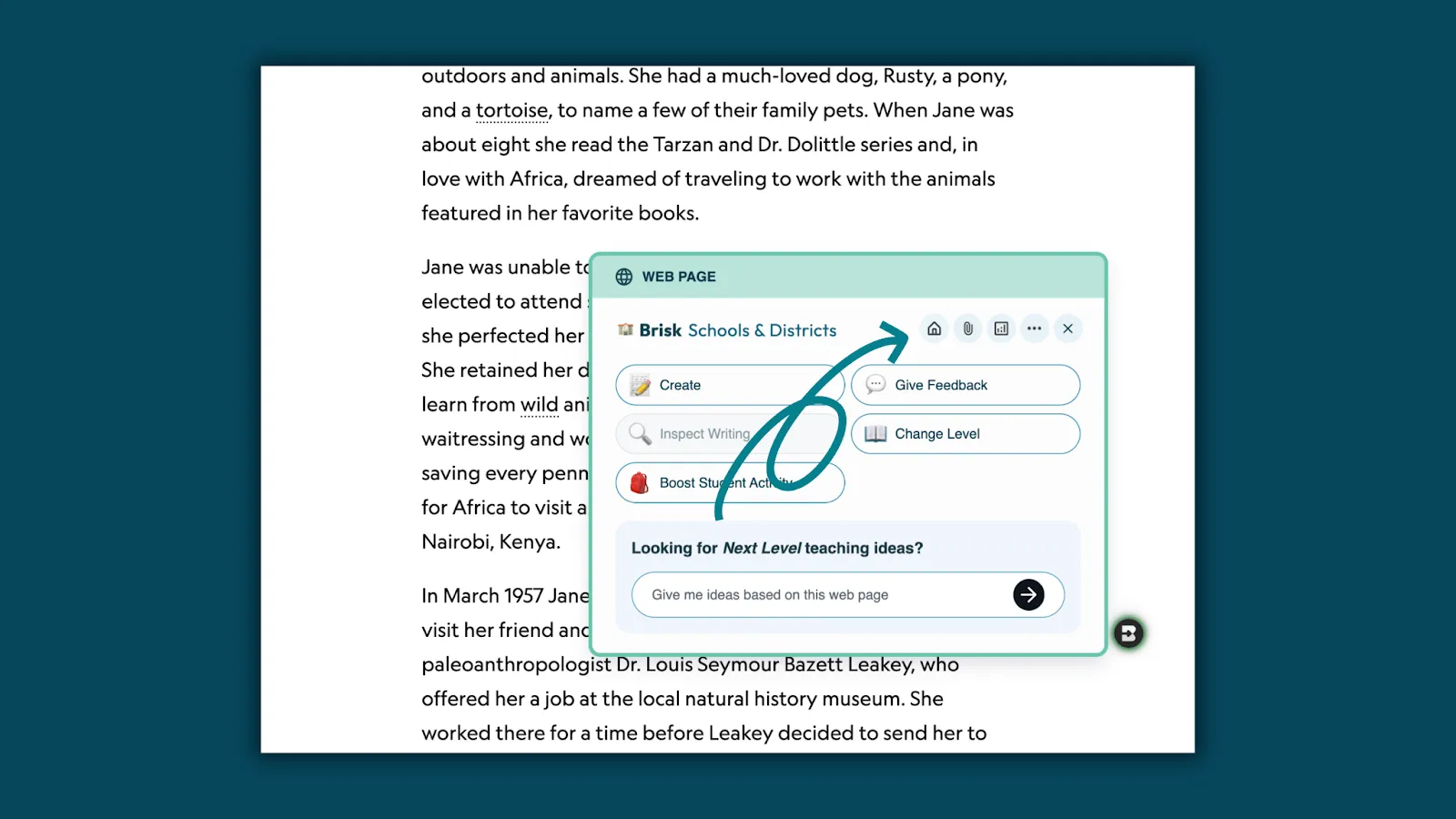
- From the Brisk Extension, click the Home icon.
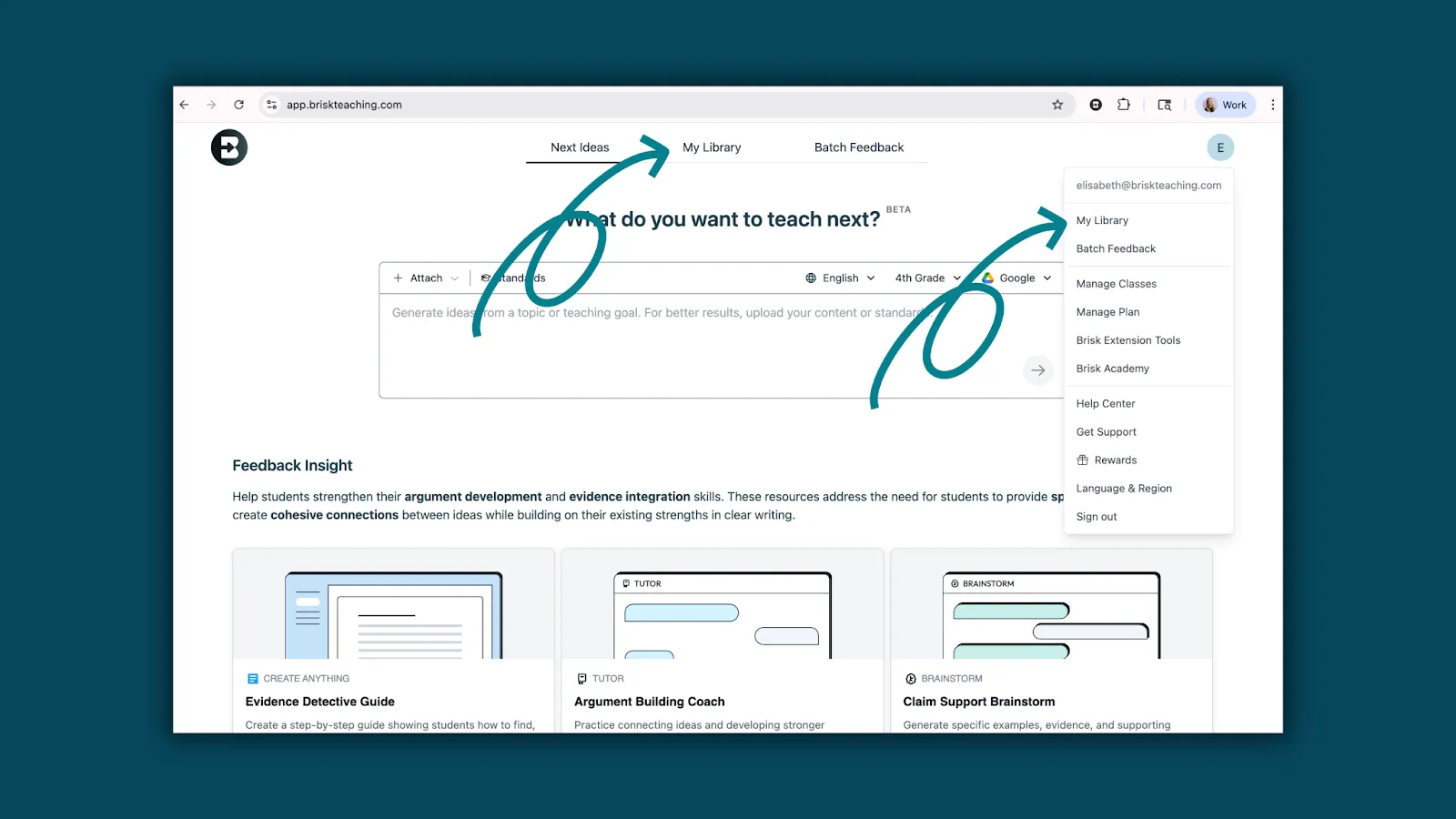
- Select My Library from the top navigation in Brisk Next or the dropdown menu.
- Open any Boost Activity and select Learning Insights.
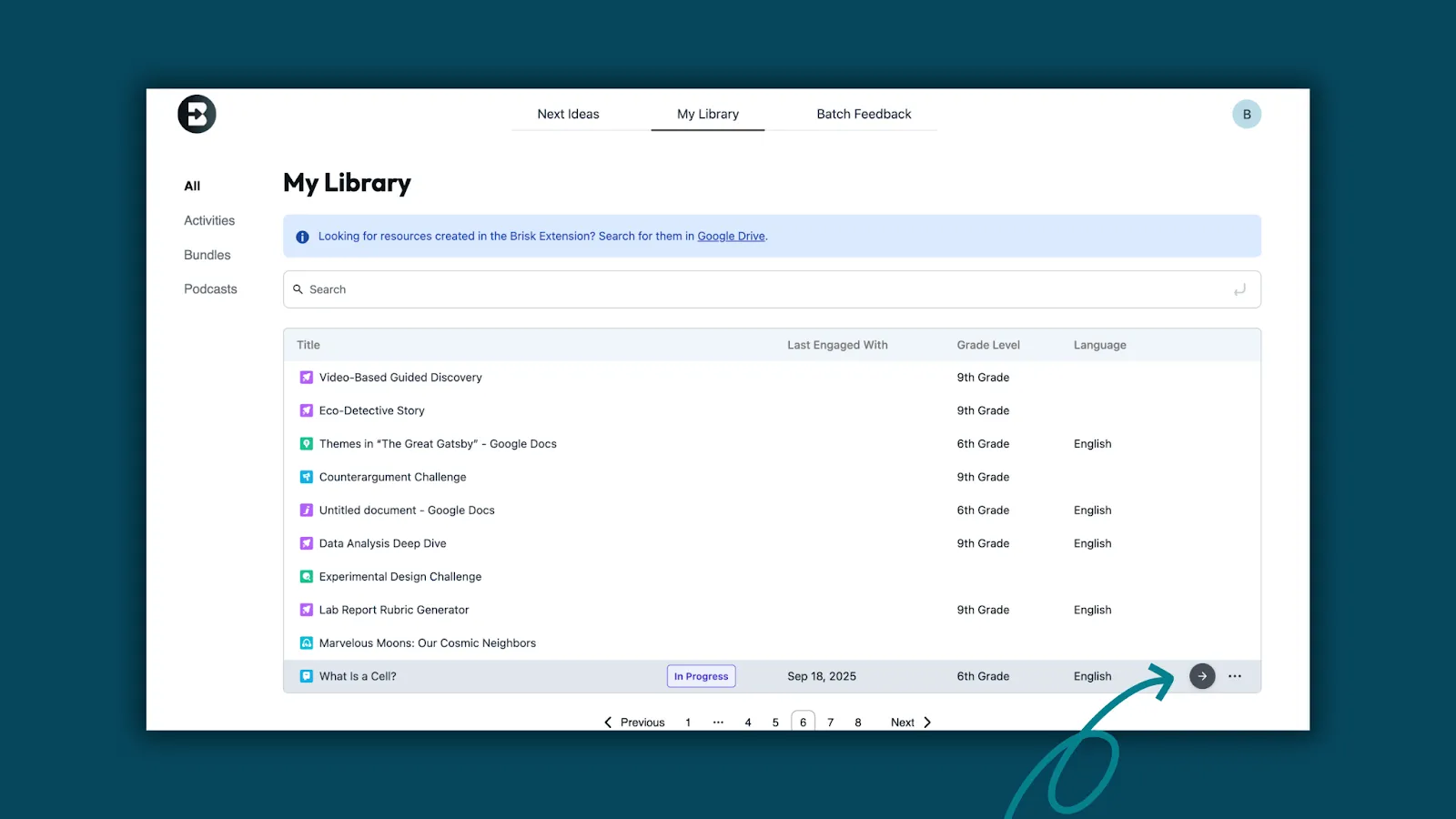
- Click Next Ideas to reveal targeted activities Brisk created based on students’ strengths and growth areas.
- Explore ready-to-use instructional materials to Prepare, Engage, and Assess student learning.
Learn how:
Next Level Ideas: Your Thought Partner at Your Fingertips
October 30, 2025
Looking for next-level teaching ideas? The Brisk extension just got a refresh! Now you can chat with Brisk to brainstorm and refine ideas from the content on any web page.
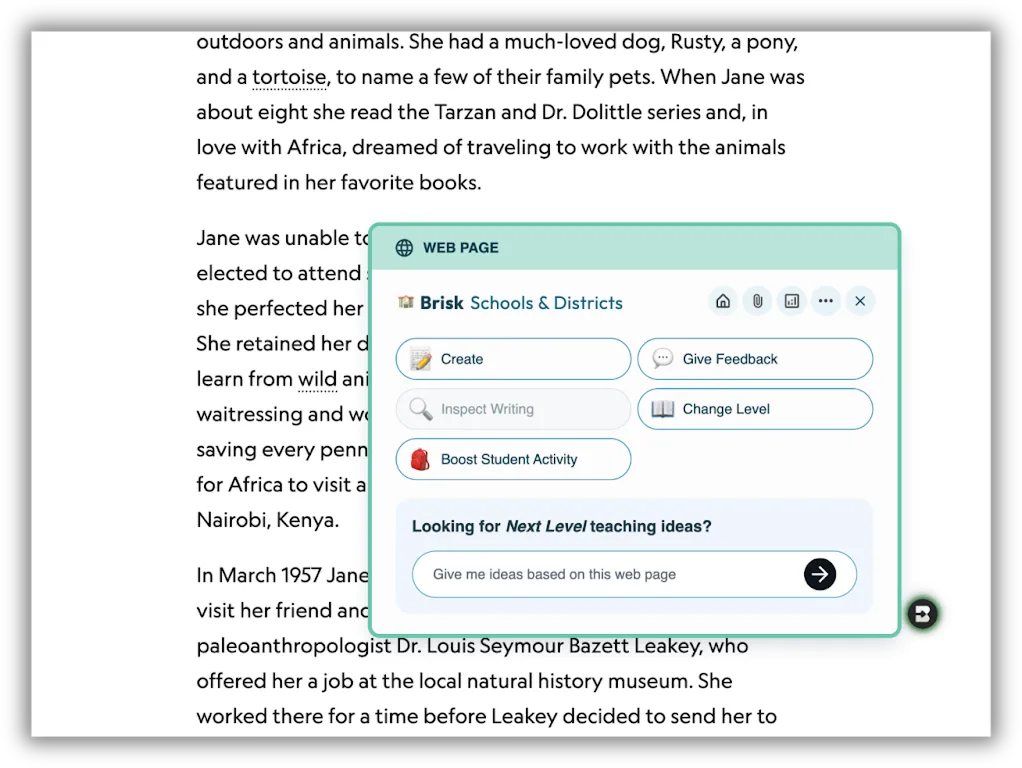
Learn how:
Boost Enhancements
October 30, 2025
More control. More personal. Same speed.
Creating Boost student activities just got even better. With enhanced personalization options and added teacher controls, you can now fine-tune each activity to fit your class — without slowing down your workflow. Boost still gives you the same one-click ease you love, now with even more ways to make learning personal.
What’s new:
- More granular controls during activity creation
- Expanded personalization options
- A smoother, more seamless creation experience
Learn more about the new Boost experience:
Bundles from the Extension
October 21, 2025
Create more at once — right from your Brisk Extension.
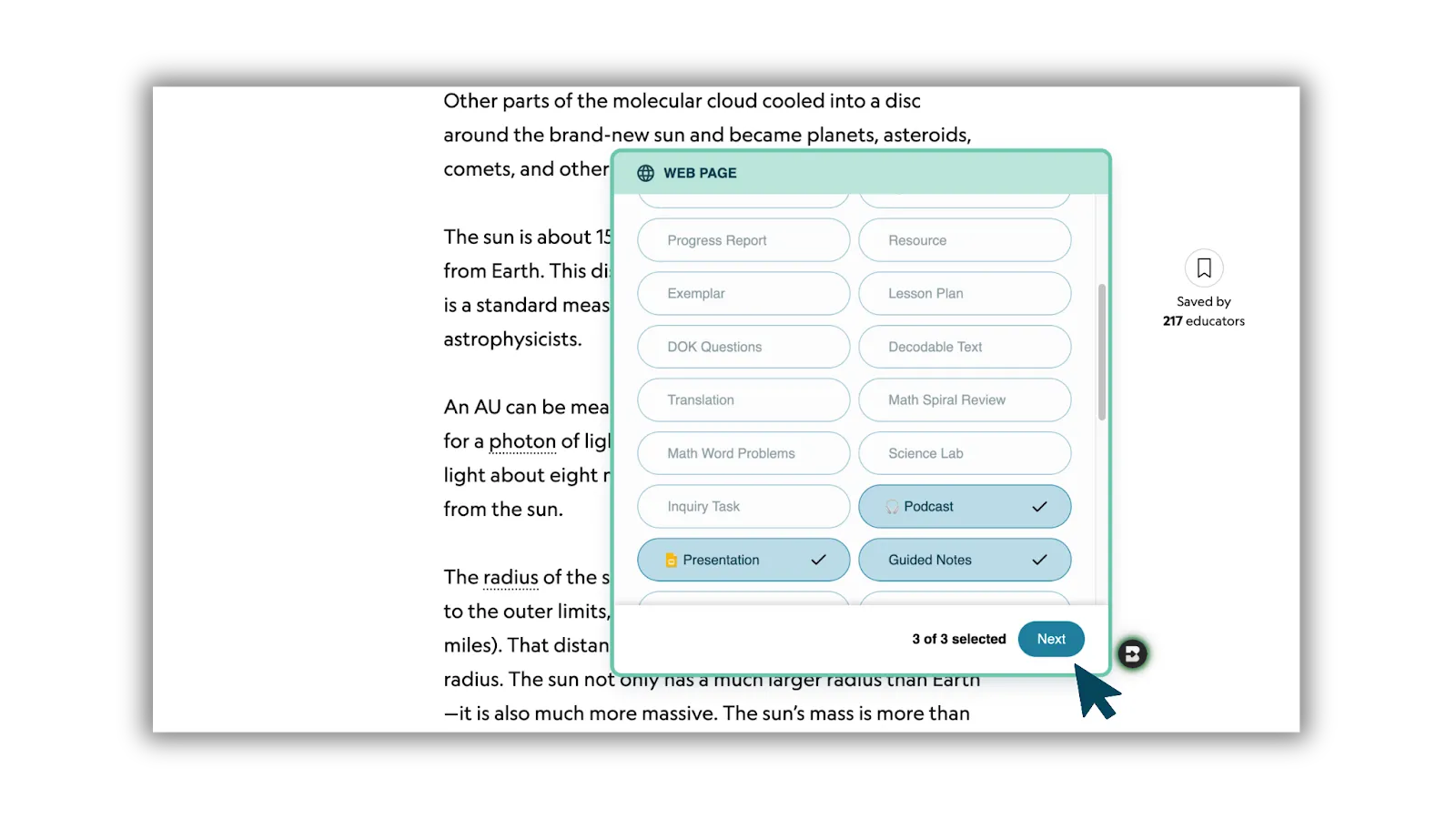
Turn one great resource into a full set of connected instructional materials — all from the Brisk Extension. Choose up to three materials to create (like guided notes, a presentation, or a podcast), and Brisk handles the heavy lift — giving you more time to focus on the learning that matters most.
Here’s how it works:
- Open Brisk over any resource of choice and Click Create.
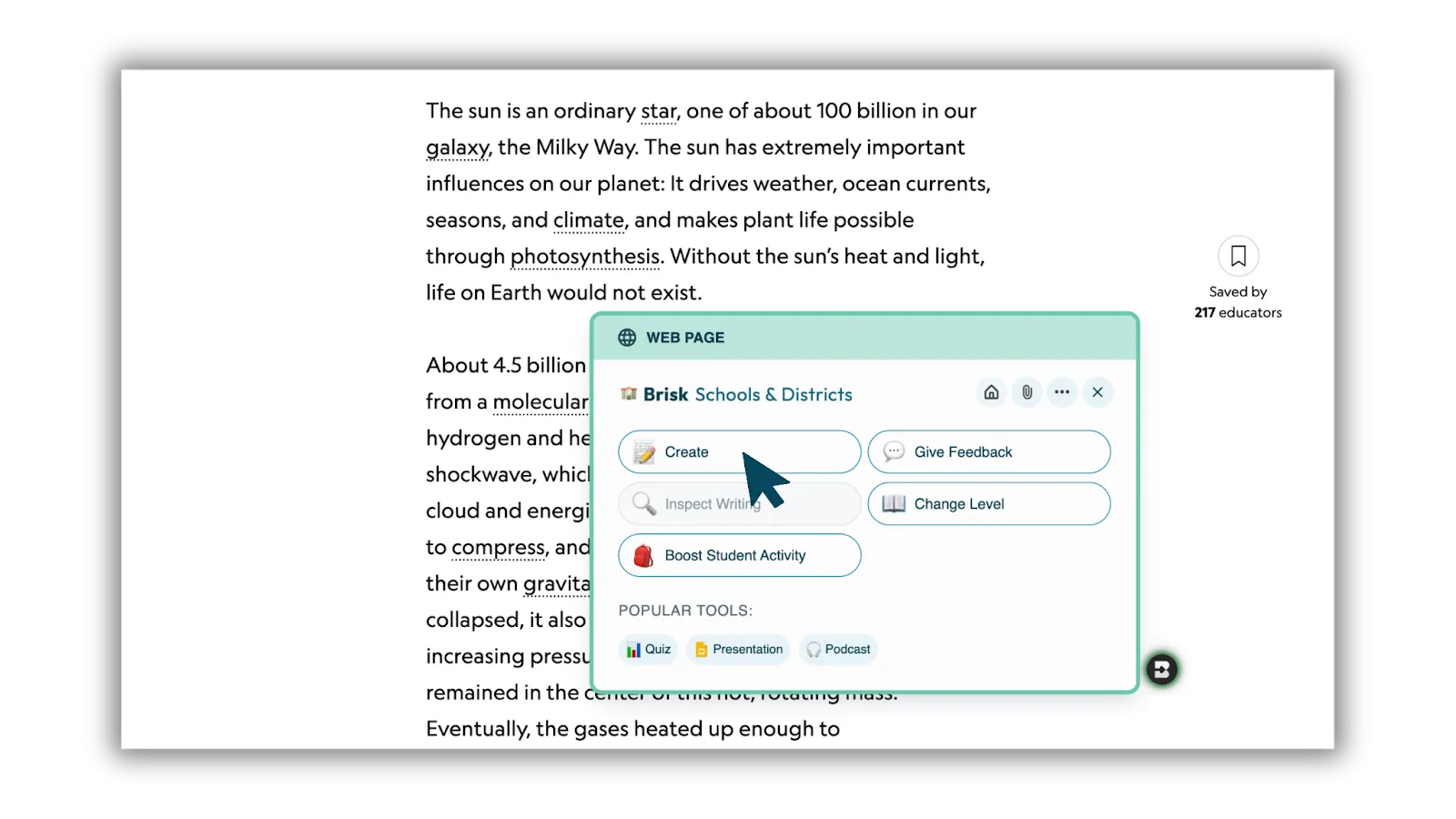
- Select up to three instructional materials to create at once and click, Next.
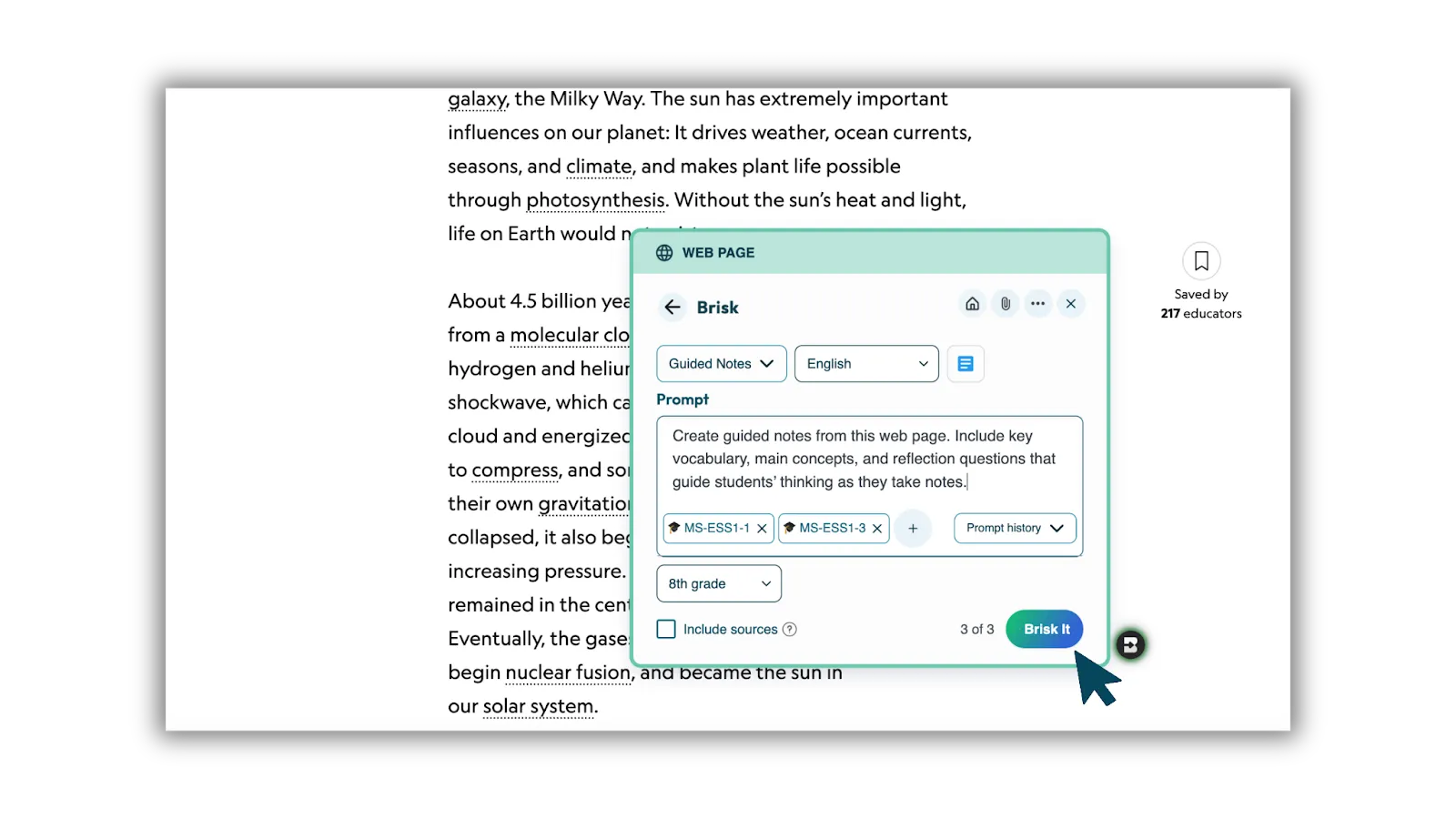
- Add your details. Include standards, grade level, and customize each prompt. Then, Brisk It. Brisk builds classroom-ready materials designed for flexibility and quality.
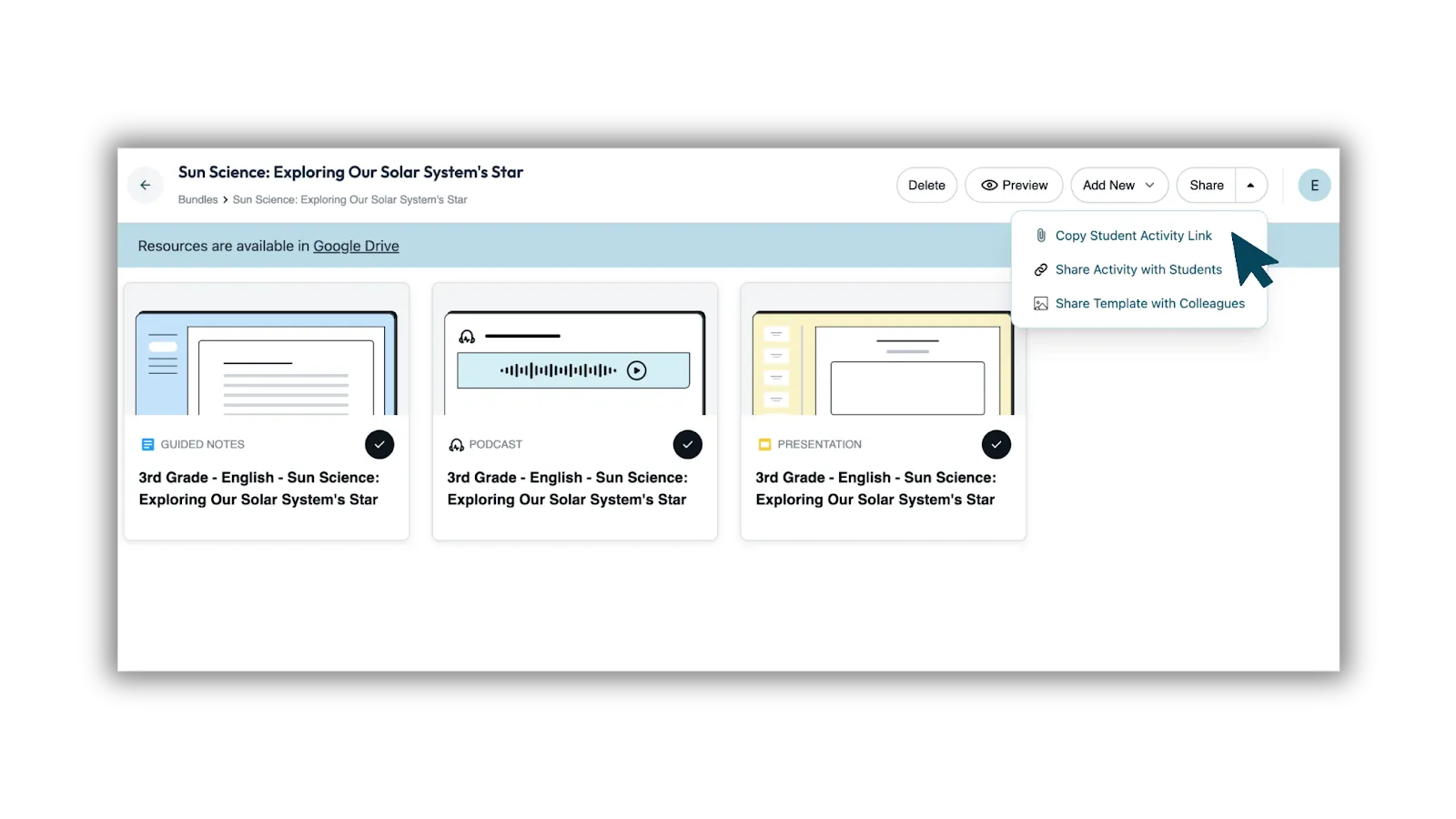
- Review and refine. Everything saves together as one organized bundle in Google Drive — ready to teach, share, or personalize for your students.
Differentiate with Change Level and Translate
Every classroom is different — and your materials should meet every student where they are.
With Brisk, you can take any single resource you’ve created and adapt it to fit your learners:
- Change Level to adjust reading level across up to three grades.
- Translate into up to three languages to support multilingual students.
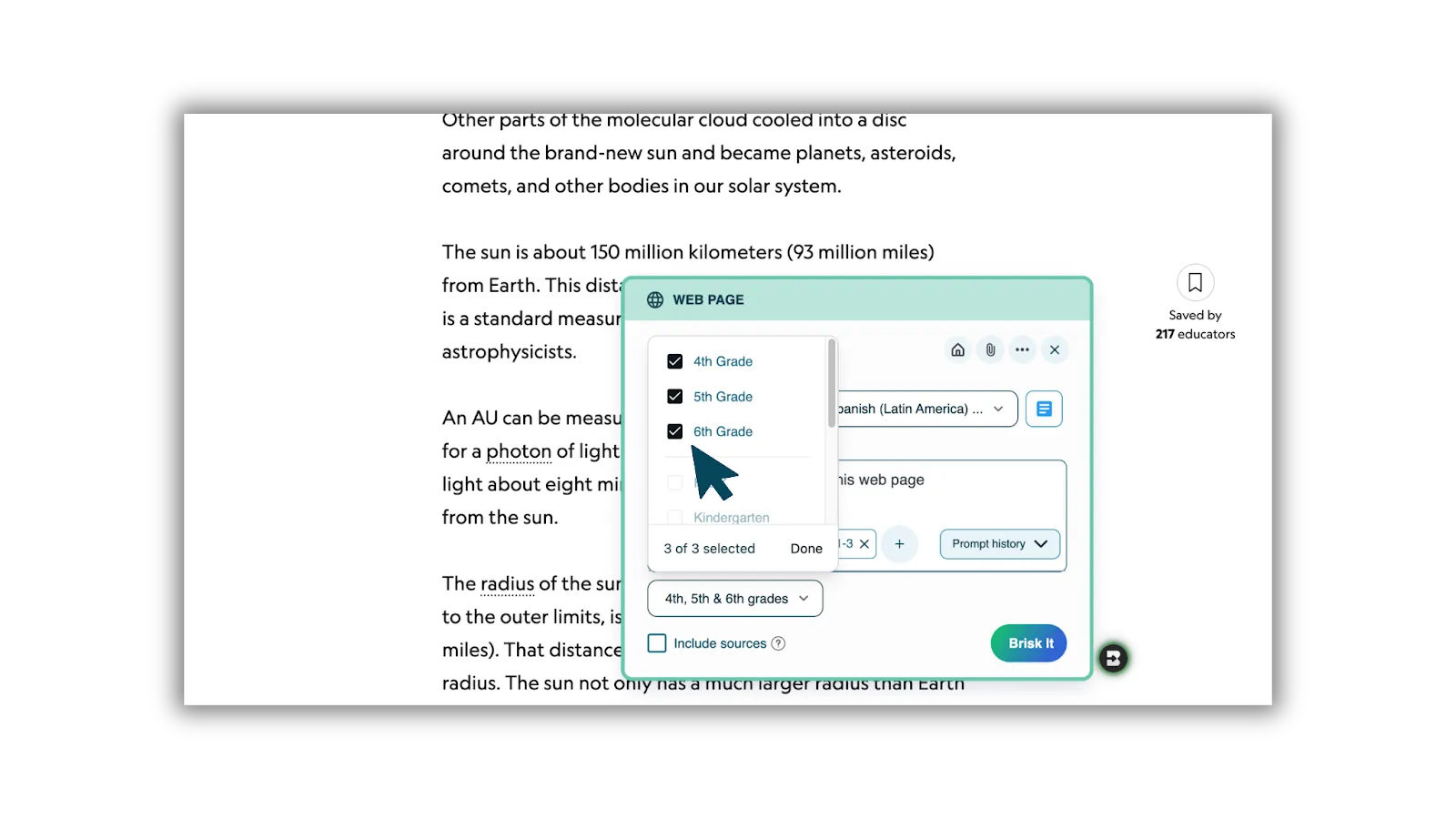
You can do this during creation when you build one resource from Create, or later using Change Level on any file of choice.
It’s a simple way to ensure every student can access the same high-quality learning — without starting over or juggling separate versions.
- Adjust reading level across up to three grades to meet students where they are.
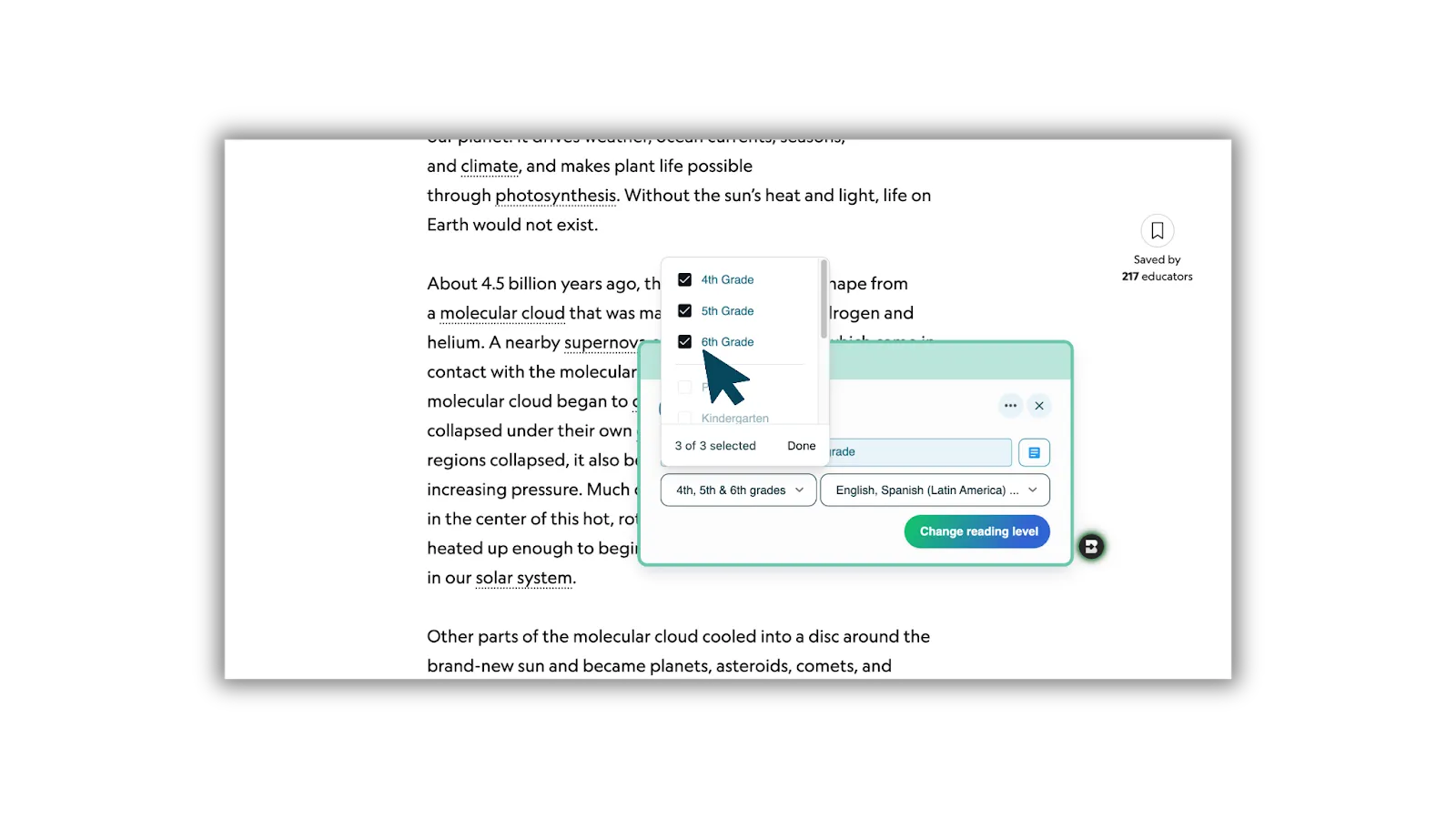
- Translate any resource into up to three languages to support multilingual learners.
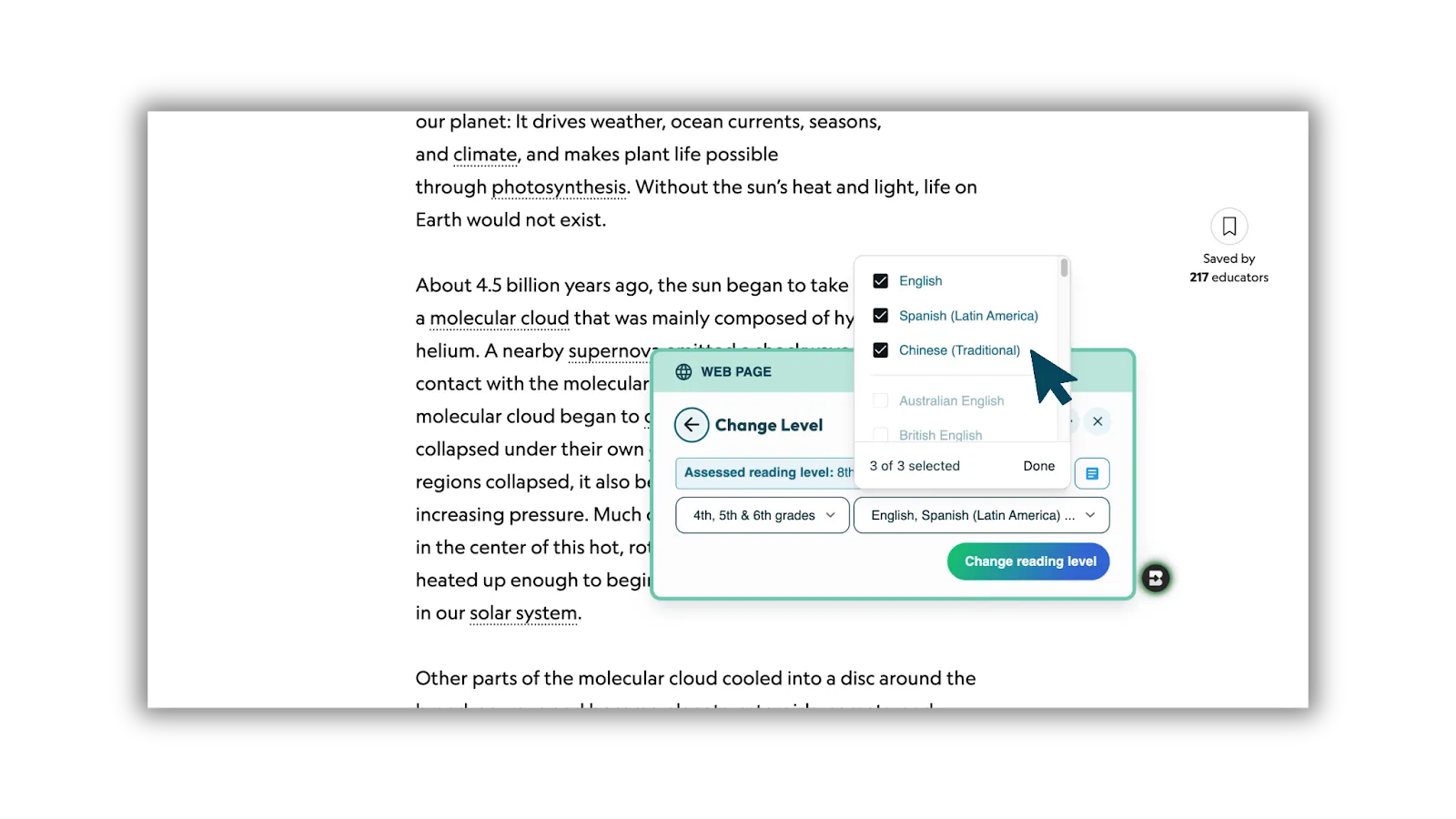
You can also select multiple grade levels and languages to translate to after selecting a resource from the Create menu.
With Bundles from the Extension, every teacher can create, adapt, and differentiate high-quality instructional materials — all in one place.
Check out our video tutorials of this feature:
Batch Feedback
October 1, 2025
Batch Feedback
High-quality feedback, without the wait
Upload a folder of student work — essays, PDFs, even snapshots of math — and return personalized, teacher-reviewed feedback to your whole class while learning is still fresh.
With Batch Feedback you can:
- Keep kids learning, not waiting. Students get guidance right away, while they’re still working through the material.
- Close the timing gap. Typical turnaround is 2–3 weeks. With Batch Feedback, feedback lands within a day — exactly when it matters most.
- Stay in control. Brisk drafts comments, you review and shape every word.
- Work across formats. Essays, PDFs, lab reports, math photos — even Word docs uploaded through Google Drive.
How to Access
- In the Brisk extension, click Feedback, then select Batch Feedback.
- Or, open Brisk Next from the Home icon and choose Batch Feedback at the top.
Availability & Limits
- Free users: Up to 4 assignments per day
- Free & Education Pro: Up to 30 submissions per assignment (create a new assignment for more)
- All accounts: 100 submissions maximum per assignment
Works With
Google Docs · Google Slides · Images (JPG, PNG, WEBP) · PDFs · Microsoft Word (.docx from Google Drive)
Batch Feedback takes what you already love about Brisk’s feedback tools and makes it work for your whole class at once.
Add on for Batch Feedback: Rubric Scoring (School & District Accounts Only)
School and District partners have the option to add Rubric Scoring to Batch Feedback. Along with written feedback, Brisk can also generate scores based on the rubric you upload — making it easier to standardize grading across classes and track progress at scale.
Rubric Scoring is fully customizable: educators can adjust scores based on their knowledge of the student and the work. This feature is available as an opt-in for School & District accounts.
Our Full Getting Started Guide is Here
September 5, 2025
With so many possibilities inside Brisk, we wanted to build a simple, go-to guide to help educators dive in right away. We created the Getting Started with Brisk Guide to help educators get the most out of Brisk. Our new guide walks you through:
- Creating your Brisk account with your Google or Microsoft login.
- Installing the Brisk Extension so Brisk is ready to go inside your everyday tools.
- Trying hands-on “Try It” activities that let you experience Brisk’s core features – from adjusting text levels to generating lessons and feedback.
- Using Brisk Next as your web-based hub for lesson planning, resource bundling, and assignments.
- Diving into educator-specific activities designed for your context, whether you teach elementary, middle school, high school, or university students.
- Trying Brisk Boost for safe, student-facing AI activities with you guiding the process.