What's New

Bookmark this page to see all of Brisk's updates in one place. Every week, new features go live and you won't want to miss them!
What's New In Brisk deck cover - see our latest launches

What's New with Brisk

Never miss a Brisk launch. Whether you're leading PD, sharing Brisk with a teammate, or presenting at a conference, this deck is designed to make it easy to show What's New.

Open Deck

¡Google Slides!

August 23, 2024

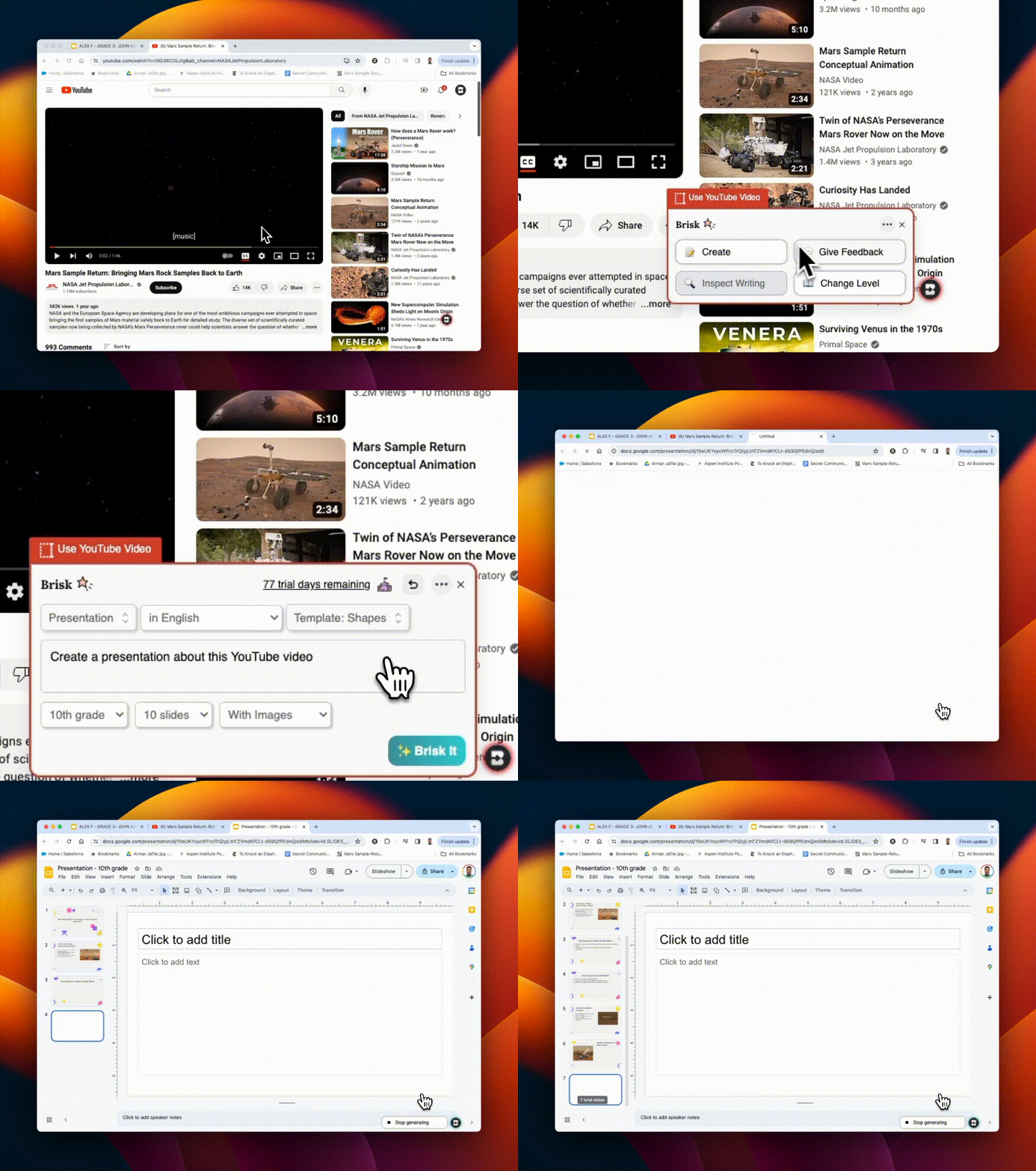
¡Prepara tu presentación en segundos! Usa Brisk para:

1. Crea presentaciones de diapositivas desde cero
2. Da tu opinión sobre las presentaciones de diapositivas creadas por los estudiantes

¿Y la mejor parte? Puedes hacerlo todo directamente desde tu espacio de trabajo de Google. Pruébalo y ahorra valiosas horas.
Integración de Canvas SpeedGrader

August 22, 2024

Brisk se integra perfectamente con Canvas SpeedGrader, lo que mejora las tareas de Google con opciones de comentarios específicos. Ya sea que utilices los estilos de valoración «Glow & Grow», «Next Steps» o «Criterios de rúbrica» específicos, Brisk admite todos los tipos de envío. Resalta las secciones del trabajo de un estudiante para dirigir los comentarios a esas áreas. Si utilizas una rúbrica, súbela a Brisk para agilizar la evaluación. ¡Consulta todos los detalles aquí!
¡Brisk tiene un nuevo look!

August 21, 2024

Nuestros iconos y logotipos actualizados reflejan mejor a Brisk como la herramienta profesional y perfectamente integrada que conoces y te encanta. Para respaldar esta nueva imagen, ¡también tenemos un ✨ Press Kit ✨! Mientras compartes o haces una presentación en Brisk, puedes consultar nuestro logotipos e iconos actualizados de esta carpeta.
¡Integración con Youtube!

August 20, 2024

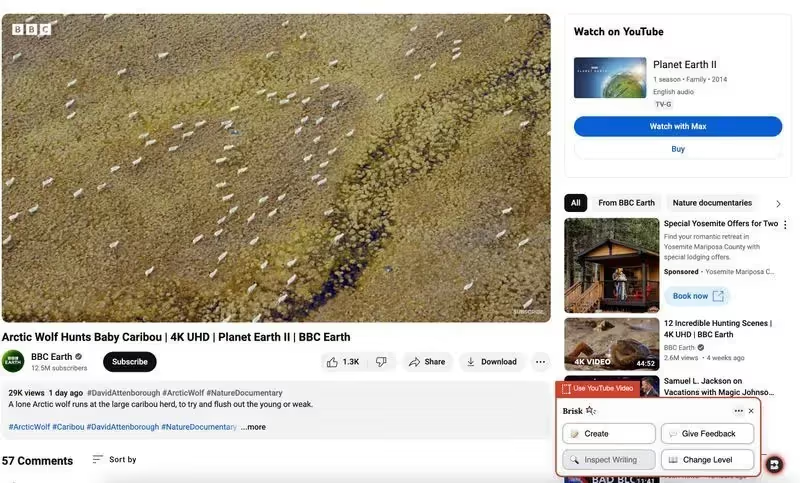
¡Usa CUALQUIER herramienta de Brisk en los videos de Youtube! Puede crear planes de lecciones, cuestionarios, comentarios, recursos, rúbricas... directamente desde un video de Youtube. Si estás evaluando un proyecto de un estudiante que se ha subido a Youtube, ¡incluso puedes dar tu opinión directamente desde allí!
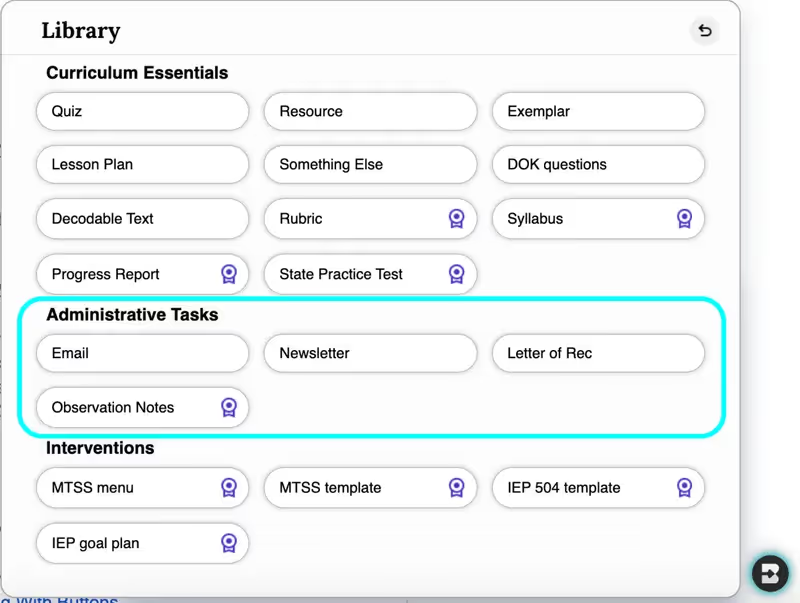
Cuatro tareas administrativas

August 19, 2024

¿Necesitas crear un correo electrónico, un boletín informativo, una carta de recomendación o notas de observación... en segundos? Se ha agregado un nuevo conjunto de herramientas administrativas a la biblioteca Create... y pronto habrá más. Tu plato acaba de ser mucho más ligero.
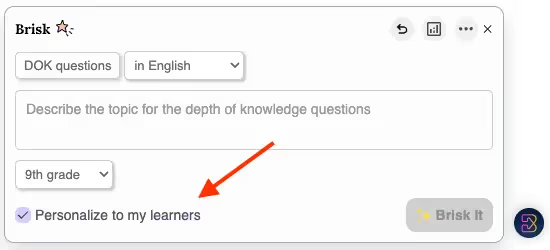
Personalízalo para tus alumnos

August 16, 2024

Cuando hayas enviado comentarios a Brisk sobre 5 o más tareas, aparecerán funciones personalizadas en todas las herramientas de Crear biblioteca. Al seleccionar la casilla Personalizar para mis alumnos, Brisk diferenciará automáticamente el plan de estudios para abordar mejor los desafíos y necesidades específicos de sus alumnos.
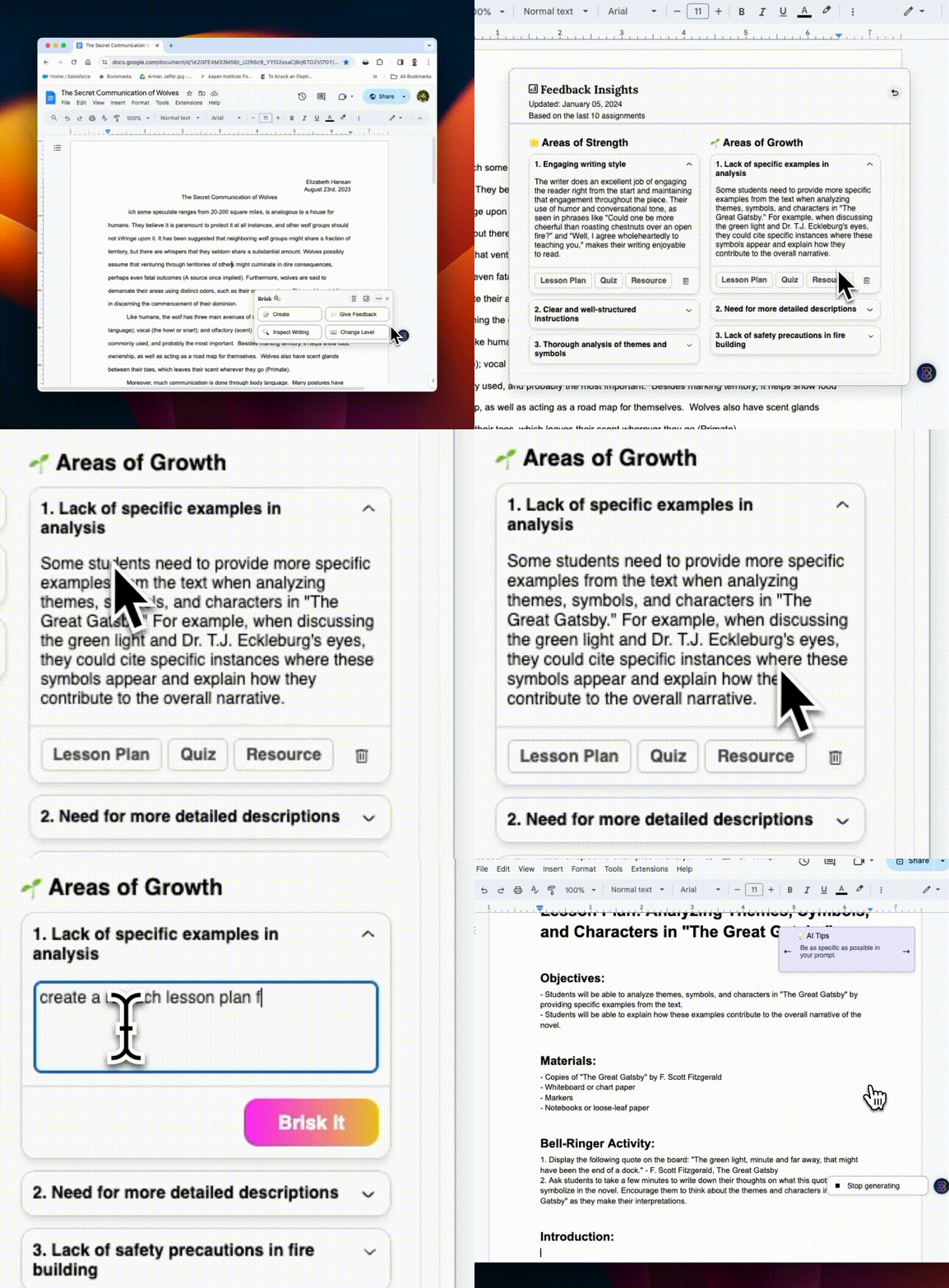
Perspectivas de sus comentarios

August 15, 2024

¿Está abrumado por el seguimiento de información sobre numerosas tareas de los estudiantes? Deja comentarios a Brisk sobre solo cinco tareas para desbloquear Feedback Insights. Cada vez que das tu opinión, esta herramienta se vuelve más potente, ya que muestra información dinámica y en tiempo real que captura lo que tus alumnos necesitan.

¡Y eso no es todo! Una vez que se hayan identificado las áreas de mejora, haga clic en los botones del plan de lección, el cuestionario o los recursos para crear rápidamente contenido dirigido a esas áreas específicas. Por ejemplo, si tus alumnos tienen dificultades para citar sus fuentes, puedes elaborar un plan de clase a Brisk para mejorar esa habilidad, ¡justo ahí mismo!
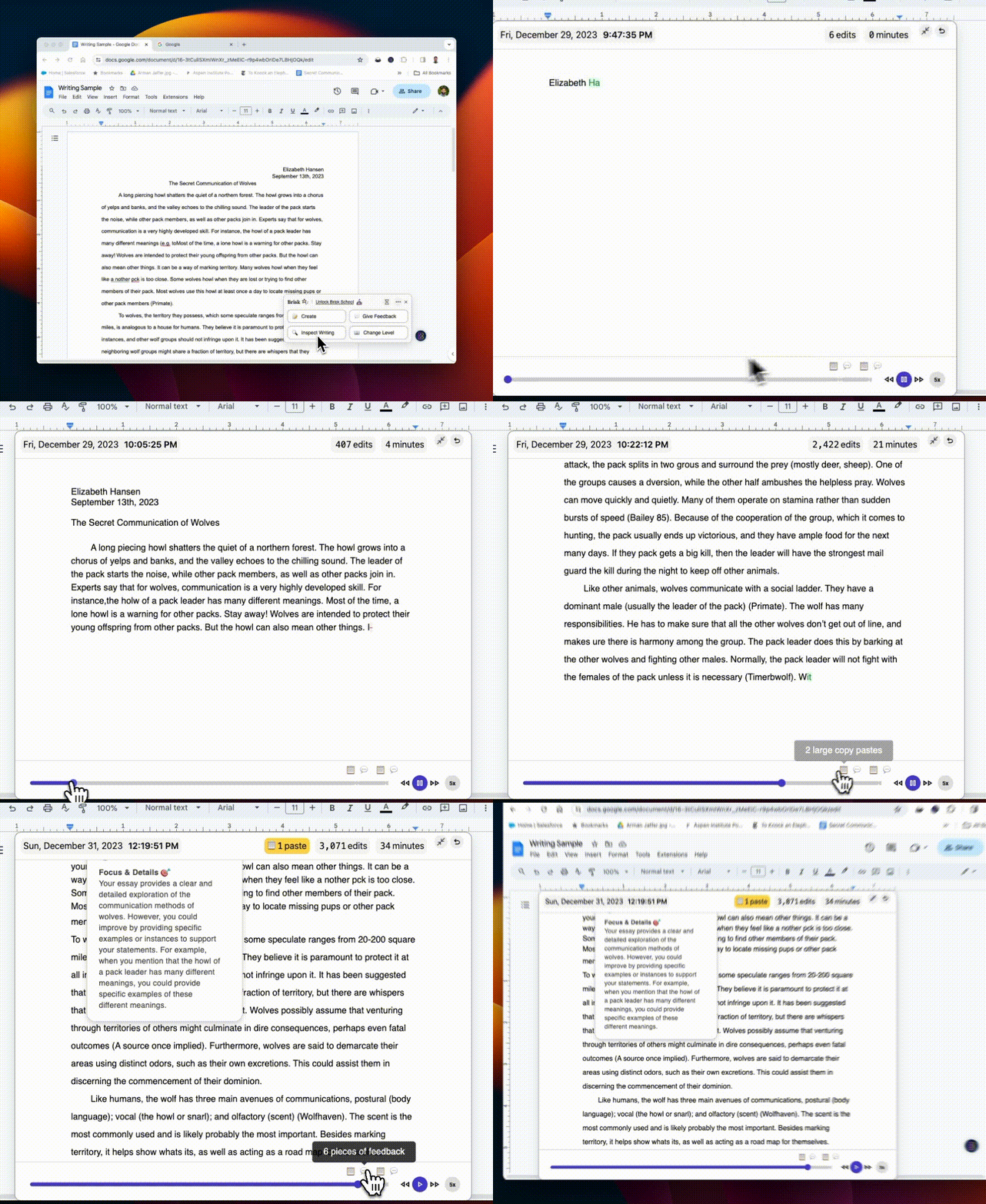
Presentamos, Inspect Writing

August 14, 2024

¿Tiene problemas con detectores de IA poco fiables? Inspect Writing reinventa el análisis de la escritura de los estudiantes. Reproduzca un detallado paso a paso del historial de revisiones de sus alumnos, sus acciones de copiar/pegar y mucho más. Pruébalo y comprueba la diferencia!
Más opciones, más recursos

August 13, 2024

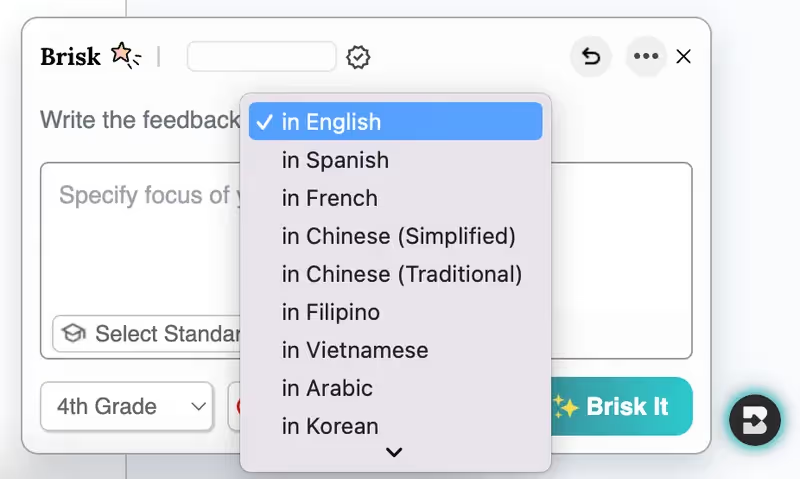
¿Enseñar a estudiantes de inglés como segundo idioma? Ahora puedes dar tu opinión en más de 10 idiomas.

¿Cansado de copiar y pegar? ¡Hemos ampliado las opciones para crear y enviar comentarios! Haz clic en el icono de Brisk de cualquier sitio web o documento de Google para acceder al instante a las opciones de comentarios y a la biblioteca de creación para crear cuestionarios, lecciones, recursos y mucho más.

¿Incorporar diversos recursos? Cambie el nivel de lectura en miles de artículos y páginas de sitios adicionales.
Adiciones a la biblioteca Create

August 12, 2024

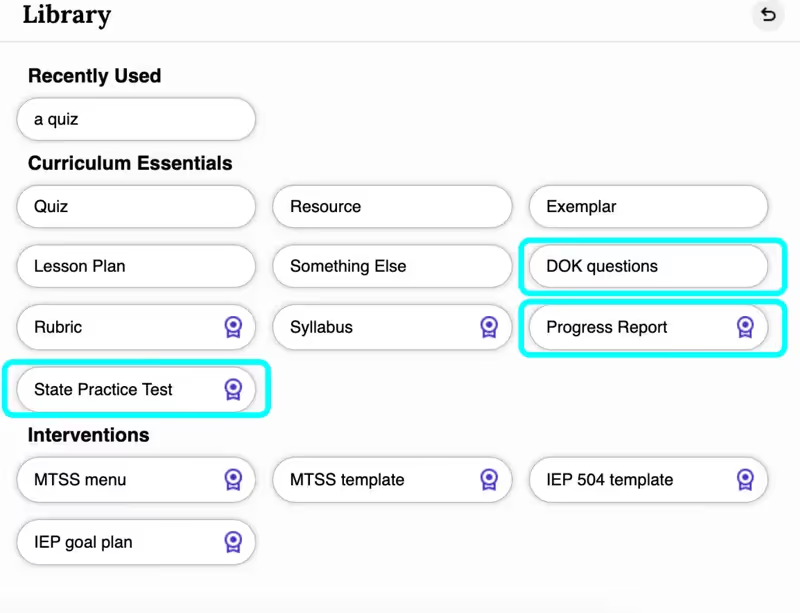
PREGUNTAS SOBRE DOK (PROFUNDIDAD DE CONOCIMIENTO) se adaptan a diversos niveles cognitivos, garantizando que los estudiantes estén comprometidos y con los desafíos adecuados.

Los INFORMES DE PROGRESO le permiten generar rápidamente informes personalizados que respondan a sus entradas, con la flexibilidad de personalizarlos según sus necesidades. (Los informes de progreso son parte del plan de Brisk School). ¡Di adiós a las largas horas de redacción!

Los EXÁMENES DE PRÁCTICA ESTATALES brindan a los estudiantes la práctica que necesitan para tener éxito. Ahora, puede usar Brisk para generar exámenes de práctica para el STAAR, el SBAC y otras evaluaciones adicionales.
Inspect Writing & Targeted Feedback in Microsoft Word

June 29, 2026

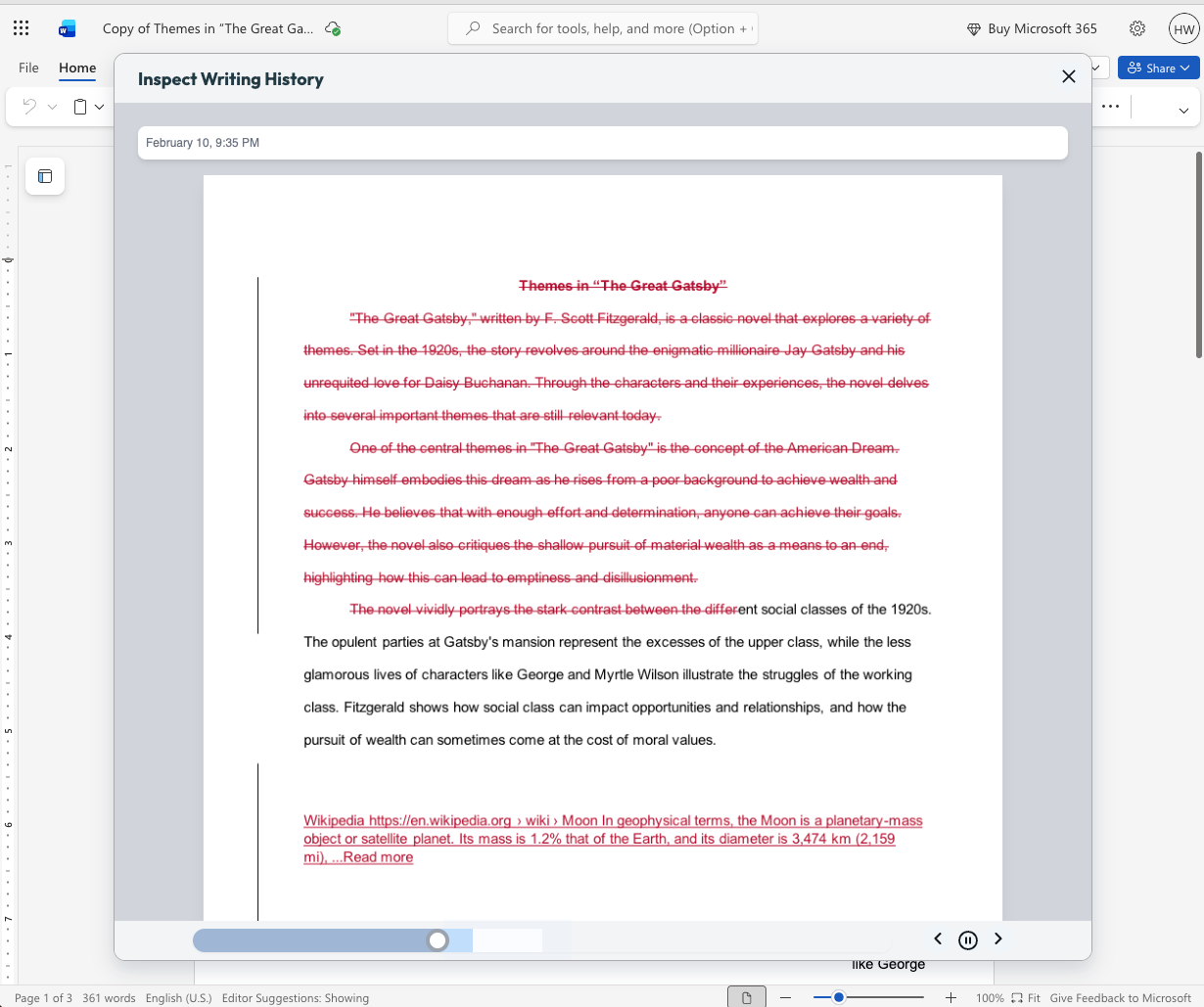
Microsoft teachers now have access to two tools that enable them to deliver more (and more personalized) feedback to students in less time: Inspect Writing and Targeted Feedback.

Inspect Writing

(Note: This new feature will become available for back to school 2026.)

Watch a video-style replay of a student’s writing process from first draft through final version. See what they added and deleted at each step and how they responded to feedback. Use this to gain insight into how your students are thinking, spot learning gaps, and guide growth.

Targeted Feedback

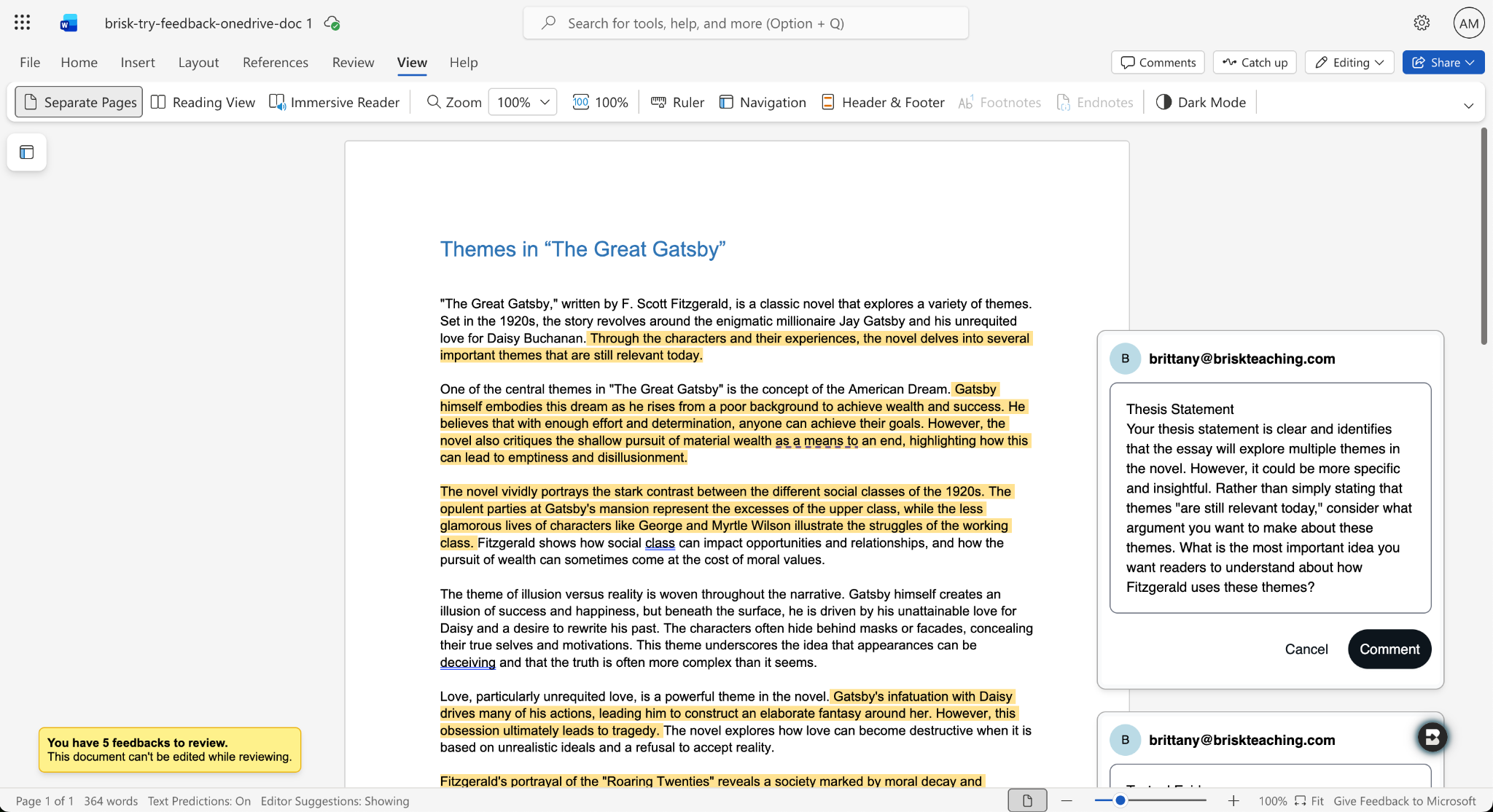
Provide students with personalized feedback that appears directly in the Word docs they’re working in. Brisk drafts inline comments that are aligned with your standards and whatever rubric you want, but you remain in full control of what students see.

How it works:

  1. Open a student writing assignment in Word.
  2. Select the Targeted Feedback tool in the Brisk extension.
  3. Set the language and grade level for the feedback and specify whether you want the feedback to align with an attached rubric or your state standards.
  4. Review the feedback Brisk generates, make adjustments, and click Comment to post a piece of feedback to the student’s work.

Share Boost Activities with Other Educators

June 29, 2026

You can now share Boost Activities with the other educators in your classroom (SPED staff, MTSS coordinators, paraprofessionals, subs). These co-teachers will have read-only access to student progress and activity data so they’re able to observe and support student learning.

How it works:

  1. Open the Share menu: In My Library, go to Activities and click the Share button or the three-dot menu on any activity, then select Share with Co-Teachers. (You can revoke access at any time by removing a co-teacher from the activity’s Share menu.)
  2. Enter a colleague’s email: Type their email and send the invite. They’ll receive a link to accept. (To successfully accept an invite, their email must be rostered in your district.)
  3. Co-teacher accepts: Once they accept the invite, the activity appears in their My Library under Shared with Me.
  4. Co-teacher views the activity: They see the activity monitor — including student progress, messages, safety flags, and Mock Student — in a read-only view. No edit controls are shown.

You can also share your favorite Boost Activities with your fellow teachers, who can then make copies of the activities to use with their own students.

Shape Every Brisk Output with District-Level Priorities

June 29, 2026

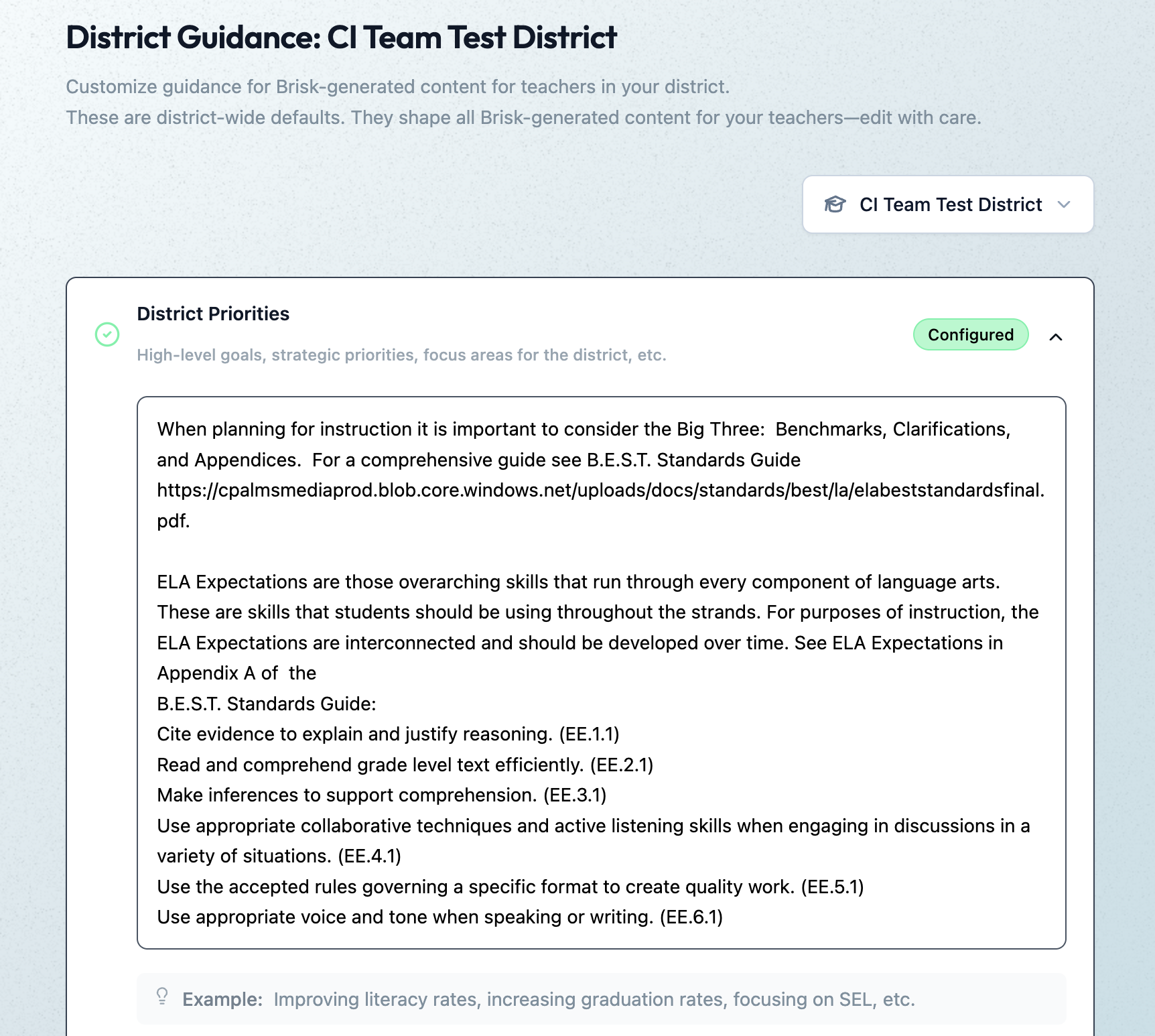
District Guidance gives districts with the Intelligence plan a way to consistently translate instructional leadership investments (professional development, pedagogical frameworks, standards alignment) into actual classroom practice.

In the District Guidance tab of their Admin Portal, leaders provide instructions that automatically shape everything teachers generate with the Brisk extension, Brisk Boost, and Brisk Next. These instructions don’t change the way teachers use or experience Brisk — they simply ensure that every Brisk output reflects a district’s unique priorities.

Leaders can use District Guidance on its own or in tandem with Curriculum Intelligence. (Reminder: Curriculum Intelligence ensures that every Brisk output reflects a district’s adopted curriculum, scope, and pacing.) While Curriculum Intelligence informs what is being taught, District Guidance informs how it’s being taught.

Leaders have the option of providing instructions in four categories:

  • District Priorities: High-level goals, strategic priorities, focus areas (e.g., “The district is focusing on literacy across all content areas this year”)
  • Values & Frameworks: Cultural values, behavioral frameworks, ethical guidelines, community norms (e.g., “Emphasize the district’s four Cs: communication, collaboration, creativity, critical thinking”)
  • Pedagogical Approach: Teaching methods, instructional strategies, learning philosophies (e.g., “Use Workshop Model structure: mini-lesson, practice, debrief”)
  • Standards Emphasis: Academic standards, curriculum alignment requirements, assessment criteria (e.g., “Emphasize these power standards for 6th grade math”)

(Note: This new feature will become available in July 2026.)

Create District-Level Libraries of Curriculum-Aligned Resources

June 29, 2026

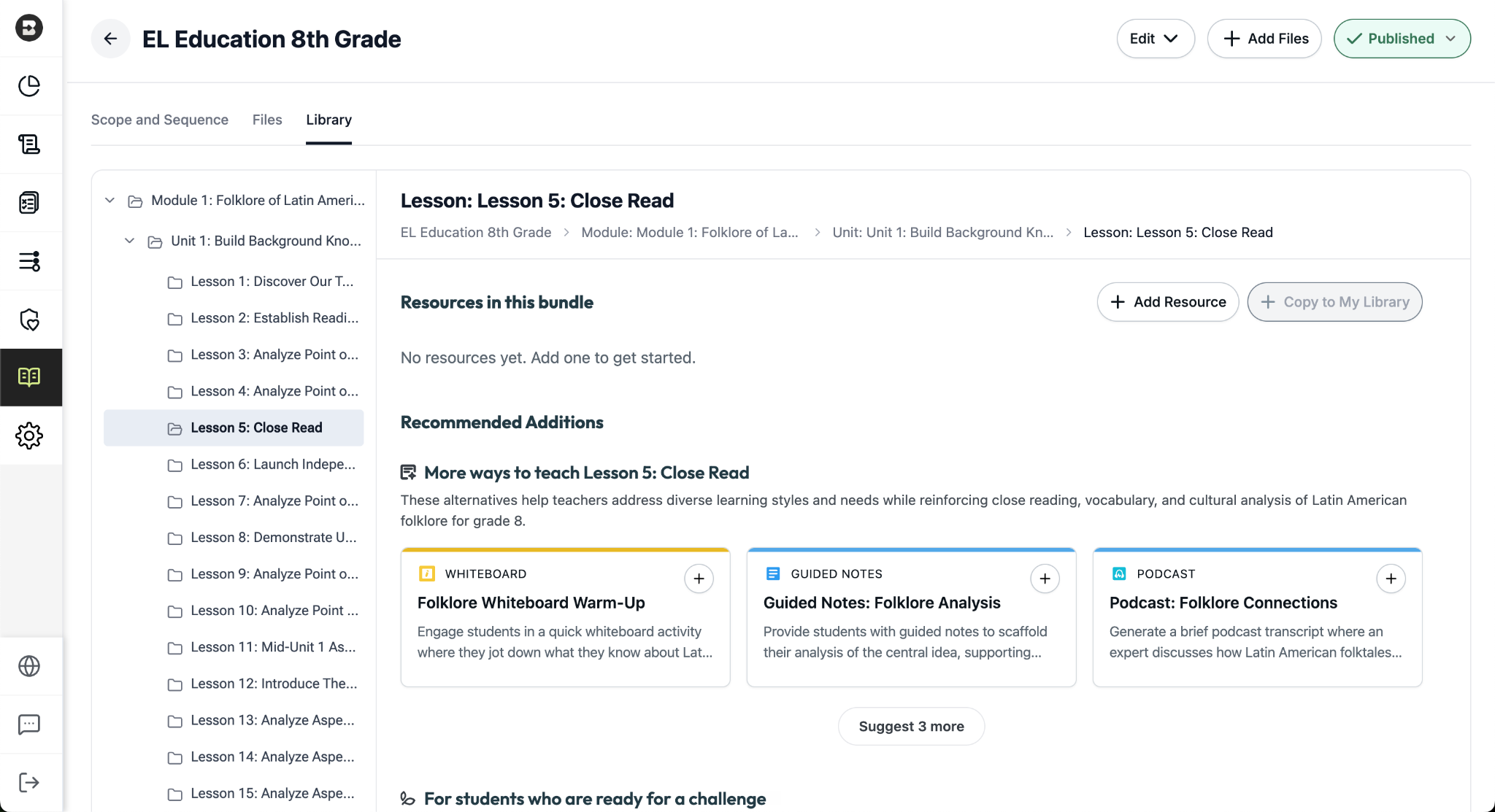
The District Library enables districts with the Intelligence plan to promote curriculum fidelity and help teachers spend less time looking for the right resource and more time delivering high-quality instruction.

Once a district leader has set their curriculum and instructional priorities using Curriculum Intelligence and District Guidance, they’re able to curate resource bundles for any course in their district. It’s like putting a perfectly organized library shelf at every teacher’s fingertips.

How District Libraries are organized:

  • One library per course: Leaders can create a resource library for each course that’s published in the Curriculum Courses tab of their Admin Portal.
  • One bundle per lesson: Leaders can put together a bundle for each lesson in a course (reminder: within a scope and sequence, lessons ladder up to units, which ladder up to modules, the largest components of a course).
  • One source of truth, easy access for teachers: Only leaders can edit or add to a District Library, but with just one click, teachers can create independent copies of a bundle in their personal resource libraries that they can customize and share with their students.

Building a resource bundle

There are several ways for leaders to add resources to a bundle. They can:

  • Choose from a pre-populated list of smart recommendations that are informed by the district’s curriculum and instructional priorities. These recommendations are organized into practical categories like “More ways to teach…” (for supporting diverse learning styles) and “For students who are ready for a challenge…”
  • Generate customized resources using the dozens of tools that are part of the Brisk extension.
  • Upload pre-existing, non-Brisk resources.

(Note: This new feature will become available in July 2026.)

Brisk x AI Platforms

May 18, 2026

You're already in ChatGPT, Gemini, Copilot, or Claude, typing a quick prompt to get something useful before tomorrow. Brisk is already there too, and one click turns that prompt into something you can hand out in class.

Prompt Booster

Start typing in any of these tools and a Brisk It button appears in the prompt field. Click it and your prompt becomes a detailed, instructionally rich version with grade-level framing, standards alignment, and scaffolding strategies built in — so what the AI gives back is classroom-ready from the start.

From there, choose what to do next:

  • Add to Prompt: drop the enhanced prompt back into your AI tool and run with it.
  • Create with Brisk: open Brisk Next with your enhanced prompt already loaded. Brisk surfaces aligned lesson plans, assessments, presentations, and more — all from that one prompt.

Take Action on Any AI Response

Already have a response you like? When the AI finishes generating, a Brisk button appears below it. Click to send it where you need it:

  • Send to Brisk on the web: push the response directly into Brisk on the web, with or without an additional prompt.
  • Send to extension: select Presentation, Quiz, Podcast, Tutor, or Create with Brisk to prefill the Brisk Extension. Customize, then create.

Wherever you're already prompting, Brisk works where you work. Learn more.