Bookmark this page to see all of Brisk's updates in one place. Every week, new features go live and you won't want to miss them!
What's New with Brisk
Never miss a Brisk launch. Whether you're leading PD, sharing Brisk with a teammate, or presenting at a conference, this deck is designed to make it easy to show What's New.
2023년부터 가장 많이 요청된 기능으로 2024년을 시작했습니다.이제 퀴즈 생성 속도를 높이고 Google 문서 외에도 Google 설문지로도 퀴즈를 만들 수 있습니다.
피드백 개선
August 8, 2024
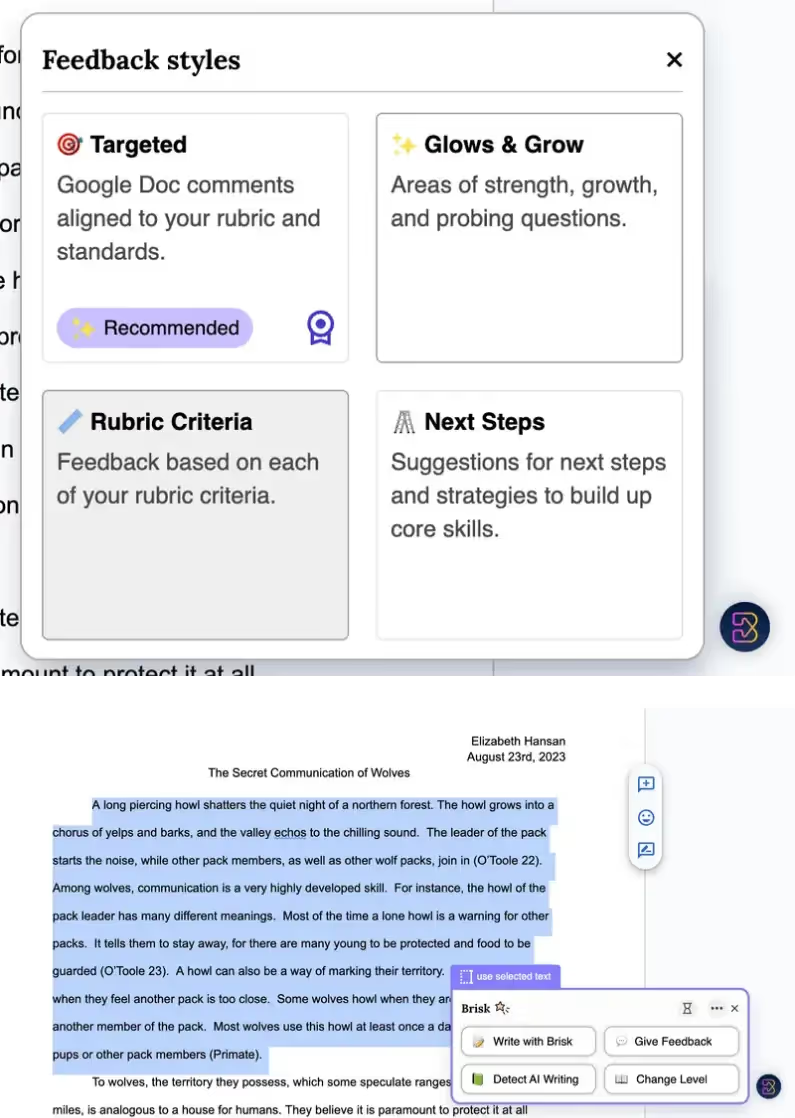
두 가지 새로운 피드백 스타일 Brisk에서 '피드백 제공'을 클릭하면 두 가지 새로운 옵션, 즉 루브릭 기준과 다음 단계 (즐겨찾기인 Target 및 Glows & Growes) 옵션이 표시됩니다.
텍스트의 특정 부분에 대한 피드백 제공 방법은 다음과 같습니다. 문서, 기사 등에서 텍스트 세그먼트를 선택한 다음 Brisk를 사용하여 피드백을 제공하고, 리소스를 작성 및 생성하고, AI 쓰기를 감지하고, 해당 세그먼트의 읽기 수준을 변경하세요.
테이블에 피드백 삽입 피드백을 정리할 보다 체계적인 방법을 찾고 계신가요?이제 '삽입'을 클릭하면 Brisk의 피드백이 테이블 레이아웃에 추가됩니다.이 새로운 기능을 통해 학생들에게 제공하는 피드백의 형식을 루브릭의 구조화된 표에 맞게 조정하여 더 명확하고 일관성 있게 만들 수 있습니다.
Create Polished, Print-Ready Activities That Cover Any Topic
August 25, 2026
If you feel like your students need a break from screens, we’ve got some great news: Brisk now includes a Printables Generator!
Brisk Printables help you give students the cognitive and social benefits of off-screen activities without having to spend hours formatting (and re-formatting and re-re-formatting) docs and design files. With just a few clicks, you can transform whatever online resources you’ve been using into print-ready pen-and-paper activities that keep students engaged.
You can choose from seven types of printables in Brisk:
Frayer Model: Unpack a vocabulary term or core concept in four quadrants
KWL Chart: Map what students know, want to know, and learned
Venn Diagram: Compare and contrast concepts
Q&A: Check for understanding (pro tip: these are perfect for exit tickets)
In addition to using these templates to cover whatever learning content you want, you can adjust the look and feel of each of them by selecting one of five design themes: editorial, groovy, minimal, playful, or simple.
How it works:
Open the article, PDF, video, or other resource you want to generate a printable from. (You can also start from scratch by simply describing a topic during Step 4.)
Open Brisk, type “printable” into the search box, and select the Printables Generator from the search results.
Choose your preferred format and, if you want to customize the look and feel of your printable, your preferred design theme.
Share some specifics about grade level, difficulty, and which parts of a topic you want your printable to cover.
Chat back and forth with Brisk to finalize the printable by fine-tuning its content or layout.
Print your new printable or grab a view-only share link to it.
Turn a Spreadsheet into a Student Activity
August 3, 2026
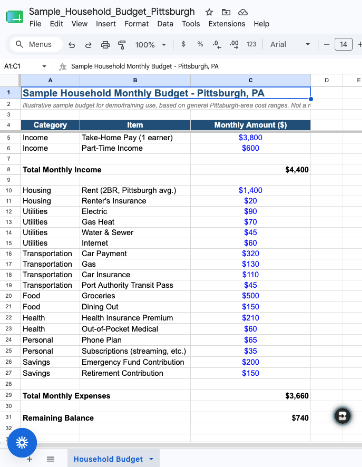
Brisk now works on spreadsheets. Open a Google Sheet or an Excel file and Brisk reads every tab as context for whatever you build next. Lab data, assessment results, a sample household budget for a personal finance unit: ask for a worksheet, quiz, or Boost activity based on it and you'll get one without copying a single cell into a doc first.
Nothing to set up. It's on for every teacher, on every plan.
A few things to know: Brisk reads spreadsheets, but it can't write into them or build new ones. All tabs are read together, so you can't pick just one. And very large workbooks may get cut off.
Multi-Level & Multi-Grade Creation, Now in the New Brisk
August 3, 2026
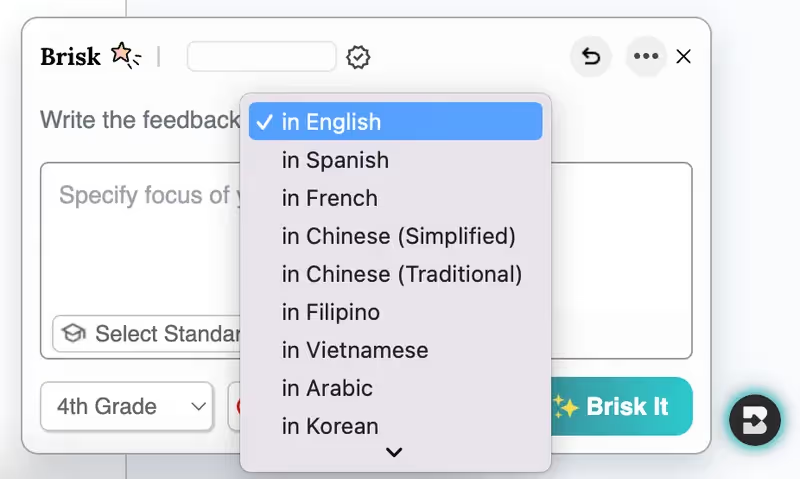
Multi-level and multi-grade creation is now available in the new Brisk. Ask for a resource across a few grade bands, levels, or languages, and Brisk builds every version at once, then delivers them together as a single bundle.
How it works:
Tell Brisk what you need: In the search bar, describe the resource and the range of grades, levels, or languages you're building for — or use the language and grade level settings to multi-select directly.
Answer a few quick questions: Brisk's conversational Create experience will ask the same kinds of questions it always does to support your instructional goals.
Open your bundle: Every version is generated together and ready to hand out to the right students.
Note: The ability to rework your outputs available elsewhere in the new Brisk isn't yet supported inside bundles. To revise an individual version, use the classic Create workflow.
Welcome to the New Brisk
July 16, 2026
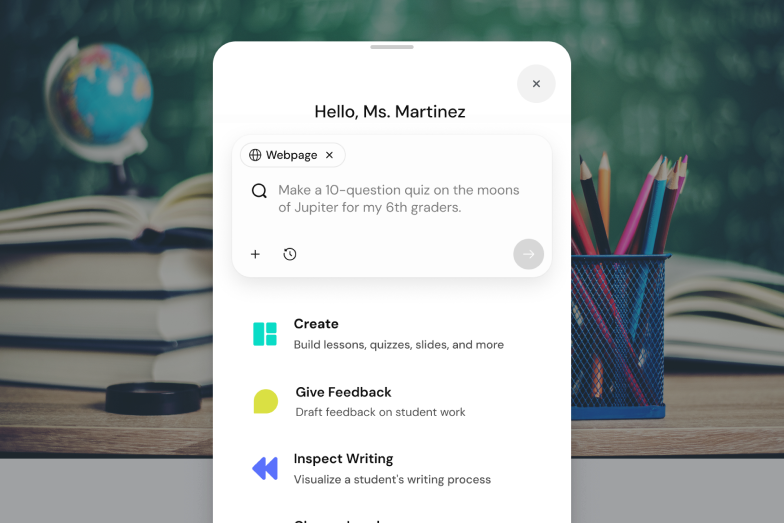
The Brisk extension has a new look, one designed to better support how you work and help you feel prepared for every class, every week, and every school year!
Instead of clicking through menus to find the right tool and then filling out multiple fields, you can simply tell Brisk what you need and it’ll build it. (Don’t worry, you still have the ability to browse your favorite tools if you want to.) From worksheets and quizzes to lesson plans and rubrics, anything you’re used to building with the Create tool is now just a quick conversation away.
How it works:
1. Search for the type of resource you have in mind: Start typing what you’re looking for in the Brisk extension search bar and a list of relevant resource types will appear. No need to remember the proper names of Brisk tools — use whatever words make sense to you and Brisk will figure it out.
(Note that while the new search function will return results spanning all Brisk tools, at this time, only the Create tool will deliver a conversational experience during subsequent steps.)
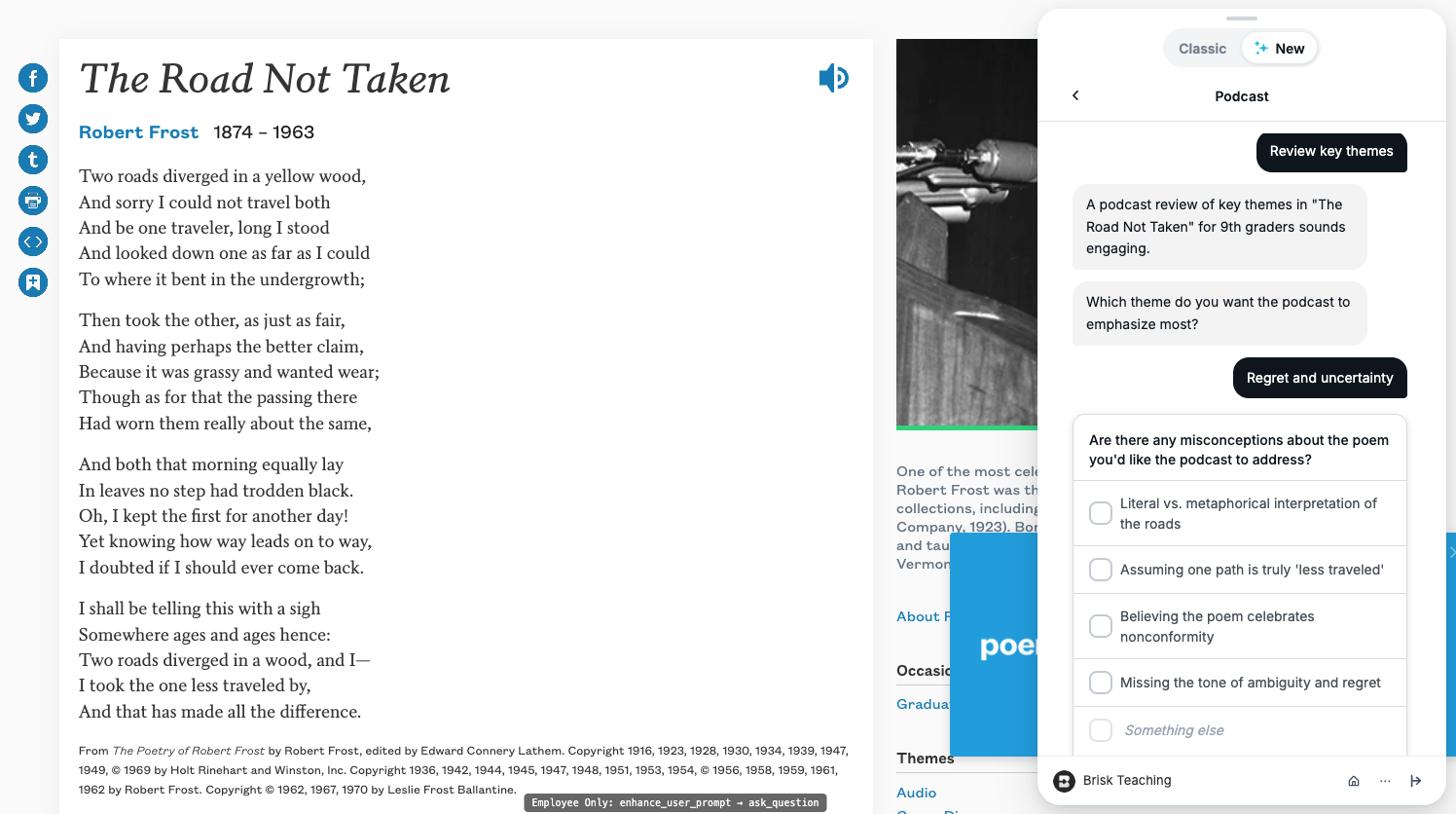
2. Share a few specifics about what you need: In the new conversational experience, Brisk will ask a few quick questions about whatever prompt you provide to make sure it understands what you’re after. Answering these questions is optional, but recommended. (You’ll still be able to use the classic Create workflow, too.)
Depending on the context, Brisk’s questions might look like:
“What’s the purpose of this exit ticket?” (e.g., a formative check after a day’s lesson, a diagnostic before kicking off a new unit, prep for a summative unit test)
“Are there any misconceptions about the topic you want this resource to address?” (choose from a list of relevant options or type your own response)
“Is there anything your students have been struggling to grasp about this topic?” (choose from a list of relevant options or type your own response)
Once you’ve had this brief conversation, Brisk will draw on your responses, your original prompt, your curriculum, and, if your district has Brisk Intelligence, district leader guidance to build a resource that’s fully aligned with your needs and your district’s priorities.
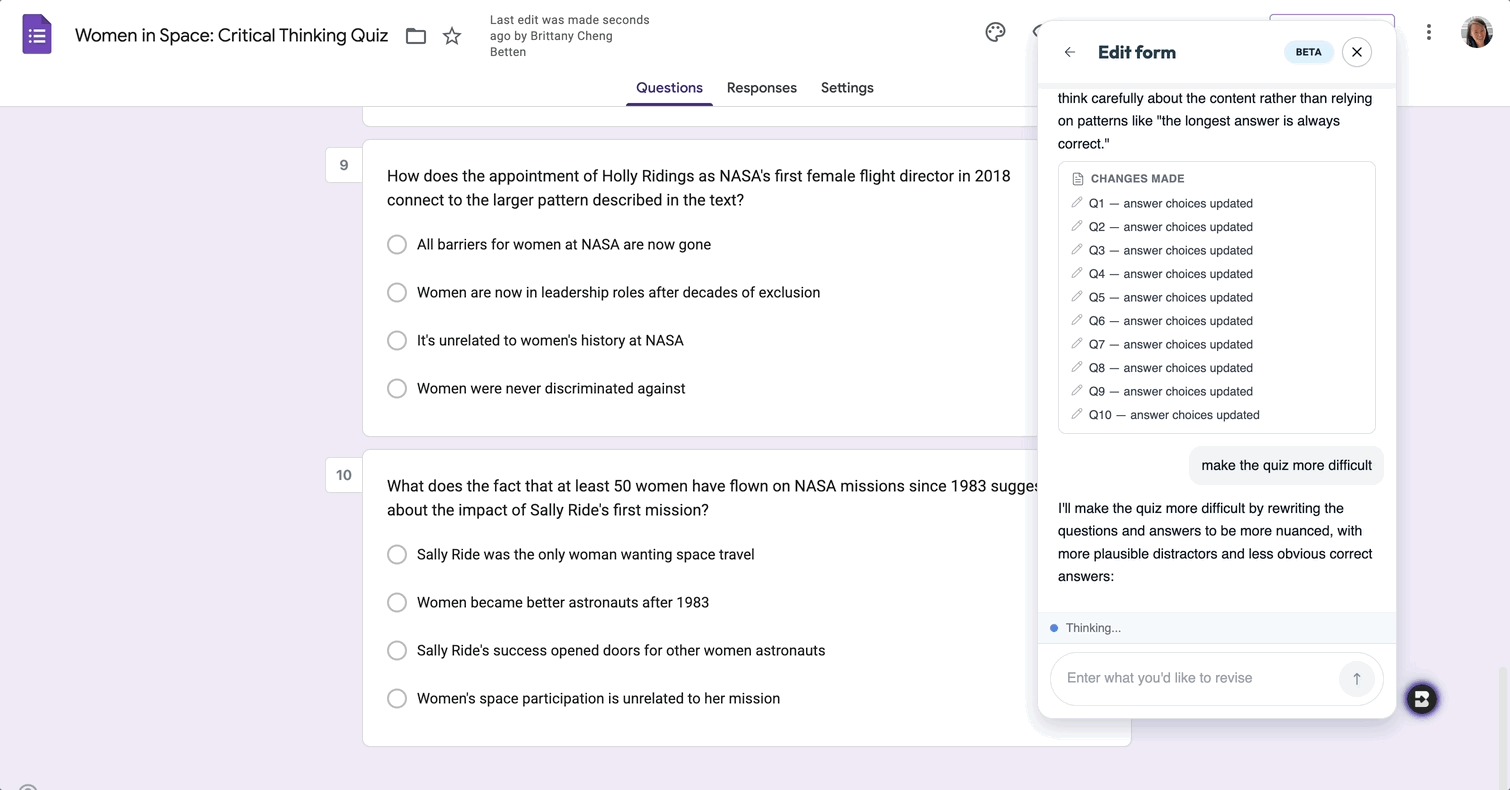
3. Fine-tune the resource until it’s perfect: Chat back and forth with Brisk to make any adjustments to your new resource. As you provide instructions — think: “make this shorter” or “swap the third question for something more challenging” or “add scaffolding for ELL students” — the resource will update right before your eyes. No need to start over or sift through multiple versions.
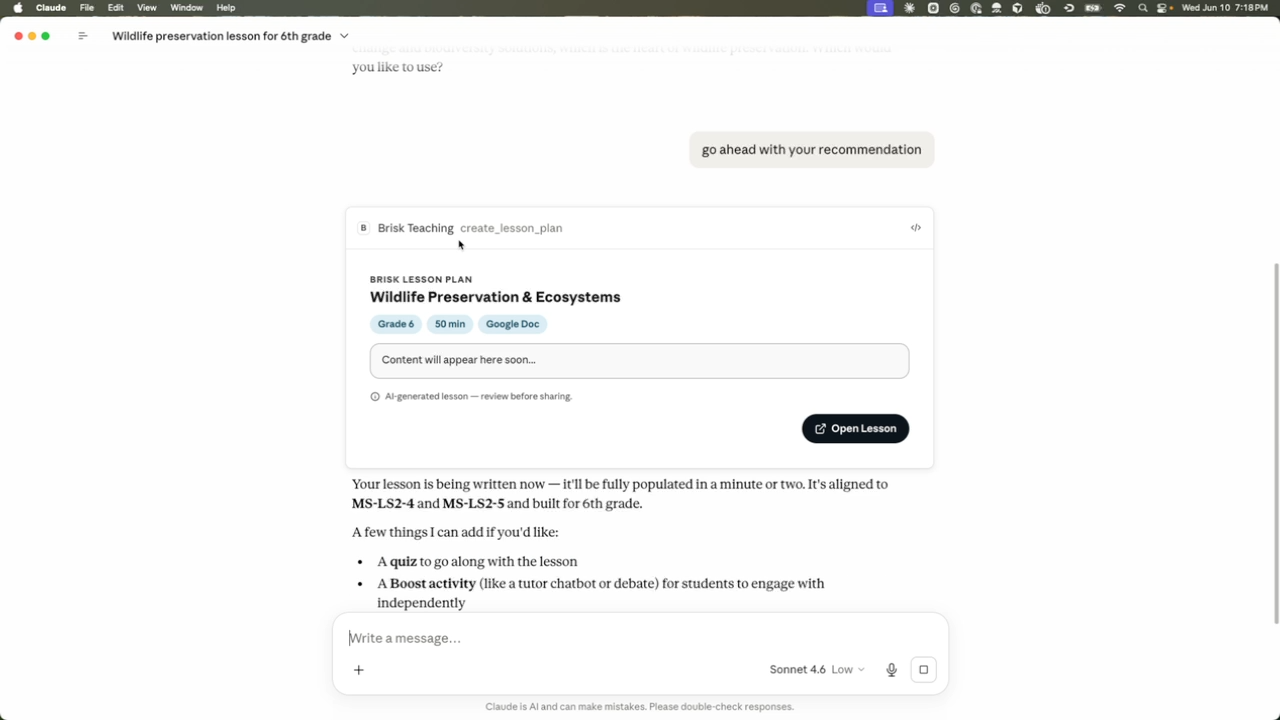
With the Brisk Connector, your favorite Brisk tools are just a sentence away in Claude. Chat with Claude about what you’re working on and it’ll give you ready-to-use links to the types of high-quality instructional materials you’re used to creating with Brisk — no more jumping between multiple browser windows.
What teachers can do in Claude with the Brisk Connector:
Create Boost Activity: Builds an interactive, AI-powered student activity (tutor, quiz-me, debate, exit ticket, writing coach) complete with learning objectives and guardrails.
Generate activity ideas: Suggests a set of Boost Activity ideas for a topic — no commitment until you create one.
Create teaching resource: Creates a lesson plan, quiz, rubric, worksheet, sub plan, or other resource as a Google Doc or Google Form.
Set up Batch Feedback: Creates an assignment shell for grading a set of student work (you add submissions and run feedback in the Brisk web app).
List standards: Browses Brisk’s standards database so your materials will be aligned to the right frameworks, grade level, and state.
Get teacher context: Reads your class names, grades, and subjects (never student data) so Claude can tailor its suggestions.
Connect Claude to Brisk:
To use the Brisk Connector, you’ll need a Brisk account, a Claude account, and, for any tool that creates a Google Doc or Google Form, a Google account that’s connected to Brisk.
Open Claude (web or desktop).
In a new chat, click the + button near the prompt and select Connectors, then click Add Connector. You can also start the process here.
Use the search bar to find the Brisk Connector and click Connect.
You’ll be prompted to sign in to your Brisk Teaching account and allow Claude to access it. Click Allow.
Once connected, Brisk will appear in your list of Connectors and Claude will be able to use Brisk tools directly in your Claude chat.