What's New

Bookmark this page to see all of Brisk's updates in one place. Every week, new features go live and you won't want to miss them!
What's New In Brisk deck cover - see our latest launches

What's New with Brisk

Never miss a Brisk launch. Whether you're leading PD, sharing Brisk with a teammate, or presenting at a conference, this deck is designed to make it easy to show What's New.

Open Deck

구글 슬라이드!

August 23, 2024

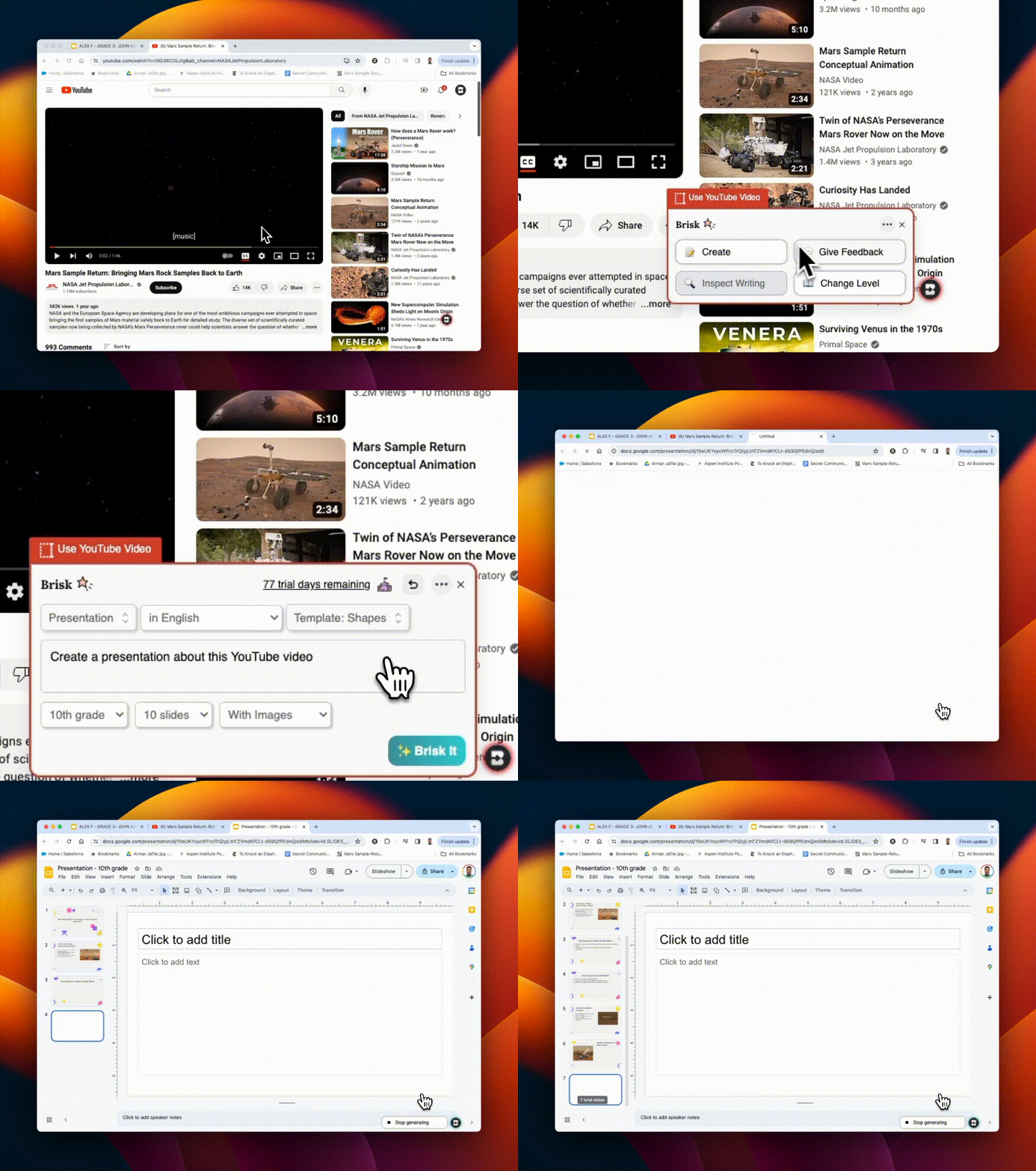
프레젠테이션 준비를 단 몇 초 만에 완료하세요!Brisk를 사용하여 다음을 수행할 수 있습니다.

1.슬라이드 데크를 처음부터 새로 만드세요
2.학생이 만든 슬라이드 데크에 대한 피드백 제공

그리고 가장 좋은 부분은?Google 워크스페이스 내에서 모든 작업을 바로 수행할 수 있습니다.한 번 사용해 보고 소중한 시간을 절약하세요.
캔버스 스피드그레이더 통합

August 22, 2024

Brisk는 캔버스 스피드그레이더와 원활하게 통합되어 타겟팅된 피드백 옵션을 통해 Google 과제를 개선합니다.'글로우 앤 그로우', '다음 단계' 또는 특정 '루브릭 기준' 피드백 스타일을 사용하든 관계없이 Brisk는 모든 제출 유형을 지원합니다.학생의 과제 중 일부를 강조하여 해당 영역에 피드백을 전달하세요.루브릭을 사용하는 경우 간소화된 평가를 위해 Brisk에 업로드하세요. 여기에서 모든 세부 정보를 확인하세요!
Brisk의 모습이 새로워졌습니다!

August 21, 2024

업데이트된 아이콘과 로고는 여러분이 잘 알고 사랑하는 전문적이고 완벽하게 통합된 도구인 Brisk를 더 잘 반영합니다.이 새로운 디자인을 지원하기 위해 ✨ 프레스 키트 ✨ 도 준비했습니다!Brisk에서 공유하거나 프레젠테이션할 때 저희 제품을 선택하실 수 있습니다. 이 폴더에서 업데이트된 로고 및 아이콘.
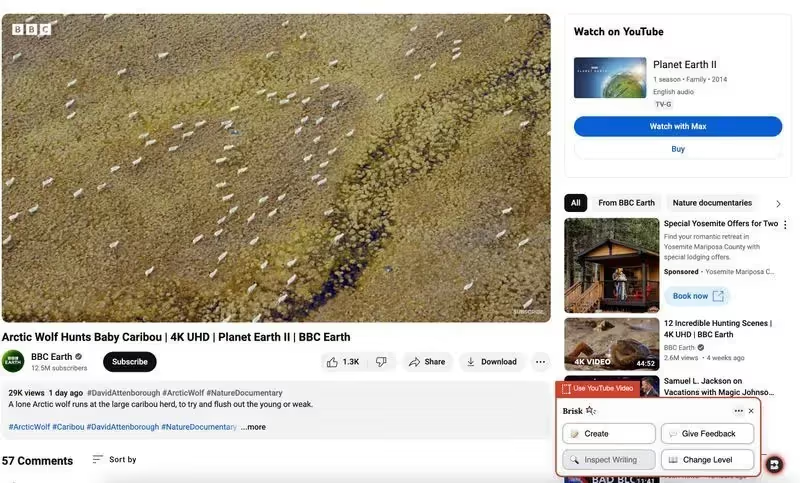
유튜브 통합!

August 20, 2024

유튜브 비디오에 모든 Brisk 도구를 사용하세요!유튜브 비디오에서 직접 수업 계획, 퀴즈, 피드백, 자료, 루브릭 등을 만들 수 있습니다.Youtube에 업로드한 학생 프로젝트를 평가하는 경우 YouTube에서 직접 피드백을 제공할 수도 있습니다!
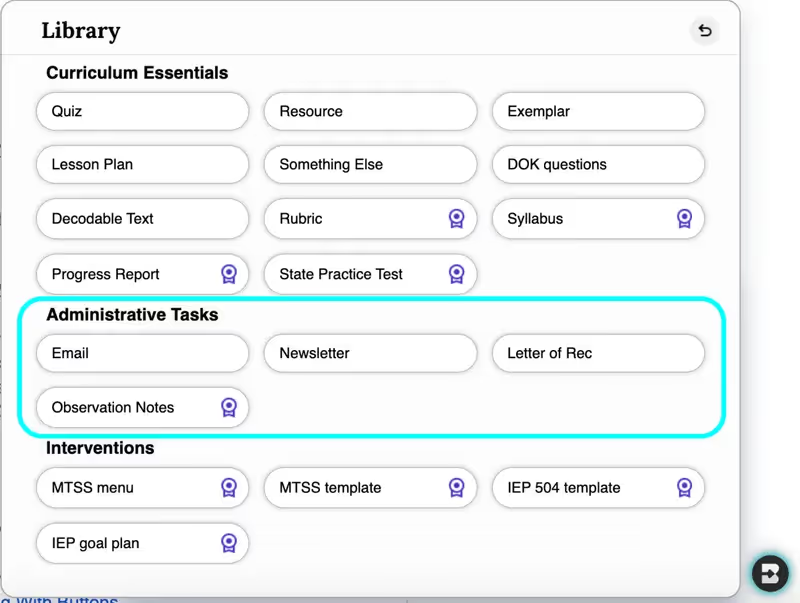
네 가지 관리 작업

August 19, 2024

이메일, 뉴스레터, 레터, 관찰 노트 등을 단 몇 초 만에 작성해야 하나요?Create 라이브러리에 완전히 새로운 관리 도구 모음이 추가되었으며 곧 더 많은 도구가 추가될 예정입니다.이제 접시가 훨씬 가벼워졌습니다.
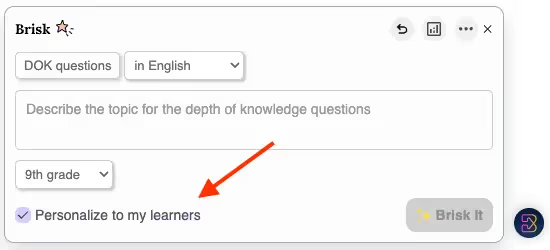
학습자에게 맞춤화하세요

August 16, 2024

5개 이상의 과제에 대해 Brisk에 피드백을 남기면 Create Library의 모든 도구에 맞춤형 기능이 표시됩니다.Brisk는 학습자에게 맞춤화 확인란을 선택하면 학습자의 특정 문제와 요구 사항을 더 잘 해결할 수 있도록 커리큘럼을 자동으로 차별화합니다.
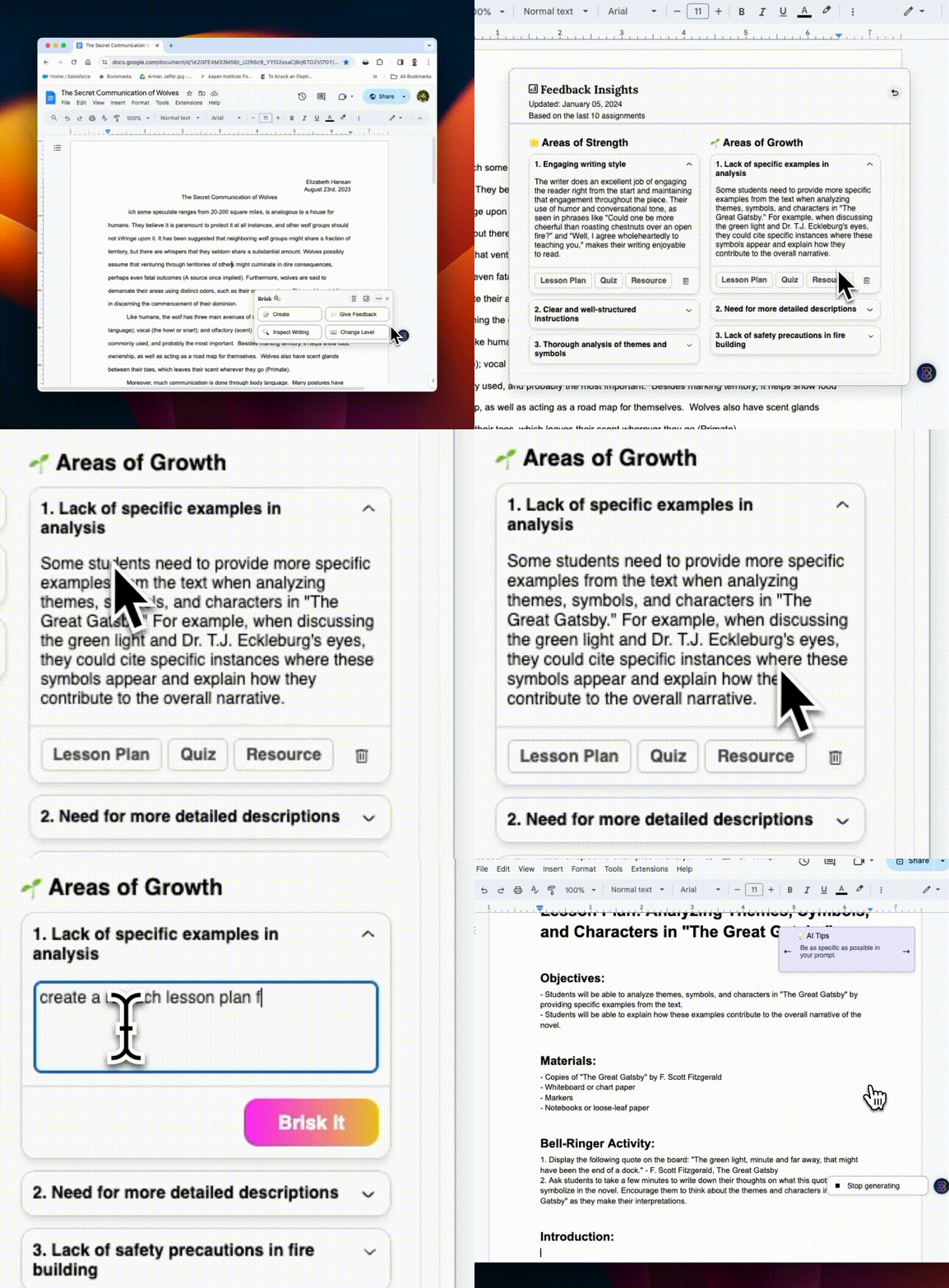
피드백을 통한 인사이트

August 15, 2024

수많은 학생 과제에 대한 인사이트를 추적하는 데 어려움을 겪으셨나요?Brisk에게 단 다섯 개의 과제에 대한 피드백을 남기면 피드백 인사이트를 얻을 수 있습니다.피드백을 제공할 때마다 이 도구는 학생들이 필요로 하는 것을 포착하는 실시간 동적 통찰력을 제공하므로 더욱 강력해집니다.

그리고 그게 전부가 아닙니다!개선이 필요한 부분이 파악되면 강의 계획, 퀴즈 또는 리소스 버튼을 클릭하여 해당 영역을 대상으로 하는 콘텐츠를 빠르게 만들 수 있습니다.예를 들어, 학생들이 출처를 인용하는 데 어려움을 겪고 있다면 바로 수업 계획을 세워 해당 기술을 향상시킬 수 있습니다.
소개, 글쓰기 검사

August 14, 2024

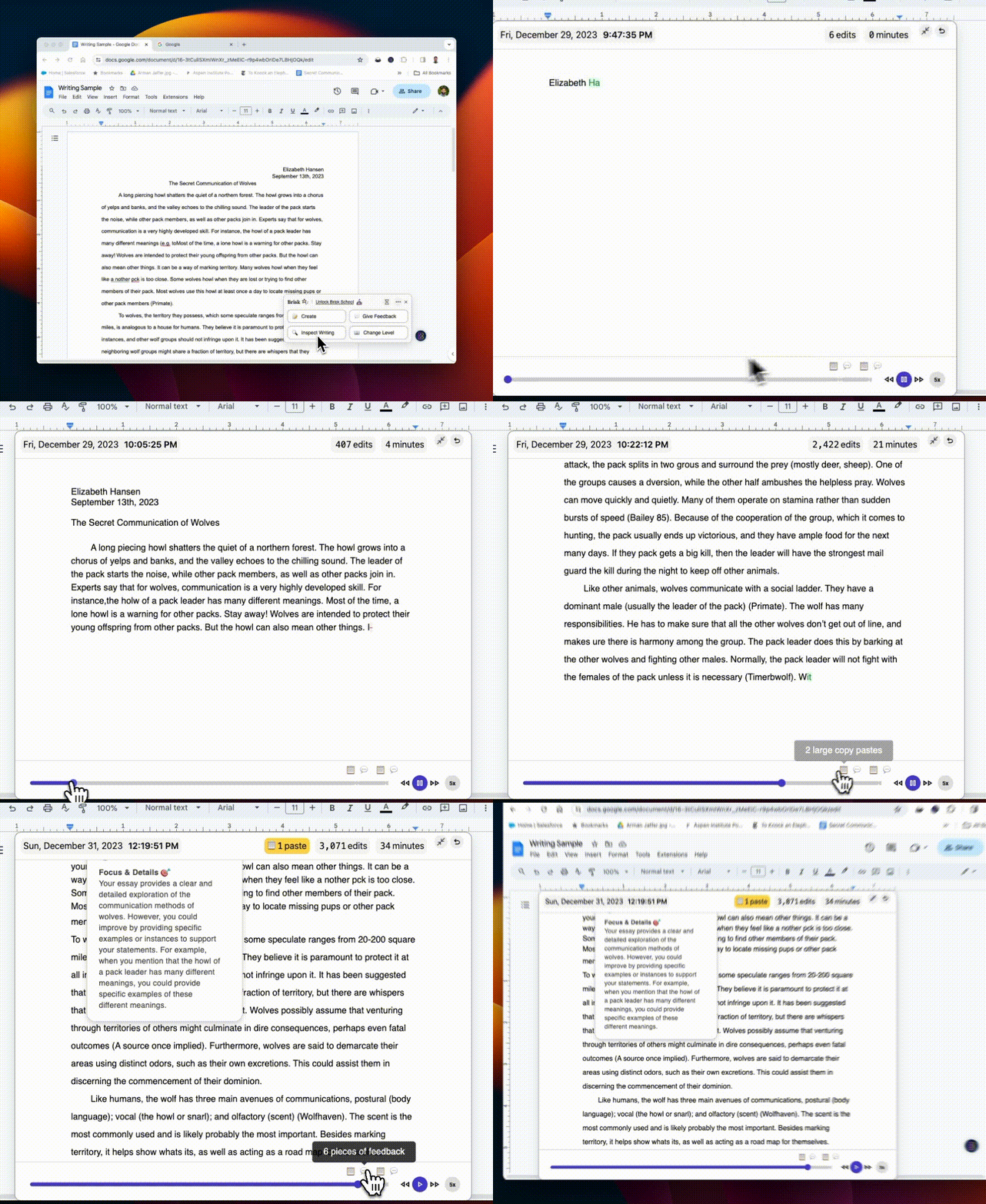
신뢰할 수 없는 AI 감지기로 어려움을 겪고 계신가요?Inspect Writing은 학생 작문 분석을 재구상합니다.학생들의 수정 기록, 복사/붙여넣기 작업 등을 단계별로 자세히 재생해 보세요. 시도해보고 차이점을 확인하세요!
더 많은 옵션, 더 많은 리소스

August 13, 2024

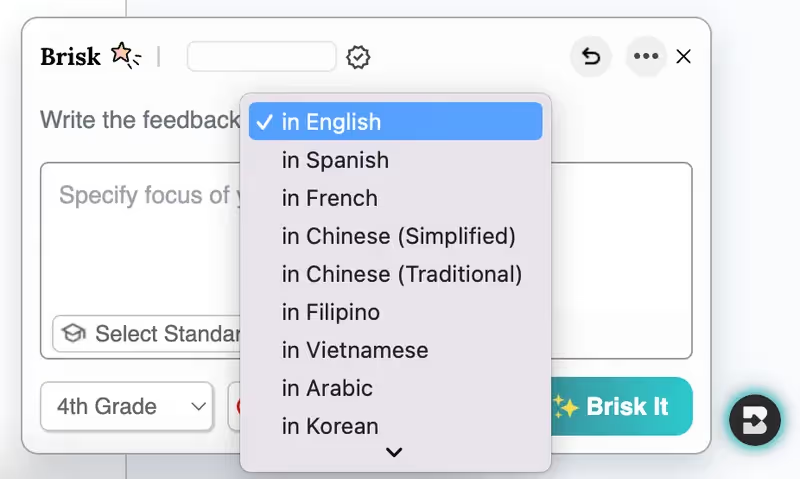
ESL 학생들을 가르치고 계신가요?이제 10개 이상의 언어로 피드백을 제공할 수 있습니다.

복사 및 붙여넣기에 지치셨나요?만들고 피드백을 남길 수 있는 공간을 확장했습니다!웹 사이트 또는 Google 문서에서 Brisk 아이콘을 클릭하면 피드백 옵션과 Create Library에 즉시 액세스하여 퀴즈, 강의, 리소스 등을 만들 수 있습니다.

다양한 리소스를 통합하고 계신가요?수천 개의 추가 기사 및 사이트 페이지의 읽기 수준을 변경하세요.
크리에이트 라이브러리에 추가

August 12, 2024

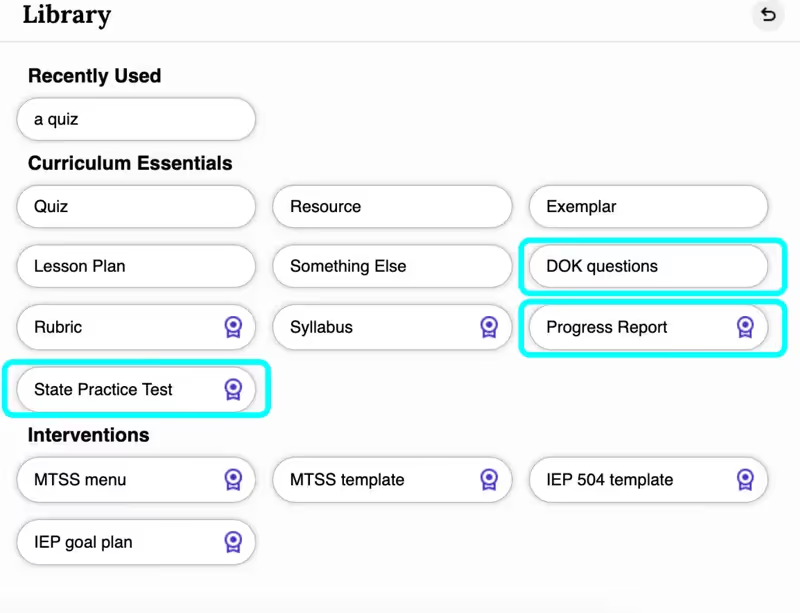
DOK (지식의 깊이) 질문 다양한 인지 수준을 충족시켜 학생들이 참여하고 적절하게 도전할 수 있도록 합니다.

PROGRESS REPORTS를 사용하면 입력에 응답하는 맞춤형 보고서를 신속하게 생성할 수 있으며 필요에 따라 유연하게 사용자 지정할 수 있습니다.(진도 보고서는 Brisk School 계획의 일부입니다).긴 시간의 초안 작성은 이제 그만!

주 연습 시험은 학생들에게 성공하는 데 필요한 연습을 제공합니다.이제 Brisk를 사용하여 STAAR, SBAC 및 추가 평가를 위한 연습 시험을 생성할 수 있습니다.
Inspect Writing & Targeted Feedback in Microsoft Word

June 29, 2026

Microsoft teachers now have access to two tools that enable them to deliver more (and more personalized) feedback to students in less time: Inspect Writing and Targeted Feedback.

Inspect Writing

(Note: This new feature will become available for back to school 2026.)

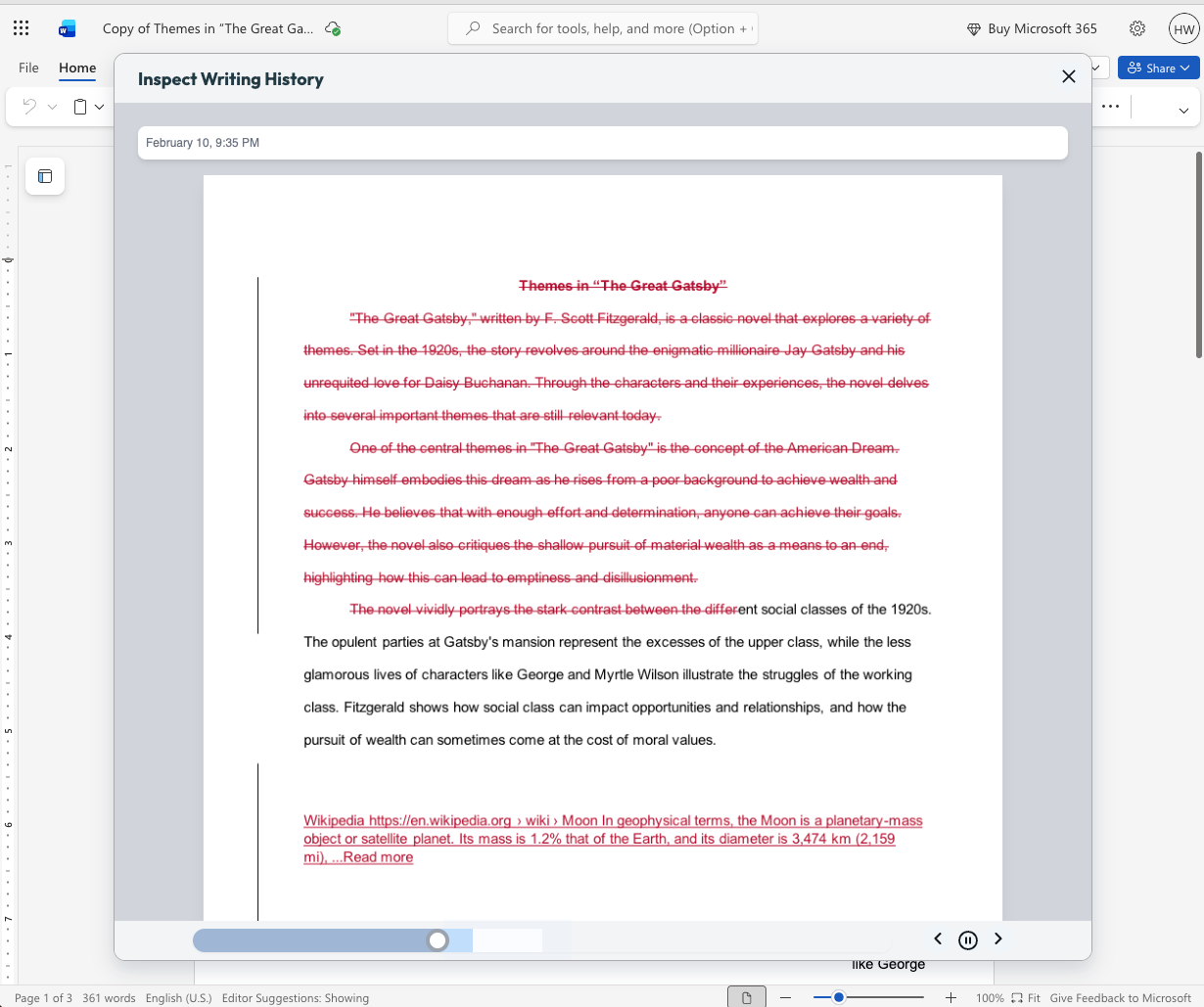
Watch a video-style replay of a student’s writing process from first draft through final version. See what they added and deleted at each step and how they responded to feedback. Use this to gain insight into how your students are thinking, spot learning gaps, and guide growth.

Targeted Feedback

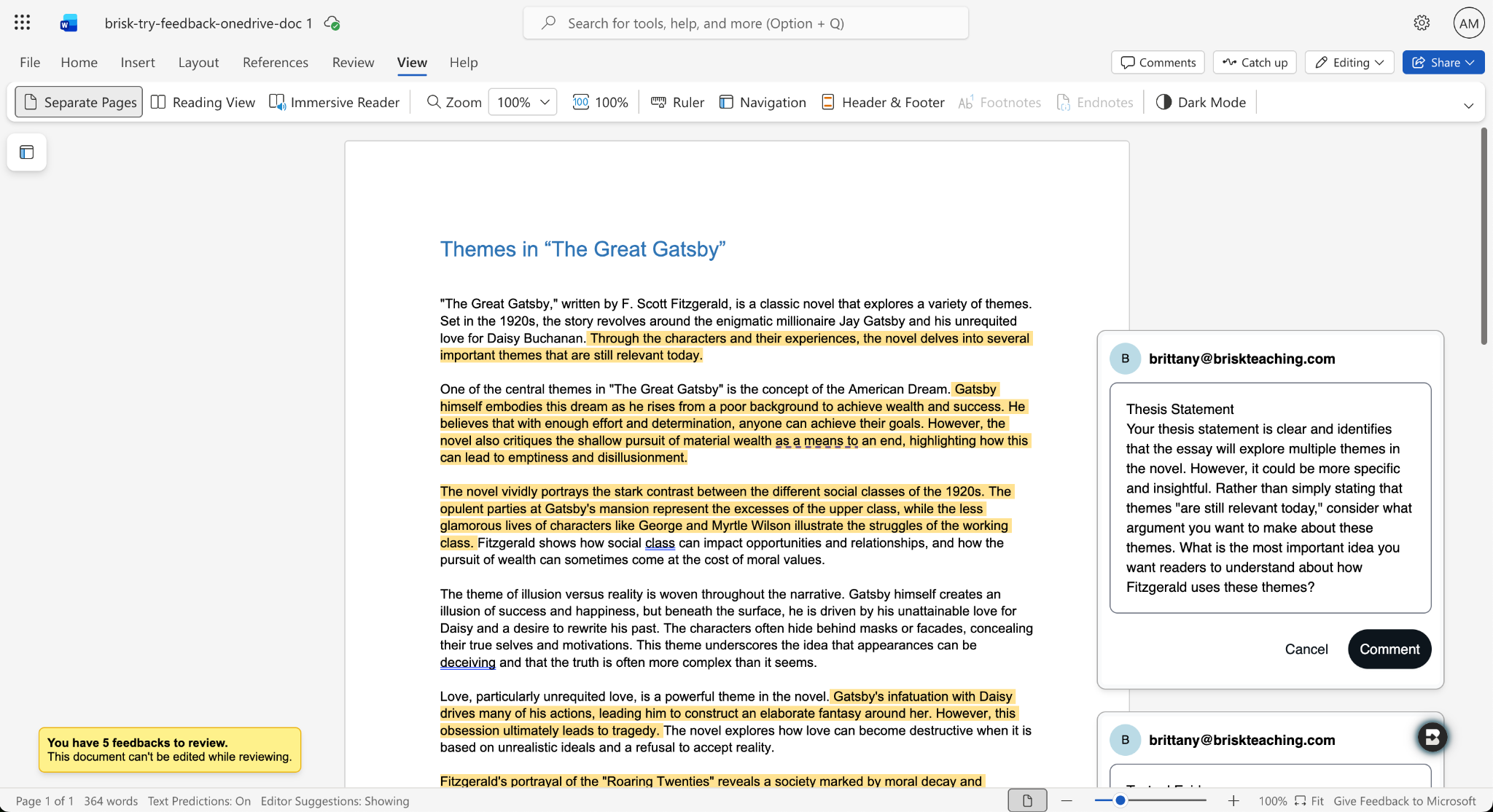
Provide students with personalized feedback that appears directly in the Word docs they’re working in. Brisk drafts inline comments that are aligned with your standards and whatever rubric you want, but you remain in full control of what students see.

How it works:

  1. Open a student writing assignment in Word.
  2. Select the Targeted Feedback tool in the Brisk extension.
  3. Set the language and grade level for the feedback and specify whether you want the feedback to align with an attached rubric or your state standards.
  4. Review the feedback Brisk generates, make adjustments, and click Comment to post a piece of feedback to the student’s work.

Share Boost Activities with Other Educators

June 29, 2026

You can now share Boost Activities with the other educators in your classroom (SPED staff, MTSS coordinators, paraprofessionals, subs). These co-teachers will have read-only access to student progress and activity data so they’re able to observe and support student learning.

How it works:

  1. Open the Share menu: In My Library, go to Activities and click the Share button or the three-dot menu on any activity, then select Share with Co-Teachers. (You can revoke access at any time by removing a co-teacher from the activity’s Share menu.)
  2. Enter a colleague’s email: Type their email and send the invite. They’ll receive a link to accept. (To successfully accept an invite, their email must be rostered in your district.)
  3. Co-teacher accepts: Once they accept the invite, the activity appears in their My Library under Shared with Me.
  4. Co-teacher views the activity: They see the activity monitor — including student progress, messages, safety flags, and Mock Student — in a read-only view. No edit controls are shown.

You can also share your favorite Boost Activities with your fellow teachers, who can then make copies of the activities to use with their own students.

Shape Every Brisk Output with District-Level Priorities

June 29, 2026

District Guidance gives districts with the Intelligence plan a way to consistently translate instructional leadership investments (professional development, pedagogical frameworks, standards alignment) into actual classroom practice.

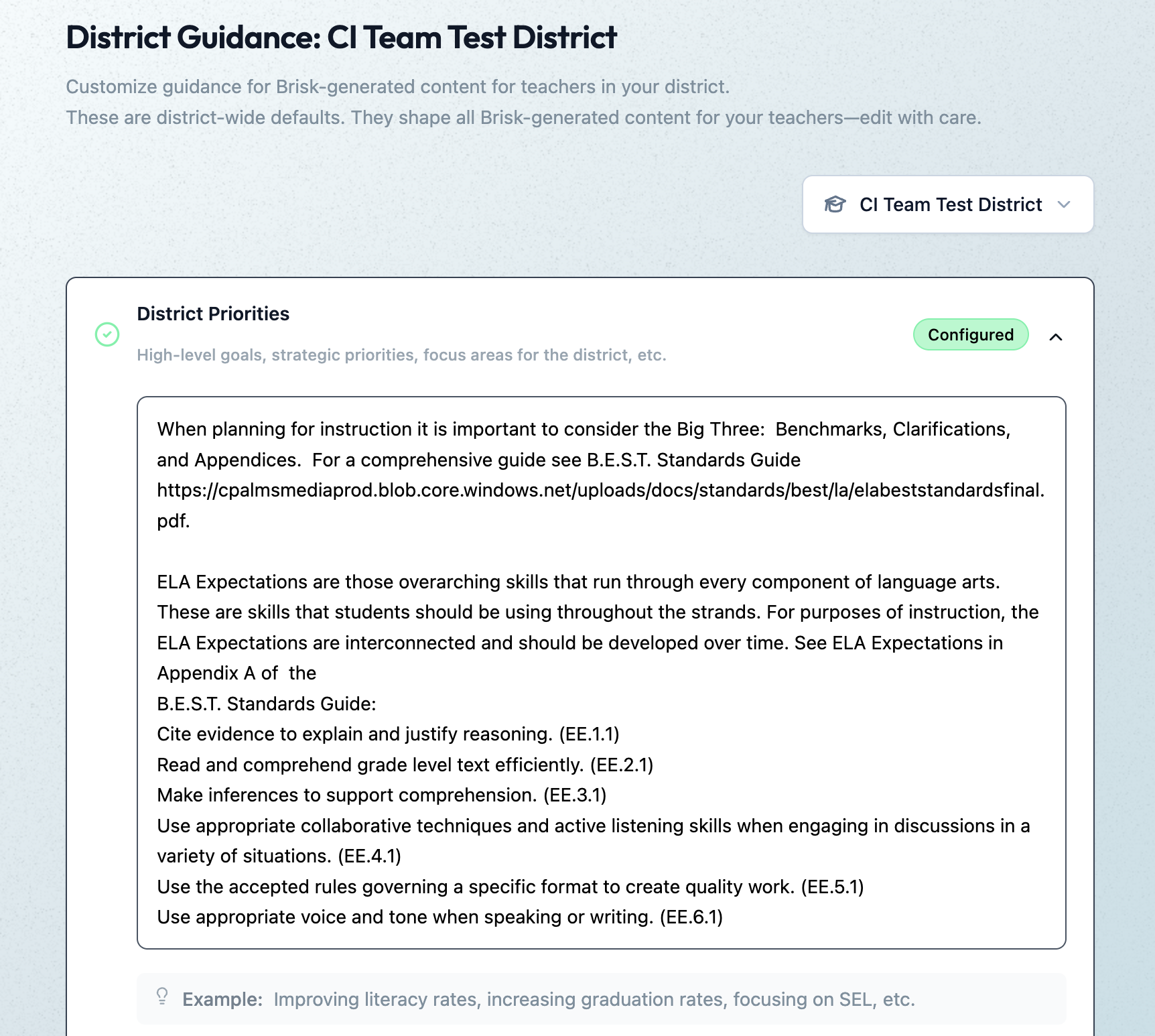
In the District Guidance tab of their Admin Portal, leaders provide instructions that automatically shape everything teachers generate with the Brisk extension, Brisk Boost, and Brisk Next. These instructions don’t change the way teachers use or experience Brisk — they simply ensure that every Brisk output reflects a district’s unique priorities.

Leaders can use District Guidance on its own or in tandem with Curriculum Intelligence. (Reminder: Curriculum Intelligence ensures that every Brisk output reflects a district’s adopted curriculum, scope, and pacing.) While Curriculum Intelligence informs what is being taught, District Guidance informs how it’s being taught.

Leaders have the option of providing instructions in four categories:

  • District Priorities: High-level goals, strategic priorities, focus areas (e.g., “The district is focusing on literacy across all content areas this year”)
  • Values & Frameworks: Cultural values, behavioral frameworks, ethical guidelines, community norms (e.g., “Emphasize the district’s four Cs: communication, collaboration, creativity, critical thinking”)
  • Pedagogical Approach: Teaching methods, instructional strategies, learning philosophies (e.g., “Use Workshop Model structure: mini-lesson, practice, debrief”)
  • Standards Emphasis: Academic standards, curriculum alignment requirements, assessment criteria (e.g., “Emphasize these power standards for 6th grade math”)

(Note: This new feature will become available in July 2026.)

Create District-Level Libraries of Curriculum-Aligned Resources

June 29, 2026

The District Library enables districts with the Intelligence plan to promote curriculum fidelity and help teachers spend less time looking for the right resource and more time delivering high-quality instruction.

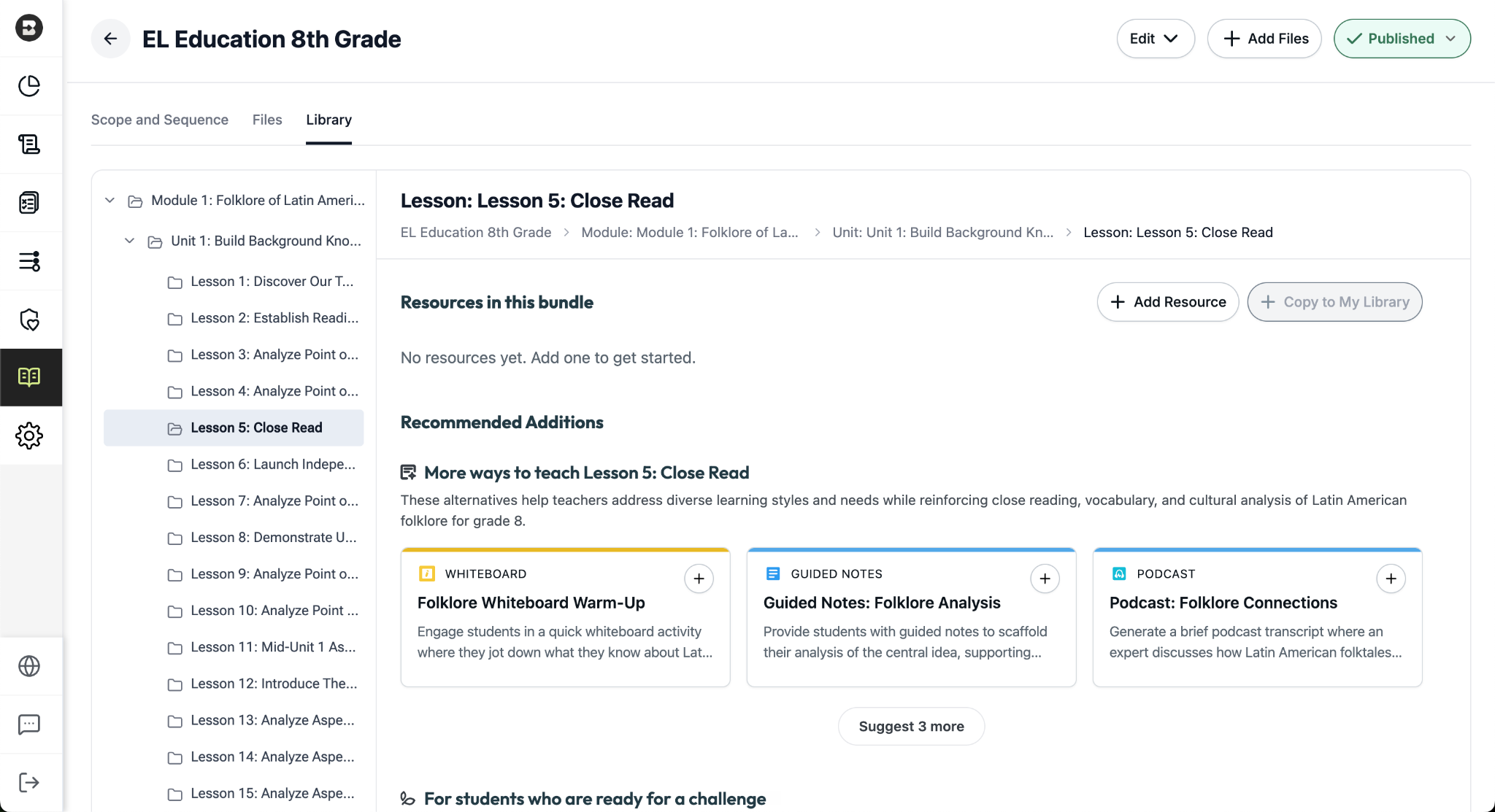
Once a district leader has set their curriculum and instructional priorities using Curriculum Intelligence and District Guidance, they’re able to curate resource bundles for any course in their district. It’s like putting a perfectly organized library shelf at every teacher’s fingertips.

How District Libraries are organized:

  • One library per course: Leaders can create a resource library for each course that’s published in the Curriculum Courses tab of their Admin Portal.
  • One bundle per lesson: Leaders can put together a bundle for each lesson in a course (reminder: within a scope and sequence, lessons ladder up to units, which ladder up to modules, the largest components of a course).
  • One source of truth, easy access for teachers: Only leaders can edit or add to a District Library, but with just one click, teachers can create independent copies of a bundle in their personal resource libraries that they can customize and share with their students.

Building a resource bundle

There are several ways for leaders to add resources to a bundle. They can:

  • Choose from a pre-populated list of smart recommendations that are informed by the district’s curriculum and instructional priorities. These recommendations are organized into practical categories like “More ways to teach…” (for supporting diverse learning styles) and “For students who are ready for a challenge…”
  • Generate customized resources using the dozens of tools that are part of the Brisk extension.
  • Upload pre-existing, non-Brisk resources.

(Note: This new feature will become available in July 2026.)

Brisk x AI Platforms

May 18, 2026

You're already in ChatGPT, Gemini, Copilot, or Claude, typing a quick prompt to get something useful before tomorrow. Brisk is already there too, and one click turns that prompt into something you can hand out in class.

Prompt Booster

Start typing in any of these tools and a Brisk It button appears in the prompt field. Click it and your prompt becomes a detailed, instructionally rich version with grade-level framing, standards alignment, and scaffolding strategies built in — so what the AI gives back is classroom-ready from the start.

From there, choose what to do next:

  • Add to Prompt: drop the enhanced prompt back into your AI tool and run with it.
  • Create with Brisk: open Brisk Next with your enhanced prompt already loaded. Brisk surfaces aligned lesson plans, assessments, presentations, and more — all from that one prompt.

Take Action on Any AI Response

Already have a response you like? When the AI finishes generating, a Brisk button appears below it. Click to send it where you need it:

  • Send to Brisk on the web: push the response directly into Brisk on the web, with or without an additional prompt.
  • Send to extension: select Presentation, Quiz, Podcast, Tutor, or Create with Brisk to prefill the Brisk Extension. Customize, then create.

Wherever you're already prompting, Brisk works where you work. Learn more.