
CHAQUE ÉLÈVE REÇOIT CE DONT IL A BESOIN.
Les enseignants conçoivent les cours et fixent les règles, et Brisk veille à ce que chaque élève reçoive la version adaptée, le soutien nécessaire et le défi approprié.



Brisk Boost
Un partenaire de réflexion IA pour accompagner l'apprentissage des élèves
Les élèves bénéficient d'un partenaire d'apprentissage IA sécurisé qui travaille uniquement sur ce que vous avez assigné, en les guidant par des questions. Vous gardez une visibilité totale.

Tuteur
Accompagne les élèves dans leur compréhension des concepts grâce à des questions guidées plutôt que de donner les réponses.

Partenaire de débat
Adopte le point de vue opposé pour aider les élèves à affiner leur argumentation.

Coach d'écriture
Des retours en temps réel pendant que les élèves écrivent, alignés sur votre grille d'évaluation.

Problèmes de mathématiques
Une résolution de problèmes étape par étape adaptée au niveau de chaque élève.

Vérifier la compréhension
Des évaluations formatives rapides liées au contenu que vous venez d'enseigner.

+8 autres types d'activités
Brainstorming, tableau blanc, défis, et plus encore. 13 types au total.
LE BON NIVEAU POUR CHAQUE ÉLÈVE
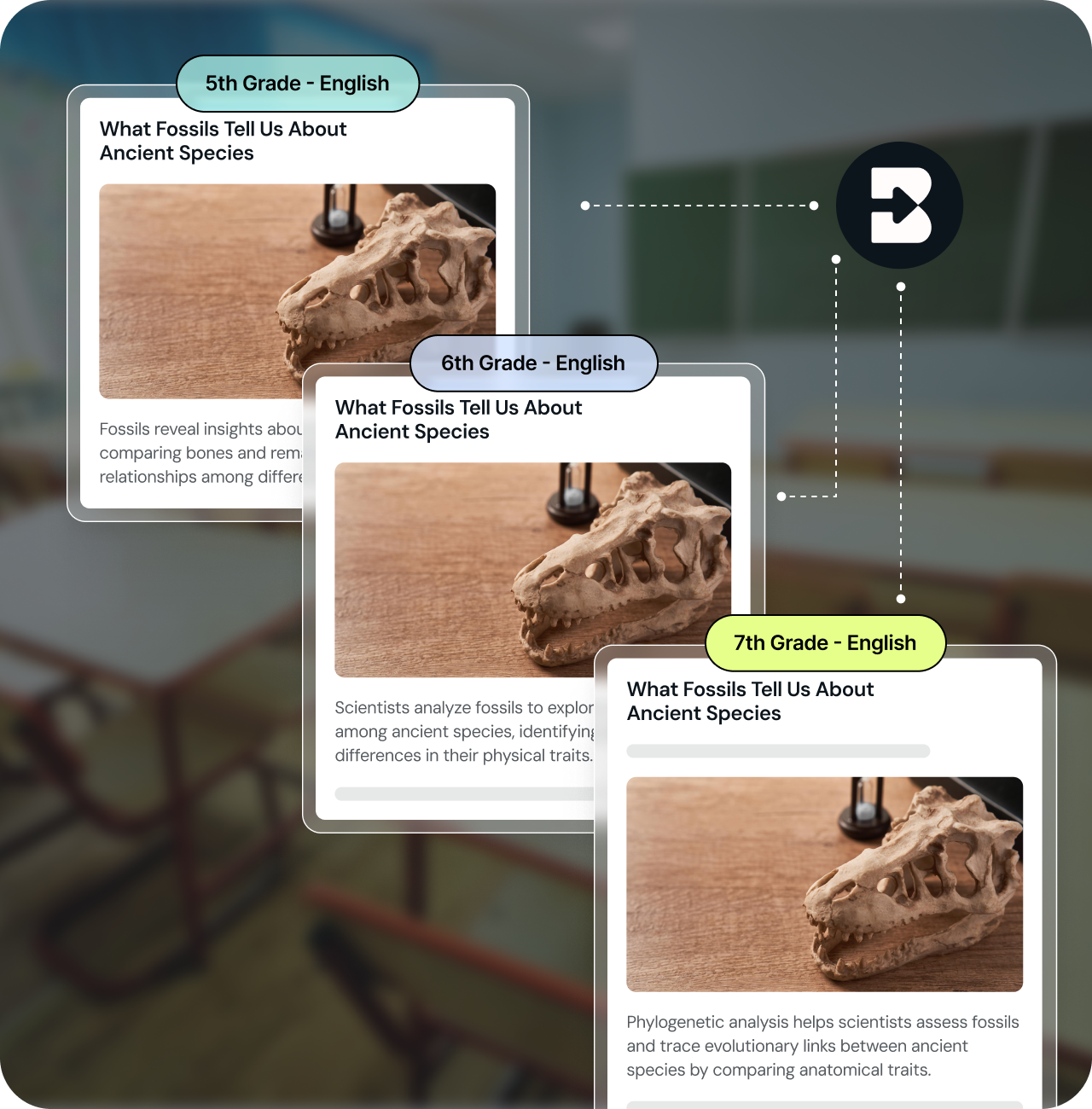
Vous avez donné un article à lire, mais la moitié de la classe n'arrive pas à le comprendre et l'autre moitié a fini en deux minutes… et trouver trois versions différentes du même texte prend un temps que vous n'avez pas.
Brisk adapte le niveau pour vous. En un clic, obtenez le même contenu à différents niveaux de lecture et dans plus de 50 langues pour que chaque élève puisse accéder au matériel.
DES RETOURS QUI STIMULENT LA RÉFLEXION
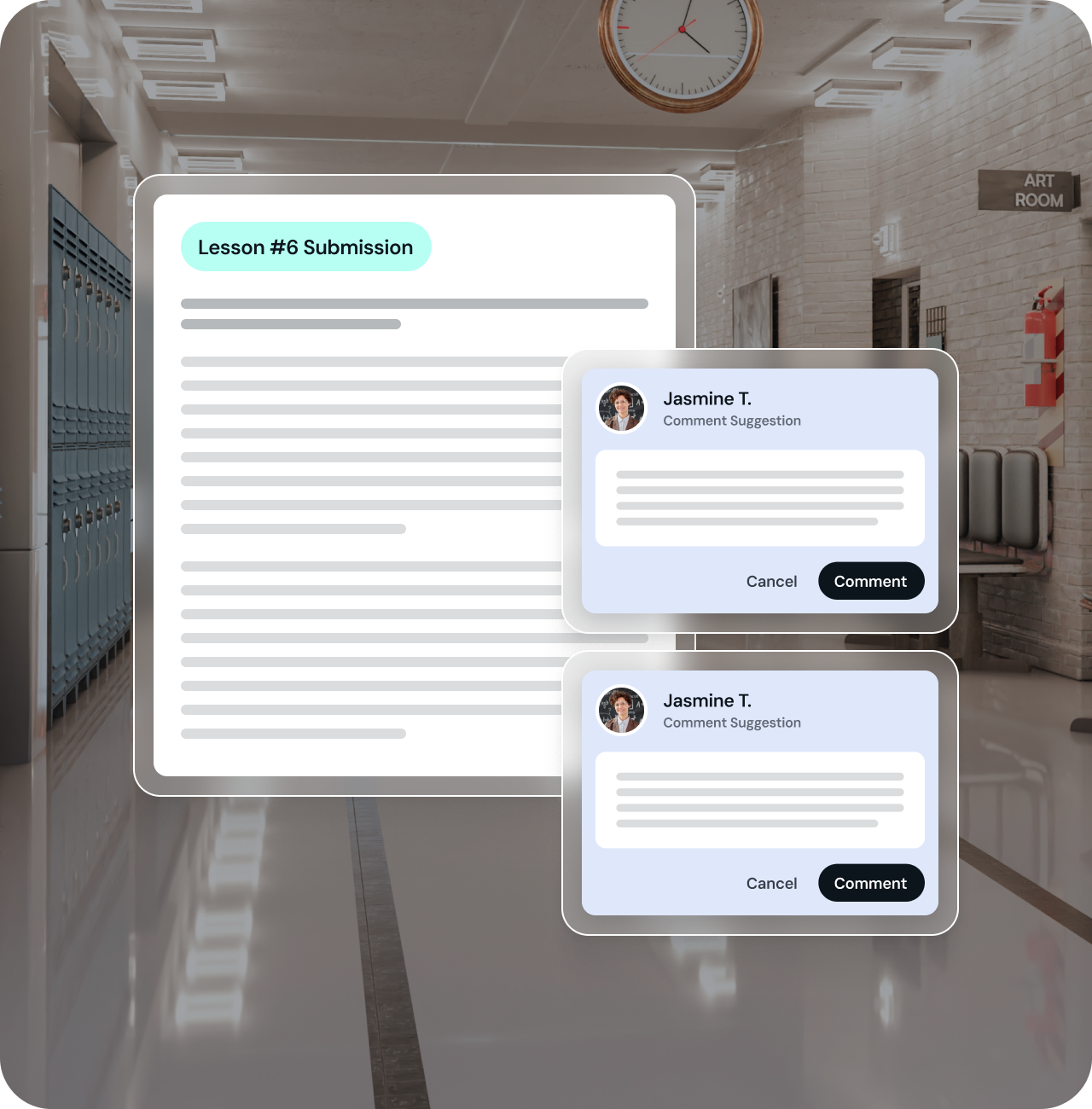
Une note en rouge en haut d'une copie n'apprend rien à personne. Les élèves ont besoin de retours précis et rapides qui leur expliquent quoi corriger et pourquoi. Mais rédiger cela rapidement pour chaque élève et chaque devoir ? C'est là que la tâche semble impossible.
Brisk rédige des commentaires personnalisés directement dans les documents des élèves afin qu'ils identifient leurs points forts, leurs axes d'amélioration et les prochaines étapes. Vous validez tout avant le partage.
DES LEÇONS CRÉÉES À PARTIR DE VOS SUPPORTS
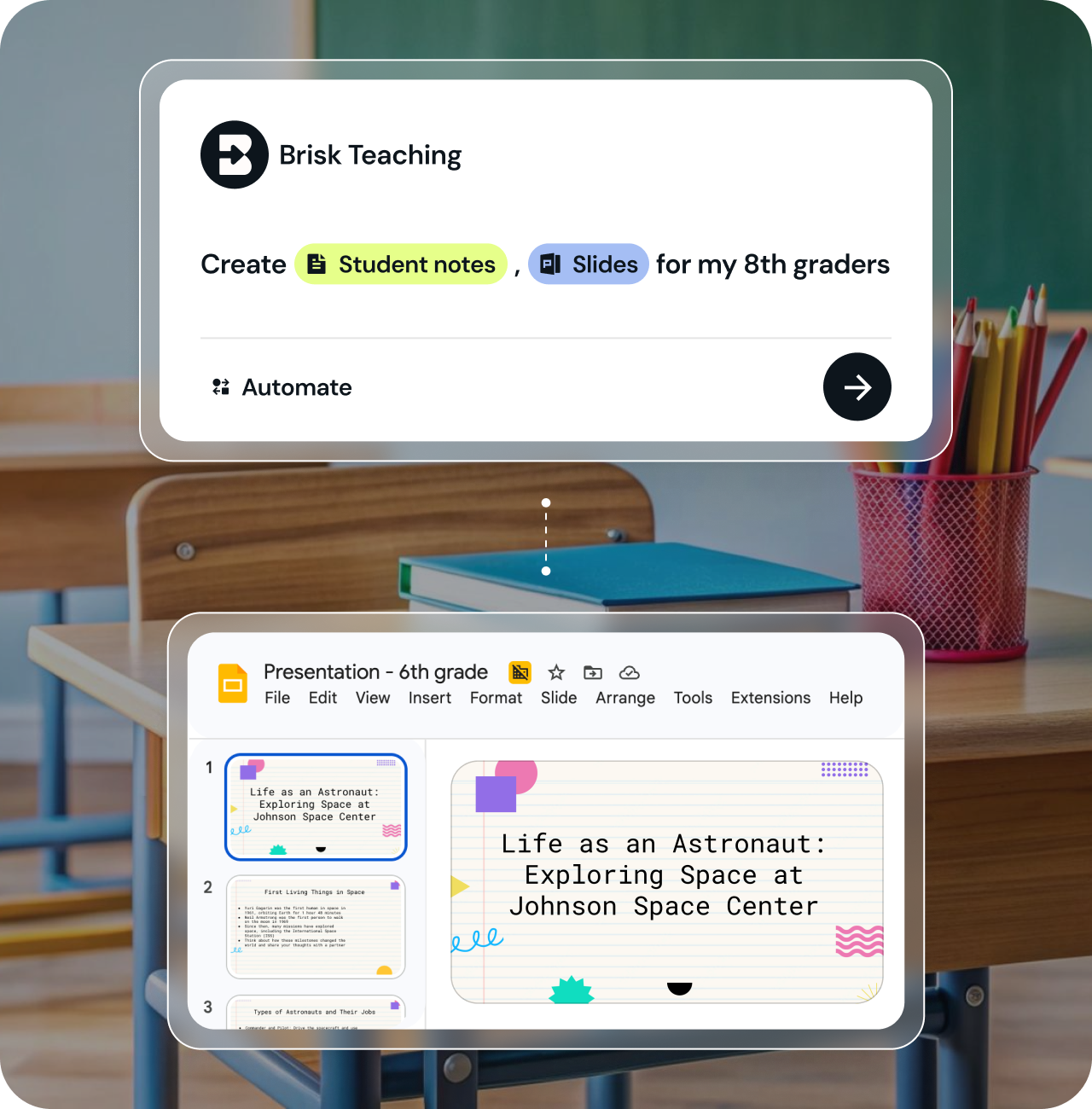
Conçu pour soutenir parfaitement les élèves de votre classe dès aujourd'hui.
Transformez les ressources que vous utilisez déjà en activités et leçons captivantes conçues pour vos élèves.
OBSERVEZ LE PROCESSUS, PAS SEULEMENT LE RÉSULTAT
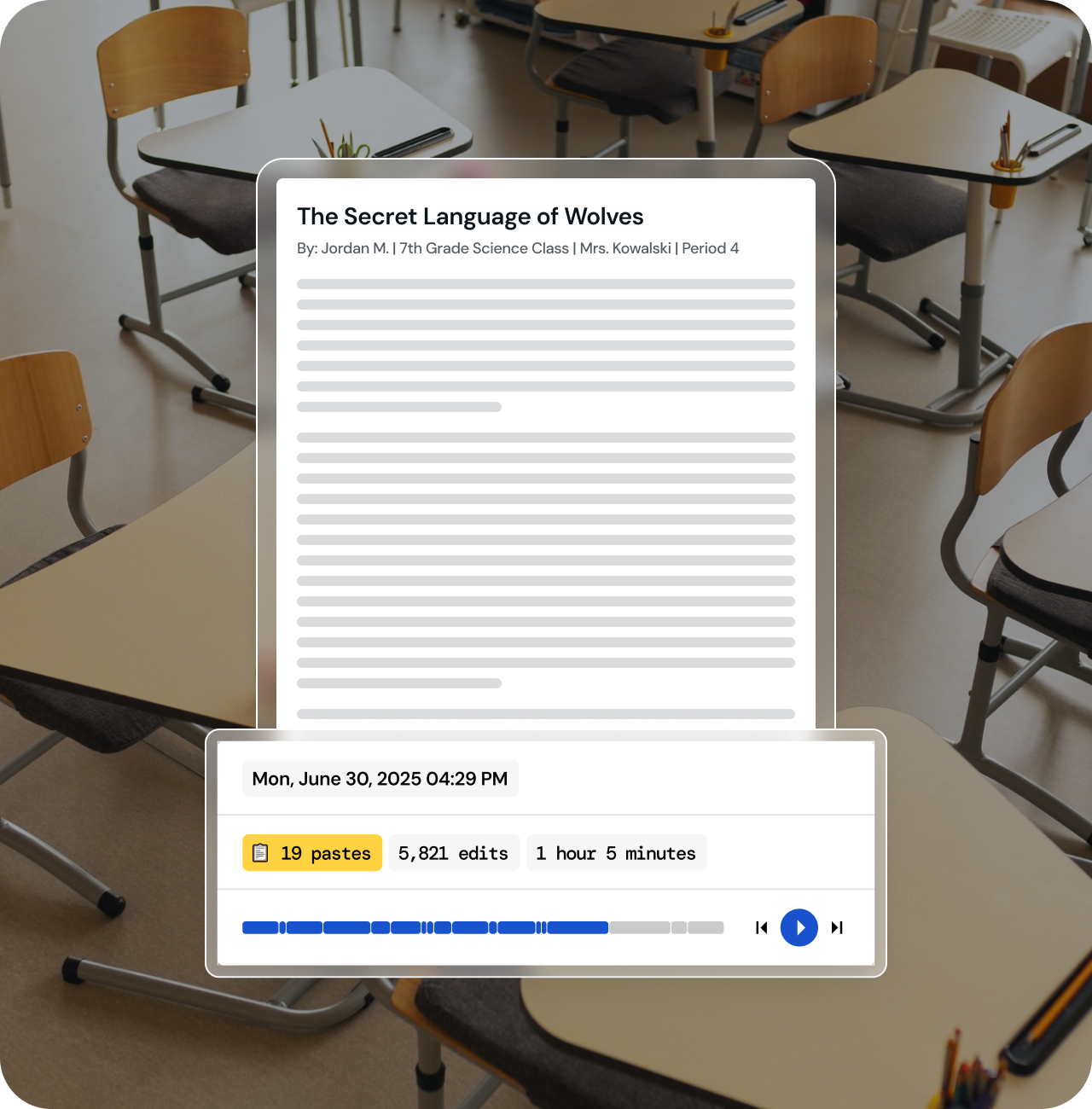
Une dissertation terminée ne raconte que la moitié de l'histoire. Combien de temps cela a-t-il pris ? Où les élèves ont-ils rencontré des difficultés ? L'ont-ils rédigée eux-mêmes ou copiée-collée depuis une autre source ?
Inspect Writing rejoue tout le processus d'écriture afin que vous puissiez accompagner vos élèves sur leur démarche complète, et pas seulement sur le rendu final.
Pourquoi les élèves adorent Brisk
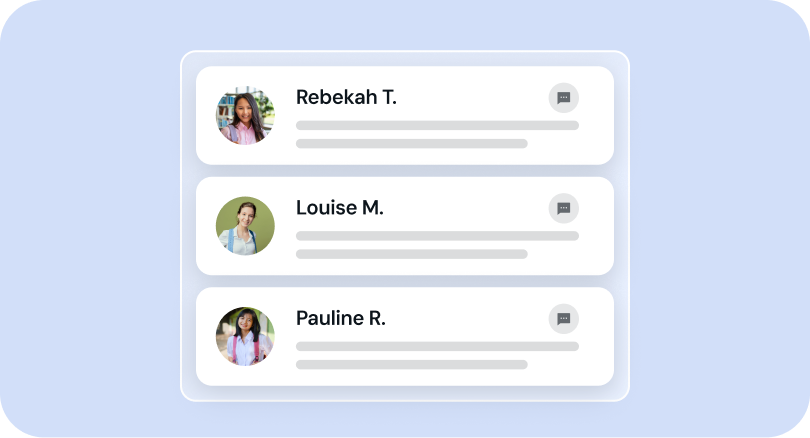
Chaque conversation d'élève est visible par l'enseignant
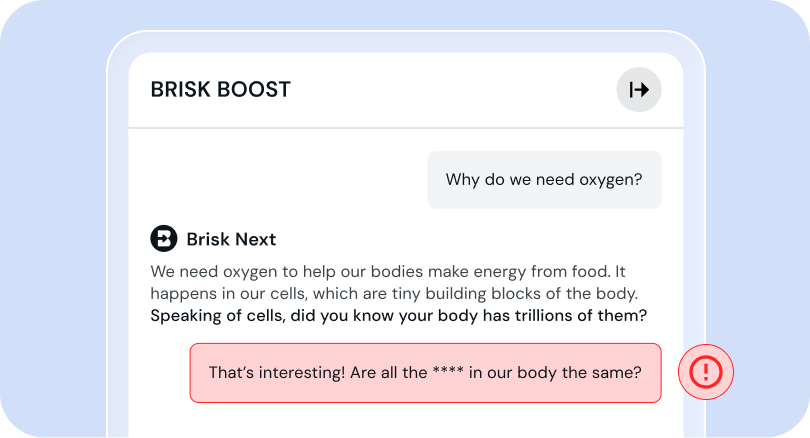
Les conversations sont signalées instantanément
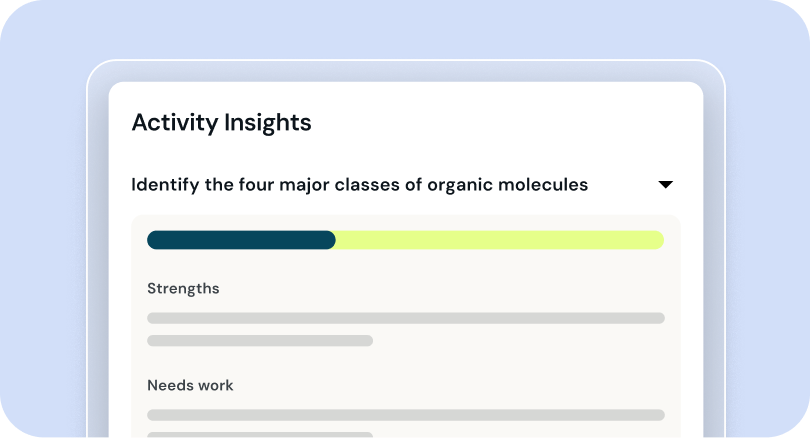
vous indiquer quoi enseigner ensuite
Adoré par les élèves. Approuvé par les districts.
Les districts ne prennent aucun risque avec les données des élèves. Nous non plus.
Brisk respecte les normes de confidentialité et de sécurité les plus strictes du secteur, notamment FERPA, COPPA et SOC 2 Type II, et a été conçu dès le départ pour protéger les informations sensibles.
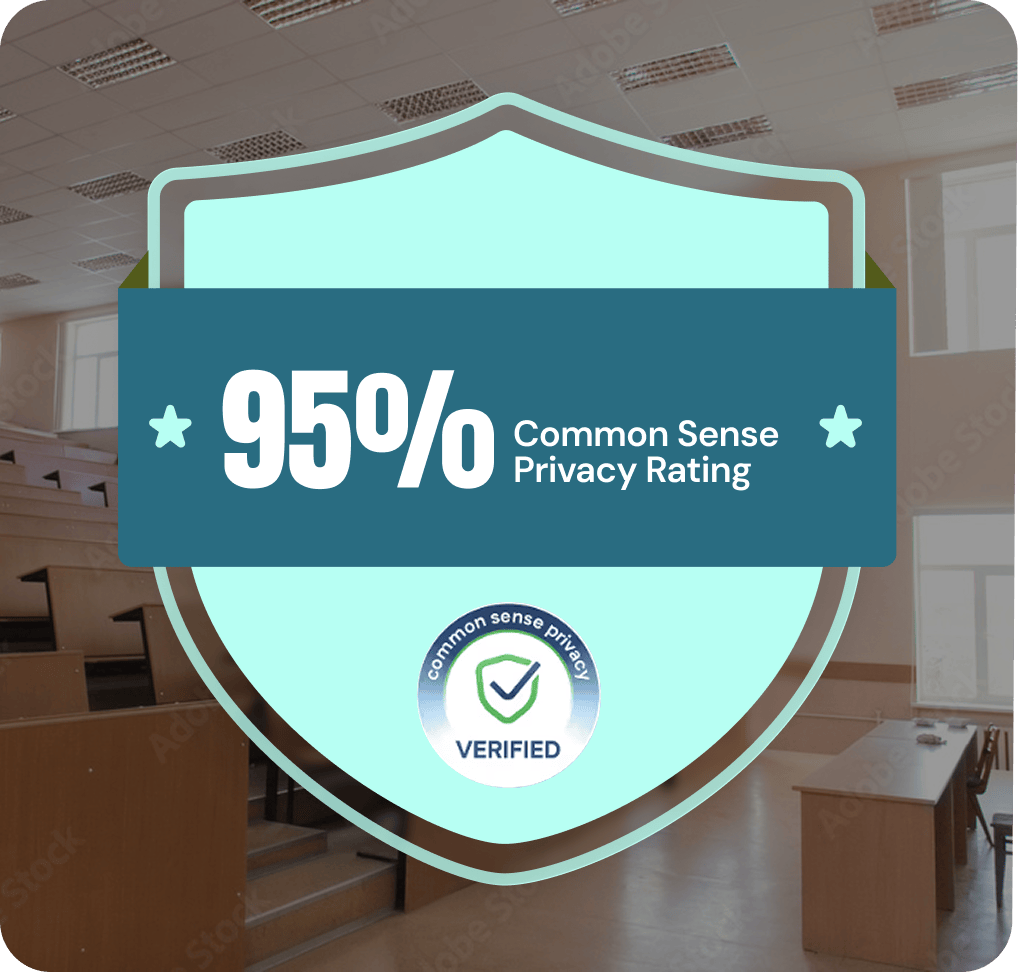






Les enseignants et les élèves voient la différence
Les enseignants et les élèves voient la différence

Transformez n'importe quel moment pédagogique en activité
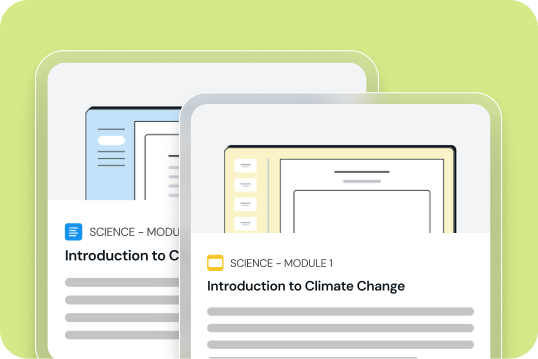
Partez de ce que vous enseignez
Un cours planifié, une actualité, un débat en classe ou une idée spontanée.
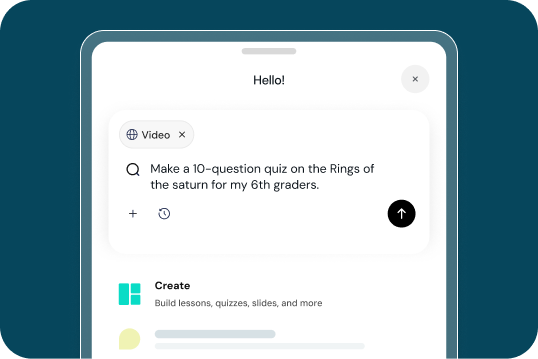
Créez une activité en quelques secondes
Générez des activités fiables pour soutenir l'apprentissage et vérifier la compréhension.
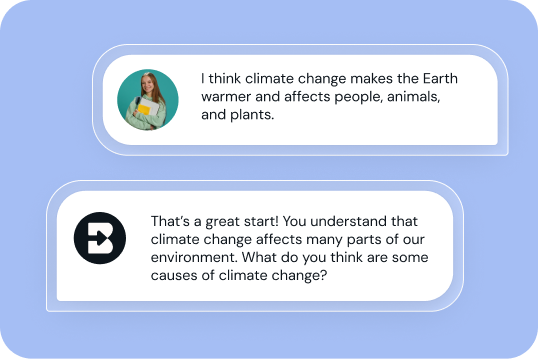
Comprendre chaque apprenant
Utilisez les échanges avec vos élèves pour décider et créer la suite.