What's New

Bookmark this page to see all of Brisk's updates in one place. Every week, new features go live and you won't want to miss them!
What's New In Brisk deck cover - see our latest launches

What's New with Brisk

Never miss a Brisk launch. Whether you're leading PD, sharing Brisk with a teammate, or presenting at a conference, this deck is designed to make it easy to show What's New.

Open Deck

غوك سريد!

August 23, 2024

عن طريق البريد الإلكتروني في تونس! فيما يلي بعض النقاط:

1.
2. كتاب «الحياة» في «صور الله»

برنامج Google الخاص بك؟ هذا هو السبب في أن البحث عن حسن الحظ هو برنامج Google الخاص بك. لها وكفر ثمينه.
تكامل كانفاس سبيدجرادر

August 22, 2024

يتكامل Brisk بسلاسة مع Canvas SpeedGrader، مما يعزز مهام Google بخيارات التعليقات المستهدفة. سواء كنت تستخدم أنماط تعليقات «Glow & Grow» أو «الخطوات التالية» أو أنماط ملاحظات محددة في «معايير التقييم»، فإن Brisk يدعم جميع أنواع الإرسال. قم بتمييز أقسام عمل الطالب لتوجيه الملاحظات إلى تلك المجالات. إذا كنت تستخدم قاعدة، فقم بتحميلها إلى Brisk للتقييم المبسط. شاهد جميع التفاصيل هنا!
يتمتع Brisk بمظهر جديد!

August 21, 2024

تعكس أيقونتنا وشعاراتنا المحدثة Brisk بشكل أفضل كأداة احترافية ومتكاملة بسلاسة تعرفها وتحبها. دعمًا لهذا المظهر الجديد، لدينا أيضًا ✨ Press Kit ✨! أثناء قيامك بالمشاركة أو التقديم على Brisk، يمكنك سحب الشعارات والرموز المحدثة من هذا المجلد.
تكامل يوتيوب!

August 20, 2024

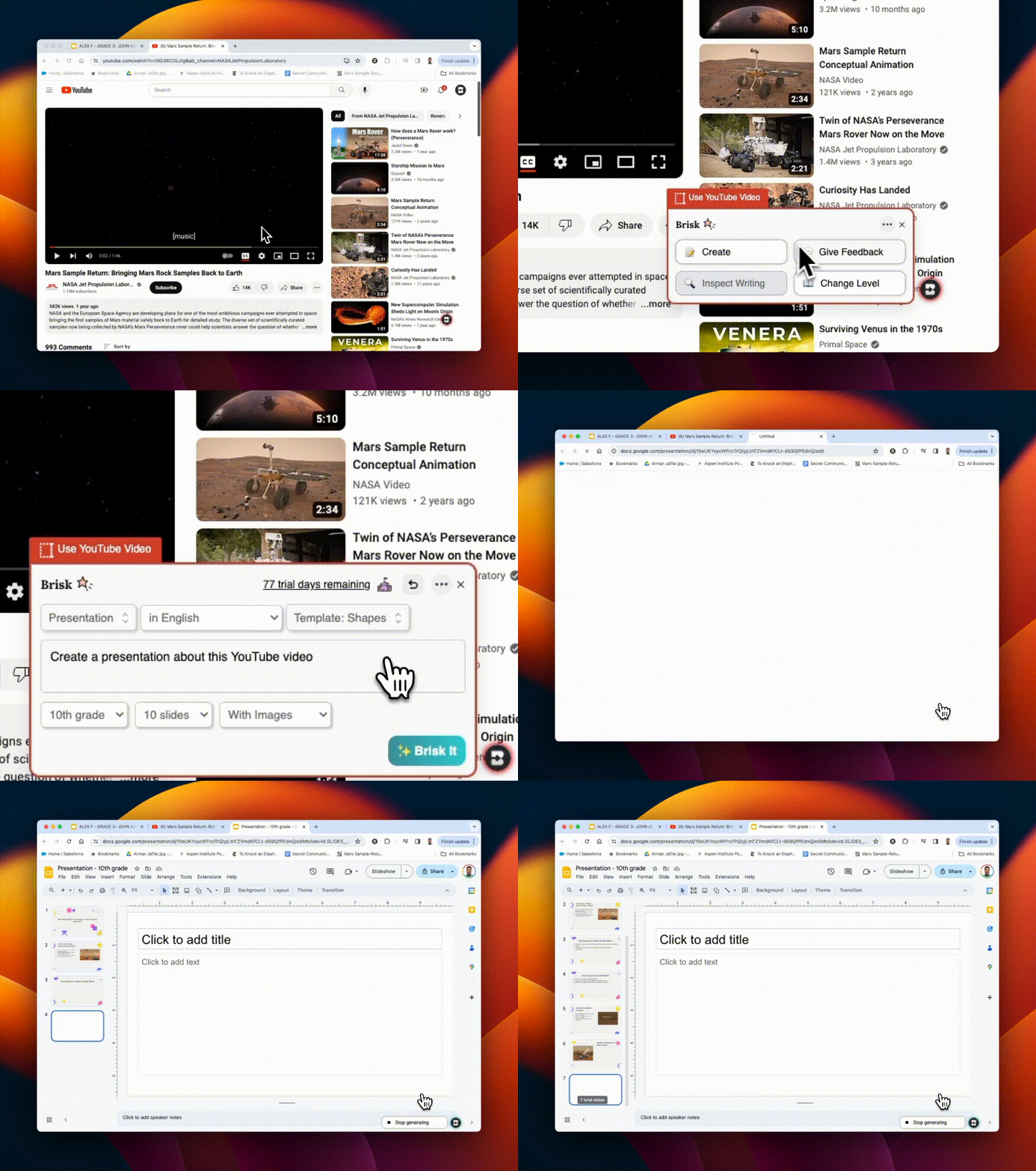
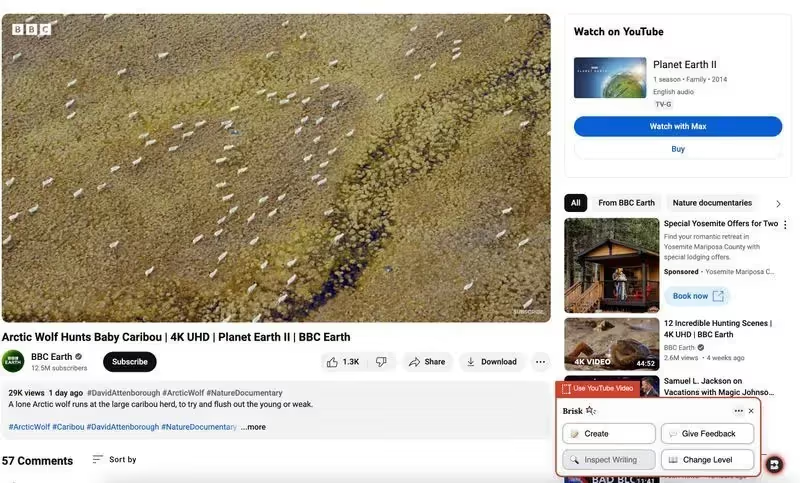
استخدم أي أداة Brisk على مقاطع فيديو Youtube! يمكنك إنشاء خطط الدروس والاختبارات والتعليقات والموارد ونماذج التقييم... مباشرة من فيديو Youtube. إذا كنت تقوم بتقييم مشروع الطالب الذي تم تحميله على Youtube، يمكنك حتى تقديم ملاحظات مباشرة من هناك!
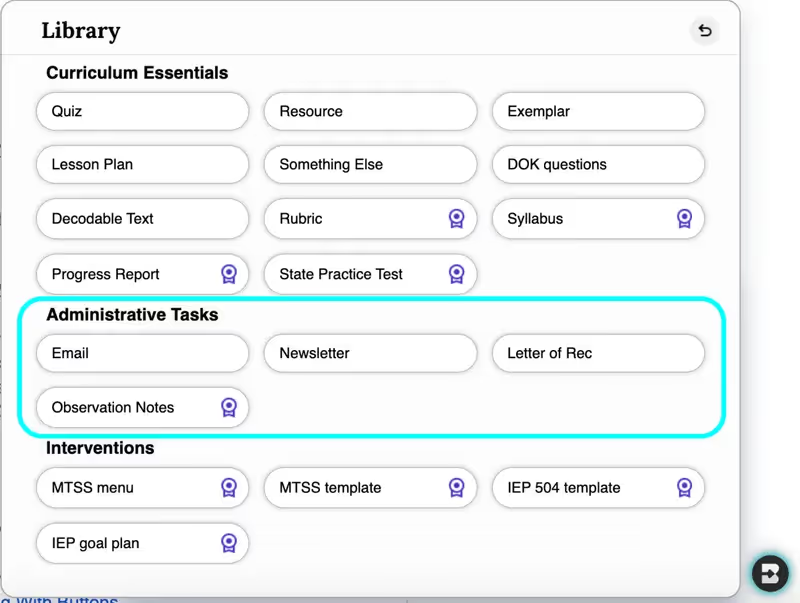
أربع مهام إدارية

August 19, 2024

هل تحتاج إلى كتابة بريد إلكتروني أو رسالة إخبارية أو رسائل توصية أو ملاحظات ملاحظة... في ثوانٍ؟ تمت إضافة مجموعة جديدة من الأدوات الإدارية إلى مكتبة Create... مع المزيد قريبًا. طبقك أصبح أخف بكثير.
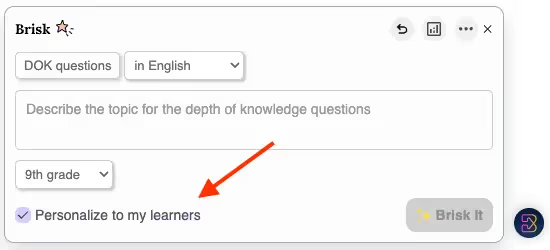
قم بإضفاء الطابع الشخصي على المتعلمين

August 16, 2024

بمجرد ترك تعليقات مع Brisk على 5 مهام أو أكثر، ستظهر الميزات المخصصة عبر جميع الأدوات في Create Library. من خلال تحديد مربع الاختيار «تخصيص للمتعلمين»، سيقوم Brisk تلقائيًا بتمييز المناهج الدراسية لمعالجة التحديات والاحتياجات المحددة للمتعلمين بشكل أفضل.
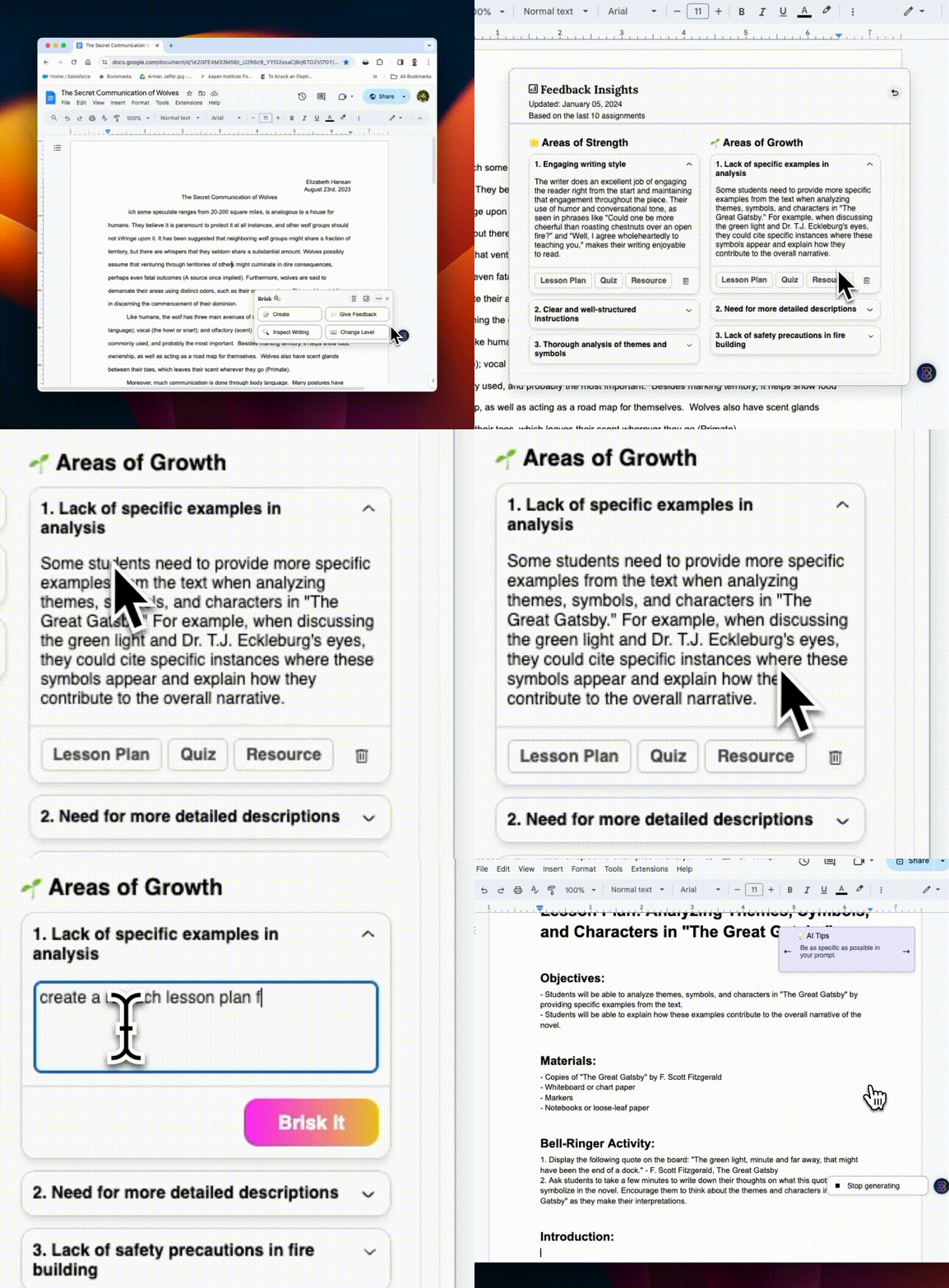
رؤى من ملاحظاتك

August 15, 2024

غارقة في رؤى التتبع عبر العديد من مهام الطلاب؟ اترك ملاحظاتك مع Brisk على خمس مهام فقط لفتح إحصاءات التعليقات. في كل مرة تقدم فيها ملاحظات، تصبح هذه الأداة أكثر قوة لأنها تعرض رؤى ديناميكية في الوقت الفعلي تلتقط ما يحتاجه طلابك.

وهذا ليس كل شيء! بمجرد تحديد مجالات التحسين، انقر فوق أزرار خطة الدرس أو الاختبار أو الموارد لإنشاء محتوى يستهدف تلك المناطق المحددة بسرعة. على سبيل المثال، إذا كان طلابك يواجهون صعوبة في الاستشهاد بمصادرهم، فيمكنك وضع خطة للدرس لتحسين هذه المهارة - هناك.
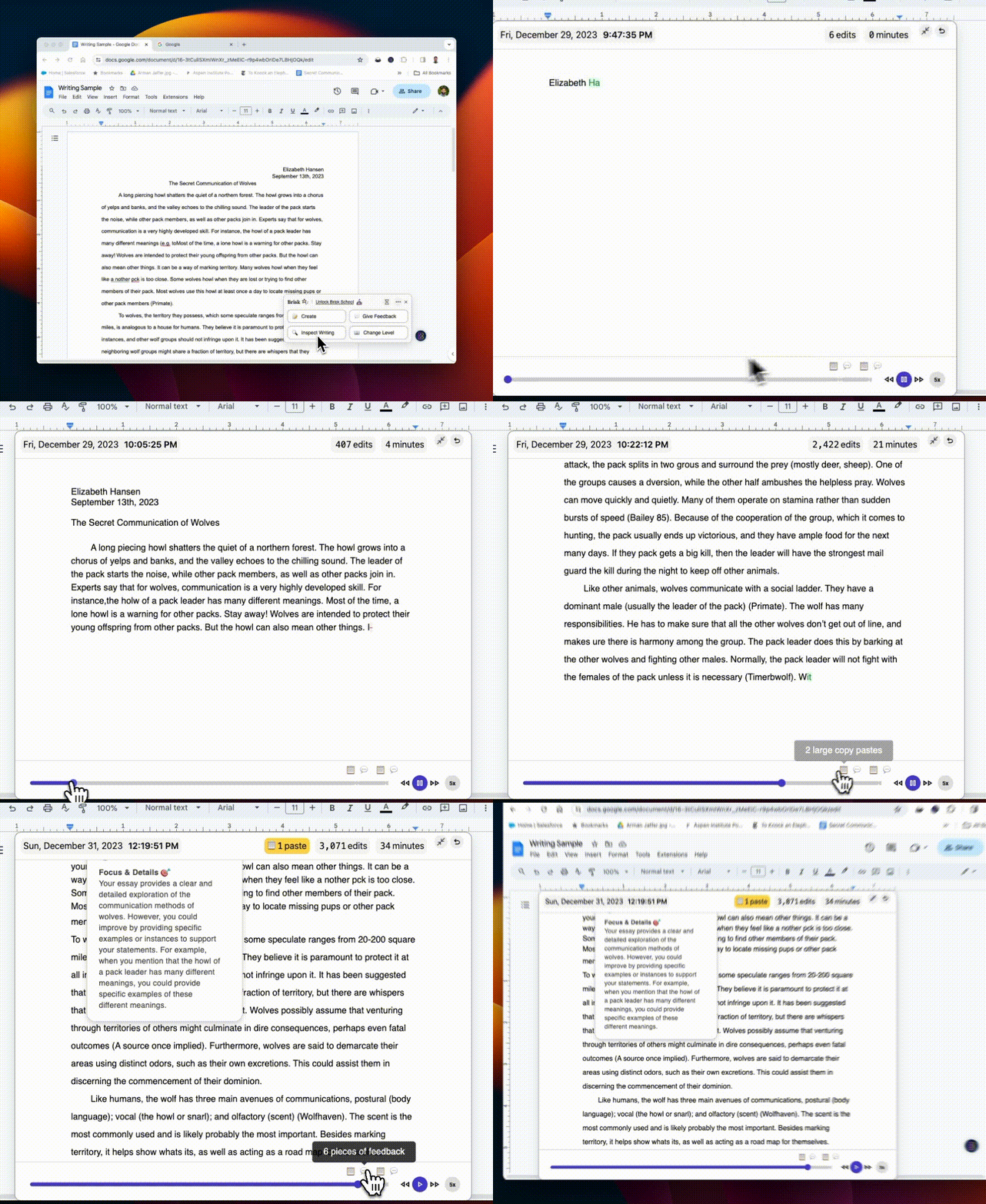
تقديم وفحص الكتابة

August 14, 2024

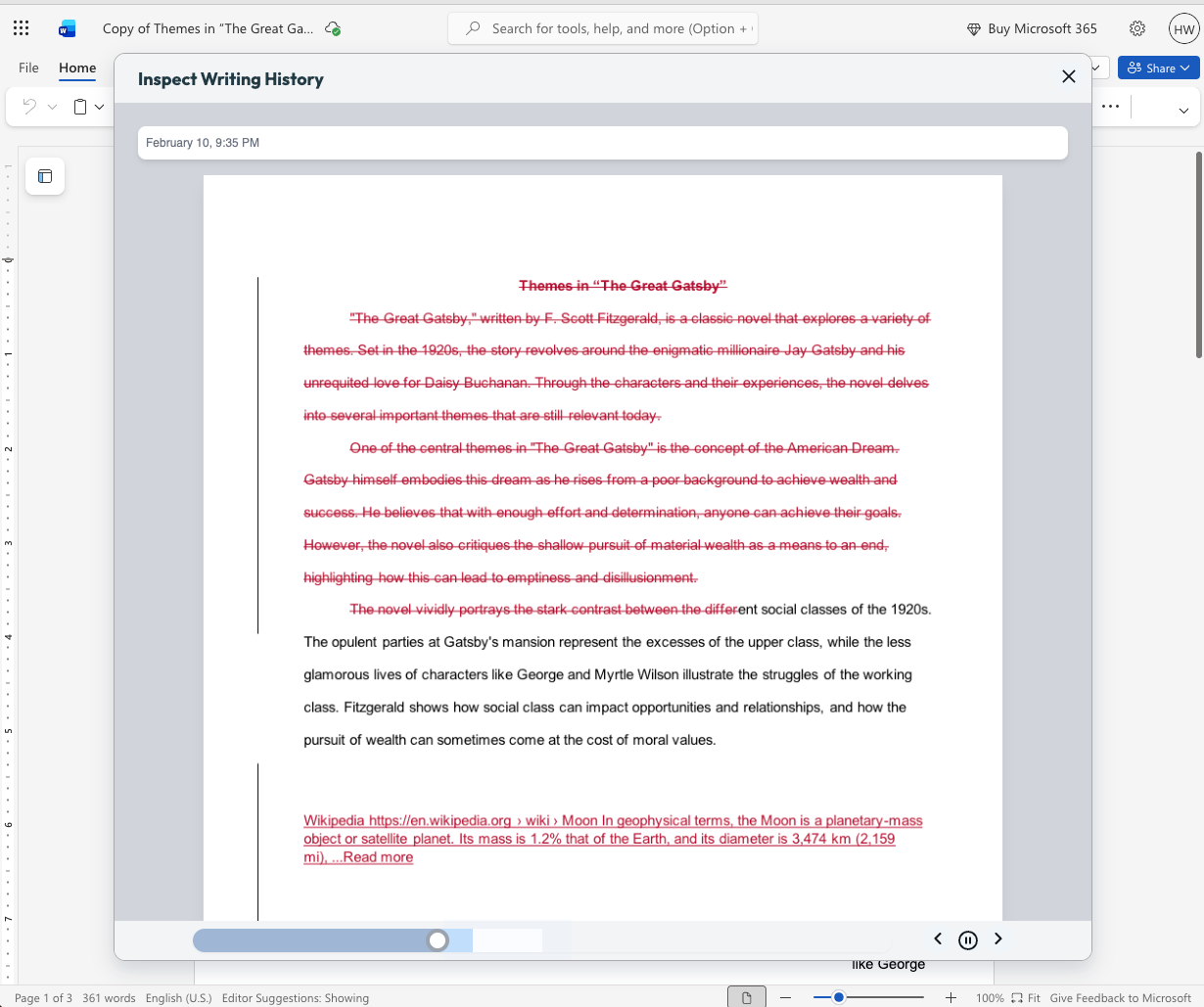
هل تعاني من أجهزة كشف الذكاء الاصطناعي غير الموثوقة؟ تعيد Inspect Writing تصور تحليل كتابة الطالب. أعد عرض مفصل خطوة بخطوة لسجل مراجعات طلابك وإجراءات النسخ/اللصق والمزيد. جربها وشاهد الفرق!
المزيد من الخيارات والمزيد من الموارد

August 13, 2024

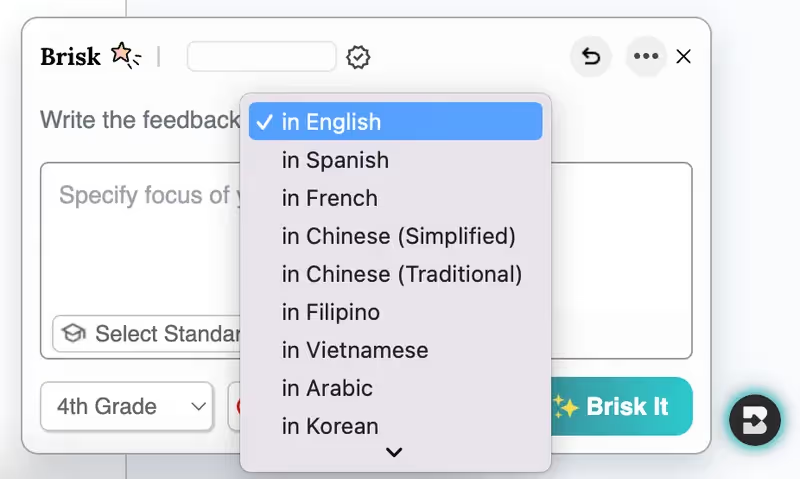
تعليم طلاب اللغة الإنجليزية كلغة ثانية؟ يمكنك الآن تقديم ملاحظات بأكثر من 10 لغات.

هل سئمت النسخ واللصق؟ لقد قمنا بالتوسع حيث يمكنك إنشاء التعليقات وتقديمها! انقر فوق رمز Brisk على أي موقع ويب أو مستند Google للوصول الفوري إلى خيارات التعليقات وإنشاء مكتبة لإنشاء الاختبارات والدروس والموارد والمزيد.

دمج موارد متنوعة؟ قم بتغيير مستوى القراءة على آلاف المقالات الإضافية وصفحات الموقع.
الإضافات إلى مكتبة الإنشاء

August 12, 2024

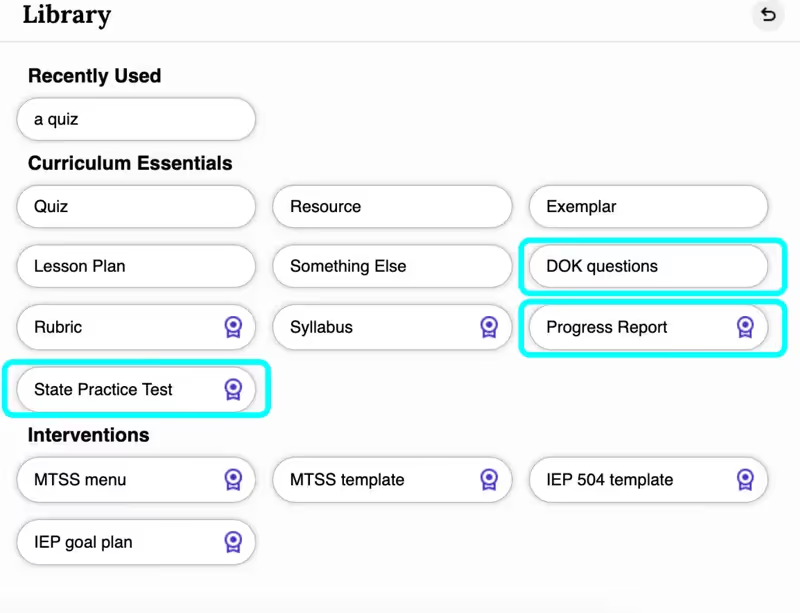
أسئلة DOK (عمق المعرفة) تلبية المستويات المعرفية المتنوعة، مما يضمن مشاركة الطلاب وتحديهم بشكل مناسب.

تتيح لك تقارير التقدم إنشاء تقارير مخصصة بسرعة تستجيب لمدخلاتك، مع المرونة في التخصيص حسب الحاجة. (تقارير التقدم هي جزء من خطة مدرسة Brisk). قل وداعًا لساعات الصياغة الطويلة!

تمنح اختبارات الممارسة الحكومية الطلاب الممارسة التي يحتاجونها للنجاح. الآن، يمكنك استخدام Brisk لإنشاء اختبارات تدريبية لـ STAAR و SBAC والتقييمات الإضافية.
Inspect Writing & Targeted Feedback in Microsoft Word

June 29, 2026

Microsoft teachers now have access to two tools that enable them to deliver more (and more personalized) feedback to students in less time: Inspect Writing and Targeted Feedback.

Inspect Writing

(Note: This new feature will become available for back to school 2026.)

Watch a video-style replay of a student’s writing process from first draft through final version. See what they added and deleted at each step and how they responded to feedback. Use this to gain insight into how your students are thinking, spot learning gaps, and guide growth.

Targeted Feedback

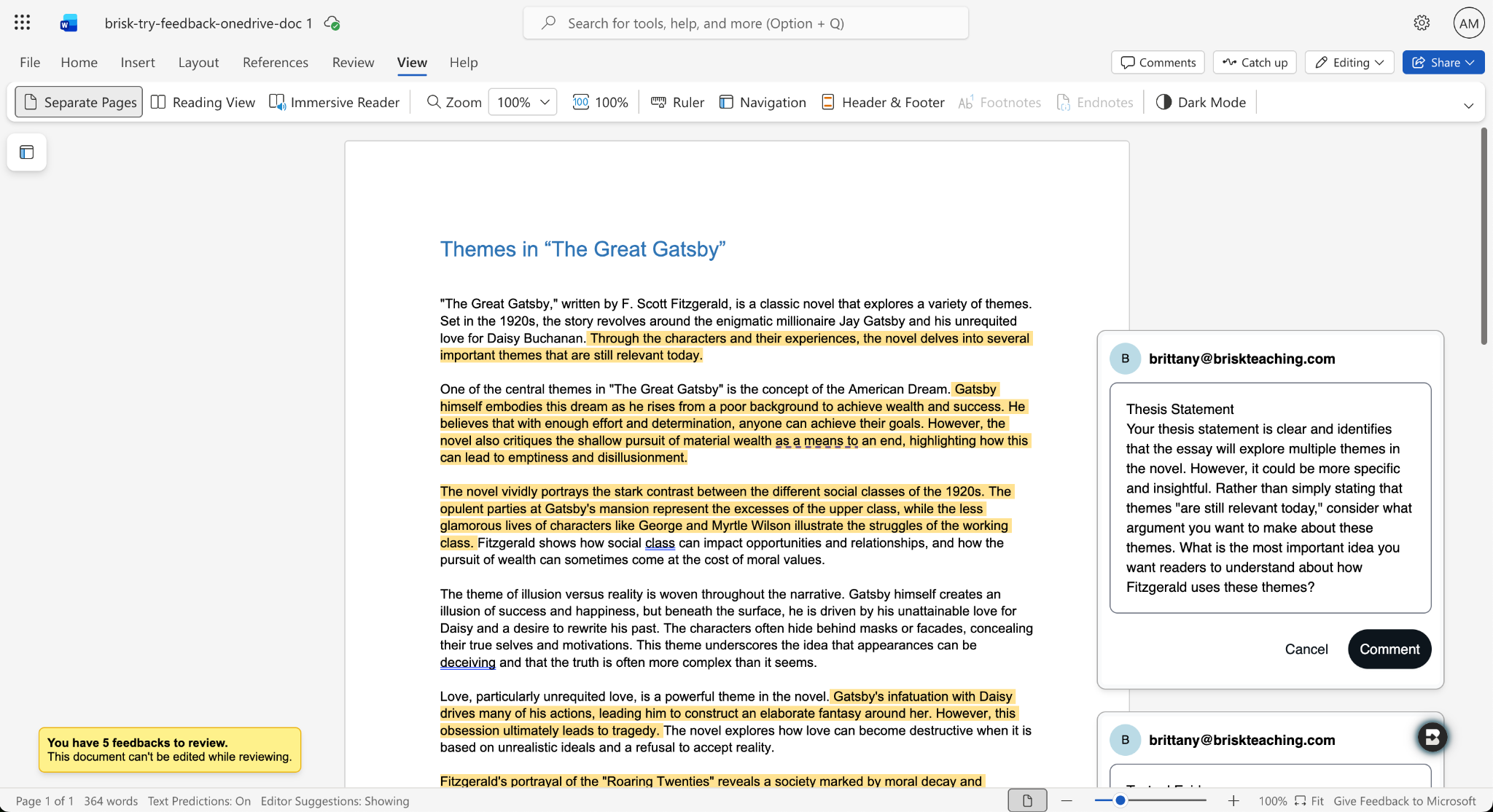
Provide students with personalized feedback that appears directly in the Word docs they’re working in. Brisk drafts inline comments that are aligned with your standards and whatever rubric you want, but you remain in full control of what students see.

How it works:

  1. Open a student writing assignment in Word.
  2. Select the Targeted Feedback tool in the Brisk extension.
  3. Set the language and grade level for the feedback and specify whether you want the feedback to align with an attached rubric or your state standards.
  4. Review the feedback Brisk generates, make adjustments, and click Comment to post a piece of feedback to the student’s work.

Share Boost Activities with Other Educators

June 29, 2026

You can now share Boost Activities with the other educators in your classroom (SPED staff, MTSS coordinators, paraprofessionals, subs). These co-teachers will have read-only access to student progress and activity data so they’re able to observe and support student learning.

How it works:

  1. Open the Share menu: In My Library, go to Activities and click the Share button or the three-dot menu on any activity, then select Share with Co-Teachers. (You can revoke access at any time by removing a co-teacher from the activity’s Share menu.)
  2. Enter a colleague’s email: Type their email and send the invite. They’ll receive a link to accept. (To successfully accept an invite, their email must be rostered in your district.)
  3. Co-teacher accepts: Once they accept the invite, the activity appears in their My Library under Shared with Me.
  4. Co-teacher views the activity: They see the activity monitor — including student progress, messages, safety flags, and Mock Student — in a read-only view. No edit controls are shown.

You can also share your favorite Boost Activities with your fellow teachers, who can then make copies of the activities to use with their own students.

Shape Every Brisk Output with District-Level Priorities

June 29, 2026

District Guidance gives districts with the Intelligence plan a way to consistently translate instructional leadership investments (professional development, pedagogical frameworks, standards alignment) into actual classroom practice.

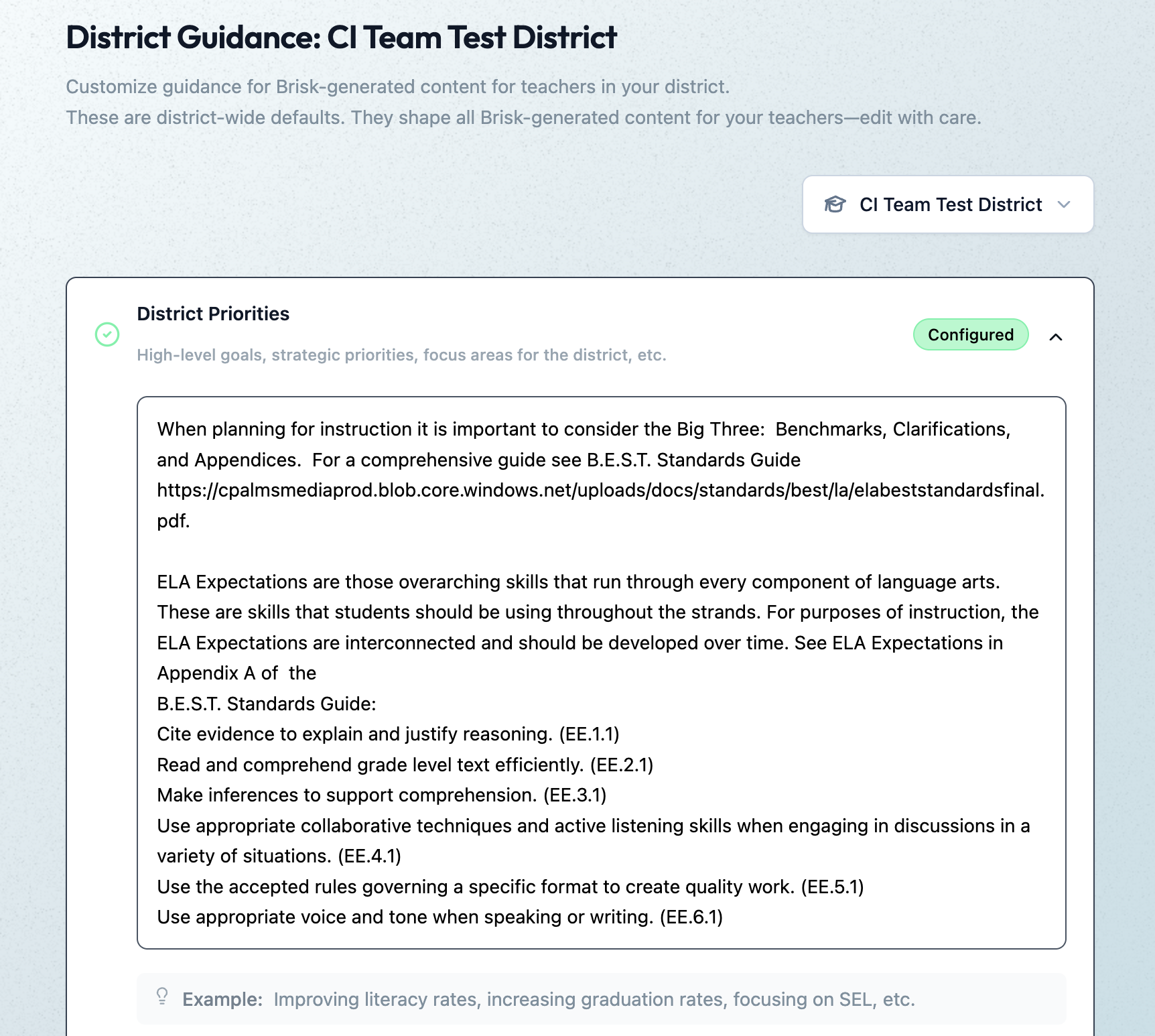
In the District Guidance tab of their Admin Portal, leaders provide instructions that automatically shape everything teachers generate with the Brisk extension, Brisk Boost, and Brisk Next. These instructions don’t change the way teachers use or experience Brisk — they simply ensure that every Brisk output reflects a district’s unique priorities.

Leaders can use District Guidance on its own or in tandem with Curriculum Intelligence. (Reminder: Curriculum Intelligence ensures that every Brisk output reflects a district’s adopted curriculum, scope, and pacing.) While Curriculum Intelligence informs what is being taught, District Guidance informs how it’s being taught.

Leaders have the option of providing instructions in four categories:

  • District Priorities: High-level goals, strategic priorities, focus areas (e.g., “The district is focusing on literacy across all content areas this year”)
  • Values & Frameworks: Cultural values, behavioral frameworks, ethical guidelines, community norms (e.g., “Emphasize the district’s four Cs: communication, collaboration, creativity, critical thinking”)
  • Pedagogical Approach: Teaching methods, instructional strategies, learning philosophies (e.g., “Use Workshop Model structure: mini-lesson, practice, debrief”)
  • Standards Emphasis: Academic standards, curriculum alignment requirements, assessment criteria (e.g., “Emphasize these power standards for 6th grade math”)

(Note: This new feature will become available in July 2026.)

Create District-Level Libraries of Curriculum-Aligned Resources

June 29, 2026

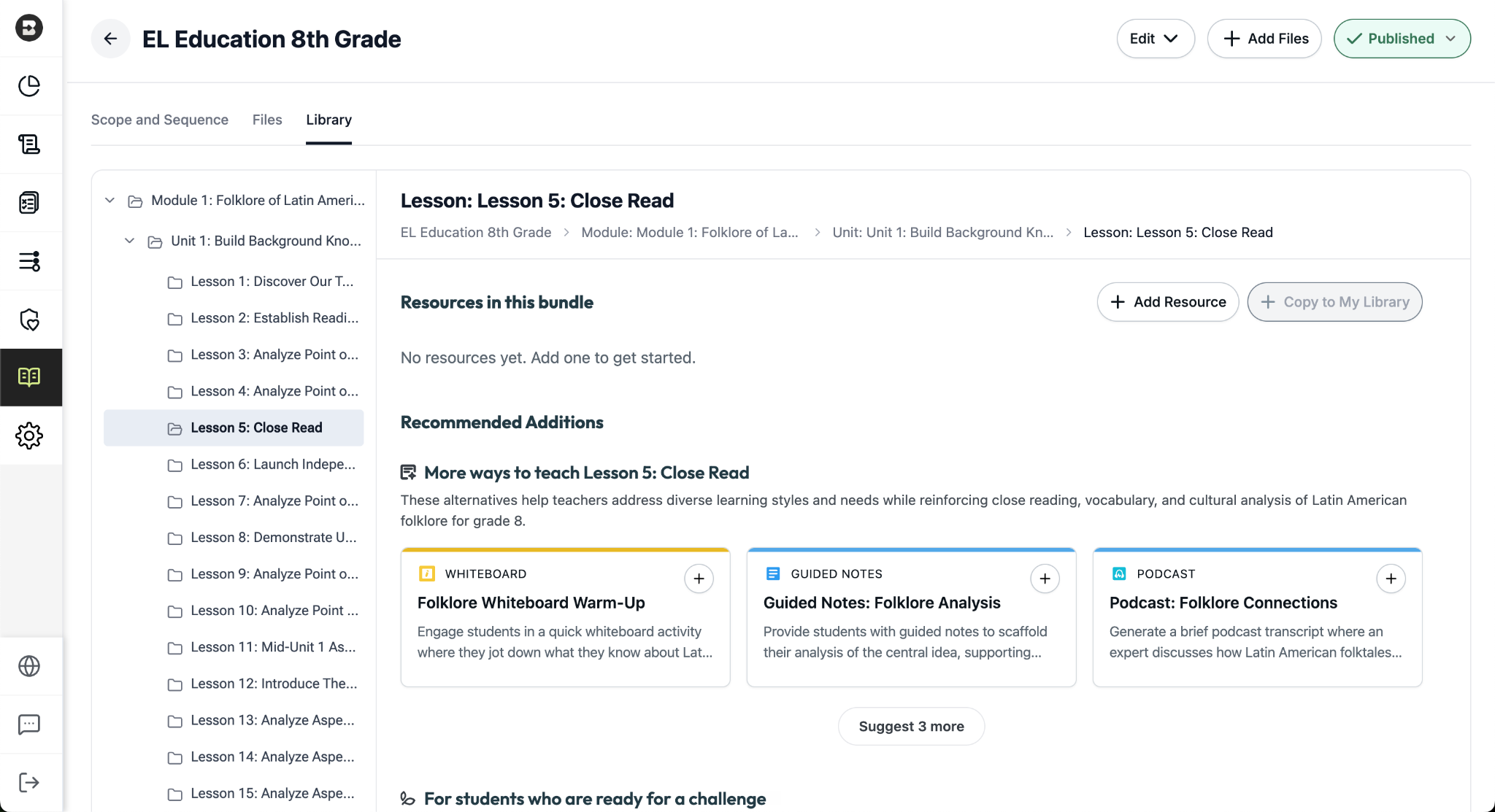
The District Library enables districts with the Intelligence plan to promote curriculum fidelity and help teachers spend less time looking for the right resource and more time delivering high-quality instruction.

Once a district leader has set their curriculum and instructional priorities using Curriculum Intelligence and District Guidance, they’re able to curate resource bundles for any course in their district. It’s like putting a perfectly organized library shelf at every teacher’s fingertips.

How District Libraries are organized:

  • One library per course: Leaders can create a resource library for each course that’s published in the Curriculum Courses tab of their Admin Portal.
  • One bundle per lesson: Leaders can put together a bundle for each lesson in a course (reminder: within a scope and sequence, lessons ladder up to units, which ladder up to modules, the largest components of a course).
  • One source of truth, easy access for teachers: Only leaders can edit or add to a District Library, but with just one click, teachers can create independent copies of a bundle in their personal resource libraries that they can customize and share with their students.

Building a resource bundle

There are several ways for leaders to add resources to a bundle. They can:

  • Choose from a pre-populated list of smart recommendations that are informed by the district’s curriculum and instructional priorities. These recommendations are organized into practical categories like “More ways to teach…” (for supporting diverse learning styles) and “For students who are ready for a challenge…”
  • Generate customized resources using the dozens of tools that are part of the Brisk extension.
  • Upload pre-existing, non-Brisk resources.

(Note: This new feature will become available in July 2026.)

Brisk x AI Platforms

May 18, 2026

You're already in ChatGPT, Gemini, Copilot, or Claude, typing a quick prompt to get something useful before tomorrow. Brisk is already there too, and one click turns that prompt into something you can hand out in class.

Prompt Booster

Start typing in any of these tools and a Brisk It button appears in the prompt field. Click it and your prompt becomes a detailed, instructionally rich version with grade-level framing, standards alignment, and scaffolding strategies built in — so what the AI gives back is classroom-ready from the start.

From there, choose what to do next:

  • Add to Prompt: drop the enhanced prompt back into your AI tool and run with it.
  • Create with Brisk: open Brisk Next with your enhanced prompt already loaded. Brisk surfaces aligned lesson plans, assessments, presentations, and more — all from that one prompt.

Take Action on Any AI Response

Already have a response you like? When the AI finishes generating, a Brisk button appears below it. Click to send it where you need it:

  • Send to Brisk on the web: push the response directly into Brisk on the web, with or without an additional prompt.
  • Send to extension: select Presentation, Quiz, Podcast, Tutor, or Create with Brisk to prefill the Brisk Extension. Customize, then create.

Wherever you're already prompting, Brisk works where you work. Learn more.