What's New

Bookmark this page to see all of Brisk's updates in one place. Every week, new features go live and you won't want to miss them!
What's New In Brisk deck cover - see our latest launches

What's New with Brisk

Never miss a Brisk launch. Whether you're leading PD, sharing Brisk with a teammate, or presenting at a conference, this deck is designed to make it easy to show What's New.

Open Deck

تخصيص Brisk باستخدام مدير أدوات الإدارة

April 7, 2025

تعرف على مدير أدوات الإدارة، وهي ميزة جديدة مصممة لشركاء المدارس والمقاطعات الذين يريدون المزيد من التحكم والتخصيص عبر المنصة. سواء كنت تطرح مبادرات جديدة أو تبسط الأدوات التي يستخدمها المعلمون يوميًا، فإن مدير أدوات الإدارة يضعك في مقعد القيادة.

مع مدير أدوات الإدارة، يمكنك:

  • إنشاء أدوات مخصصة باستخدام التعليمات الخاصة بك - بما يتماشى مع الأهداف التعليمية لمنطقتك.
  • انشر الأدوات مباشرةً في مكتبة Brisk الخاصة بكل معلم - حتى يمكن الوصول إليها على الفور.
  • إخفاء أدوات Brisk الافتراضية التي لا تتعلق بالسياق الخاص بك، مما يجعل فريقك يركز على الأمور الأكثر أهمية.


كيفية استخدام مدير أدوات الإدارة

البدء سريع:

الخطوة 1: انقر سريع في الركن الأيمن السفلي من متصفحك.

الخطوة 2: حدد ابتكر.

الخطوة 3: في الجزء العلوي من المكتبة الخاصة بك، انقر فوق إدارة الأدوات.

الخطوة 4: تخصيص الأدوات لتلبية احتياجات مدرستك أو منطقتك. يمكنك إنشاء أدوات جديدة خصيصا لموظفيك.

الخطوة 5: بالإضافة إلى إنشاء أدوات جديدة، يمكنك أيضًا تحرير، نشر، أو حذف أي أدوات لتجربة مخصصة.

عندما تتوافق الأدوات التعليمية مع أهدافك، يفوز الجميع. يمنحك مدير أدوات الإدارة المرونة لإنشاء الاتساق وتبسيط سير العمل والحفاظ على توافق كل شيء مع أهدافك.

حوّل الدروس إلى ملفات بودكاست في ثوانٍ باستخدام منشئ البودكاست من Brisk

April 1, 2025

أحدث ميزة لـ Brisk تجعل من السهل أكثر من أي وقت مضى إشراك كل متعلم - في أي وقت وفي أي مكان. باستخدام Podcast Generator، يمكنك تحويل الدروس والمقالات والمحتويات الأخرى على الفور إلى تجارب صوتية ديناميكية.


سواء كنت تهدف إلى تعزيز إمكانية الوصول، أو دعم المتعلمين متعددي اللغات، أو ببساطة منح الطلاب المزيد من الطرق للتواصل مع المحتوى، فإن هذه الأداة تجعل الأمر سلسًا. لا يوجد إعداد إضافي. لا توجد متاعب إضافية.


مجرد تعلم قوي يركز على الطالب - يتم تقديمه بالسرعة والبساطة التي تتوقعها من Brisk. تعرف على المزيد حول مولد البودكاست السريع هنا.

Brisk Boost Writing Activities is Here

March 4, 2025

With Boost Writing Activities, every student gets the support they need—without you having to run from desk to desk all class period.

There are 4 ways to use Boost Writing Activities:

  • Writing Coach – The ultimate writing sidekick
  • Glow & Grow – Feedback students can actually use
  • Next Steps – Because writing doesn’t end at submission
  • Goal Setting – Reflection + growth


To try it out, open a writing prompt or writing activity, click on 'Boost Student Activity', and click Write.

Brisk now works with images!

February 28, 2025

Just drag, drop, or upload any image - whiteboard notes, messy worksheets, student work - and Brisk will instantly turn it into questions, feedback, and activities.

أداة جديدة: زر إنشاء أي شيء

February 14, 2025

زر إنشاء أي شيء! قم على الفور بإنشاء موارد تعليمية مدعومة بالذكاء الاصطناعي - الاختبارات وقوائم المفردات وغرف الهروب والمزيد - مخصصة لفصلك الدراسي. جربه الآن واجعل أفكارك تنبض بالحياة في ثوانٍ!

5 أدوات إنشاء جديدة

December 27, 2024

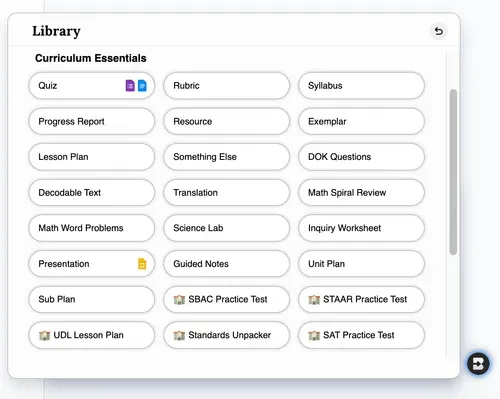
في قائمة إنشاء Brisk، ستلاحظ 5 أزرار جديدة. في غضون ثوانٍ قليلة، قم بإنشاء:

  • ملاحظات إرشادية: يوفر Brisk ملاحظات منظمة تسلط الضوء على النقاط والمفاهيم الرئيسية لإبقاء الطلاب على المسار الصحيح.
  • خطط الوحدة: قم بإنشاء خطط وحدة منظمة باستخدام قوالب جاهزة للاستخدام للحفاظ على تفاعل الدروس.
  • الخطط الفرعية: هل تحتاج إلى بديل في اللحظة الأخيرة؟ يقوم Brisk بإنشاء خطط ومواد سهلة المتابعة يمكنك مشاركتها مع الفرع الفرعي.
  • اختبارات SAT التدريبية: قم بتزويد الطلاب باختبارات تدريب SAT كاملة وموقوتة لمساعدتهم على الاستعداد ليوم الاختبار.
برنامج بريسك بوست للطلاب هنا!

September 17, 2024

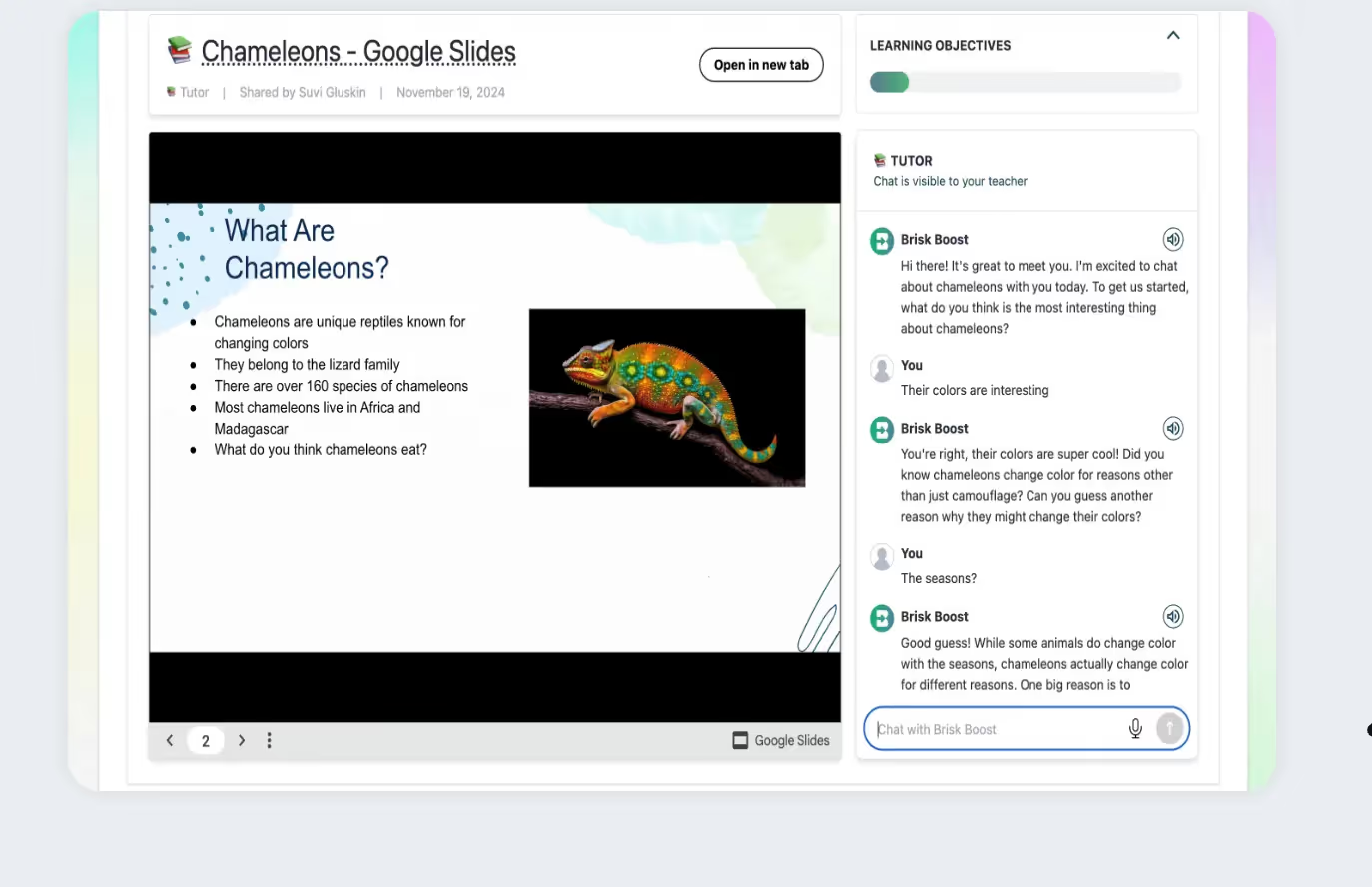
Brisk Boost هي أداة تساعد المعلمين على تحويل الموارد التعليمية اليومية إلى تجارب تعليمية تفاعلية مدعومة بالذكاء الاصطناعي. يمكن للمعلمين تحويل مواد مثل محرر مستندات Google والعروض التقديمية والمقالات إلى أنشطة جذابة تعزز مشاركة الطلاب وفهمهم. باستخدام Brisk Boost، يتفاعل الطلاب مع الأدوات المدعومة بالذكاء الاصطناعي مثل شركاء العصف الذهني، والفحوصات السريعة للفهم، والتغذية الراجعة في الوقت الفعلي - مما يسمح للمعلمين بتخصيص الدروس ومساعدة الطلاب على إتقان المواد بطريقة آمنة وفعالة. تعرف على المزيد هنا.
4 أدوات جديدة!

August 28, 2024

تمت إضافة 4 أدوات جديدة لجعل Brisk أكثر قوة لمعلمي الرياضيات والعلوم. افتح قائمة الإنشاء لإنشاء مراجعة لولبية للرياضيات ومشكلات الكلمات الرياضية ومختبرات العلوم وأوراق عمل الاستفسار في ثوانٍ.

الميزات المميزة مجانية لجميع المعلمين

August 27, 2024

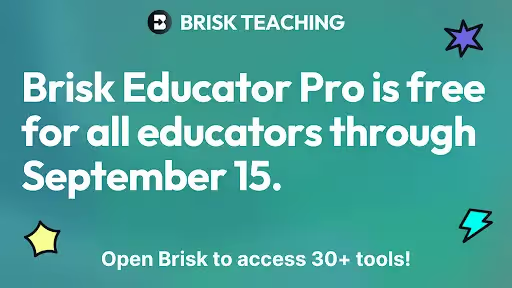
العودة إلى المدرسة محمومة، ونريد أن تحصل على كل ما تحتاجه (وأكثر!) لتقليل التوتر هذا العام الدراسي. لذلك، نمنح جميع المعلمين وصولاً مجانيًا إلى Brisk Educator Pro، اشتراكنا المميز الجديد للمعلمين، حتى 15 سبتمبر. سواء كنت مستخدمًا جديدًا لـ Brisk أو مستخدمًا حاليًا، افتح Brisk لتجربة كل ما تقدمه Brisk.
خطة بريسك إدوكيشن برو هنا!

August 26, 2024

لقد سألت... نحن متحمسون جدًا للإعلان عن أن المعلمين يمكنهم شراء Brisk بشكل فردي للوصول إلى ميزات إضافية. هذه الخطة مجانية لجميع المعلمين حتى 15 سبتمبر. قم بتثبيت بريسك هنا - سترى تلقائيًا ميزات مميزة مجانية على حسابك.

انقر هنا لمعرفة المزيد.

Inspect Writing & Targeted Feedback in Microsoft Word

June 29, 2026

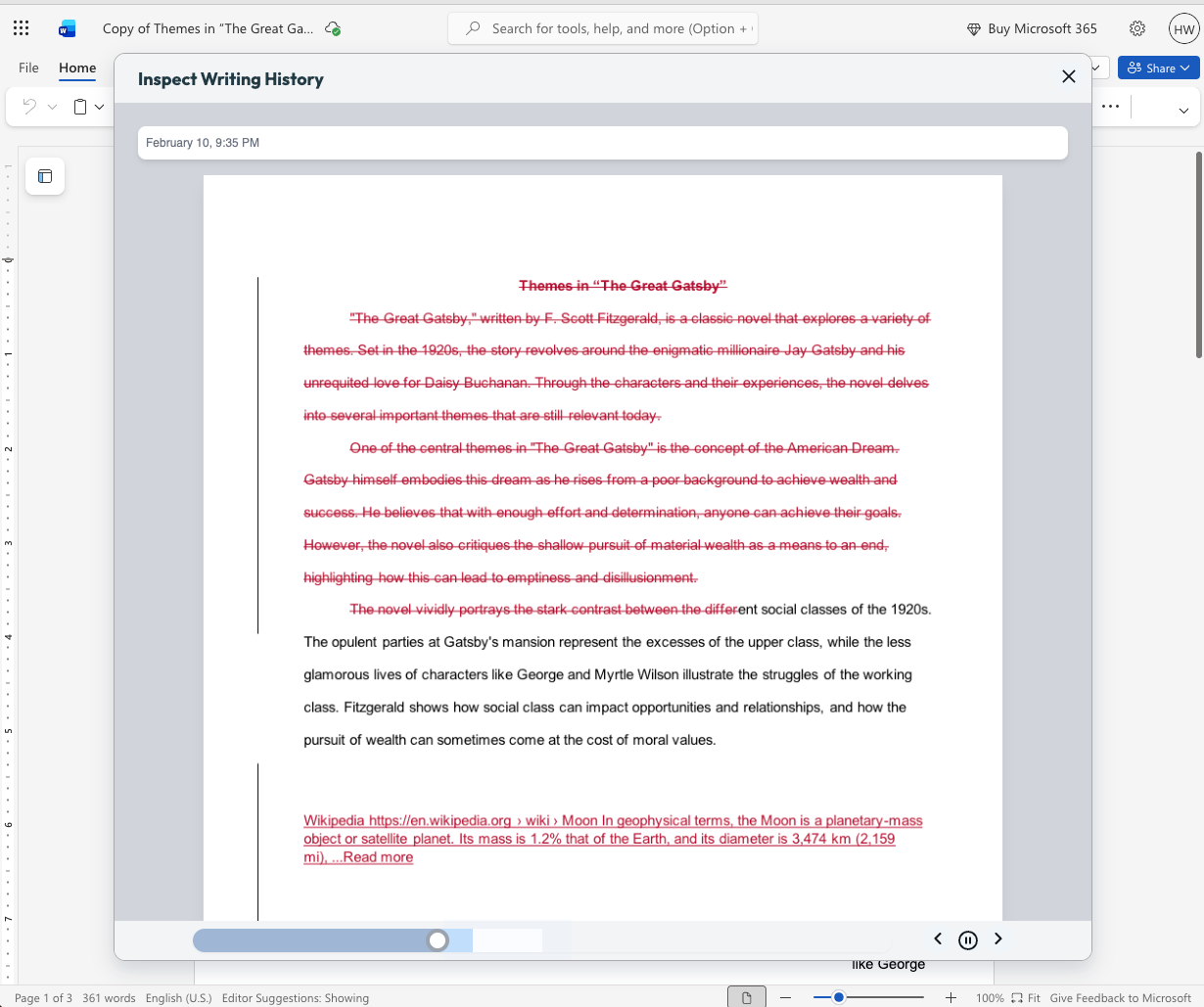
Microsoft teachers now have access to two tools that enable them to deliver more (and more personalized) feedback to students in less time: Inspect Writing and Targeted Feedback.

Inspect Writing

(Note: This new feature will become available for back to school 2026.)

Watch a video-style replay of a student’s writing process from first draft through final version. See what they added and deleted at each step and how they responded to feedback. Use this to gain insight into how your students are thinking, spot learning gaps, and guide growth.

Targeted Feedback

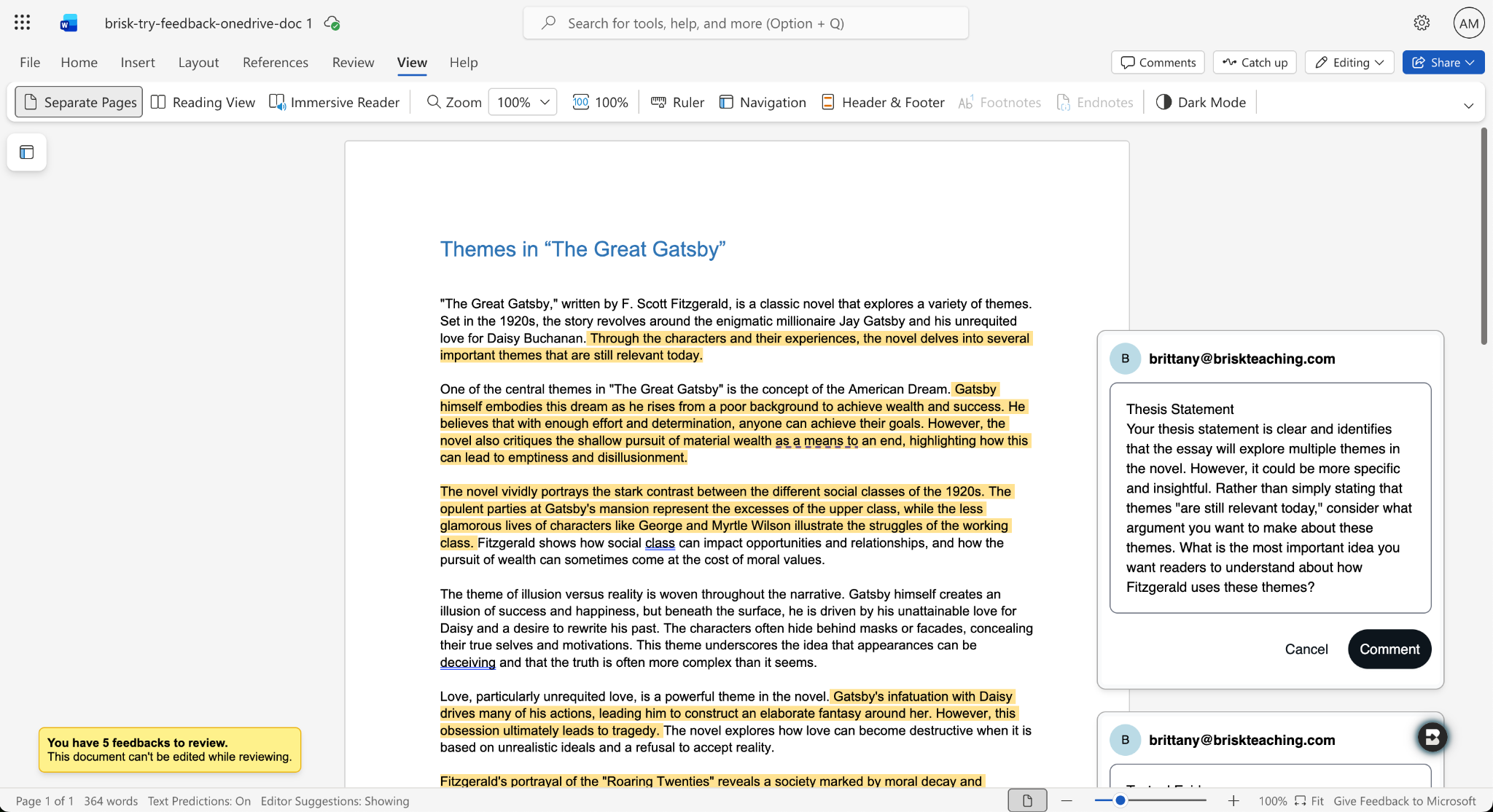
Provide students with personalized feedback that appears directly in the Word docs they’re working in. Brisk drafts inline comments that are aligned with your standards and whatever rubric you want, but you remain in full control of what students see.

How it works:

  1. Open a student writing assignment in Word.
  2. Select the Targeted Feedback tool in the Brisk extension.
  3. Set the language and grade level for the feedback and specify whether you want the feedback to align with an attached rubric or your state standards.
  4. Review the feedback Brisk generates, make adjustments, and click Comment to post a piece of feedback to the student’s work.

Share Boost Activities with Other Educators

June 29, 2026

You can now share Boost Activities with the other educators in your classroom (SPED staff, MTSS coordinators, paraprofessionals, subs). These co-teachers will have read-only access to student progress and activity data so they’re able to observe and support student learning.

How it works:

  1. Open the Share menu: In My Library, go to Activities and click the Share button or the three-dot menu on any activity, then select Share with Co-Teachers. (You can revoke access at any time by removing a co-teacher from the activity’s Share menu.)
  2. Enter a colleague’s email: Type their email and send the invite. They’ll receive a link to accept. (To successfully accept an invite, their email must be rostered in your district.)
  3. Co-teacher accepts: Once they accept the invite, the activity appears in their My Library under Shared with Me.
  4. Co-teacher views the activity: They see the activity monitor — including student progress, messages, safety flags, and Mock Student — in a read-only view. No edit controls are shown.

You can also share your favorite Boost Activities with your fellow teachers, who can then make copies of the activities to use with their own students.

Shape Every Brisk Output with District-Level Priorities

June 29, 2026

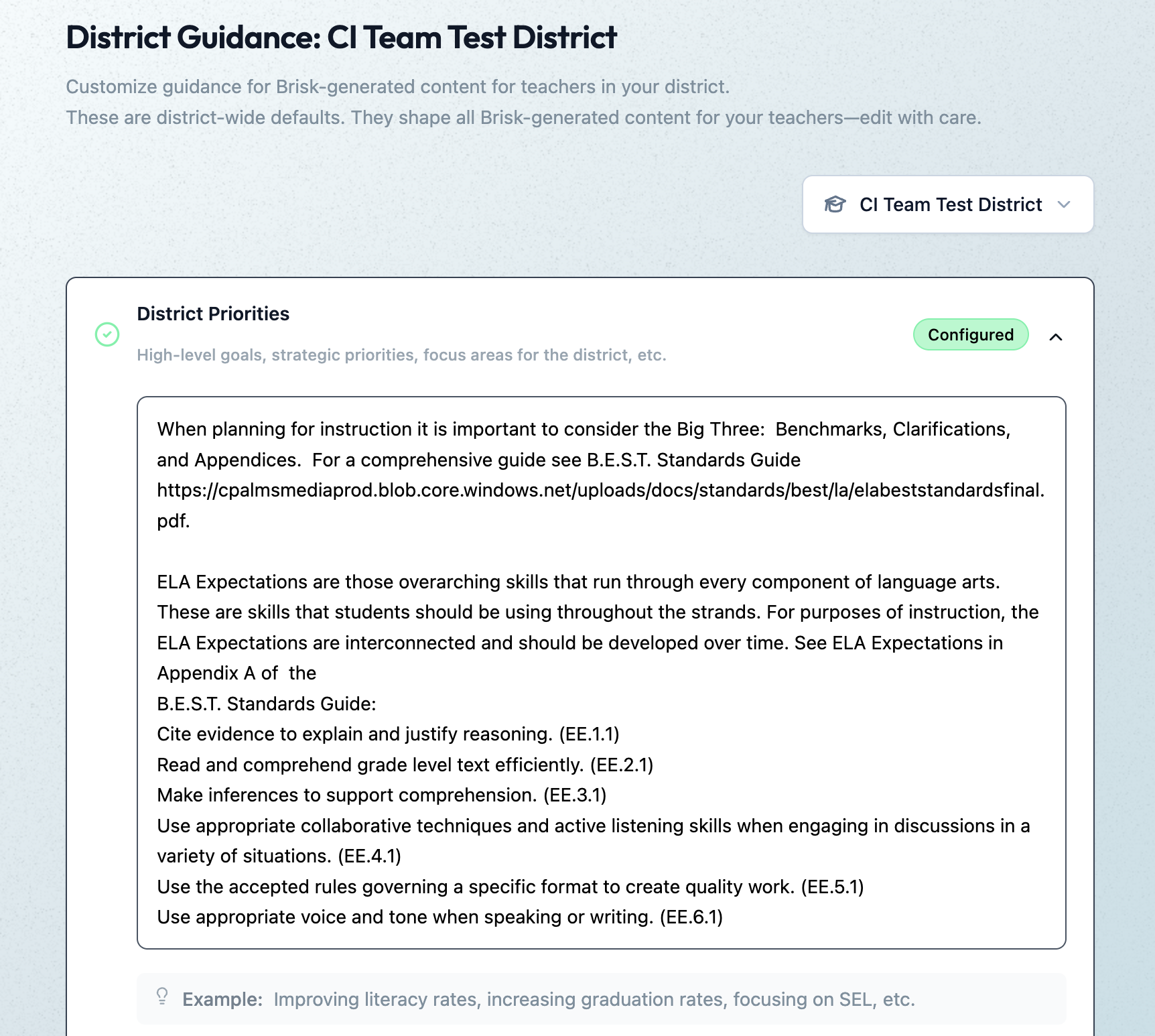
District Guidance gives districts with the Intelligence plan a way to consistently translate instructional leadership investments (professional development, pedagogical frameworks, standards alignment) into actual classroom practice.

In the District Guidance tab of their Admin Portal, leaders provide instructions that automatically shape everything teachers generate with the Brisk extension, Brisk Boost, and Brisk Next. These instructions don’t change the way teachers use or experience Brisk — they simply ensure that every Brisk output reflects a district’s unique priorities.

Leaders can use District Guidance on its own or in tandem with Curriculum Intelligence. (Reminder: Curriculum Intelligence ensures that every Brisk output reflects a district’s adopted curriculum, scope, and pacing.) While Curriculum Intelligence informs what is being taught, District Guidance informs how it’s being taught.

Leaders have the option of providing instructions in four categories:

  • District Priorities: High-level goals, strategic priorities, focus areas (e.g., “The district is focusing on literacy across all content areas this year”)
  • Values & Frameworks: Cultural values, behavioral frameworks, ethical guidelines, community norms (e.g., “Emphasize the district’s four Cs: communication, collaboration, creativity, critical thinking”)
  • Pedagogical Approach: Teaching methods, instructional strategies, learning philosophies (e.g., “Use Workshop Model structure: mini-lesson, practice, debrief”)
  • Standards Emphasis: Academic standards, curriculum alignment requirements, assessment criteria (e.g., “Emphasize these power standards for 6th grade math”)

(Note: This new feature will become available in July 2026.)

Create District-Level Libraries of Curriculum-Aligned Resources

June 29, 2026

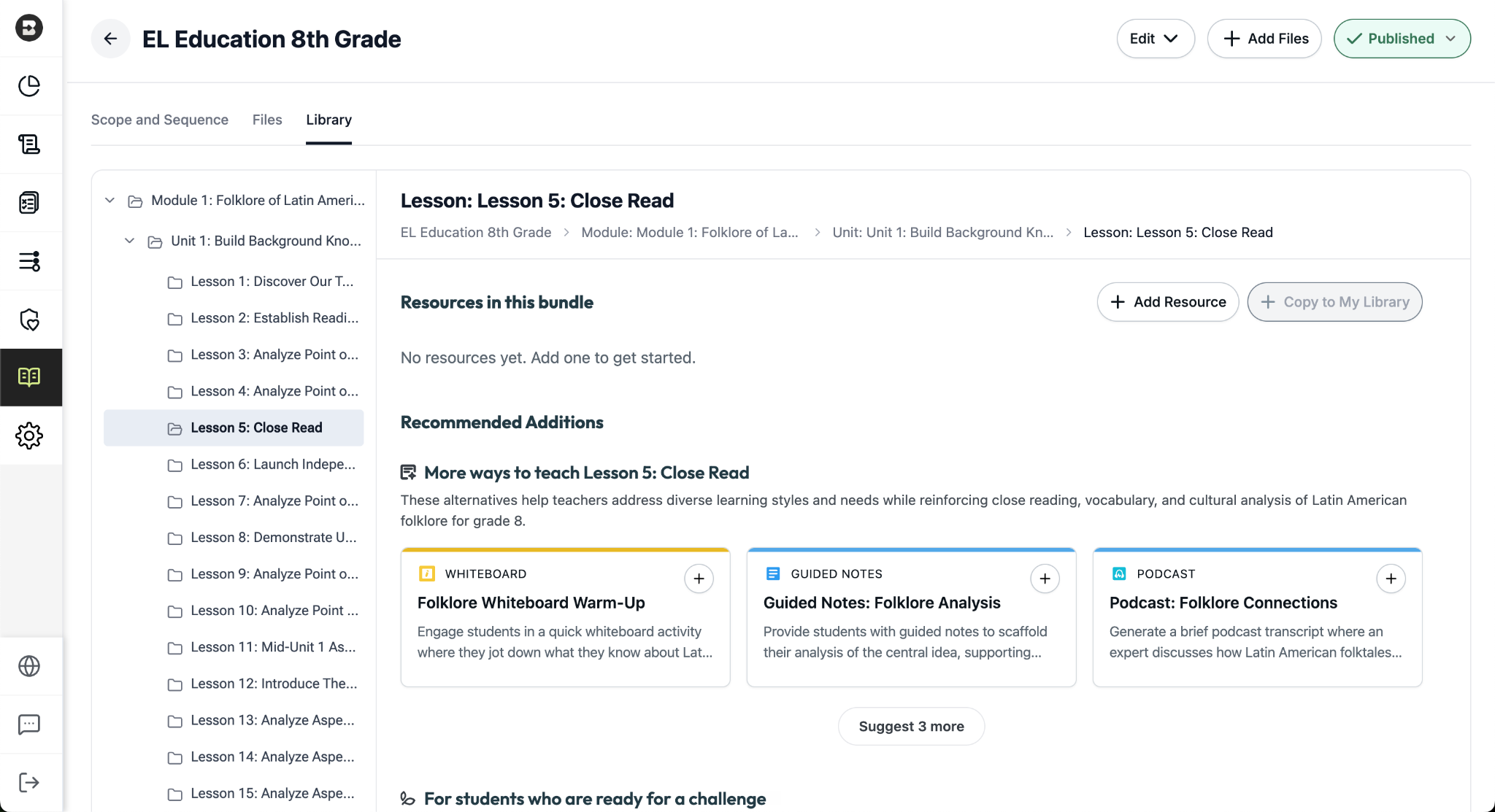
The District Library enables districts with the Intelligence plan to promote curriculum fidelity and help teachers spend less time looking for the right resource and more time delivering high-quality instruction.

Once a district leader has set their curriculum and instructional priorities using Curriculum Intelligence and District Guidance, they’re able to curate resource bundles for any course in their district. It’s like putting a perfectly organized library shelf at every teacher’s fingertips.

How District Libraries are organized:

  • One library per course: Leaders can create a resource library for each course that’s published in the Curriculum Courses tab of their Admin Portal.
  • One bundle per lesson: Leaders can put together a bundle for each lesson in a course (reminder: within a scope and sequence, lessons ladder up to units, which ladder up to modules, the largest components of a course).
  • One source of truth, easy access for teachers: Only leaders can edit or add to a District Library, but with just one click, teachers can create independent copies of a bundle in their personal resource libraries that they can customize and share with their students.

Building a resource bundle

There are several ways for leaders to add resources to a bundle. They can:

  • Choose from a pre-populated list of smart recommendations that are informed by the district’s curriculum and instructional priorities. These recommendations are organized into practical categories like “More ways to teach…” (for supporting diverse learning styles) and “For students who are ready for a challenge…”
  • Generate customized resources using the dozens of tools that are part of the Brisk extension.
  • Upload pre-existing, non-Brisk resources.

(Note: This new feature will become available in July 2026.)

Brisk x AI Platforms

May 18, 2026

You're already in ChatGPT, Gemini, Copilot, or Claude, typing a quick prompt to get something useful before tomorrow. Brisk is already there too, and one click turns that prompt into something you can hand out in class.

Prompt Booster

Start typing in any of these tools and a Brisk It button appears in the prompt field. Click it and your prompt becomes a detailed, instructionally rich version with grade-level framing, standards alignment, and scaffolding strategies built in — so what the AI gives back is classroom-ready from the start.

From there, choose what to do next:

  • Add to Prompt: drop the enhanced prompt back into your AI tool and run with it.
  • Create with Brisk: open Brisk Next with your enhanced prompt already loaded. Brisk surfaces aligned lesson plans, assessments, presentations, and more — all from that one prompt.

Take Action on Any AI Response

Already have a response you like? When the AI finishes generating, a Brisk button appears below it. Click to send it where you need it:

  • Send to Brisk on the web: push the response directly into Brisk on the web, with or without an additional prompt.
  • Send to extension: select Presentation, Quiz, Podcast, Tutor, or Create with Brisk to prefill the Brisk Extension. Customize, then create.

Wherever you're already prompting, Brisk works where you work. Learn more.